Password protect a Word document without sharing one password
The standard way to password protect a Word document is File, Info, Protect Document, Encrypt with Password. It works, but it gives you one file with one password. Send that file to six people and you have six people holding the same key, and no way to tell whose copy leaked if it turns up somewhere it should not.
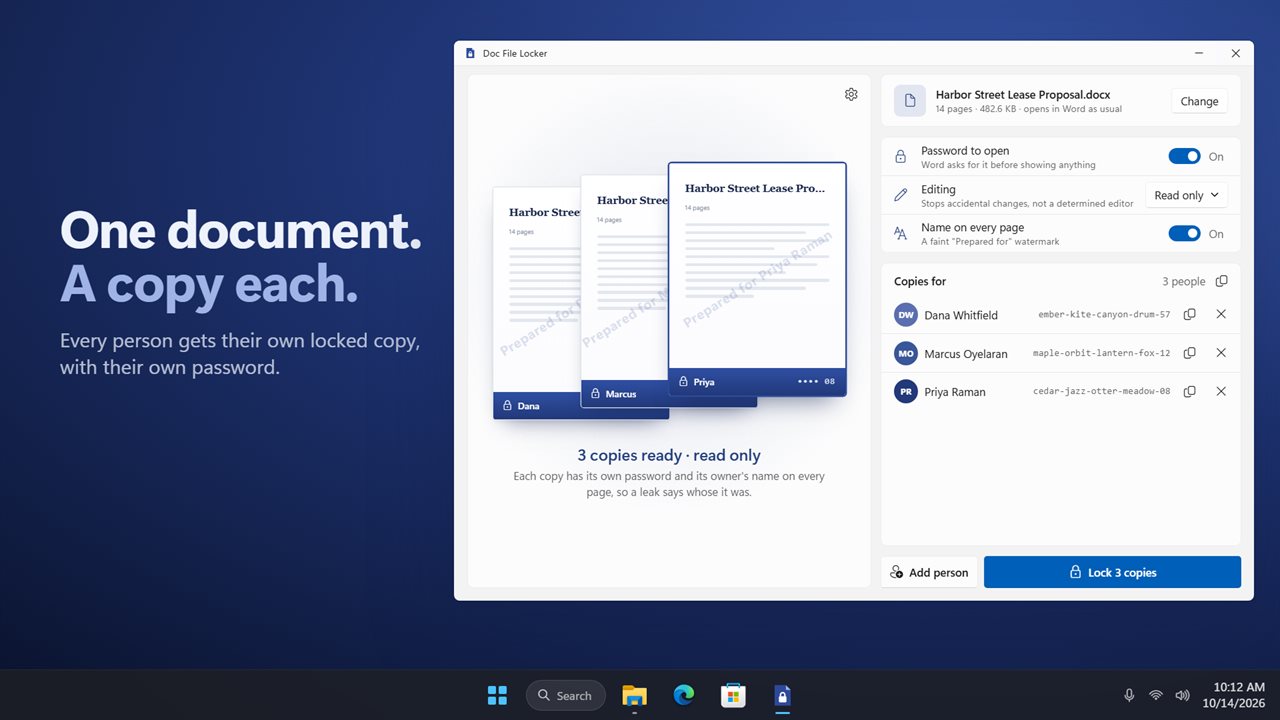
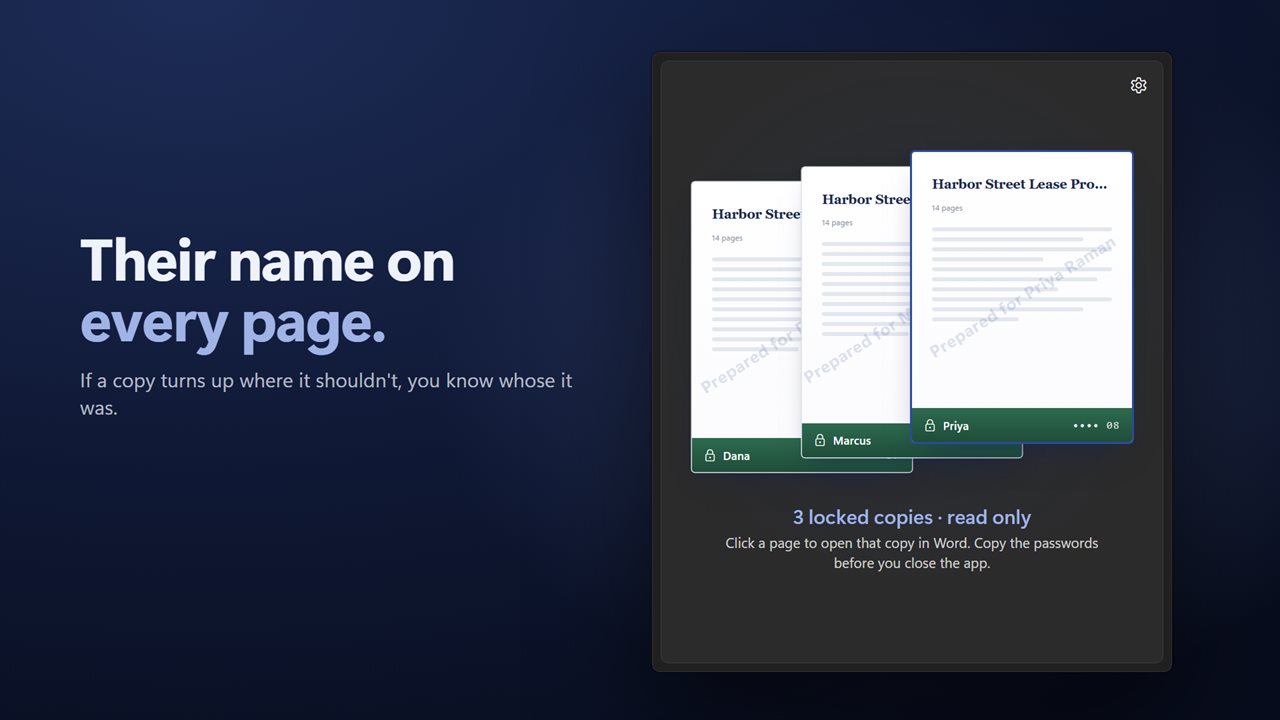
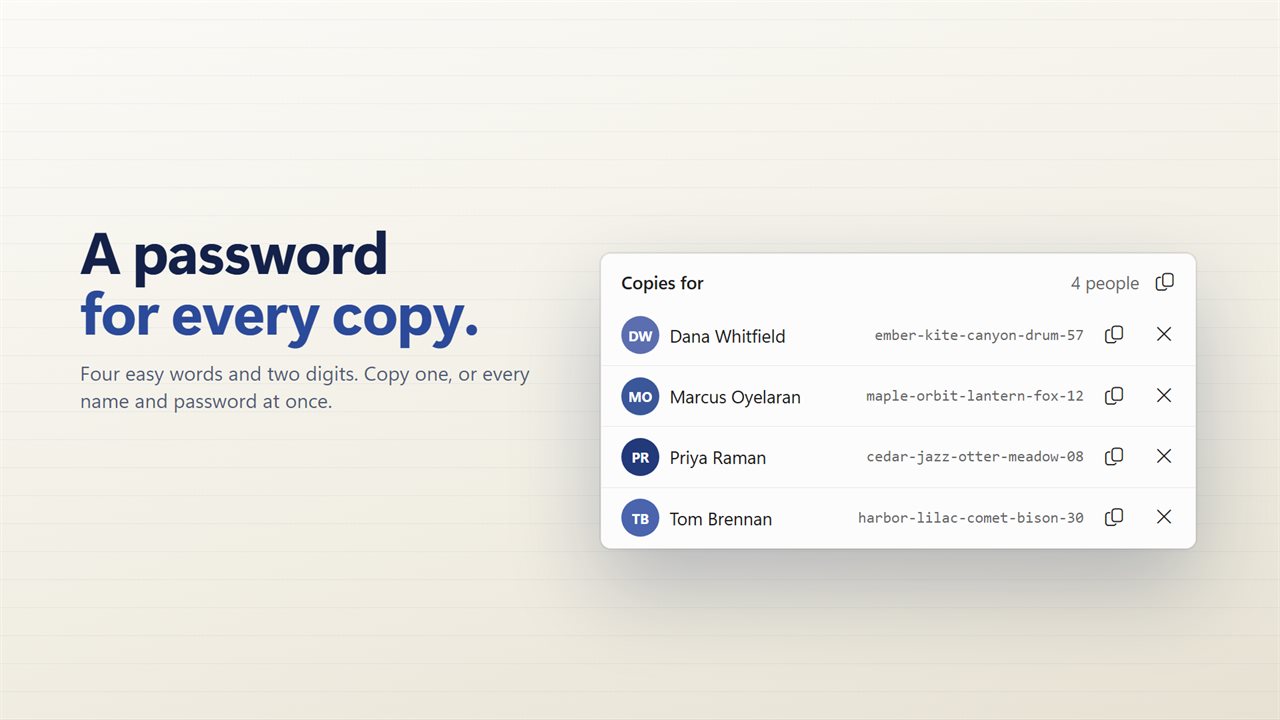
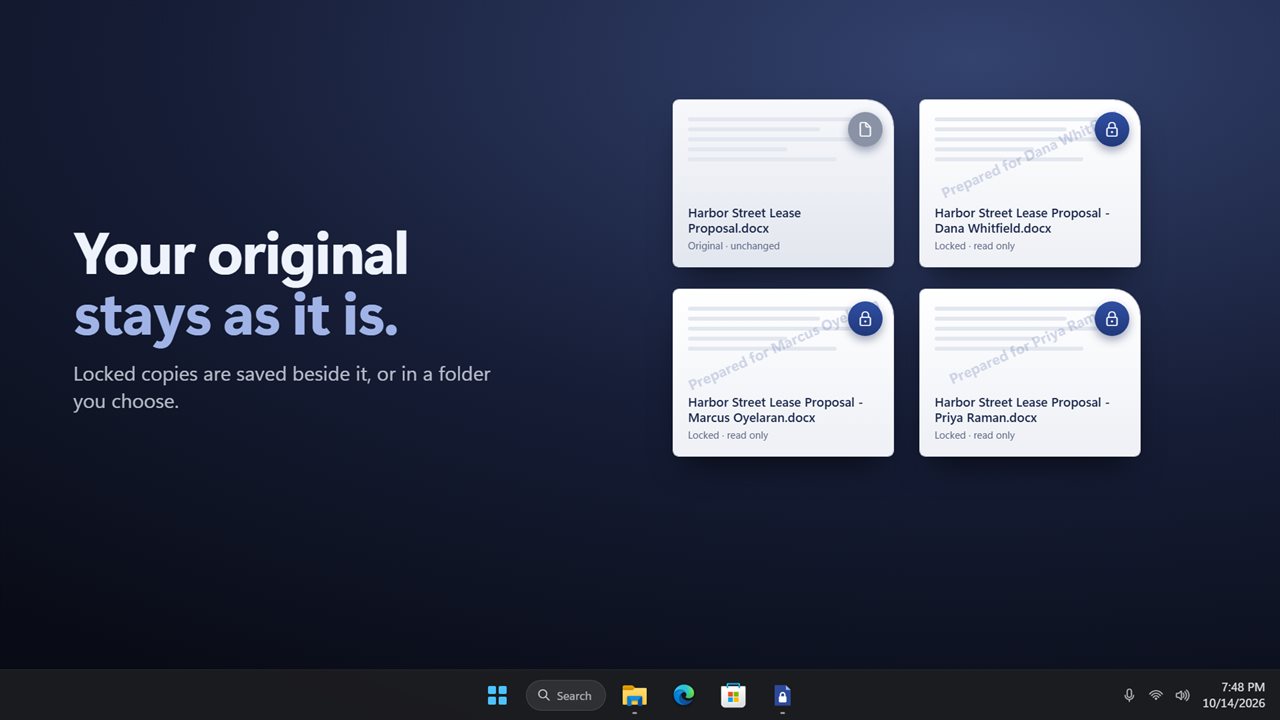
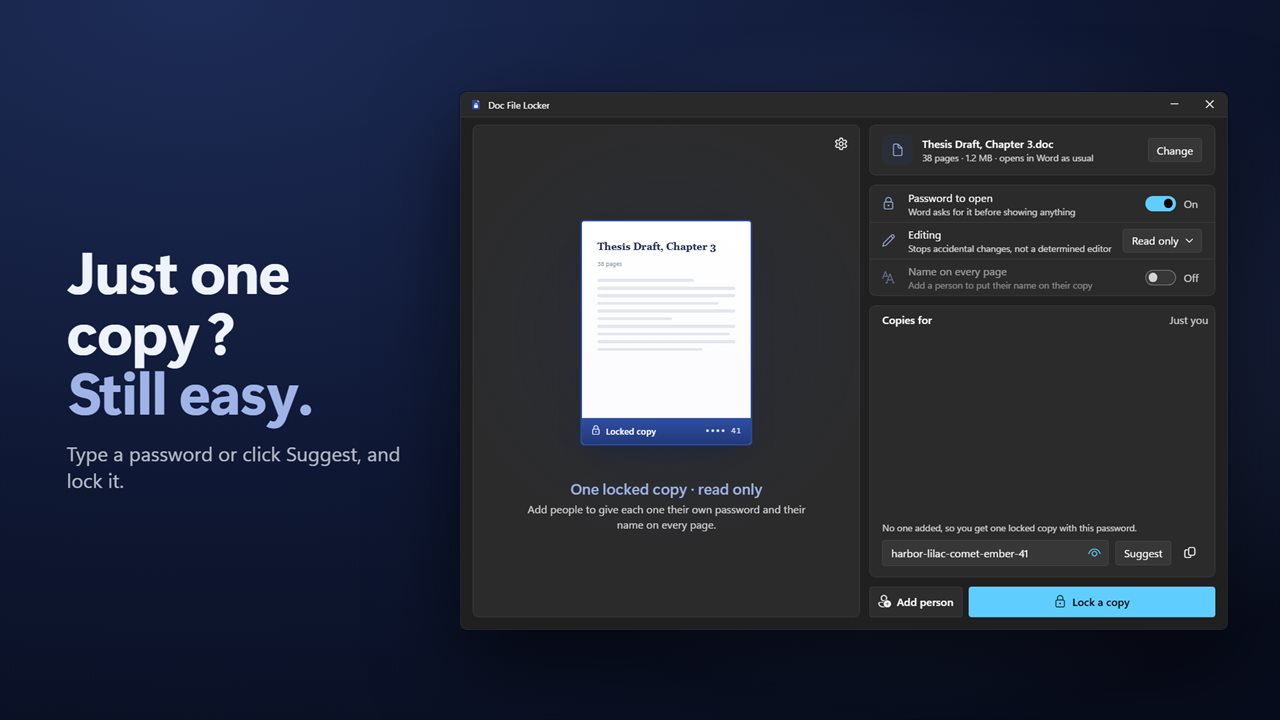
Doc File Locker starts from that problem. Pick a .docx or .doc, list the people under Copies for, and press Lock. Each person gets a copy named after the document and after them, encrypted with a password nobody else has. With Name on every page switched on, each copy also carries a faint Prepared for line naming its recipient.
If one copy turns up where it should not, the name on its pages says whose it was, and the other recipients' passwords are unaffected. You only have to reissue one file.
How to password protect a Word document for several people
Use Copy all when you are done to take the full list of names and passwords for your records, then store it somewhere other than the folder holding the files. Each passphrase is built to be read aloud, which makes a phone call the easiest way to hand it over.
- Select Choose and pick the document. If it already has a password, you are asked for it first.
- Type a name and select Add person for each recipient. Leave the list empty and you get a single copy for yourself, with a password you type or one from Suggest.
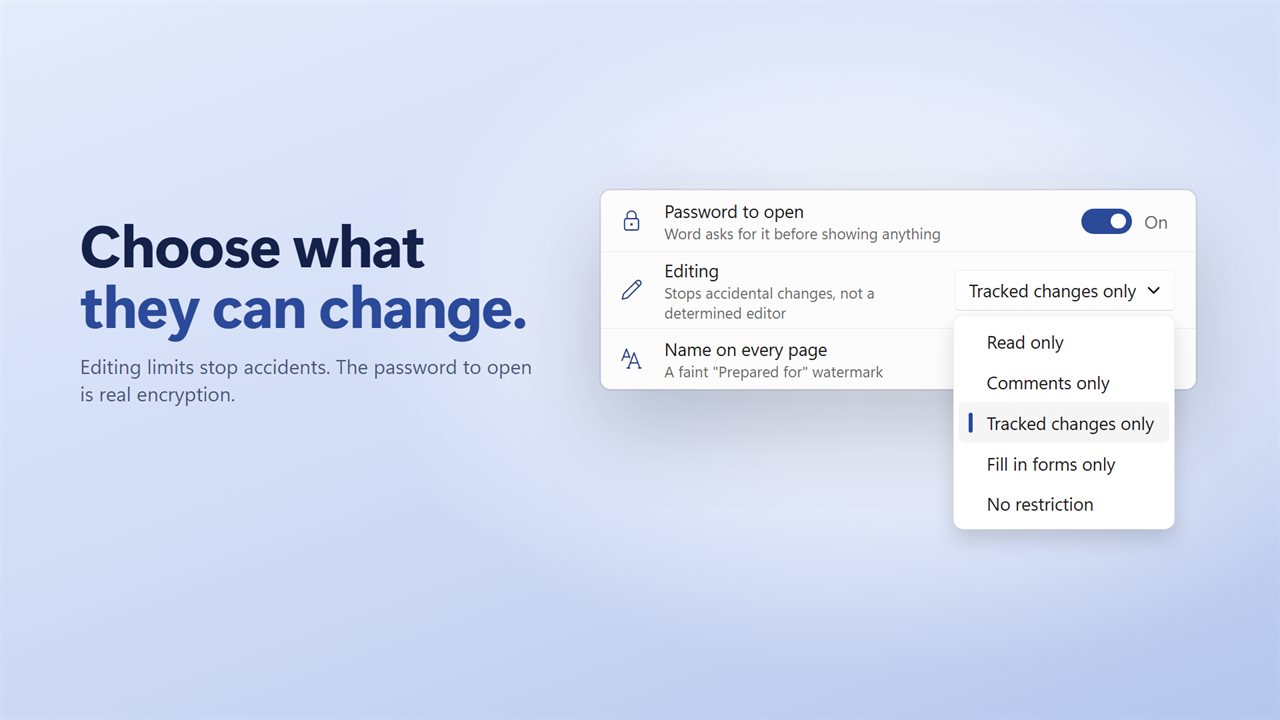
- Keep Password to open switched on. That is the part that encrypts the file.
- Pick a level under Editing if you want one, and decide whether Name on every page should be on. The watermark applies when the list has names in it.
- Select Lock. The pages stacked on the left become the finished copies; click one to open it.
How to make a Word document read only, or limit edits
Under Editing you can choose No restriction, Read only, Comments only, Tracked changes only or Fill in forms only. These are the same editing restrictions Word itself applies, and they are useful for keeping a contract or a form from being changed by accident.
Pick the level that matches what the reader should do. Comments only suits a draft out for review, Tracked changes only a contract under negotiation, and Fill in forms only a template where people should complete the blanks and nothing else. Pair any of them with Password to open when the content is confidential as well.
How to remove a password from a Word document
Open Settings and choose Remove a password, then pick the locked file and type its password. You get a plain copy to work on, and the protected file stays exactly as it was, so you can still send that one.
That is the whole recipe when you know the password. When you do not, no tool can help honestly: the password to open is real encryption, and the file cannot be read without it. Keep the list from Copy all somewhere safe for that reason.