EEvlarSoft

Keyboard Press Sound Effects

Turn the keyboard you already own into one that sounds like a typewriter, in your browser, your documents and your chats at the same time.

Buy for $2.99
One payment. No subscription.
14-day money-back guarantee.
3.5
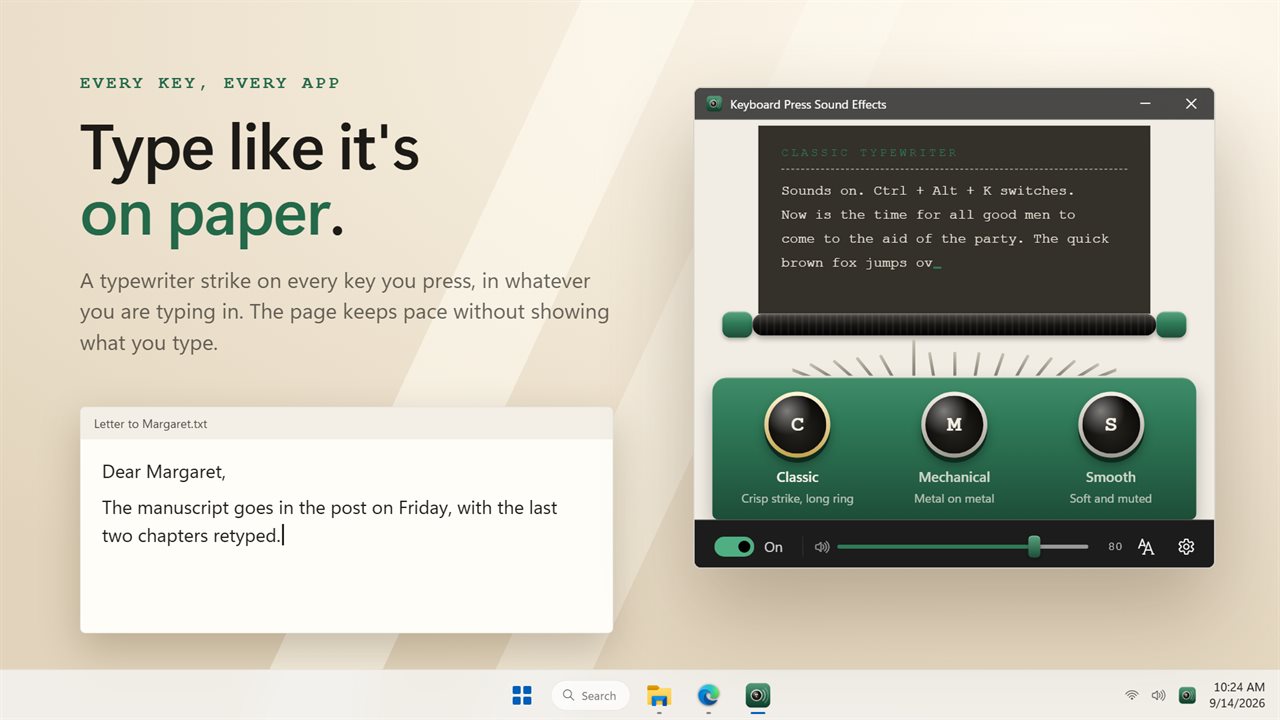
A typewriter strike on every key you press, in every app.
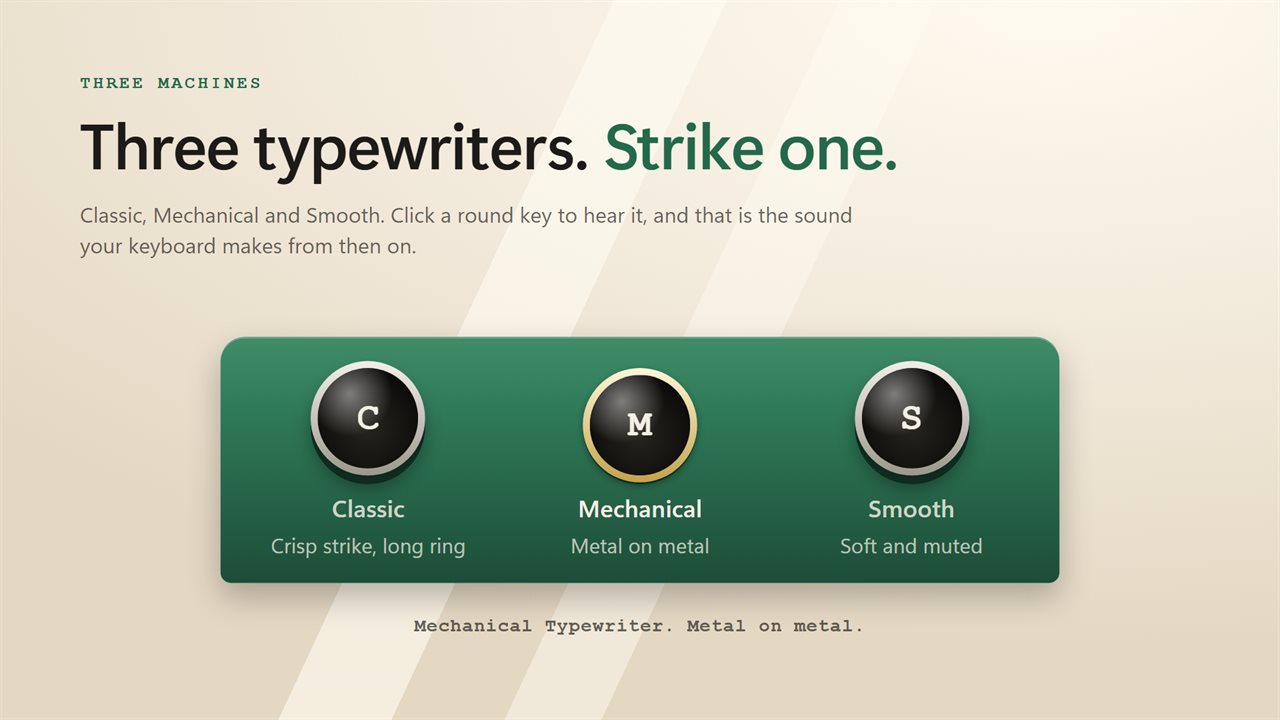
Three typewriters. Strike a key to hear each one.
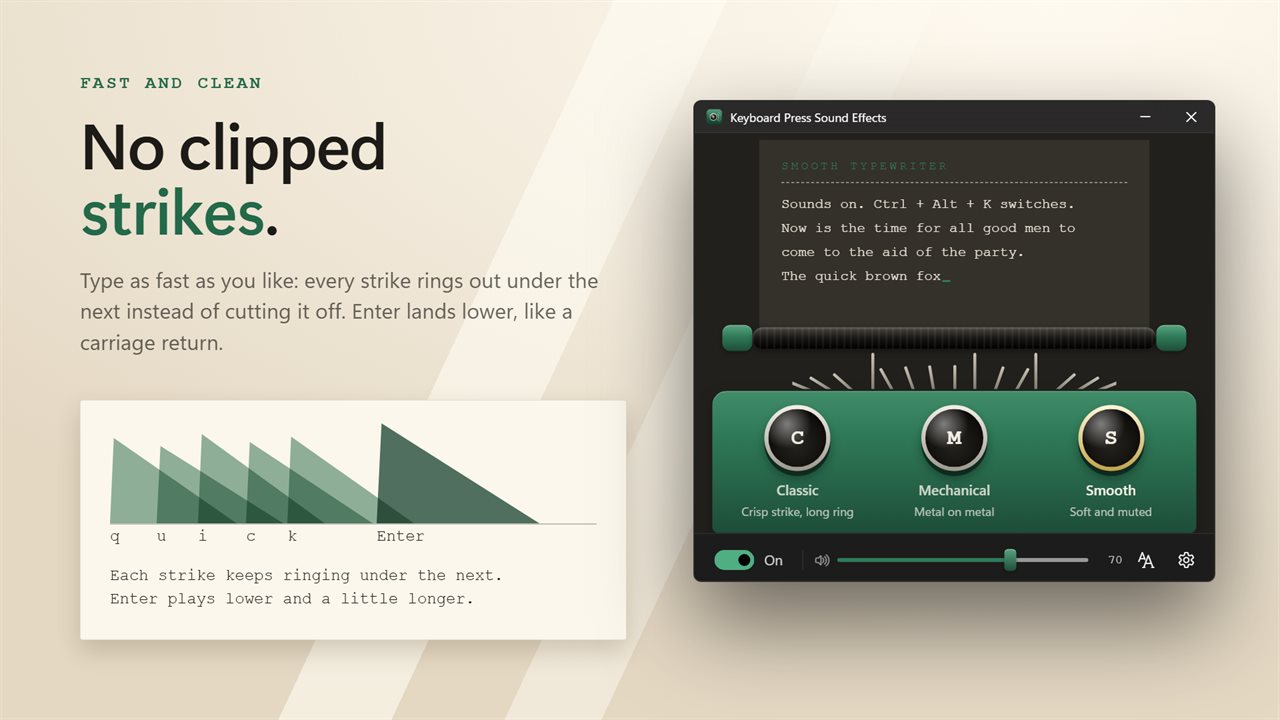
Fast typing overlaps cleanly, and Enter strikes like a carriage return.
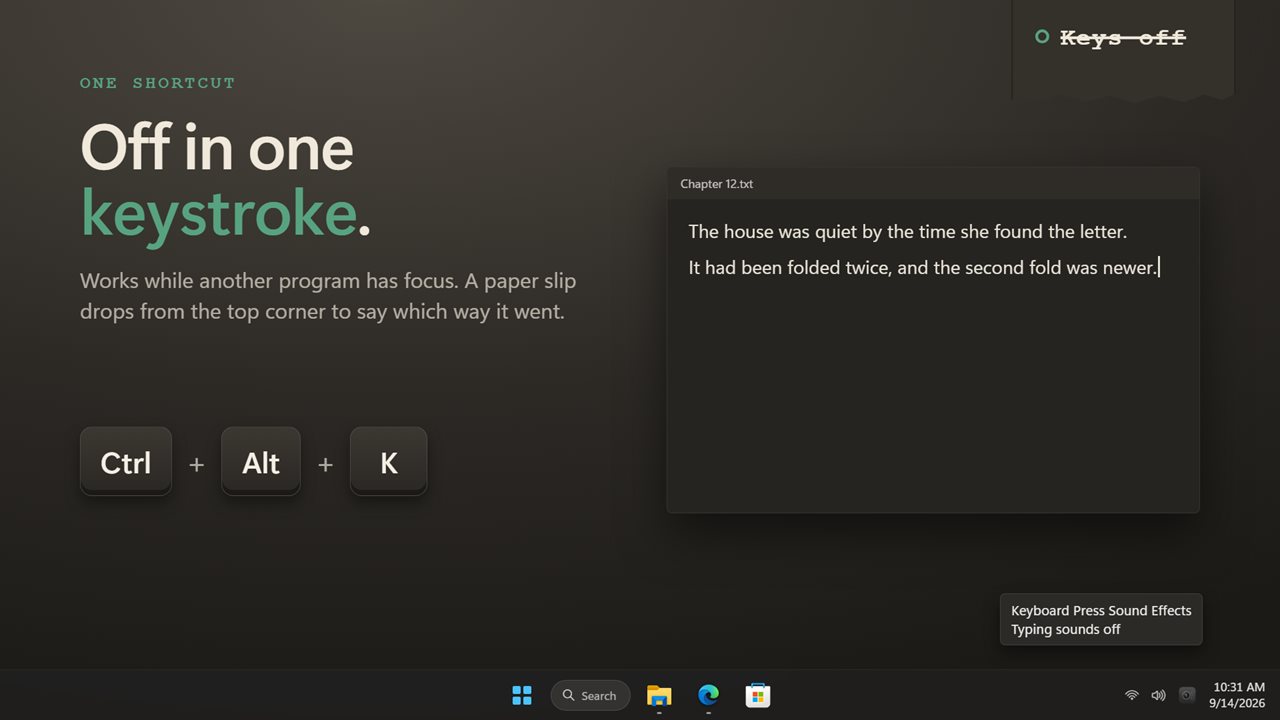
Turn the sounds off with one shortcut, and a slip says which way it went.
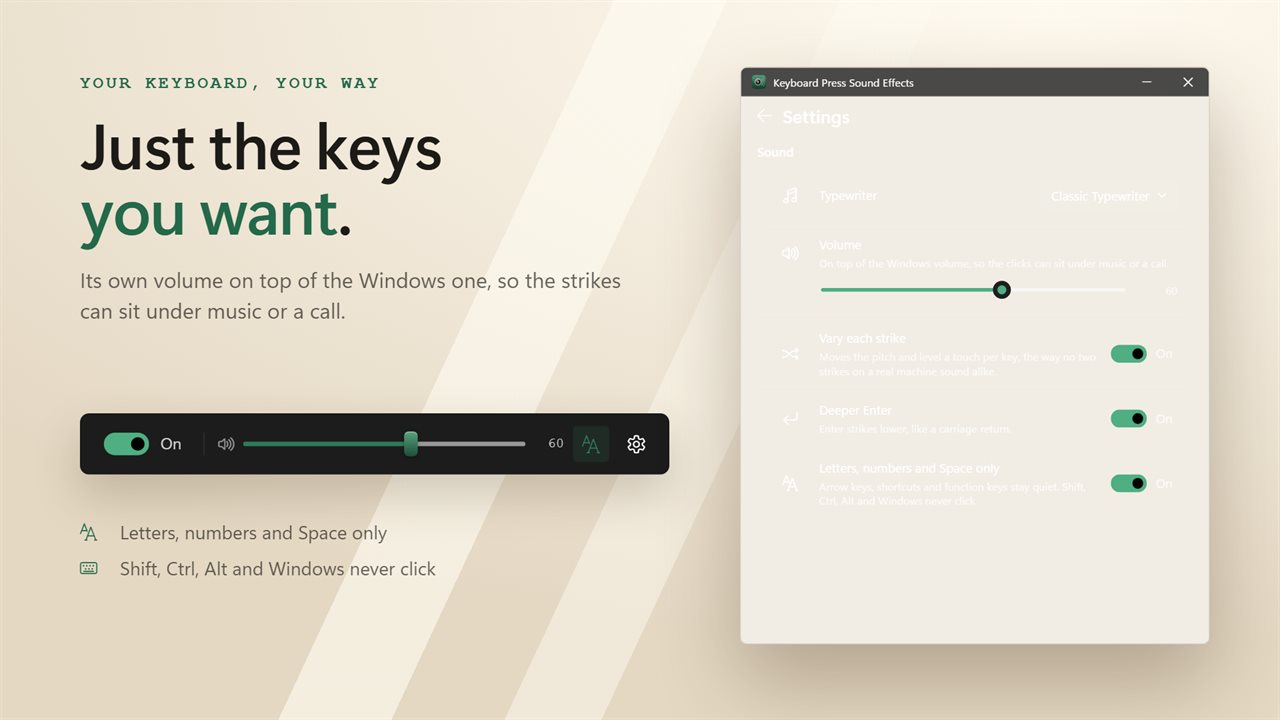
Its own volume, and only the keys you want.

A typewriter strike on every key you press, in every app.

190,000+downloads of EvlarSoft apps
Signed by EvlarSoftVerified US publisher
14-day money-backNo questions asked
Updates includedNo upgrade fees

Want a keyboard that sounds like a typewriter?

A keyboard that sounds like a typewriter does not have to be a new purchase. This app listens to the keys you press and answers each one with a typewriter strike through your speakers or headphones, whichever program has focus. Laptop keyboards, low-profile office boards and membrane keyboards all get the same audible feedback.

It reads which key went down, and nothing more. That is enough to choose the right sound: an ordinary strike for letters, a slightly lower one for Space, and a lower, heavier hit for Enter that stands in for the carriage return.

Closing the window does not stop it. The app keeps working from the notification area, so the clicks carry on while you write and the window stays out of your way.

Typewriter sound effects that keep up with fast typing

A recorded click replayed on every key quickly starts to sound like a machine gun. Here each press is mixed as its own voice, so a burst of fast keystrokes layers up naturally instead of cutting the previous strike off.

With Vary each strike on, every hit moves a few percent in pitch and level, so no two consecutive keys sound exactly alike. Switch it off if you prefer a perfectly uniform click. Deeper Enter is a separate switch for anyone who wants the return key to sound like every other key.

Classic, Mechanical or Smooth: pick a typewriter

The three bundled machines cover the range from bright to quiet. Classic Typewriter has a sharp strike with a ring behind it. Mechanical Typewriter is heavier and more metallic. Smooth Typewriter is damped and soft, the one to choose in a shared office or late at night.

The three keys at the top of the window are the selector. Press one to audition that machine and make it the active sound; the change applies straight away, with no restart.

How to stop keyboard sounds when typing gets serious

Sometimes you want silence, for a meeting, a recording or a colleague on the next desk. There are three ways to get it without quitting:

  • Press Ctrl+Alt+K, or whatever you record under Turn on or off with in Settings. It works while another program is in front.
  • Use the notification area icon, which also switches between the three typewriters.
  • Turn on Letters, numbers and Space only. Arrows, function keys, punctuation and Enter then go quiet, while normal words still click. The top-row digits and the number pad count as numbers.

Setting the volume and start-up behavior

The Volume slider in Settings runs from 0 to 100 and starts at 80. It scales the clicks only, so you can tuck them under music or a podcast without touching the Windows mixer.

Start with Windows launches the app straight into the notification area at sign-in. Start in the notification area keeps the window hidden on a manual launch too, and Theme offers Match Windows, Light or Dark.

What it does

  • Typewriter strikes on key presses in any app
  • Three bundled machinesClassic, Mechanical and Smooth Typewriter
  • Overlapping playback, so rapid keystrokes are never clipped
  • Optional per-strike variation in pitch and level
  • Space pitched slightly lower, and a deeper Enter
  • Shift, Ctrl, Alt, Windows and Caps Lock stay silent; a held key sounds once
  • Letters, numbers and Space only mode, number pad included
  • System-wide on/off shortcut, Ctrl+Alt+K by default, with an optional on-screen slip
  • Own 0 to 100 volume, independent of the Windows volume
  • Runs from the notification area, with an optional start at sign-in

Who uses it

Writers on a quiet laptop

A shallow laptop keyboard gives little sense of each keystroke. A soft typewriter strike in headphones restores the rhythm of a draft without disturbing anyone.

Fans of the typewriter feel

Get the clack and the heavy return of a vintage machine while keeping spell check, undo and a modern editor.

Typists who want confirmation

Hearing every key land makes a missed or doubled press easier to notice, which helps when practicing touch typing or entering numbers.

What's new in 2.0.4

  • Fixed: fast typing no longer clips or skips clicks
  • Fixed: the Classic sound started a tenth of a second late
  • Starting with Windows now uses the Windows startup setting, and an earlier choice is carried over
  • New: turn the sounds on or off, with a shortcut or from the notification area
  • New: a volume of its own
  • New: each strike varies slightly, and Enter strikes deeper
  • New: the number row counts as numbers in letters and numbers only
  • Redesigned window that follows the Windows light and dark themes

Questions

Anything else? Ask us

Does it play sounds when I type in other programs?

Yes. It hears the keyboard whichever window is in front, so keys click in your browser, documents and chat apps. Closing the window keeps it running in the notification area.

What sounds can I choose from?

Three typewriters: Classic, Mechanical and Smooth. You can strike a key in the window to hear each one. You cannot add your own sound files.

Do modifier keys or held keys click?

No. Shift, Ctrl, Alt, the Windows keys and Caps Lock never click, and a key held down clicks once rather than repeating. Turn on Letters, numbers and Space only to also silence arrows, function keys, Enter and punctuation.

Can I turn the sounds off quickly, for a call?

Yes. Press Ctrl+Alt+K, or a shortcut you choose in Settings, or use the notification area icon. A small slip appears at the top right of the screen you are working on to say whether sounds are on or off, and you can turn that slip off.

Can the clicks be quieter than my other audio?

Yes. It has its own volume slider from 0 to 100 that sits on top of the Windows volume, so you can lower the clicks without changing your music or calls.

Does it record what I type?

No. It only looks at which key was pressed to pick a sound, and the typing animation in the window shows a fixed sample sentence rather than your text.

Does the Enter key sound different from the other keys?

Yes, by default. Enter plays a lower strike like a carriage return. Turn off Deeper Enter in Settings to make it sound like any other key.

Can I make every keystroke sound exactly the same?

Yes. Turn off Vary each strike in Settings. Each press then plays at the same pitch and level instead of shifting slightly from key to key.

Does the number pad click in letters, numbers and Space only mode?

Yes. Both the digits above the letters and the number pad digits count as numbers, so they keep clicking while arrows, function keys and punctuation stay quiet.

Which versions of Windows does it run on?

Windows 10 (version 1809 or later) and Windows 11.

Is it a subscription?

No. Keyboard Press Sound Effects is a one-time purchase of $2.99, and updates are included.

How do I get it?

Buy it on this page and your license key arrives by email. If the button says Notify me, Keyboard Press Sound Effects is not on sale here yet; leave your email and we will tell you when it is.