Why Windows needs a volume limiter at all
Windows has no built-in volume limiter. Any program, a media key, a headset's wheel or a game that resets audio on launch can push the master level wherever it likes, and the only fix the Settings app offers is to drag it back yourself.
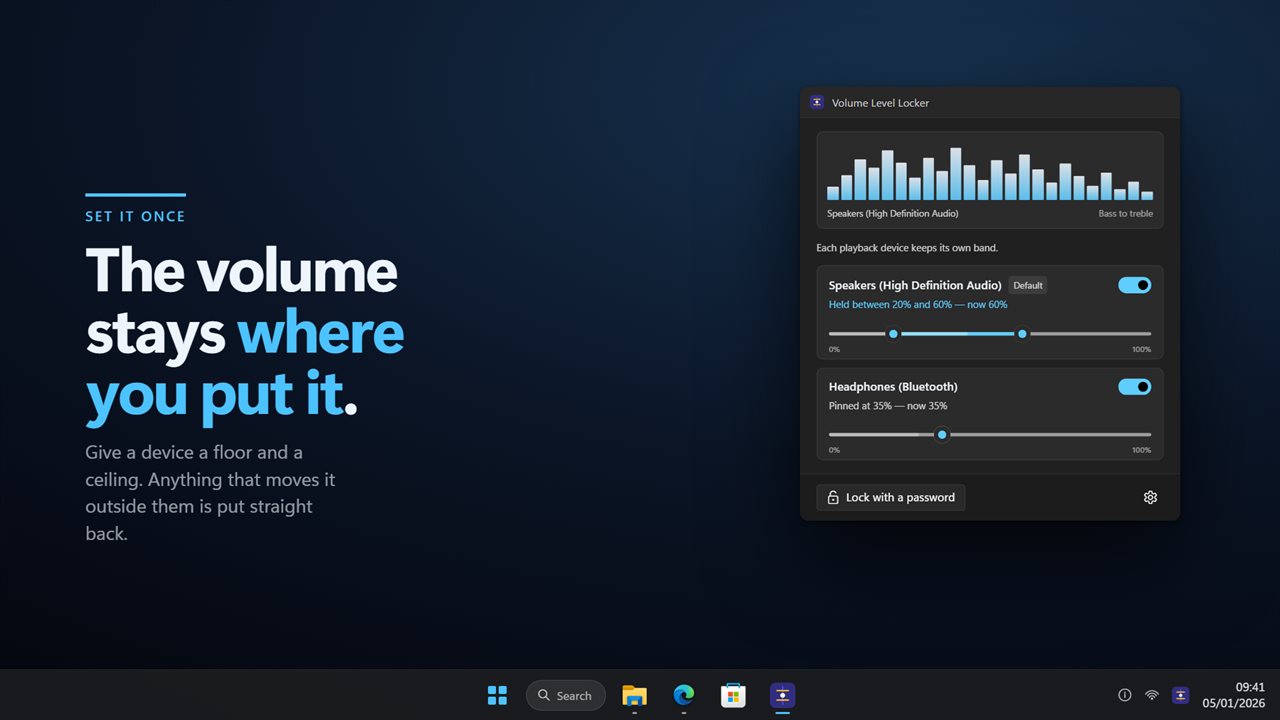
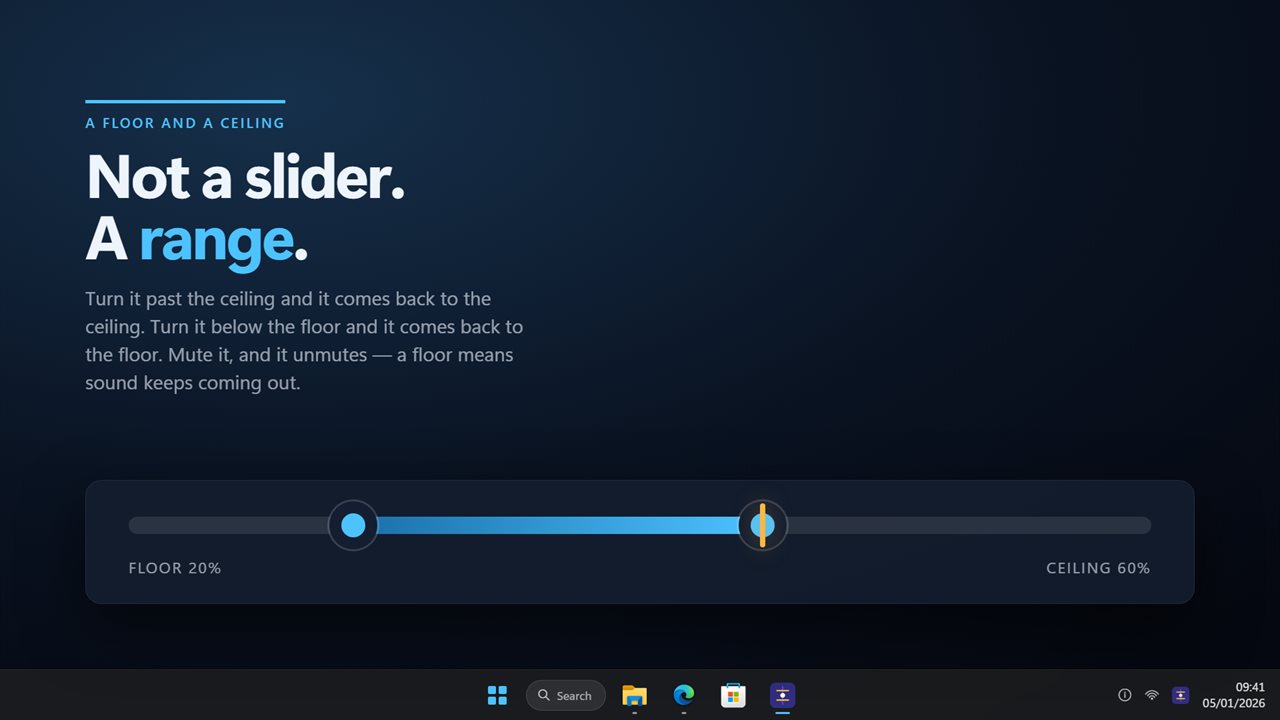
Volume Level Locker adds the rule Windows is missing. For each output you set a Minimum volume and a Maximum volume on one slider. While the volume sits between them, nothing happens. The moment it crosses either end, the app reacts to the change notification from Windows and returns it to the nearest limit.
Because it is a range rather than a single pinned number, you can still turn a video down a little or up a little. Want a fixed level instead? Drag both handles to the same spot.
How to lock volume on Windows 10 and 11
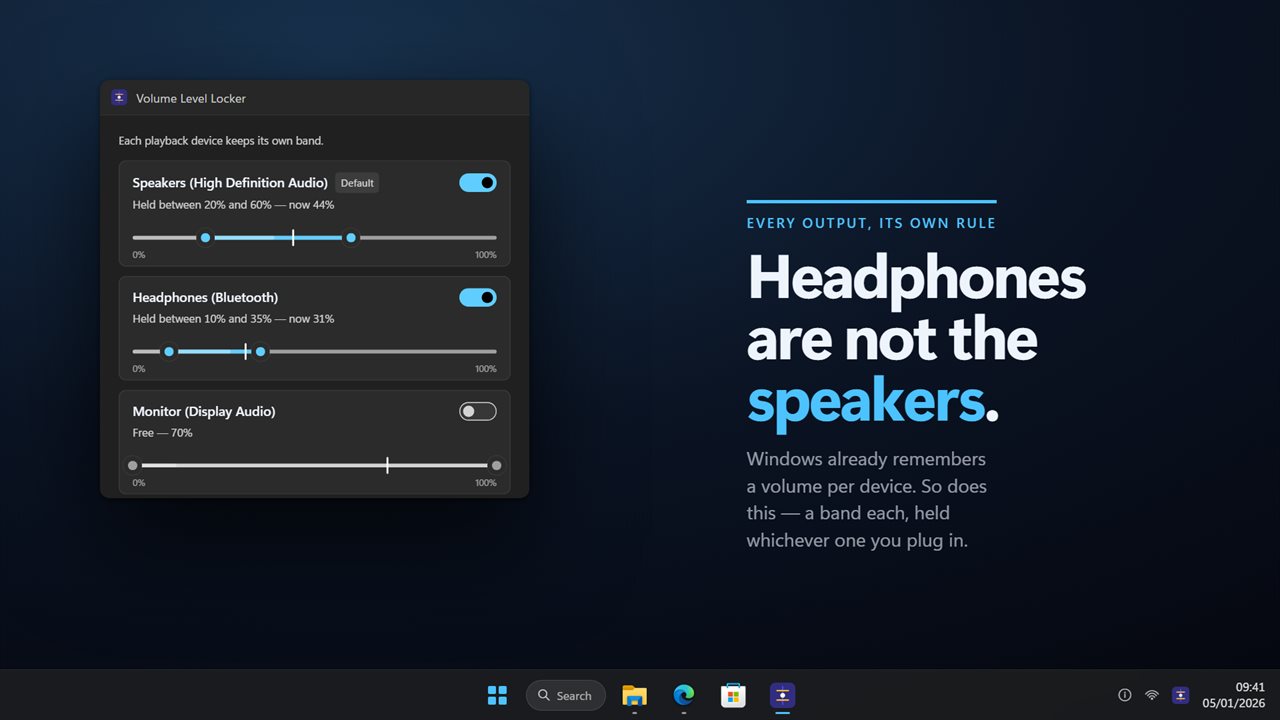
Every playback device Windows knows about gets its own row, with its own band and its own on/off switch.
- Find the device in the list: speakers, headphones, a monitor's HDMI audio, a USB dock.
- Drag the two ends of its rail to the lowest and highest level you will allow.
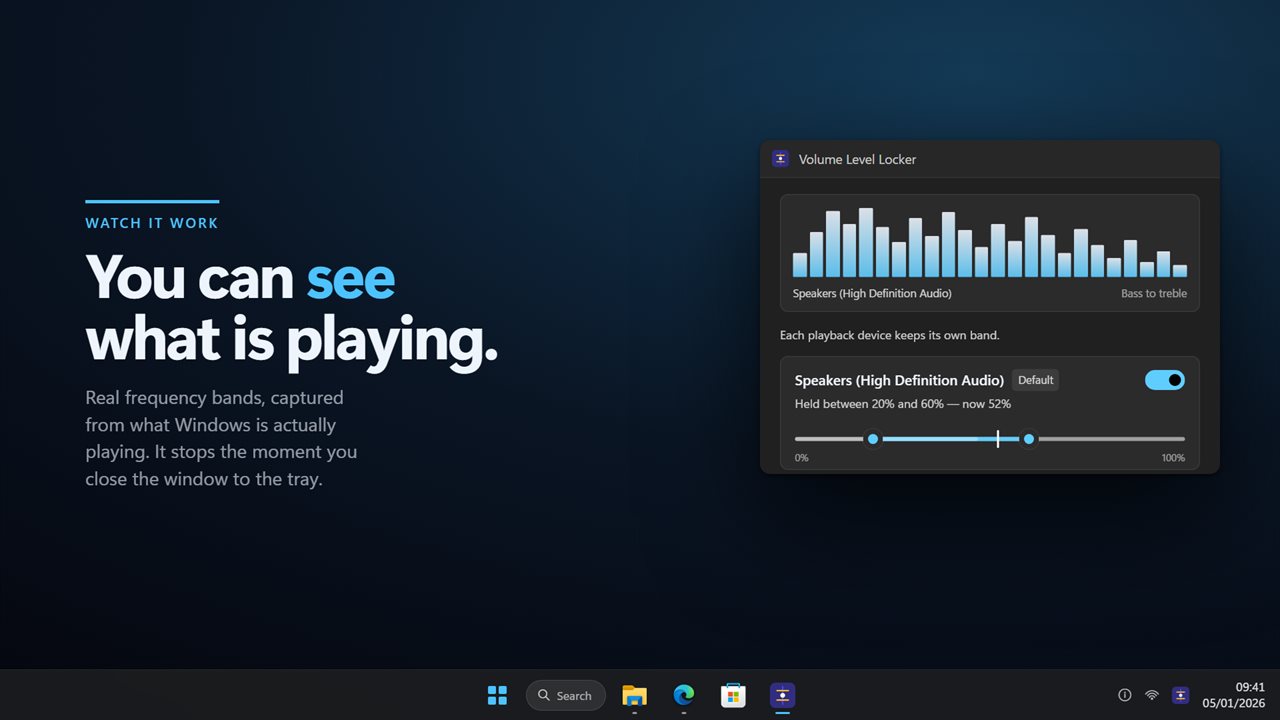
- Turn the device's switch on. Its row then reads, for example, Held between 20% and 60%, followed by the current level.
- Close the window. The app keeps running from the notification area, and can start with Windows, so the limit still applies after a reboot.
A headphone volume limiter that is separate from your speakers
A level that is fine on desk speakers can be painful in earbuds. Since each device keeps its own band, you might cap a child's headset at 40% while leaving the living-room speakers free, or hold a conference-room PC's output above a floor so nobody arrives to a silent meeting.
Plug a device in and its own band takes over. When the default output changes, the app follows it and keeps enforcing the others as well. Devices you never set a band for are left untouched.
Stop the volume changing by itself
If your volume keeps jumping to 100% after a driver update, or a game slams it to full on launch, the cause can take a long time to find. A band stops the symptom right away: whatever moves the master level, it lands back inside your limits as soon as Windows reports the change, not on the next pass of a timer.
The correction is audible by default, which turns the app into a diagnostic tool as well. Note what you were doing when the alert sounded and you have usually found the culprit.
Lock the volume settings with a password
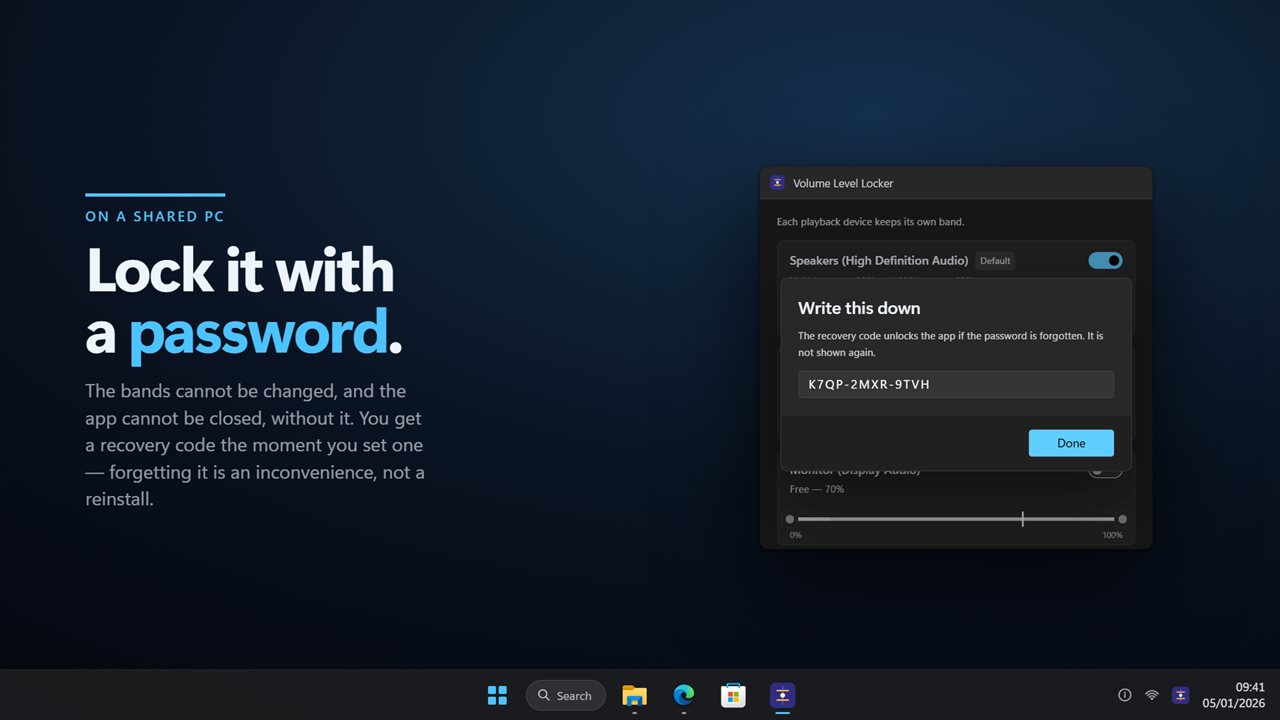
On a family or shared machine, choose Lock with a password. The password is kept only as a salted SHA-256 digest, so it is not sitting as readable text in a settings file for a curious teenager to open.
Write the recovery code down when it appears; it is shown only once.