EEvlarSoft

Audio Levels Monitor for Windows

A sound level meter that sits on the edge of your screen and shows exactly how loud your PC is playing, or how loud your microphone is hearing, in real decibels.

Buy for $3.99
One payment. No subscription.
14-day money-back guarantee.
4.4
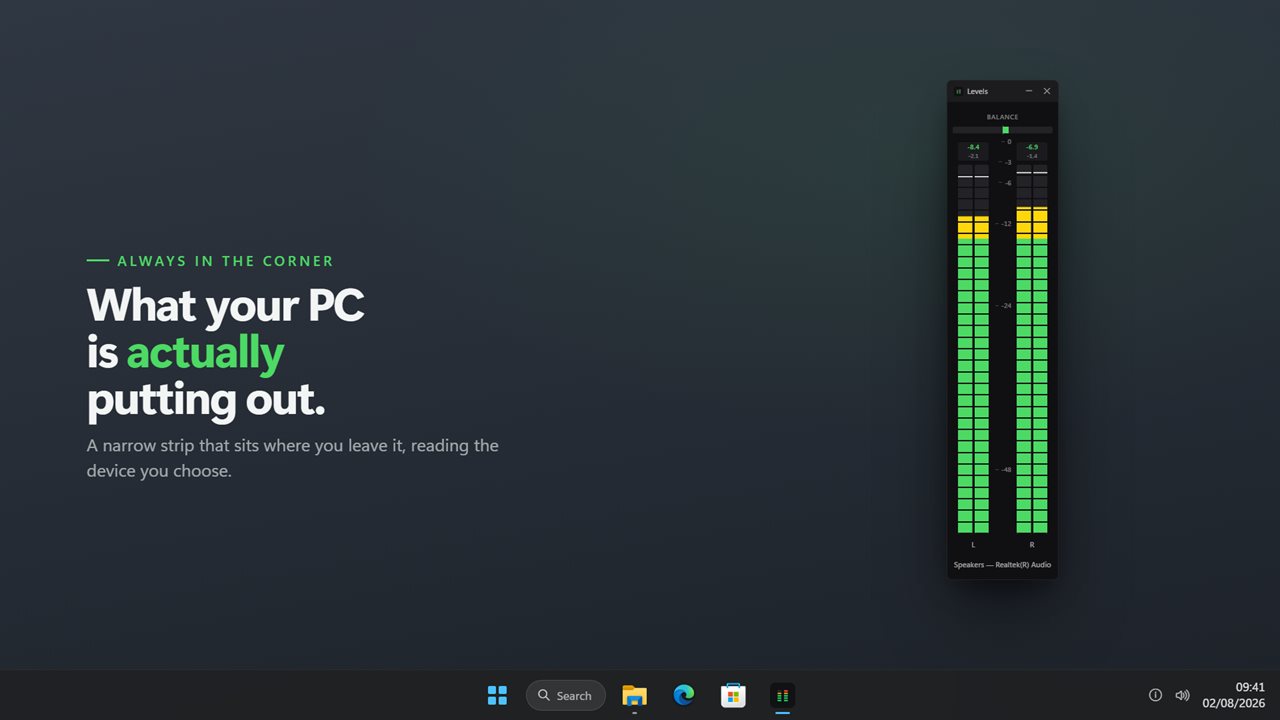
A narrow Audio Levels Monitor strip parked against the edge of the screen
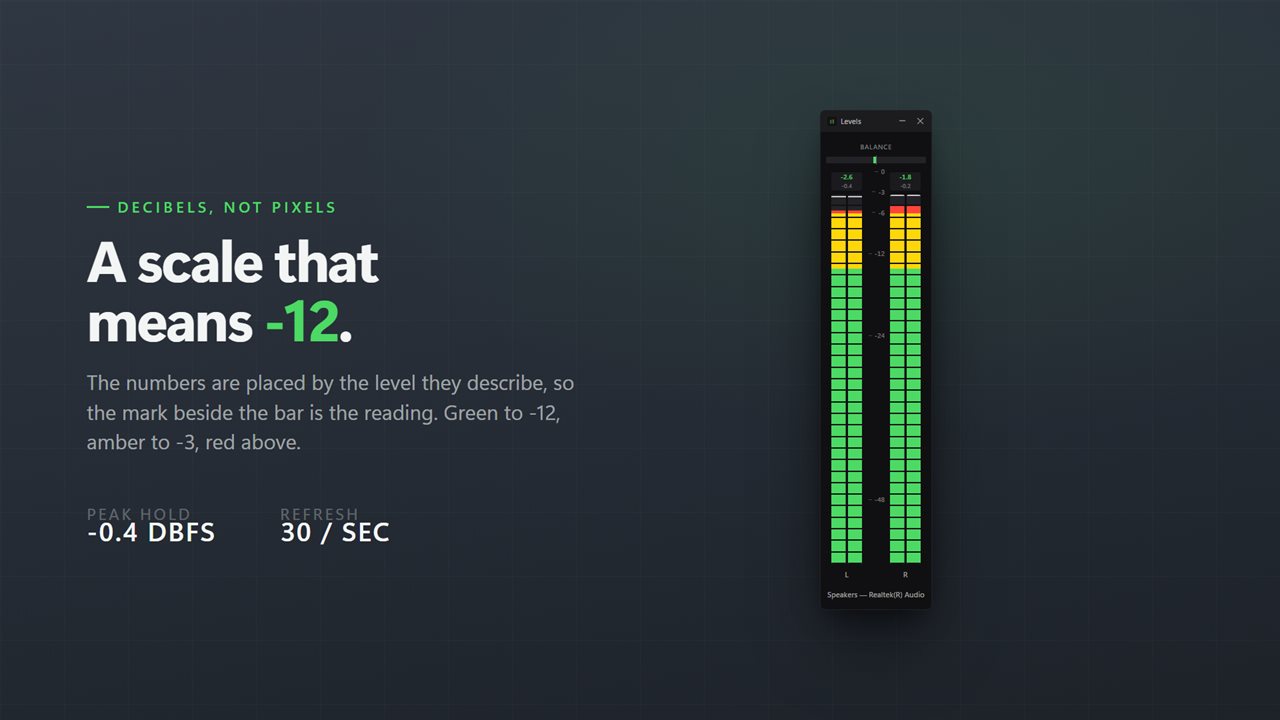
A real dBFS scale, marked at 0, -3, -6, -12, -24 and -48, with the colors at those levels.
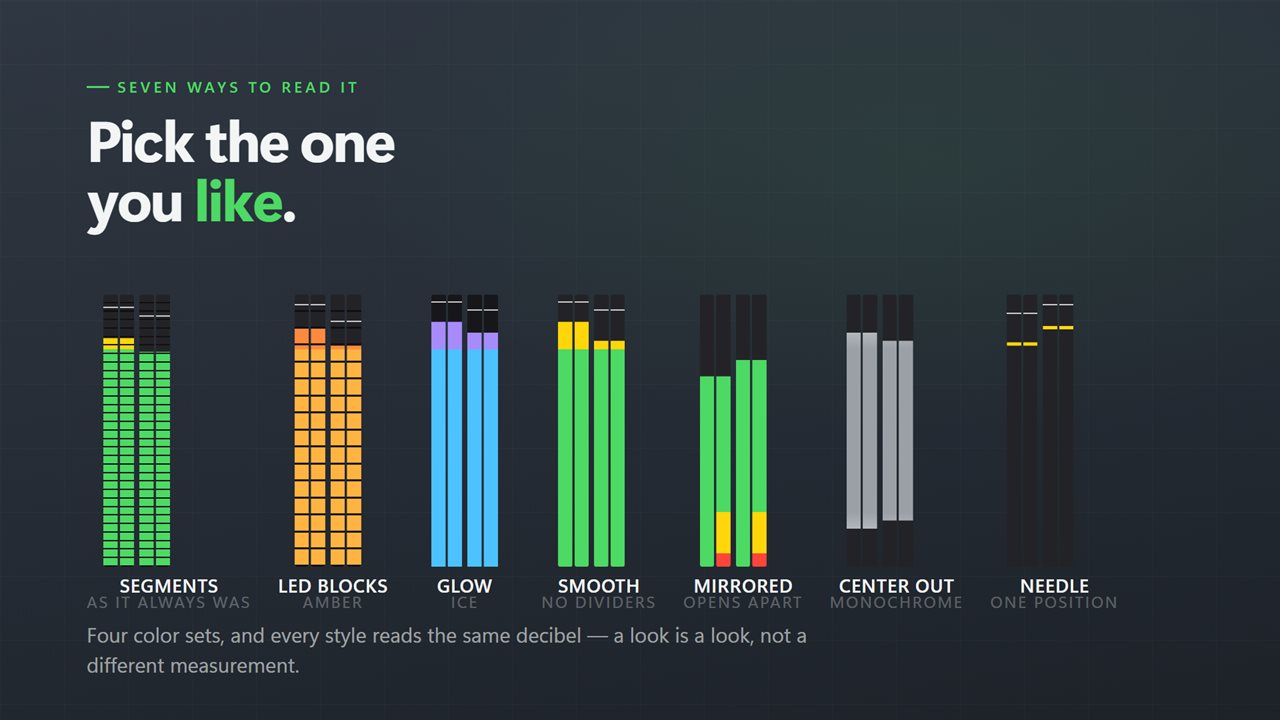
Seven meter styles — segments, LED blocks, smooth, glow, needle, center-out and mirrored.
Four color schemes, each turning yellow and then red at the levels that matter.
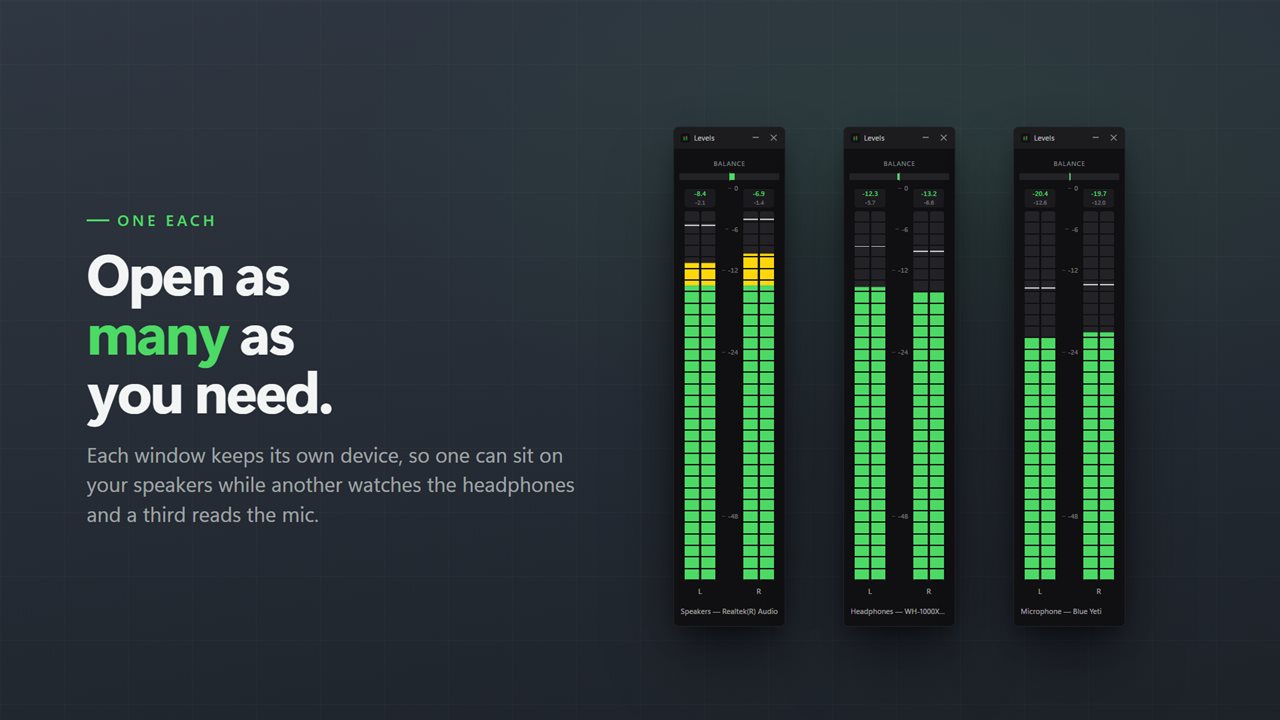
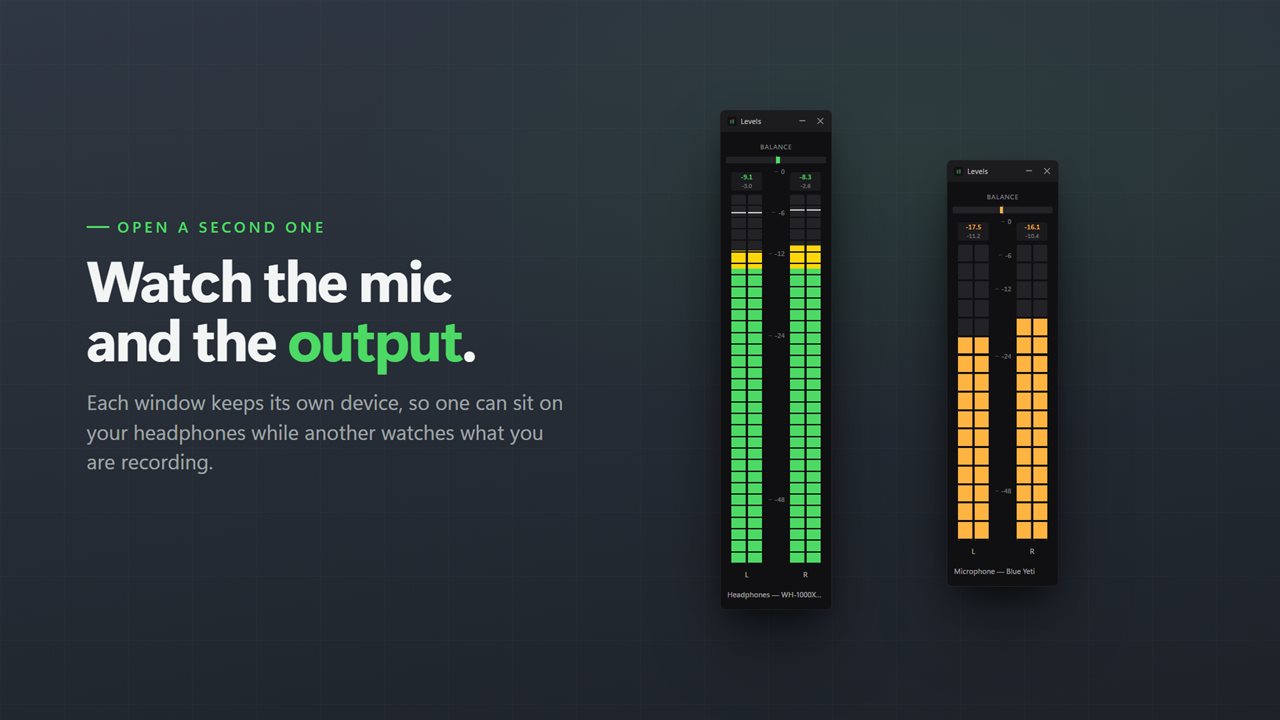
Point one window at your speakers and another at your microphone, and watch both at once.
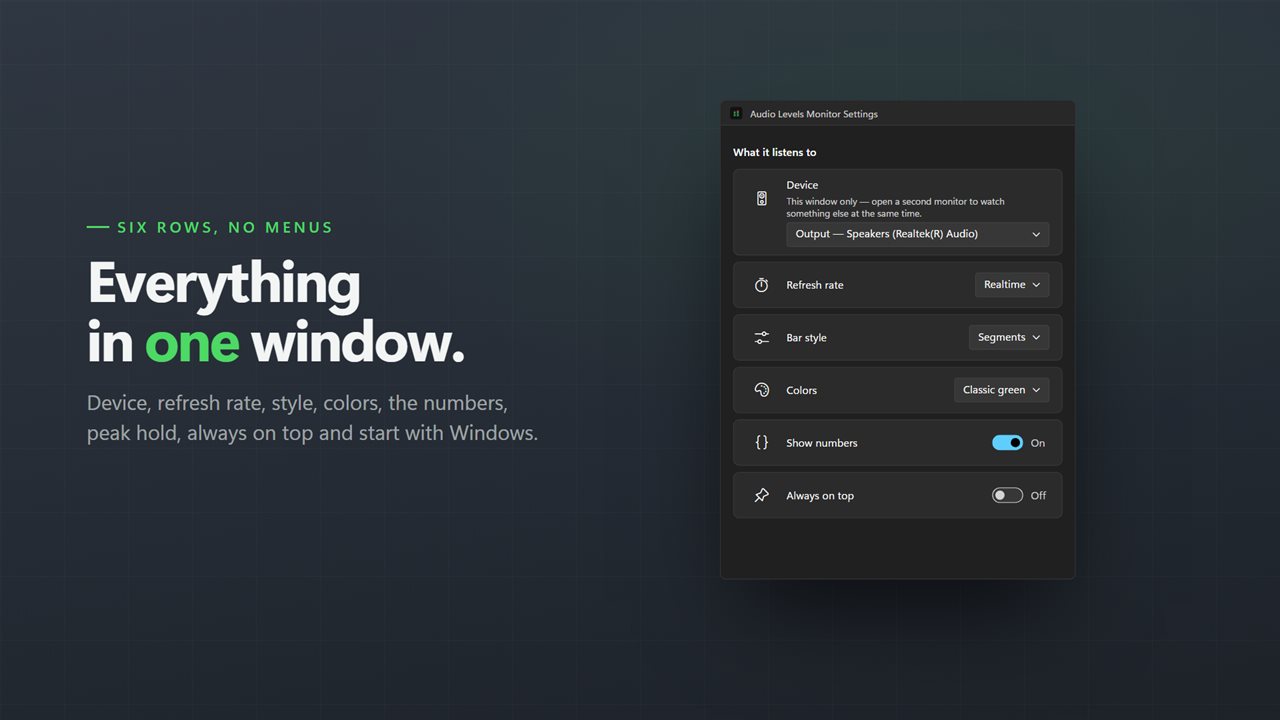
Every setting in one window, including which device this meter is listening to.

Audio Levels Monitor in 33 seconds

Audio Levels Monitor trailer
190,000+downloads of EvlarSoft apps
Signed by EvlarSoftVerified US publisher
14-day money-backNo questions asked
Updates includedNo upgrade fees
0 · -3 · -6 · -12 · -24 · -48

Readings you can trust

Marked in dBFS, the scale audio software uses, so -12 on the meter is -12 in your recorder or editor.

Mono · Stereo · 5.1

Every channel, separately

See a left channel that is quieter than the right, or a center channel that never moves, before your audience hears it.

Output · Input · Both

Mic and speakers at once

One meter per window, as many windows as you need: your voice in one, the game or call in another.

How loud is too loud?

Digital audio has a hard ceiling, 0 dBFS. Anything that tries to go past it is cut off, and you hear that as crackle or distortion. Every other reading counts down from there, so -6 means comfortably under the ceiling and -48 is barely there.

Windows' own volume slider only tells you where the slider is, not how loud the sound actually is. A meter shows the signal itself, so you can see a recording peaking too close to 0, a quiet microphone sitting down near -40, or one side of a stereo track louder than the other.

A useful habit: keep speech and music peaking in the green and amber, and treat red as a warning to turn something down.

How to set up an audio levels monitor on Windows

Audio Levels Monitor opens as a narrow strip with one bar per channel. A few settings decide what it watches and how it looks, and after that it stays where you put it.

  • Open settings and pick the device: any playback device, such as speakers or headphones, or any recording device, such as a microphone.
  • Choose a meter style and one of the four color schemes: classic green, amber, ice or monochrome.
  • Turn the numbers on if you want the exact level and the loudest peak since your last reset, or leave them off for bars only.
  • Drag the strip against the edge of a screen and turn on always-on-top from the right-click menu. It opens there again next time.
  • Right-click and choose reset peaks before each new take or test, so the maximum you read belongs to that take.

A Windows decibel meter that reads dBFS

When you look for a decibel meter for Windows, it helps to know which decibels you need. Audio Levels Monitor reads dBFS, the level of the digital signal measured down from 0, the ceiling. The scale is marked at 0, -3, -6, -12, -24 and -48, the same scale your recorder or editor uses.

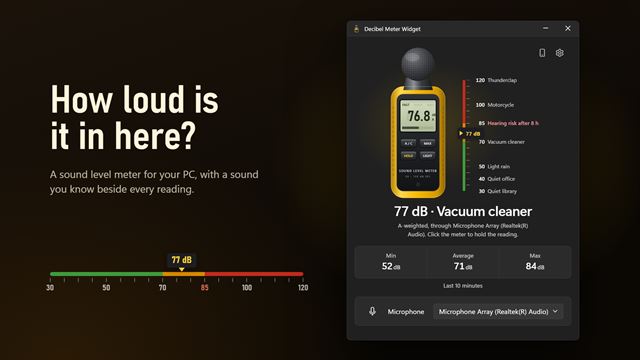
dBFS tells you how close a signal is to clipping, not how loud a room is to the people in it. A microphone meter at -20 means the signal has room to spare, whatever the room actually measures. If what you want is the loudness of the room itself, EvlarSoft's Decibel Meter is the tool for that.

Watching a microphone and the output at the same time

Each window watches its own device, and you can open a second one. Put your microphone in one window and your headphones or speakers in the other, and you can see your voice and the game, call or backing track side by side while you record or stream.

Peak hold matters most here. A cough, a plosive or a sudden effect is over before your eye catches a moving bar, but the peak line stays at the loudest moment and then settles back. With the numbers on, the loudest peak since your last reset stays on screen until you clear it.

Reading stereo balance and surround channels

The meter takes its channel count from the device, so a stereo device shows two bars and a 5.1 device shows six. You see each channel on its own rather than a single bar that hides which side is doing the work.

Under a stereo meter there is a balance indicator, worked out from the difference between the left and right channels in dB. It shows you a track or a microphone that leans to one side, and a 5.1 setup makes it plain when one channel stays still while the rest move.

Audio Levels Monitor features

  • A real dBFS scaleMarks at 0, -3, -6, -12, -24 and -48, with colors that sit at those levels.
  • One bar per channelOne for mono, two for stereo and six for a 5.1 device.
  • Playback and recording devicesWatch speakers, headphones or a microphone.
  • More than one windowEach window picks its own device, so you can watch an input and an output together.
  • Seven meter stylesSegments, LED blocks, smooth, glow, needle, center-out and mirrored.
  • Four color schemesClassic green, amber, ice and monochrome.
  • Peak holdA line stays at the loudest moment and then settles back down.
  • Exact numbersThe current level and the loudest peak since you last reset it.
  • A narrow stripParks at a screen edge, stays on top and reopens where you left it.
  • Read onlyIt measures the sound and does nothing to it, with no account and nothing leaving your PC.

What people use it for

Evening out presentations

Matching the sound of videos inside PowerPoint so no clip blasts the room.

Setting a preamp or interface

Finding the gain where the signal is strong but never distorts.

Checking a microphone

Seeing that your voice is actually reaching the PC, and how loud, before a call or recording.

What people say

★★★★★

“It is very accurate. And the best feature, you can select what source you would like to have as an output versus an input.”

Wayne, US
★★★★★

“Works well in Windows 11 for all audio sources, worth the purchase. Well designed.”

Michael, AU
★★★★★

“Good value level meter, looks good on my PC and easy to use interface.”

Kenny, GB

What's new in 2.0

  • True per-channel metering: two bars for stereo, six for 5.1
  • A real dBFS scale, and seven styles in four color schemes
  • Any recording device, and a second window on a different device
  • A much narrower window that opens where you left it, even on a second monitor
  • Peak hold that settles, a resettable maximum, a balance indicator and start with Windows

Questions

Anything else? Ask us

Does it change my sound?

No. It is a meter, not a mixer. It reads the level and leaves the audio alone.

Can it show my microphone?

Yes. Any recording device works, and a second window can watch an output at the same time.

Does it work with 5.1 surround?

Yes. A 5.1 device shows six bars, one per channel.

Can it start with Windows?

Yes, through Windows' own Startup page, and it reopens where you left it.

Does it need the internet or an account?

No. Nothing leaves your PC.

Which versions of Windows does it run on?

Windows 10 (version 1809 or later) and Windows 11.

Is it a subscription?

No. Audio Levels Monitor is a one-time purchase of $3.99, and updates are included.

How do I get it?

Buy it on this page and your license key arrives by email. If the button says Notify me, Audio Levels Monitor is not on sale here yet; leave your email and we will tell you when it is.

Prefer widgets? The Audio Meter widget on WidgetSpark does a similar job, alongside over 100 other desktop widgets in one app.

More audio tools from EvlarSoft