A tone checker for the message you are about to send
Written words lose the voice that would soften them in person. A quick “We need this fixed by Friday” can land as a threat, and a tired reply full of “obviously” reads as contempt. A tone checker gives you the reader's first impression while there is still time to change it.
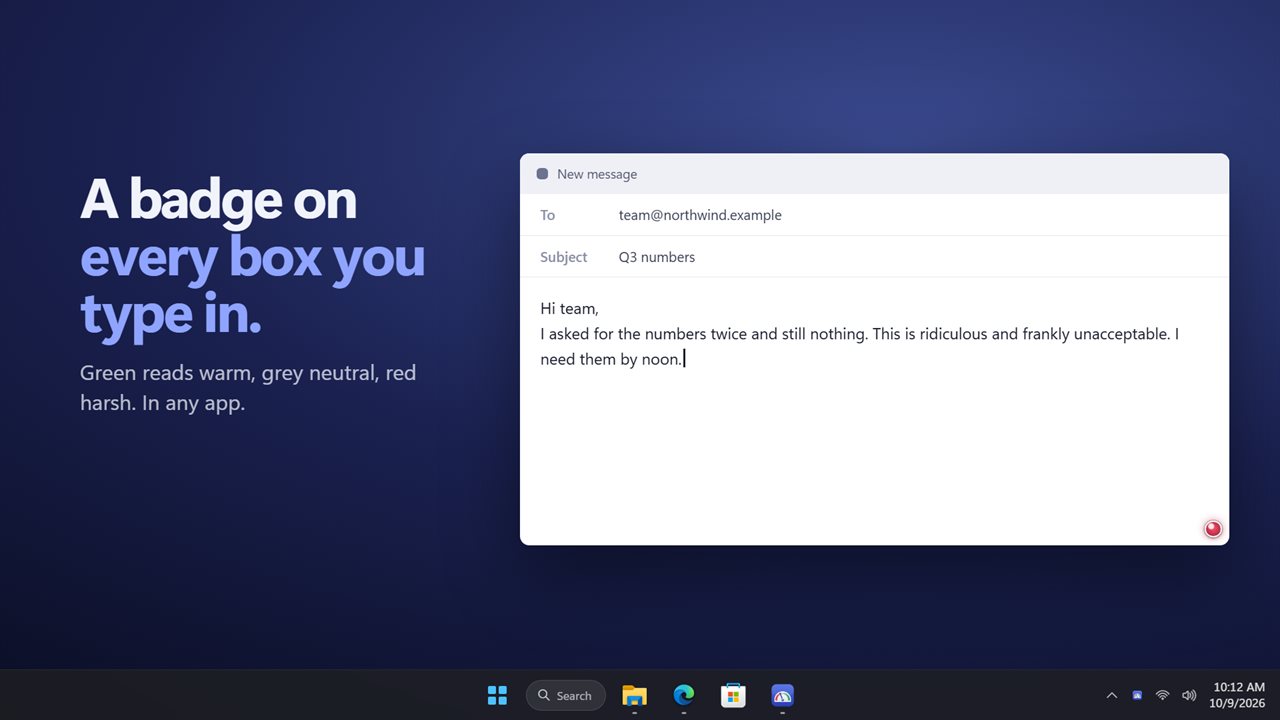
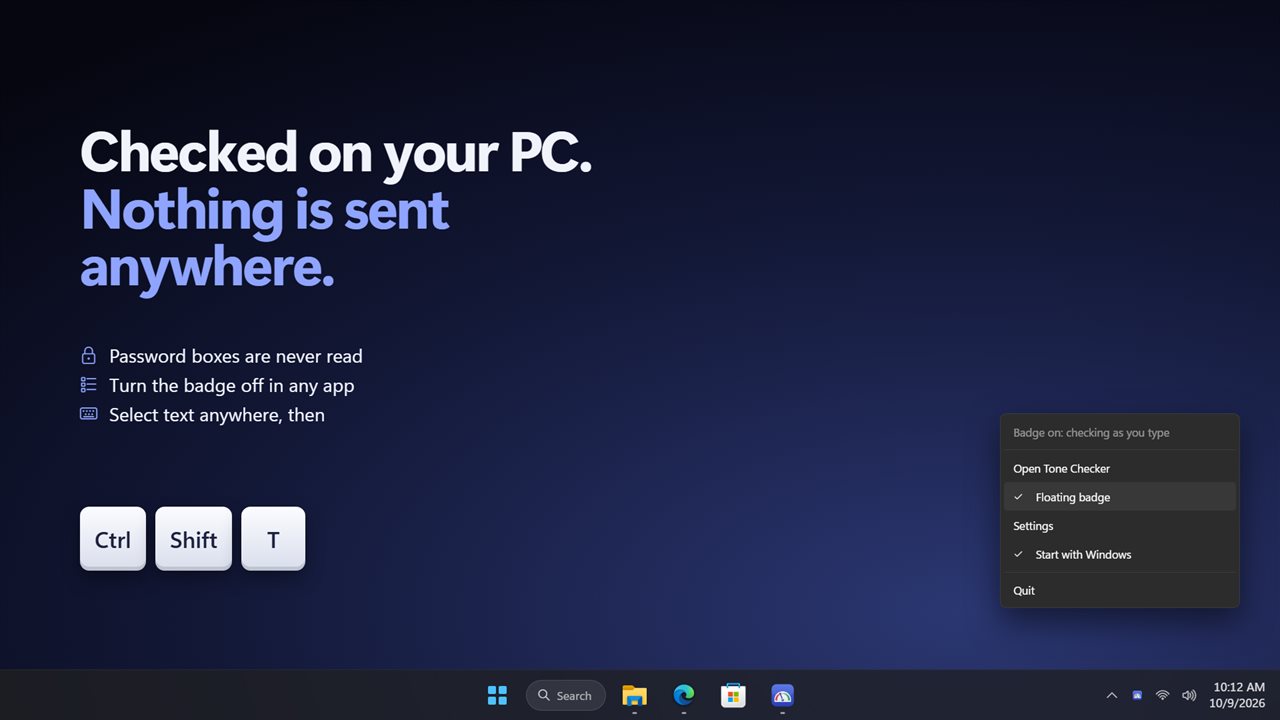
Tone Checker runs on your PC and puts a small colored dot in the corner of whatever text box you are typing in, whether that is an email, a chat window or a web form. Green means warm, grey means neutral, red means harsh. The dot refreshes shortly after you pause, so it does not flicker while you write.
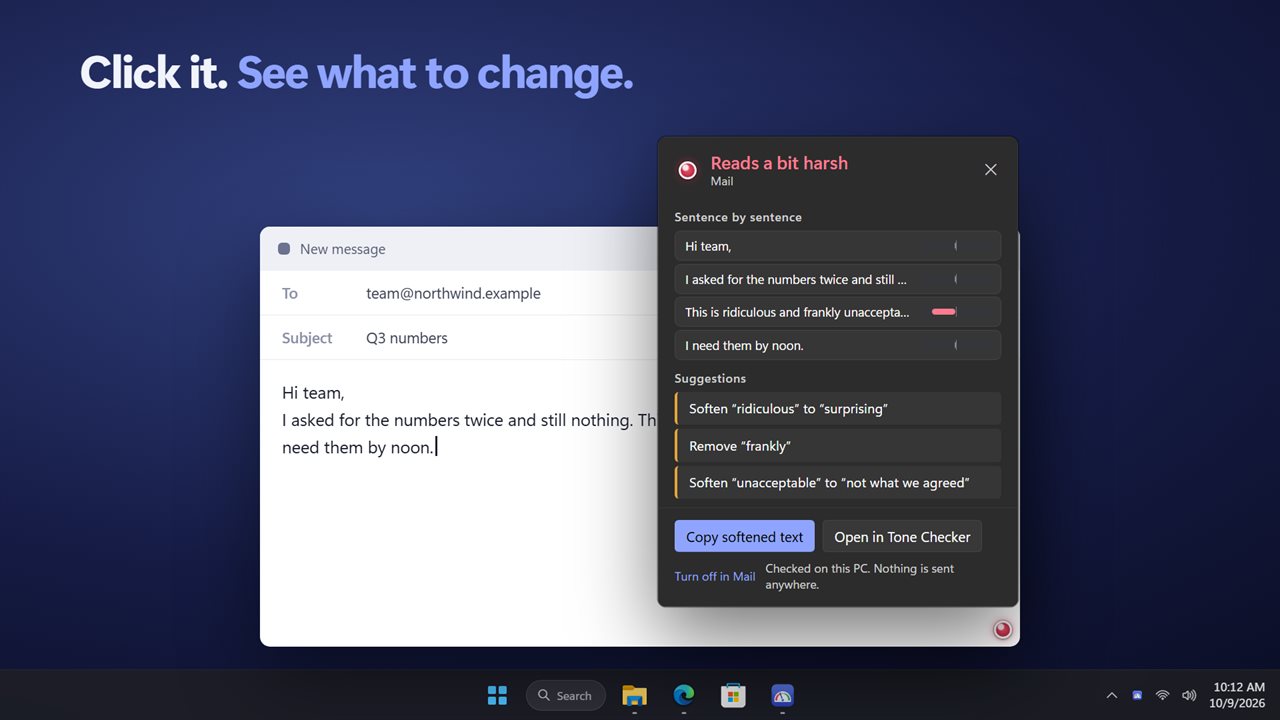
Click the dot for the details: each sentence listed with its own rating under Sentence by sentence, a list of Suggestions, and a Copy softened text button that puts a gentler draft on the clipboard.
How to check the tone of an email before sending
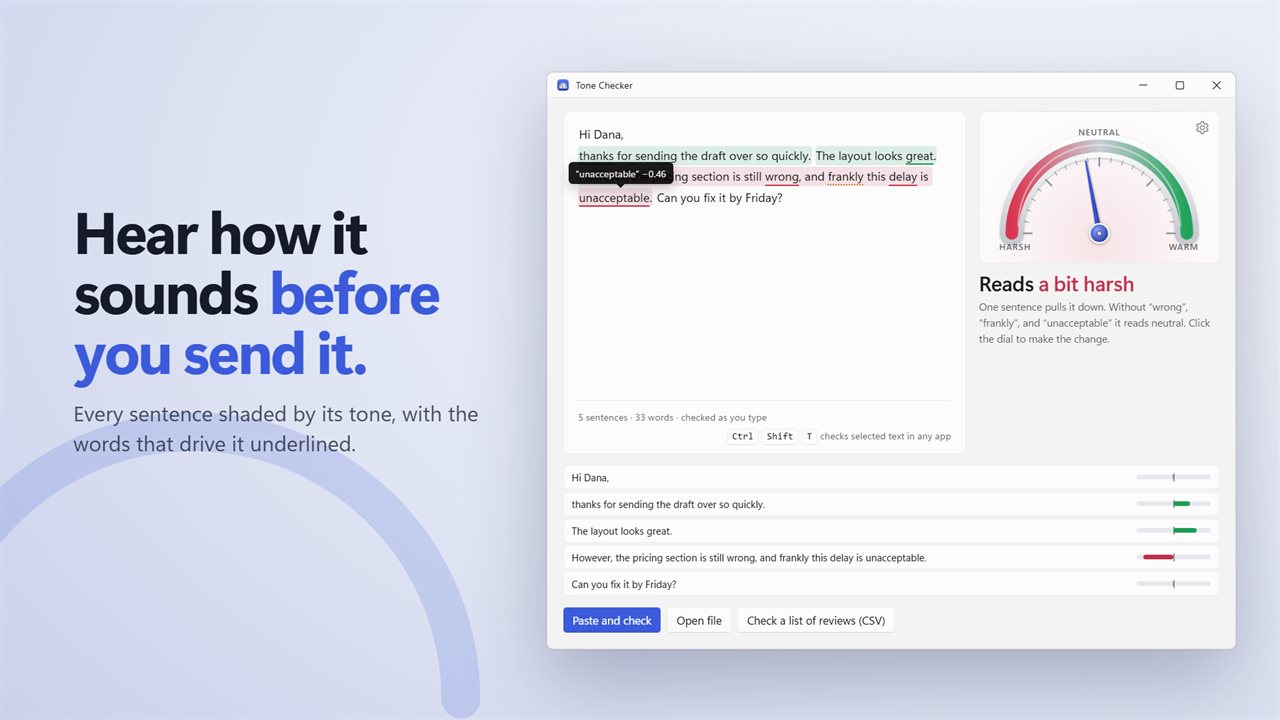
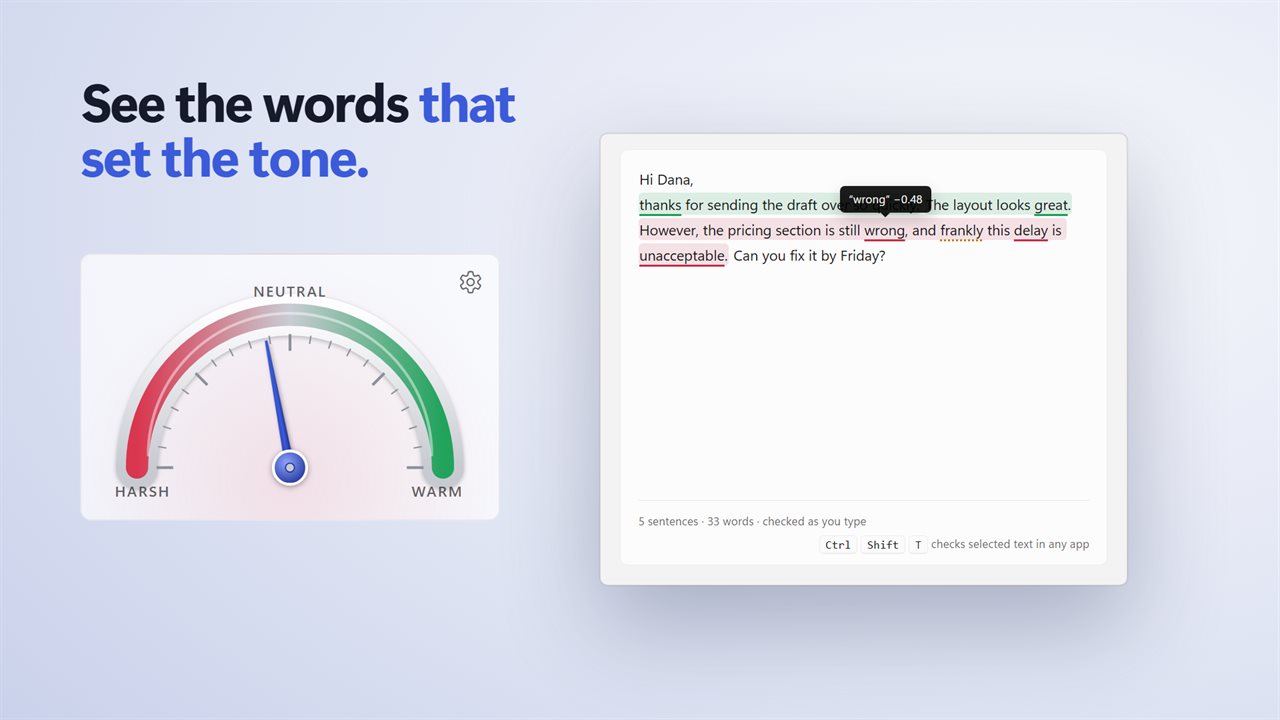
In the main window, a dial shows the overall tone and each sentence gets a shaded bar. The words driving the score are underlined; hover over one to see how strongly it pulls and whether a nearby word such as very or not changes it. Click the dial to apply the softening right there, and press Ctrl+Z if you want your original back.
- Write the email as usual and glance at the dot on the message box.
- If it is red, click it. Sentences that pull the tone down are shown, along with what to change.
- Choose Copy softened text, select your draft and paste over it, or edit by hand using the suggestions.
- For a message already written, select it anywhere and press Ctrl+Shift+T. It opens in the main window, scored.
What counts as harsh: edge words and passive-aggressive phrasing
Some words change the score directly: unacceptable, ridiculous, useless, sloppy. Others leave the score alone but sharpen a sentence that already reads harsh, and in that case the app flags them for removal. The list is frankly, honestly, obviously, clearly, seriously, literally, simply, actually, basically and again, the small words that turn a firm request into a passive-aggressive one.
In a sentence that reads harsh, the suggestions are concrete. Frankly, this is unacceptable. becomes This is not what we agreed. Wrong becomes not right yet, a mess becomes a tangle, and demand becomes ask. Exclamation marks in a harsh sentence are pointed out as well.
Sentiment analysis with VADER, on your own PC
Scores come from VADER, a published rule-based sentiment analysis method that rates English text with a word list and rules for emphasis, negation and capitals. It runs inside the app, which is why there is no sign-in and no delay waiting for a server.
A word-list method is fast and transparent, and you can see exactly which words moved the needle. It is also literal. Sarcasm, in-jokes and criticism made of neutral words can slip past it, so treat a green dot as a check on your vocabulary rather than a guarantee of how someone will feel.
Review sentiment analysis from a CSV file
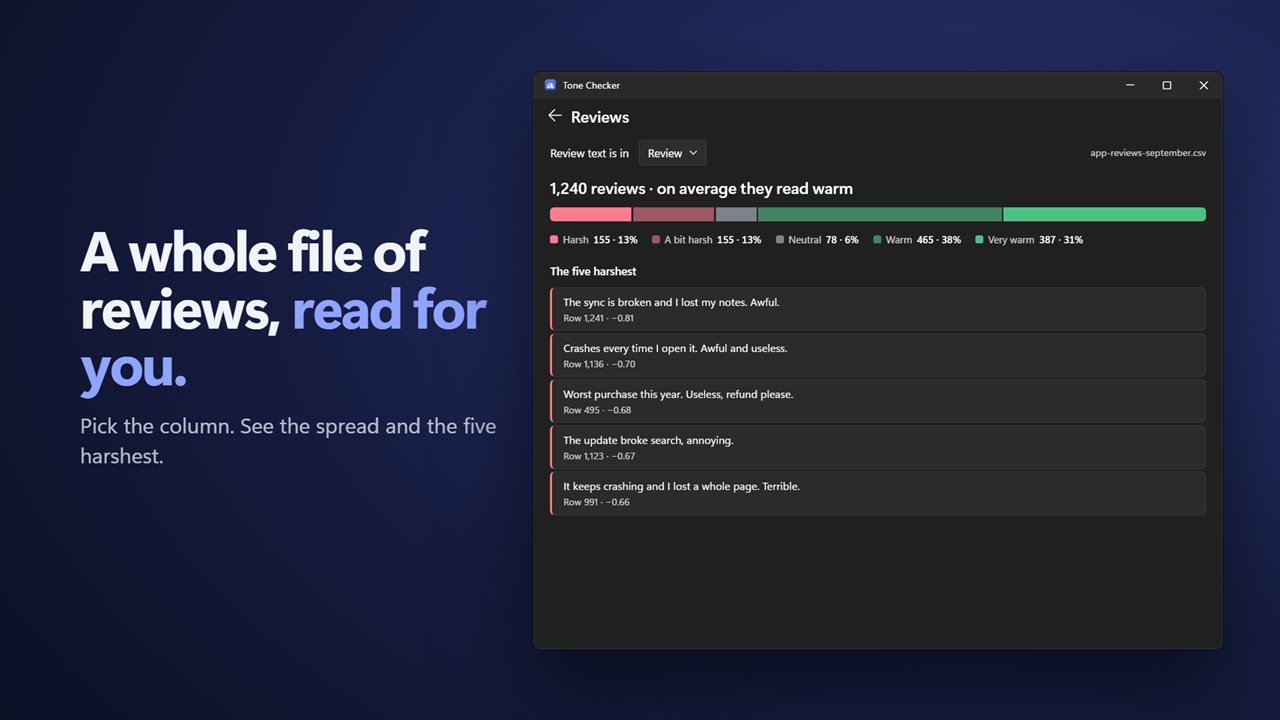
Open a CSV or tab-separated file of customer reviews or survey answers, confirm which column holds the text, and the Reviews view shows the average tone, how the entries split across Harsh, A bit harsh, Neutral, Warm and Very warm, and the harshest few. Open any of them in the editor to see why it scored as it did. Plain .txt, .md and .eml files open the same way for single documents.