EEvlarSoft

Decibel Meter Widget

A decibel meter for PC that turns your microphone, or your phone, into a handheld-style sound level meter, with A or C weighting and a too-loud alert.

Buy for $3.99
One payment. No subscription.
14-day money-back guarantee.
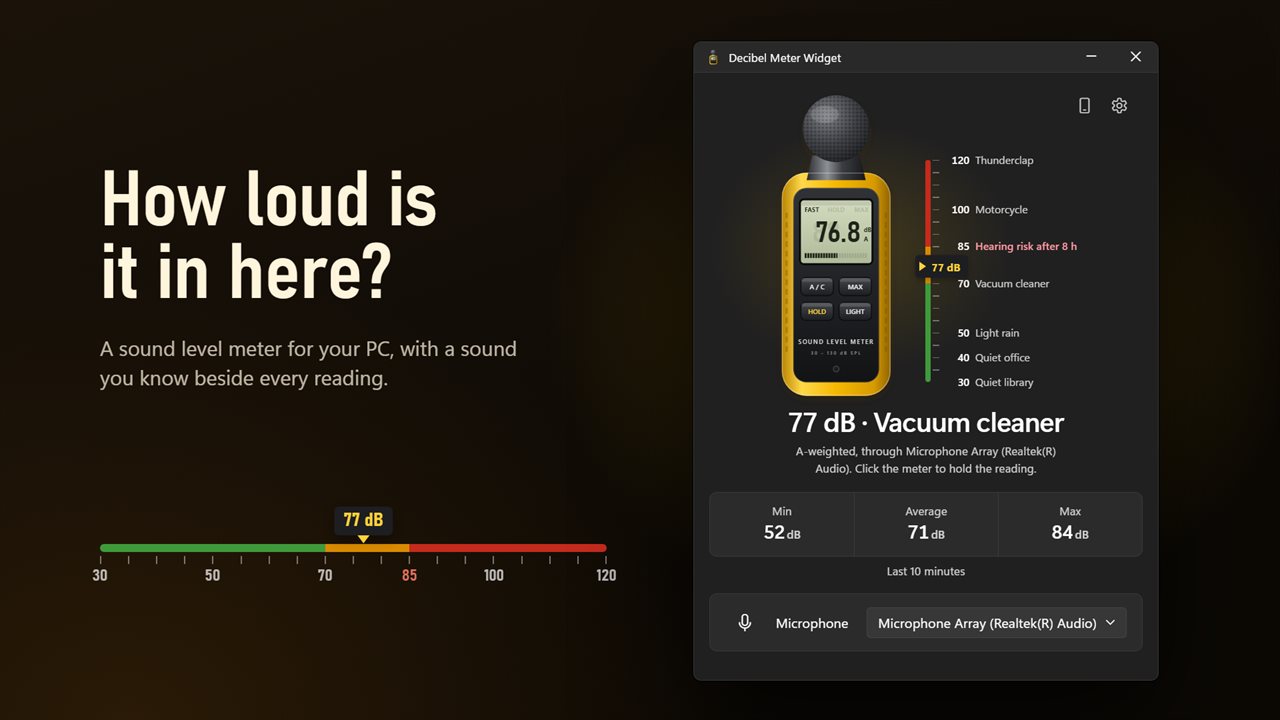
A sound level meter for your PC, with a sound you know beside every reading.
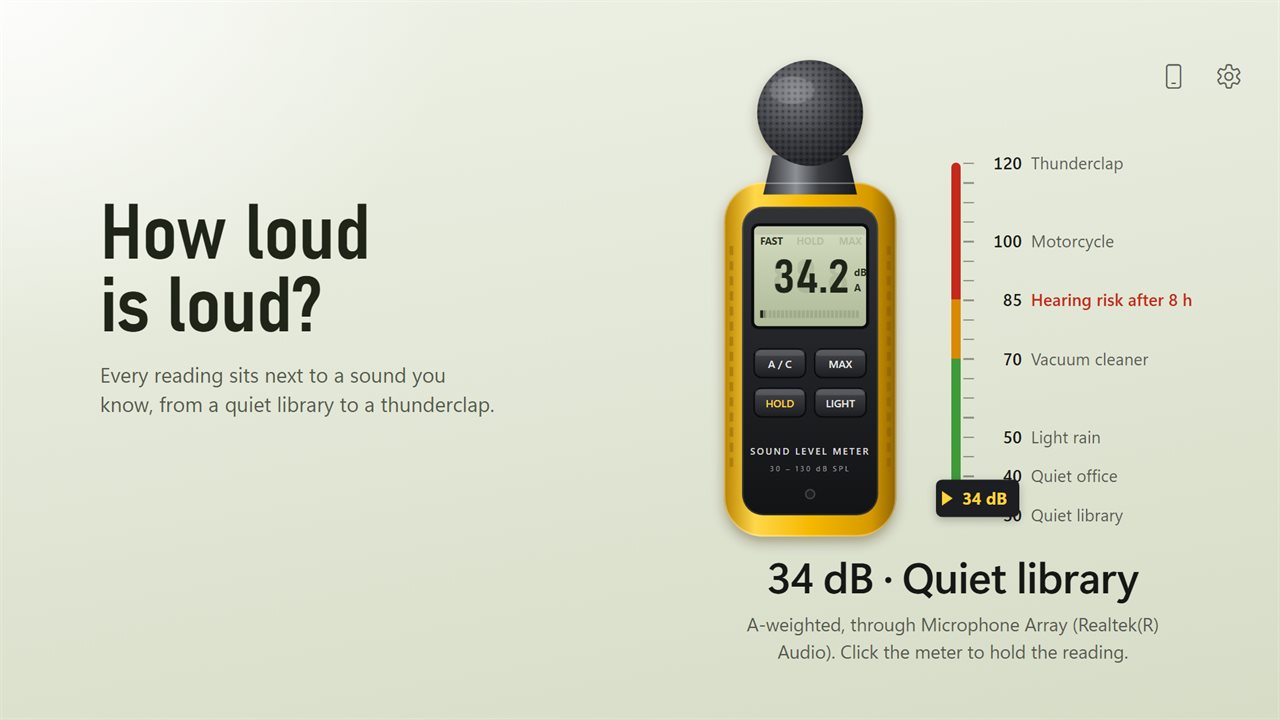
How loud is loud? From a quiet library to a thunderclap.
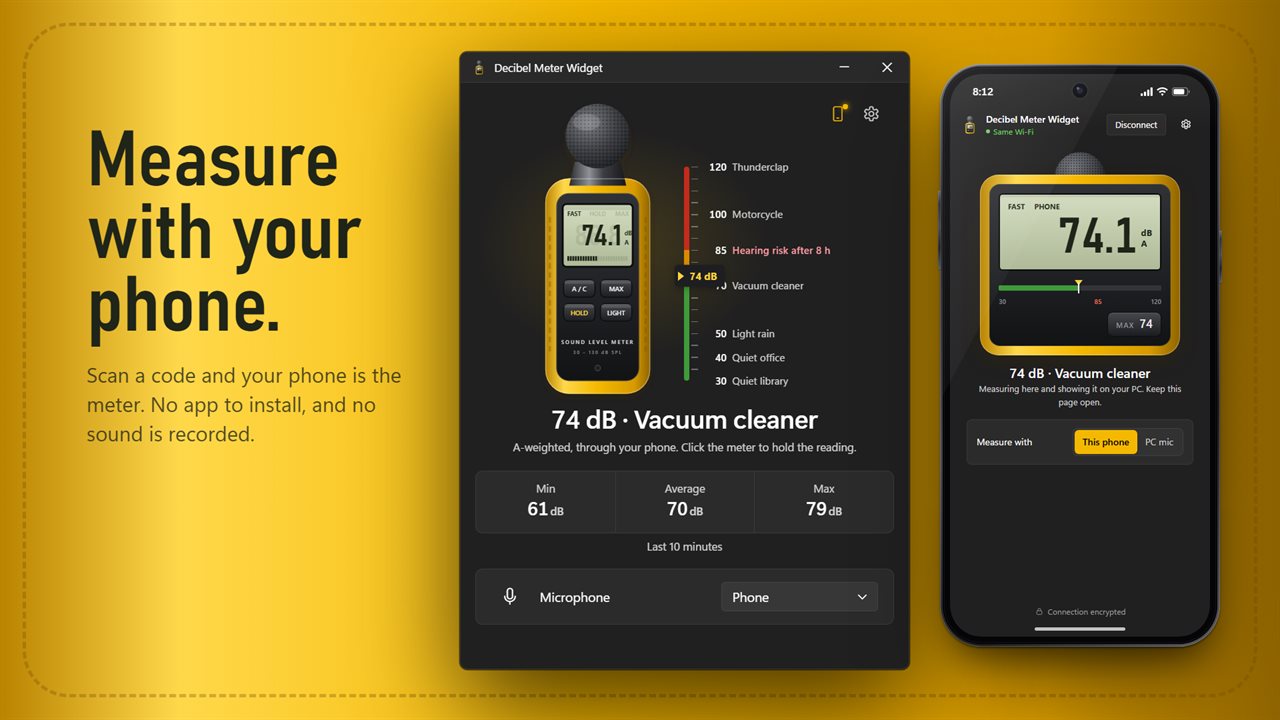
Measure with your phone. No app to install, and only the sound level leaves the phone.
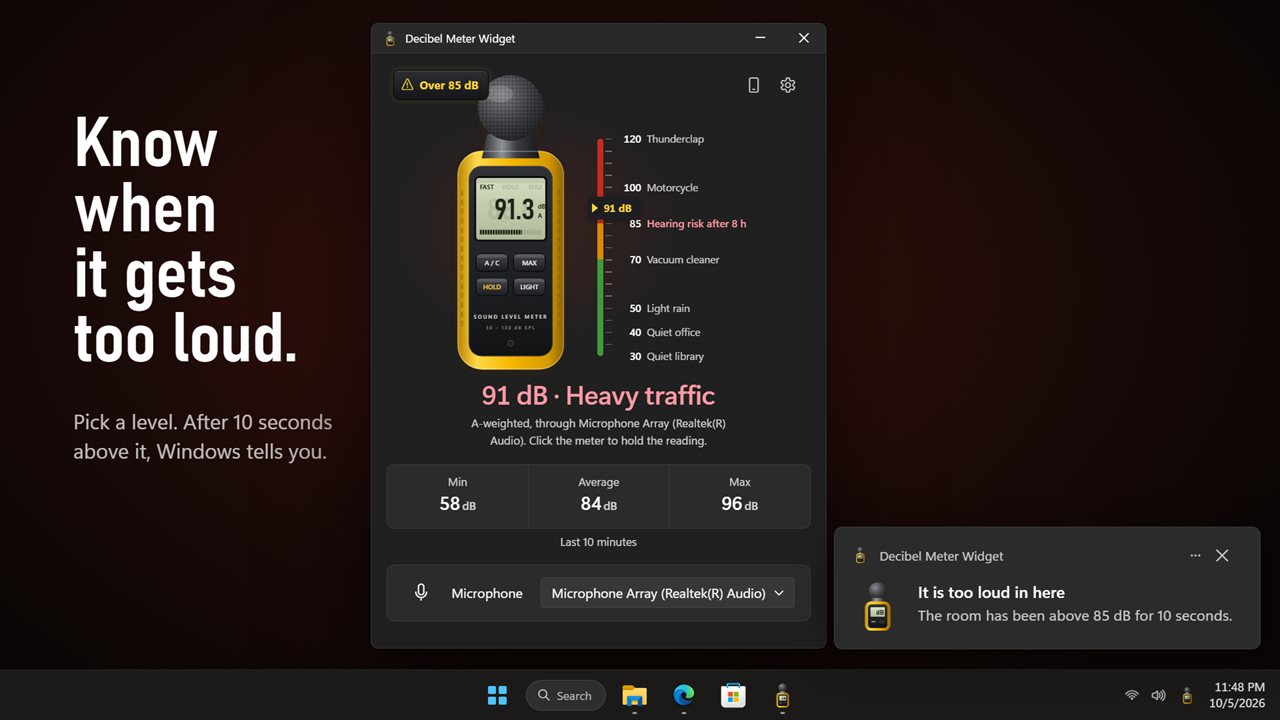
Pick a level. After 10 seconds above it, Windows tells you it is too loud.
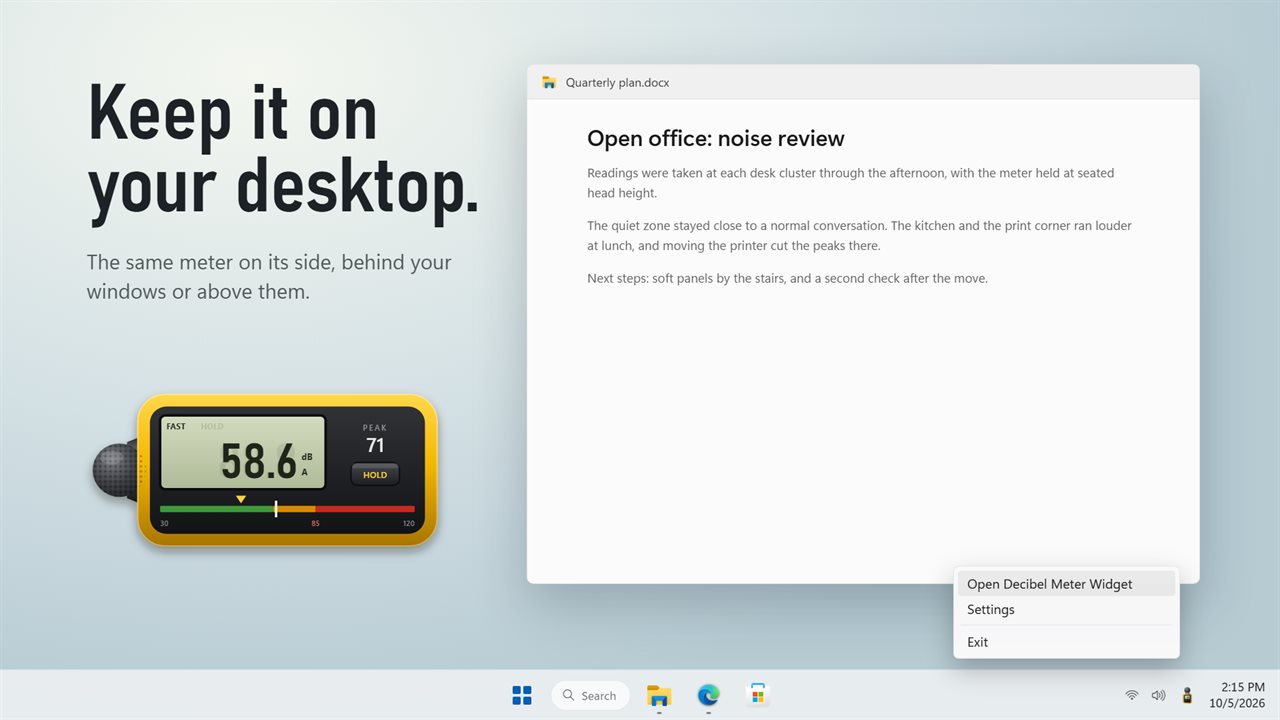
Keep the meter on your desktop, behind your windows or above them.
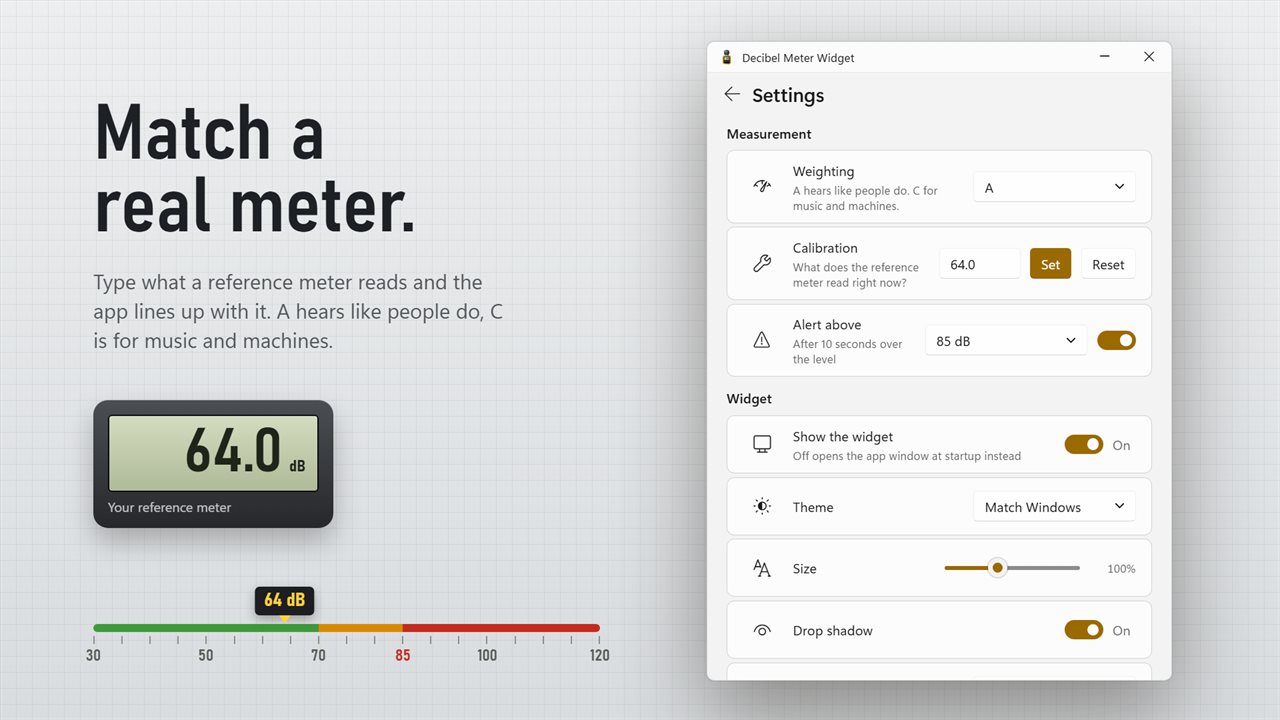
Calibrate against a real meter, and choose A or C weighting.
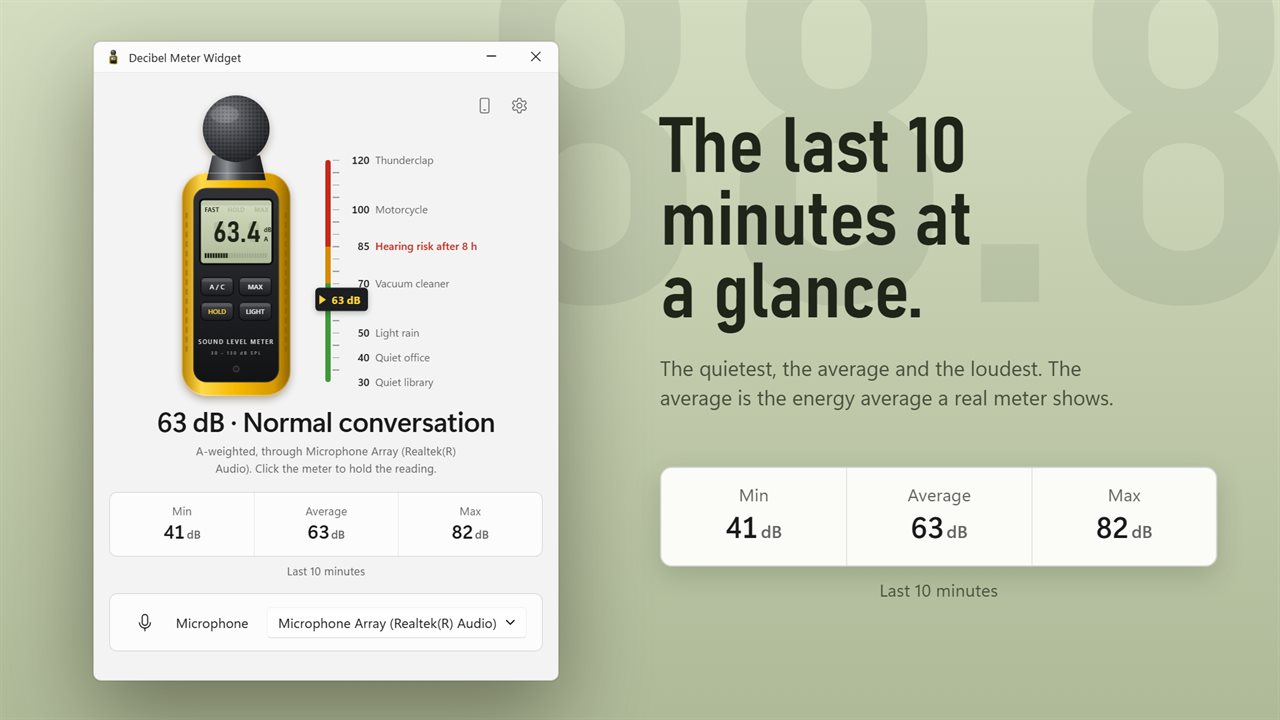
The lowest, average and loudest level of the last 10 minutes.

A sound level meter for your PC, with a sound you know beside every reading.

190,000+downloads of EvlarSoft apps
Signed by EvlarSoftVerified US publisher
14-day money-backNo questions asked
Updates includedNo upgrade fees

Use your PC as a decibel meter

Most people who search for a decibel meter for PC want an answer to a plain question: is this room too loud? Is the music next door over the limit, is the open-plan office wearing everyone out, is the workshop loud enough to need ear defenders? A dedicated sound level meter answers that, but you may not own one. Your laptop already has a microphone.

This app reads that microphone and shows the level on a drawing of a classic handheld meter, with an LCD-style display and keys you can actually press. It covers 30 to 120 dB. Each reading comes with a plain-language comparison underneath, such as 62 dB · Normal conversation, taken from a scale that runs from Quiet library at 30 dB through Light rain, Vacuum cleaner and Heavy traffic up to Thunderclap at 120.

Below the display sit the minimum, the average and the maximum for the last 10 minutes. The average is an energy average, the way a proper meter computes Leq, so a few loud bangs pull it up as much as they should.

How loud is too loud? Sound level meter zones

The meter changes color so you do not need to remember thresholds. It turns amber at 70 dB, around the level of a vacuum cleaner, and red at 85 dB, the point at which long exposure starts to put hearing at risk. For reference, eight hours a day at 85 dB is the commonly cited limit, and every few decibels above it shortens the safe time sharply.

If you want a nudge rather than a glance, turn on the noise alert and pick the level that matters for your room: 60 dB suits a study or a nursery, 70 dB an office, 85 dB a workshop or a rehearsal space. A brief spike is ignored; a room that stays loud gets a red plate on the meter, a Windows notification titled It is too loud in here, and a tray tooltip that reads Over 85 dB, or whichever level you chose.

A or C weighting, and calibrating a PC microphone

Press the weighting key on the meter, labeled Switch A or C weighting, to change how it listens. A weighting tracks human hearing and is right for noise complaints and hearing questions. C weighting keeps more bass and suits music, subwoofers and machinery.

Computer microphones are built for voices, not measurement, and Windows may apply its own gain, so treat out-of-the-box readings as estimates. To calibrate, borrow a meter and set it to the same weighting. Put both microphones side by side, about a foot from a steady sound such as a fan or a running tap rather than speech, and wait for the reading to settle. Choose Calibrate, type what the reference meter shows, and every reading from then on carries that correction. Recalibrate if you switch to a different microphone.

The other keys on the drawing do what they would on a real meter: hold the current reading, show the maximum, and switch on the backlight for a dim room.

Measure noise with your phone, read it on the PC

A desktop PC cannot be carried to the source of the noise, and a laptop on the windowsill is awkward to read. Press Measure with your phone, scan the code with the phone's camera, and the meter opens in the phone's browser. Tap Start the microphone and the phone's readings appear on the PC as they happen.

That split is the useful part. Leave the phone by the shared wall, at the speaker or next to the crib, and watch the level, the 10-minute maximum and the alert from your desk. The button changes to Phone connected while the link is live, and the phone keeps a calibration of its own.
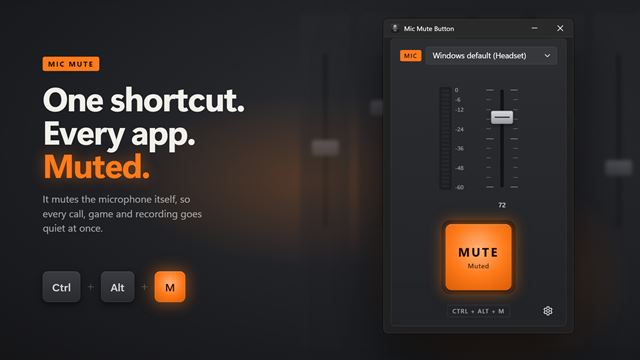
Features

  • 30 to 120 dB range with an everyday comparison for every reading
  • Ten-minute minimum, energy average and maximum
  • Amber zone from 70 dB and red zone from 85 dB
  • Noise alert at 60, 70, 80, 85, 90 or 100 dB with a Windows notification
  • A and C frequency weighting
  • Calibration against a reference meter, kept separately for phone and PC
  • Hold, maximum and backlight keys on the meter itself
  • Phone as a remote microphone via QR code, no app install
  • Choice of microphone, or the Windows default
  • Desktop widget from 70% to 150%, behind or above your windows

Where people use it

Offices and classrooms

Leave the widget on a desk with an alert at 70 dB and you have an objective signal when the room gets too noisy to concentrate.

Home studios and gamers

Switch to C weighting and check monitor or speaker levels before a long session, then hold the reading to compare setups.

Noise from next door

Carry your phone to the shared wall and watch the level and the 10-minute maximum on the PC while you note the times.

Questions

Anything else? Ask us

How accurate is a decibel reading from a PC microphone?

It is an estimate. Microphones differ, so the app starts from a typical offset for laptop and USB mics. For accuracy, hold a real meter in the same spot, choose Calibrate and type what it reads, and the app lines up with it.

What range of levels can it show?

30 to 120 dB. Readings outside that range are shown at the nearest end of the scale.

Should I use A or C weighting?

A weighting follows how people hear and suits noise and hearing questions. C weighting keeps more of the low end, which suits music and machinery. You can switch from the settings or from the key on the meter.

Does it record or send any audio?

No audio is sent. When you measure with your phone, the phone sends only its sound level and peak, ten times a second, and the connection is encrypted end to end.

Can I use my phone as the microphone?

Yes. Scan the code with your phone and the meter opens in its browser, with no app to install. It works on the same Wi-Fi or over the internet, and the phone keeps its own calibration separate from the PC mic.

How does the noise alert work?

Pick 60, 70, 80, 85, 90 or 100 dB. Once the level stays above it for 10 seconds, the meter shows a red plate and Windows shows a notification, and the alert resets after 10 seconds back under the level.

How many decibels is normal conversation?

About 60 dB. The meter labels readings near that level Normal conversation, with a quiet office around 40 dB and heavy traffic around 85 dB.

Can I choose which microphone it listens to?

Yes. Pick any connected microphone in settings, or leave it on the Windows default.

Can I hide the desktop widget?

Yes. Turn off Show the widget and the meter window opens at startup instead, with the same readings and alert.

Which versions of Windows does it run on?

Windows 10 (version 1809 or later) and Windows 11.

Is it a subscription?

No. Decibel Meter Widget is a one-time purchase of $3.99, and updates are included.

How do I get it?

Buy it on this page and your license key arrives by email. If the button says Notify me, Decibel Meter Widget is not on sale here yet; leave your email and we will tell you when it is.