Which app is using my camera or microphone?
When you want to know which app is using your camera or microphone, Windows gives you two clues: a small mic icon near the clock and a Recent activity list buried under Privacy & security. Neither tells you how long an app kept the camera on, and neither speaks up when something new starts listening.
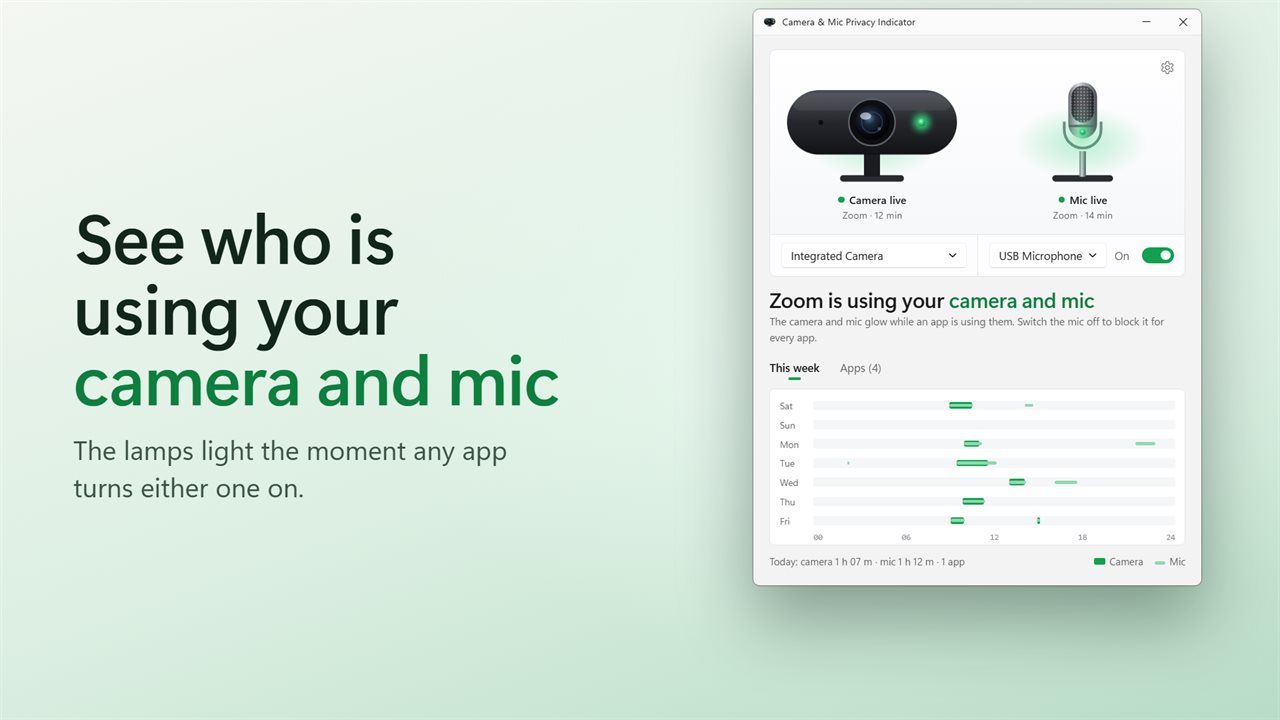
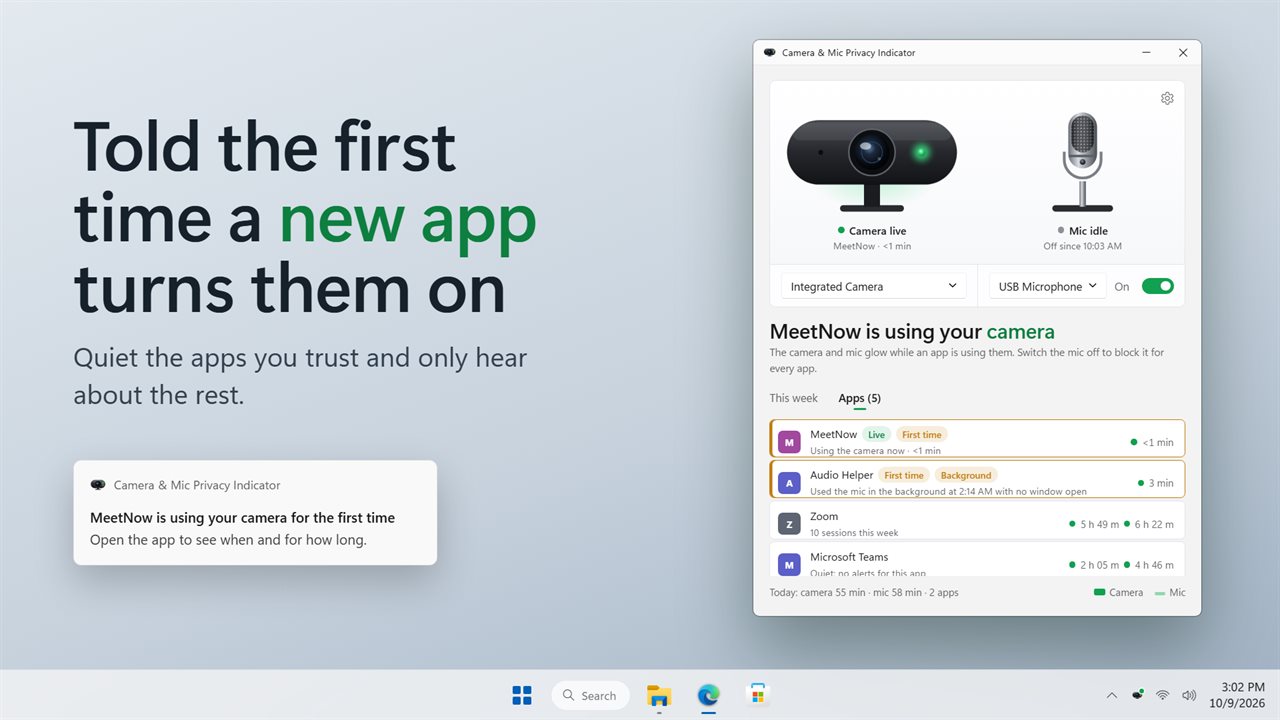
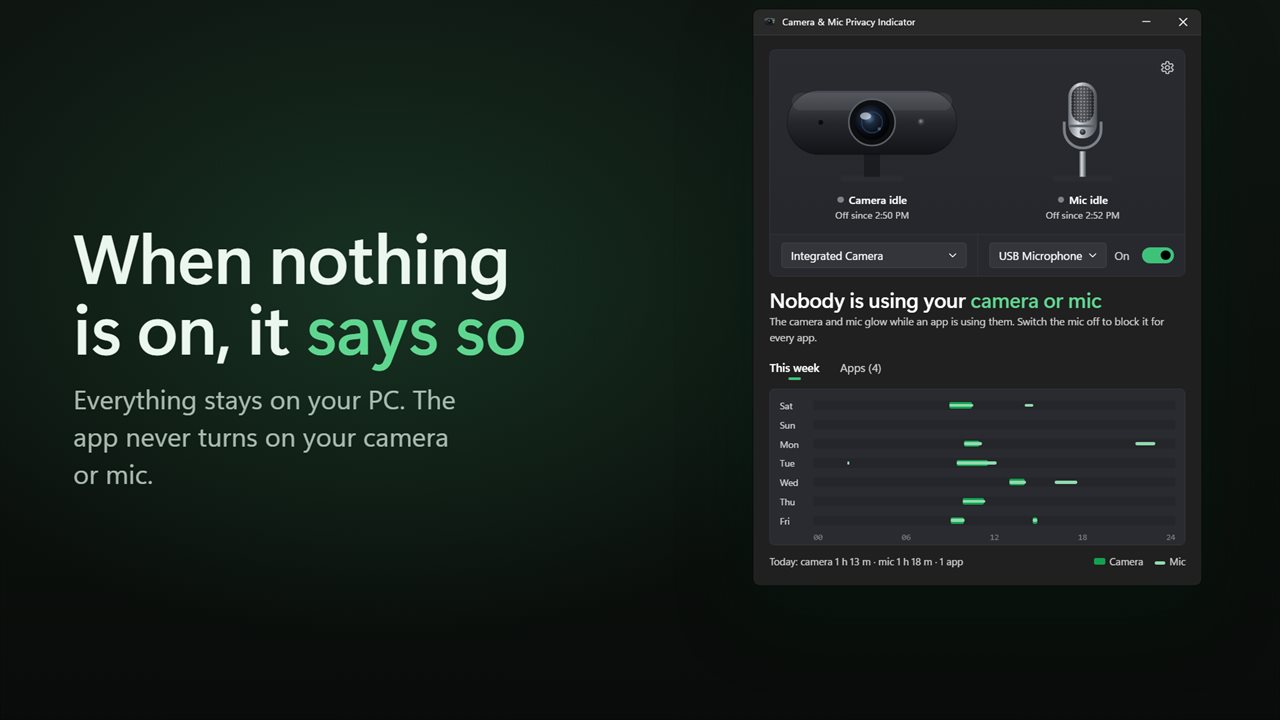
Camera & Mic Privacy Indicator watches the same access record Windows keeps, checking it once a second. Its window draws a webcam and a microphone with a lamp on each; the lamp glows while any program holds that device, and the headline under them names the app and how long it has been live. When nothing is active it says All quiet and gives you today's total.
It only reads what Windows already logs. It never opens the camera or the microphone to find out, and it covers ordinary desktop programs as well as Store apps.
Camera and microphone usage history for the past week
Windows remembers only the last time each app touched the camera or mic. This app records every session while it runs and keeps them for 30 days. The main window turns the last seven days into one strip per day, so a camera that switched on at 2 a.m. stands out at a glance.
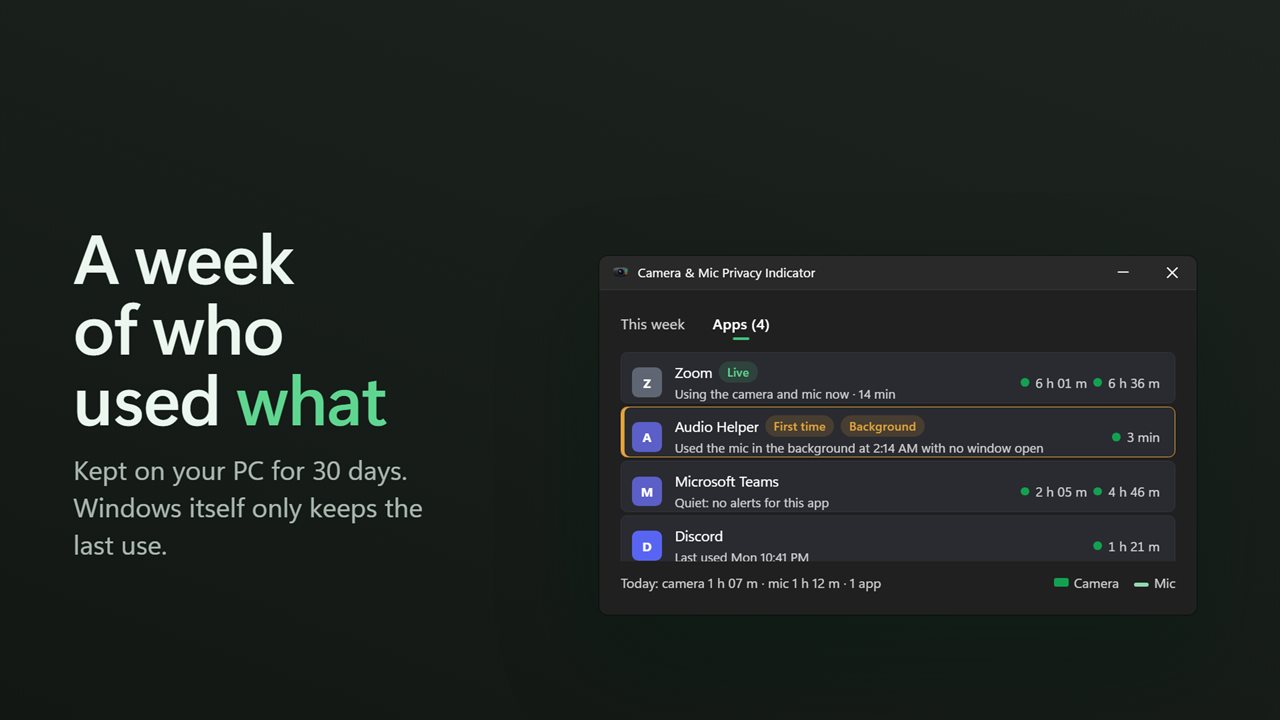
Below the strips, every app has its own row with its camera time and mic time for the week, how many sessions it opened and when it last used either device. Right-click a row for Open camera privacy settings or Open microphone privacy settings when you want to take an app's access away in Windows.
Get an alert when an app turns on your webcam
Two switches under Alerts decide when you hear about it. Alert when a new app starts sends a notification the first time any app uses the camera or mic on this PC. Alert on background use fires when a program uses either one without any window open, which is the pattern a call app left running, or something you never installed on purpose, tends to show.
Apps you trust go in Quiet apps, either by typing the program name or its .exe file, or by right-clicking the app in the list and choosing Quiet for this app. They stop sending notifications, but their lamps and the green tray dot still light, so nothing is hidden from you.
A webcam in use indicator on the desktop
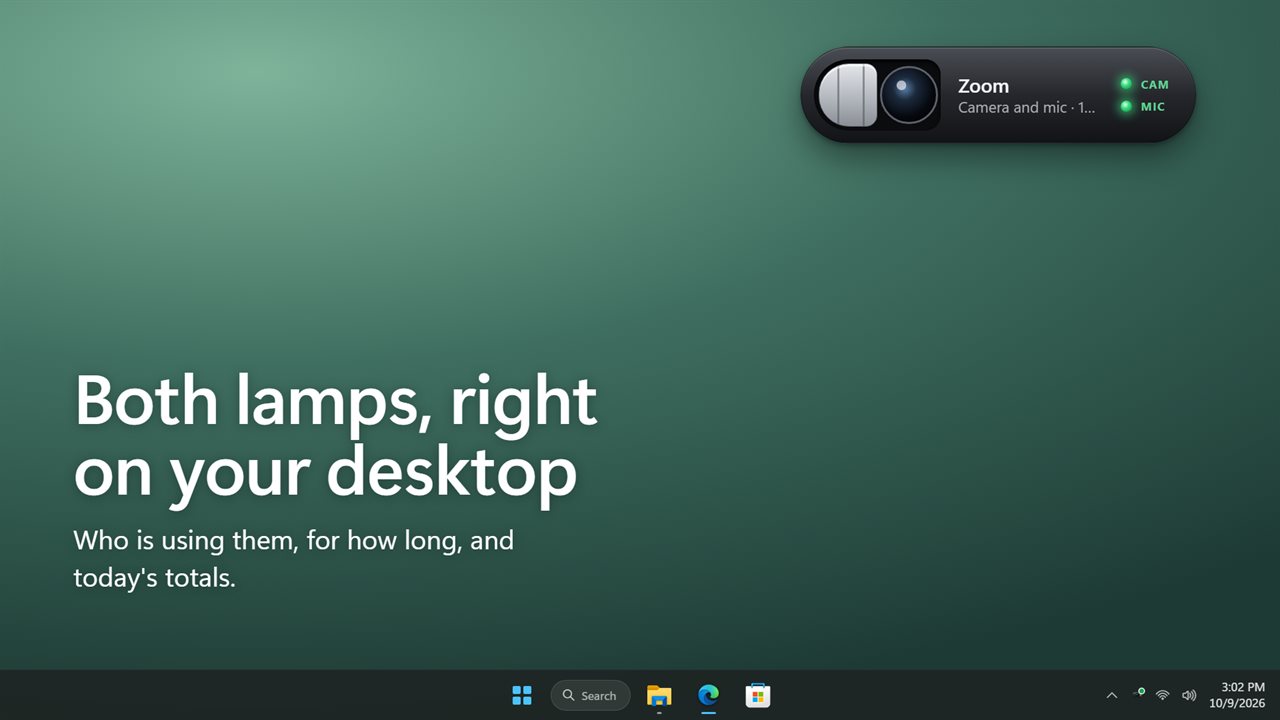
Turn on Show the widget and a small version sits on the desktop with both lamps, the app currently using them, and today's totals. Size runs from 80 to 200 percent, Drop shadow can be switched off, and Sits places it On the desktop or Above other windows. With the widget off, the main window opens at startup instead.
History, alerts and the tray dot only work while the app is running, so switch on Start with Windows if you want an unbroken record.