EEvlarSoft

Any Sound Converter

An audio converter for Windows 11 that turns a folder of M4A, FLAC, WMA or OGG files into MP3, WAV or any of nine formats, at the quality and loudness you set.

Buy for $1.99
One payment. No subscription.
14-day money-back guarantee.
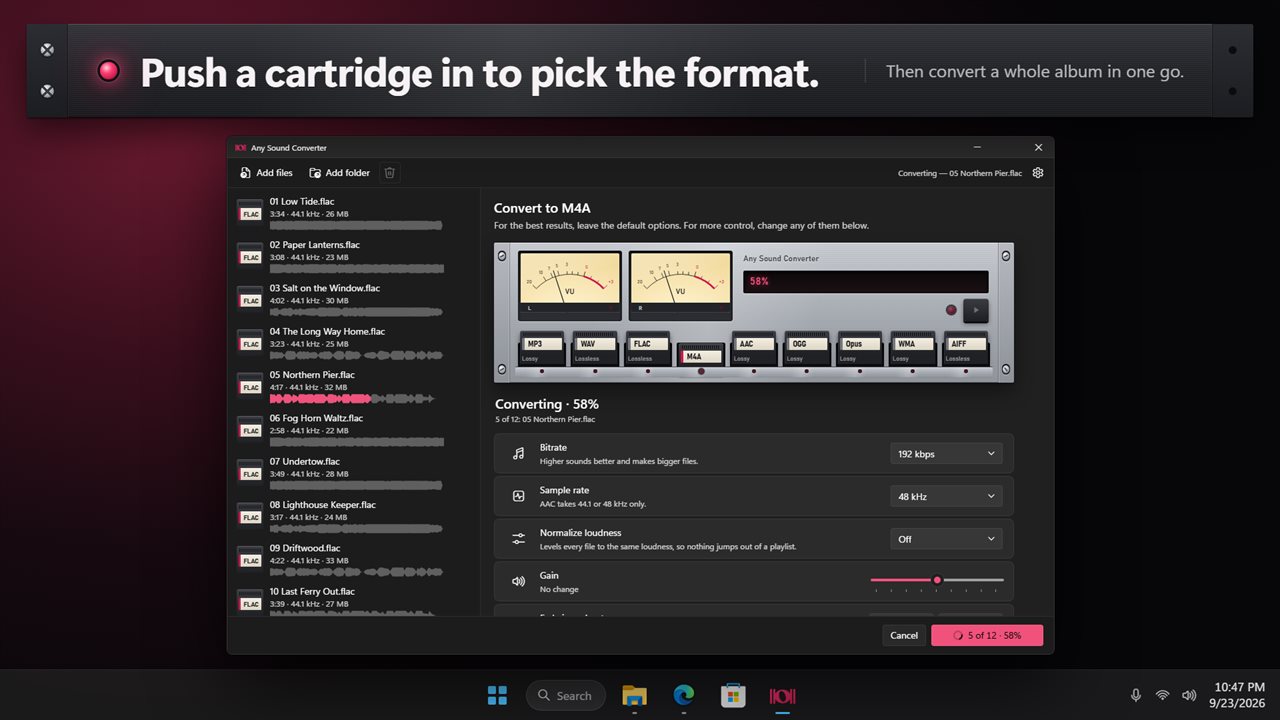
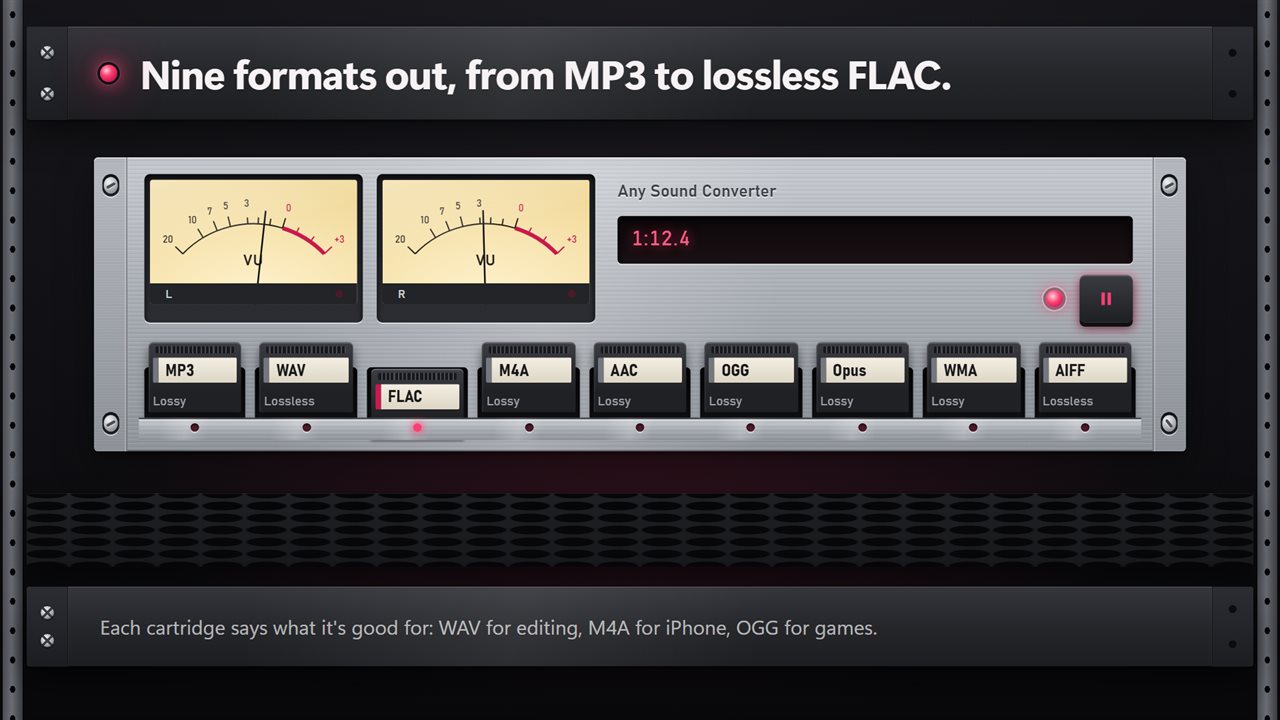
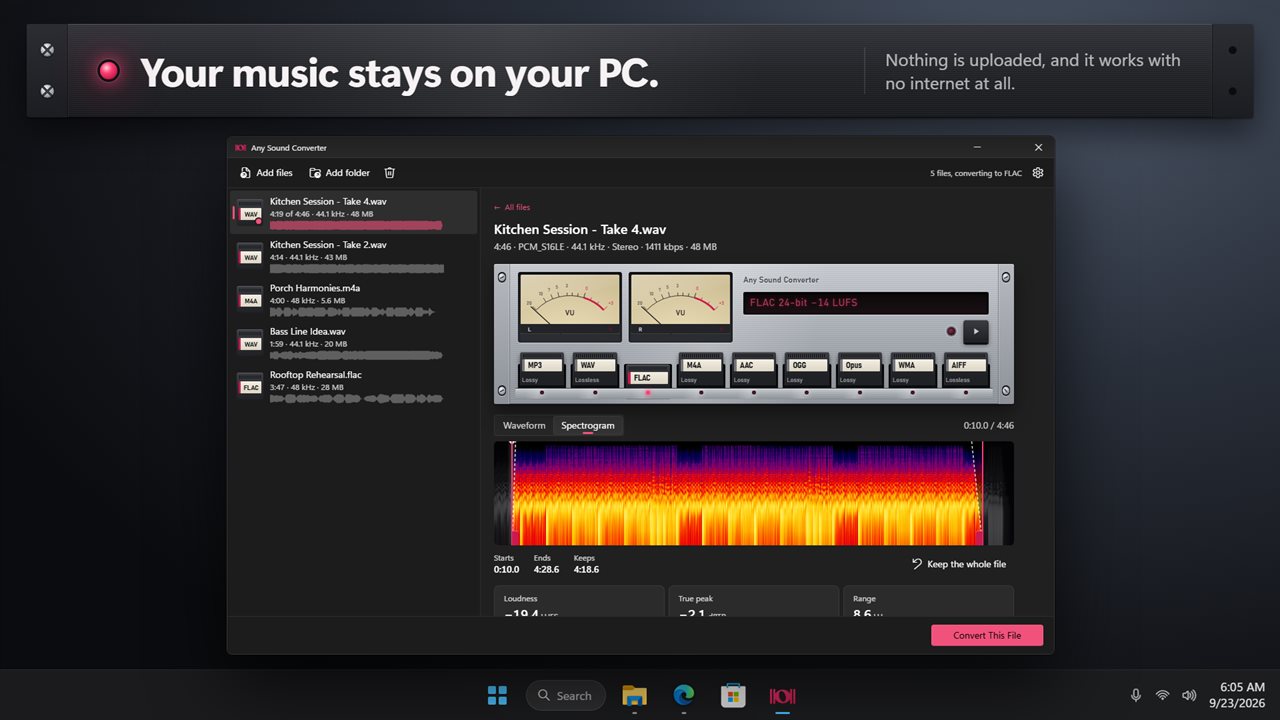
Push a cartridge in to pick the format.
Nine formats out, from MP3 to lossless FLAC.
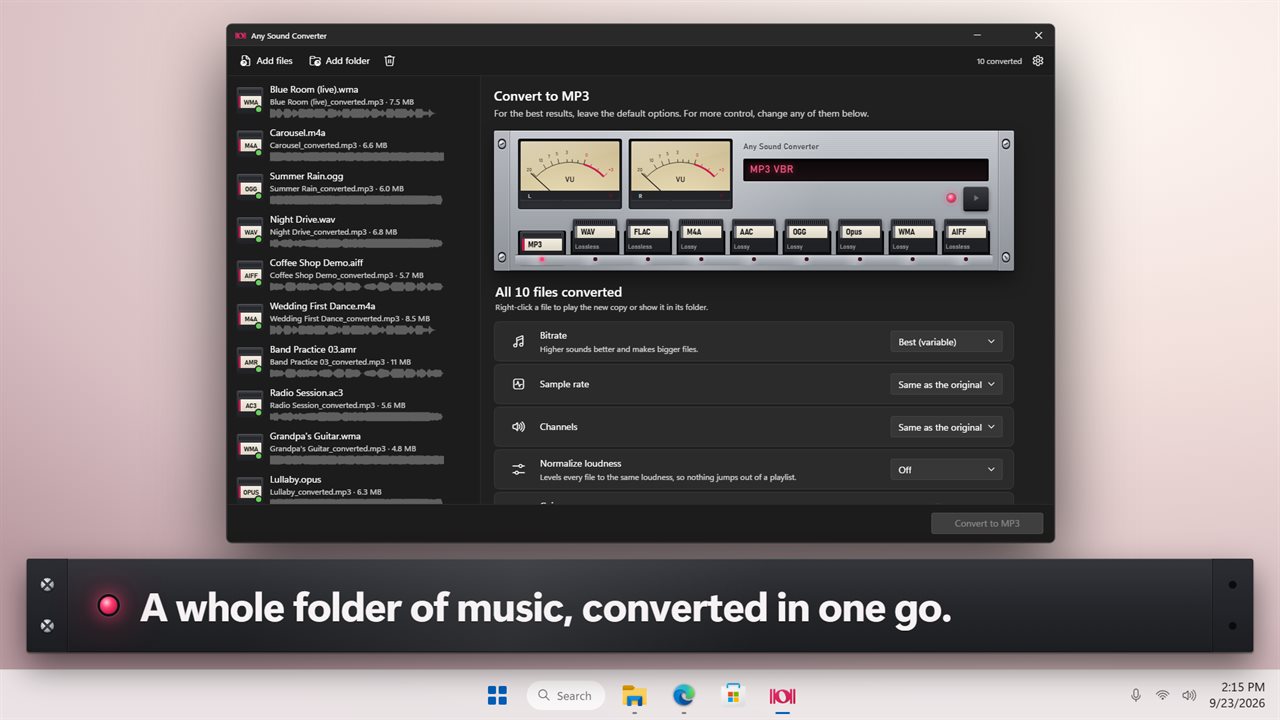
A whole folder of music, converted in one go.
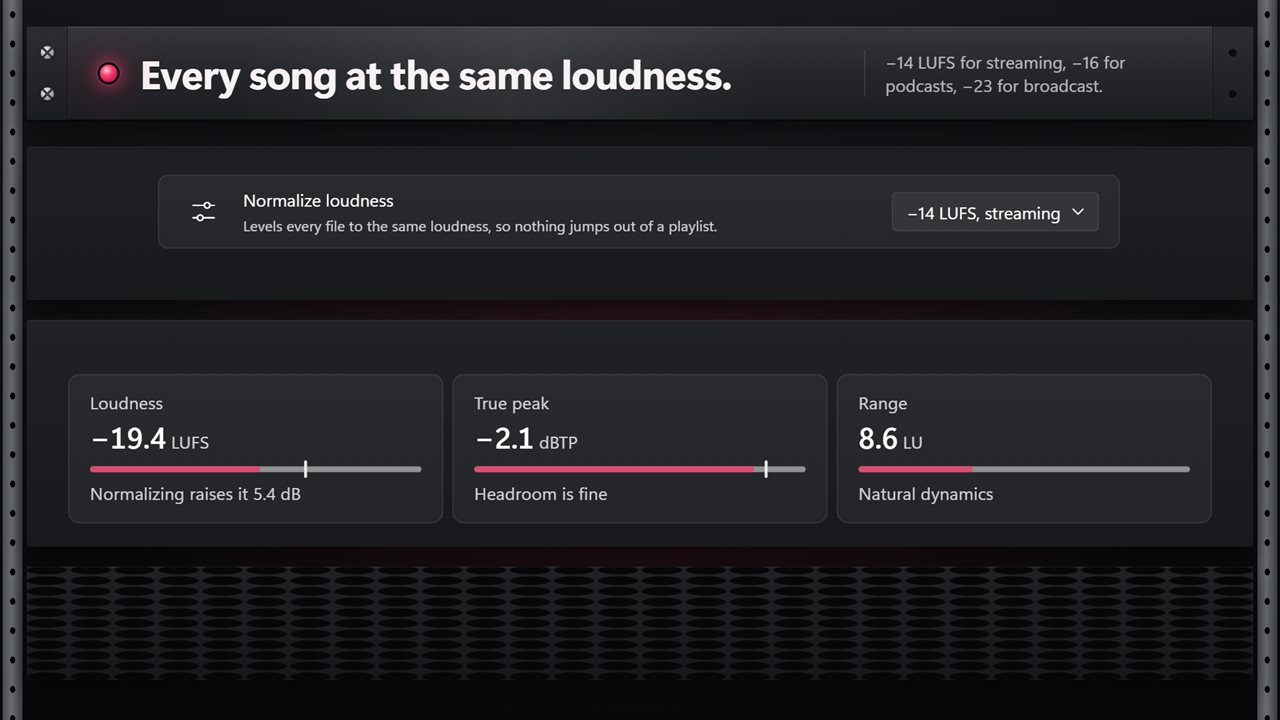
Every song at the same loudness.
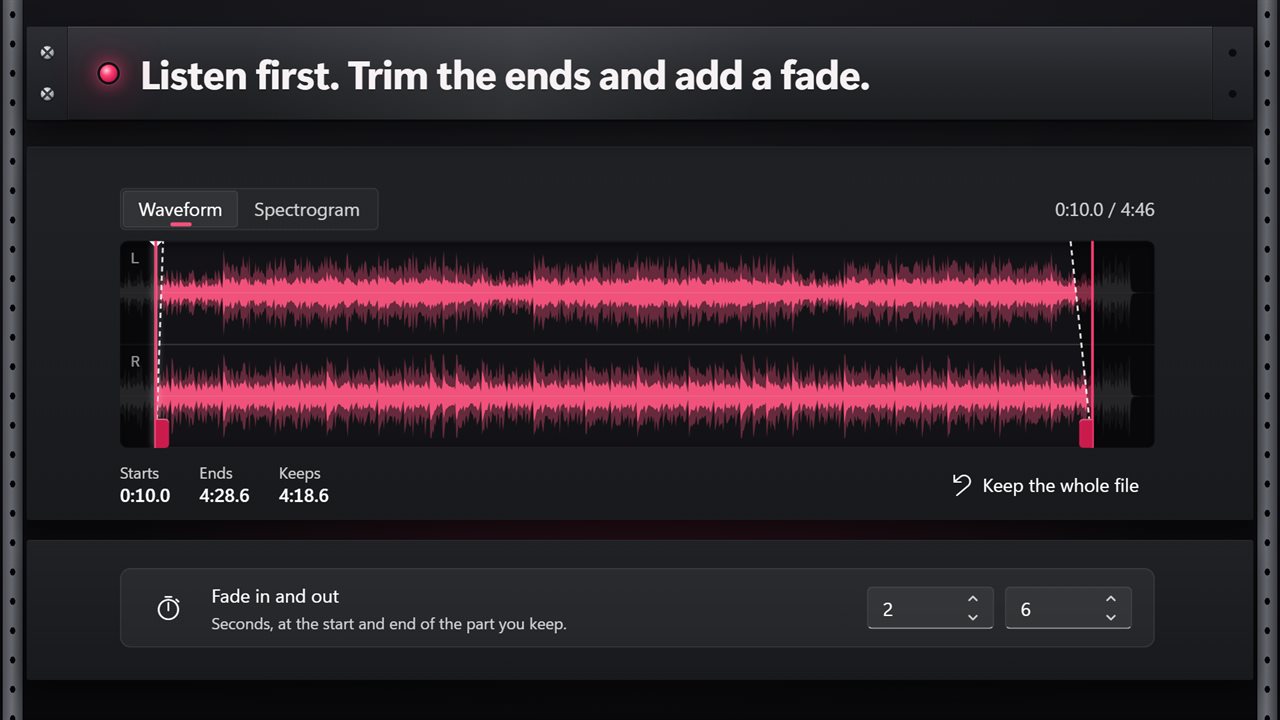
Listen first. Trim the ends and add a fade.
Your music stays on your PC.

Push a cartridge in to pick the format.

190,000+downloads of EvlarSoft apps
Signed by EvlarSoftVerified US publisher
14-day money-backNo questions asked
Updates includedNo upgrade fees

An audio converter for when the format is the problem

You usually reach for an audio converter because something will not play: a car stereo that ignores FLAC, an editor that will not import WMA, a phone full of voice memos in M4A that a website refuses. The common advice is a command-line tool or a full audio editor that exports one file at a time.

Any Sound Converter does the conversion as a batch. Drag in files or add a folder, push in the cartridge for the format you want, and press Convert. On the way in it accepts twelve audio types: lossless FLAC, WAV and AIFF; compressed MP3, M4A, AAC, WMA, OGG and Opus; AMR phone recordings; AC3 soundtracks; and MKA. On the way out there are nine cartridges, covering every one of those except the last three.

Hover a cartridge and it tells you what that format is for. MP3 plays on everything. FLAC is about half the size of WAV with nothing lost. M4A suits Apple devices. Opus gives the best quality for its size. If you are not sure, the defaults are sound choices and you can convert without opening a single setting.

How to convert M4A, FLAC or WMA to MP3 in bulk

By default, each new file lands beside its source with _converted added to the name, so nothing is overwritten. Title, artist, album and the other text tags are copied across to the new file. Cover art is not.

  • Drag your audio onto the window, or use Add files or the folder button beside it.
  • Push the MP3 cartridge into the rack.
  • Under Bitrate, leave Best (variable) for high-quality variable bitrate, or pick a fixed 128 to 320 kbps.
  • Choose where Save converted files puts the results, then press Convert.

Bit depth, sample rate and channels for lossless output

Pick WAV, AIFF or FLAC and the settings change to match. Bit depth offers 16-bit or 24-bit for all three, plus 32-bit float for WAV and AIFF. Sample rate stays as it was unless you choose 22.05, 44.1, 48, 88.2 or 96 kHz. Channels keeps the original layout or folds everything to stereo or mono, which is handy for spoken recordings that only need one channel.

Lossy formats have their own limits, and the app enforces them rather than letting a setting silently fail: M4A and AAC are always stereo at 44.1 or 48 kHz, and Opus always runs at 48 kHz.

Normalize audio volume so every track plays at the same loudness

Mix songs from different albums, or episodes recorded on different days, and some will be noticeably louder than others. Turn on Normalize loudness and every file is leveled to one target: -23 LUFS for broadcast, -16 LUFS for podcasts, or -14 LUFS for streaming, with peaks held below clipping. If you only want a fixed change instead, switch Normalize off and the Gain slider appears in its place for a fixed boost or cut of up to 12 dB.

Before converting, select a file to see its measured Loudness in LUFS, its True peak in dBTP and its loudness Range. A true peak marked May clip once it's compressed is your cue to leave Normalize on.

Trim, fade and listen before you convert

Select a file and switch between the Waveform and Spectrogram tabs. Drag the handles to cut silence or chatter from the start and end; the Starts, Ends and Keeps readouts show exactly what survives, and that trim belongs to that one file. Press play to hear it while the twin VU meters move.

Fade in and out is different: it is a batch setting, up to 30 seconds at each end, applied to every file in the run. Neither the trim nor the fades touch the source file.

What Any Sound Converter handles

  • Reads 12 audio formats, including AMR, AC3 and MKA
  • Writes nine formats, from MP3 and AAC to FLAC and AIFF
  • Converts a whole folder in one run
  • MP3 at Best (variable) or fixed bitrates up to 320 kbps
  • Up to 24-bit FLAC and 32-bit float WAV or AIFF, at up to 96 kHz
  • Three LUFS loudness targets, or a manual gain change
  • Per-file trimming, plus batch fades of up to 30 seconds at each end
  • Loudness, true peak and range measurement for each file
  • Copies title, artist and album tags into the new file

What's new in 2.0.5

  • New: pick the format by pushing a cartridge into the rack, with twin VU meters that move as you play
  • New: level every file to the same loudness for streaming, podcasts or broadcast
  • New: trim the start and end, and fade in and out
  • New: see each file as a waveform or a spectrogram, and measure its loudness
  • New: Opus, and 24-bit and 32-bit WAV and AIFF
  • Save beside the originals, in a folder, or replace them

Questions

Anything else? Ask us

Which audio formats can it convert between?

It opens MP3, WAV, M4A, AAC, FLAC, OGG, OGA, Opus, WMA, AIFF, AIF, AMR, AC3 and MKA files. It saves to MP3, WAV, FLAC, M4A, AAC, OGG, Opus, WMA or AIFF. It does not take video files.

What MP3 quality does it use?

The default is Best (variable), a high-quality variable bitrate. You can instead pick a fixed 128, 160, 192, 256 or 320 kbps. M4A and AAC go from 96 to 320 kbps and are always saved in stereo at 44.1 or 48 kHz.

Can it convert to 24-bit or high sample rates?

Yes. WAV and AIFF can be 16-bit, 24-bit or 32-bit float, and FLAC 16-bit or 24-bit. Lossless formats can be saved at 22.05, 44.1, 48, 88.2 or 96 kHz, or kept at the original rate. Opus is always 48 kHz.

Can it make all my songs the same volume?

Yes. Normalize levels every file to -14 LUFS for streaming, -16 for podcasts or -23 for broadcast, with peaks held near -1.5 dB. When Normalize is off you can raise or lower the volume by up to 12 dB instead. Each file's loudness, true peak and dynamic range can be measured before you convert.

Does it keep album art and song tags?

It copies the title, artist, album and other tags from the original. Album art is not carried over, because only the sound itself is converted.

What happens to the original files?

By default they stay where they are, and each new file is saved beside its original with "_converted" added to the name. You can save into a folder you choose instead, or replace the originals, in which case you are asked to confirm and each original is deleted only after its new file is written.

Which audio format should I convert to?

MP3 if it has to play everywhere. FLAC to keep full quality at about half the size of WAV. M4A for Apple devices. WAV or AIFF for editing software. Opus when you want the smallest file at a given quality and the player supports it.

Is converting FLAC to MP3 lossy?

Yes. MP3 discards some audio data to save space, so keep your FLAC originals. Converting FLAC to WAV or AIFF is lossless.

Can it convert video files to audio?

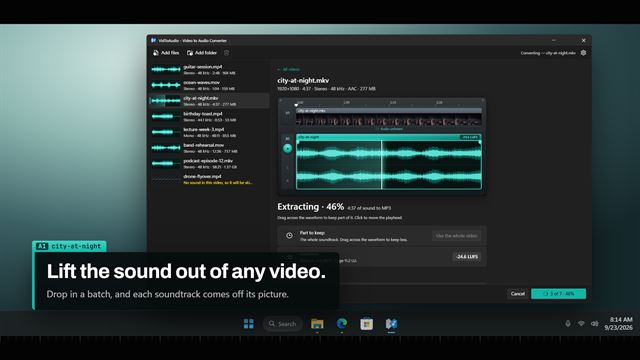
No. It only accepts audio files. Video goes through a separate audio extraction app.

Which versions of Windows does it run on?

Windows 10 (version 1809 or later) and Windows 11.

Is it a subscription?

No. Any Sound Converter is a one-time purchase of $1.99, and updates are included.

How do I get it?

Buy it on this page and your license key arrives by email. If the button says Notify me, Any Sound Converter is not on sale here yet; leave your email and we will tell you when it is.