Why your default audio device keeps changing
Windows picks a new default audio device whenever it thinks you would want one. Wake a monitor with speakers over HDMI or DisplayPort and the sound jumps to it. Reconnect a Bluetooth headset and it takes the microphone. Some games and call apps change the default on their way in and never put it back. There is no switch in Sound settings that tells Windows to leave the choice alone.
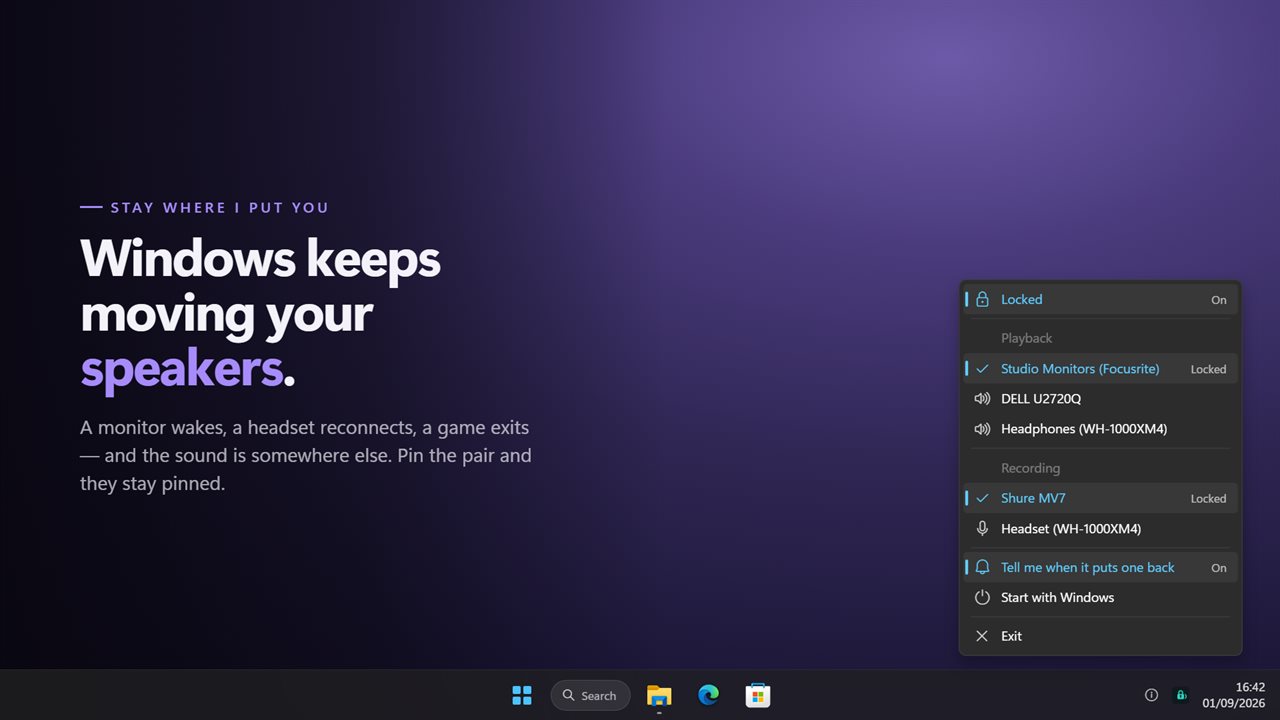
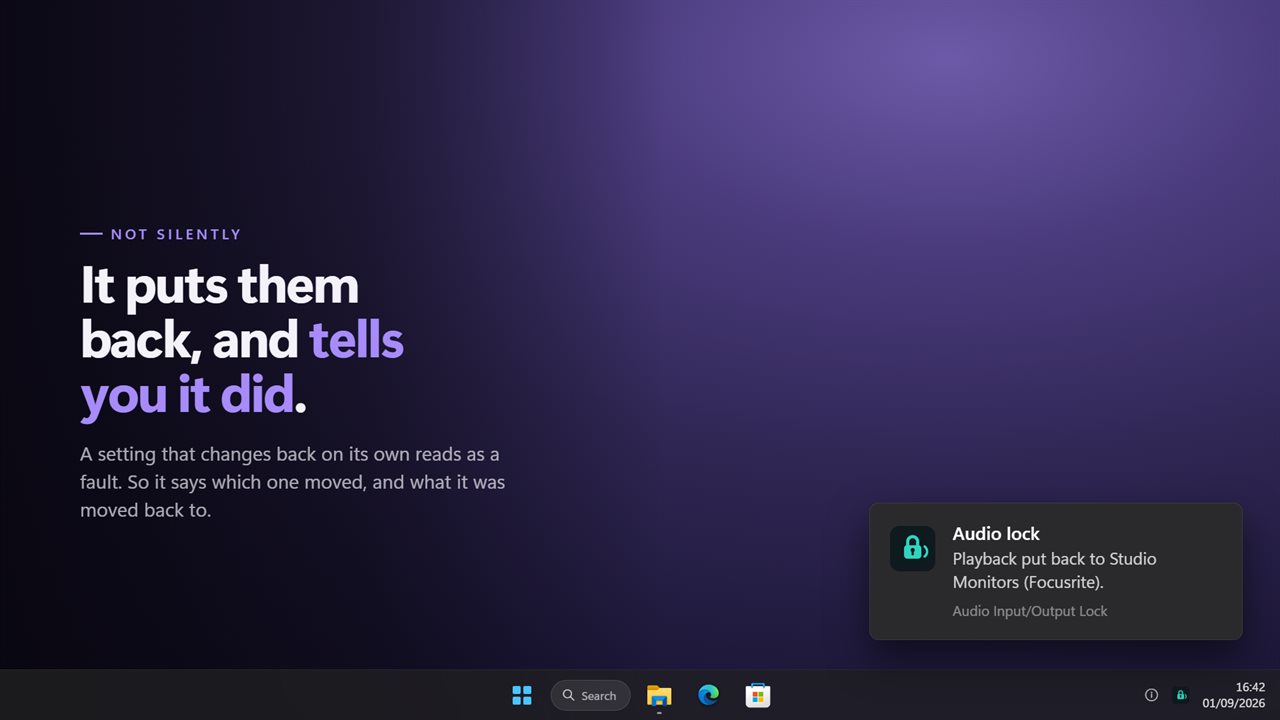
Audio Input/Output Lock is that switch. Choose your speakers and your microphone from its menu in the notification area, turn the lock on, and it keeps them as the defaults. When anything changes them, Windows reports the change and the app restores your device the moment that report arrives.
It does not poll the system on a timer, so it does no work while your devices stay where they are. It also checks once at startup, which catches a PC that came back from a restart pointing at the wrong output.
How to stop Windows from changing audio devices
The common fixes, disabling unused HDMI outputs in the Sound control panel or editing the registry, take away devices you may want later. Locking leaves every device available and only holds which one is the default.
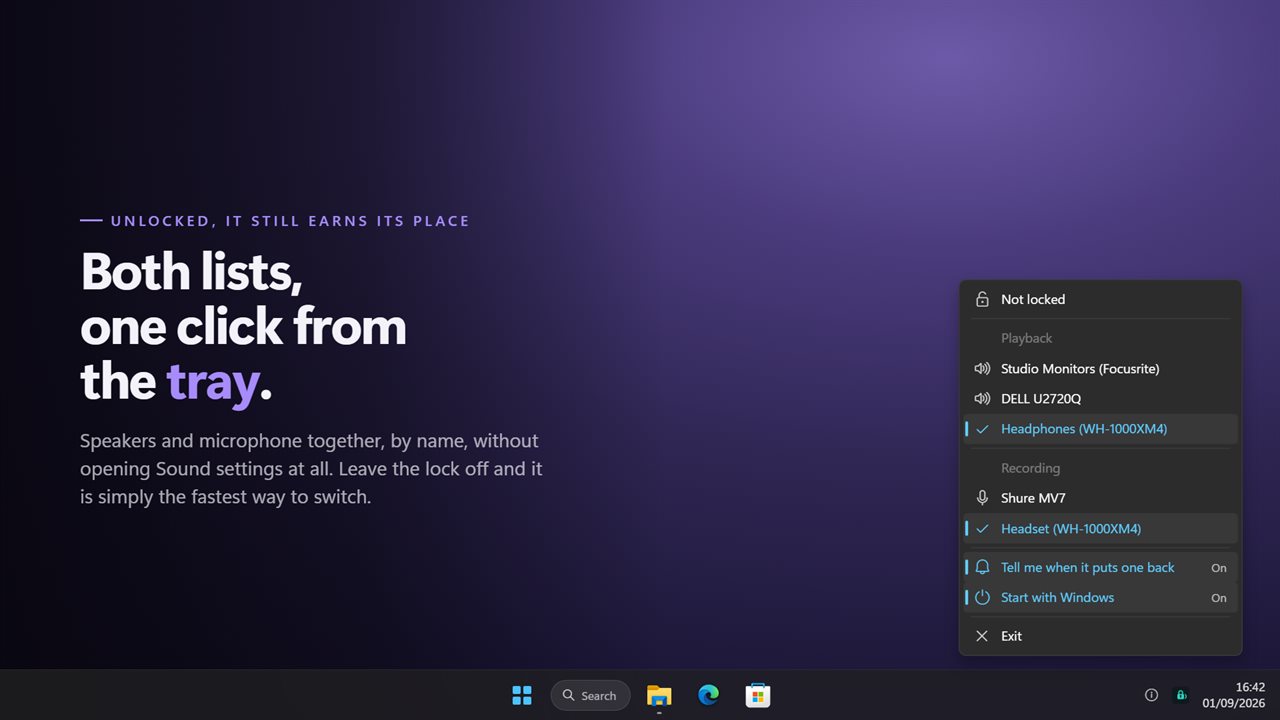
- Click the tray icon to open the menu. Devices are listed by name under Playback and Recording.
- Click the speakers or headphones you want under Playback, and the microphone you want under Recording.
- Click the Not locked row so it reads Locked. The held devices show Locked beside them.
- Turn on Start with Windows from the same menu, since the lock only works while the app is running.
Default playback device and default communication device, held together
Windows keeps more than one default. Calls in many chat and meeting apps follow the default communication device, which can sit on a different headset from your music and games. When this app sets a device, it makes it the default for every role, Communications included, so a call does not wander off to another output while everything else stays put.
Playback and recording are held independently. If the headset you locked is unplugged, the lock stays on and simply waits; your other direction keeps being held, and the headset becomes the default again as soon as it is reconnected.
An audio switcher when the lock is off
With the lock off, the same menu is a quick audio switcher. Every output and input is one click from the clock, without opening Sound settings or the volume flyout. Click a different device under Playback and the sound moves there. When you want it to stay, turn the lock back on.