EEvlarSoft

Quick Voice Memo Recorder

Press one shortcut in any app, say what you need to remember, and get the recording plus a searchable transcript made on your own PC.

Buy for $2.99
One payment. No subscription.
14-day money-back guarantee.
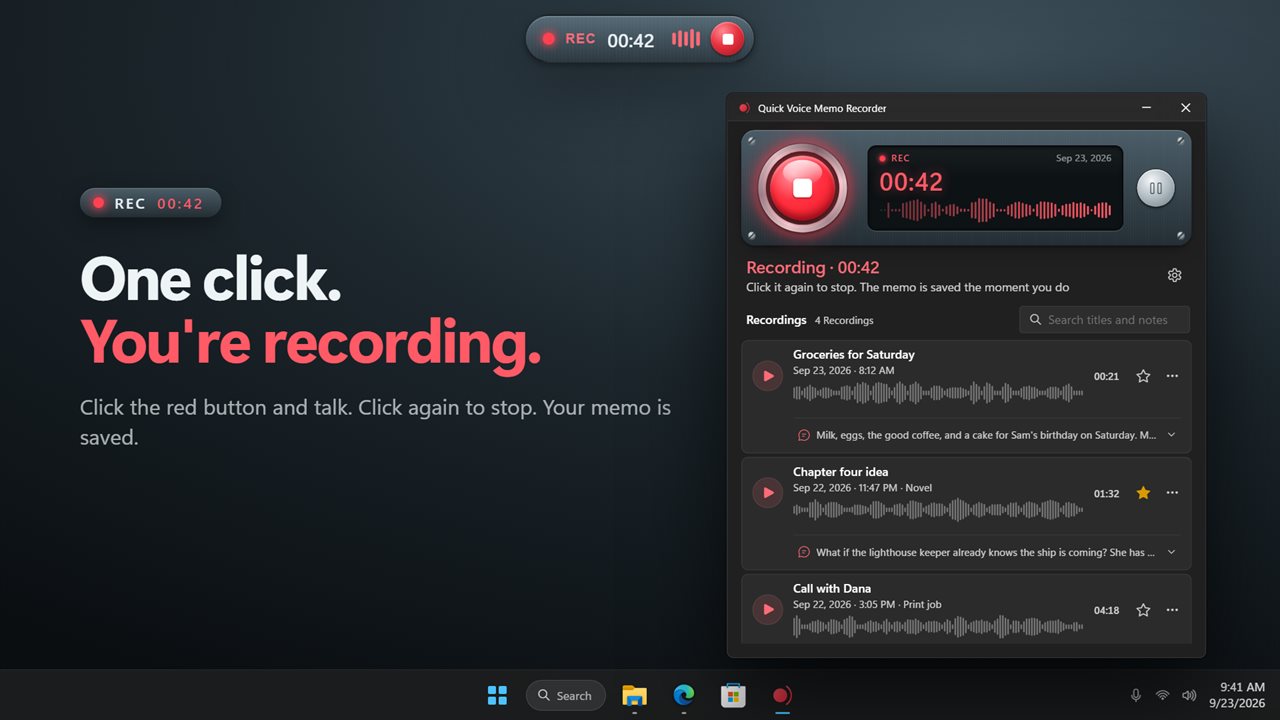
One click, or one shortcut, and you're recording.
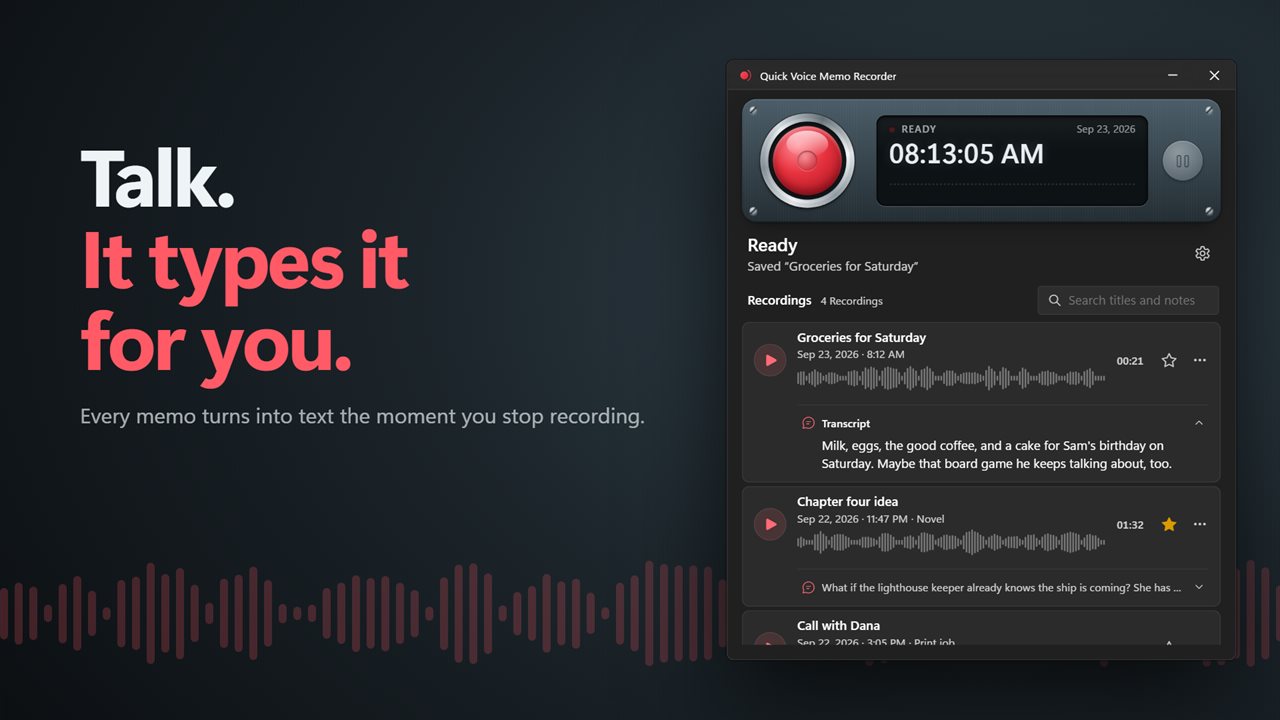
Every memo is turned into text as soon as you stop.
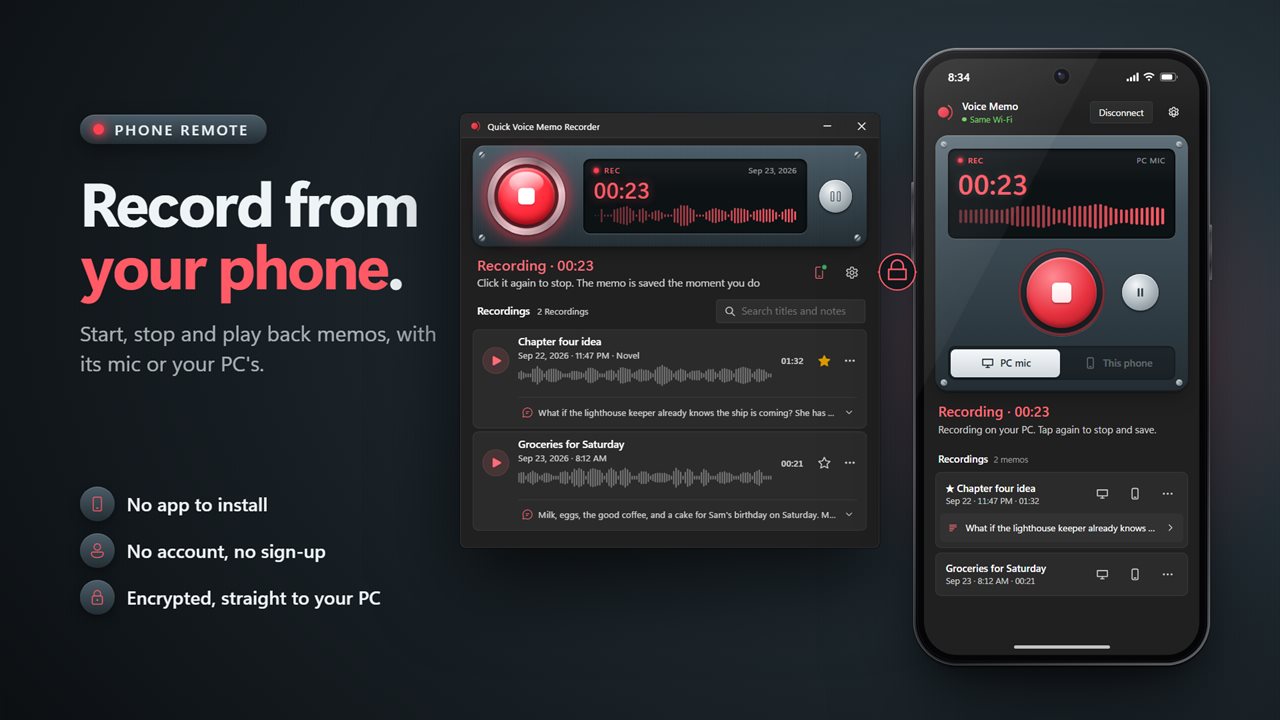
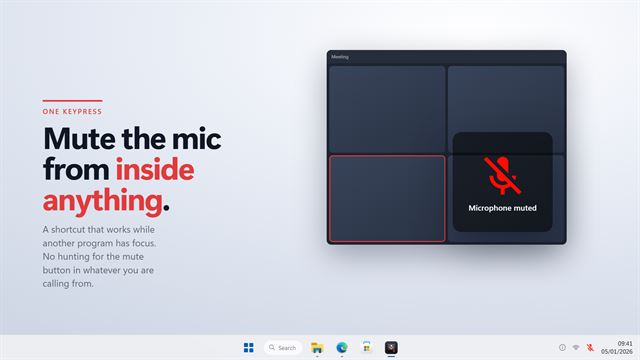
Use your phone as a remote and a second mic. No app to install, no account, and an encrypted link straight to your PC.
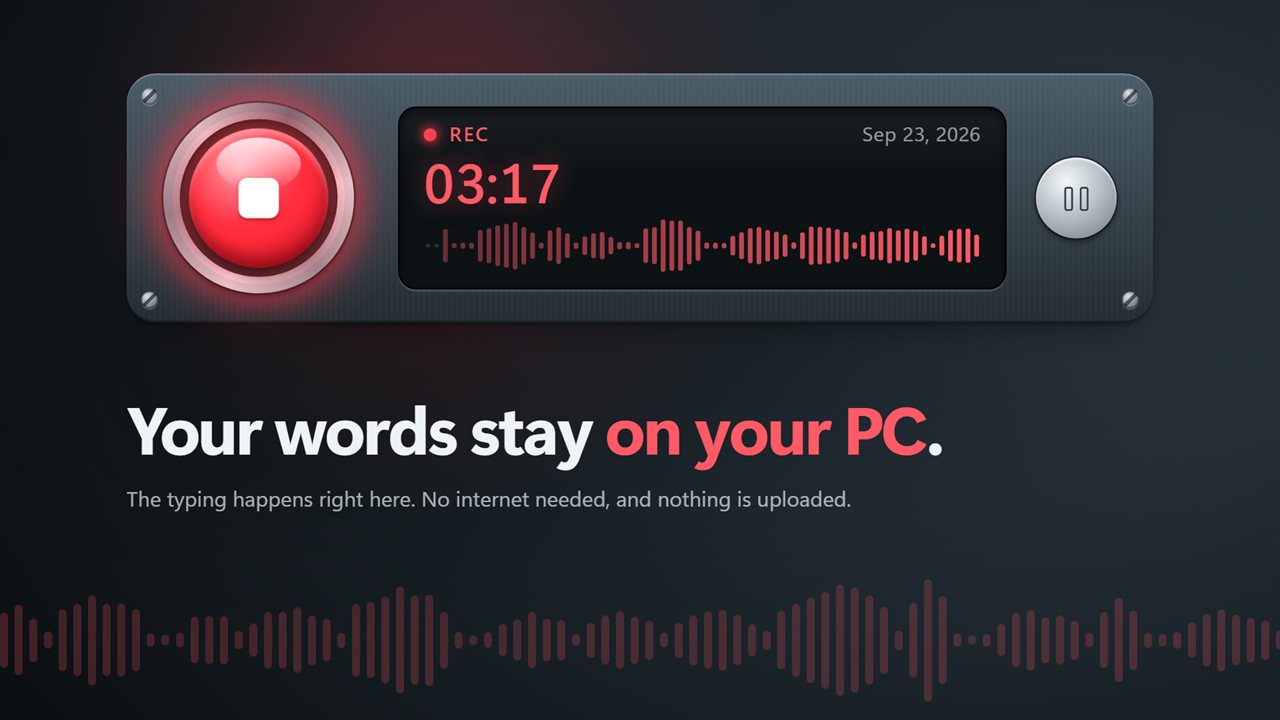
The text is made on your PC. Nothing is uploaded.
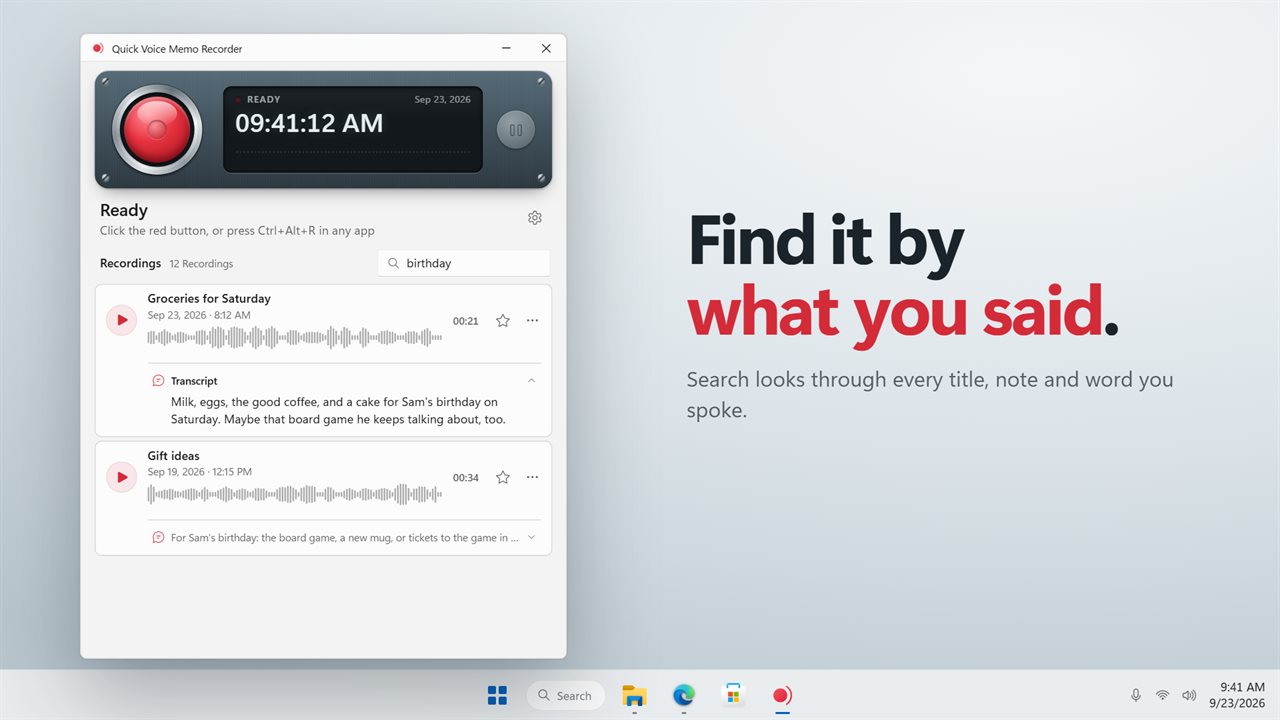
Find any memo by something you said in it.
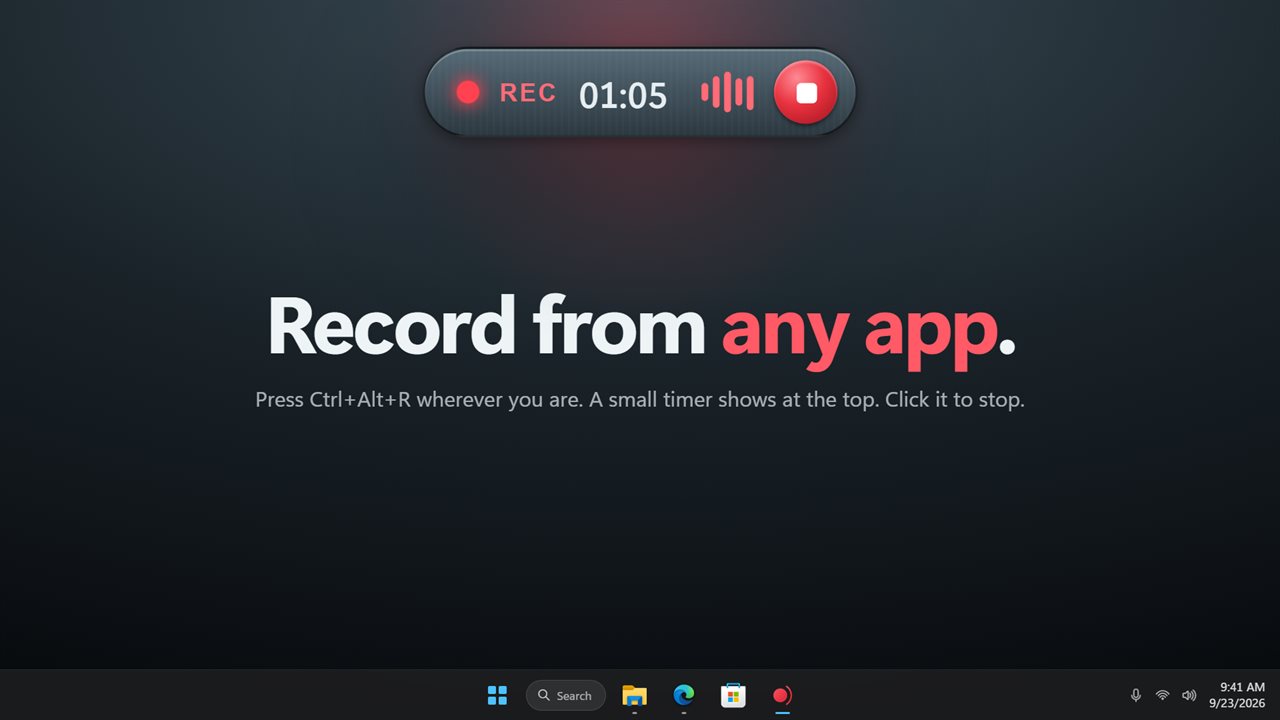
Record from any app. Click the REC timer to stop.
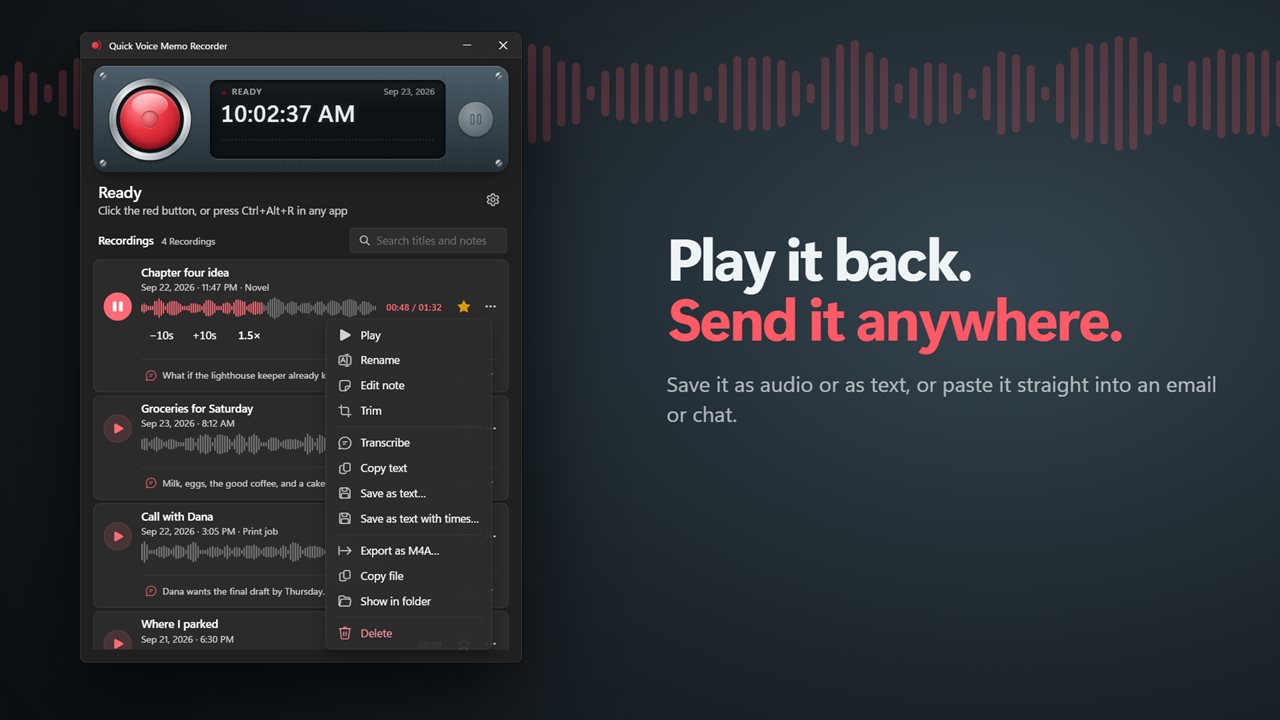
Play it back, trim it, and share it as audio or text.

One click, or one shortcut, and you're recording.

190,000+downloads of EvlarSoft apps
Signed by EvlarSoftVerified US publisher
14-day money-backNo questions asked
Updates includedNo upgrade fees

A voice recorder with transcription that lives on your PC

Most people who search for a voice recorder with transcription end up juggling two tools: one that captures audio and a second, usually a website, that turns it into text. Quick Voice Memo Recorder does both in one window. Stop a recording and the transcript starts right away, on your own machine.

English speech recognition ships inside the app, using a compact Whisper model, so a memo becomes text with no upload step. Spanish, French, German, Italian, Portuguese and Dutch use a larger multilingual model that downloads once and then runs locally as well. You can also choose Detect the language and let the model decide.

The result is a memo you can find later by anything you said in it. Type a word into the search box and the list narrows to recordings whose title, note or transcript contains it, with starred memos kept on top.

How to record your voice on Windows 11 without opening an app first

The fastest memo is the one you start without switching windows. The app sits in the notification area and listens for its Record shortcut, which is Ctrl+Alt+R out of the box.

  • Press Ctrl+Alt+R in whatever program you are using. Recording begins and a small REC pill with a running timer appears at the top of the screen.
  • Talk. Press the shortcut again, or click the pill, to stop. The file is written the instant you stop.
  • Inside the main window you can instead click the red button, and use Pause and Resume to keep one thought in a single memo.
  • Change the key combination under Record shortcut in Settings, or turn off Show the REC pill if you prefer no on-screen marker.
  • Turn on Start with Windows so the shortcut works from the moment you sign in.

Transcribe voice memos to text, then copy or save it

Open a memo and choose Show transcript to read it. Copy text puts the words on the clipboard for an email, a document or a task list. Save as text writes a plain .txt file, and Save as text with times adds a timestamp to each line, which helps when you need to jump back to a moment in a long recording.

When the transcript is in, the app offers the first few words as a title, so a list of dated memos turns into a list of subjects. If you trim a recording after it was transcribed, the app tells you, and Transcribe again brings the text back in step with the audio.

Prefer audio only? Switch off Transcribe new memos automatically and run Transcribe on just the memos you choose.

A voice memo app for PC that handles the playback chores

Each recording gets a waveform that doubles as its position bar. Play at 1x, 1.5x or 2x, and step Back 10 seconds or Forward 10 seconds to find a detail. Trim start and Trim end cut dead air; the untrimmed file waits as a backup until you press Keep, and Undo restores it.

Memos are stored as WAV in Documents\VoiceMemo, the same folder older versions of the app used, so nothing goes missing on upgrade. Export as M4A makes a smaller copy for sharing, and Copy file lets you paste the recording straight into a chat or a folder.
What you get

  • Global Record shortcut, Ctrl+Alt+R by default and fully changeable
  • Floating REC pill with a live timer; click it to stop and save
  • Pause and Resume inside a single memo
  • Live input-level display so you know the mic is picking you up
  • Local transcriptionEnglish built in, six more languages after one download
  • Search across titles, notes and transcripts
  • Playback at 1x, 1.5x or 2x with 10-second skips
  • Non-destructive trim with Undo until you keep it
  • WAV storage, Export as M4A, and Copy file for pasting anywhere
  • Pick any microphone Windows sees, or link a phone as a remote and second mic

Who records memos this way

Ideas mid-task

A writer or developer presses the shortcut, says the thought out loud, presses it again and keeps working. Later, a search for one word brings the memo back.

Meeting follow-ups

Talk through action items right after a call, then copy the transcript into your notes or task tracker instead of typing it.

Language practice

Record yourself in French or Spanish and compare the transcript with what you meant to say.

What's new in 2.1.3

  • New: every memo is turned into text on your PC. English works with no internet
  • New: search memos by anything you said in them
  • New: copy the text or save it as a text file
  • New: record from any app with a shortcut, with a small REC timer at the top of the screen
  • New: pause and resume, trim, and play back at up to 2x
  • New: save a memo as M4A, or copy the file into an email or chat
  • Your existing memos are all still there

Questions

Anything else? Ask us

Does Quick Voice Memo Recorder need the internet to turn my memos into text?

No, not for English. The Whisper tiny English speech model is built into the app and runs on your PC, so your audio is not sent anywhere to be transcribed. Other languages need a one-time download of the multilingual model, about 44 MB, and then also work offline.

Which languages can it transcribe?

English, Spanish, French, German, Italian, Portuguese and Dutch, or Detect the language to let the model pick. Transcription can also be switched off for new memos.

Can I start recording from any app with a keyboard shortcut?

Yes. Ctrl+Alt+R starts and stops a recording from anywhere, and you can pick another shortcut. A small REC timer sits at the top of the screen while you record; click it to stop and save, or hide it in settings.

What format are memos saved in, and where?

As WAV files in Documents\VoiceMemo, which follows your Documents folder if it is on OneDrive. You can save any memo as an M4A copy, or copy the file and paste it into an email, a chat or a folder.

Does trimming a memo change the original recording?

Yes, once you keep the trim. Until then the untrimmed recording is kept as a backup and Undo puts it back.

Can I choose which microphone it records from?

Yes. Pick any microphone Windows has in settings, or leave it on the default. A linked phone can also record a memo with its own microphone, which is saved on your PC like any other.

Can I search inside what I said in a recording?

Yes. The search box matches the title, the note and the full transcript of every memo, so any word you spoke finds the recording once it has been transcribed.

Can I transcribe memos I recorded with transcription turned off?

Yes. Open the memo and choose Transcribe. It runs on that one recording, so you can leave Transcribe new memos automatically off and convert only the memos worth keeping as text.

Can I get the transcript with timestamps?

Yes. Save as text with times writes a .txt file with a time beside each line of the transcript. Save as text writes the same words without the times.

Which versions of Windows does it run on?

Windows 10 (version 1809 or later) and Windows 11.

Is it a subscription?

No. Quick Voice Memo Recorder is a one-time purchase of $2.99, and updates are included.

How do I get it?

Buy it on this page and your license key arrives by email. If the button says Notify me, Quick Voice Memo Recorder is not on sale here yet; leave your email and we will tell you when it is.