EEvlarSoft

Clipboard History and Manager

A clipboard manager that remembers what you copy, lets you search it, even the text in screenshots, and pastes it back into any app with a keystroke.

Buy for $2.99
One payment. No subscription.
14-day money-back guarantee.
3.0
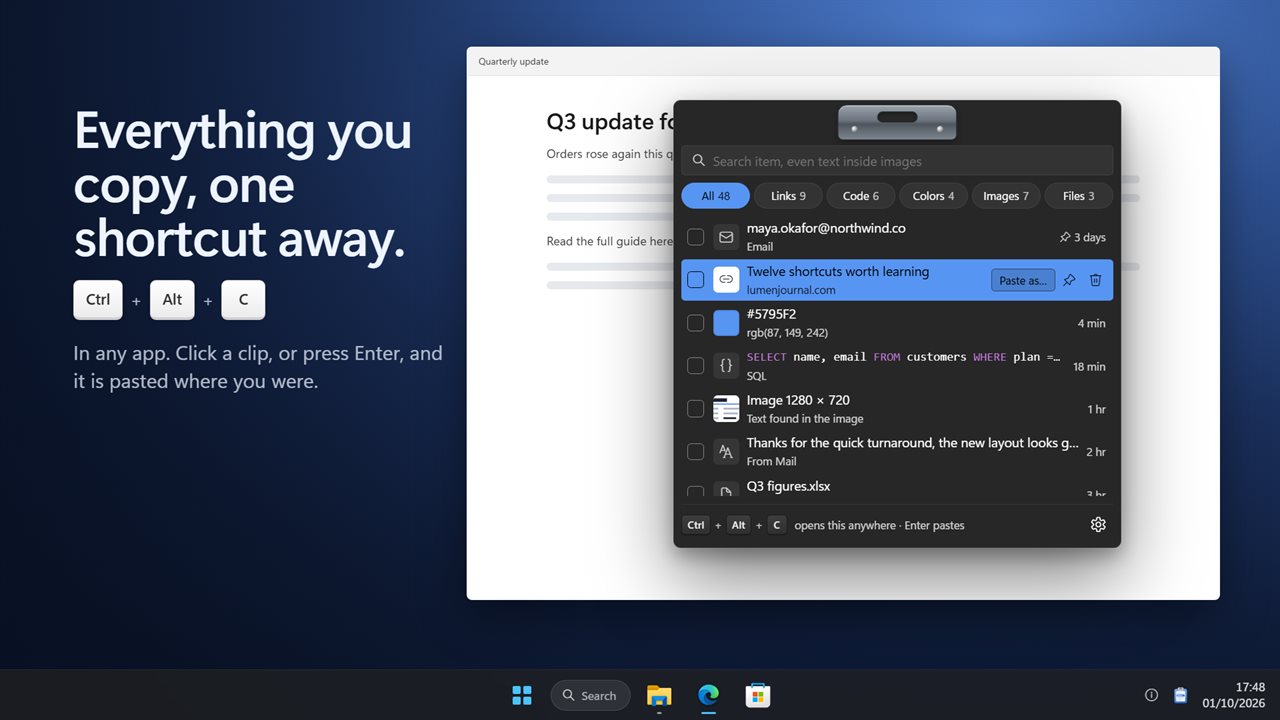
Everything you copy, one shortcut away.
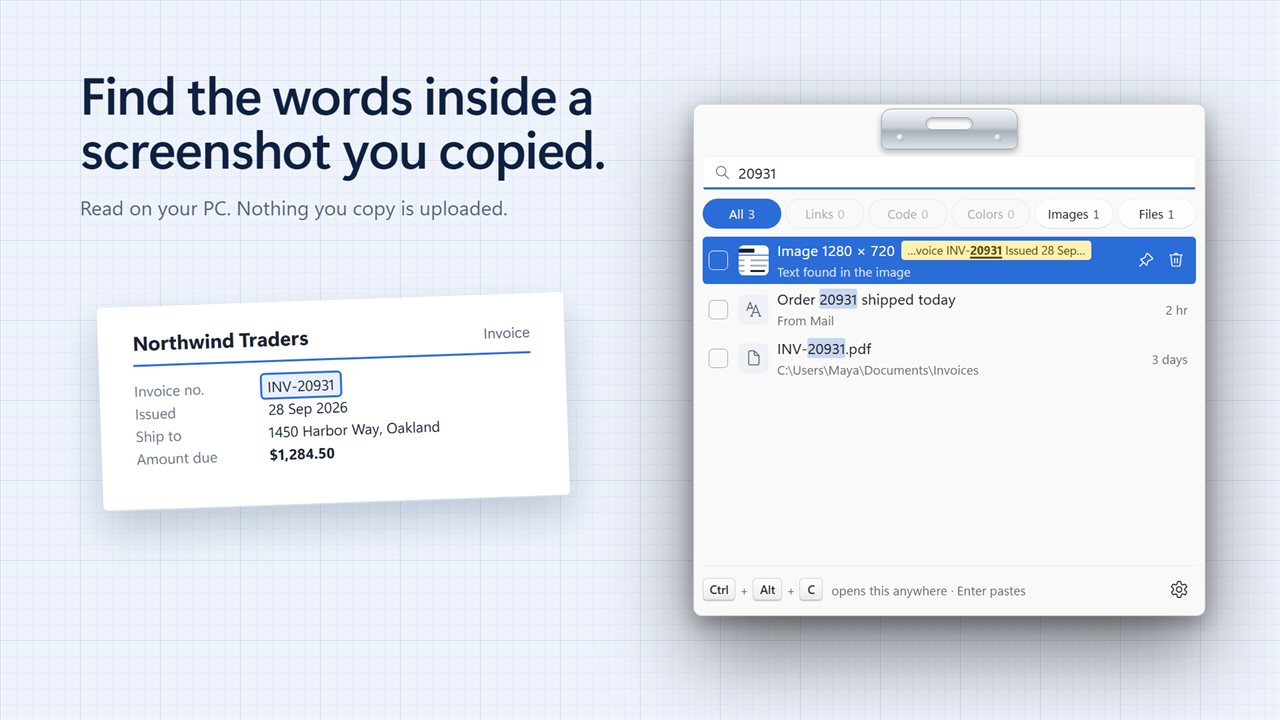
Find the words inside a screenshot you copied.
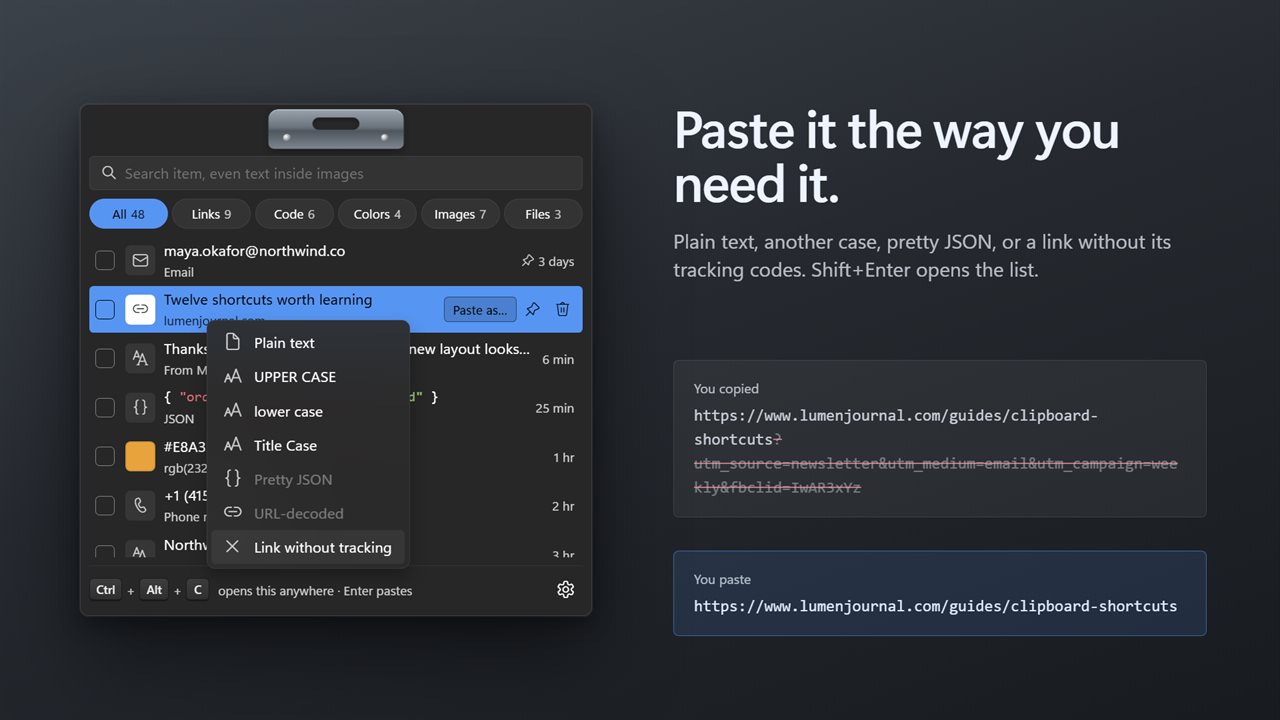
Paste as plain text, in another case, or as a clean link.
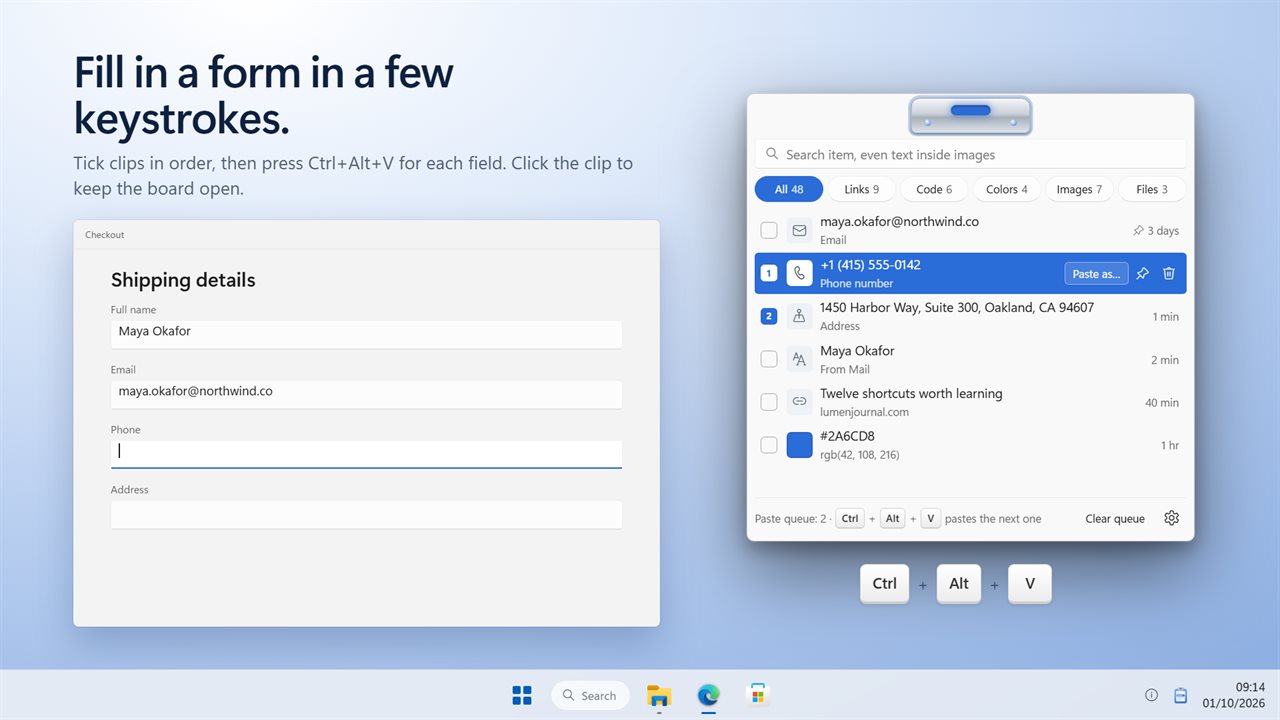
Tick a few clips, then press Ctrl+Alt+V to paste them in order.
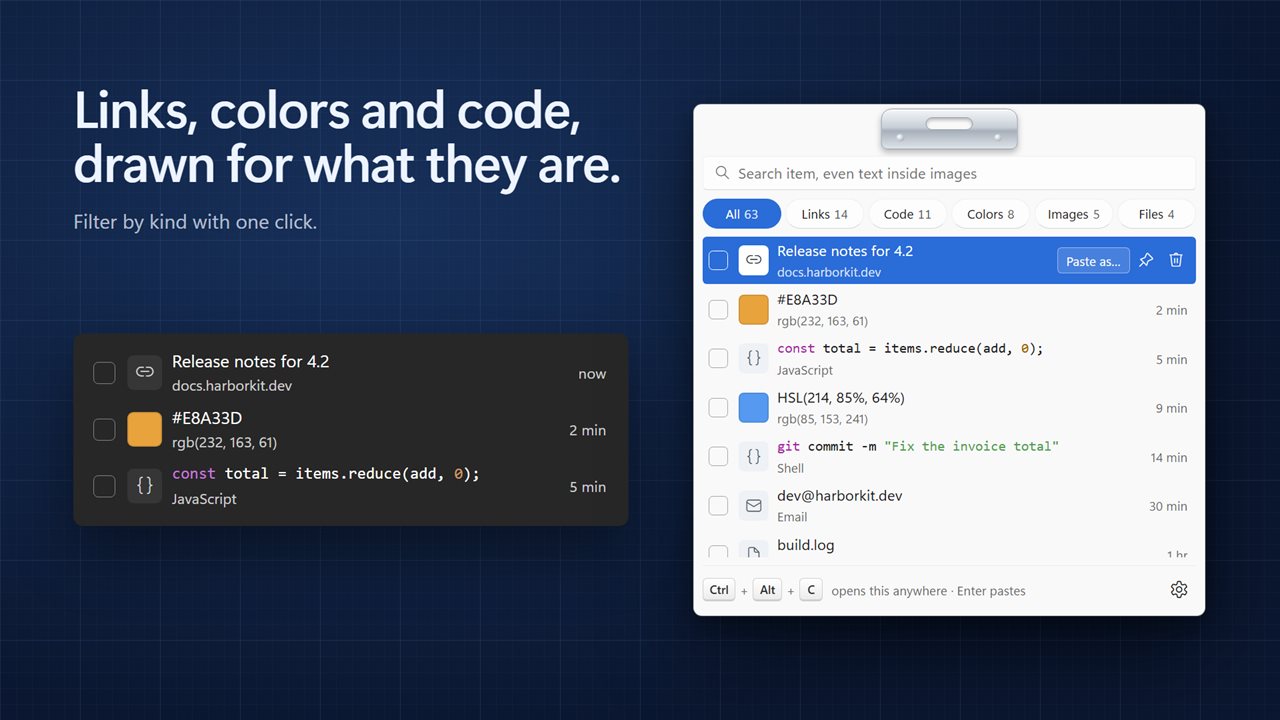
Links, colors and code, drawn for what they are.
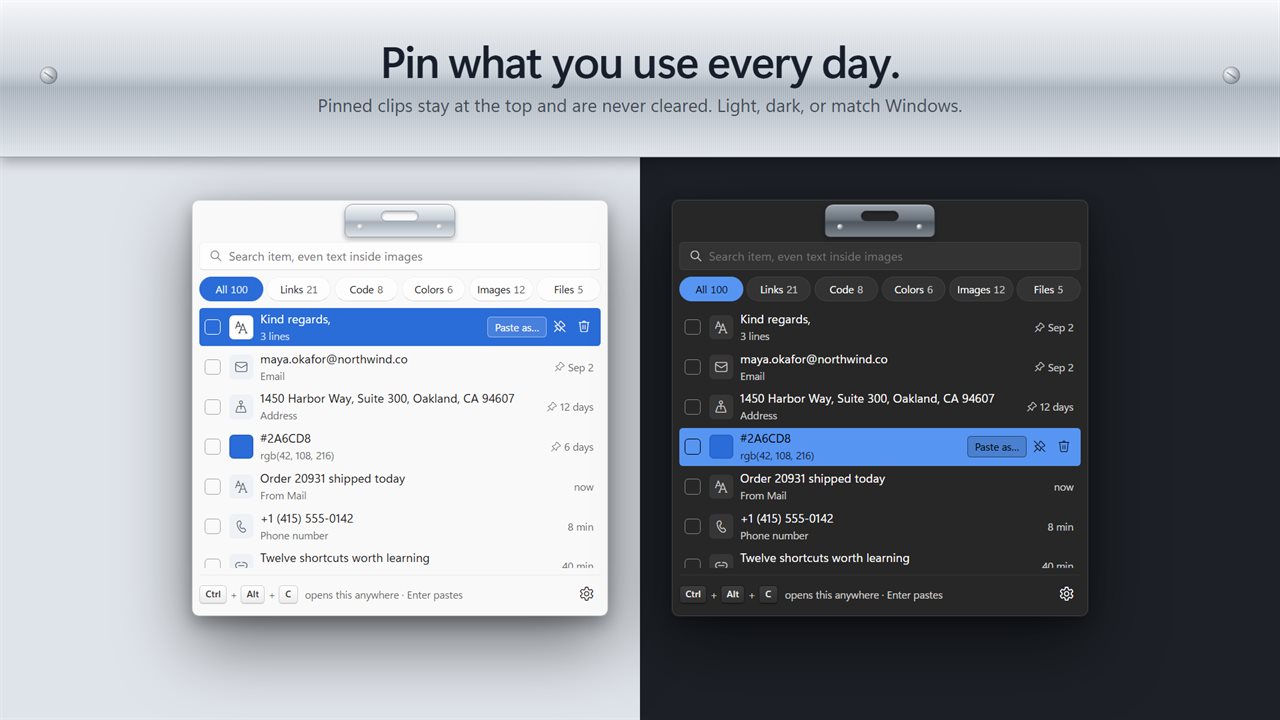
Pin what you use every day. Light and dark themes.

Everything you copy, one shortcut away.

190,000+downloads of EvlarSoft apps
Signed by EvlarSoftVerified US publisher
14-day money-backNo questions asked
Updates includedNo upgrade fees

What a clipboard manager does that Win+V does not

Windows has its own clipboard history on Win+V, but it keeps a short list and cannot find a word inside a picture you copied. A clipboard manager replaces it with a longer memory and tools for using what you copied. This one holds 100 clips out of the box, with a choice of 50, 250 or 500 instead, and pins the ones you reuse so they never fall off the end.

From any program, Ctrl+Alt+C brings the board up at the center of your display, cursor already in the search box. Type a few letters, pick a clip with the arrow keys or the mouse, and Enter pastes it into the window you came from. Press the same shortcut again, hit Esc or click elsewhere and the board goes away. Both shortcuts can be re-recorded in Settings if another program already uses them.

Clips are sorted into kinds you can filter with one click: Links, Code, Colors, Images and Files, or All. A copied URL is labeled with the title of the page it points to, a hex or RGB value appears as a little patch of that color, and code snippets are tagged with their language, such as SQL, Python, PowerShell or C#, and highlighted. Contact details, street addresses and paths are marked with icons of their own, so a long history stays easy to scan.

Copy text from a screenshot, then search for it later

When you copy a screenshot or a picture, the app runs it through the text recognition built into Windows and stores the words beside the image. The search box placeholder says it plainly: Search item, even text inside images. That means an order number in a receipt photo, an error message in a screen grab or a line from a slide can be found by typing it, even though you never copied it as text.

If you would rather not keep pictures at all, switch off Keep images in Settings.

Paste without formatting, and six other ways to paste

Text copied from a web page or a document usually drags its fonts and colors along. Select a clip and press Shift+Enter, or choose Paste as…, to rewrite it before it lands:

  • Plain text, with the source formatting dropped
  • UPPER CASE, lower case or Title Case
  • Pretty JSON, which re-indents a single-line JSON blob
  • URL-decoded, turning %20 and friends back into readable characters
  • Link without tracking, which strips the tracking codes from a URL before you share it

Paste several clips in order with a paste queue

Filling in a form from scattered notes usually means switching windows for every field. Instead, tick the ones you want on the board; each one is numbered in the order you ticked it. Click into the first field of the form and use Ctrl+Alt+V. The first clip is pasted. Move to the next field and press it again for the second, and so on until the queue is empty. Clear queue empties it early.

To keep the board on screen while you work in another window, click the clip icon at the top to hold it open; click it again to let it close on its own.

Features

  • History of text, links, screenshots, pictures and copied files
  • Ctrl+Alt+C to open the board anywhere, and Enter to paste into the last app
  • Search across every clip, including words read out of images
  • One-click filters for links, code, colors, images and files
  • Paste as plain text, change case, pretty JSON, URL-decode or remove link tracking
  • Numbered paste queue played back with Ctrl+Alt+V
  • Pinned clips that stay at the top and survive Clear history
  • Entries flagged by password managers are skipped, and anything resembling a card number or password is masked
  • Waits in the notification area, with Start with Windows in Settings

What's new in 2.0.2

  • New: click a clip or press Enter and it is pasted straight into the app you were using
  • New: screenshots, pictures and files are kept too, and the text inside images is searchable
  • New: links show their page title, colors show a swatch, and code is colored
  • New: Paste as plain text, in another case, as pretty JSON, or as a link without tracking codes
  • New: a paste queue. Tick clips and press Ctrl+Alt+V to paste them in order
  • New: pin clips, and keep 50, 100, 250 or 500 of them
  • Fixed: deleted clips stay deleted, and long clips are no longer cut short
  • Your clipboard history carries over

Questions

Anything else? Ask us

Does Clipboard History and Manager save passwords I copy from a password manager?

No. Anything a password manager marks as not for clipboard history is dropped before it is saved. Text you copy yourself that looks like a password, a card number, a one-time code or a key is kept, but shown as dots in the list.

How many clips does it keep?

The last 50, 100, 250 or 500, as you choose; older clips drop off the bottom. Pinned clips are never trimmed, and clearing the history keeps them too.

Can it find text inside a screenshot I copied?

Yes. Copied pictures are read with the text recognition built into Windows, on your PC, and the words become searchable. Turn off Keep images and pictures are not saved at all.

Can I paste several clips one after another?

Yes. Tick the clips you want and they are numbered in order. Each press of Ctrl+Alt+V in any app pastes the next one.

Can I change the Ctrl+Alt+C shortcut?

Yes. Both the shortcut that opens the history and the paste-queue shortcut can be recorded again in Settings.

Does it go online when I copy a link?

Yes. To show a link's page title and icon, the app requests that page from its website when the link comes into view in the list. Other text, pictures and files you copy are not sent anywhere.

How do I paste without formatting in Windows?

Open the board with Ctrl+Alt+C, select the clip and press Shift+Enter, then choose Plain text. The words are pasted with the original fonts, colors and links removed.

Does the history survive a restart?

Yes. Clips are saved to disk and are still there after you restart the app or the PC, up to the limit you set.

Can I delete a single clip?

Yes. Each clip has a Delete action. To wipe the lot, use Clear history in Settings; pinned clips are spared.

Which versions of Windows does it run on?

Windows 10 (version 1809 or later) and Windows 11.

Is it a subscription?

No. Clipboard History and Manager is a one-time purchase of $2.99, and updates are included.

How do I get it?

Buy it on this page and your license key arrives by email. If the button says Notify me, Clipboard History and Manager is not on sale here yet; leave your email and we will tell you when it is.

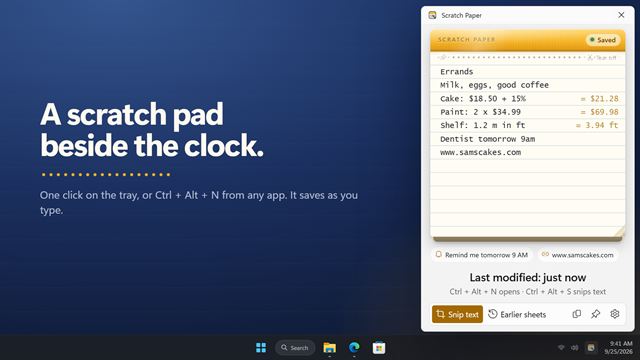
Prefer widgets? The Clipboard History widget on WidgetSpark does a similar job, alongside over 100 other desktop widgets in one app.