Disable mouse buttons you keep pressing by accident
Windows has no setting to disable mouse buttons. You can swap left and right, slow the pointer and change how far the wheel scrolls, but there is nothing that says "ignore this button." The usual advice is to install the software that came with your mouse, which only works for that brand and often can only remap a button, not silence it.
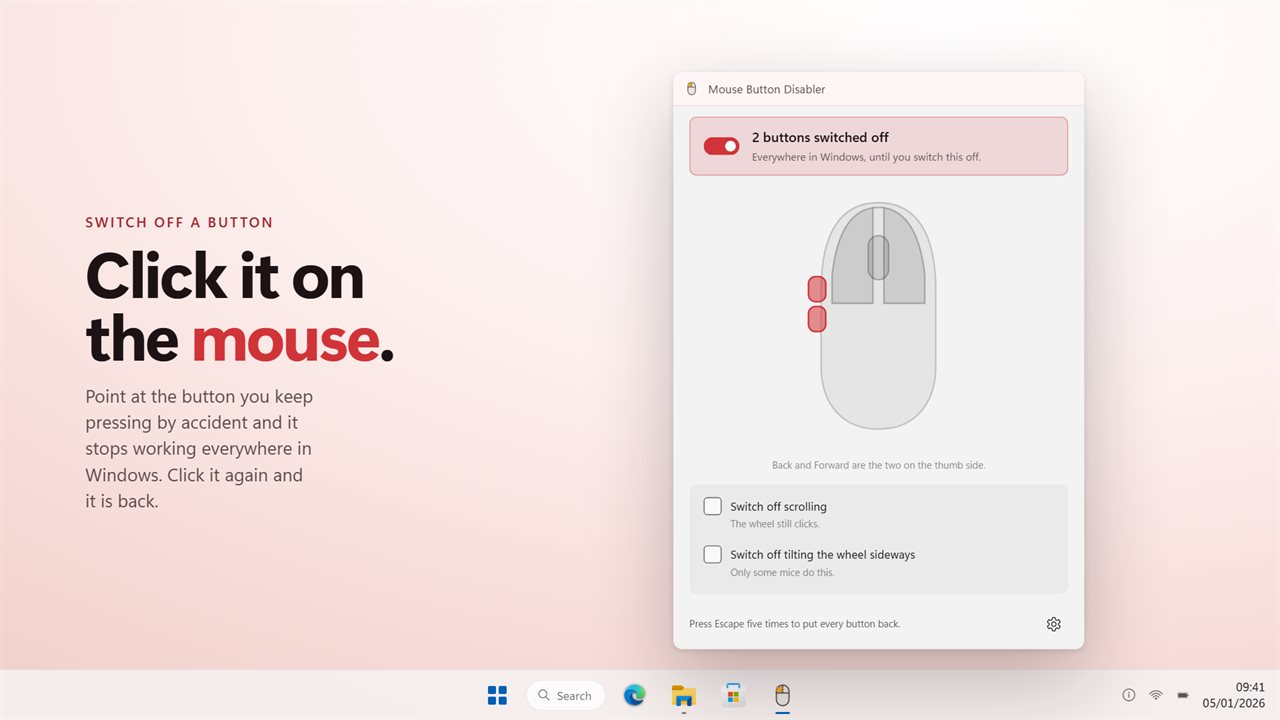
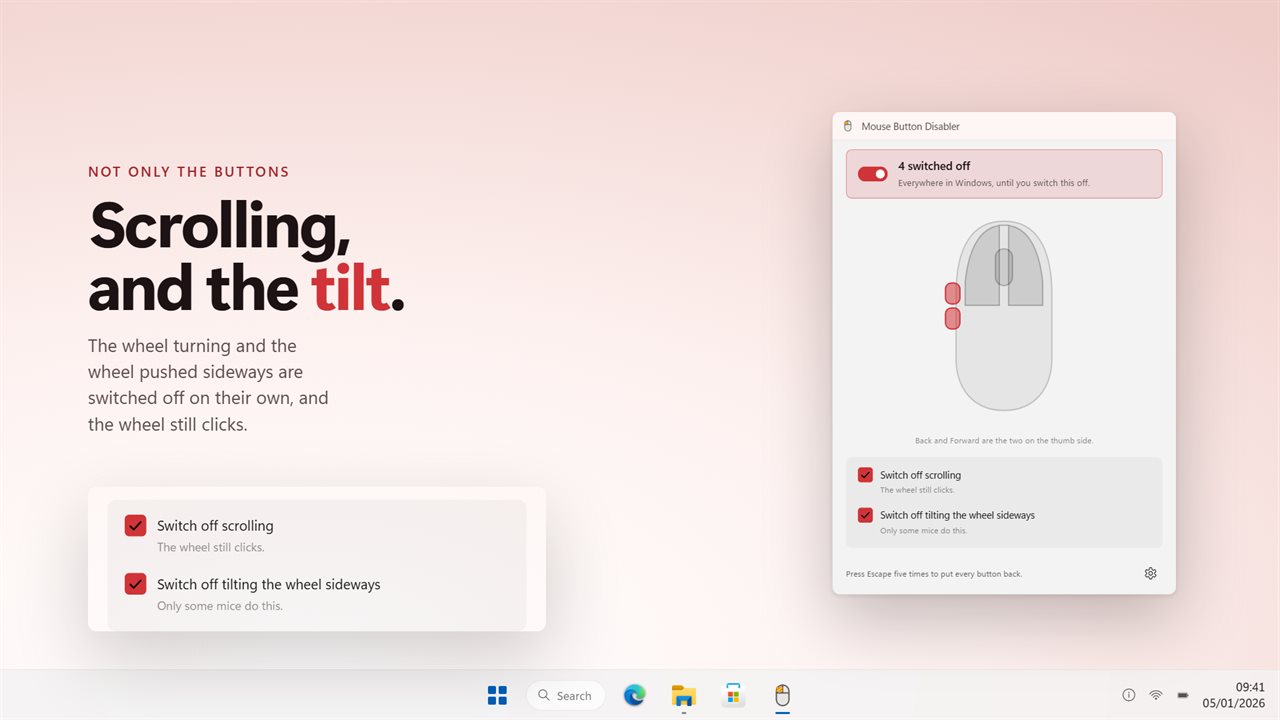
Mouse Button Disabler fills that gap for any mouse Windows can see. Its window is a picture of a mouse with five clickable buttons: Left, Right, Wheel, Back and Forward. Click one and it is marked off and stops responding everywhere in Windows. Click it again and it works as before.
Below the picture are two more choices that are not buttons at all: Scrolling, and Tilting the wheel sideways for mice whose wheel rocks left and right. Each one is separate, so you can keep the wheel click and lose the scroll, or the other way round.
How to disable the mouse side buttons (buttons 4 and 5)
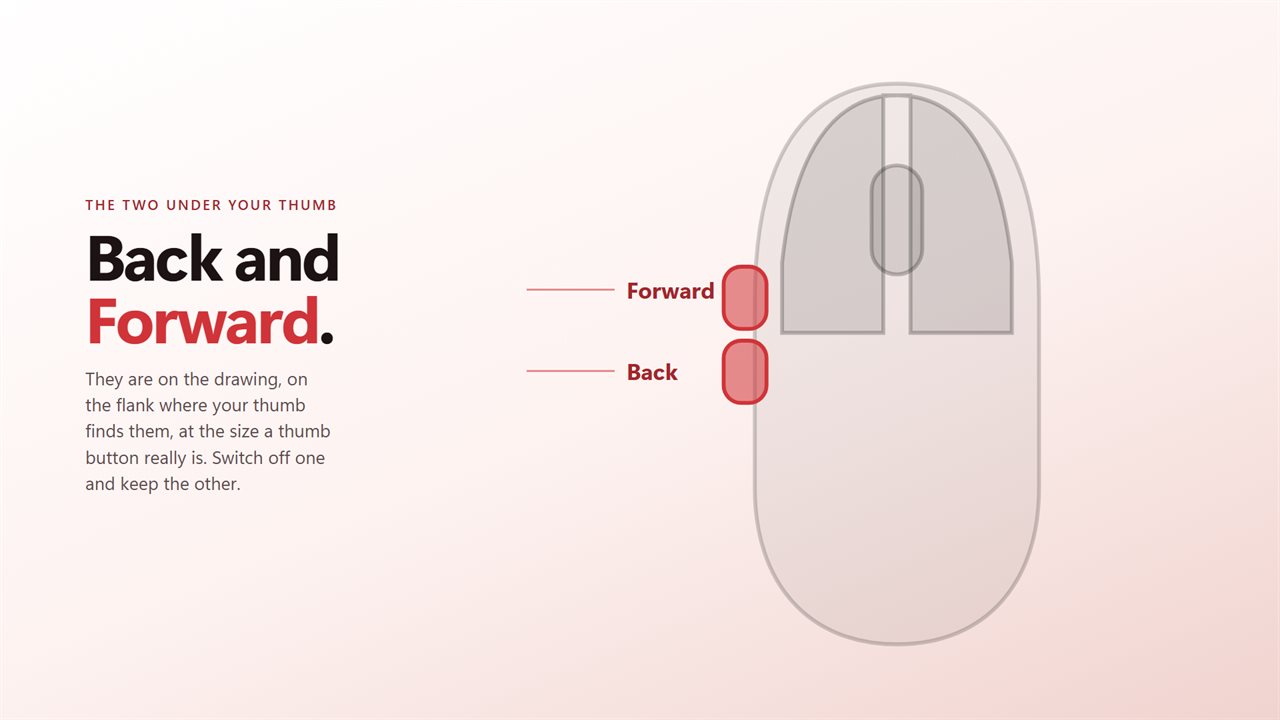
The two thumb buttons are what Windows calls XBUTTON1 and XBUTTON2, and most programs read them as Back and Forward. They are easy to squeeze while you grip the mouse, and in a browser one stray press throws away a half-typed form.
To stop that, open the app and click Back, Forward or both on the drawing. Leave everything else lit. The thumb buttons now do nothing in your browser, file manager, editor or game, while left, right and the wheel carry on as normal.
- Click a button on the mouse picture to switch it off; the drawing marks it as off
- Click it again to give that button back
- The headline above the picture tells you how many buttons are currently off
Turn off the middle mouse button or the scroll wheel
A middle click opens links in new tabs, closes tabs, pastes on some systems and starts autoscroll in others. If yours fires every time you scroll, switch off Wheel on the drawing and scrolling still works.
If the problem is the opposite, such as a worn wheel that scrolls by itself or a game where a nudged wheel changes weapon, switch off Scrolling instead. The wheel still clicks. Sideways tilt is its own switch, for the mice that have it.
Getting your buttons back
Nothing here edits the driver or the registry. Buttons are only blocked while the app is running and switched on, so turning it off or quitting puts the mouse back exactly as it was, with no restart.
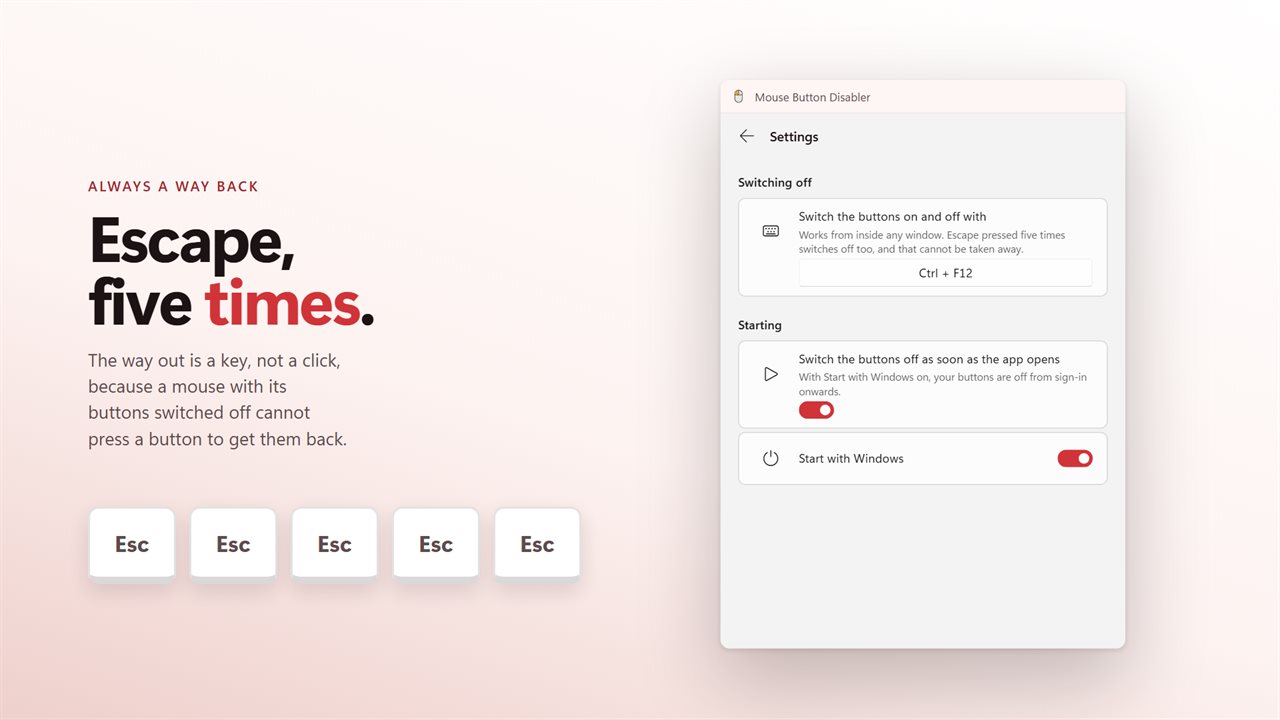
Because the left button can be one of the ones you switch off, the way out is always on the keyboard. The shortcut under Switch on and off with, Ctrl+F12 unless you change it, turns the block on and off from any window, and pressing Escape five times within two seconds brings every button back. If you strike out Left, the line under the drawing spells out both escape routes before you switch on.