Why scroll by lines?
A mouse wheel moves in notches, and each notch moves a page by a few lines. Mouse Wheel AutoScroll sends those same notches on a timer, so the page scrolls exactly as it would if you were turning the wheel yourself, and works in any app that responds to a wheel: browsers, PDF readers, code editors, chat logs.
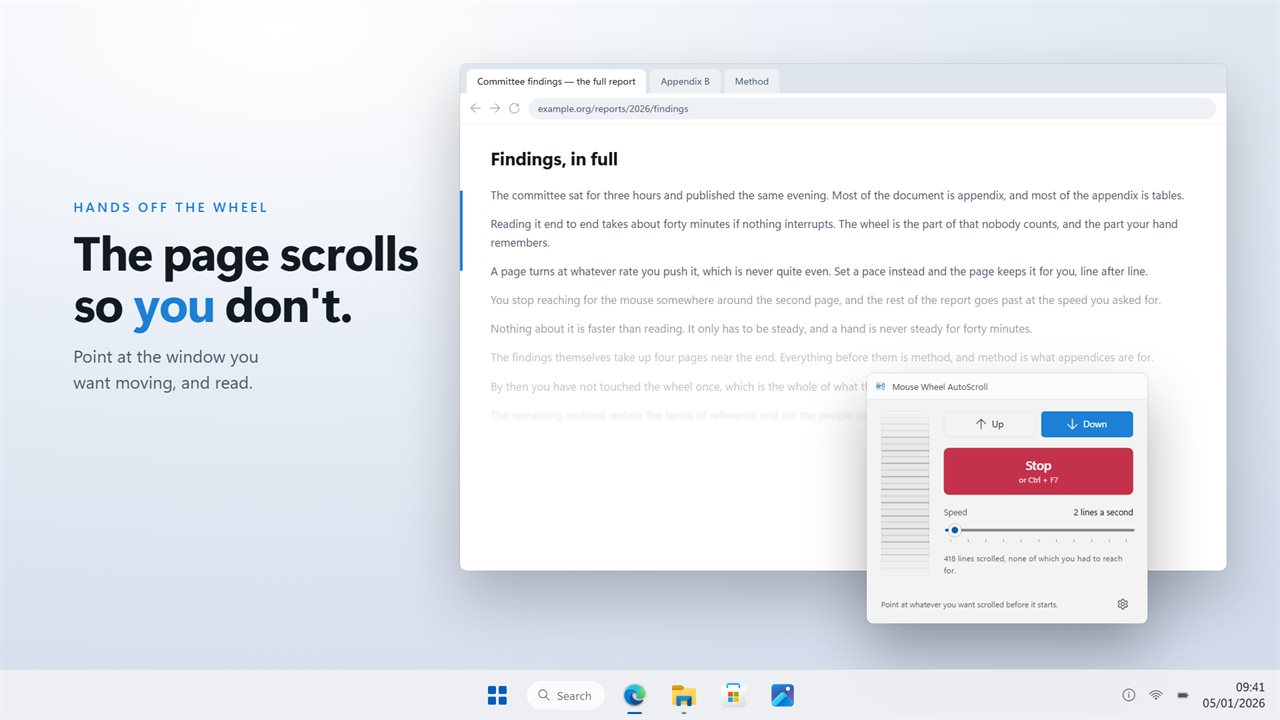
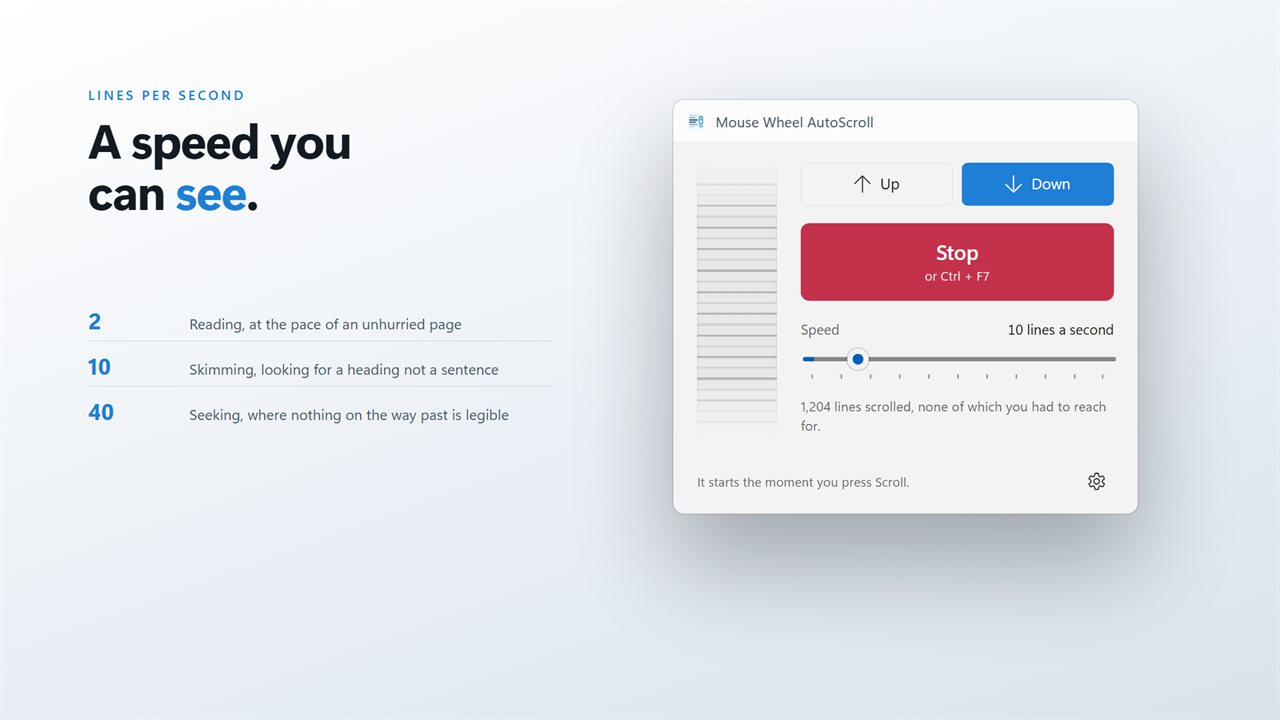
Speed is a plain count of lines per second. Two is a comfortable reading pace for most text. Ten skims. Sixty is for running down a long log to the bottom.
Scrolling goes to the window under the pointer. That is why it waits a few seconds after you press start: long enough to move the pointer over the page and let go.
How to auto scroll with the mouse wheel in Windows
Mouse Wheel AutoScroll turns the wheel for you in whatever window sits under the pointer. You set the pace once, then start and stop it from the keyboard.
- Drag the speed slider to any value from 1 to 60 lines a second and watch the rail move at that pace.
- Choose up or down. You can switch direction later without stopping.
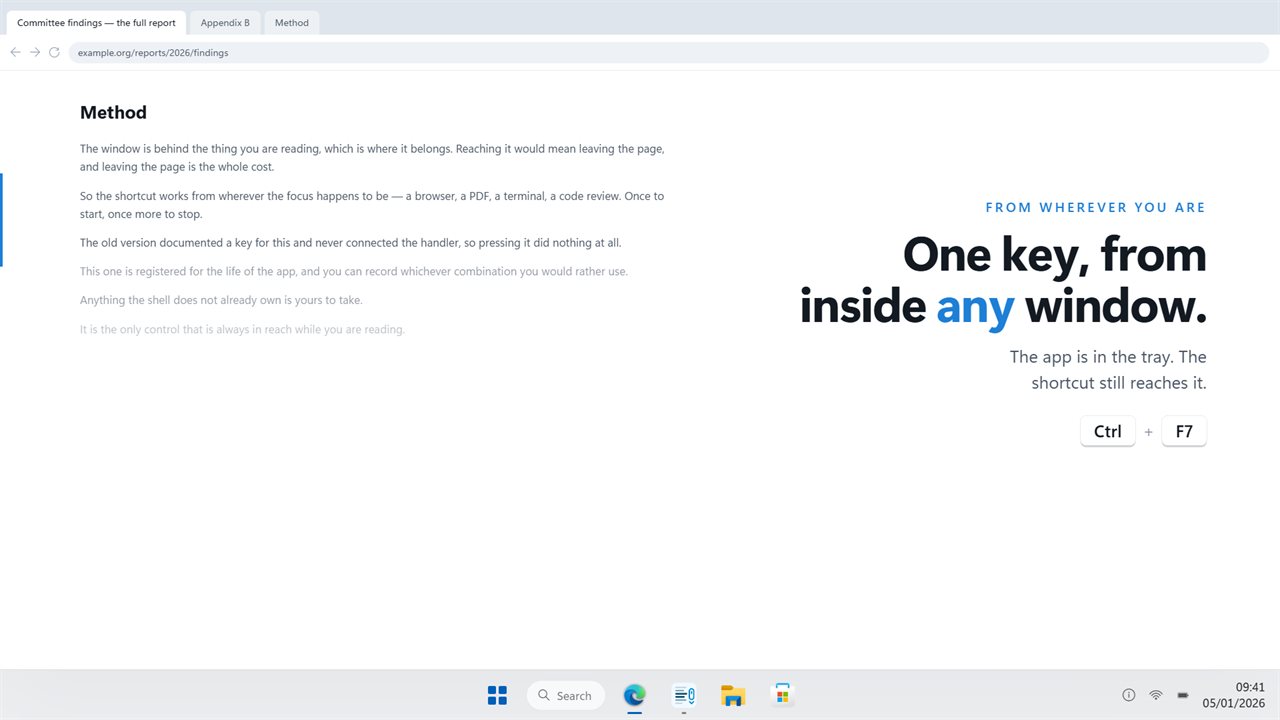
- Press Ctrl + F7, the default shortcut, then move the pointer over the page you want scrolled and let go of the mouse during the start delay.
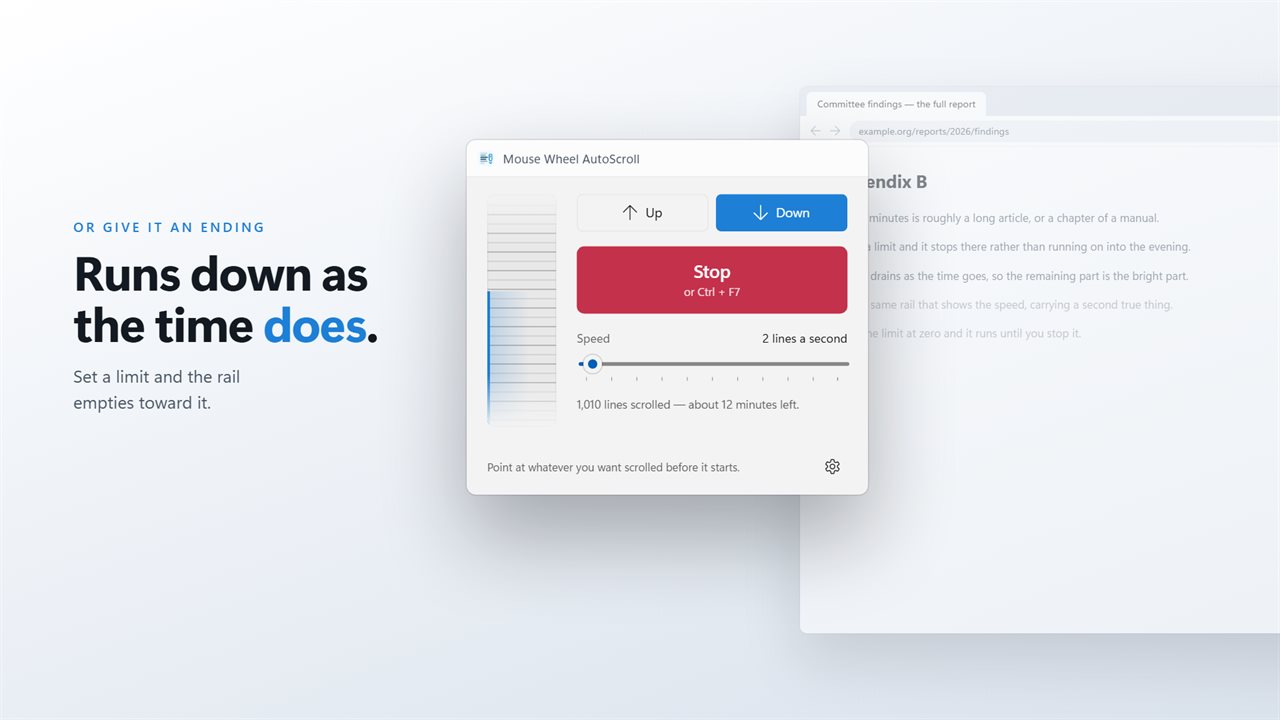
- Press Ctrl + F7 again to stop, or set a time limit of up to 120 minutes so it stops by itself.
An auto scroll wheel that works in any app
The app sends ordinary wheel notches on a timer, so it scrolls anything that already responds to your mouse wheel. Browsers, PDF readers, code editors and chat logs all move exactly as they would if you were turning the wheel by hand.
Because the notches go to the window under the pointer, where you leave the pointer decides what scrolls. If nothing moves, check that the pointer is resting over the page itself. Turn the real wheel and the rail in the app answers, which tells you it is listening to the right device.
Timed runs for automatic mouse scrolling
Give a run a time limit of up to 120 minutes and the rail drains toward the end, so you can see how long is left without checking a clock. Leave the limit at zero and the autoscroll keeps going until you press the shortcut again.
Speed and direction both take effect straight away while a run is going. If a passage is harder than the last one, slow it down. If you scrolled past something, flip the direction and let it carry you back up.
Keeping the auto scroller out of your way
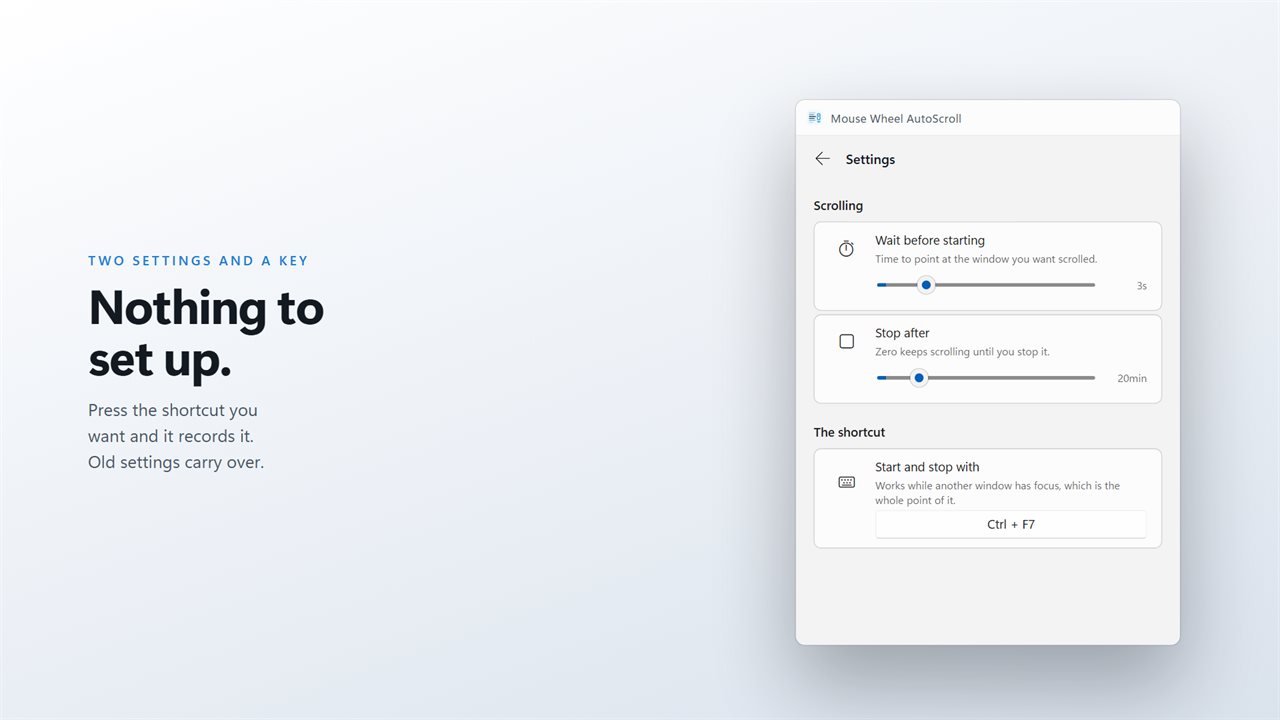
The window spends most of its time behind whatever you are reading, so the shortcut is the main control. It works while another app has focus, and you can record any key combination you prefer in Settings if Ctrl + F7 is already taken.
The app lives in the tray and can start there, so it is ready without an open window on screen. Settings holds the rest: the shortcut, the start delay, the stop timer, the tray and the theme.