Why hold a button rather than click it?
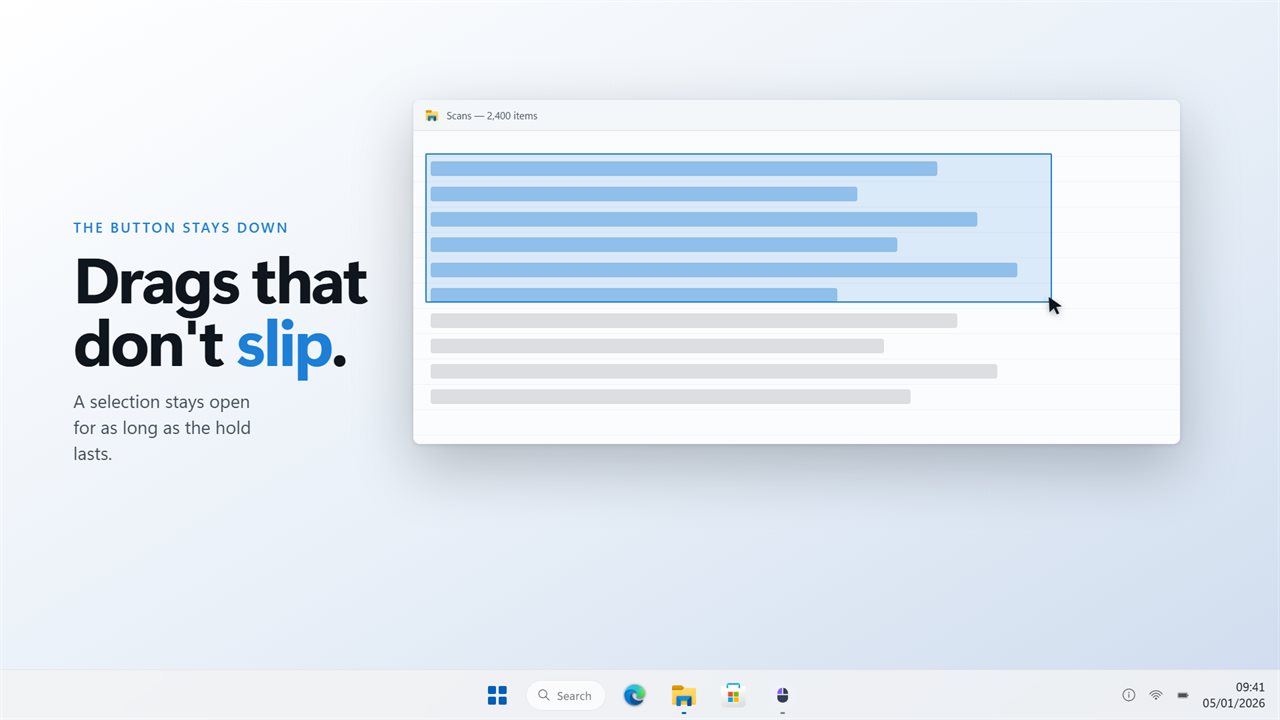
Plenty of things in Windows only work while a button stays down. A selection grows while you drag, a pan in a map or a 3D view lasts while the middle button is held, and some tools and game actions run only while you keep pressing.
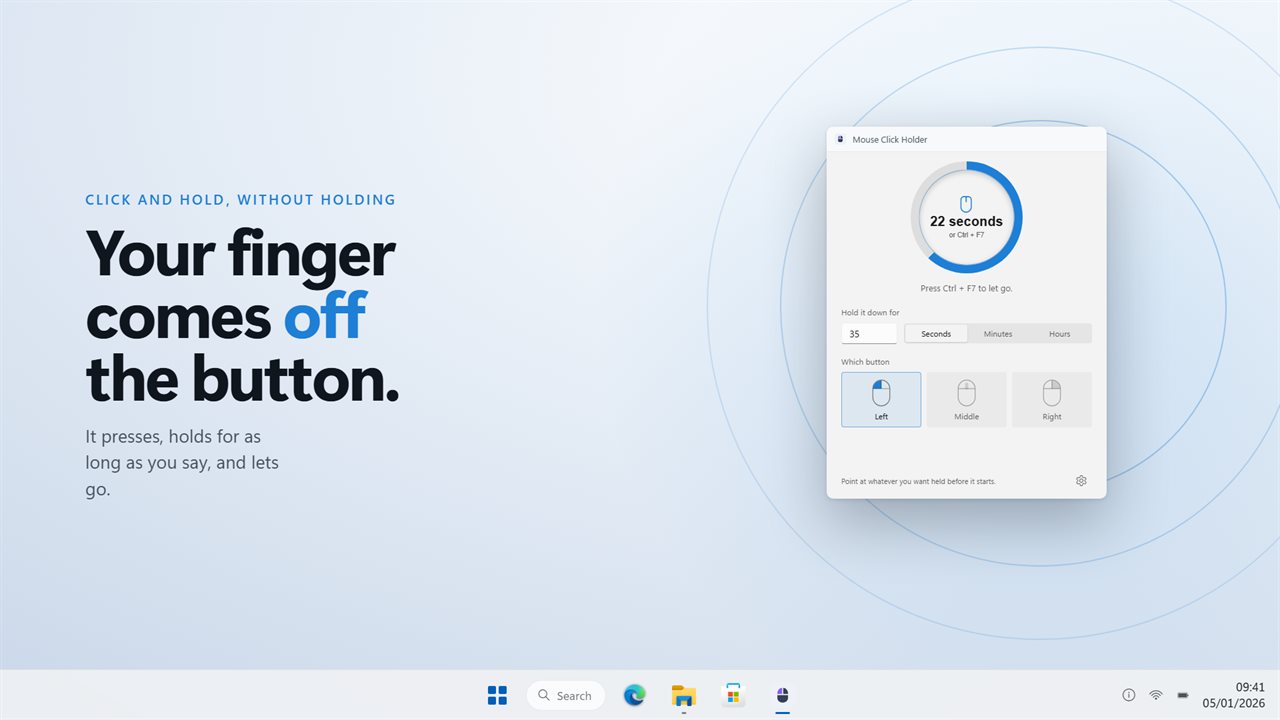
Holding a button for a minute is tiring, and for ten minutes it is close to impossible without slipping. Mouse Click Holder sends a real button-down, waits out the time you set, and sends the button-up, so the app on the other end sees an ordinary long press.
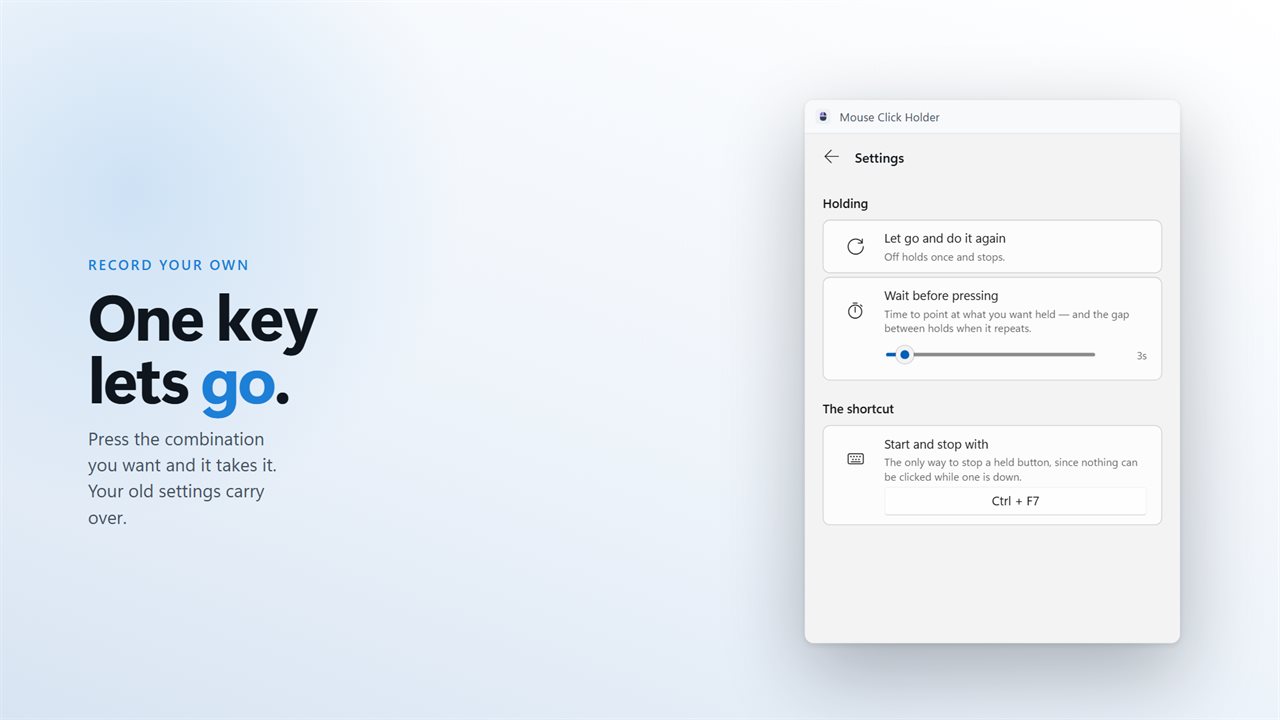
It waits a few seconds before pressing, which gives you time to put the pointer where the hold should happen. With repeat on, it lets go, waits the same gap and presses again until you stop it.
How to hold a mouse button down in Windows
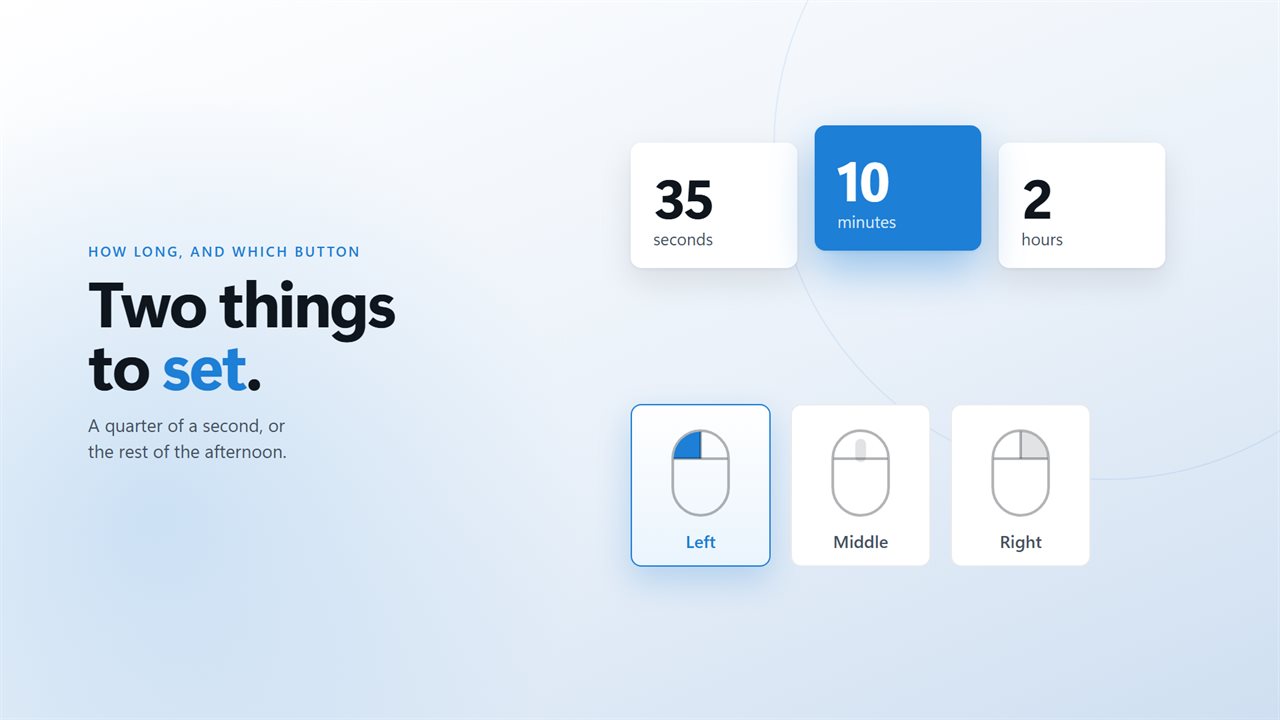
Mouse Click Holder needs two things from you: how long to hold, and which button. Everything else has a sensible default, so a first hold takes a few seconds to set up.
- Type a number from 1 to 999 and pick seconds, minutes or hours.
- Choose left, middle or right on the drawing of a mouse.
- Press Ctrl+F7, or the shortcut you recorded in Settings, from inside any application.
- Move the pointer to where the hold should happen during the few seconds it waits before pressing.
- Watch the countdown on the pad, or press the shortcut again to let go early.
A left click holder, a right click holder, or the middle button
Most holds are on the left button: a long selection, a drag across a timeline, or a tool that stays active only while you press. Pick left on the mouse drawing and the button lights up, so you can check the choice at a glance before you start.
The right and middle buttons are there for the jobs that need them. Middle is the one that keeps a pan open in a map or a CAD view, and right covers apps and games that put a hold action on that button. Whichever you pick, the app sends a real button-down and a real button-up, so the program on the other end sees an ordinary long press.
Hold, let go and hold again on a cycle
Some tasks need a long press over and over rather than one long hold. Turn on repeat in Settings and the app holds for the time you set, releases, waits, then holds again until you stop it.
The wait between holds is yours to set, in seconds, up to a minute. The hold itself still uses the same 1 to 999 seconds, minutes or hours, so you can pair a short gap with a long hold or the other way around.
Why the shortcut is the way out of a hold
While a mouse button is held down, Windows cannot take another click. That includes the Mouse Click Holder window and its tray icon, so clicking Stop is not an option once a hold is running.
That is why the keyboard shortcut starts and stops every hold, and why the window says so while it holds. It works whatever window has focus, Ctrl+F7 by default, and you can record any combination you prefer in Settings so it does not clash with the app you are holding in.