How to disable a key on your keyboard without editing the registry
Windows has no setting for disabling a single key on your keyboard. The usual advice is a Scancode Map in the registry, which means typing hex key codes by hand, restarting before it takes effect, and going back into the registry to undo it.
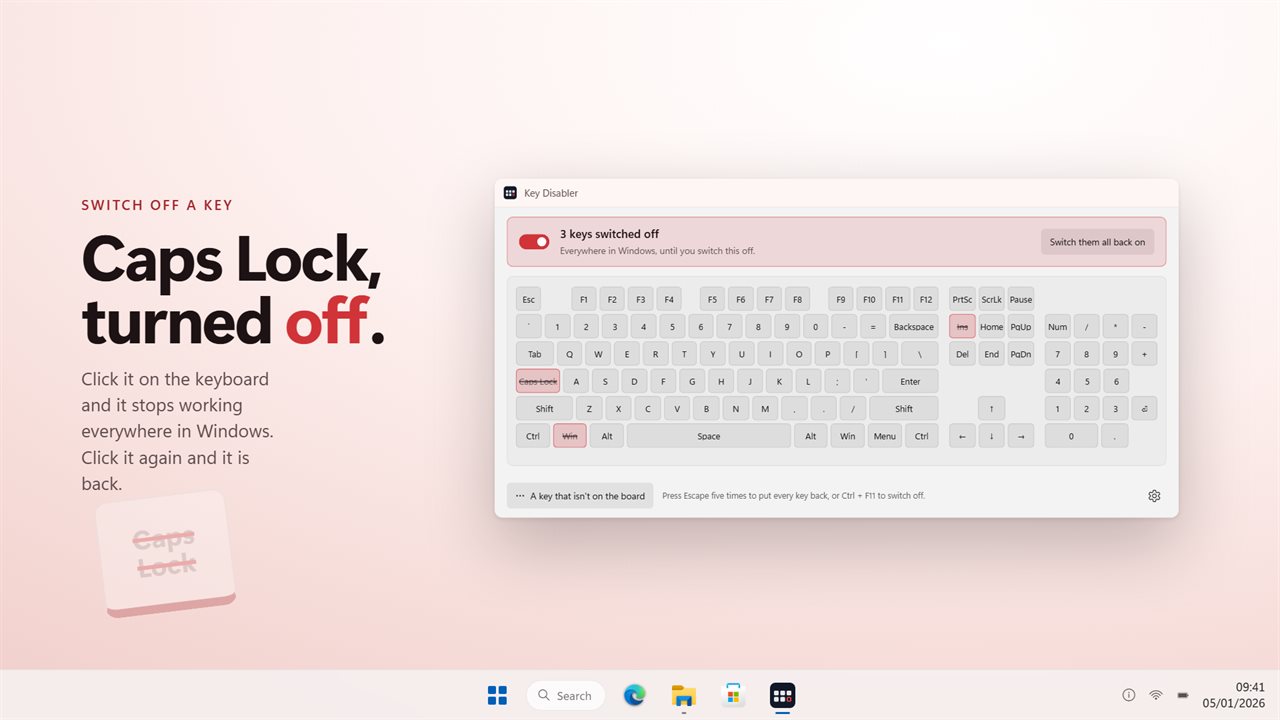
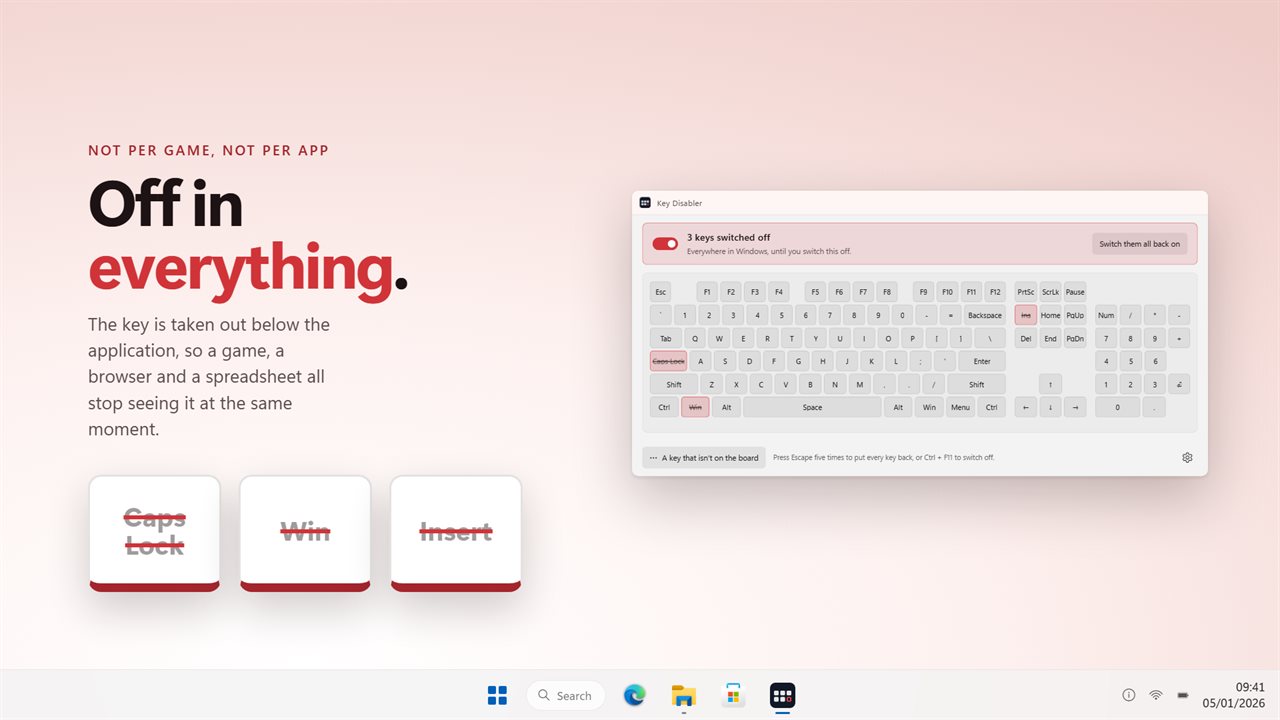
Key Disabler does it from a drawing of your keyboard. Click Caps Lock and the cap is struck through; from then on the key does nothing in any program. Click the same cap again and it works again. The board itself is the list of what is off, so there is nothing to remember.
Nothing is rewritten underneath Windows. The app catches the keys you picked while it is running and switched on, and lets everything else through. Switch it off, or quit, and your keyboard behaves exactly as it did before.
How to disable the Windows key while gaming
Tapping the Windows key in a full-screen game throws you to the desktop at the worst moment. To stop it, open Key Disabler, click the left Windows cap (and the right one, if your keyboard has it), then flip the main switch on. The headline changes to say how many keys are switched off, and the Start menu stays shut until you turn the app off.
Left and right modifiers are separate caps. You can kill the left Windows key your palm keeps catching and keep the right one, or do the same with Ctrl, Alt and Shift.
How to turn off Caps Lock, Insert and Num Lock
These three cause more stray typing than any others. Caps Lock shouts half a sentence before you notice. Insert flips you into overtype and silently eats the words to the right of the cursor. On a laptop, Num Lock turns letters into digits.
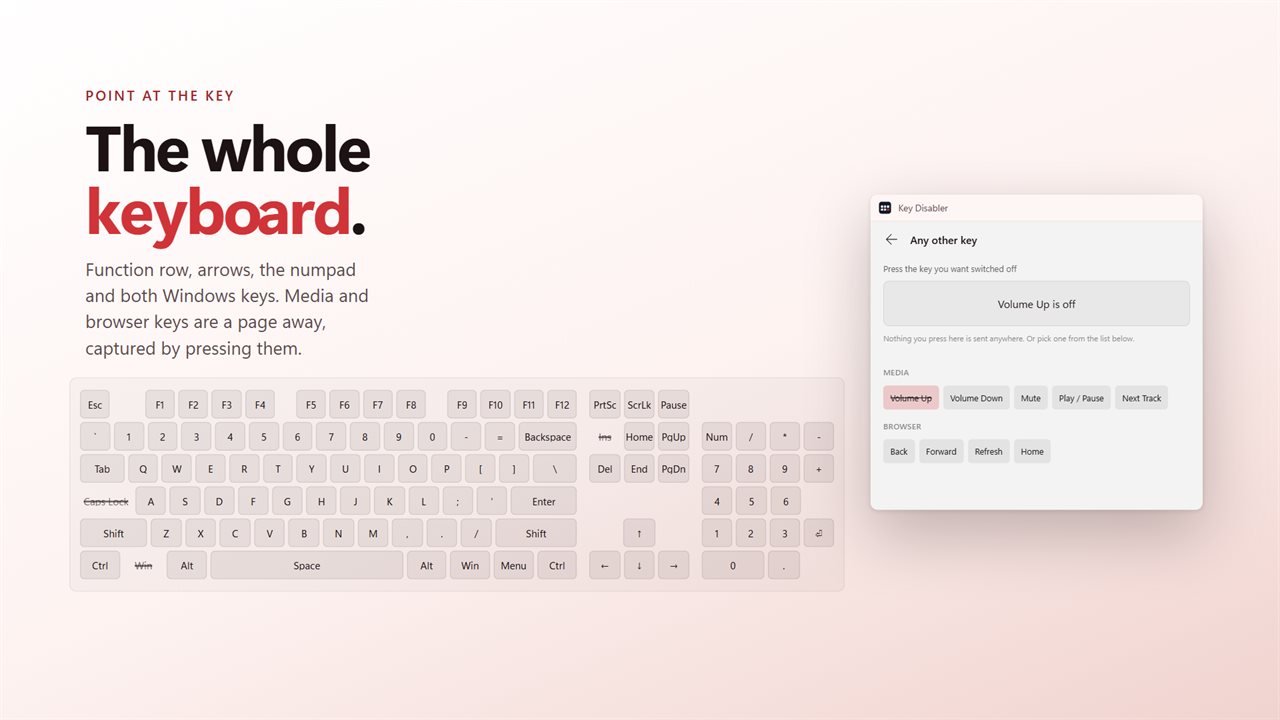
Each one is a click on the board. Keys the board does not draw, such as F13 to F24, the Copilot key, and the volume, media and browser keys, sit on a second page behind "A key that isn't on the board", where you can choose one from the list or simply press it.
- Open the app and click the cap you want gone.
- Turn on the main switch; the line under it reads "Everywhere in Windows, until you switch this off."
- Click the cap again whenever you want that key back.
Getting your keys back, from any window
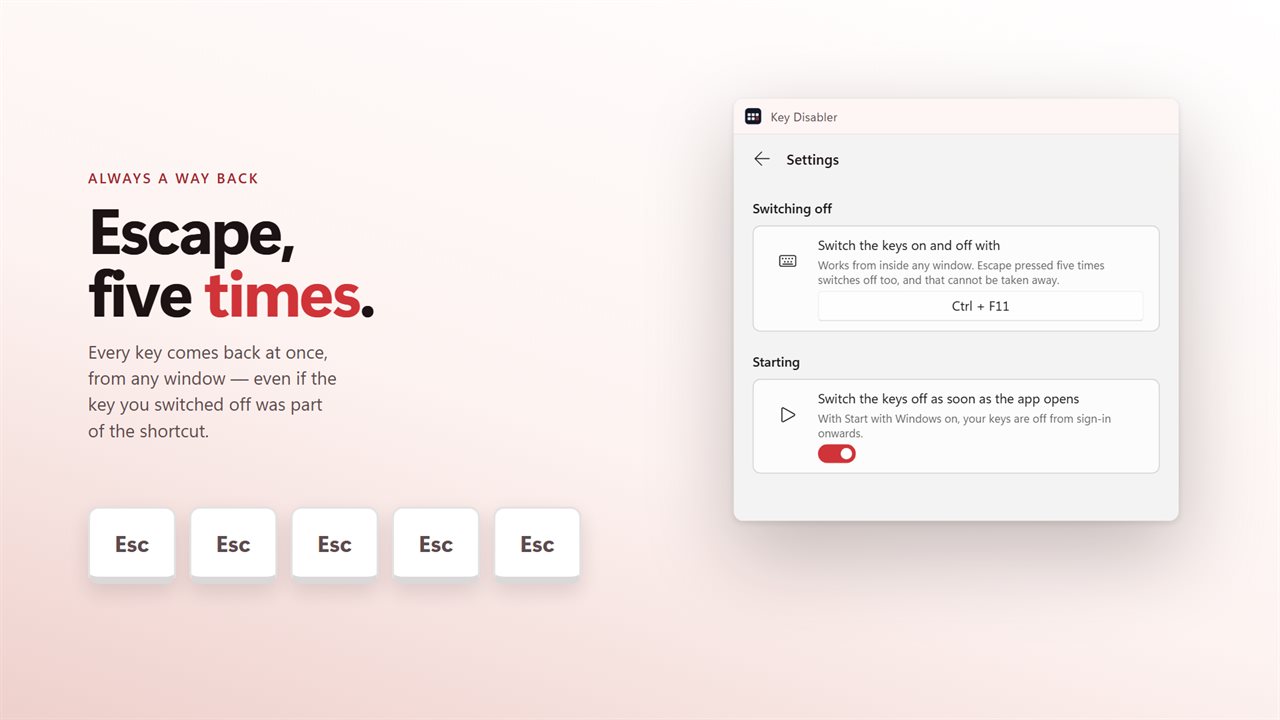
A tool that blocks keys needs a reliable exit. Press Escape five times in a row and every key returns, wherever you are, even if Escape itself is one of the keys you blocked.
There is also a shortcut you record yourself under "Switch on and off with" in Settings. Out of the box it is Ctrl+F11, and it toggles the blocked keys from inside any application. The tray icon does the same thing without opening the window.