EEvlarSoft

MouseScript

Make a mouse macro without writing code: record the clicks once, see the route on a map of your screens, and replay it as often as the job needs.

Buy for $2.99
One payment. No subscription.
14-day money-back guarantee.
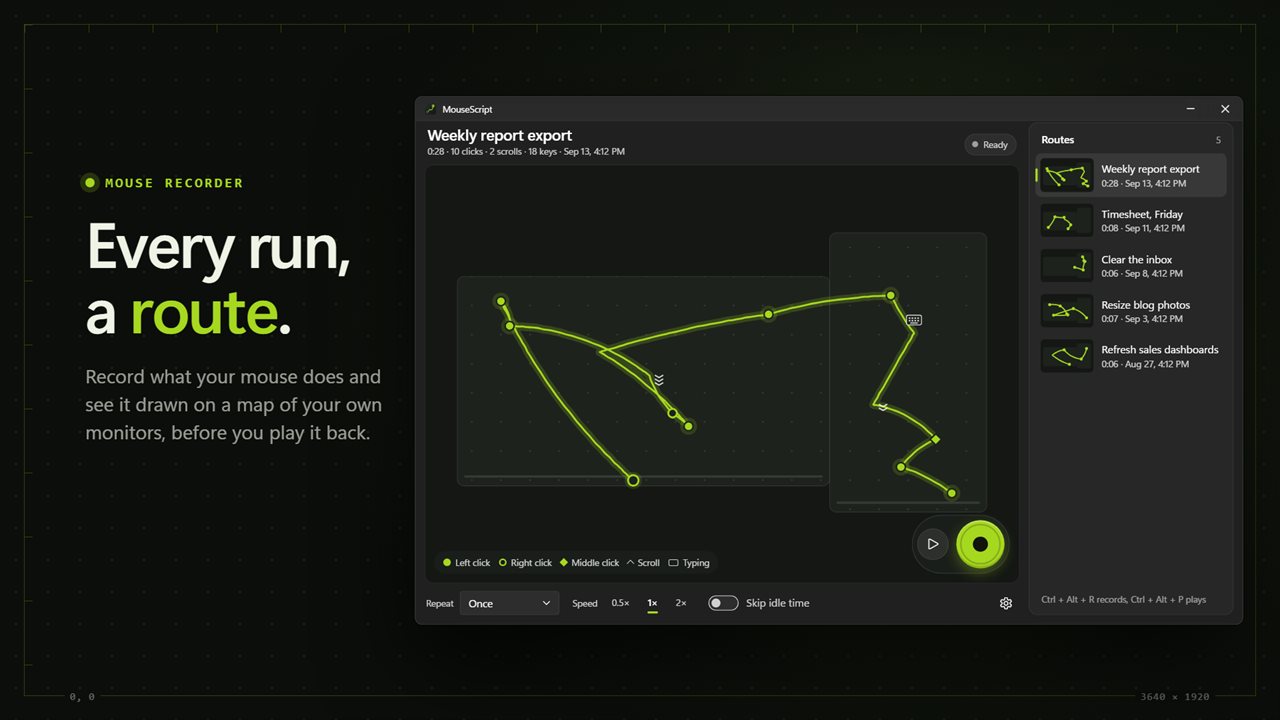
Every recording is a route on a map of your screens.
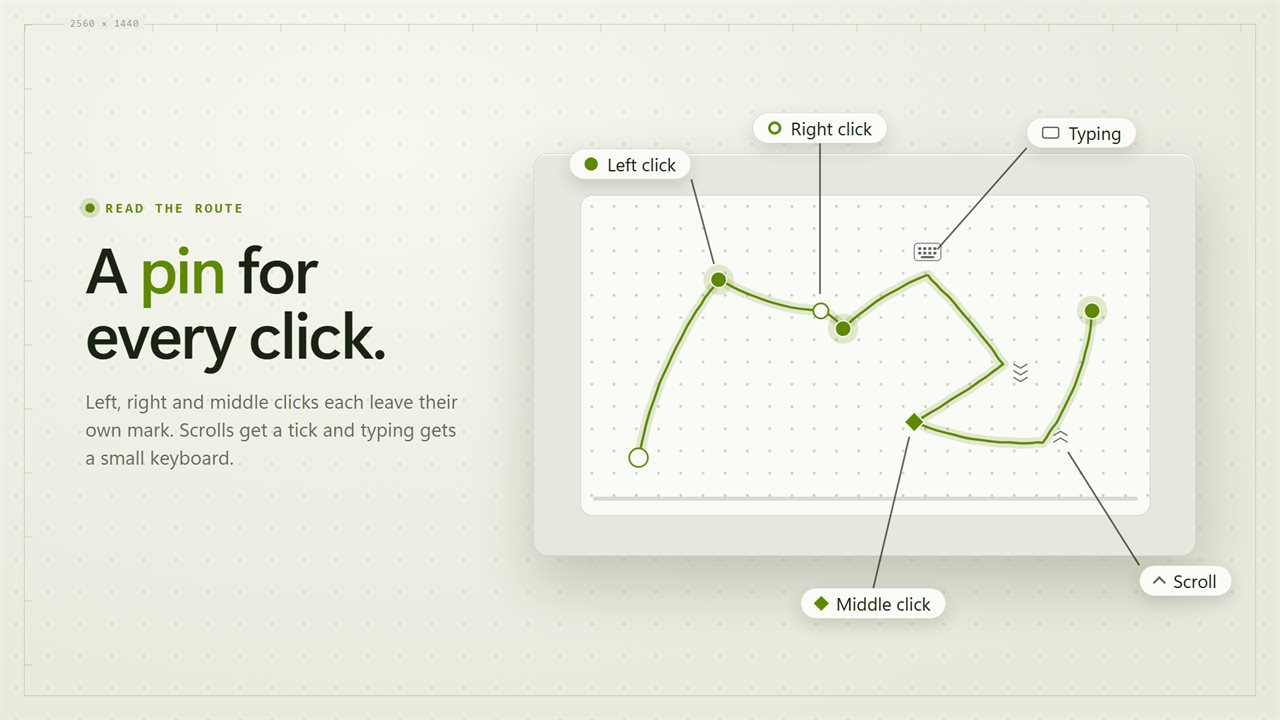
A pin for each click, a tick for each scroll.
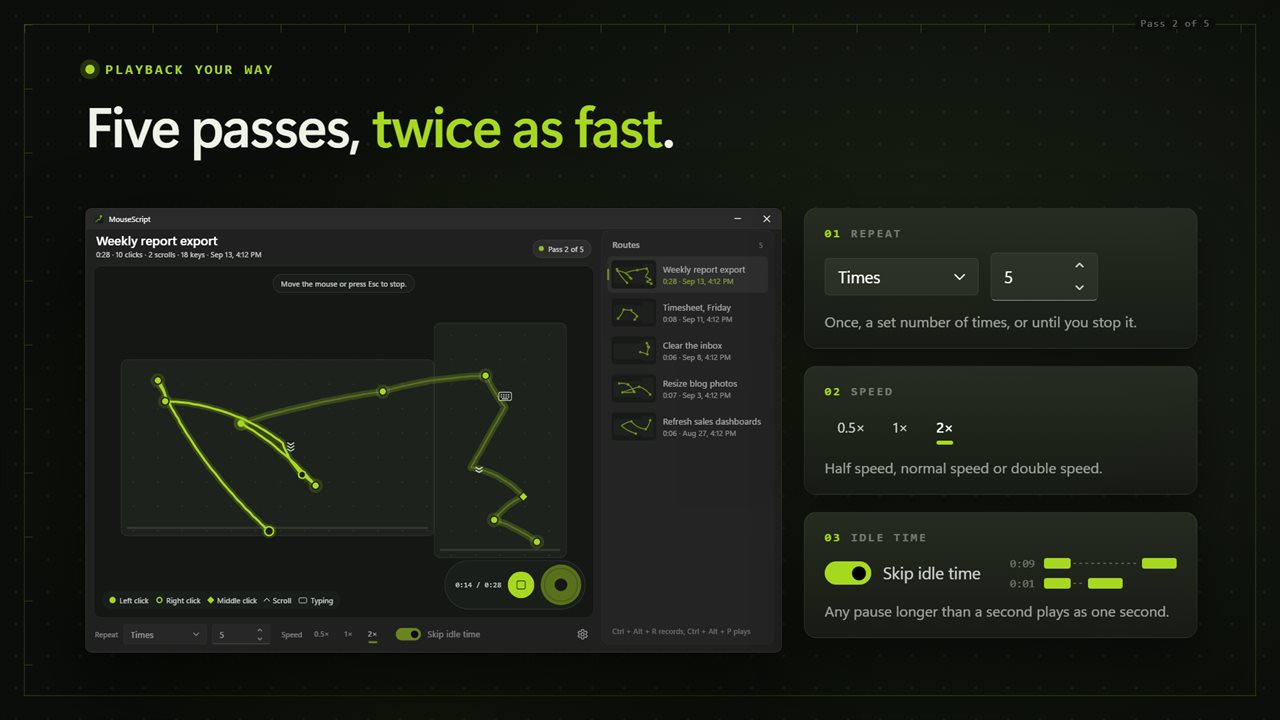
Repeat it, change the speed, skip the idle time.
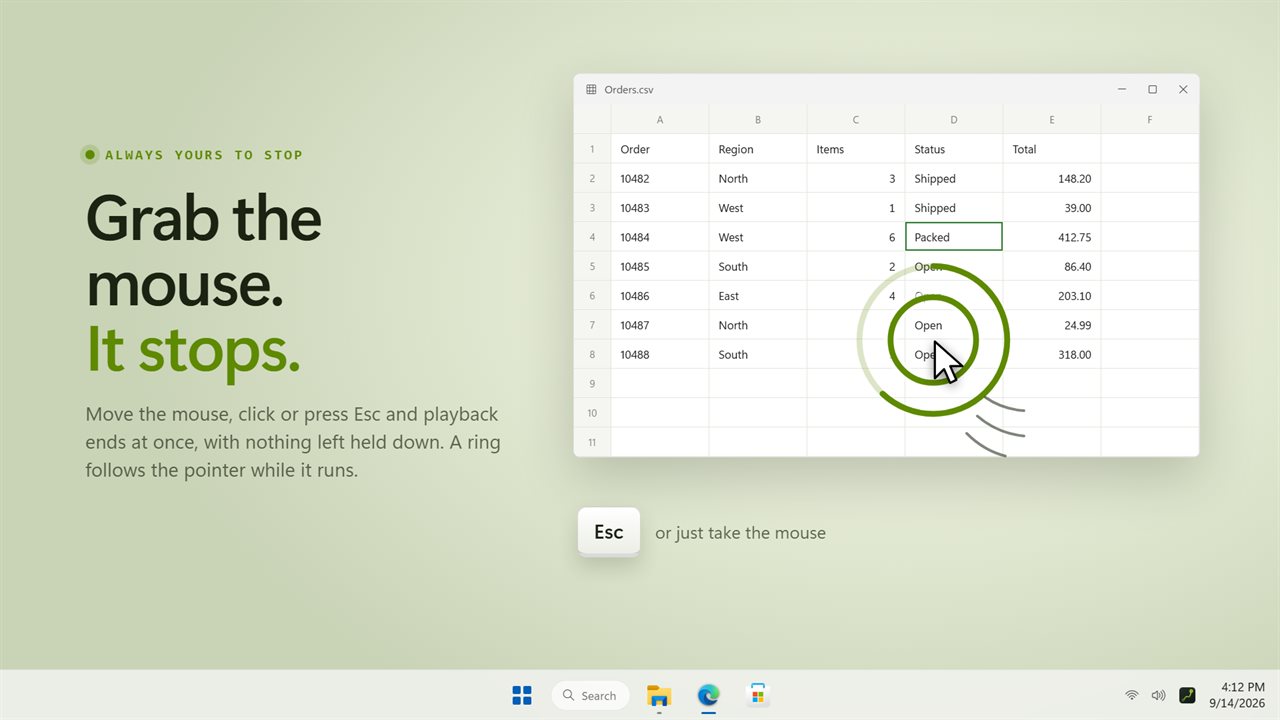
Move the mouse or press Esc to stop at once.
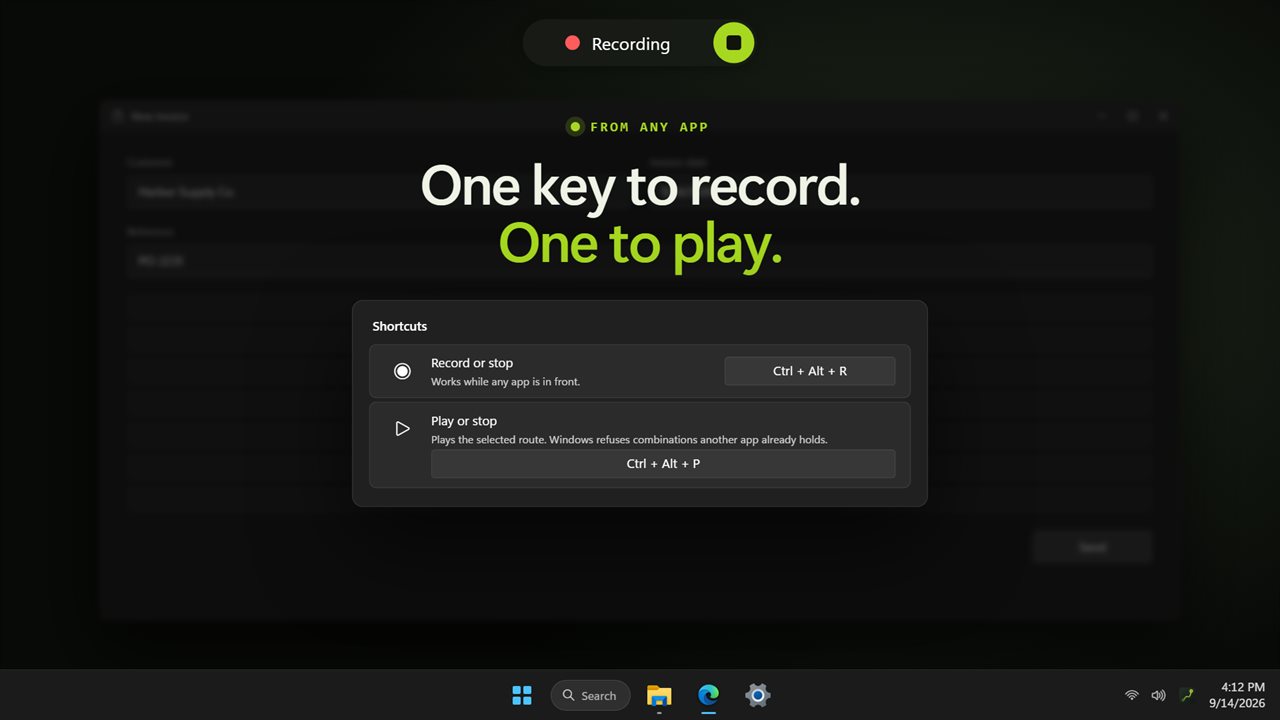
Record and play from any app with one shortcut each.

Every recording is a route on a map of your screens.

190,000+downloads of EvlarSoft apps
Signed by EvlarSoftVerified US publisher
14-day money-backNo questions asked
Updates includedNo upgrade fees

Make a mouse macro by doing the task once

A mouse macro is a recording of pointer work that a program can replay for you: the moves, the clicks, the scrolls, in order and with the same timing. Gaming mice often ship a macro editor that stores key sequences, but those editors rarely capture where the pointer goes, and scripting tools expect you to write the coordinates out by hand.

MouseScript takes the direct route. Press Ctrl+Alt+R, carry out the task the way you always do, and press it again. Everything in between becomes a route you can replay with Ctrl+Alt+P from any app, as many times as you like.

What sets it apart is how a recording looks. Each one is drawn as a path across a scaled picture of your own monitors, with a pin for every click: different marks for left, right and middle, a tick for each scroll and a little keyboard where you typed. Before you press play you can see exactly where each click will land.

How to automate mouse movement and clicks

Recording and playback each take one shortcut, and both can be rebound under Shortcuts in Settings.

  • Arrange the windows you will click on, then press Ctrl+Alt+R or the record button. With Hide this window while it works on, the default, the app gets out of the way, and a small dot on screen tells you capture is live.
  • Do the task, then press Ctrl+Alt+R again to stop. The new route appears in the list with a thumbnail of its path.
  • Select the route and choose how to play it: Once, a number of Times, or Until stopped, at 0.5×, 1× or 2×.
  • Press play or Ctrl+Alt+P. A marker follows the route on the map, and on screen a ring tracks the pointer with an arc showing progress through the current pass.

Mouse automation that stops when you need it to

A looping macro is only safe if you can interrupt it. With Stop when you take the mouse switched on, which it is by default, moving the mouse, clicking or pressing Esc ends playback immediately, and anything the route was holding down is released first. The play shortcut stops it too.

Clicks replay at the screen positions where they were recorded. Keep the target windows where they were, and use the map to check before a long run.

Lighter routes and faster replays

Long recordings pick up idle stretches and thousands of tiny movements. Two settings trim them without moving any click.

Moves to keep sets how much of the path is stored: Every move, or only points 4 px, 10 px or 25 px apart. Skip idle time cuts every gap over one second down to exactly one second, so a route recorded while you hesitated runs at working pace. Turn on Record the keyboard too when the task includes typing; by default a route holds only mouse input.

What MouseScript records and plays

  • Pointer moves, left, right and middle clicks, and scrolling
  • Optional keystrokes with Record the keyboard too
  • Every route plotted over a scale picture of your monitor layout
  • Repeat Once, up to 9,999 Times, or Until stopped
  • Playback at 0.5×, 1× or 2× speed, with Skip idle time
  • Global shortcutsCtrl+Alt+R to record, Ctrl+Alt+P to play, both changeable
  • Routes kept as separate files you can rename, duplicate or delete
  • Record, Play selected and Stop from the notification area menu
  • Imports recordings from the earlier MouseScript on first launch

Jobs people hand to a mouse macro

Data entry

Click through the same form fields, scroll to the submit button and confirm, for every row of a batch.

Testing a layout

Replay the same clicks after each change to a page or app, at double speed, to see that nothing broke.

Repetitive game chores

Loop a crafting or collecting circuit while you watch, and take the mouse back the instant you need it.

What's new in 2.1.5

  • New: every recording is drawn as a route on a map of your monitors, with pins for clicks
  • New: repeat a set number of times, play at 0.5x, 1x or 2x, and skip idle time
  • New: move the mouse or press Esc to stop playback
  • New: separate shortcuts to record and to play, both changeable
  • New: duplicate routes, and optionally record the keyboard
  • New: an on-screen ring while playback runs with the window hidden
  • Your existing recordings carry over

Questions

Anything else? Ask us

Does MouseScript record keystrokes as well as the mouse?

Only if you turn it on. By default a recording keeps mouse moves, clicks and scrolls; switch on "Record the keyboard too" in Settings when a task needs typing.

How do I stop a playback that is running?

Move the mouse, click, or press Esc, and it stops. Anything the recording was holding down is released before it ends. You can also press the play shortcut again, and the stop-on-input behavior can be turned off in Settings.

Can a recording repeat on its own?

Yes. Play it once, a set number of times up to 9,999, or until you stop it, at 0.5x, 1x or 2x speed. "Skip idle time" shortens any pause longer than a second to one second.

Will clicks land in the right place if I move a window?

No. Clicks replay at the same screen positions where they were recorded, so the windows you click on need to be where they were. Each route is drawn on a map of your monitors, so you can check where its clicks will land before you play it.

What are the keyboard shortcuts, and can I change them?

Ctrl+Alt+R starts and stops recording, and Ctrl+Alt+P plays or stops the selected route, from any app. Both can be changed in Settings, and the app tells you if another program already holds the combination.

Do my recordings from the older MouseScript carry over?

Yes. On first launch it copies the old app's recordings into its own list once, and the original files are left where they were.

Do I need to write a script to make a mouse macro?

No. You record by doing the task, and the result is a route you can play, rename or duplicate. There is no code to write or edit.

Does it work on more than one monitor?

Yes. Routes are recorded across every connected screen and drawn on a map of your monitor layout, so clicks on a second or third display are replayed there.

Which versions of Windows does it run on?

Windows 10 (version 1809 or later) and Windows 11.

Is it a subscription?

No. MouseScript is a one-time purchase of $2.99, and updates are included.

How do I get it?

Buy it on this page and your license key arrives by email. If the button says Notify me, MouseScript is not on sale here yet; leave your email and we will tell you when it is.