Can't find your mouse cursor? Ping it
The wider the desk, the easier it is to lose the pointer. On a large display, or two or three side by side, a small arrow disappears against a busy page and you end up waving the mouse around hoping to catch it move. Cursor Highlighter and Finder lets you find your mouse with a deliberate signal instead.
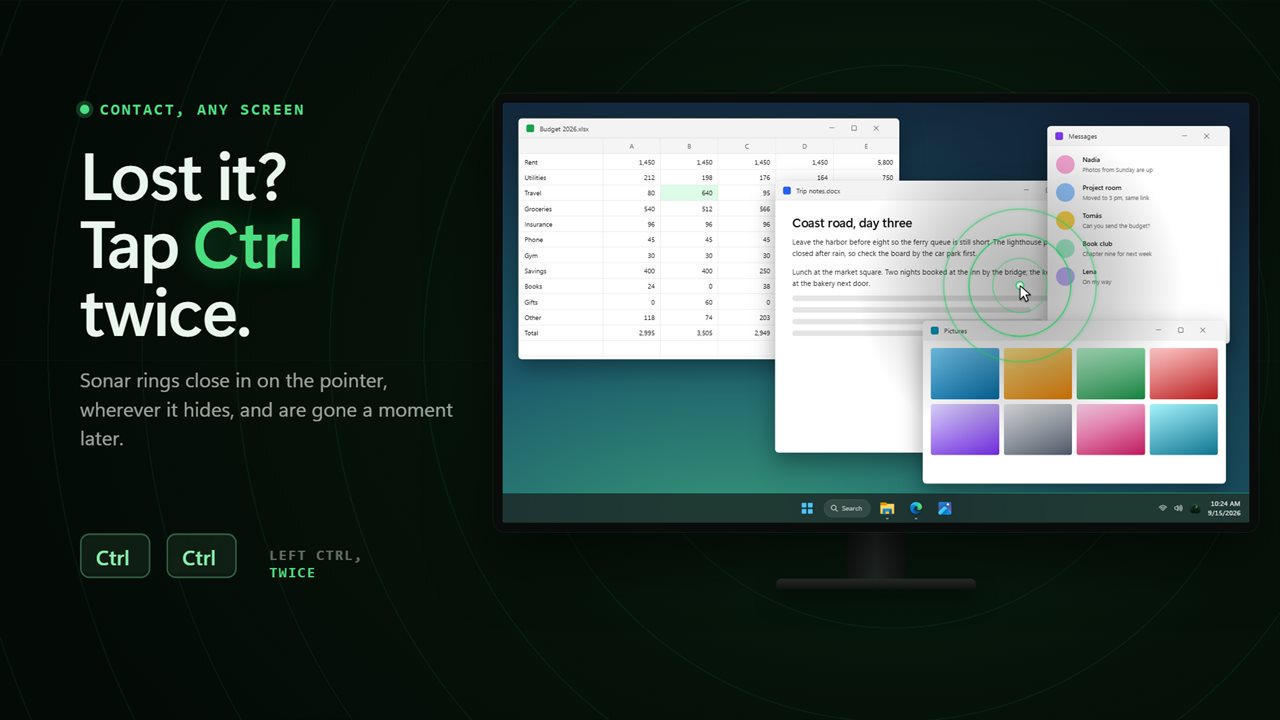
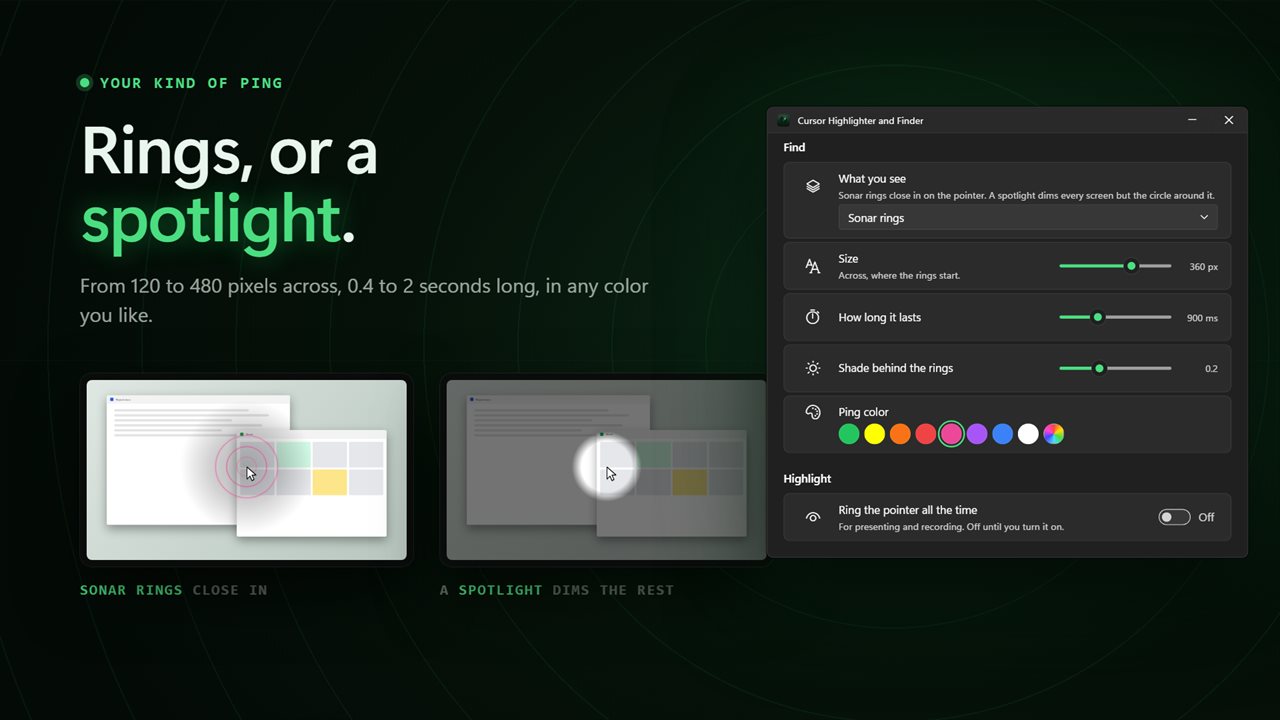
Double-tap Ctrl and a burst of rings contracts onto the arrow, on whichever screen it is hiding, then fades. If you prefer, choose Spotlight under What you see and every screen dims except a bright circle around the pointer. Both are drawn across all your monitors, including one connected after the app started, and neither steals clicks or typing from the window underneath.
The app sits in the notification area. Its window shows a radar scope you can click to try the ping straight away.
Three ways to locate the mouse pointer
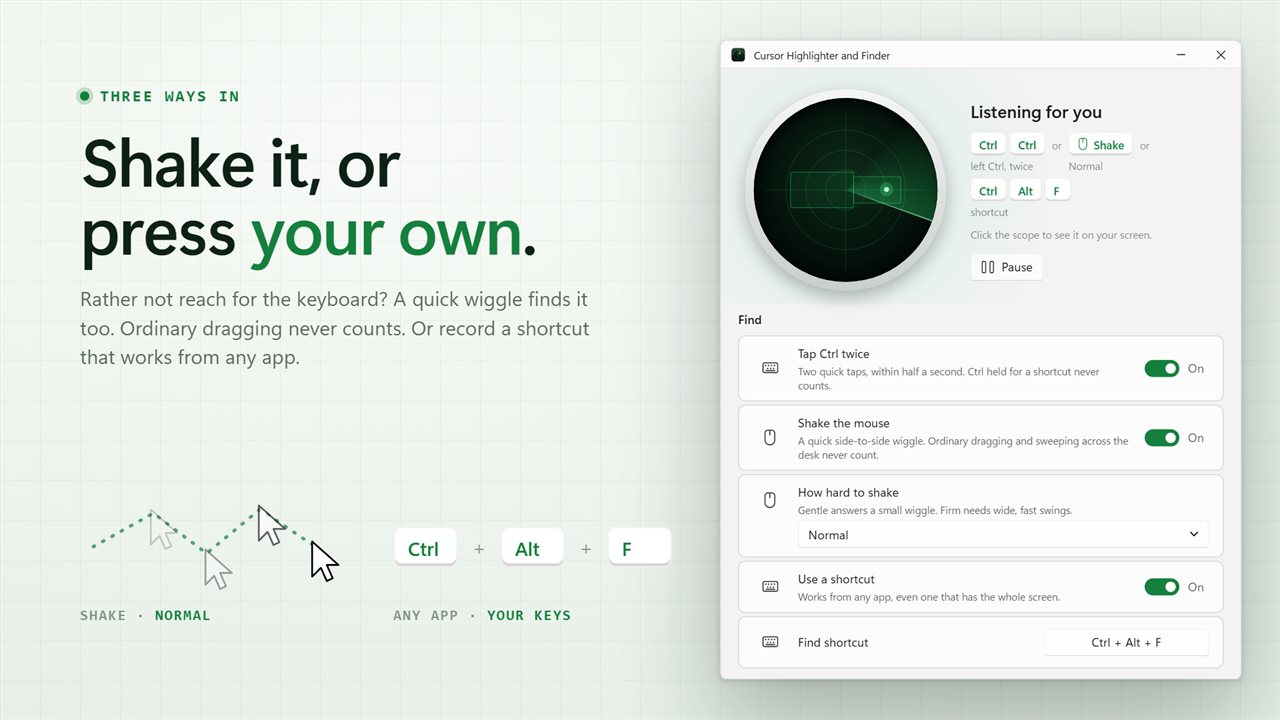
Windows can show a ring when you press Ctrl, but a single press fires every time you use a Ctrl shortcut, and the ring is small. Here you pick the trigger that suits how you work, under Find in Settings:
- Tap Ctrl twice: two quick taps within half a second. Which Ctrl picks the left key, the right key or both. Holding Ctrl for a copy, paste or click does not count.
- Shake the mouse: a fast side-to-side wiggle. Set How hard to shake to Gentle, Normal or Firm; ordinary drags and long sweeps do not trigger it.
- Use a shortcut: record any key combination as the Find shortcut. It starts as Ctrl+Alt+F and works even in an app that fills the whole screen.
- Or open the tray icon menu and choose Find the pointer now.
Tune the ping so you notice it
Size controls the starting diameter of the rings, anywhere between 120 px and 480 px. How long it lasts stretches the animation from under half a second (0.4 s) up to a full two seconds. A third slider sets the Shade behind the rings, or, for the spotlight, How dark the rest goes. Ping color offers eight presets plus any color you choose, which helps when the default green is lost against your wallpaper or a spreadsheet.
A cursor highlighter for presentations and screen recordings
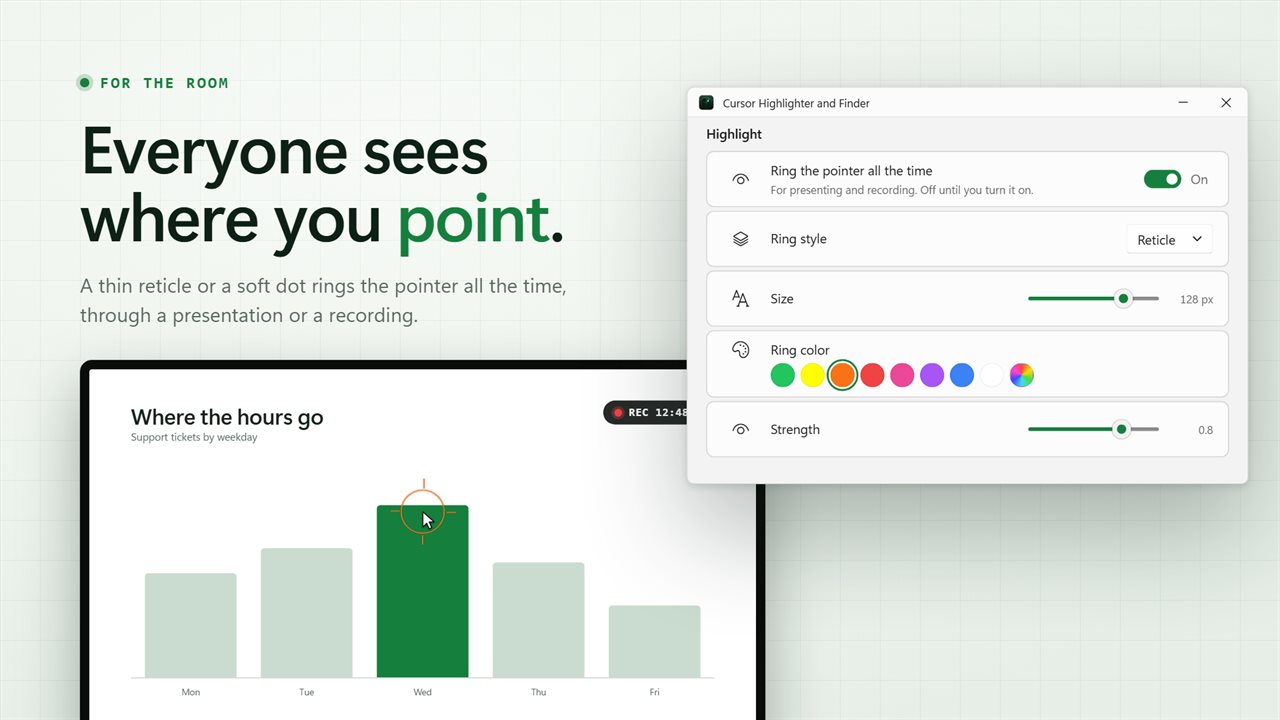
Finding the pointer is for you; highlighting it is for the people watching. Turn on Ring the pointer all the time and a Reticle or a Soft dot follows the cursor everywhere it goes, so the audience of a demo, a training video or a shared screen can follow along. Its Size goes from 24 px up to 160 px, and Ring color and Strength set how bold it looks. You can also switch it on and off from the tray menu's Highlighter item without opening the window.
Quiet during games, videos and slideshows
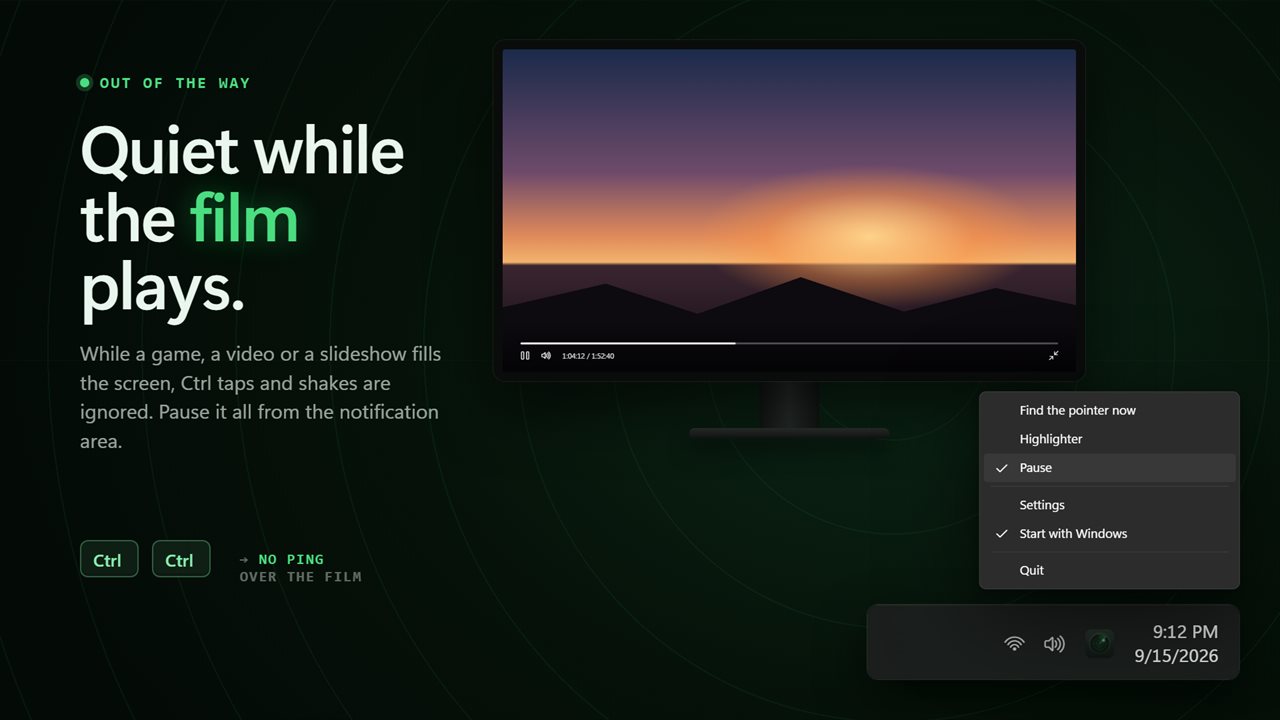
Keep quiet in full screen is on by default. When a full-screen program is in front, double-taps and shakes do nothing and the highlight ring hides, so a ping never flashes over a game or a film. The recorded shortcut still works if you need it. For a complete break, choose Pause from the tray menu.