EEvlarSoft

Rapid Key

An automatic key presser that taps the key you choose at a pace you name in plain terms, like 12 presses an hour, and keeps going for as long as the job takes.

Buy for $2.99
One payment. No subscription.
14-day money-back guarantee.
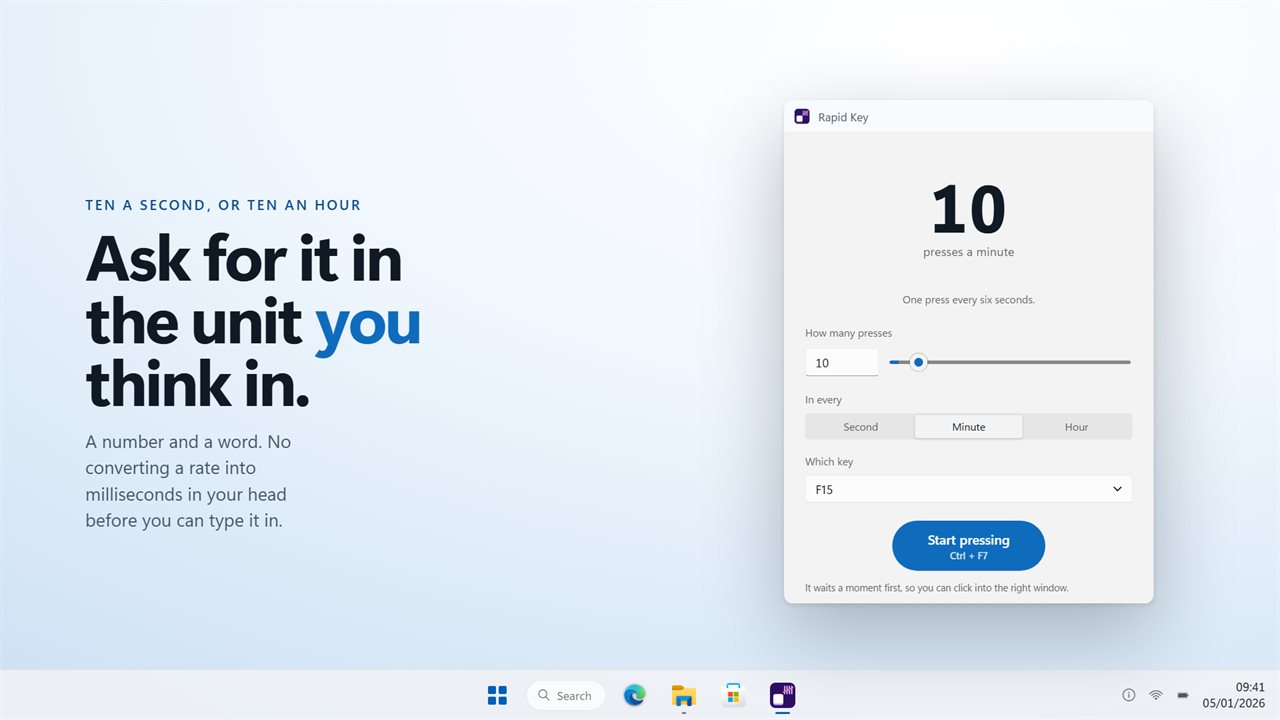
Ask for the rate in the unit you already think in.
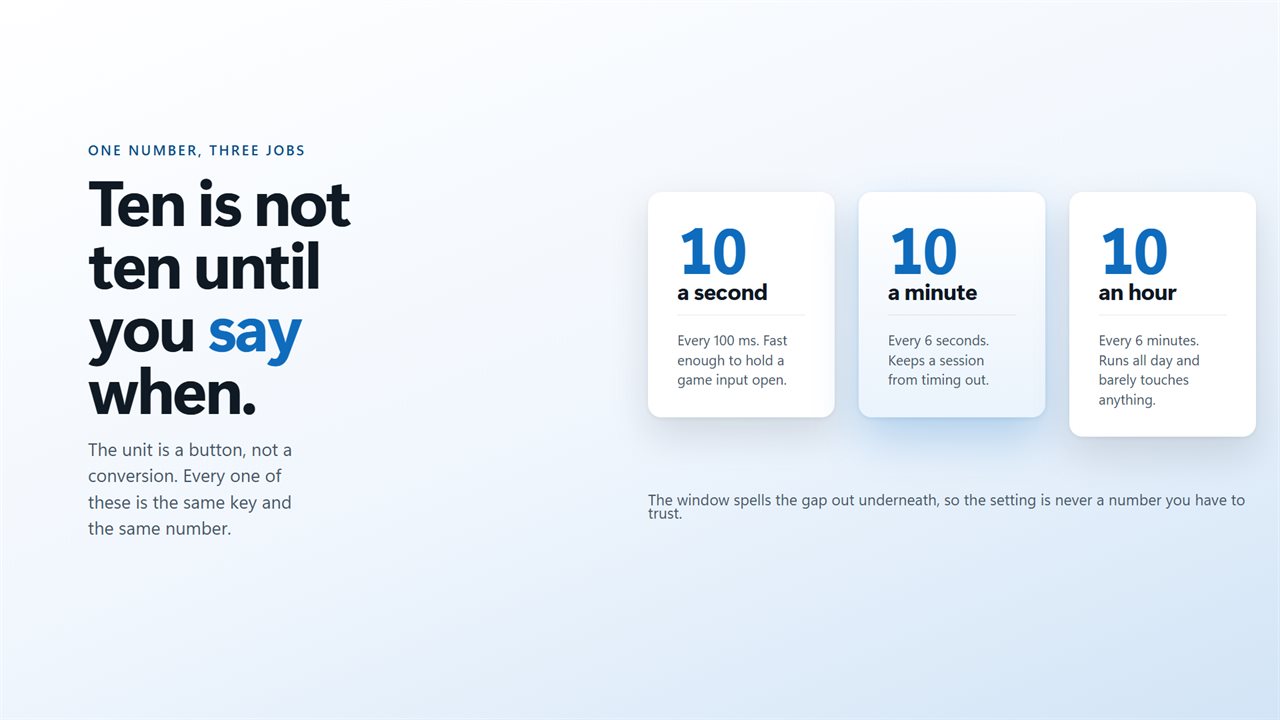
The same ten, three completely different jobs.
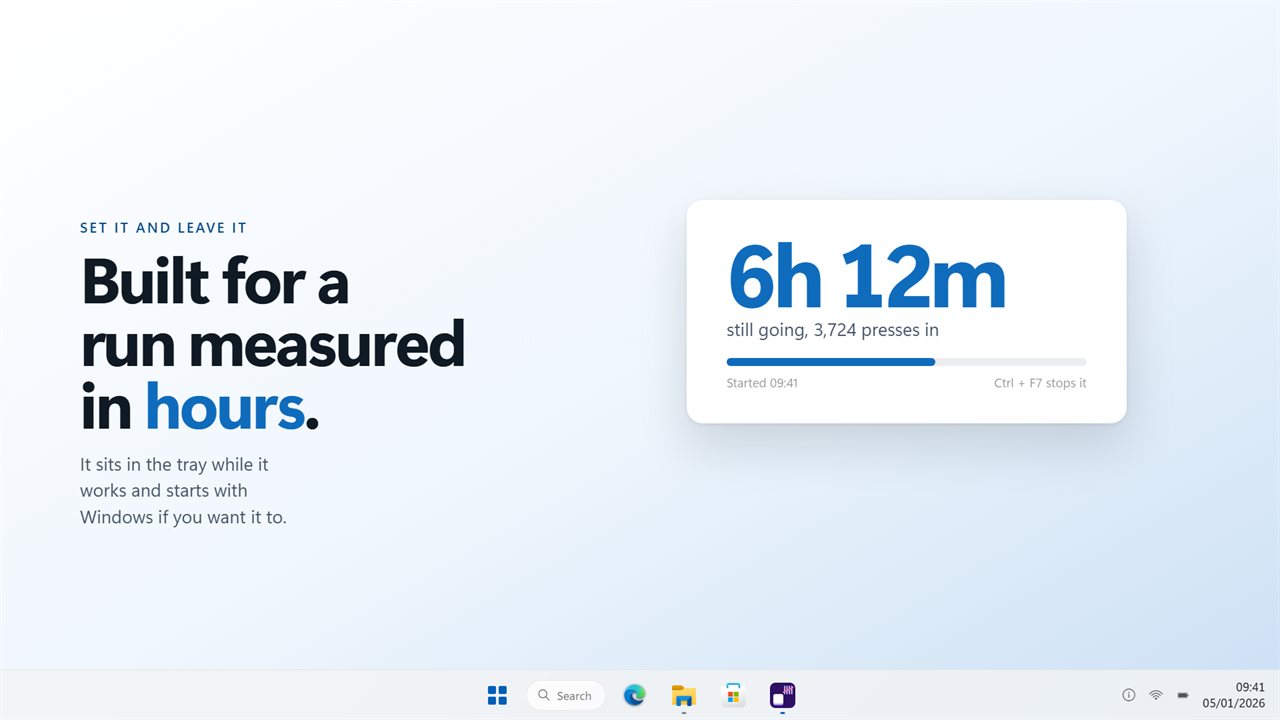
Built for a run measured in hours.
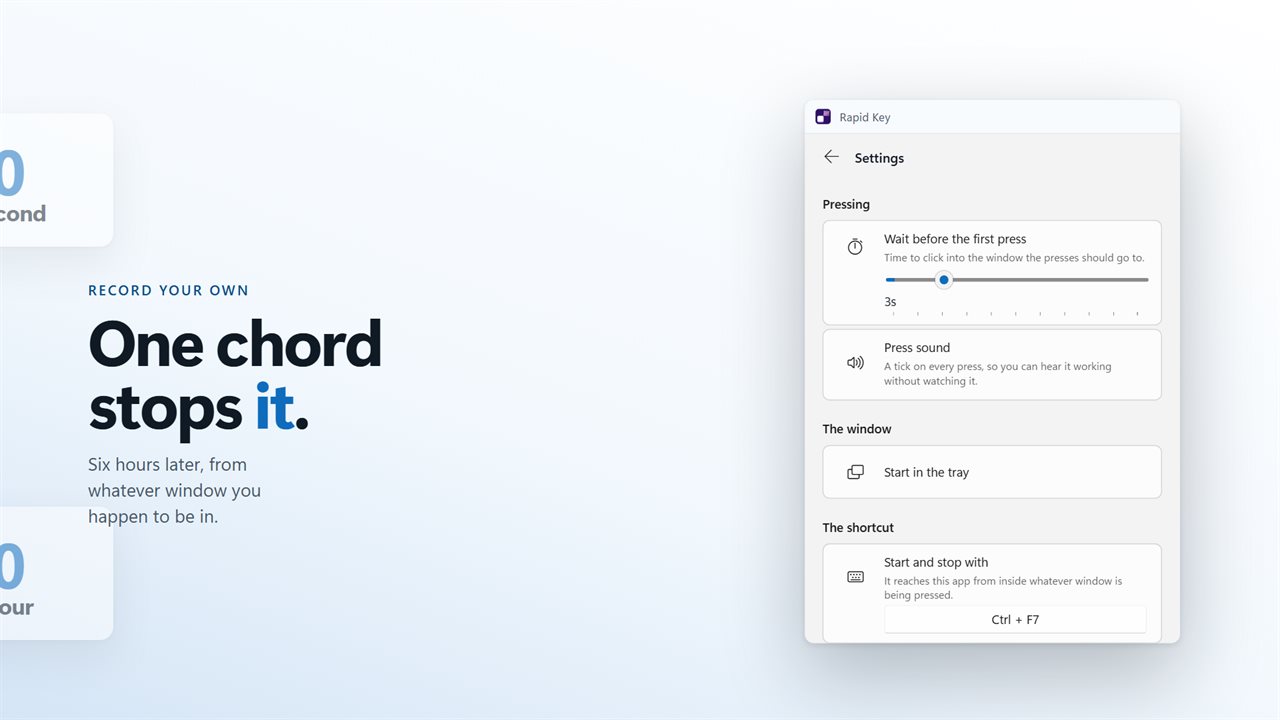
Record your own shortcut. It works from any window.

Ask for the rate in the unit you already think in.

190,000+downloads of EvlarSoft apps
Signed by EvlarSoftVerified US publisher
14-day money-backNo questions asked
Updates includedNo upgrade fees

What an automatic key presser is for

An automatic key presser stands in for a finger resting on one key. Some jobs want that finger to be quick, such as tapping E to gather in a game. Many more want it to be patient: nudging an app every few minutes so it does not go idle, advancing a slide or a log viewer at a fixed pace, or feeding a test harness one Enter at a time.

Rapid Key handles both ends with the same three controls. How many presses takes a number, In every switches between Second, Minute and Hour, and Which key opens a list of keys to choose from. A line under the big number turns that into a gap you can read, so 10 presses an hour shows up as one press every six minutes before you commit to it.

Because the pace is stated per hour when you want it to be, you never have to work out that six minutes is 360,000 milliseconds.

Press a key every X seconds or minutes

Wait before the first press in Settings decides how long that countdown lasts. Three seconds is the default, and the slider runs from 0 to 15.

  • Enter a value in How many presses, anything from 1 to 10,000.
  • Choose Second, Minute or Hour under In every, and read the gap line to confirm the pace.
  • Open Which key and pick the key, for example Space, Enter, an arrow, a number pad key or F5.
  • Press the start button or Ctrl+F7, then click into the window that should receive the presses while it counts down.
  • Stop it with Ctrl+F7 from wherever you are, the Stop button, or Turn off in the tray menu.

An automatic keyboard presser that games can read

Plenty of pressers send a virtual key code, which desktop apps understand and many games simply ignore, because games read the keyboard at a lower level. Rapid Key sends each press as a hardware scancode and marks keys such as the arrows, Home and End as extended, the way a physical keyboard reports them. That is why the arrow keys move you in-game rather than typing digits on the number pad.

There is a limit worth knowing. Games protected by kernel-level anti-cheat can block simulated input, whatever tool sends it. Check a game's rules before automating it online.

Leaving it running for hours

A slow rate only makes sense if the program can sit quietly through a long shift. Closing the window sends it to the notification area and pressing continues, so the taskbar stays clear. Turn on Start in the tray and it opens there in the first place, ready to be started with the shortcut.

Whenever you come back, the shortcut still works from any window. If Ctrl+F7 is taken in the app you are driving, record a different combination under Start and stop with. Key sound gives a short tick on each press so you can confirm it is still going without looking; above ten presses a second it stays silent.

Inside Rapid Key

  • Press rate set as a count per second, per minute or per hour
  • Readable gap line that converts the rate into time between presses
  • A pick list of keys, from letters and F-keys to arrows and the number pad
  • Presses delivered as scancodes, with the extended flag where a real keyboard sets it
  • Countdown before the first press, adjustable from 0 to 15 seconds
  • Global Ctrl+F7 toggle, or any combination you record
  • Keeps pressing from the tray after the window is closed
  • Optional per-press tick, muted at high rates

Jobs people give it

AFK and idle games

Tap a jump, interact or ability key at a steady rate so a character keeps working or avoids an idle kick while you step away.

Kiosks and slideshows

Send Right Arrow or Page Down every so many seconds to step through a presentation, a document or a photo viewer on a spare screen.

Refresh and polling

Press F5 a few times an hour on a page or tool that only updates when asked, and leave it alone in the tray.

What's new in 2.0.6

  • Presses arrive as scancodes, which is what games and emulators actually read. The old build sent virtual keys and most games ignored them
  • Per hour really is per hour. All three units work — in the old build two of them behaved the same
  • The window spells out the gap your rate comes to, so the setting is never a number you have to trust
  • Every label is its own sentence, so the window reads properly in any language
  • New window, and it sits in the tray while it works

Questions

Anything else? Ask us

Can I set it to press a key a few times an hour instead of every second?

Yes. You give a number of presses and choose per second, per minute or per hour, and the window spells out the gap that comes to, such as one press every six minutes for ten an hour. The number box takes 1 to 10,000.

Will games see the key presses?

Usually, yes. Each press is sent as a hardware scancode, with the extended-key flag on arrows, Home, End and similar keys, which is what DirectInput and Raw Input games read. Media and browser keys have no scancode and are sent as ordinary virtual keys.

Which keys can it press?

Any of 132 keys picked from a list: letters, digits, punctuation, F1 to F24, editing and arrow keys, the modifiers, the numpad, and media and browser keys. It presses one key at a time, so it cannot send a combination like Ctrl+C or hold a key down.

How do I start and stop it while I am in another window?

Press Ctrl+F7, or record a different shortcut in Settings. The shortcut works whichever window has focus, and the tray icon can start and stop it too. Closing the window hides it to the tray and pressing carries on.

Do I get time to click into the right window first?

Yes. It waits 3 seconds before the first press by default, and you can set that wait from 0 to 15 seconds in Settings. The button counts down while it waits.

Can it stop by itself after a set number of presses?

No. It keeps pressing until you stop it with the button, the shortcut or the tray. The window shows how many presses it has made so far.

Is it safe to use an automatic key presser in online games?

Rapid Key sends presses the way a keyboard reports them, but games with kernel-level anti-cheat can still detect or block simulated input, and many online games forbid automation in their rules. Use it where the rules allow it, such as single-player and idle games.

Can I hear each key press?

Yes. Turn on Key sound in Settings for a short tick on every press. It stays silent when the rate is above ten presses a second.

Which versions of Windows does it run on?

Windows 10 (version 1809 or later) and Windows 11.

Is it a subscription?

No. Rapid Key is a one-time purchase of $2.99, and updates are included.

How do I get it?

Buy it on this page and your license key arrives by email. If the button says Notify me, Rapid Key is not on sale here yet; leave your email and we will tell you when it is.