EEvlarSoft

Key Press Visualizer

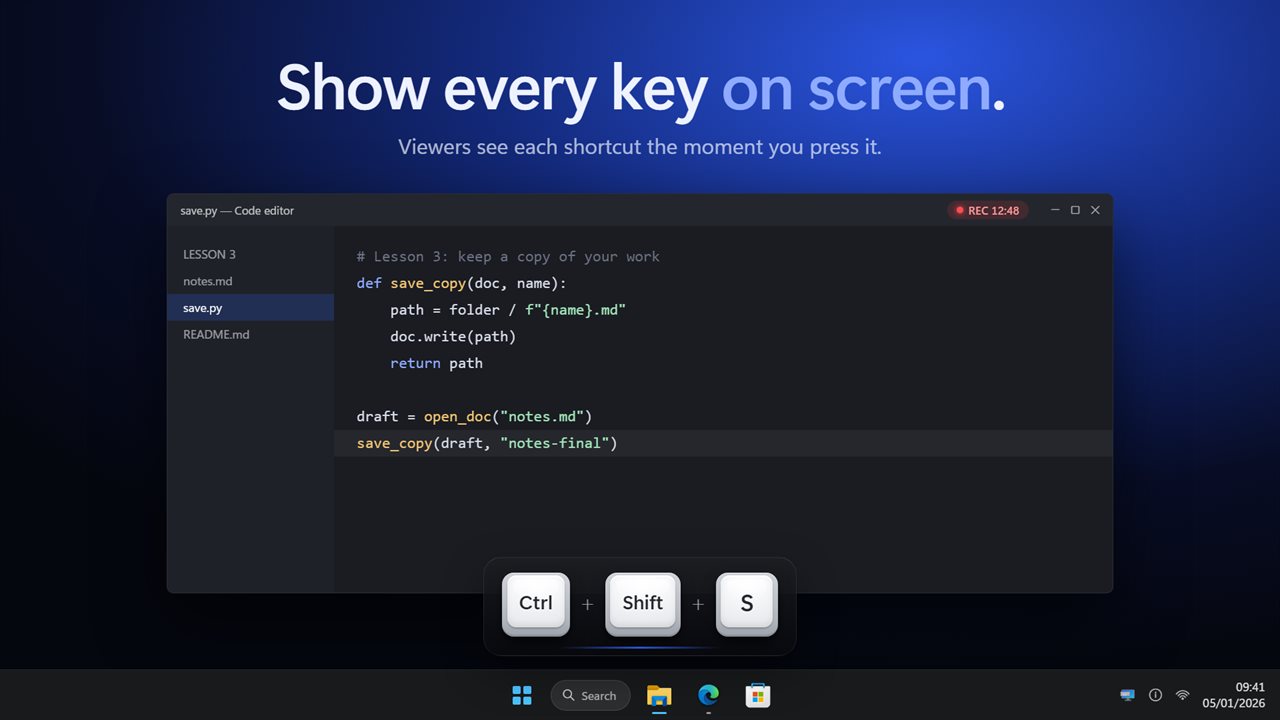
Every shortcut you press pops up as a strip of keycaps on top of whatever you are doing, so viewers see Ctrl + Shift + T instead of guessing.

Buy for $2.99
One payment. No subscription.
14-day money-back guarantee.
Every key you press, on screen, over whatever you are showing.
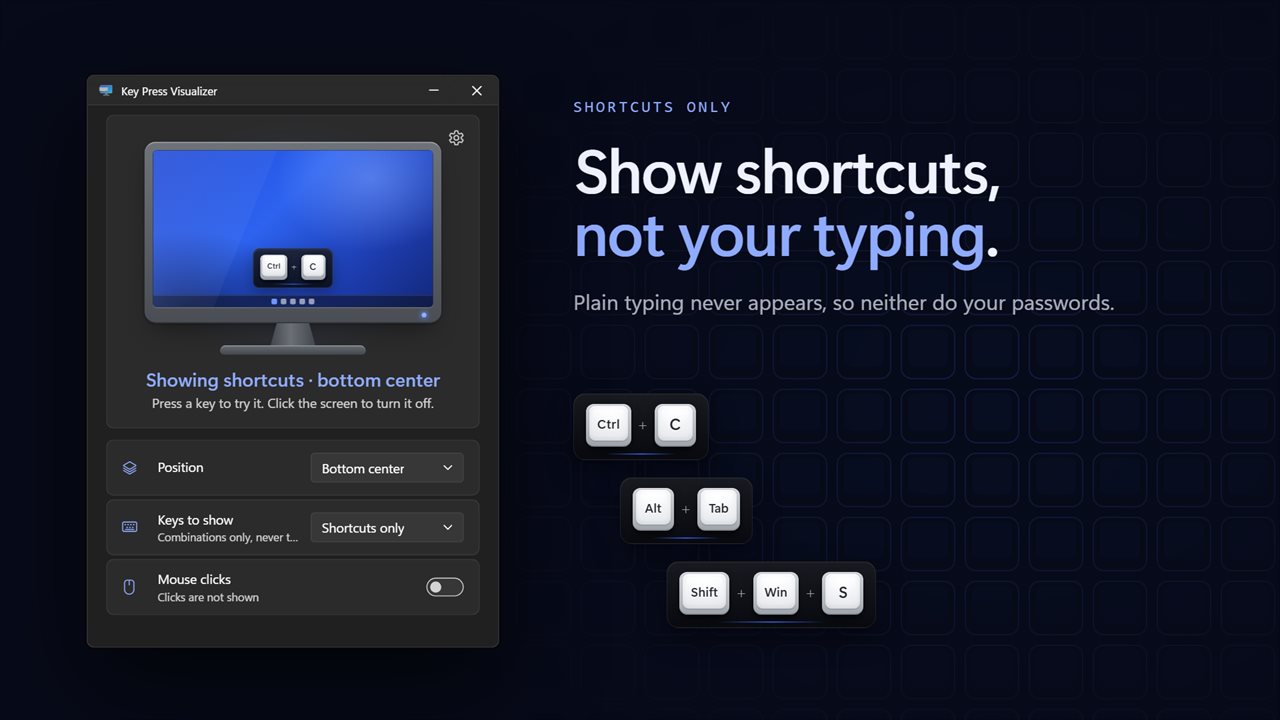
Shortcuts only mode shows combinations and never your typing.
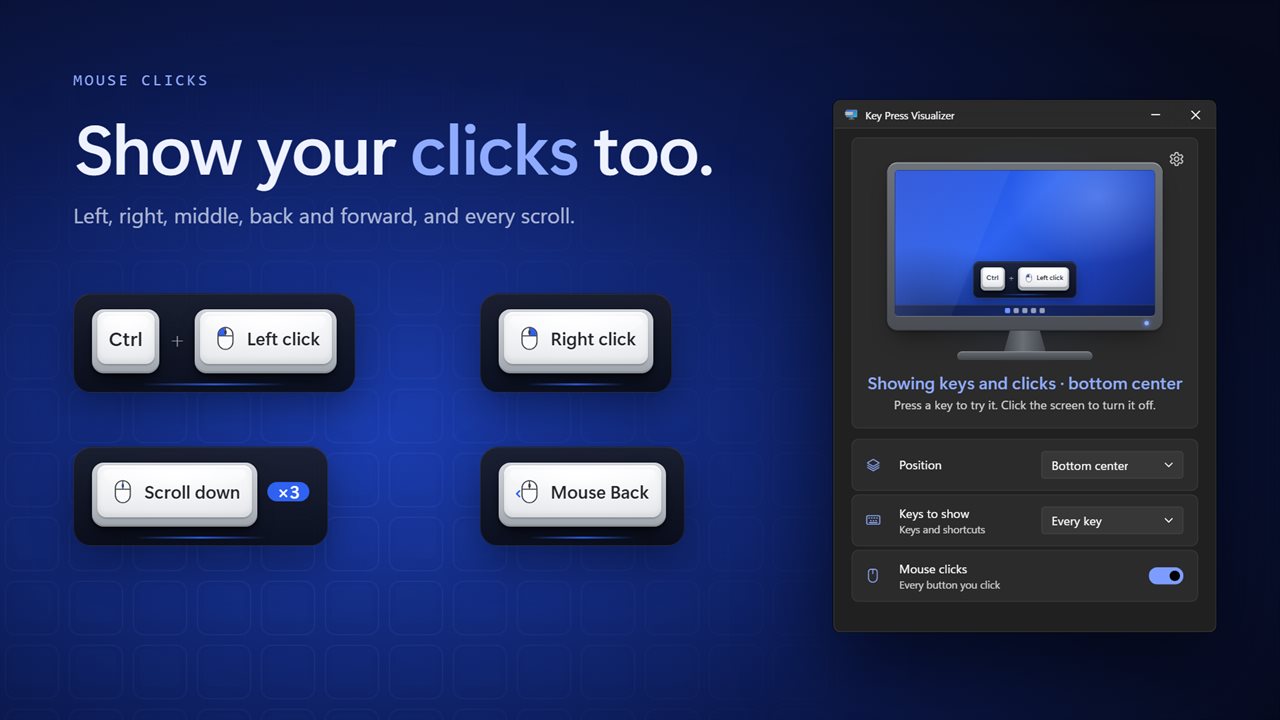
Show mouse clicks and scrolls too, joined to any key you hold.
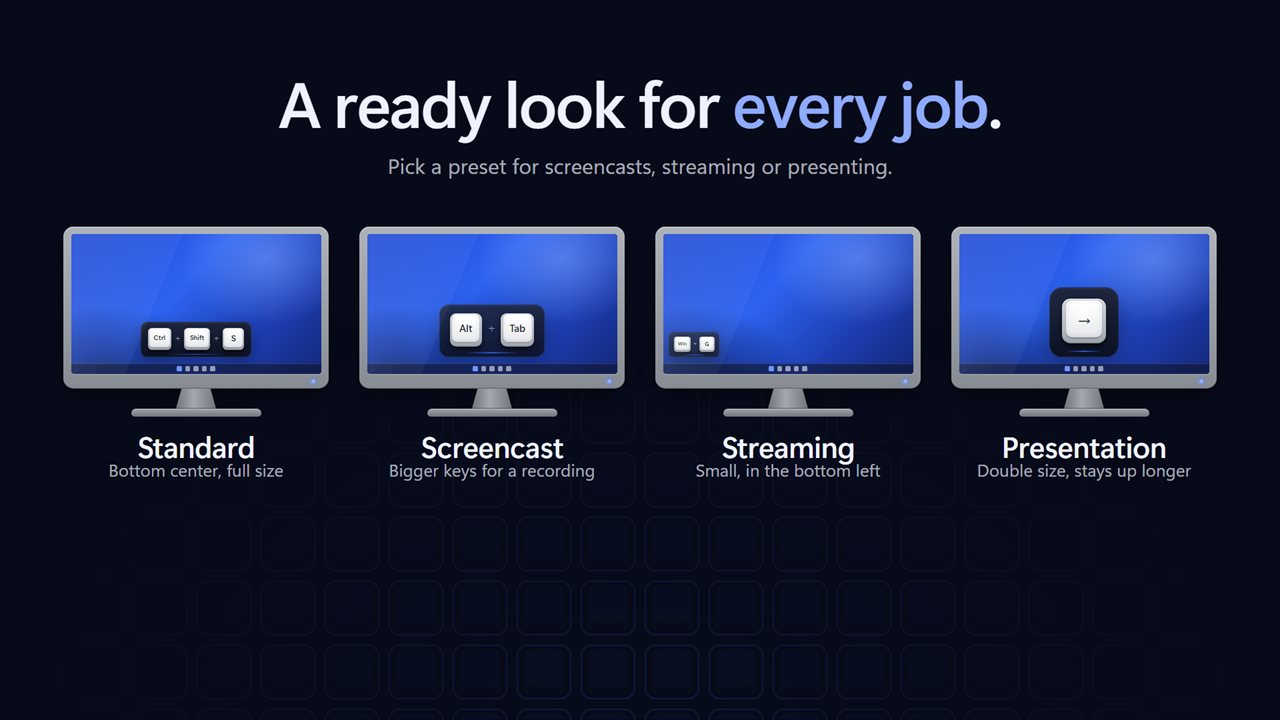
Presets for screencasts, streaming and presentations.
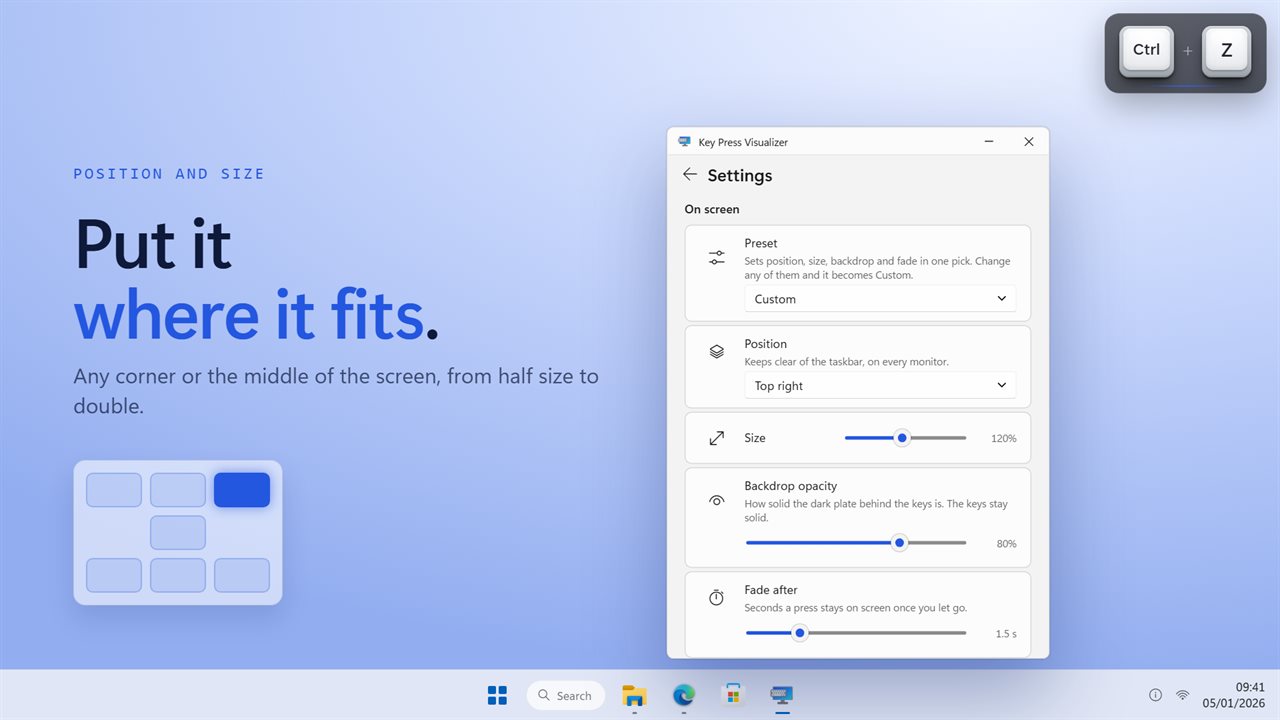
Any corner or the middle, from half size to double.
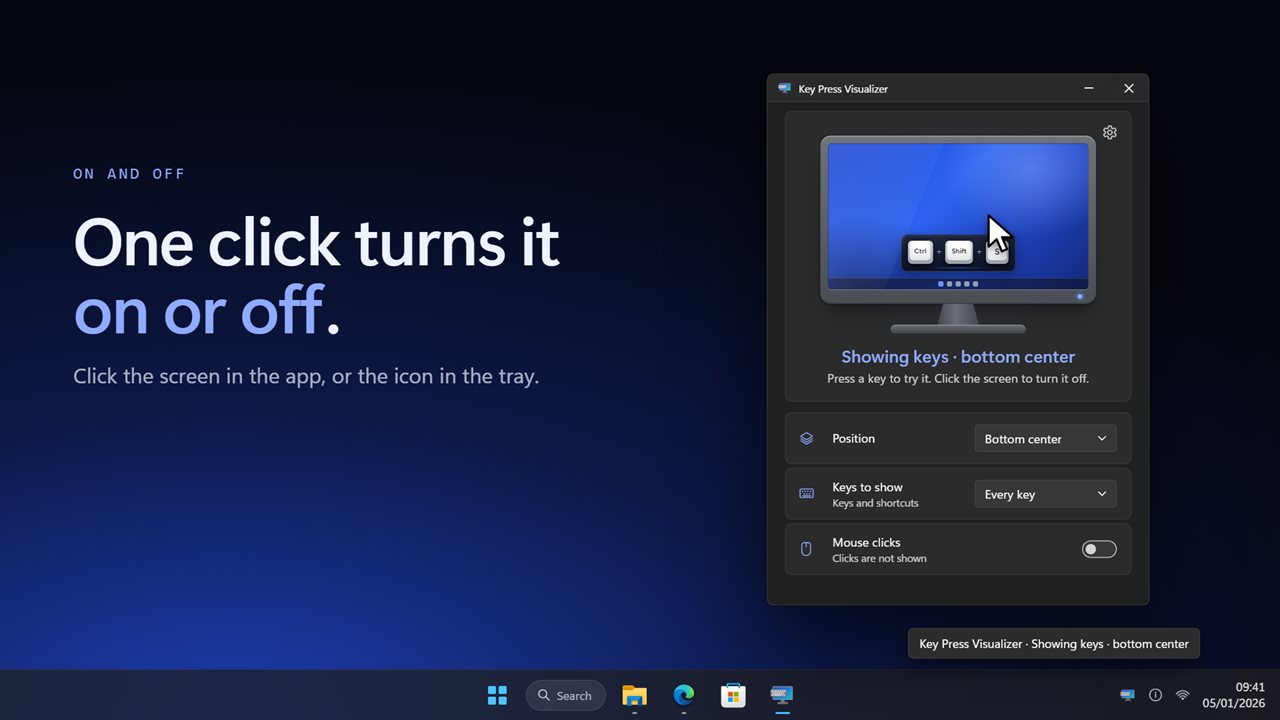
One click turns it on or off, from the app or the tray.

Every key you press, on screen, over whatever you are showing.

190,000+downloads of EvlarSoft apps
Signed by EvlarSoftVerified US publisher
14-day money-backNo questions asked
Updates includedNo upgrade fees

How to show keystrokes on screen while you record

Tutorials lose people at the shortcut. You press three keys, a panel opens, and the viewer has no idea how you got there. The fix is to show keystrokes on screen as you make them, and Windows has nothing built in that captions your shortcuts for an audience.

Key Press Visualizer draws each press as a small plate of keycaps on top of every app, holds it for a moment after you let go, then fades it out. Modifiers always line up as Ctrl, Alt, Shift, Win, which means a combination reads the way documentation spells it regardless of which finger landed first. Repeat a press and it gains a counter, such as Scroll down ×3, rather than stacking copies.

The plate is drawn on every monitor at once and stays clear of each taskbar. Clicks fall straight through it and it never grabs focus, so you work exactly as you normally would.

A keyboard overlay for streaming without leaking your typing

The risk with any keystroke display is putting a password on a live stream. Set "Keys to show" to Shortcuts only and the overlay limits itself to combinations that use Ctrl, Alt or Win, plus Shift with non-typing keys like Tab. Letters, digits and capitals typed with Shift never appear. The third choice, No keys, leaves only mouse input on screen if you turn that on.

Windows also keeps the sign-in screen and administrator prompts out of reach of every app, so nothing pressed there is displayed.

Presets for tutorials, streams and talks

Four presets set position, size, backdrop and fade together. Change any one of them afterward and the preset reads Custom.

  • Standard: bottom center at normal size, a 1.5 second fade and a solid backdrop.
  • Screencast: half again as large, at 90% backdrop, for recorded tutorials.
  • Streaming: 70% size in the bottom left with a lighter backdrop, clear of the action.
  • Presentation: double size, staying three seconds, readable from the back of a room.

Show mouse clicks and scrolling as well

Turn on Mouse clicks and the overlay adds all five buttons: left, right, middle, back and forward, attached to whatever modifier you are holding, so Ctrl + Left click shows as one action. Turn on Mouse wheel and every notch shows in its direction, with a running count while you keep turning.

Both start off, so a fresh install shows only the keyboard. Position covers all four corners, top or bottom center, and dead center.

What Key Press Visualizer does

  • Displays keys, shortcuts and optionally mouse input as keycaps above every window
  • Orders modifiers consistently as Ctrl, Alt, Shift, Win
  • Counts repeated presses with a multiplier instead of duplicating them
  • Shortcuts only mode that never shows ordinary typing
  • Four ready-made presets, or a Custom look
  • Seven screen positions, adjustable size, backdrop opacity and fade time
  • Appears on every monitor and avoids each taskbar
  • Click-through overlay that never takes focus
  • On and off from the screen drawn in the window or from the tray; optional start with Windows

Who puts their keystrokes on screen

Tutorial makers

Record a software walkthrough and let the overlay caption every shortcut, so you do not have to narrate each one or add text in the edit.

Streamers

Show the hotkeys behind a play or a build order in a small corner plate, with typing in chat kept off screen.

Teachers and presenters

Demonstrate keyboard shortcuts to a classroom or meeting at double size, held long enough for the room to read.

What's new in 2.0.3

  • New: your keys appear as keycaps on screen, instead of notifications
  • New: Shortcuts only mode, which never shows your typing
  • New: show mouse clicks and the mouse wheel
  • New: Standard, Screencast, Streaming and Presentation presets
  • New: choose the position, size, backdrop and how long each press stays
  • New: shows on every monitor and keeps clear of the taskbar
  • New: dark theme

Questions

Anything else? Ask us

Can it show shortcuts without showing what I type, like passwords?

Yes. Set Keys to show to Shortcuts only. It then shows combinations with Ctrl, Alt or Win, and Shift with keys that do not type a character, such as Shift+Tab. Plain letters, numbers and Shift+letter capitals are not shown.

Will the keys show up in my screen recording or stream?

Yes, when you record or stream the whole screen. The keys are drawn in an always-on-top window over the screen and are not hidden from capture. A capture of a single app window will not include them, because they are a separate window.

Can it show mouse clicks and scrolling?

Yes, both are off until you turn them on. It shows left, right, middle, back and forward clicks, joined to any modifier you hold, like Ctrl + Left click, and scrolling up, down, left or right.

Does it work with more than one monitor?

Yes. Each press is shown on every monitor at the same time, and on each one it keeps clear of that monitor's taskbar.

Can I change where the keys appear and how long they stay?

Yes. There are seven positions, a size from 50% to 200%, a backdrop from 30% to fully solid, and a fade of 0.5 to 5 seconds after you let go. The Standard, Screencast, Streaming and Presentation presets set all four at once.

Does the on-screen display block clicks or steal focus?

No. Clicks pass straight through it to whatever is underneath, and it never takes focus from the app you are using.

Which preset should I use for a recorded tutorial?

Screencast. It puts the keys at bottom center at 150% size with a 90% backdrop and a 1.5 second fade, which stays readable after a video is scaled down. Streaming is smaller, at 70% in the bottom left.

Does it show keys pressed on the Windows sign-in screen?

No. Windows keeps the sign-in screen and administrator prompts private from all apps, and the overlay never sees what is typed there.

Which versions of Windows does it run on?

Windows 10 (version 1809 or later) and Windows 11.

Is it a subscription?

No. Key Press Visualizer is a one-time purchase of $2.99, and updates are included.

How do I get it?

Buy it on this page and your license key arrives by email. If the button says Notify me, Key Press Visualizer is not on sale here yet; leave your email and we will tell you when it is.