EEvlarSoft

Mouse Click Indicator for Windows

Show mouse clicks on screen as a ripple, circle or ring, colored by button, so anyone watching a recording or a live demo sees exactly where you clicked.

Coming soon to evlarsoft.comNotify me
One-time purchaseOne payment. No subscription.
3.1
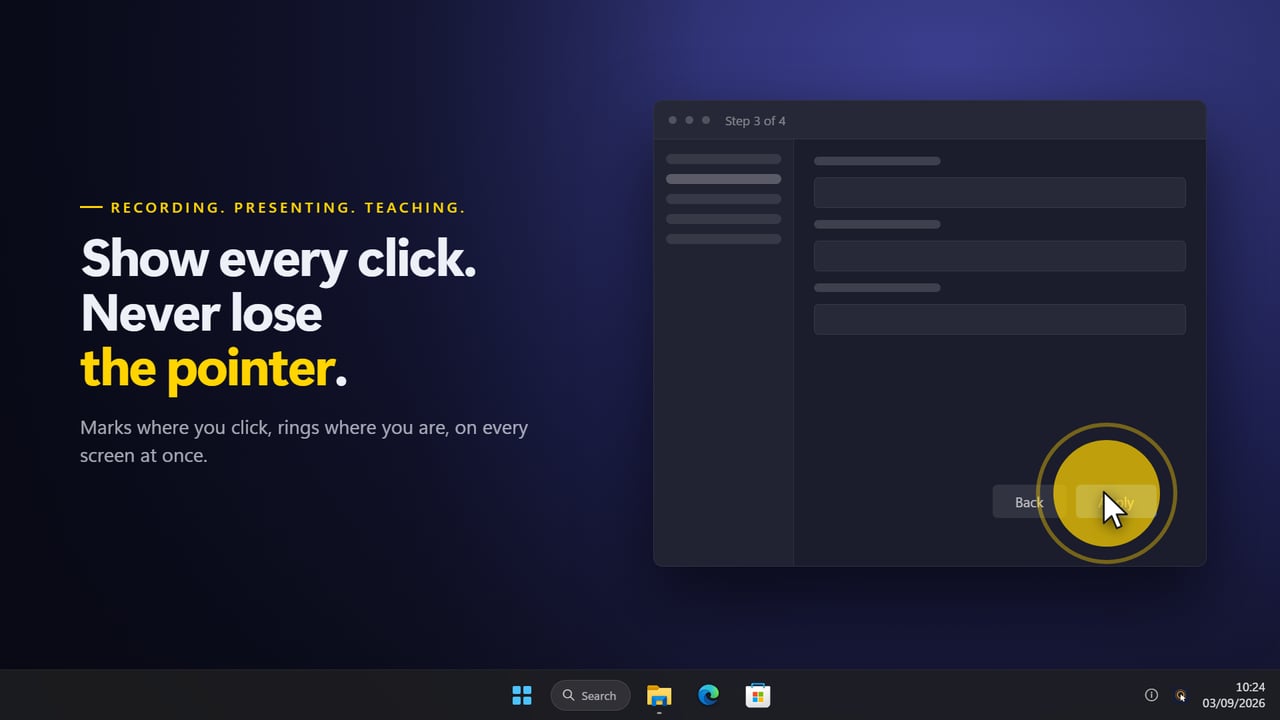
Show every click, so a recording can be followed.
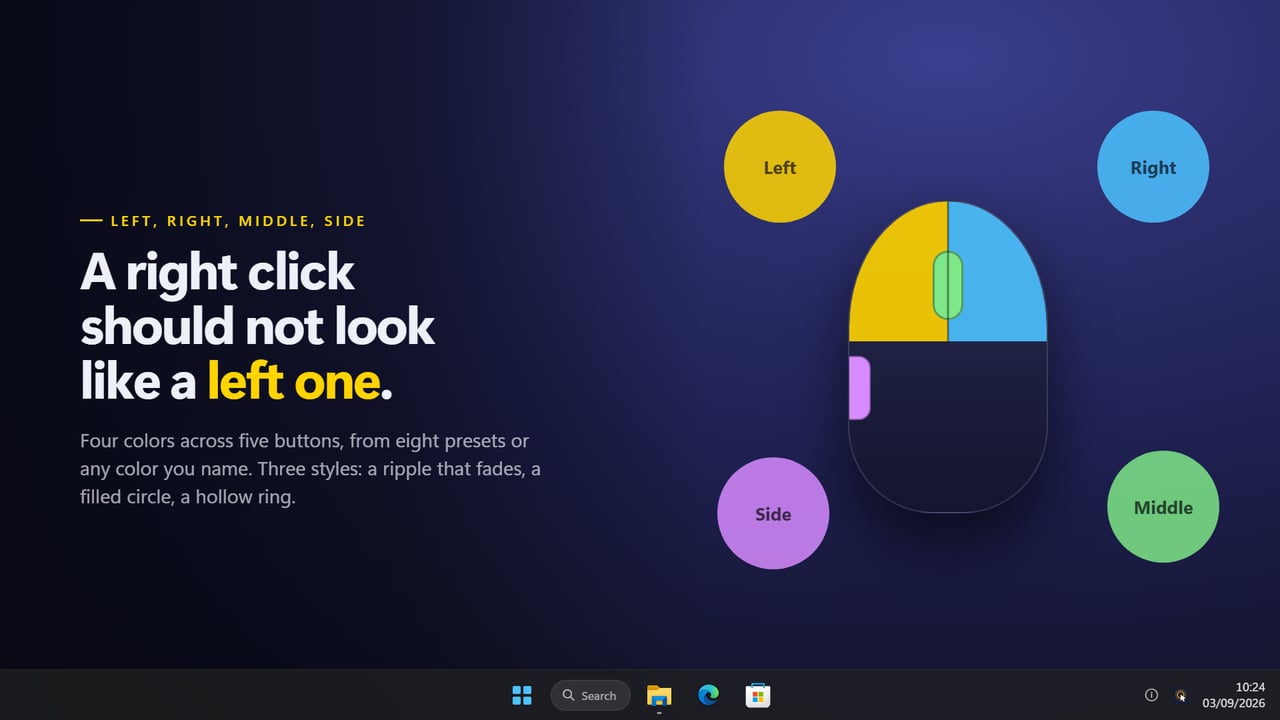
A colour for each button — a right click never looks like a left one.
A ring that follows the pointer, so it is never lost.
Size, style and how long it lasts, all yours.
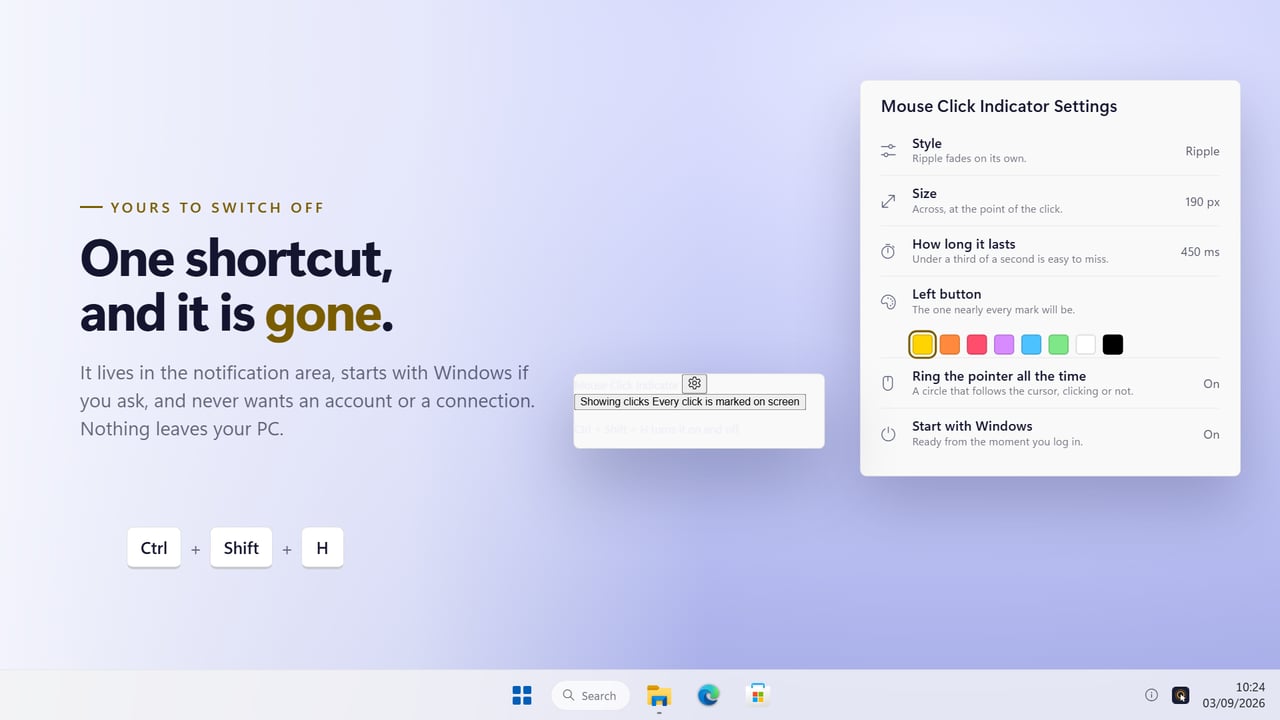
In the notification area. One shortcut turns it off.

Show every click, so a recording can be followed.

190,000+downloads of EvlarSoft apps
Signed by EvlarSoftVerified US publisher
14-day money-backNo questions asked
Updates includedNo upgrade fees

A click highlighter for recordings, demos and teaching

A viewer watching your screen sees the menu open but never sees the click that opened it. Mouse Click Indicator is a click highlighter that fixes that. Every time a mouse button goes down, a mark appears at that exact point, on whichever monitor it happened, and then fades.

Because the marks are drawn on the desktop itself, any screen recorder, meeting app or projector picks them up with no plug-in and no setting to find in the recorder. Turn it on before you start, and switch it off with Ctrl+Shift+H when you are done.

It also suits live work. On a projector or a video call, a ring that appears where you clicked does the pointing for you, so you can talk about the result instead of describing where to look.

How to show mouse clicks on screen in Windows 11

Windows has no built-in option that draws your clicks, and most recorders that offer one only add it to their own output. A separate overlay works with all of them. With this one:

  • Launch it. It goes straight to the notification area; there is no main window.
  • Click the tray icon and make sure Show my clicks is on, or press Ctrl+Shift+H.
  • Open Settings and pick a Style: Ripple, Filled circle or Hollow ring.
  • Set Size between 30 and 240 px and How long it lasts between 150 and 1500 ms. Below about a third of a second, a mark is easy to miss on video.
  • Start your recorder or share your screen. Every click now shows up in it.

Mouse click effect with a different color for each button

A right click that looks identical to a left click is the usual reason a tutorial viewer gets lost. Under A color for each button you give the left, right and middle buttons their own colors, and the two side buttons share a fourth. Each row offers eight preset swatches, from yellow and orange to white and black, plus a custom color.

Turn on Name the button and the mark spells out Left, Right, Middle or Side inside itself, with its own Label color, which helps viewers who cannot rely on color. Strength sets how much of the screen shows through the mark, from barely there to nearly solid.

Keep the pointer visible between clicks

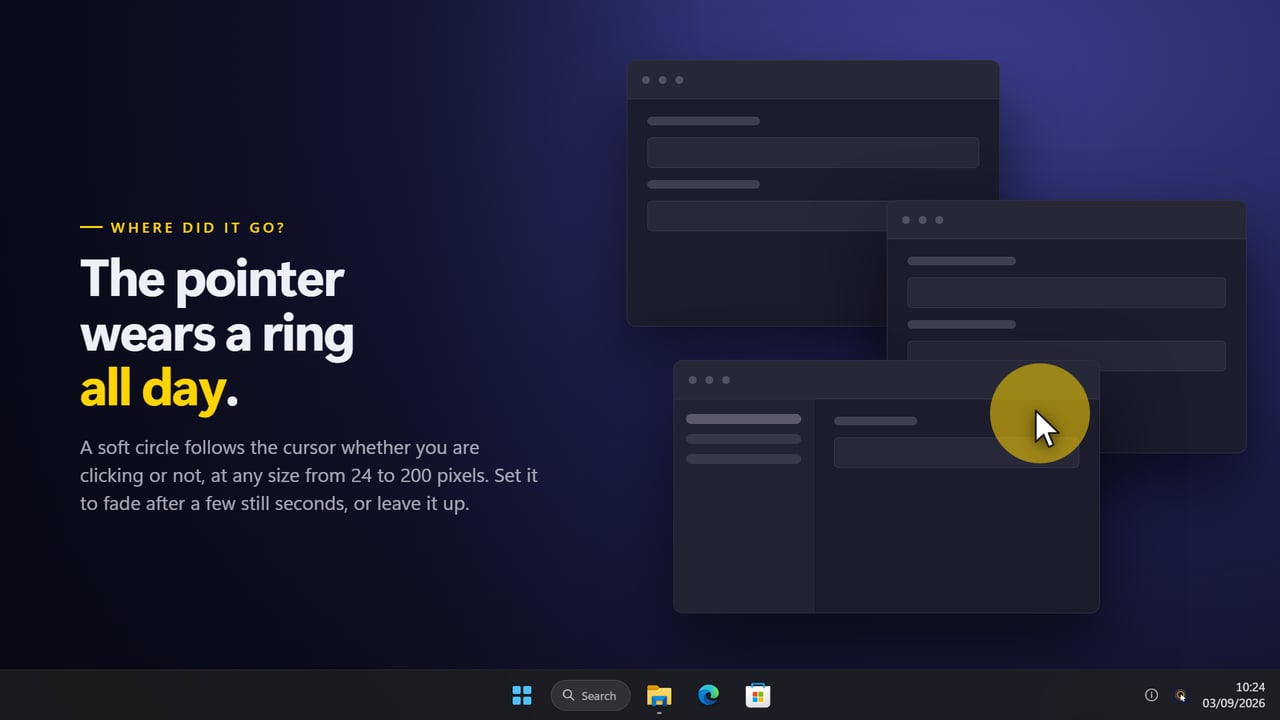
Clicks are only half of following someone. Ring the pointer all the time keeps a soft circle, 24 to 200 px across, on the cursor whether you click or not. Hide it when the pointer stops fades it after 0.5 to 10 seconds of stillness, so it gets out of the way while you talk.

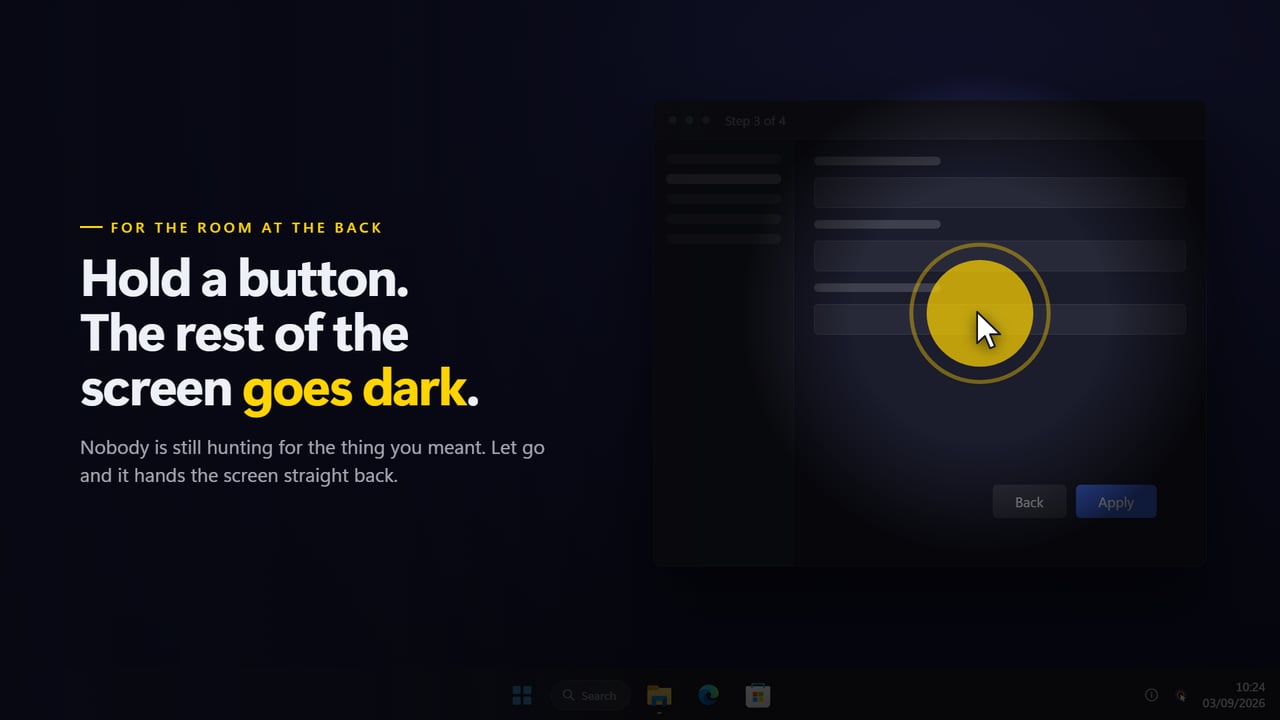
For a tighter focus, Dim the rest of the screen darkens everything outside a circle around the pointer while a button is held, and How dark sets the depth. Follow a drag makes the mark travel with the cursor until you let go, which makes drag-and-drop steps readable.

Features

  • Three mark stylesRipple, Filled circle and Hollow ring
  • Separate colors for left, right and middle, plus one for the side buttons
  • Mark size from 30 to 240 px and duration from 150 to 1500 ms
  • Optional button name written inside each mark
  • A pointer ring that can fade out when the mouse is still
  • Screen dimming around the pointer while a button is held
  • Marks that follow a drag instead of staying where it began
  • Covers every monitor, including one connected while it runs
  • A global on/off shortcut, Ctrl+Shift+H by default and changeable
  • Start with Windows, and Light, Dark or Auto theme for its windows

Where it helps

Software tutorials

Viewers can pause on any frame and see which button was pressed and where, without you narrating every click.

Live presentations and training

On a projector or a shared screen, the pointer ring and click marks keep a room or a call looking at the right spot.

Bug reports and support videos

A short capture with clicks marked shows the exact steps to reproduce a problem, including right clicks into context menus.

What's new in 2.0.3

  • New: the mark follows a drag instead of staying where the button went down
  • New: a ring that follows the pointer all the time, for finding the cursor on a wide desk
  • New: how long a mark lasts is yours to set, from 150 to 1500 ms
  • New: a spotlight that dims everything but the pointer
  • New: the button's name can be written inside the mark
  • New: the side buttons are marked too, so all five buttons are covered
  • A monitor plugged in while the app is running is covered without a restart
  • Redesigned settings and tray panel that match Windows 11 and follow the light and dark themes
  • One keyboard shortcut for the whole app

Questions

Anything else? Ask us

Can Mouse Click Indicator show which mouse button was clicked?

Yes. Left, right and middle clicks each get their own color, and the two side buttons share a fourth. You can also have the mark write Left, Right, Middle or Side inside itself.

How big can the click mark be, and how long does it stay?

The mark can be 30 to 240 pixels across and last 150 to 1500 ms. There are three styles: a ripple that fades on its own, and a filled circle or hollow ring that stay while the button is held.

Does it work on more than one monitor?

Yes. Clicks are marked on every screen, and a monitor plugged in while the app is running is covered without a restart. A drag that crosses onto another monitor keeps drawing on the screen where it started.

Will the click marks block my clicks or take focus?

No. The marks are drawn on click-through windows that never take focus and do not appear in Alt+Tab, so every click reaches the app underneath.

Can it highlight the cursor when I am not clicking?

Yes. Turn on the pointer ring and a circle of 24 to 200 pixels follows the cursor all the time. It can fade out after 0.5 to 10 seconds without movement, or stay up when set to zero.

Is there a keyboard shortcut to turn it on and off?

Yes. Ctrl+Shift+H turns the marks on and off while any app has focus, and you can change it in Settings. If Windows refuses the combination you pick, the tray icon still switches it.

Will the click marks show up in my screen recording?

Yes. They are drawn on screen like any other window, so a recorder capturing the display or a meeting app sharing it includes them. Recording a single app window instead of the screen may leave them out, since they are not part of that app.

How do I make mouse clicks easier to see on video?

Raise Size toward 240 px, push Strength up so less of the screen shows through, and set How long it lasts to at least 400 ms so a mark survives the frame rate and compression of a recording. A yellow or orange left-button color stands out on most desktops.

Which versions of Windows does it run on?

Windows 10 (version 1809 or later) and Windows 11.

Is it a subscription?

No. Click Indicator is a one-time purchase, and updates are included.

How do I get it?

Buy it on this page and your license key arrives by email. If the button says Notify me, Click Indicator is not on sale here yet; leave your email and we will tell you when it is.