EEvlarSoft

Mouse Highlighter

Highlight the mouse pointer so a room, a video call or a recording can always see where you are pointing, with four highlight styles and controls for when it shows.

Buy for $2.49
One payment. No subscription.
14-day money-back guarantee.
4.2
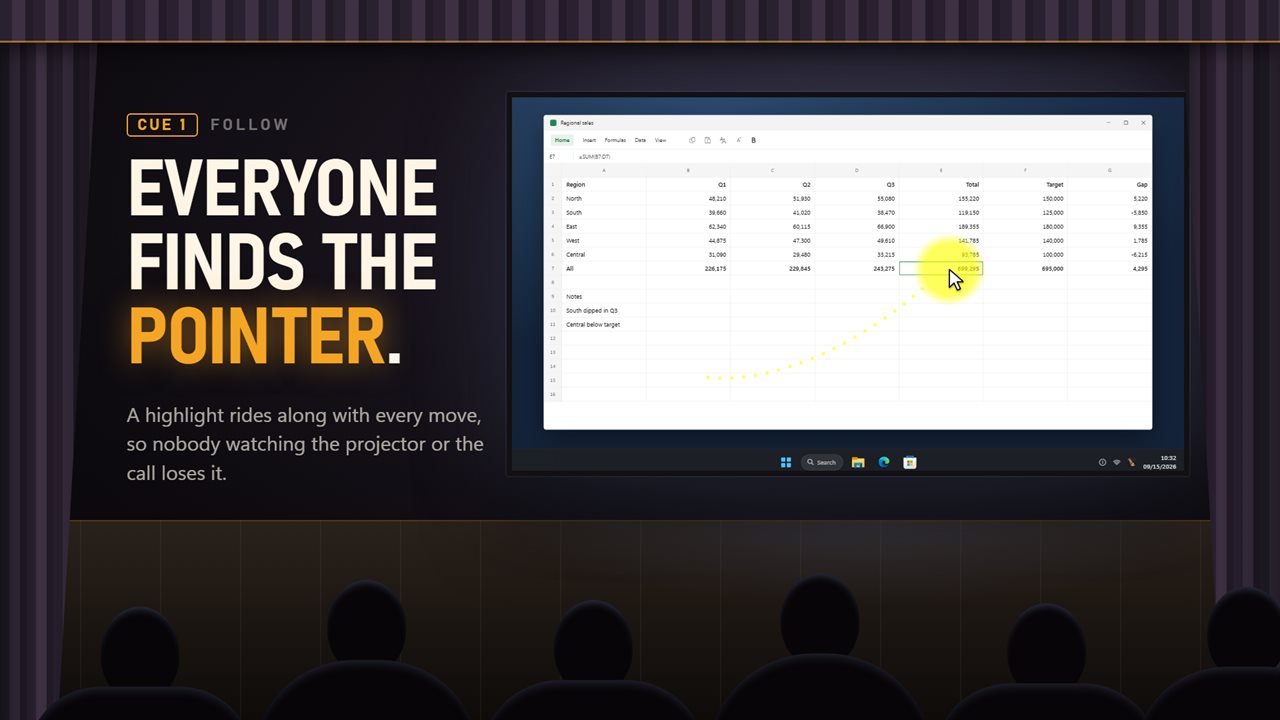
A highlight that follows your pointer, so everyone can find it.
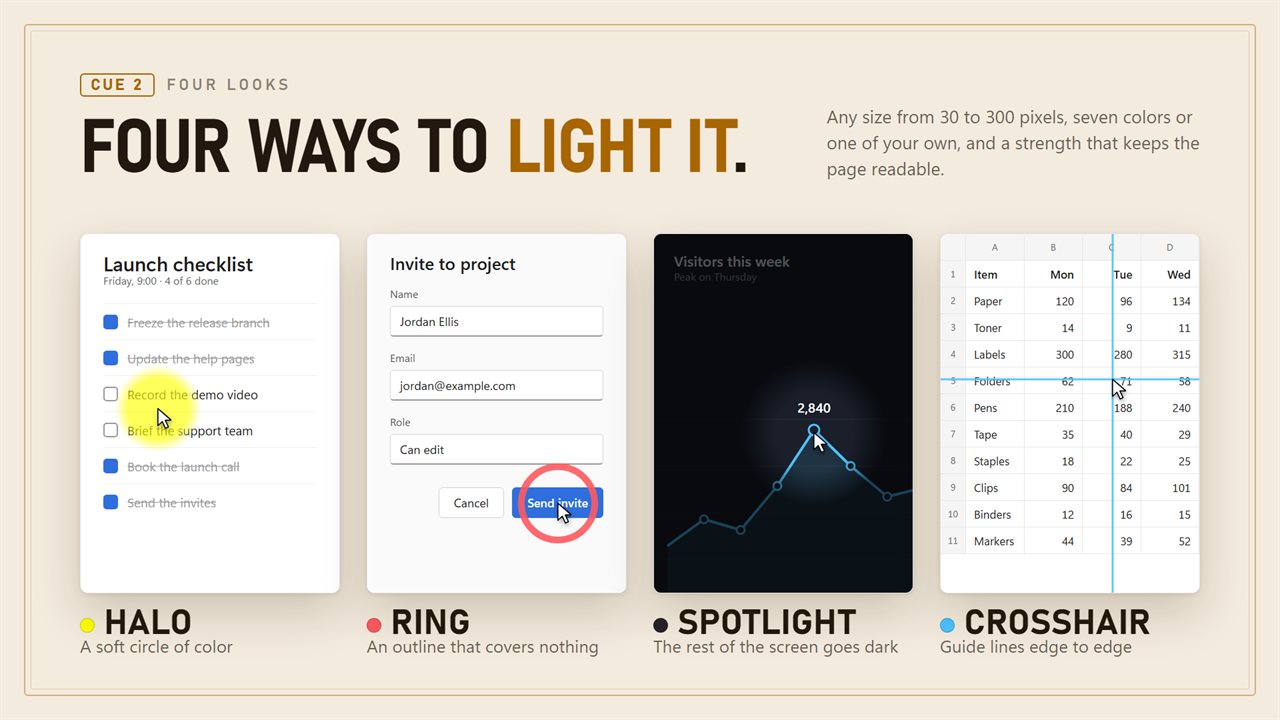
Halo, Ring, Spotlight or Crosshair.
Spotlight darkens everything but the pointer, for presenting.
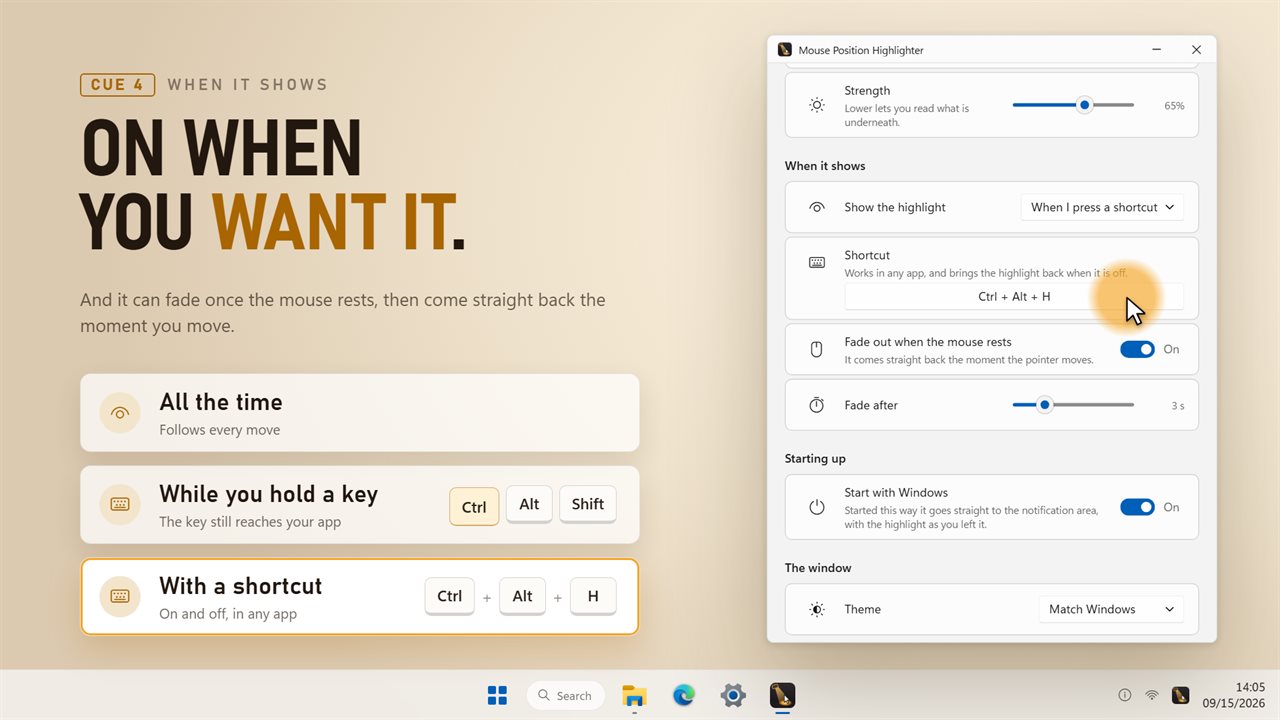
All the time, while you hold a key, or with a shortcut.
Try every style on the stage before it reaches your desktop.

A highlight that follows your pointer, so everyone can find it.

190,000+downloads of EvlarSoft apps
Signed by EvlarSoftVerified US publisher
14-day money-backNo questions asked
Updates includedNo upgrade fees

Why use a mouse highlighter

A mouse highlighter draws a shape around the pointer that moves with it. On your own monitor the arrow is easy to track. Shrunk into a video call thumbnail, thrown onto a projector across a classroom, or compressed in a tutorial video, it vanishes, and your audience spends the demo hunting for it instead of listening.

Mouse Position Highlighter keeps a colored mark on the pointer across every connected display. It is drawn as a layer that clicks pass through, so the program you are presenting keeps working normally and never loses focus to it.

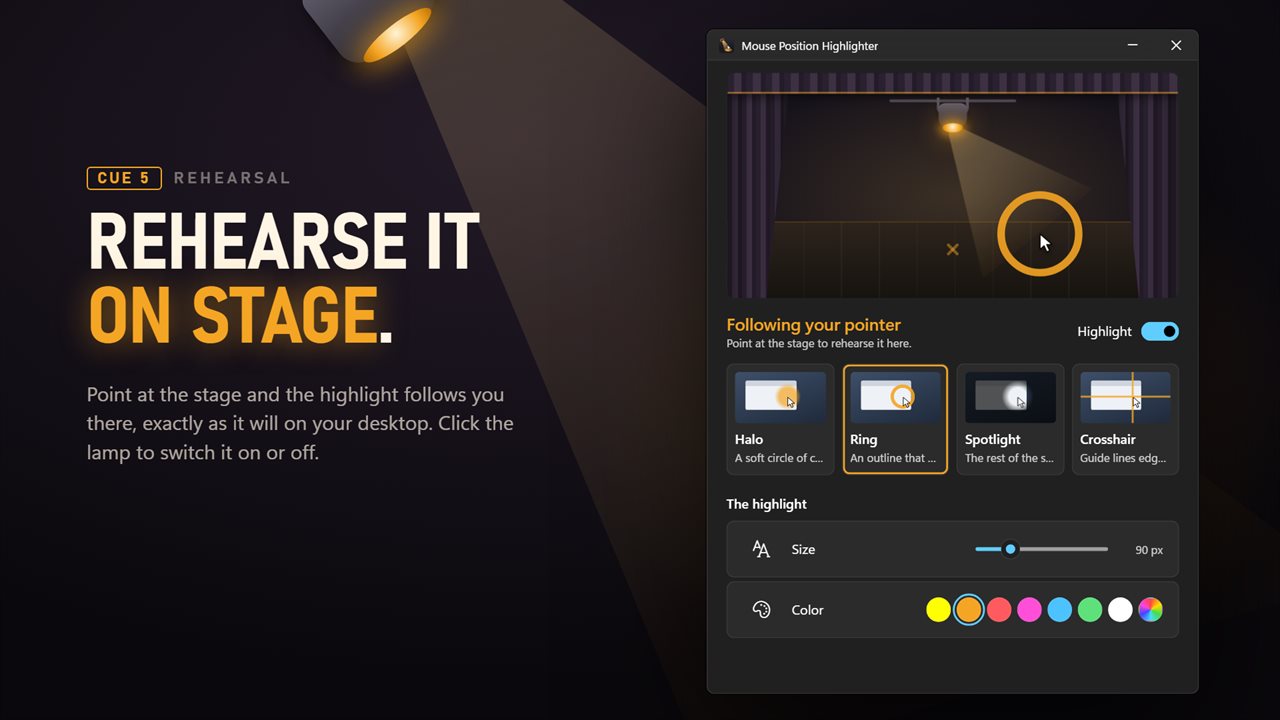
Before anyone sees it, you can try each look on the small stage inside the app window: point there and the highlight behaves exactly as it will on the desktop. Clicking the lamp on the stage turns it on or off.

Four ways to highlight the mouse pointer

Each style answers a different problem, so pick by what you are showing rather than by taste.

  • Halo: a soft disc of color behind the pointer. The general choice for calls and tutorials.
  • Ring: only an outline, so text or a cell under the pointer stays fully readable.
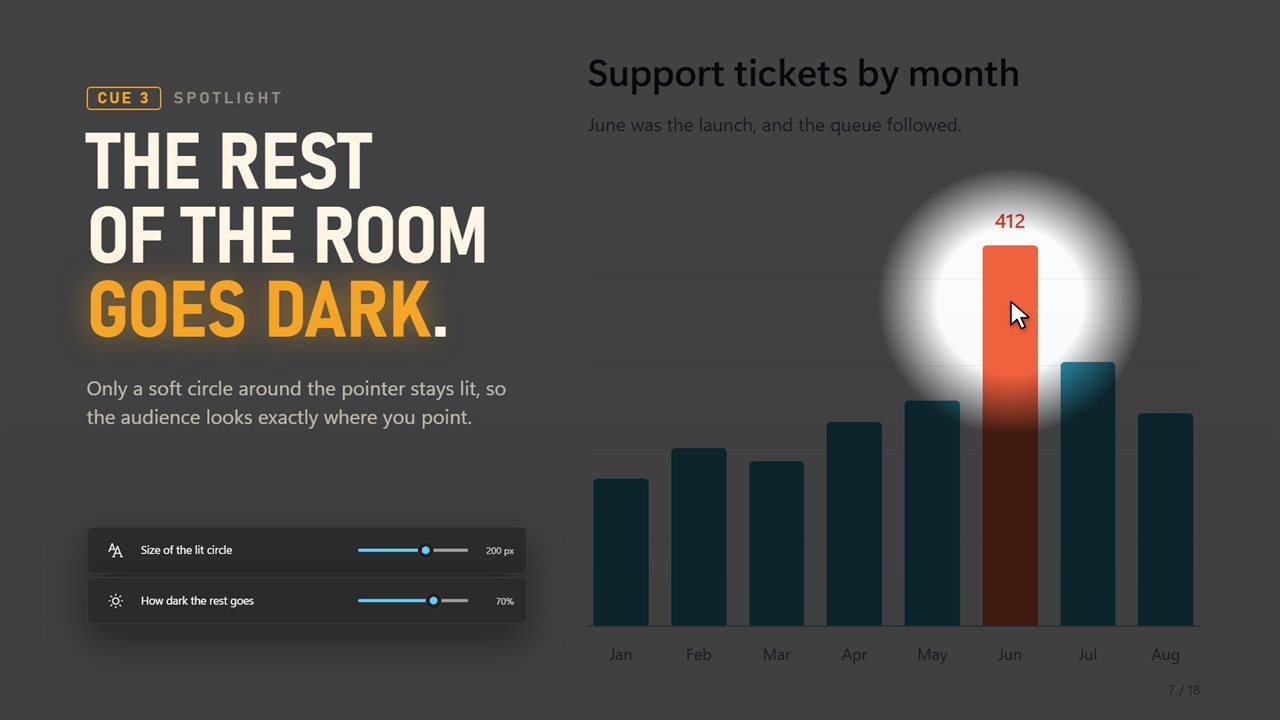
  • Spotlight: everything except a lit circle around the pointer goes dark. Use it when you want a room to look at one spot. Other monitors go fully dark while the pointer is elsewhere.
  • Crosshair: thin lines run edge to edge through the pointer, handy for lining up rows and columns or pointing into a wide spreadsheet. Its size control sets line thickness.

Tuning the highlight for screen recording and projectors

Size runs from 30 to 300 pixels in steps of five. A projector at the back of a hall wants something large; a narrated screen recording looks cleaner at the small end. Color offers seven presets, from the default yellow to orange, red, pink, blue, green and white, plus any custom color.

Strength, from 10 to 100%, sets how solid the mark is. Lower values tint what is underneath instead of hiding it. With Spotlight there is no color; instead, How dark the rest goes sets the surrounding shade between 20 and 90%.

Show the highlight only when you need it

A highlight that is always on can get in the way between demos. Under Show the highlight you can choose All the time, While I hold a key, or When I press a shortcut.

Hold mode lights the pointer only while Ctrl, Alt or Shift is down, and the key is still passed to your app, so ordinary shortcuts keep working. Shortcut mode flips the highlight from any program, with Ctrl+Alt+H as the starting combination. Separately, Fade out when the mouse rests can hide the mark after the pointer has been still for a few seconds; it reappears on the next movement.

Highlighter features

  • Halo, Ring, Spotlight and Crosshair styles
  • Size from 30 to 300 pixels, strength from 10 to 100%
  • Seven preset colors and a custom color picker
  • Spotlight darkness adjustable from 20 to 90%
  • Hold-a-key and keyboard-shortcut modes
  • Optional fade when the pointer rests, from 1 to 10 seconds
  • Covers every display, including one connected while it runs
  • Never takes clicks or focus from the app underneath
  • Left-click the notification area icon to switch it on or off
  • Can start with Windows, with the highlight as you left it

Where it helps

Teaching and training

Students at the back of the room can follow every click on a projected screen, and Spotlight pulls attention to the one button that matters.

Tutorials and screen recordings

A small halo or ring makes the pointer easy to follow after the video has been scaled down and compressed.

Video calls and support sessions

Hold Ctrl while you point at something in a shared screen, and let go when you are done talking about it.

What's new in 2.0.3

  • New: Ring, Spotlight and Crosshair styles alongside the Halo
  • New: any size from 30 to 300 pixels, and a strength from 10 to 100%
  • New: show it only while you hold a key, or switch it with a shortcut
  • New: fade out when the mouse rests
  • New: a stage in the window to try each style before it reaches your desktop
  • Smoother following, and no work at all while the mouse is still
  • Works on every screen, including one plugged in while it runs
  • Redesigned for Windows 11, with light and dark themes

Questions

Anything else? Ask us

What kinds of highlight are there?

Four. Halo is a soft circle of color, Ring is an outline that covers nothing, Spotlight darkens the screen except a circle around the pointer, and Crosshair draws guide lines edge to edge through it.

Can I change the size and color?

Yes. Size goes from 30 to 300 pixels, with seven preset colors or any color you pick, and strength from 10 to 100%. Spotlight has no color setting; instead you set how dark the rest of the screen goes, from 20 to 90%.

Can it show only while I hold a key?

Yes. Choose to show it all the time, only while you hold Ctrl, Alt or Shift, or on and off with a shortcut, Ctrl+Alt+H by default. The held key still reaches the app you are using.

Does the highlight block clicks or take focus from my app?

No. Clicks pass straight through it to the window underneath, and it never becomes the active window.

Does it work on more than one monitor?

Yes. Every screen is covered, including one plugged in while the app is running. With Spotlight, screens the pointer is not on are darkened completely.

Can it hide when the mouse is not moving?

Yes. Turn on Fade out when the mouse rests and pick 1 to 10 seconds, and it comes back on the next move. This option does not apply when it only shows while you hold a key.

How do I highlight my mouse pointer in Windows 11?

Windows 11 can enlarge and recolor the pointer, and can flash rings around it when you press Ctrl, but it has no lasting highlight. For one, open Mouse Position Highlighter, pick Halo, Ring, Spotlight or Crosshair, and leave Show the highlight on All the time. The mark then follows the pointer on every screen until you left-click the notification area icon to switch it off.

Will the highlight show up in my screen recording?

It is drawn on the screen itself, so a recorder that captures the whole display will include it the way it looks to you. Try the style on the in-app stage first.

Does it slow down my computer?

It does no drawing work while the mouse is still, and while the highlight is switched off it stops watching the mouse entirely.

Which versions of Windows does it run on?

Windows 10 (version 1809 or later) and Windows 11.

Is it a subscription?

No. Mouse Highlighter is a one-time purchase of $2.49, and updates are included.

How do I get it?

Buy it on this page and your license key arrives by email. If the button says Notify me, Mouse Highlighter is not on sale here yet; leave your email and we will tell you when it is.