A keyboard shortcut to move the mouse between monitors
Windows can throw a window to the next display with Win+Shift+arrow, but it has no shortcut to move the mouse between monitors. On a desk of two or three screens, or a laptop beside a wide external display, that means a long sweep across the mousepad, often with a lift and a second sweep, every time you look somewhere else.
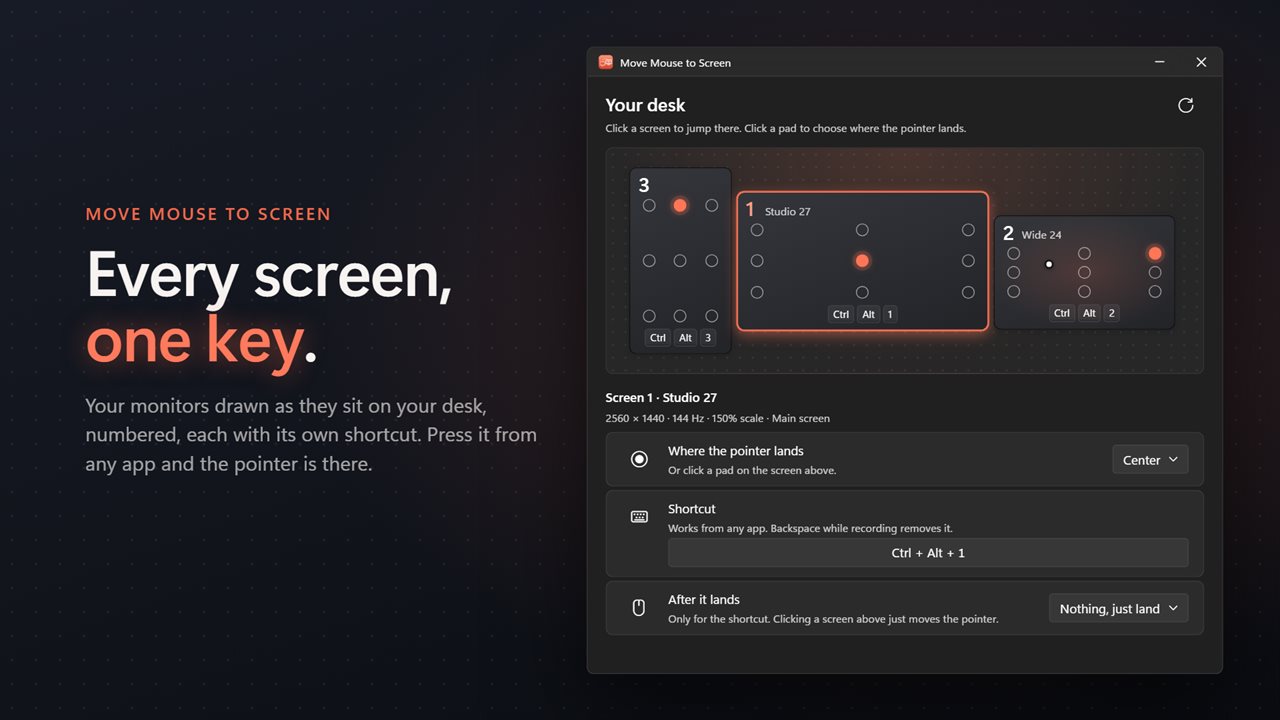
Move Mouse to Screen gives every display a shortcut of its own. Out of the box screen 1 is Ctrl+Alt+1, screen 2 is Ctrl+Alt+2, and so on through 9, on the number row or the numpad, and they work from whatever app is in front. The pointer arrives at once, in the center of that screen until you choose another spot.
The app's window draws your monitors to scale and in the same arrangement as Windows display settings, numbered, with a live dot that tracks the pointer. Clicking a screen in that picture jumps there too.
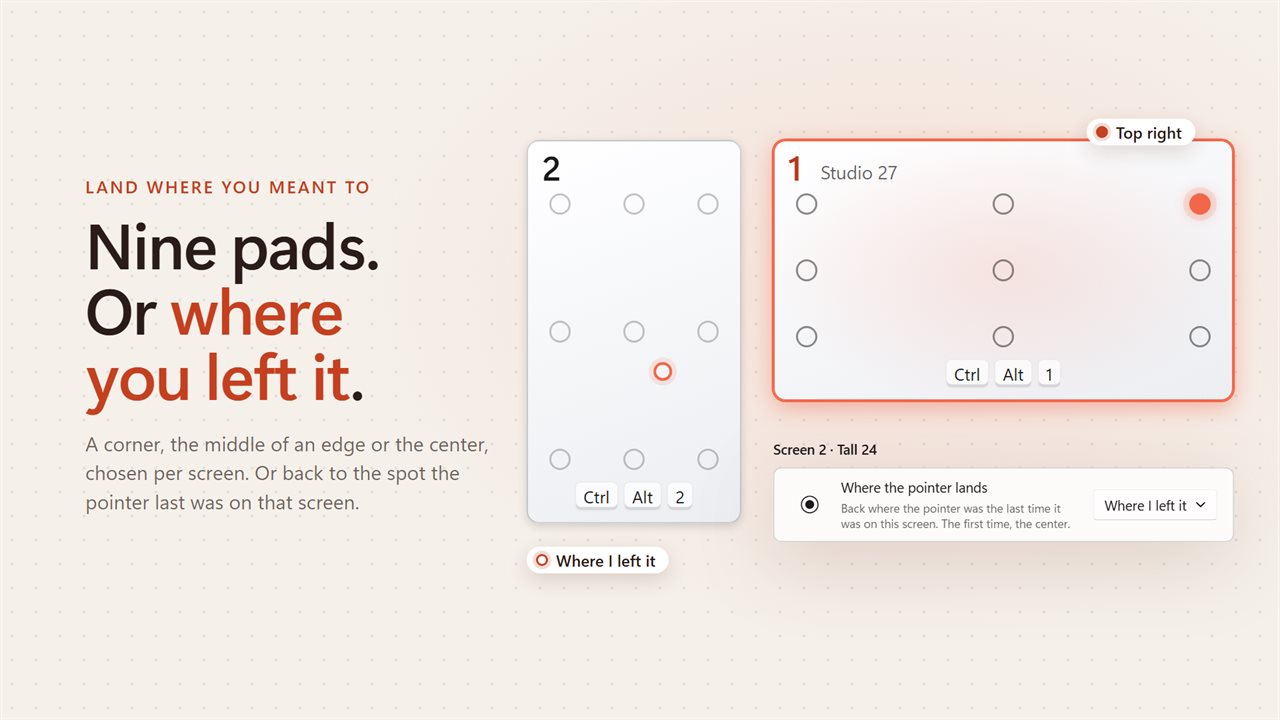
Choose where the cursor lands on the second monitor
Jumping is only half of it; the other half is landing somewhere useful. Select a screen in the window and, under Where the pointer lands, pick one of nine pads: Top left, Top middle, Top right, Left middle, Center, Right middle and the three along the bottom. Pads sit just inside the usable area, so a bottom corner never lands on the taskbar.
Pick Where I left it instead and the pointer returns to exactly where it was the last time it was on that screen. That suits a monitor you always use for one thing, like a chat window or a terminal you keep typing into.
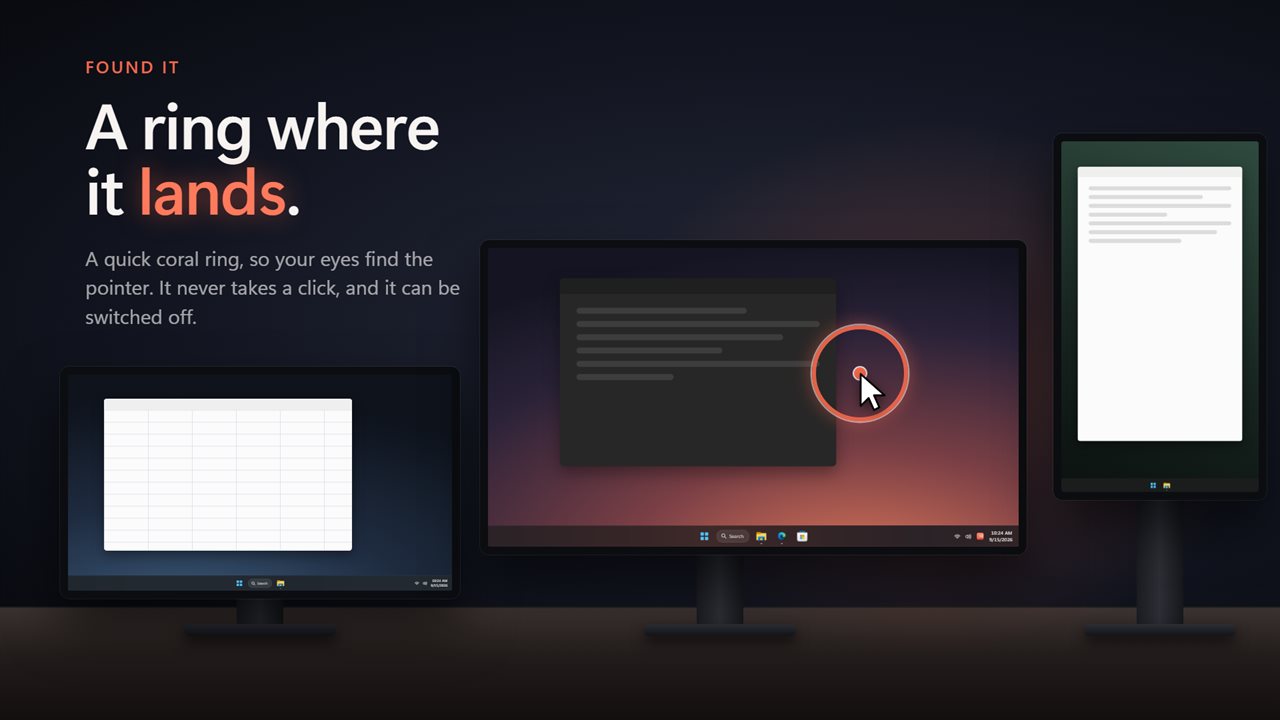
Switch the mouse to the other monitor and click
Arriving on a screen does not change which window has focus. If you want it to, set After it lands to Click, Double-click or Right-click for that screen. The click waits until you let go of Ctrl and Alt, so the window under the pointer gets an ordinary click rather than a Ctrl+Alt+click. Leave it on Nothing, just land if you only want to move. Clicking a screen in the drawing only moves the pointer; the click belongs to the shortcut.
Next and previous screen shortcuts
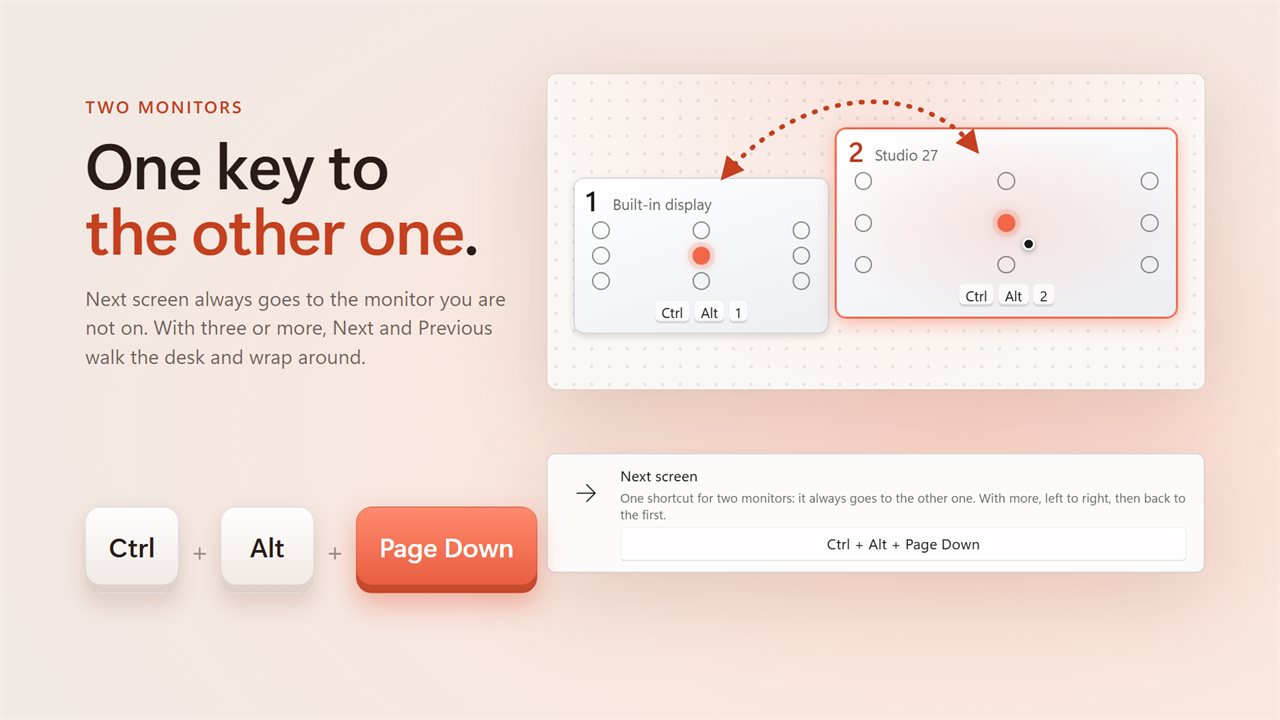
Numbered shortcuts are fastest when you know which screen you want. For the times you just want the other one, there are two more.
- Next screen, Ctrl+Alt+Page Down: with two monitors it always goes to the other one; with more it steps left to right and wraps round
- Previous screen, Ctrl+Alt+Page Up: the same walk in the other direction
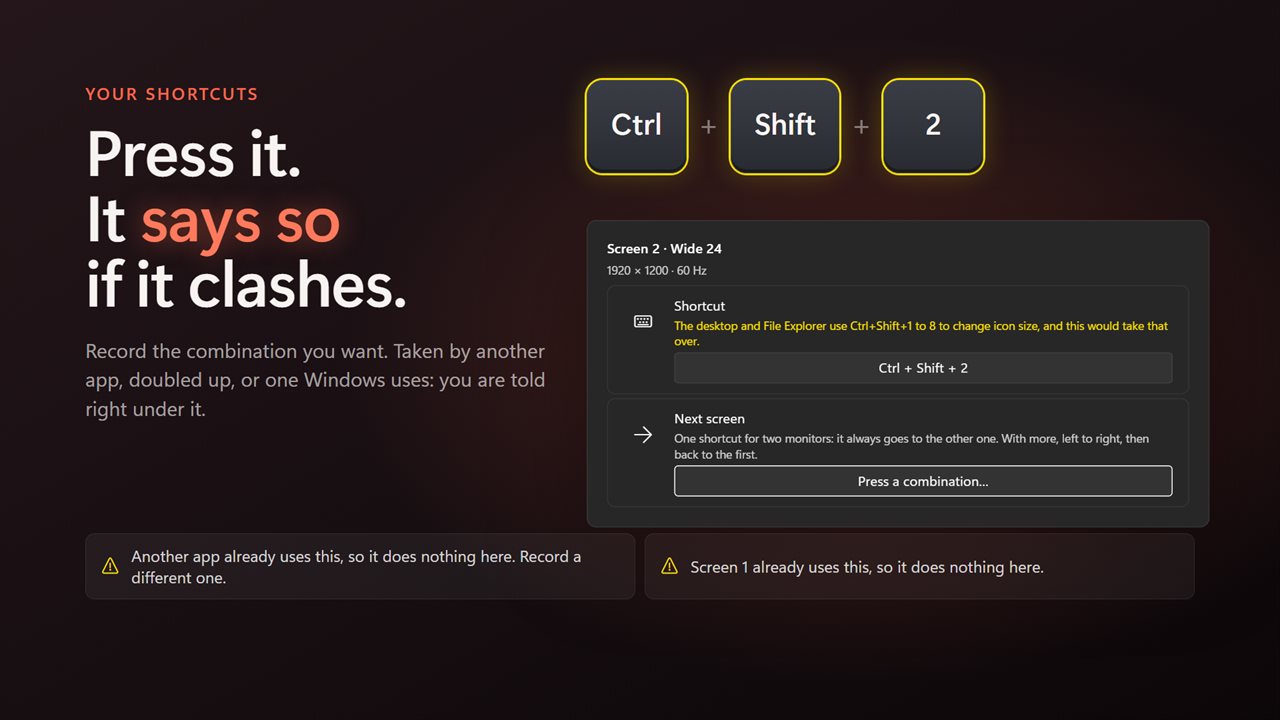
- Click any shortcut in Settings and press a new combination to record it
- If a combination is already held by another app, is used twice, or clashes with your keyboard layout, the reason is shown right under it
- Pause every shortcut hands the combinations back to other apps until you switch it off