A file finder for when Windows search comes up empty
When the search box in File Explorer spins and returns nothing, the usual advice is to rebuild the index, change indexing modes and tick file types one by one. A file finder that reads the folders directly skips all of that. Find Any File does not rely on the Windows index: each search walks the places you choose, so a file that the index never saw can still turn up.
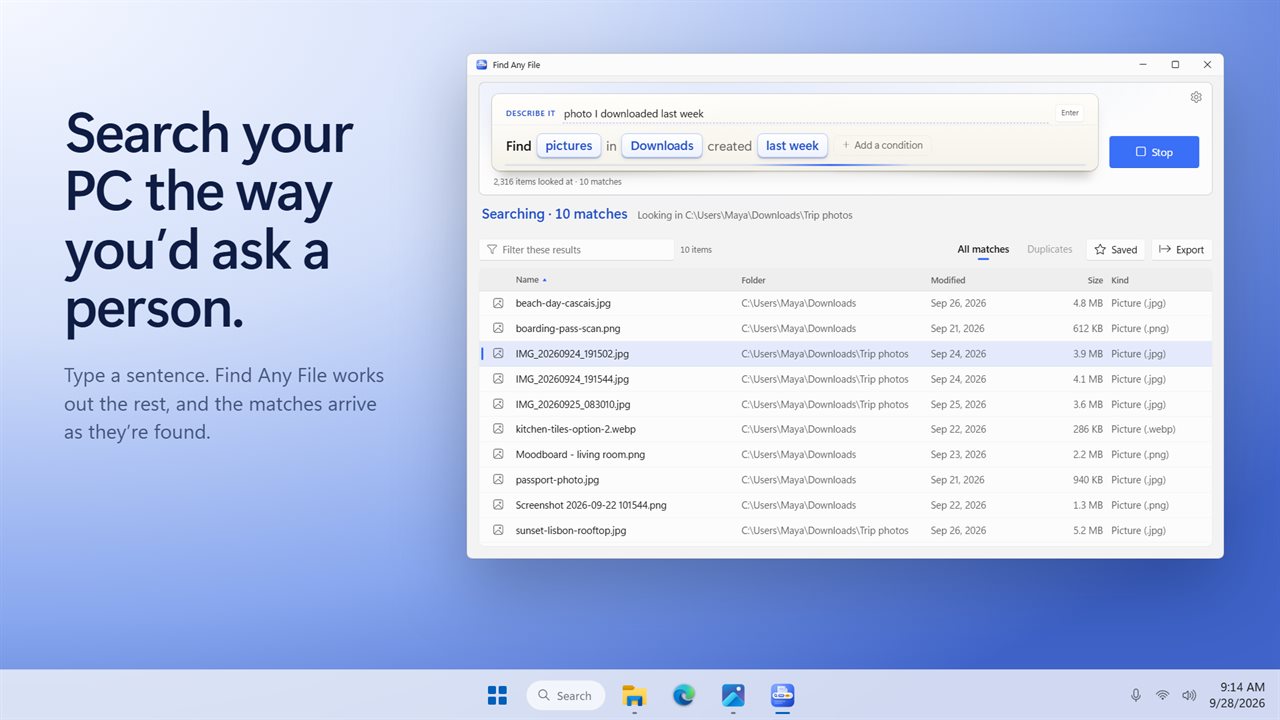
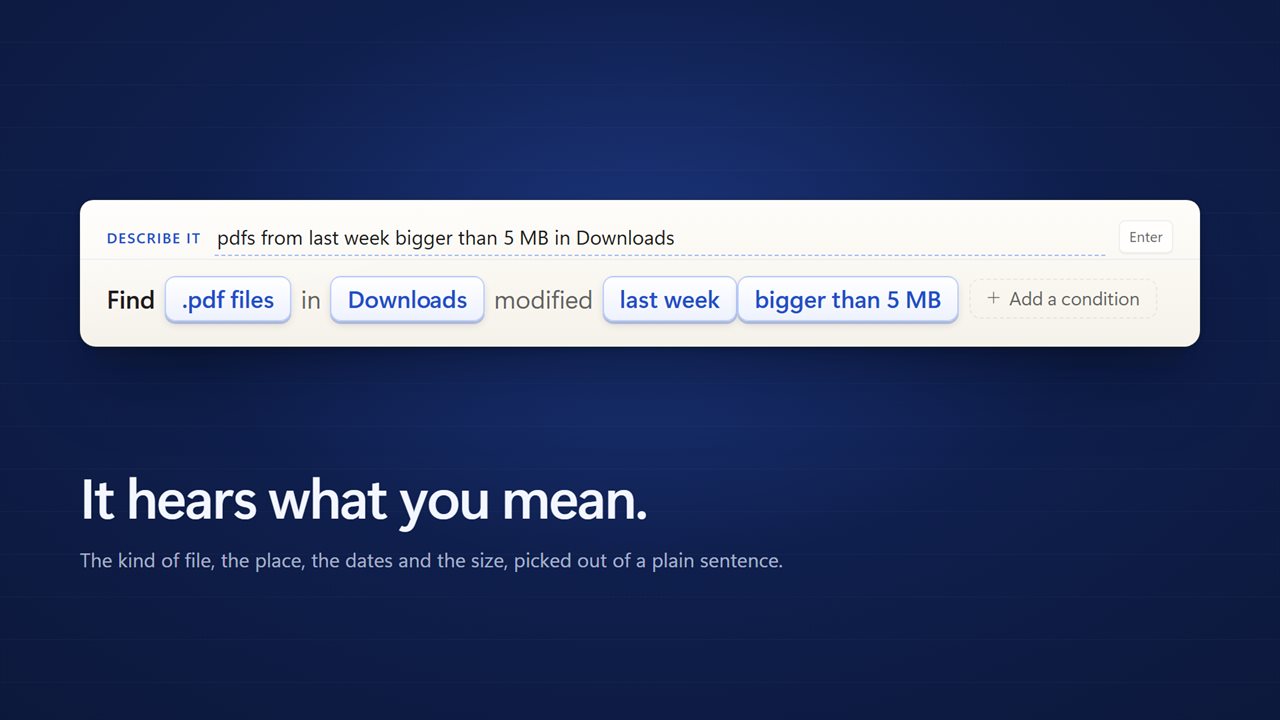
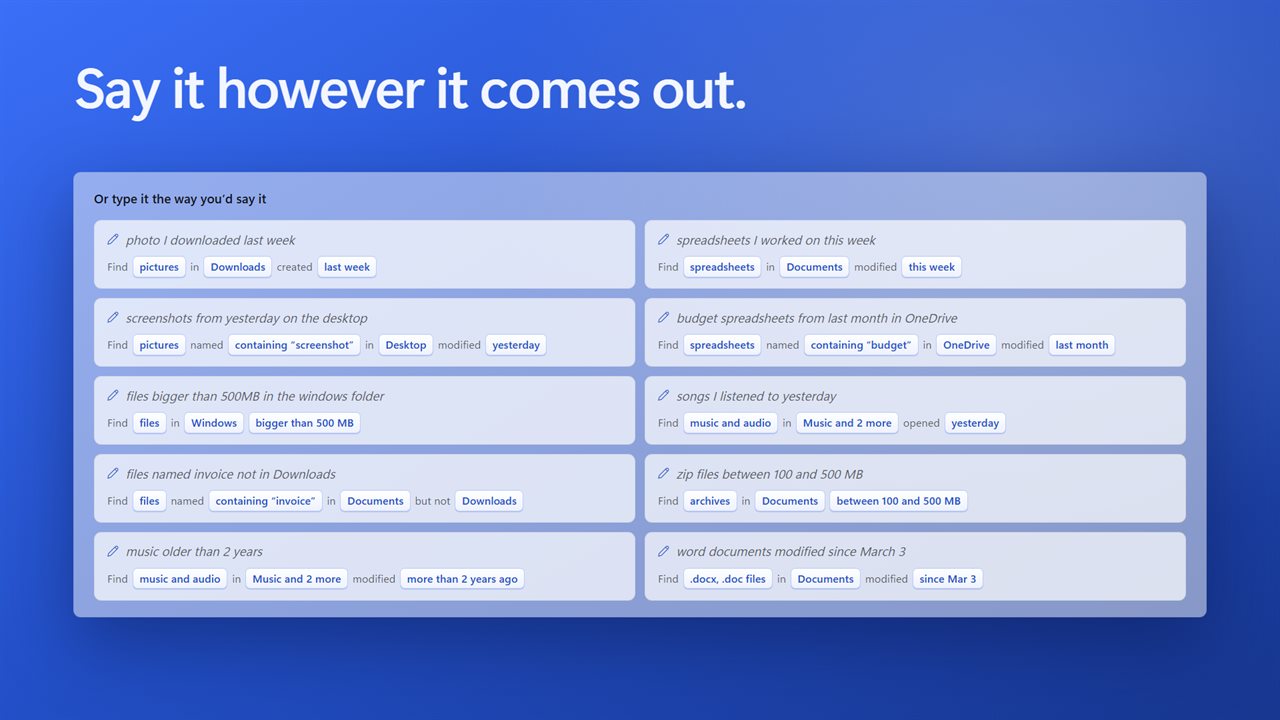
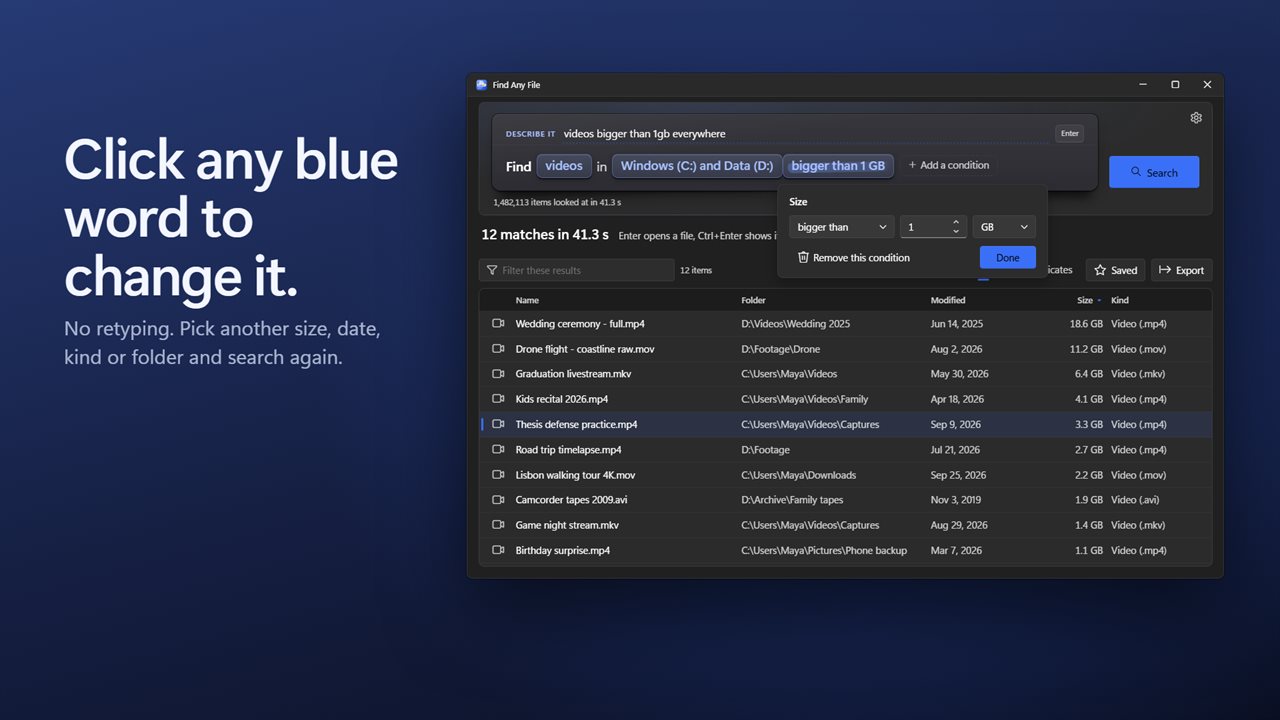
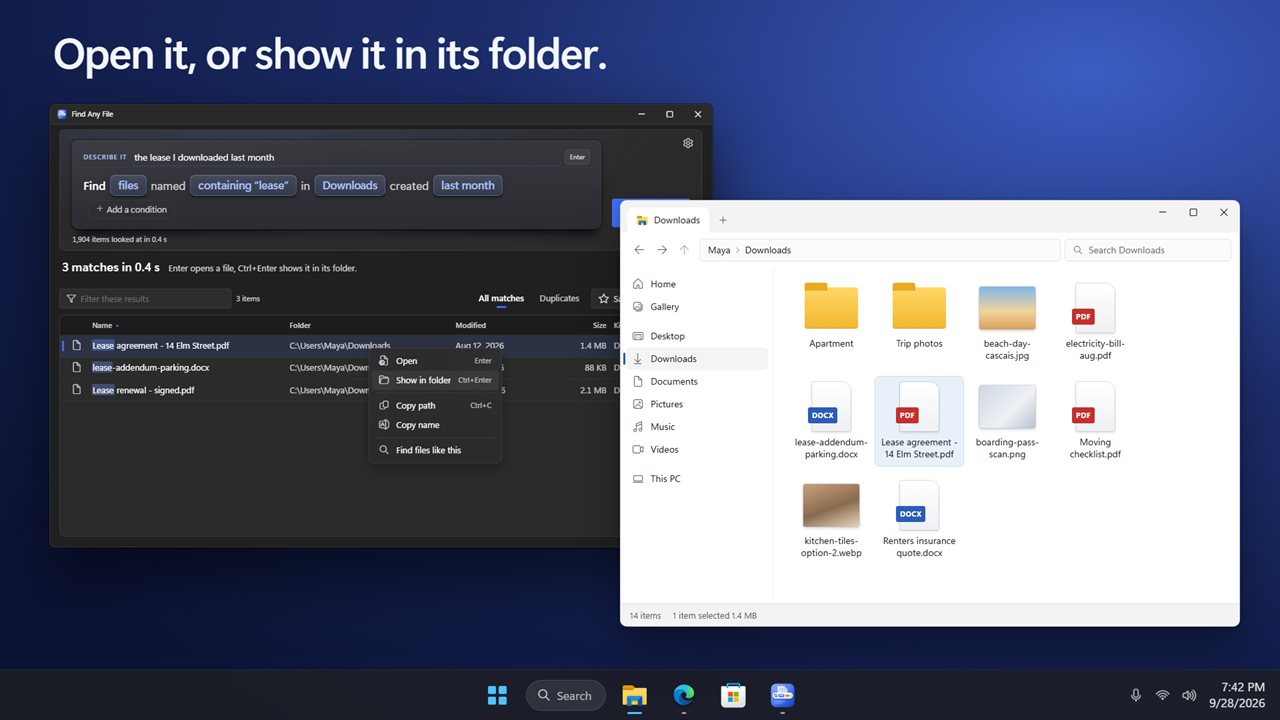
You start with a sentence in the Describe it box, for example spreadsheets bigger than 2 MB modified last month in OneDrive. Press Enter and the sentence is broken into blue words, here Spreadsheets, bigger than 2 MB, Modified last month and OneDrive, and the search begins. Each blue word is a menu, so changing last month to a Between range or OneDrive to Every drive is a click, not a rewrite.
Results stream in during the search, and Esc stops a long search while keeping what it has.
Search file contents in PDF, Word, Excel and text files
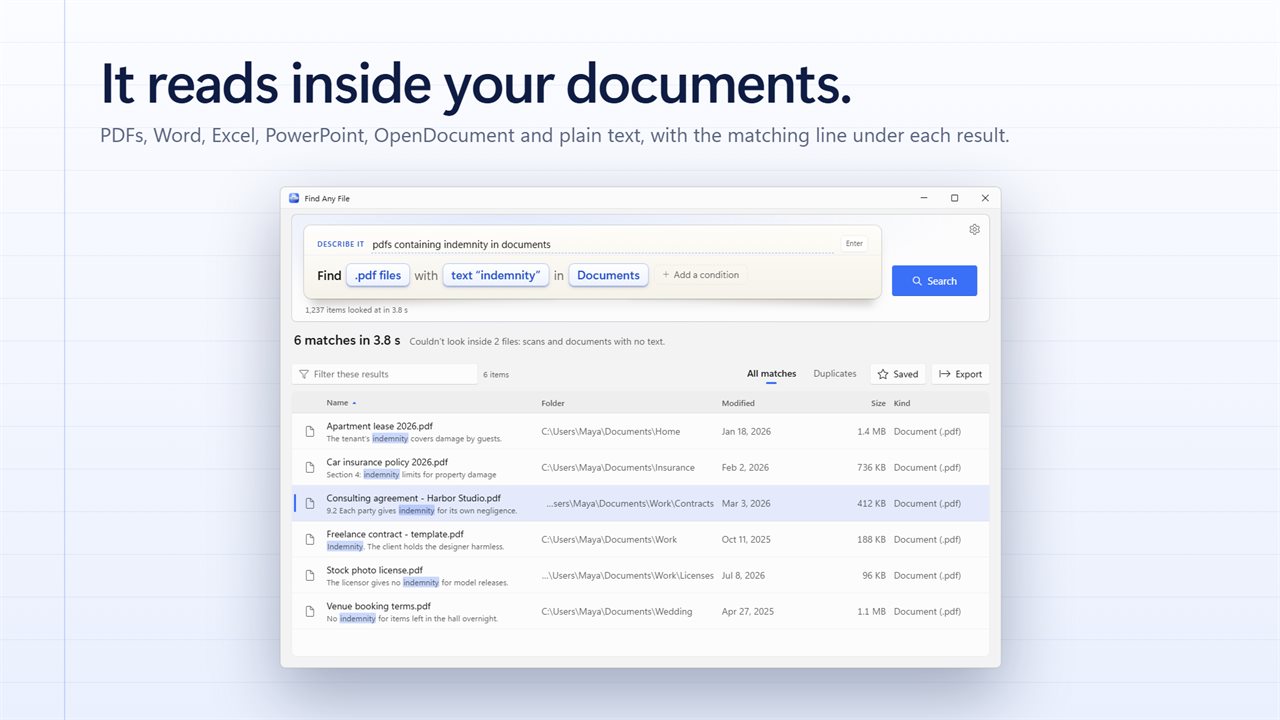
Add Text inside to any search and the file finder opens each candidate and looks for the word or phrase, set to includes or does not include. It reads PDFs with a text layer, Word, Excel and PowerPoint files, OpenDocument text, sheets and slides, and plain text. Each hit carries the line it came from, with the term marked, which shows which of forty contracts mentions a renewal date before opening one.
Find large files and old files by size and date
Freeing disk space or tracking down last spring's report are the same kind of search. A size condition can be about a figure, between two, or bigger or smaller than one, in units up to TB. Dates can be Created, Modified or Last opened, and each takes Today, This week, Last month, This year, In the last… a number of hours to years, More than … ago, On, Before, After, Since or Between.
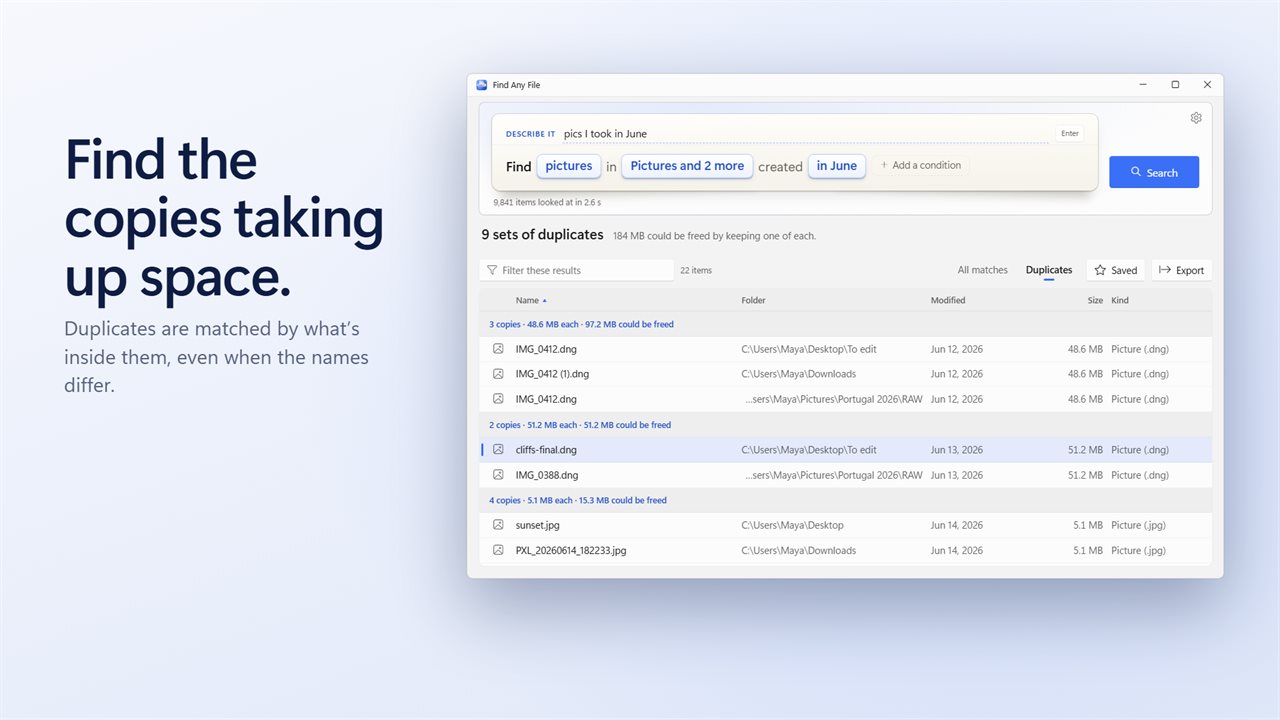
Sort the list by size and the space hogs rise to the top. Switch the results view to Duplicates and files with identical contents are grouped, each set showing how much space the extra copies take.
How to find a file on your computer, step by step
If you only remember fragments, build the search up:
- Type the kind and roughly when, such as pictures from last week, and press Enter.
- Click Add a condition to add a name fragment, a size or Text inside.
- Click the place word to add a folder with Add a folder… or pick Every drive; Look in subfolders too stays on.
- Type in Filter these results to narrow the list without searching again.
- Press Enter to open the file, Ctrl+Enter to show it in its folder, or right-click for Copy path and Find files like this.