
A file mover that searches first
Moving a handful of files in File Explorer takes one drag. Moving every invoice from last year, scattered through forty subfolders, takes an afternoon. Batch File Mover and Copier is a file mover built for the second job: you describe the files, it finds them, and one click sends the whole set where you want it.
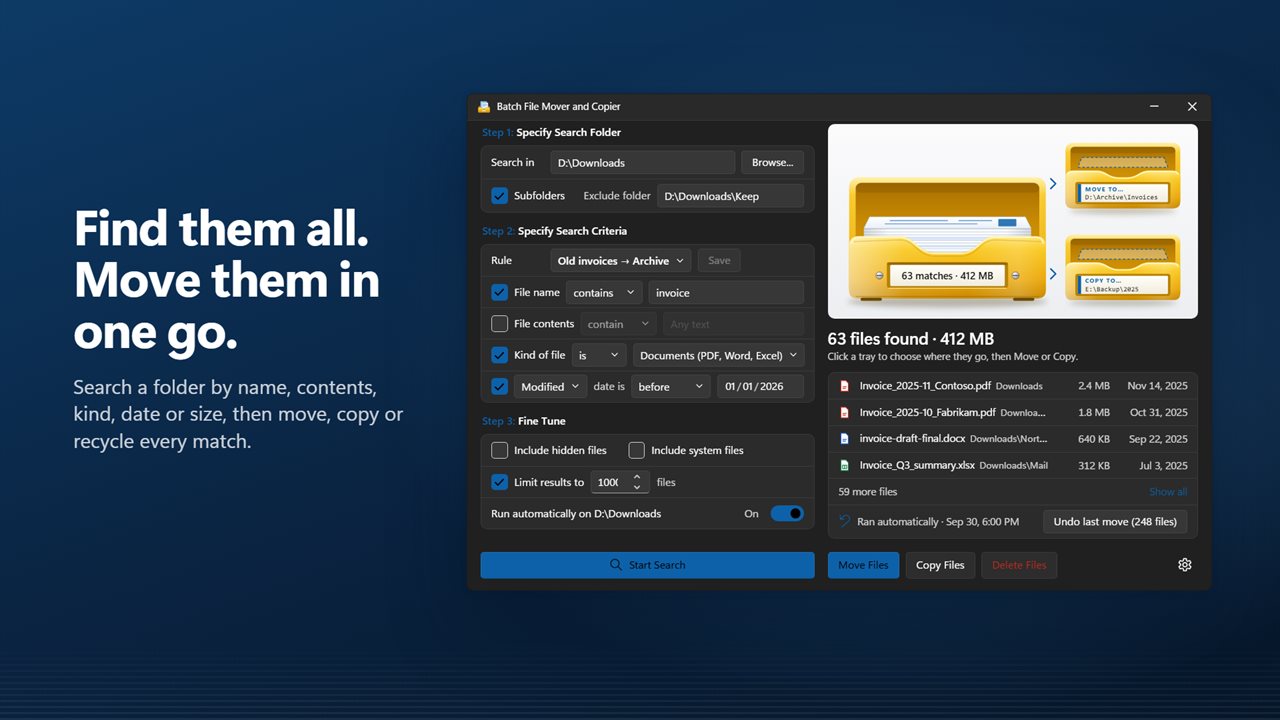
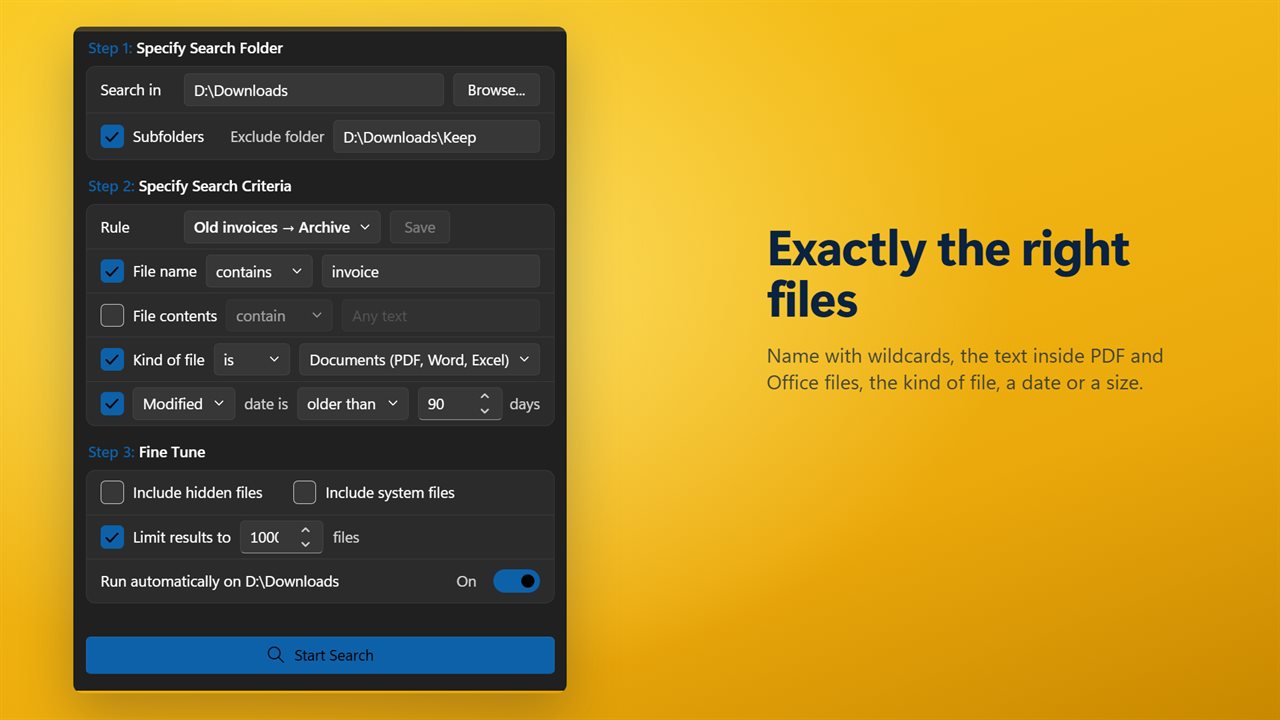
The screen follows the order you think in. Step 1 is Search in, the folder to start from, with Subfolders on or off and an Exclude folder box for anything to skip. Step 2 sets the criteria. Step 3 holds the finer controls, then Start Search drops the results into the in-tray, which shows how many files matched and how much space they take.
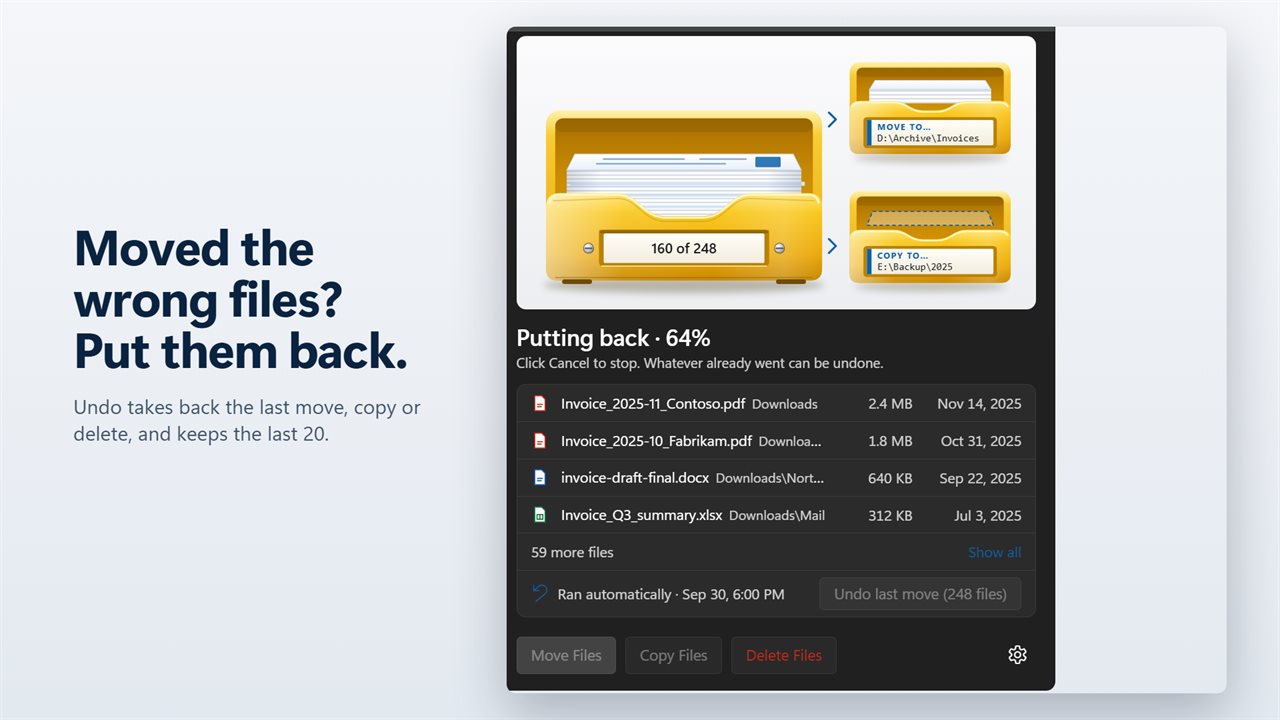
From there you click the MOVE TO… or COPY TO… tray, choose a destination, and press Move Files or Copy Files. Untick anything you want left behind; a double-click reveals that file in Explorer before you commit.
Find files by name, contents, kind, date or size
Each criterion can be switched on by itself or combined with the others:
- File name: match part of a name, the exact name, or names without a word, using * and ? as wildcards.
- File contents: text inside PDFs, .docx, .xlsx and .pptx files, OpenDocument files and plain text.
- Kind of file: a ready group such as Pictures, Spreadsheets or Code and web files, folders themselves, or a custom list of extensions.
- Date: choose Created, Modified or Accessed and compare it with a calendar day, or pick files untouched for some number of days.
- Size: larger or smaller than an amount in KB, MB or GB.
- Include hidden files and Include system files stay off unless you turn them on.
How to move or copy files from multiple folders into one
Gathering scattered files is the most common reason to use a bulk file mover. Point Search in at the top folder, keep Subfolders on, and set your criteria. After Start Search, pick the destination tray and decide on structure. Turn on Keep the folder structure to recreate each file's subfolder path in the destination, or leave it off to collect every match flat into a single folder.
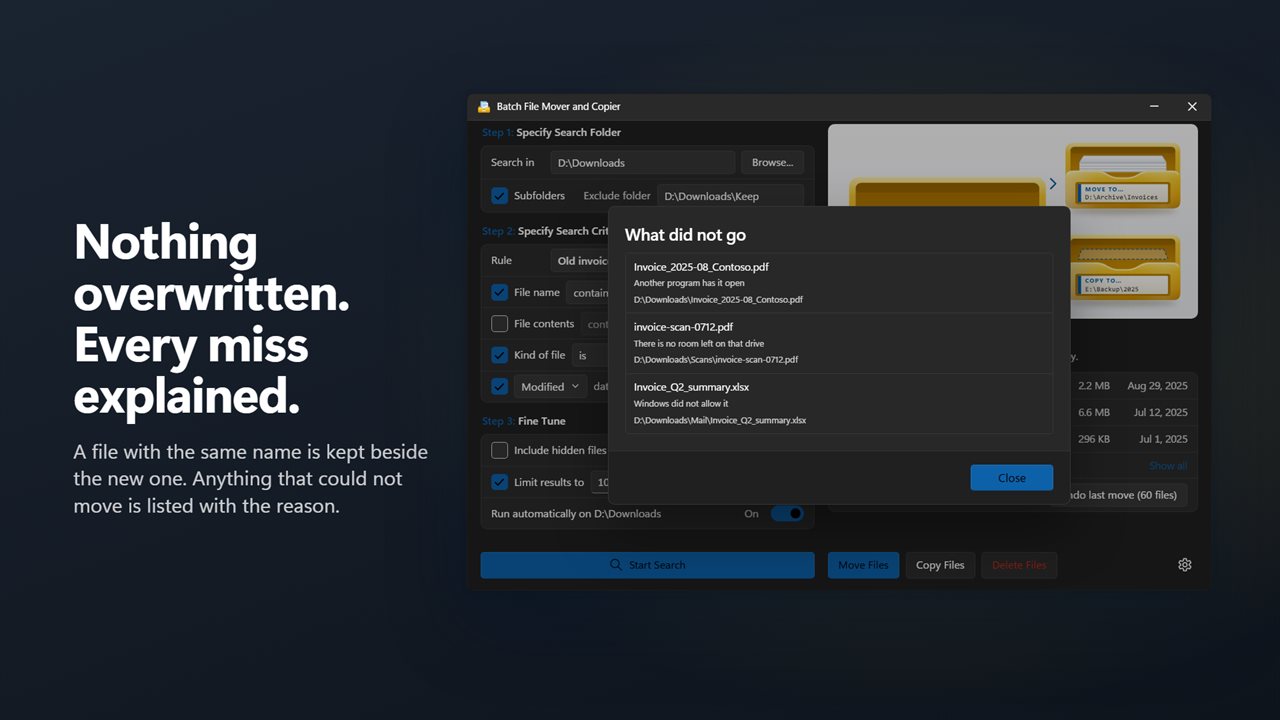
Name clashes never cost you a file. Under When a file with that name is already there, Keep both adds a number such as Invoice (2).pdf, and Skip it leaves the existing file alone. Anything that could not be moved, because another program has it open or the drive is full, appears under What did not go with the reason.
Automatically move files from one folder to another
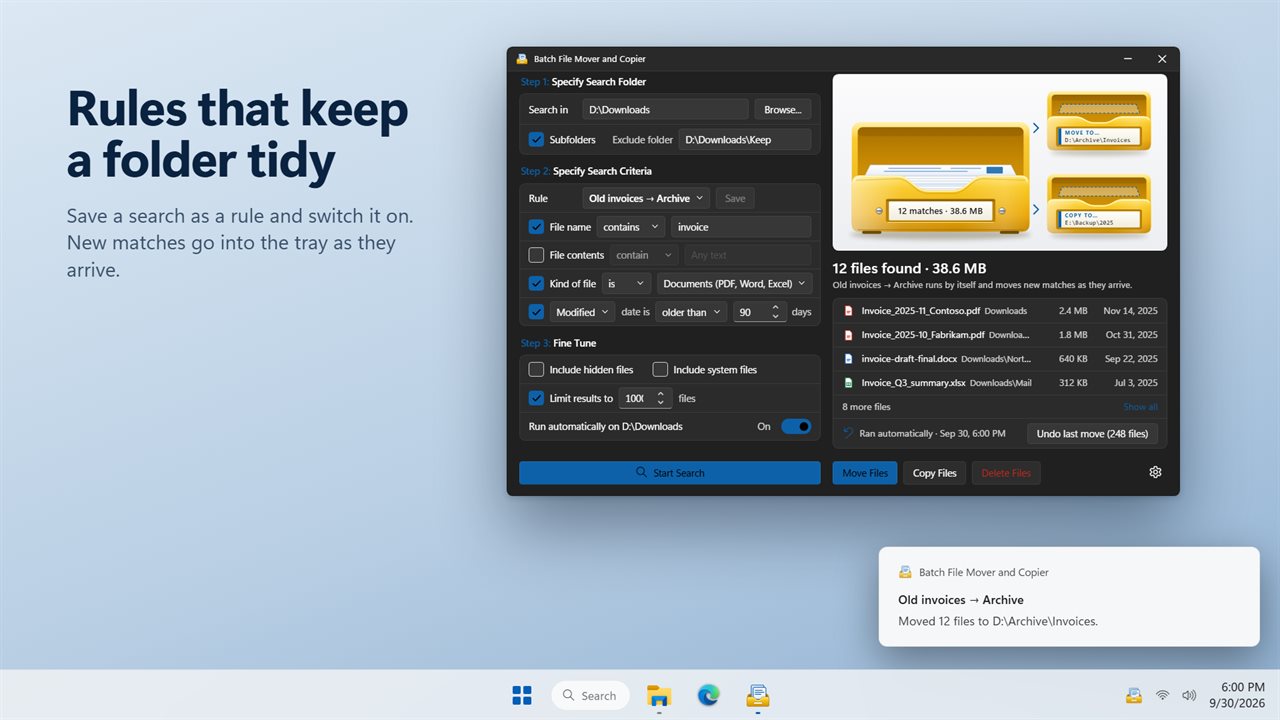
Any search can be saved with Save rule and a Rule name, for example Old invoices → Archive. Turn on Run automatically on this folder and the rule keeps working in the background: new matches are picked up as they appear, even after you close the window, and a notification can tell you each time a rule runs.
Wait before moving a new file holds off until a file has stopped changing, so a half-finished download or copy is never grabbed mid-write. Batch copy rules always skip files that already exist at the destination.