
EEvlarSoft

Renamify

A bulk file renamer that shows every new name as you type. Choose one rule, check the list, press Rename.

Buy for $3.49
One payment. No subscription.
14-day money-back guarantee.
3.0
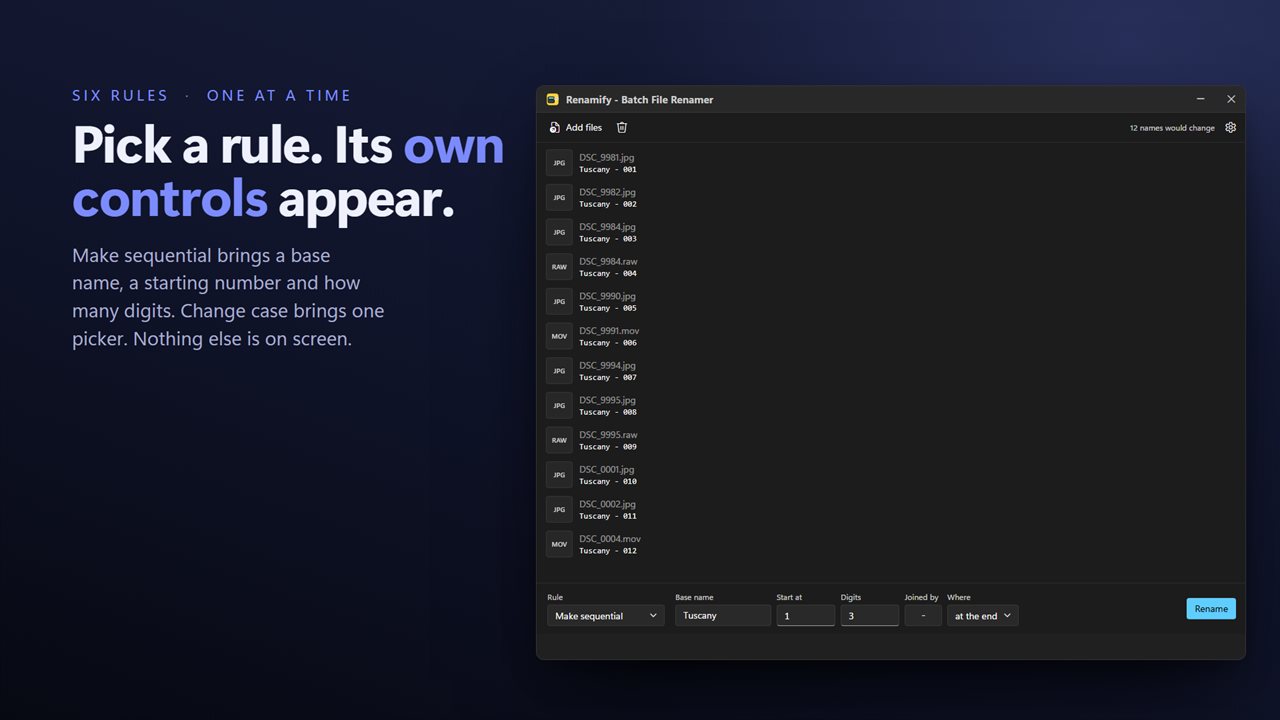
Pick one of six rules, and its controls appear beside it.
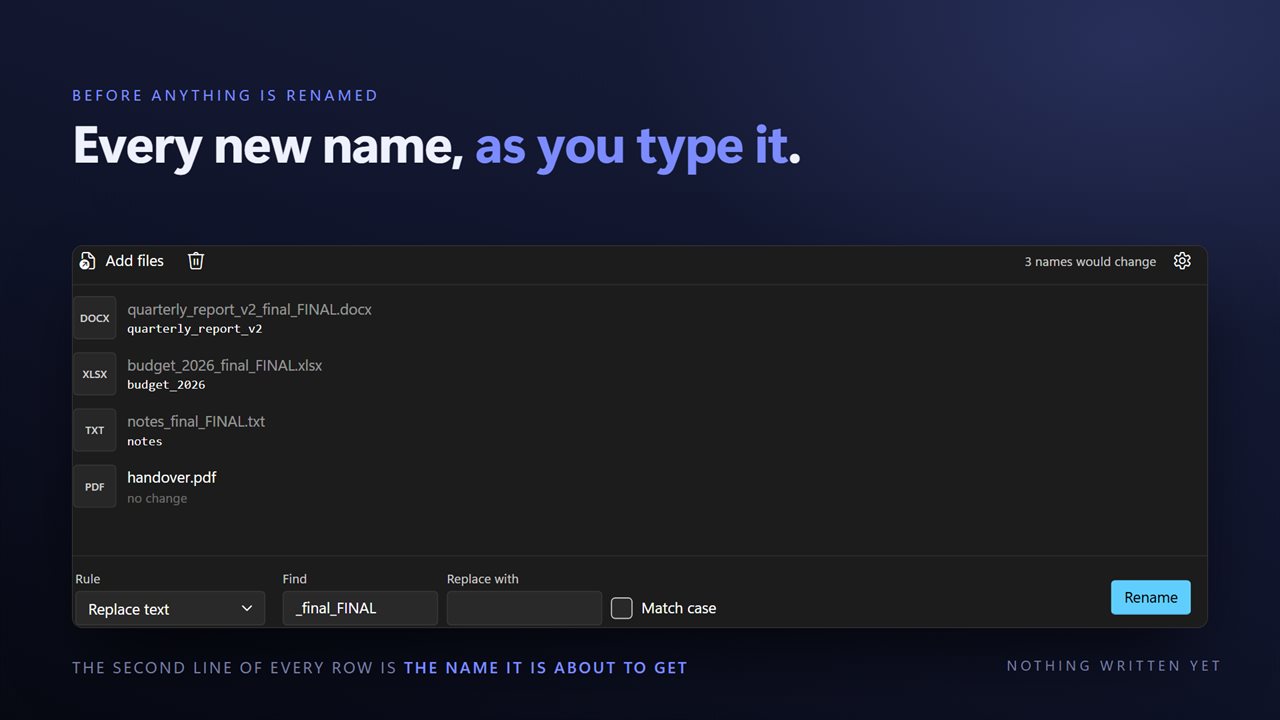
Every new name appears as you type, before anything is renamed.
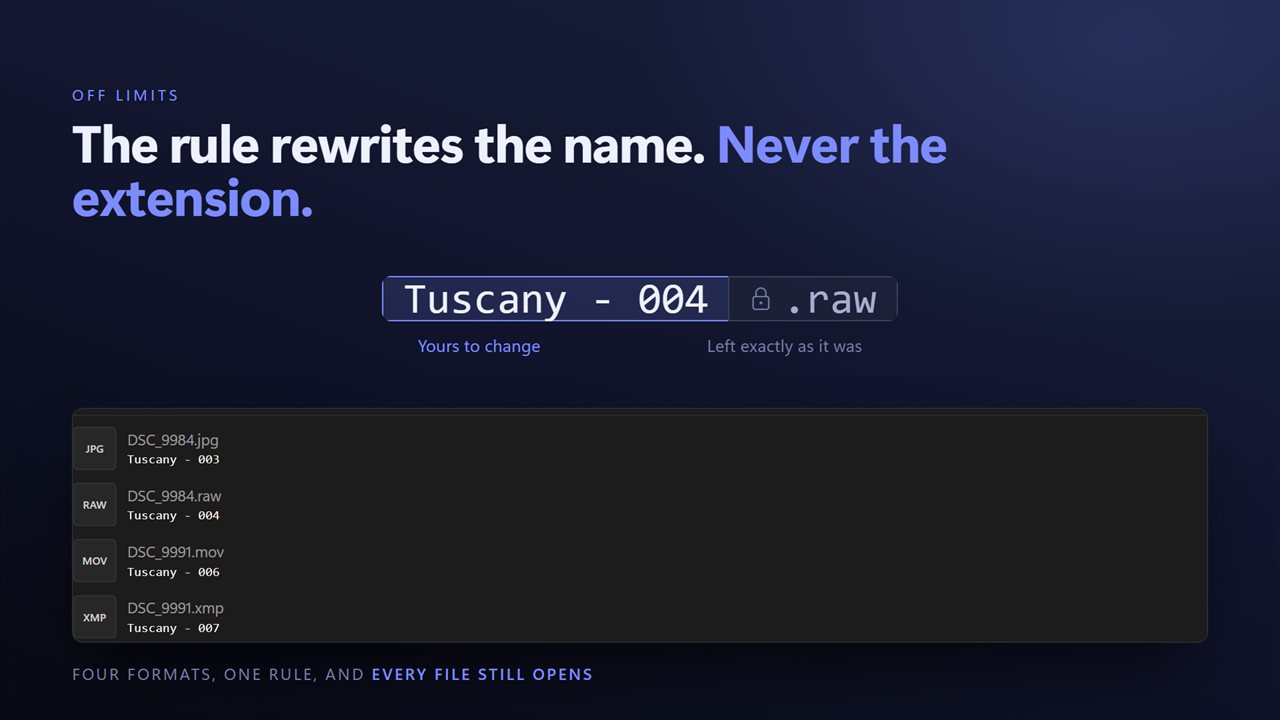
Extensions are never touched, so nothing stops opening.
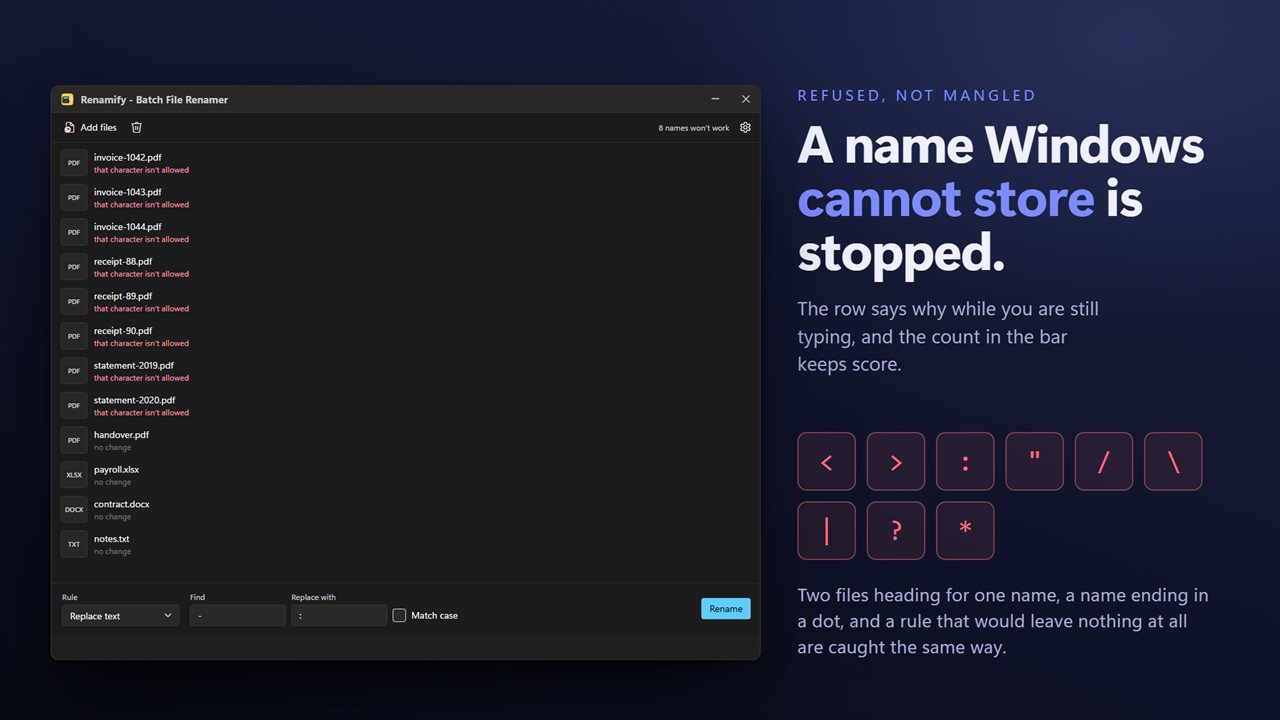
A name Windows cannot store is refused, not quietly mangled.
No account, no upload, no server processing. It all happens on your PC.

Pick one of six rules, and its controls appear beside it.

190,000+downloads of EvlarSoft apps
Signed by EvlarSoftVerified US publisher
14-day money-backNo questions asked
Updates includedNo upgrade fees

A bulk file renamer you can read at a glance

A typical bulk file renamer stacks a dozen panels of options on one screen, and when its search box reads patterns, a name containing (1) or a dot can do something you did not ask for. Renamify takes the opposite approach. There is a single Rule menu in the command bar, the boxes beside it change to suit the rule you picked, and the rest of the window is the list of your files.

Each row shows the current name and, next to it, the name it is about to get. That column updates on every keystroke. If a new name would clash with another, contain a character Windows refuses, end in a dot or come out empty, the row says so before you commit to anything.

When the list looks right, press Rename. The queue then carries the files under their new names, so a second job, such as numbering them after cleaning them up, is just a different rule and another press.

How to remove text from file names in bulk

This is the job that sends most people searching: camera exports full of IMG_, downloads ending in (1), drafts tagged _final_FINAL.

  • Drop the files on the window, or click Add folder to bring in everything in one folder.
  • Set Rule to Remove text.
  • Type the unwanted piece in the Remove box. Tick Match case only if capitals matter.
  • Read down the new-name column, then press Rename.

Find and replace in file names, add a prefix, change case

Replace text has a Find box and a Replace with box. The search is literal, so brackets, dots and plus signs mean exactly themselves. Every occurrence in the name is swapped.

Add text puts a word at the start or at the end, with no space added for you, which is how you restore a prefix like IMG_ or tack on a client code. Change case offers UPPER CASE, lower case, Title Case and Sentence case, useful when a batch arrives in shouting capitals or mixed styles.

None of the rules touch the extension. Everything after the last dot is set aside and put back afterward, so a .jpg stays a .jpg.

Number files in sequence or stamp them with their dates

Make sequential has a Base name, Start at, Digits, Joined by and Where. Leave Base name empty to keep each file's name and add a counter, or type one, for example Kitchen, to replace the old names with Kitchen - 001, Kitchen - 002 and so on, in the order the list shows.

Add the file's date reads each file's own date modified or date created, rather than today's date, and writes it in the format you pick from the menu. That makes a folder sort by when things happened rather than by whatever the camera or scanner called them.


Six renaming rules

  • Replace textLiteral find and replace, with an optional Match case
  • Remove textDelete a word or fragment from every name
  • Add textInsert a prefix or suffix exactly as typed
  • Change caseUPPER CASE, lower case, Title Case or Sentence case
  • Make sequentialZero-padded numbers with a base name, start value and separator
  • Add the file's dateEach file's modified or created date in five layouts
  • Live new-name column with warnings for clashes and illegal names
  • Right-click a row to copy the new name

Typical clean-ups

Photo folders

Swap DSC_ for a trip name, then number the set so it sorts in shooting order.

Downloads and scans

Strip copy markers and stray suffixes, then add the date each file was created so statements line up by month.

Music and documents

Turn ALL CAPS or lowercase names into Title Case so a library looks consistent in Explorer.

What's new in 2.0.4

  • Every file's new name now appears as you type, before anything is renamed. The list is the preview
  • All six rules are here — replace, remove and add text, change case, make sequential, and add the file's date — each with the whole bar to itself
  • The date rule reads the date the file was created or last changed, in any of five formats
  • Numbering takes a starting point, a number of digits and a separator of your own
  • Find and replace works across the whole batch at once, with an optional Match case
  • Extensions are left out of the search, so a rename can no longer change which program opens a file
  • A name Windows cannot store is refused with the offending character named, instead of being quietly altered
  • A file is never renamed over an existing one; it is flagged and left alone
  • Files from any number of different folders can be renamed in one run
  • Drag and drop from Explorer, and a right-click selection opens one window instead of one per file
  • A redesigned interface, in light or dark, and it can follow Windows instead if you prefer

Questions

Anything else? Ask us

Can I apply more than one renaming rule at once?

No. You pick one of six rules at a time: replace text, remove text, add text, change case, make sequential, or add the file's date. After a rename the list keeps the files under their new names, so you can pick another rule and run again.

Can I see the new names before anything is renamed?

Yes. Every file in the list shows the name it will get, and it updates as you type. Nothing is renamed until you press Rename.

Does it change file extensions?

No. The rules only touch the part of the name before the last dot, and the extension is put back as it was. Renamify cannot be used to change extensions.

How does numbering files in order work?

Choose a starting number from 0 to 99,999 and pad it to between 1 and 8 digits, so 001, 002, 003. The number goes at the start or end with a separator you type, " - " by default, and an optional base name replaces the old names. Files are numbered in the order they appear in the list.

Which dates can it add to file names?

Each file's own modified or created date, not today's date. The five formats look like 2026-11-01, 11-01-2026, 01-11-2026, November 1, 2026 and 2026-11-01 14-05, which uses a hyphen in the time because Windows does not allow colons in names.

What happens if two files would end up with the same name?

The list marks them before you run anything. A file is never renamed on top of an existing one: that rename fails with a message and the file keeps its old name. Names with characters Windows does not allow, or names Windows reserves such as CON, are refused too. There is no undo, so check the list first.

How do I rename multiple files at once in Windows?

Add the files or their folder to Renamify, choose a rule such as Replace text or Make sequential, check the preview column and press Rename. Every listed file is renamed in one pass.

Does the find box support wildcards or regular expressions?

No. Find and Remove match the exact text you type, character for character, so symbols like *, ? or ( are treated as ordinary text.

Does Add folder include subfolders?

No. Add folder brings in the files directly inside the folder you choose, not the contents of folders within it.

Which versions of Windows does it run on?

Windows 10 (version 1809 or later) and Windows 11.

Is it a subscription?

No. Renamify is a one-time purchase of $3.49, and updates are included.

How do I get it?

Buy it on this page and your license key arrives by email. If the button says Notify me, Renamify is not on sale here yet; leave your email and we will tell you when it is.