
A disk speed test that measures the drive, not your RAM
The quick ways to check drive speed in Windows each fall short. Task Manager only shows whatever happens to be reading or writing at that moment, and the built-in assessment command needs an administrator prompt and prints its figures as console text, with no history. Copying a big file and timing it mostly measures how much Windows can cache in memory.
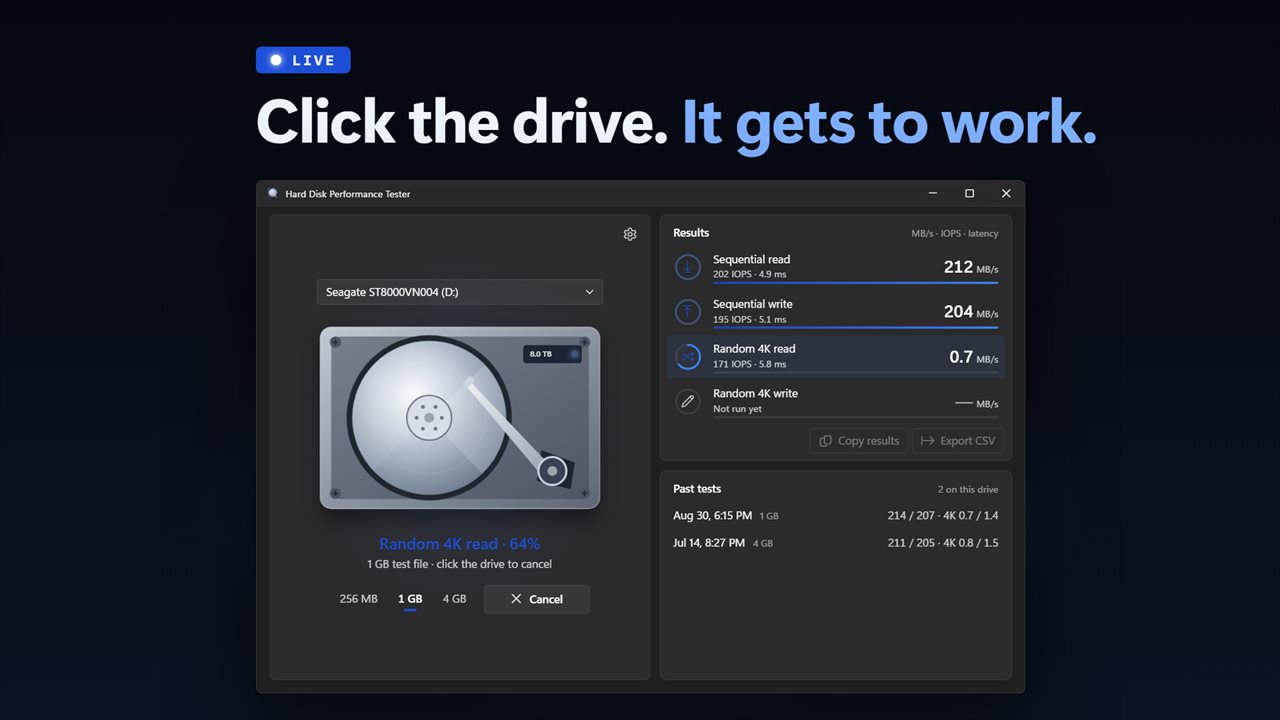
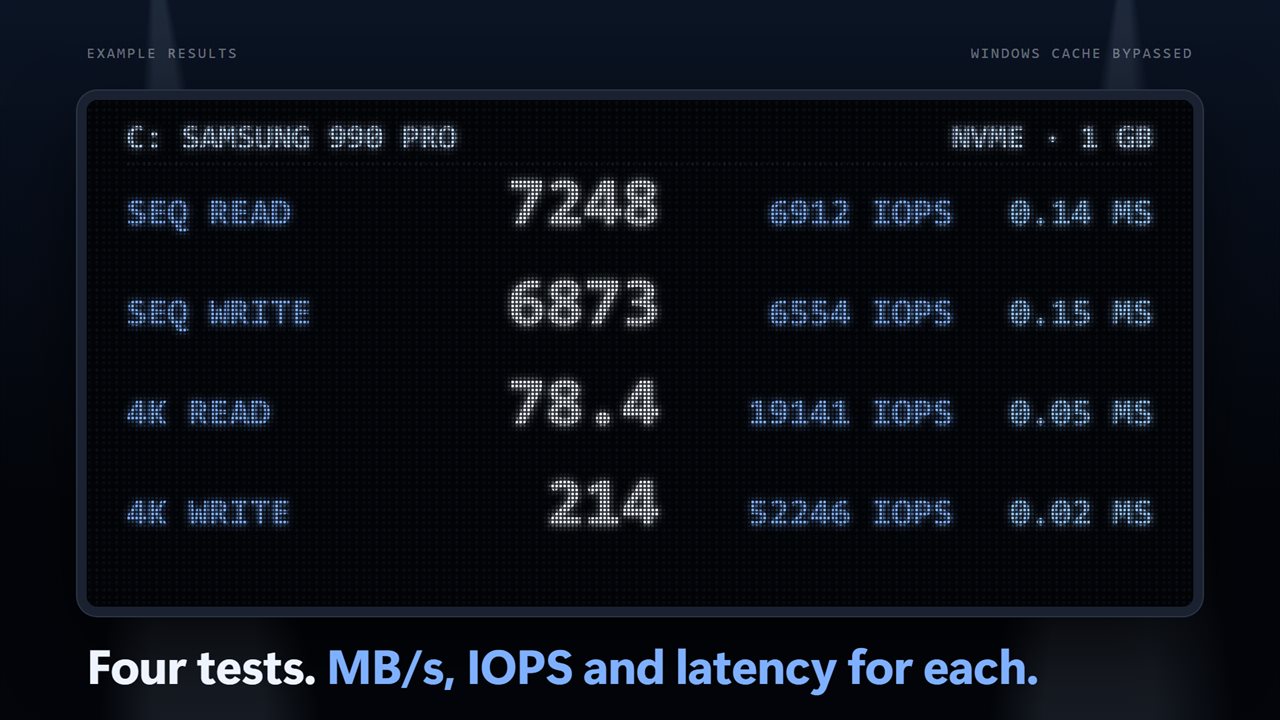
This tool runs a proper disk speed test. It creates a temporary test file with Windows caching turned off and every write pushed straight through to the disk, packs it with random bytes so nothing can be compressed on the way, and reads it back. Four results come out, sequential and random 4K, each for reading and for writing, given as a speed with the IOPS and average latency under it.
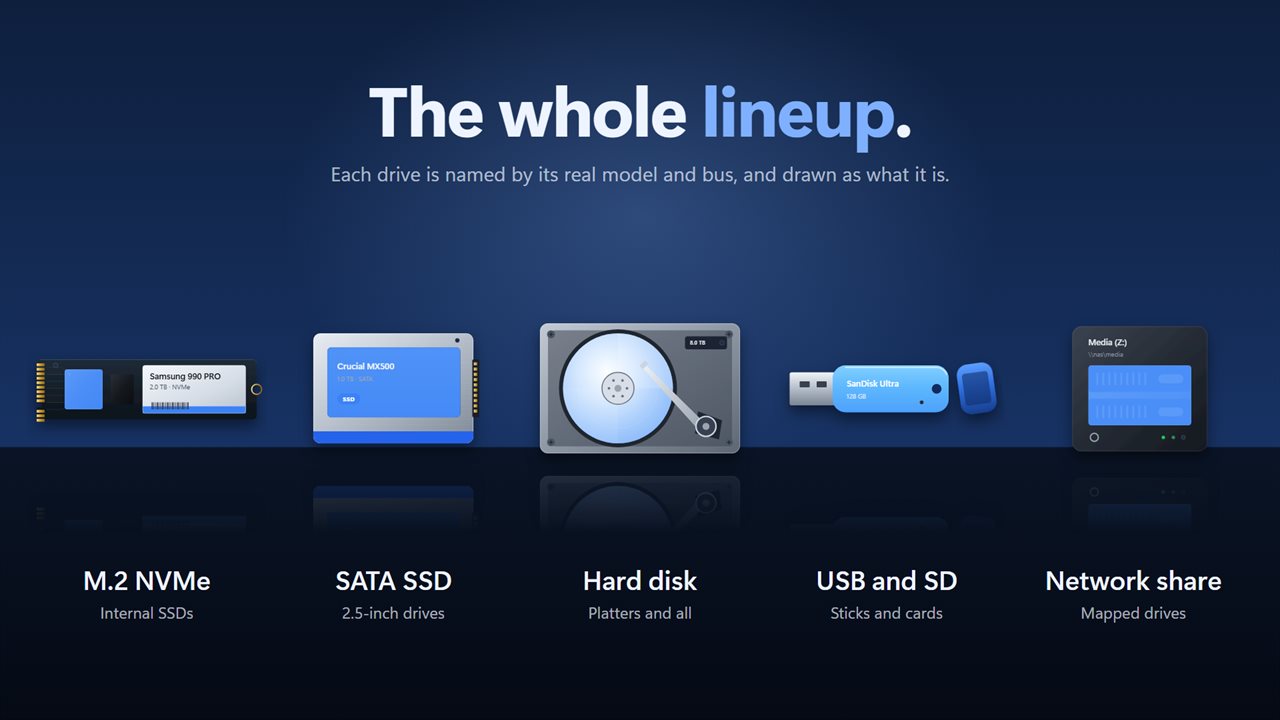
Pick a drive from the Drive list and the picture changes to match the hardware, whether an M.2 card, a laptop-sized SSD, a hard disk with its lid off or a network box, labeled with its model, its bus, and whether it is an SSD or a hard disk. Click the drive, or Start test, and the run begins. Click it again to cancel.
SSD speed test: what the four numbers mean
Sequential read and write tell you how quickly large files move, such as copying a video, installing a game or restoring a backup. These are the figures on the box, and they are where NVMe drives pull far ahead of SATA SSDs.
Random 4K read and write are the small, scattered requests that Windows, browsers and apps make all day. They decide whether a PC feels snappy, and they are where any SSD beats a spinning hard disk by a wide margin. Here each 4K request is sent alone and finished before the next, the pattern of everyday desktop work rather than a server under load.
USB drive and SD card speed test
Flash drives and memory cards vary wildly, and the speed on the label is usually a best-case read. Plug one in and it appears in the Drive list as soon as it has a letter. Sequential write is the figure that matters most for cameras and for copying files onto the stick, and the random write result shows why a cheap card struggles to run apps or a portable OS.
Mapped network shares can be tested the same way, which is a quick way to see whether a NAS or a slow link is the bottleneck. If a share's file system refuses the uncached mode, the test still runs and the result notes that the Windows cache was included.
How to test a drive and compare results over time
A run takes a few minutes at most, and nothing on the drive besides the temporary test file is written.
- Choose the drive under Drive.
- Pick a Test file of 256 MB, 1 GB or 4 GB. A size the drive has no room for is grayed out with the space it needs.
- Optionally set Random test length to 5, 10 or 20 seconds in Settings. Longer runs smooth out a drive's bursts.
- Start the test. When it finishes, the test file is deleted, and it is also cleaned up if you cancel or close the window midway.
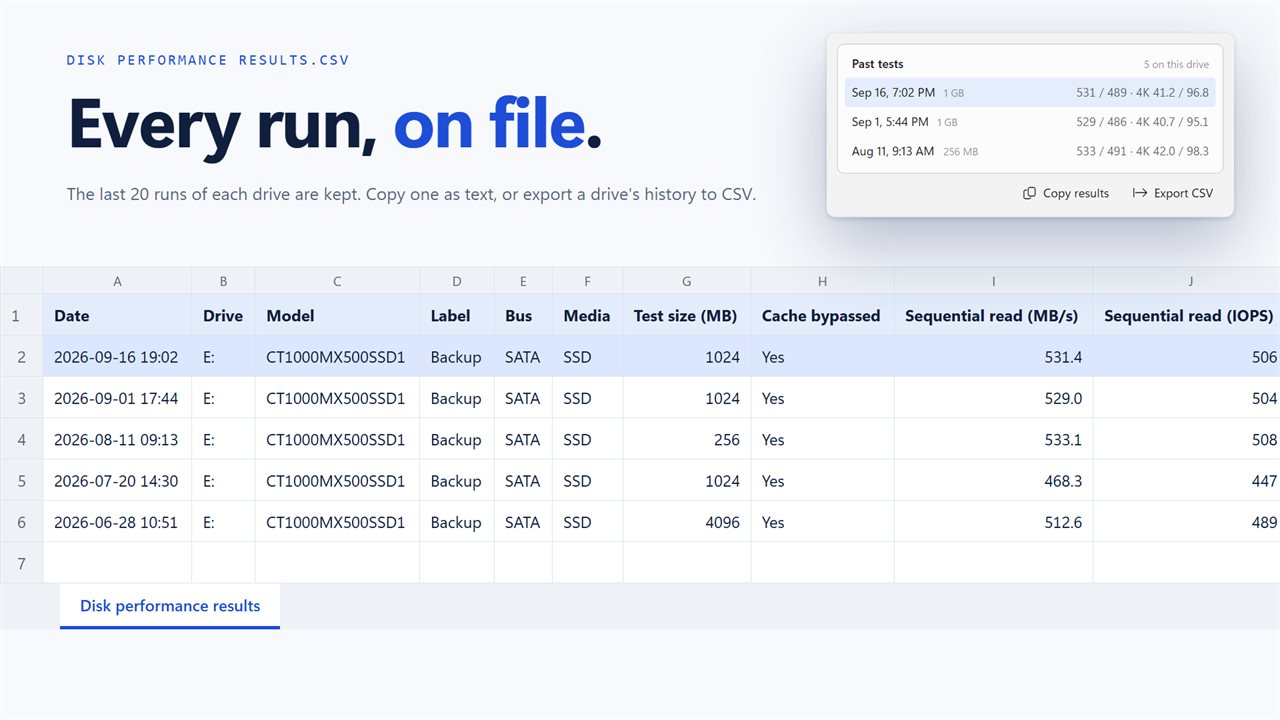
- Check Past tests. The last 20 runs for each drive are kept, and bars compare every figure with that drive's best, so a drive that has lost speed stands out.
- Use Copy results to paste a run as text, or Export CSV to save the drive's history to a spreadsheet.