How to create a VHD without the Disk Management chores
Windows can already create a VHD, but the built-in route stops halfway. Disk Management or the Settings page writes the file, and then you still have to initialize the disk, pick a partition style, create a volume, format it and assign a letter, each in its own dialog. Miss a step and the drive never shows up in File Explorer.
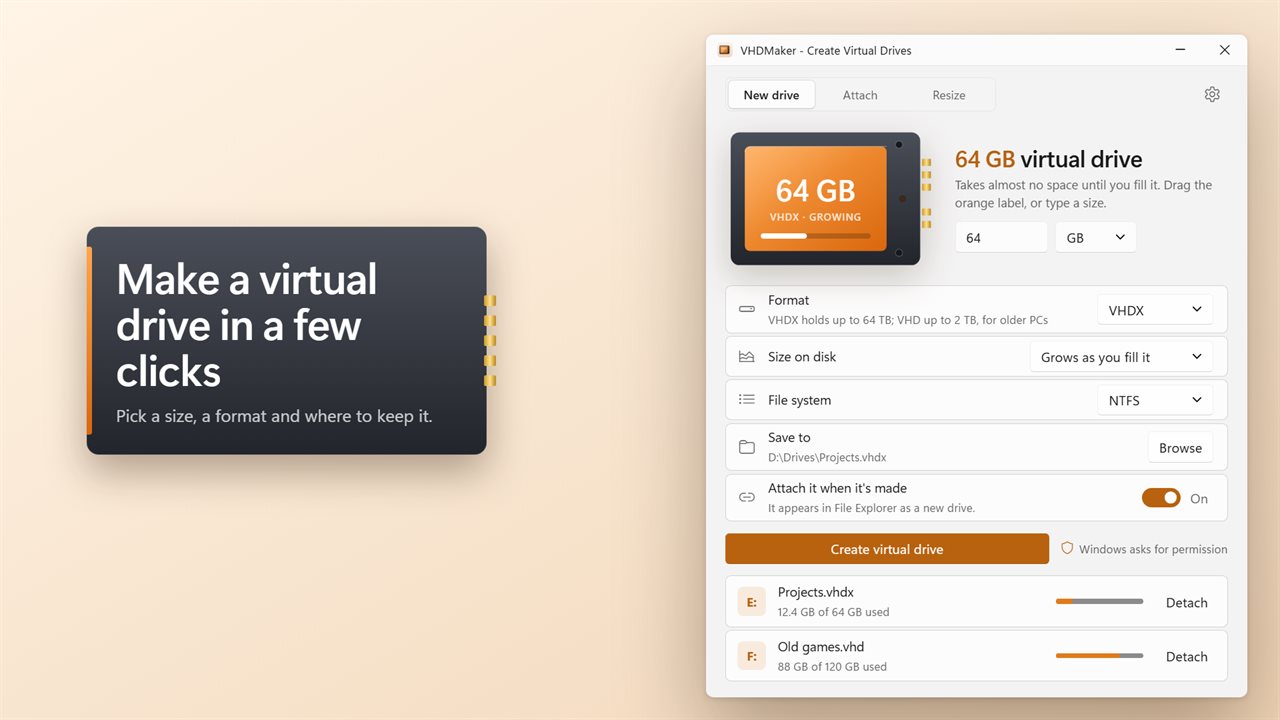
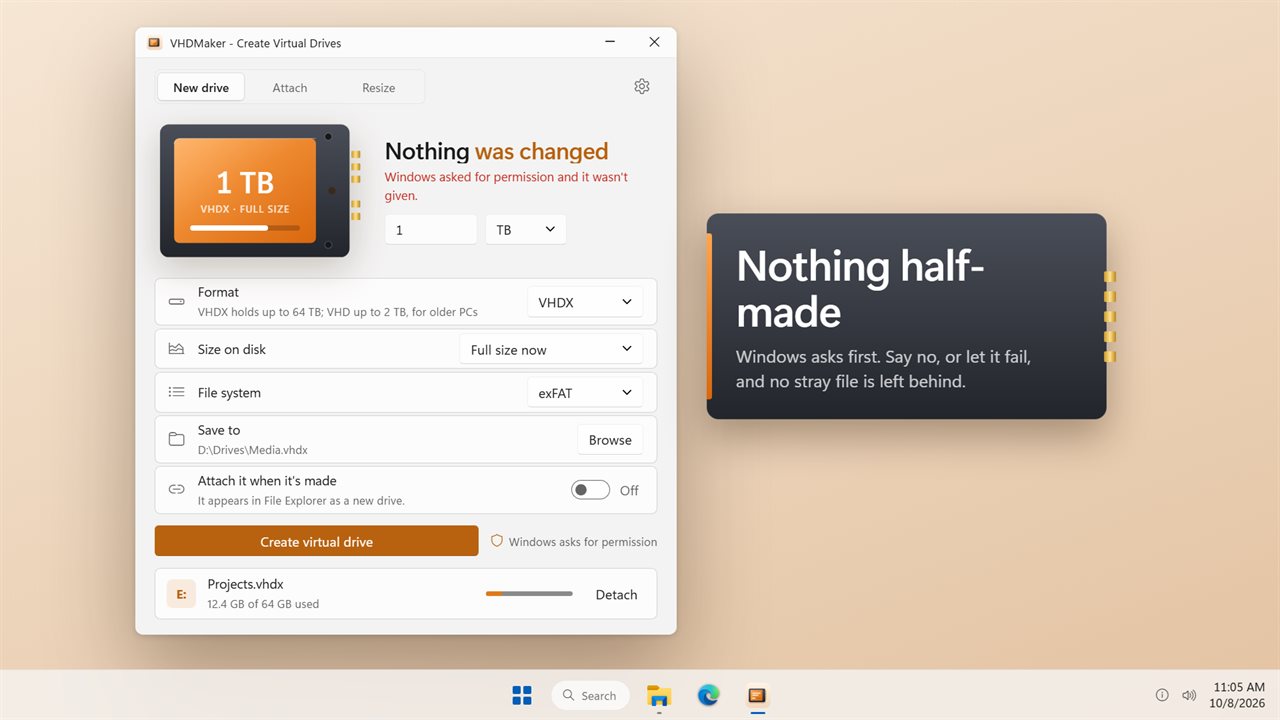
VHDMaker does the whole sequence as one job. You choose a size, VHD or VHDX, a file system and where the file goes, then press Create virtual drive. Behind the scenes it runs the same DiskPart commands an administrator would type: create the vdisk, attach it, partition it, quick-format it, assign a letter. Drives larger than about 2 TB are switched to GPT automatically, since MBR cannot address that much.
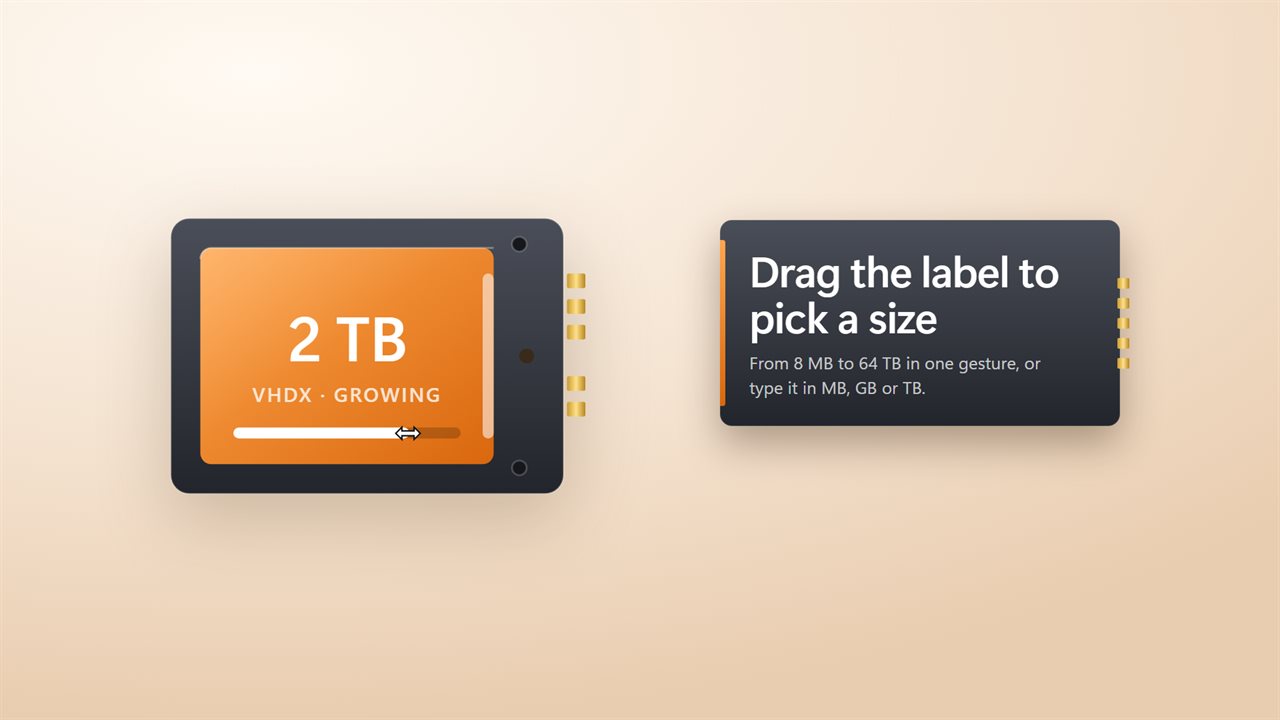
The size control is a drawing of a drive with an orange label. Drag across the label to set a size, or type a number in MB, GB or TB. The smallest drive it will make is 8 MB.
VHD vs VHDX: which one to pick
Both are single files that Windows treats as a disk. The difference is mostly capacity and age. VHDX is the newer format and goes up to 64 TB, so it is the sensible default and the one VHDMaker starts on. VHD tops out at 2040 GB, but older versions of Windows and some older virtualization and backup tools only read VHD.
If you type a size the chosen format cannot hold, the app says so before anything is written, rather than failing halfway through. The same check covers FAT32, which Windows will only format up to 32 GB; pick exFAT or NTFS for anything bigger.
Dynamically expanding or fixed size
Grows as you fill it creates a dynamically expanding file. A 500 GB drive begins as a small file and only takes host space as you copy data in, which suits test environments, project sandboxes and archives that may never fill up.
Full size now creates a fixed-size file that claims every byte on day one. It takes longer to make and needs the free space up front, and the app checks there is enough before it starts. Pick it when you want predictable performance or want to be sure the space will be there later.
Mount, resize and detach a VHD file you already have
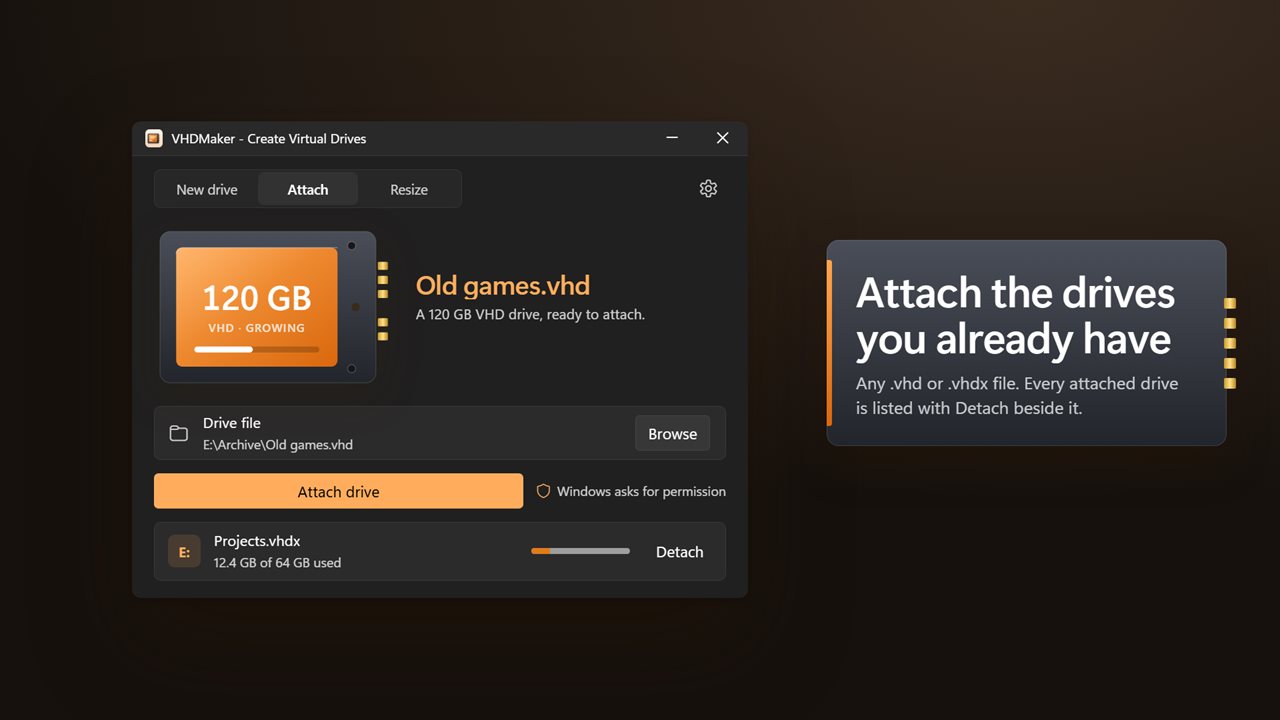
The same window handles virtual drives made anywhere else, including by Hyper-V or Windows Backup.
- Attach: pick a .vhd or .vhdx file and press Attach drive. It mounts and shows up in File Explorer under a new letter.
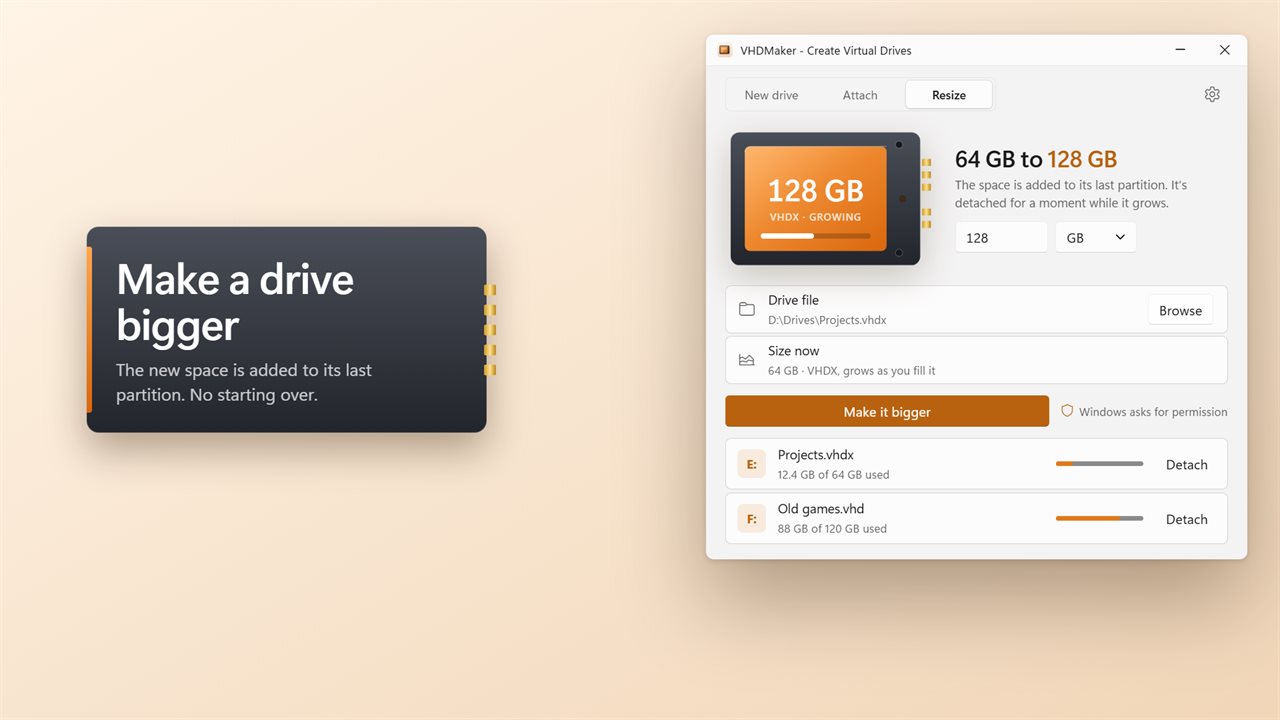
- Resize: pick a file, type a bigger size and press Make it bigger. The disk is expanded and the extra space goes into its final partition, so you do not need to extend the volume by hand. Drives can only grow.
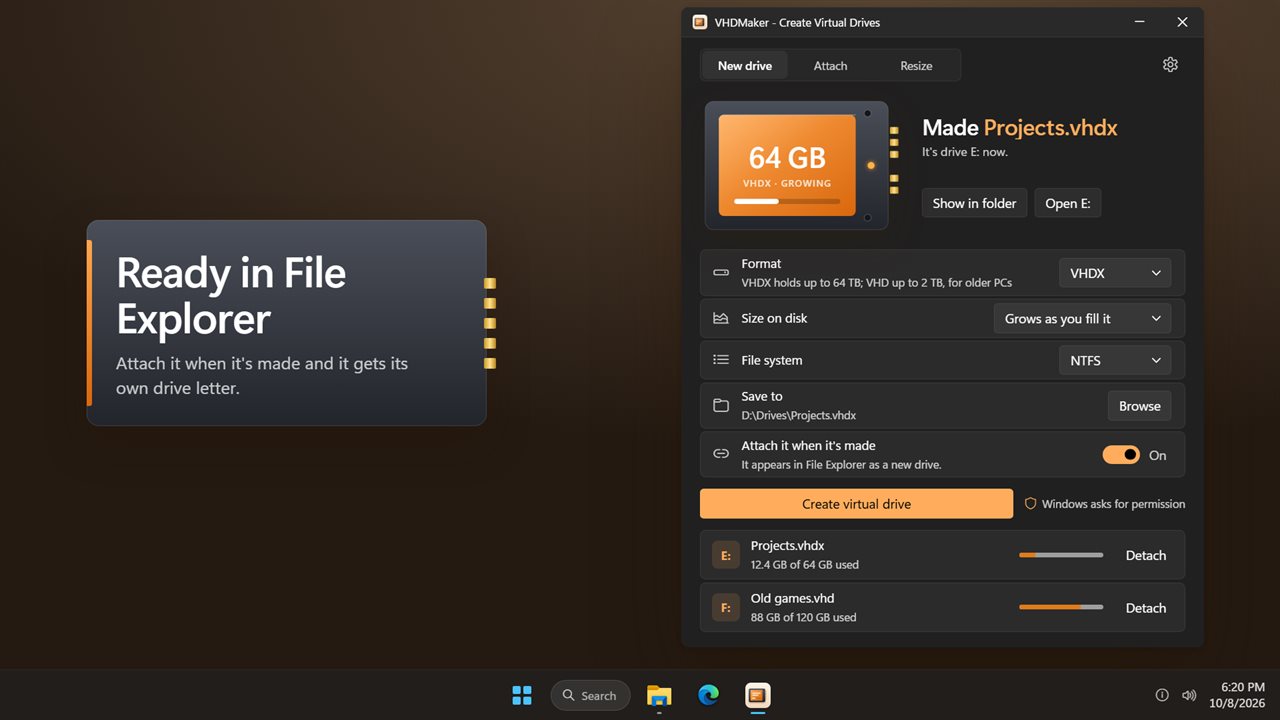
- Detach: every mounted virtual drive appears in a list showing its letter and used space. Detach removes it from File Explorer and leaves the file where it was.