A duplicate file finder that only matches true copies
Duplicates build up quietly. A phone backup imported twice, the same PDF saved from three emails, a holiday folder copied to OneDrive and then again to Desktop. Windows has no built-in duplicate file finder, and Storage Sense clears temporary files and old downloads rather than copies, so these stay until something looks for them.
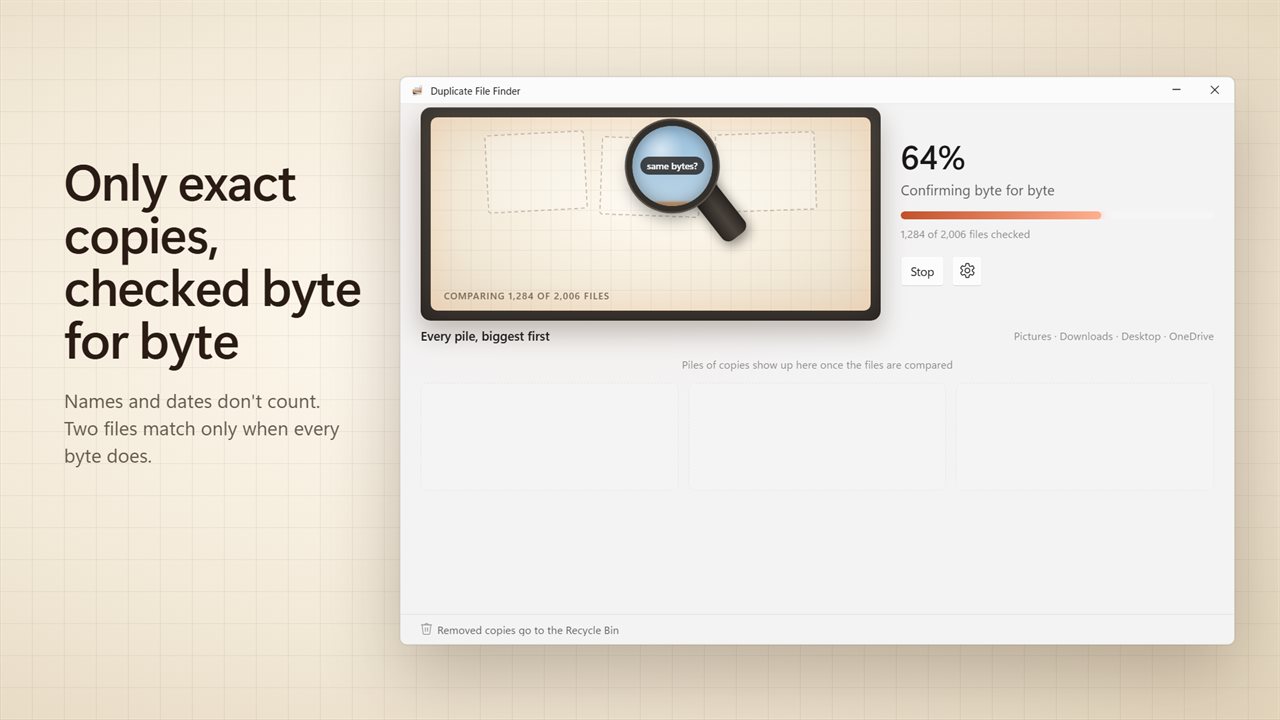
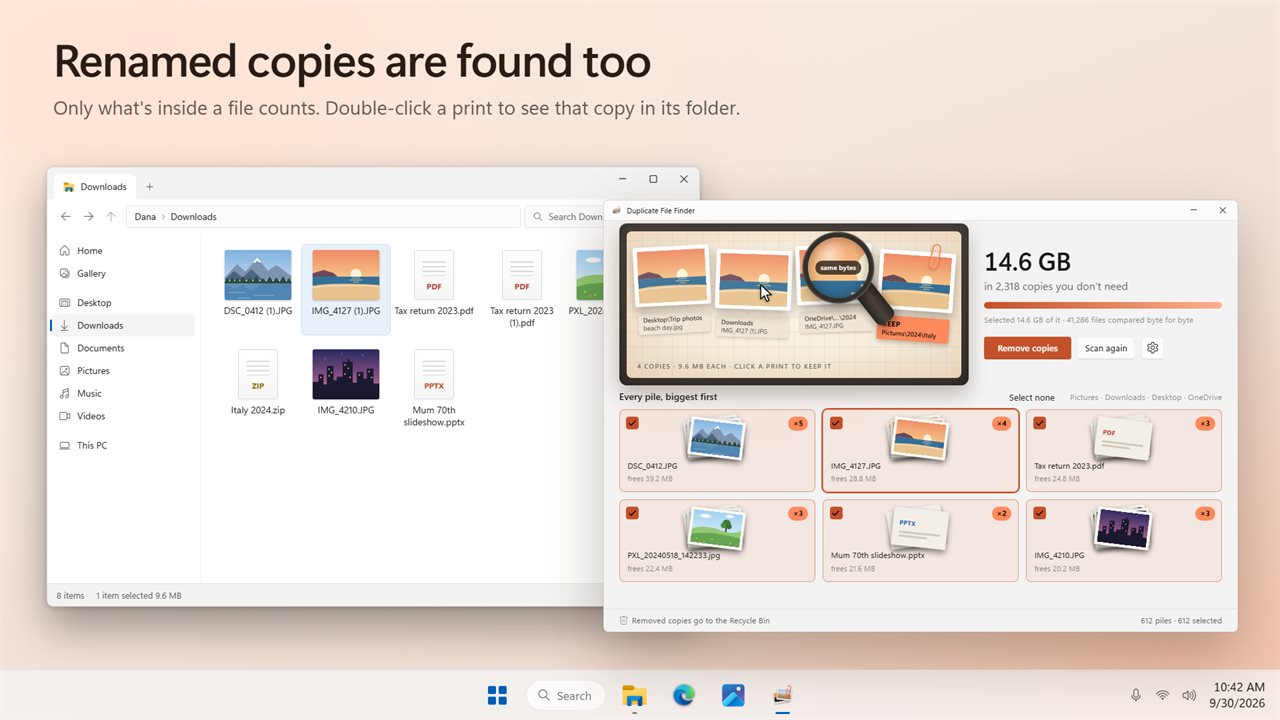
Duplicate File Finder judges files by what is inside them, never by name or date. It first pairs up files of identical size, then compares their contents, and only files whose contents match all the way through end up together. That means IMG_2210 (1).jpg and a renamed holiday_beach.jpg are caught as the same photo, while two shots taken a second apart are never confused.
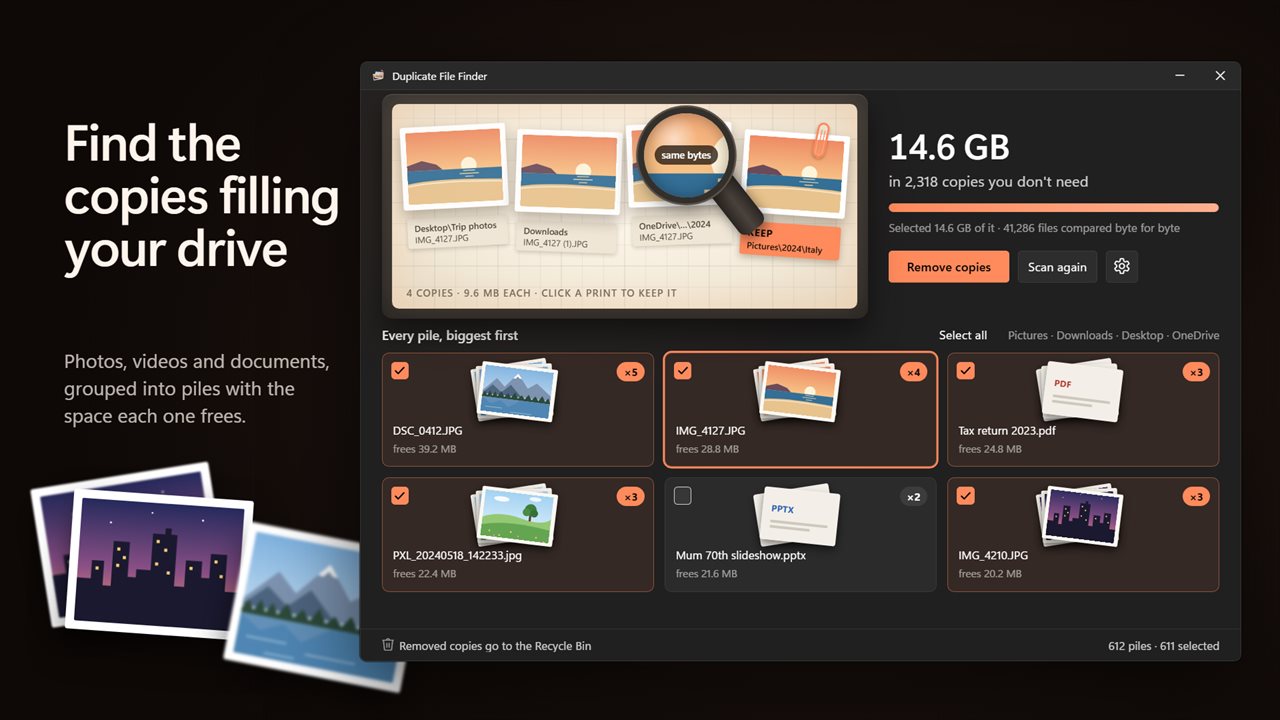
Results arrive as piles, sorted with the biggest waste first. A banner shows how much space all the extra copies take up, and how much of that you have selected, so you know what a cleanup is worth before you click anything.
How to find duplicate files on Windows 11 or 10
The scan reads folders you pick, and nothing is removed until you confirm.
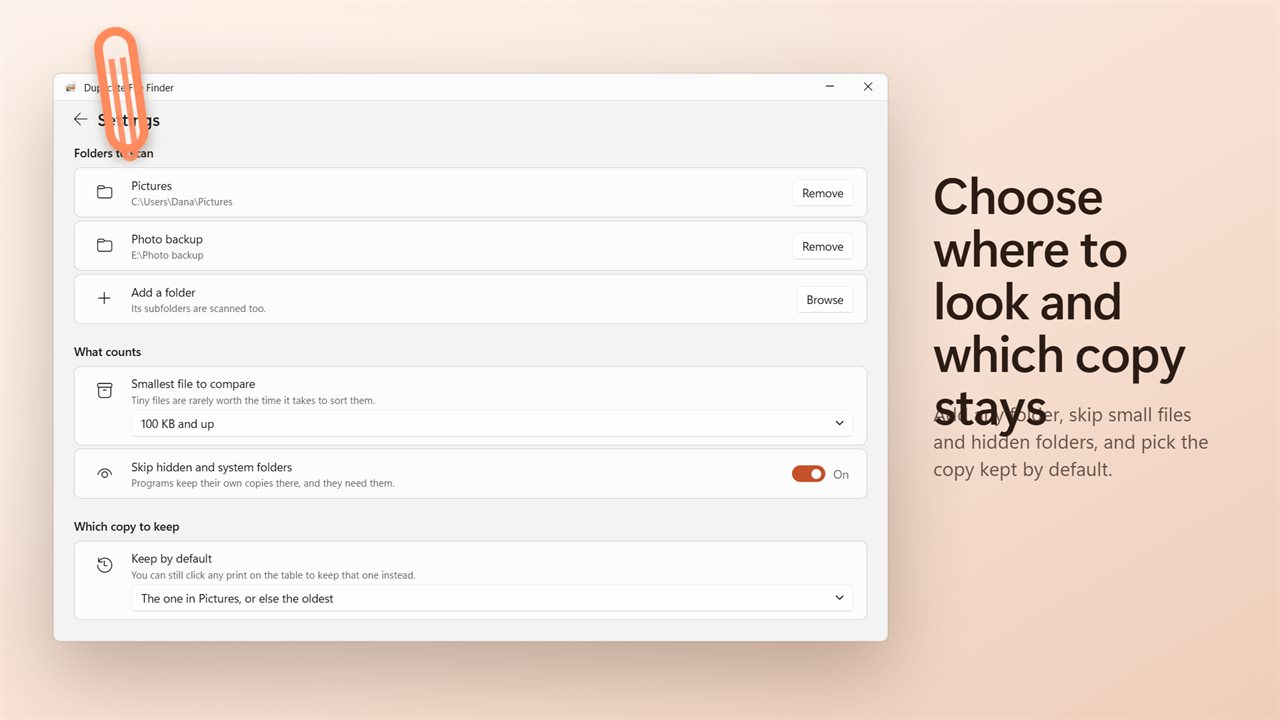
- Check the folders on the start screen. Pictures, Downloads, Desktop and OneDrive are there to begin with; Add folder brings in any other, including another drive. Subfolders are always included.
- Click Scan for duplicates. The window reports files looked at, then Comparing files that share a size and Confirming byte for byte. Stop ends the scan early and keeps what was found.
- Review the piles under Every pile, biggest first. Each card says how many copies there are and what removing them frees.
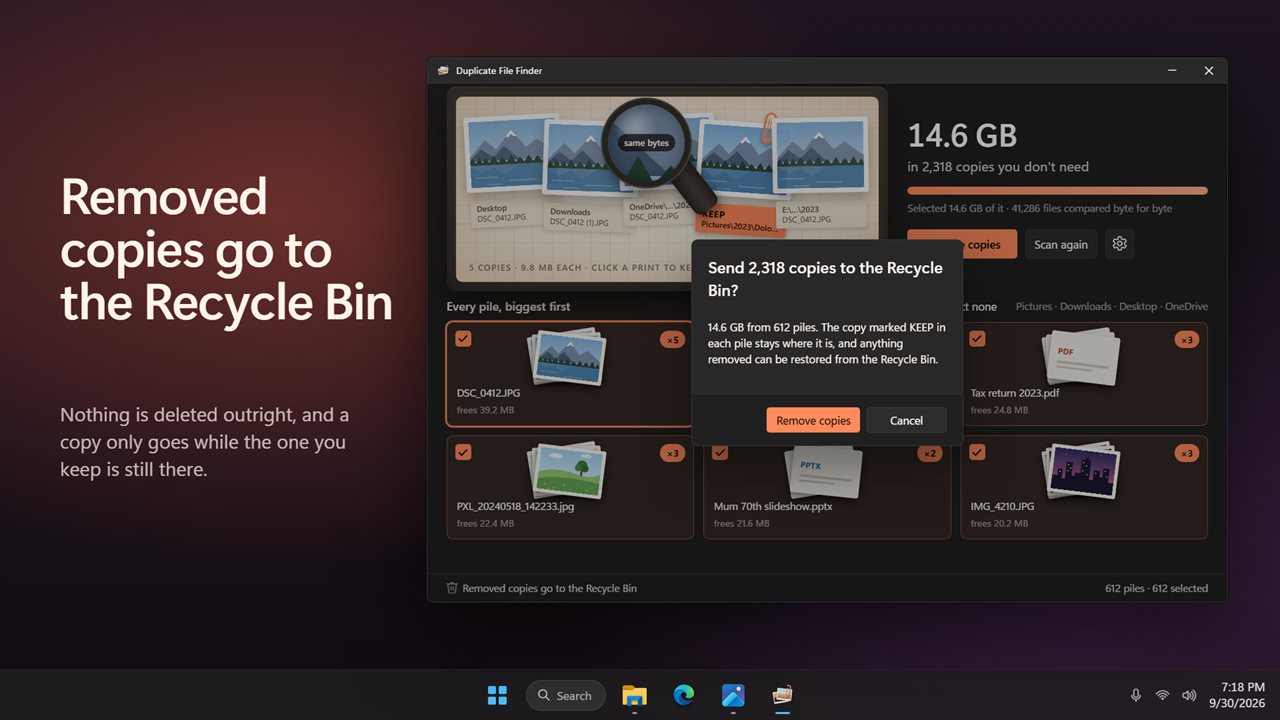
- Click Remove copies and confirm. The extras move to the Recycle Bin and the result line says how much space was freed.
Delete duplicate photos and still keep the right one
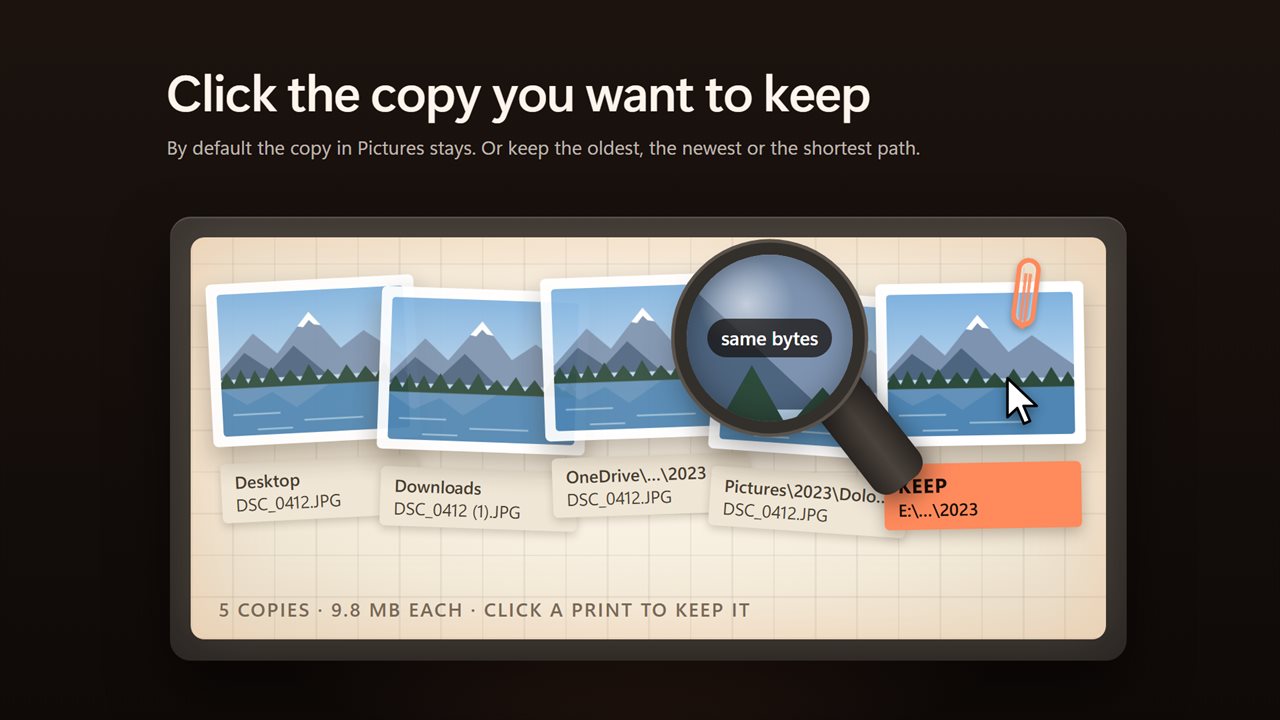
Each pile opens as prints laid on a light table, with a real thumbnail on every photo, so you can see what you are about to remove. The print marked Keep is the copy that stays. Click a different print to keep that one instead, or double-click any print to open its folder in File Explorer.
Which copy is kept unless you choose is set by Keep by default in Settings: The one in Pictures, or else the oldest; The oldest; The newest; or The one with the shortest path. Shortest path tends to favor a tidy library folder over a deep backup tree.
How to free up disk space without risking a file
Several checks stand between a scan and a lost file. Copies go to the Recycle Bin, not straight off the disk, so a mistake is one Restore away. A copy is removed only if the one you are keeping is still there at that moment; otherwise it stays, and the result line says so. Files another program has open are skipped and counted too.
Skip hidden and system folders is on by default, because programs keep their own copies there and need them. For a faster pass on a large drive, set Smallest file to compare to 1 MB and up or 10 MB and up, where most of the reclaimable space usually sits.