Free disk space for every drive, one click from the clock
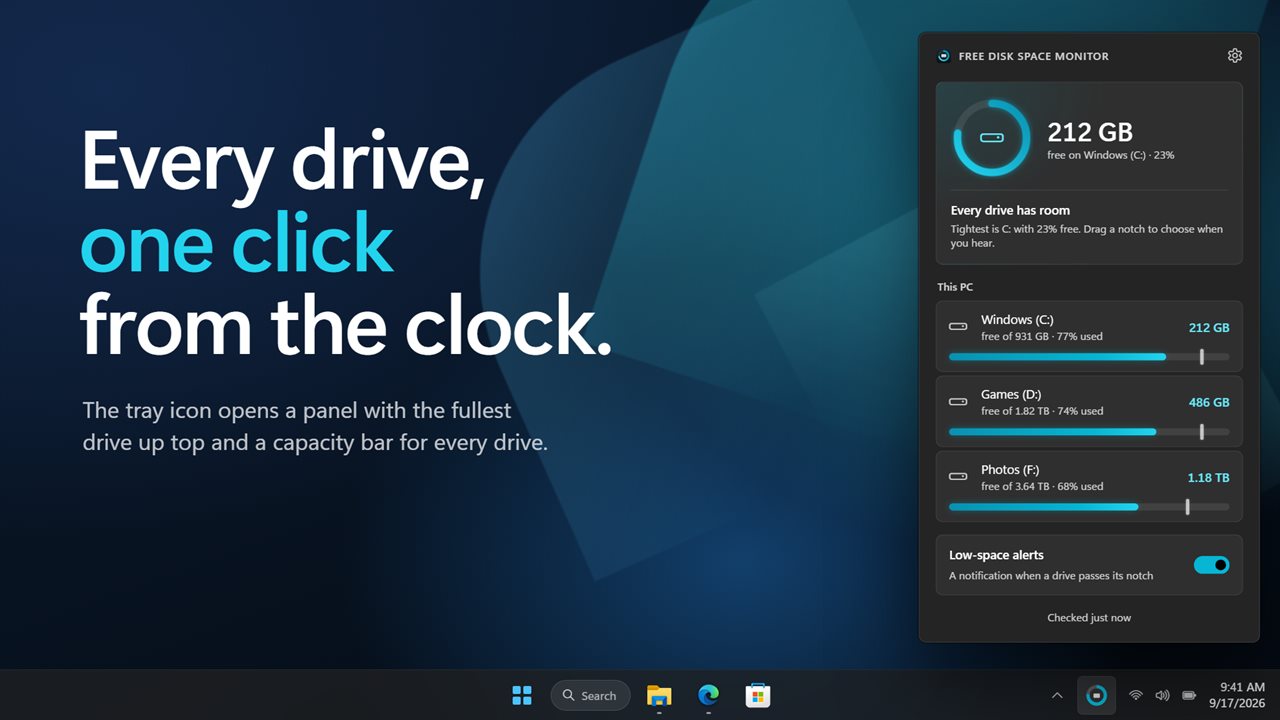
Free Disk Space Monitor shows free disk space without opening File Explorer. One click on its tray icon lists each lettered drive by name with a usage bar, followed by how much is left, how big the drive is and what share is taken. Above them, a ring and a large figure single out whichever drive is closest to full.
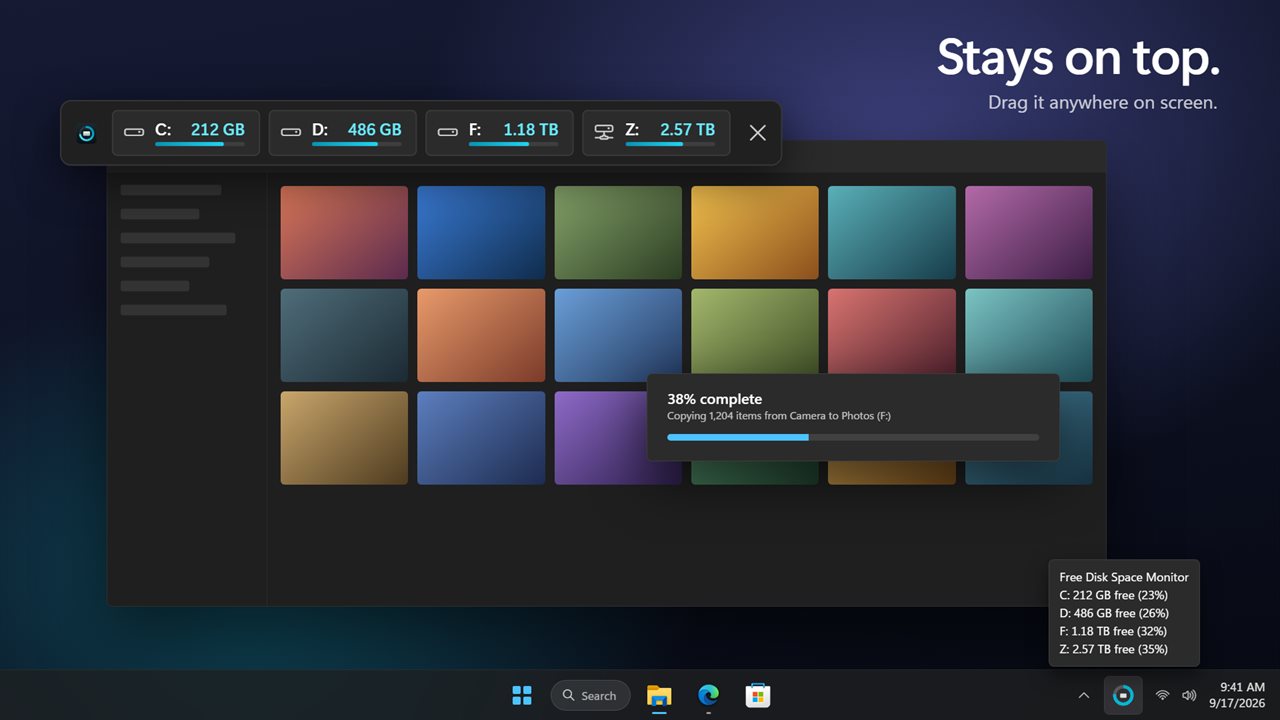
Internal disks, removable media, network shares and optical drives sit in separate groups, so a USB stick or a mapped share is easy to tell from the system drive. Click any row to open that drive in File Explorer. Just hovering over the tray icon shows a tooltip summing up each drive's remaining room.
Each time you open the panel the drives are read again, and in the background they are checked every 10 seconds by default. Check drives every in Settings offers 5 seconds, 10 seconds, 30 seconds, 1 minute or 5 minutes.
A low disk space warning that comes early, once
Windows has its own low disk space notice, but it arrives only when a drive is nearly full and gives you no say in the level. That is late for a system drive, and not much use for a backup disk you would like to know about at 20% free.
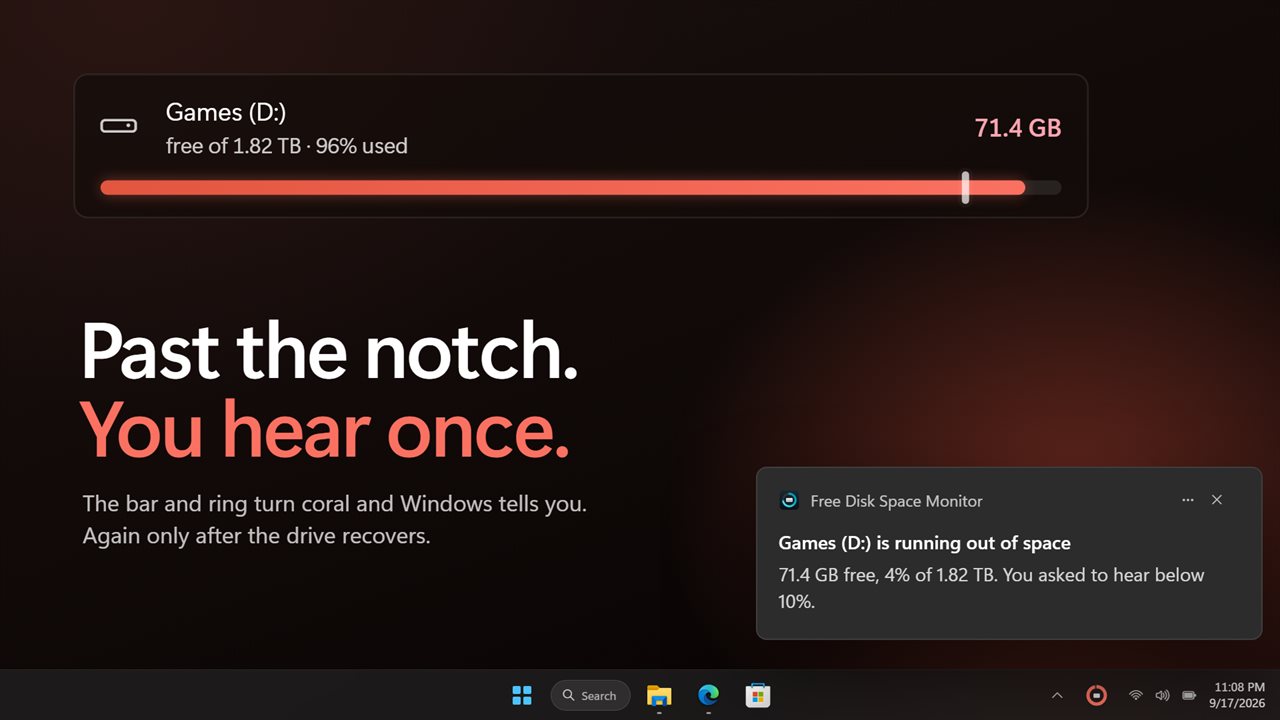
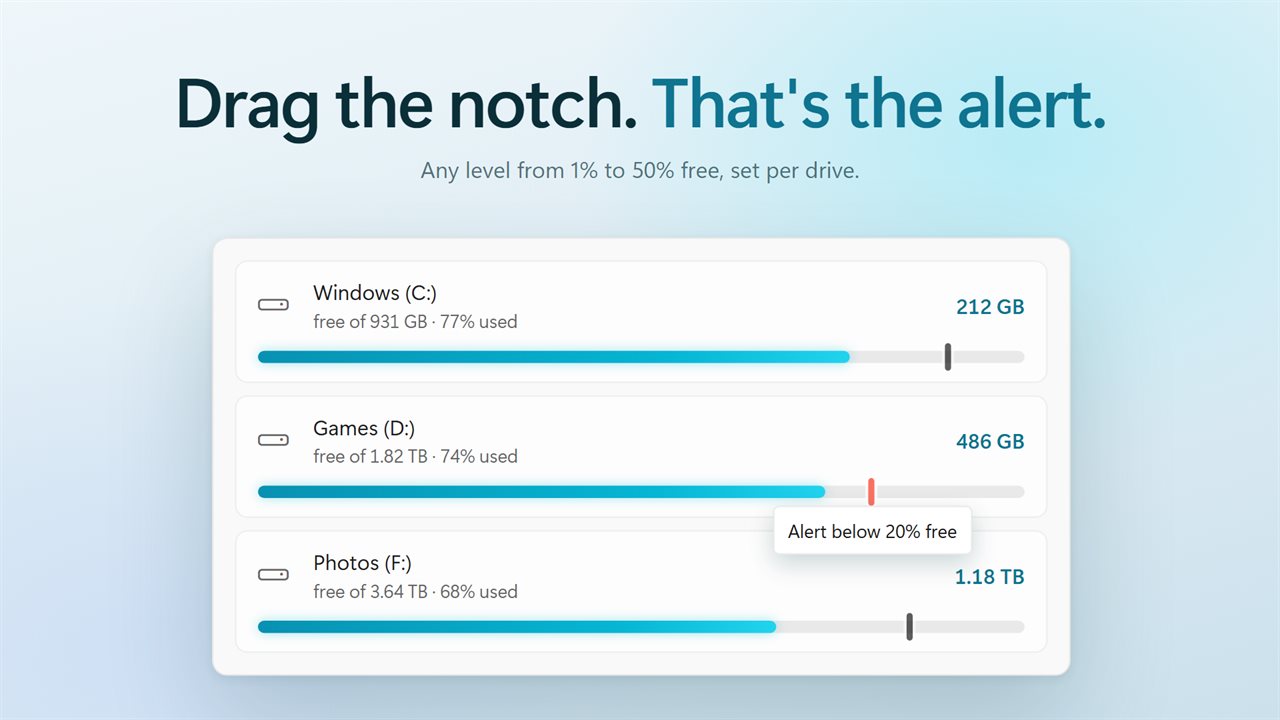
Here each bar has its own small notch. Drag it to wherever a warning should trigger, between 1% and 50% free. Drives you leave alone use the Low below level in Settings, which starts at 10%. When the used space passes a notch, both the drive's bar and the headline ring change color, the headline in the panel names the drive, and a Windows notification appears.
You are told once. Another notification comes only after that drive has recovered at least a point above its level and dropped again, and a restart does not repeat a warning given in the last 24 hours.
How to check hard drive space on a busy PC
On a machine with several internal disks, external drives and network shares, opening This PC and squinting at each bar gets old. A few settings make the panel fit how you work:
- Under For each drive, lead with, show Free space or Percent free first, whichever figure you think in.
- A Hide switch for each drive in Settings takes a recovery partition or an old card reader out of the panel, the tray icon and the alerts.
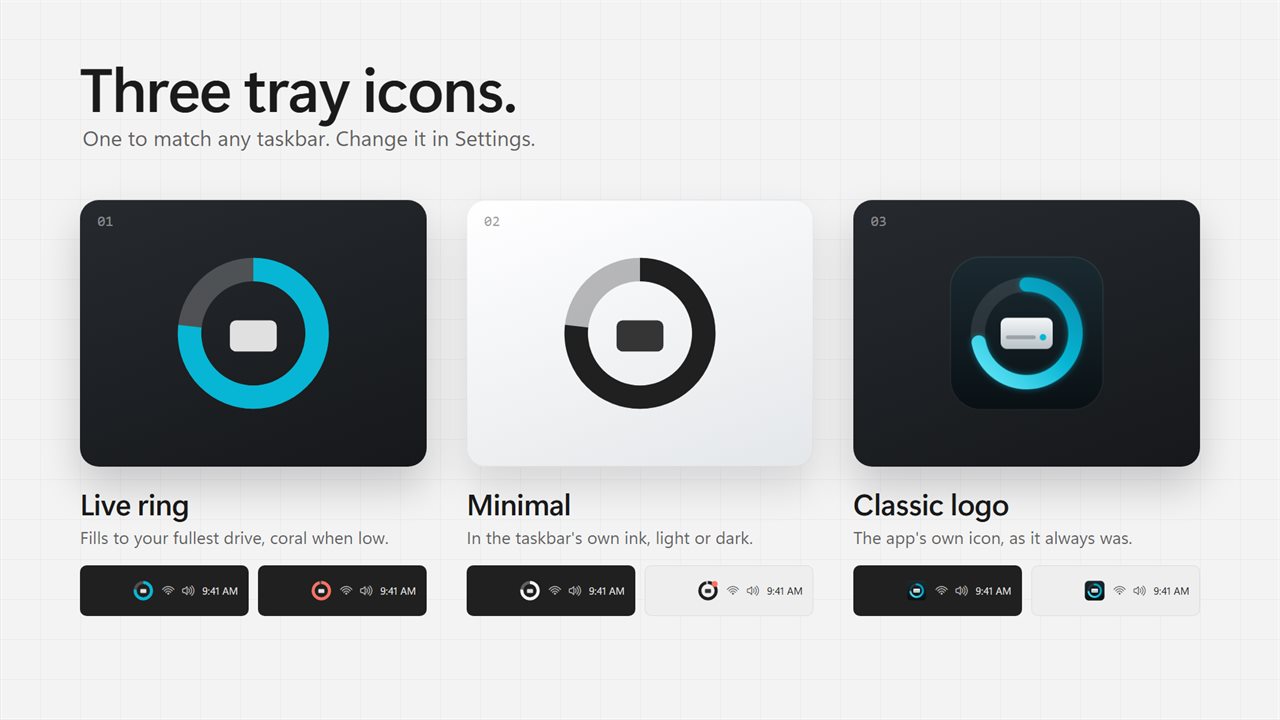
- Choose a Tray icon: Live ring draws the fullest drive as a filling circle, Minimal blends in with the other taskbar icons, and Classic logo keeps the original look.
- Mini bar on top of other windows adds a thin floating readout of all your drives that stays above everything and can be moved where you like.
When the C drive is full, or a network share goes quiet
A full C: drive slows updates and can stop apps from saving. Setting its notch higher than the default buys you time to empty the Recycle Bin, clear downloads or move a video project before it becomes urgent.
Mapped network drives are watched too. If a share does not answer within about a second, its last reading stays on screen marked as out of date, so the panel never hangs, and an out-of-date figure never sets off a warning.