EEvlarSoft

Quick ISO

An ISO creator with one button: drop a folder, check the name it suggests, press once, and the disc image is written next to the folder.

Buy for $1.99
One payment. No subscription.
14-day money-back guarantee.
4.8
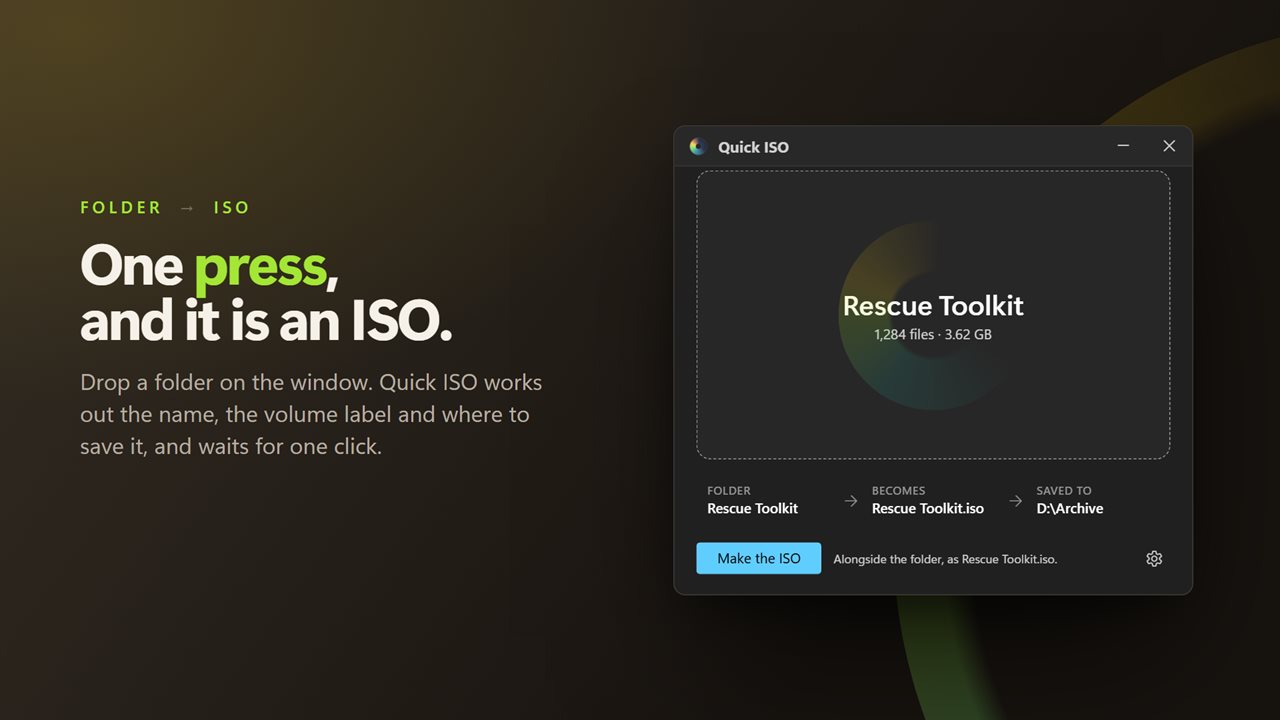
One press, and it is an ISO. Drop a folder and the rest is already filled in.
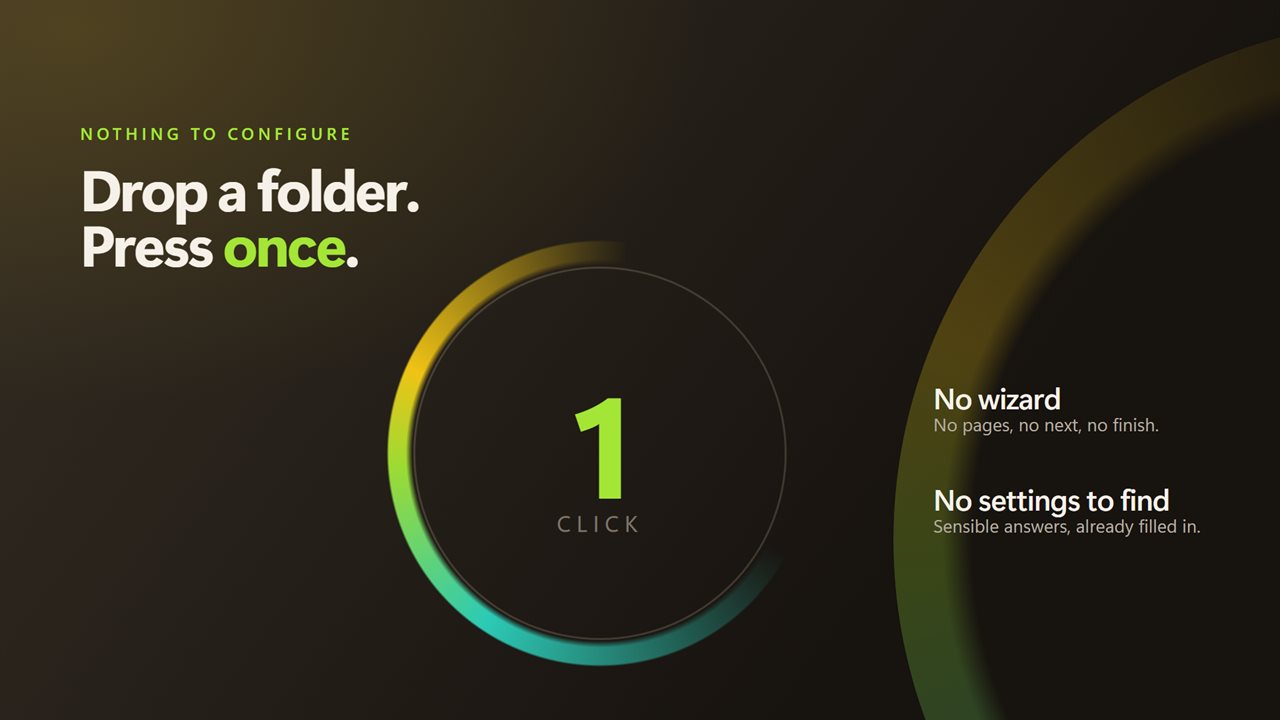
No wizard, no pages, no settings to go looking for.
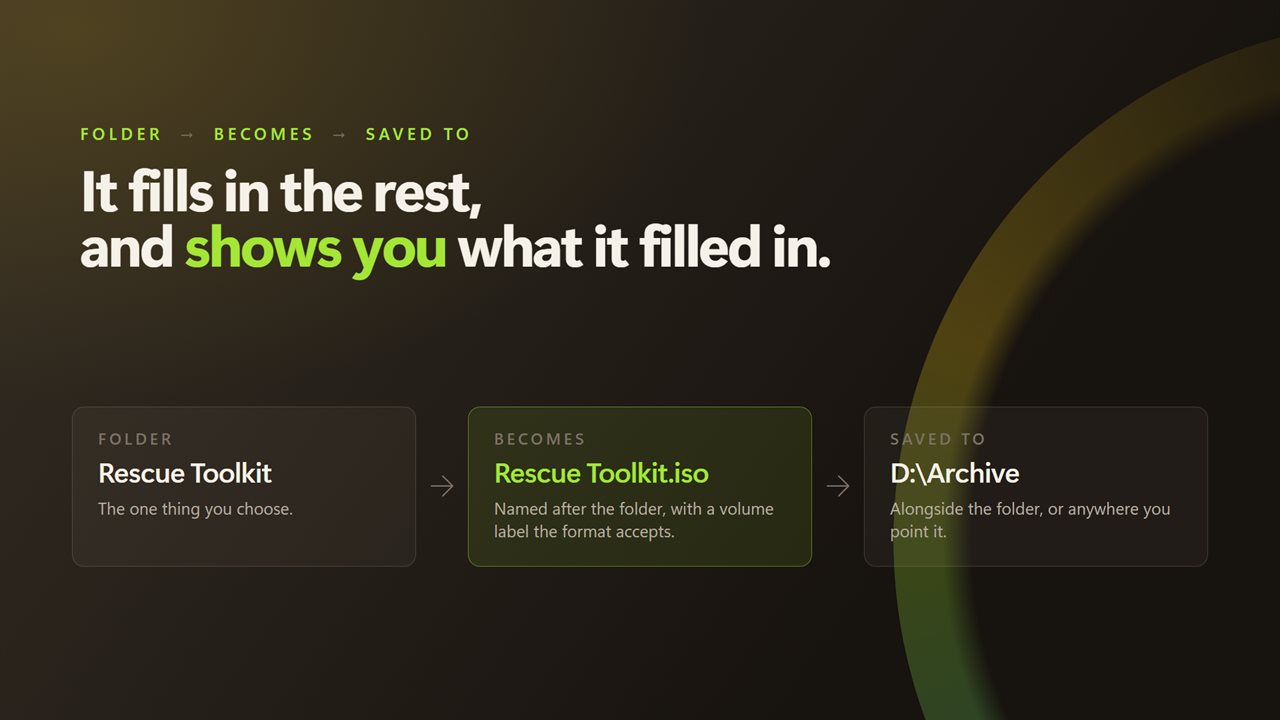
Folder, becomes, saved to — all three shown, and all three changeable.
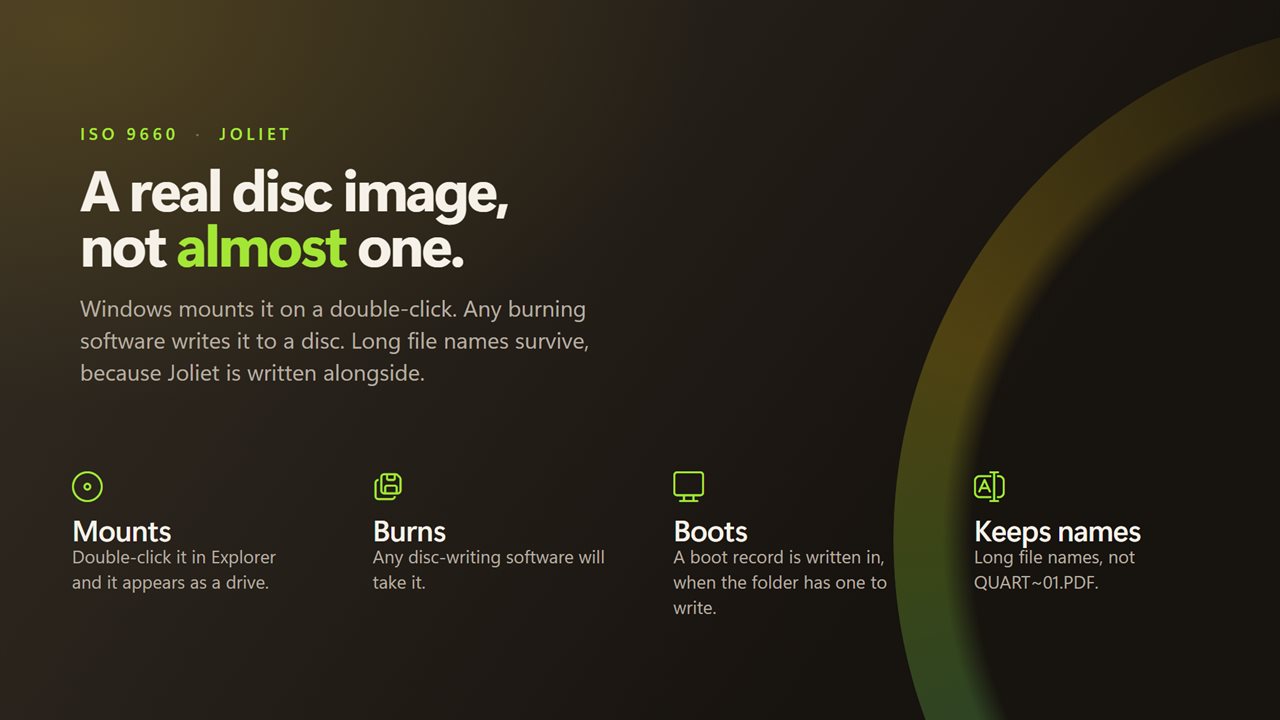
A real disc image: it mounts, it burns, and long file names survive.
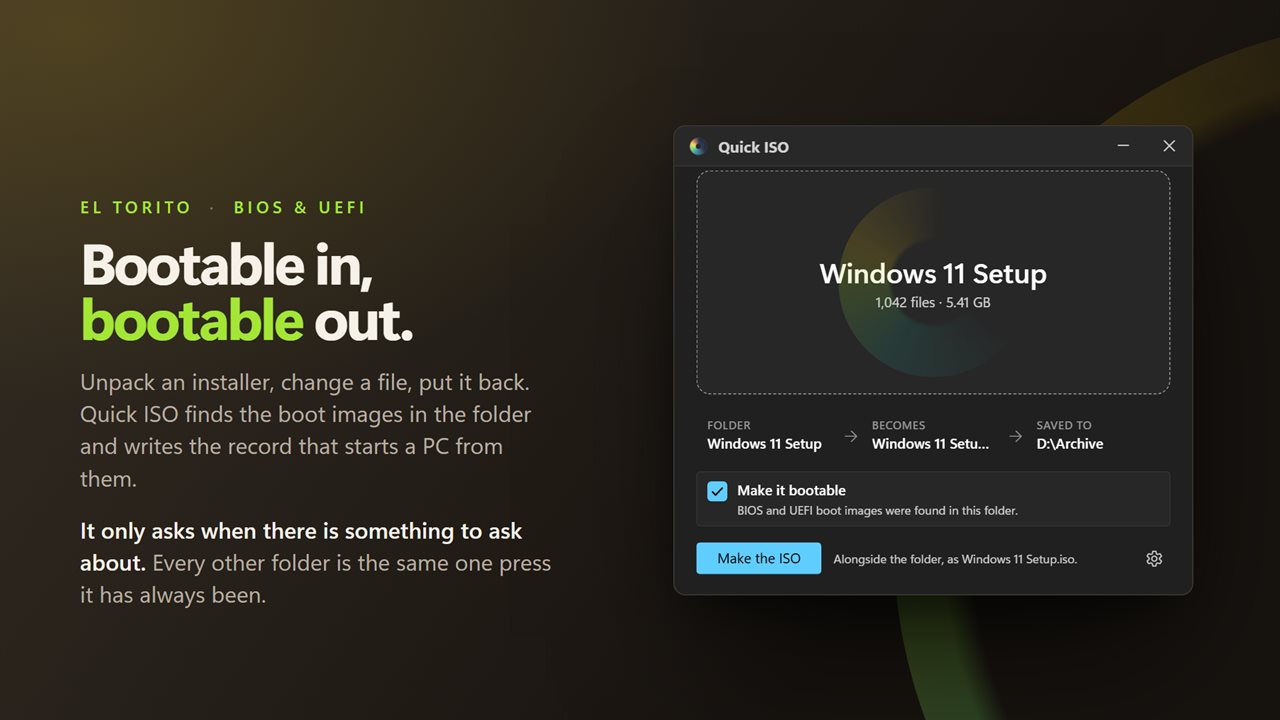
A folder with boot images in it becomes a disc that starts a PC.
Nothing uploaded, nothing to sign in to, and no file limit.

One press, and it is an ISO. Drop a folder and the rest is already filled in.

190,000+downloads of EvlarSoft apps
Signed by EvlarSoftVerified US publisher
14-day money-backNo questions asked
Updates includedNo upgrade fees

An ISO creator without the wizard

Windows 11 mounts ISO files natively, yet it has no way to build one. The official route is a command-line tool shipped in a developer kit you have to install first, and most graphical ISO creator programs bury the same job under tabs for file systems, sessions and burner settings. If all you want is a folder packed into an image file, that is a lot of reading.

Quick ISO answers the questions for you and then shows its answers. Drag in a folder, or click the empty window to browse for one, and it measures what goes in. Underneath, it shows what the folder Becomes and where it is Saved to: My Files becomes My Files.iso, beside the original folder. Click either value to change it in a save dialog. Otherwise press Make the ISO.

A ring fills as the image is written and a byte count climbs toward a total worked out before writing began, so a folder of tens of thousands of files shows real progress rather than a spinner. When it is done, the button offers Make another.

How to create an ISO file from a folder

In Settings, Save the ISO switches between Beside the folder it came from and Ask me every time, and When it is finished can be set to Open the folder it went to so File Explorer shows the new file. Note that saving beside the folder replaces an older ISO of the same name, so rename first if you want to keep it.

  • Open Quick ISO and drag the folder onto the window.
  • Wait a moment while it counts the files and total size.
  • Check the file name and save location. Click either to change them.
  • If the folder holds boot files, leave Make it bootable ticked.
  • Press Make the ISO and watch the ring fill. Mount the result by double-clicking it in File Explorer.

Edit an ISO file: extract, change, then repack

A common reason to need an ISO image creator is to modify an existing disc. Copy everything out of a mounted ISO into a folder, add a driver or an answer file, then turn that folder back into an image. Quick ISO checks the folder for the boot files that Windows setup media, isolinux and GRUB leave behind. When it finds them, a Make it bootable box appears, already ticked, and the new image gets El Torito boot entries for both BIOS and UEFI machines.

A folder of documents or photos never sees that box, because there is nothing to boot. The app takes the first boot file it finds for each firmware type and does not ask you to choose between several.

Create an ISO from files without losing their names

Plain ISO 9660 dates from the CD era and trims names to eight characters plus a three-letter extension, all in capitals. Quick ISO writes Joliet records alongside it, so Family Recipes 2026.docx keeps its full name when the disc is mounted on Windows or opened in disc-writing software.

The other name on the disc is the volume label, the drive name File Explorer shows once the image is mounted. It is taken from the file name, so the quickest way to get a tidy label such as PROJECT_ARCHIVE is to name the file that way before pressing the button.

What Quick ISO writes

  • ISO 9660 images with Joliet long file names
  • Name and save location filled in from the folder, both changeable with a click
  • Volume label taken from the file name, in the form ISO 9660 expects
  • Optional BIOS and UEFI boot entries added when the folder holds boot files
  • Progress shown as a ring and a size count while writing
  • Save beside the source folder or choose each time
  • Option to open the destination folder when finished
  • Accepts a folder path passed from a shortcut and opens ready to write
  • Light, dark or Match Windows theme

Folders worth turning into an ISO

A modified installer

Unpack setup media, add drivers or scripts, and repack it as a bootable image for a virtual machine or a USB writer.

Files for a virtual machine

Bundle tools or a dataset into one ISO and attach it to a VM as a virtual CD, with no shared folder setup.

An archive copy of a project

Freeze a finished project folder into a single image that opens read-only when mounted and can go on a disc later.

What's new in 2.1.1

  • A folder holding boot images now becomes a disc that starts a PC. Quick ISO finds them and writes the El Torito boot record, for BIOS and UEFI both
  • One checkbox, already ticked, and it only appears when the folder actually has a boot image in it. Nothing changes for any other folder
  • The size shown before writing now includes the boot record, so the figure is the one the write finishes on

Questions

Anything else? Ask us

Where does Quick ISO save the ISO?

Beside the folder you dropped, named after that folder, so My Files becomes My Files.iso in the same parent folder. Click the file name or the location before pressing to pick a different name or folder in a save dialog.

Will it overwrite an ISO that already has the same name?

Yes. When it saves beside the folder, an existing file with that name is replaced without a prompt. Click the file name first if you want to keep the old one.

Can it rebuild a bootable ISO from an extracted installer?

Yes, when the folder holds a boot file at one of the usual paths from Windows media, isolinux or GRUB. It writes the boot record for BIOS and UEFI, taking the first file it finds for each, and a Make it bootable box lets you turn that off. You cannot choose between several boot files.

How is the volume label chosen?

It comes from the ISO file name, converted to uppercase letters, digits and underscores and cut to 32 characters. There is no separate box for it; renaming the file changes the label.

Can I open it with a folder already loaded?

Yes. If Quick ISO is started with a folder path as an argument, for example from a shortcut, it opens with that folder measured and ready to write.

Does it check the image after writing?

No. It writes the image and shows the progress and the final size, but it does not read the image back to compare it with the folder.

Can Windows 11 create an ISO file without extra software?

No. Windows 11 can mount an ISO but has no built-in option to create one from a folder. Quick ISO adds that as a drag-and-drop step.

Can I burn the ISO to a DVD or write it to a USB drive?

Yes. The image is standard ISO 9660 plus Joliet, so disc-burning software accepts it, and a bootable image can be written to USB with a tool that writes ISOs.

Can I edit an ISO file after mounting it in Windows?

No. Windows mounts an ISO as a read-only drive, so files cannot be added or changed in place. Copy the contents into a folder, make your changes there, and build a new image from that folder.

Which versions of Windows does it run on?

Windows 10 (version 1809 or later) and Windows 11.

Is it a subscription?

No. Quick ISO is a one-time purchase of $1.99, and updates are included.

How do I get it?

Buy it on this page and your license key arrives by email. If the button says Notify me, Quick ISO is not on sale here yet; leave your email and we will tell you when it is.