EEvlarSoft

Secure File Shredder

A file shredder for Windows 11 that writes over your files before it deletes them, so an undelete tool has nothing left to bring back.

Buy for $2.99
One payment. No subscription.
14-day money-back guarantee.
3.8
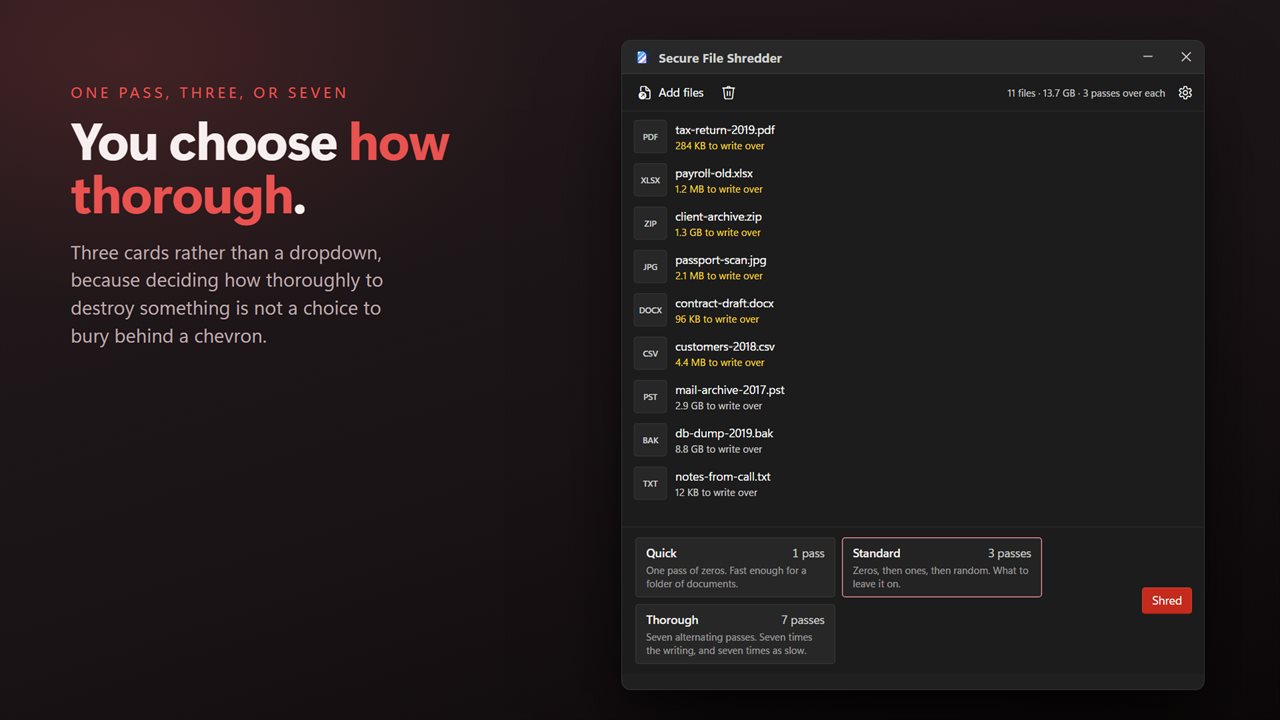
One pass, three or seven — you choose how thorough.
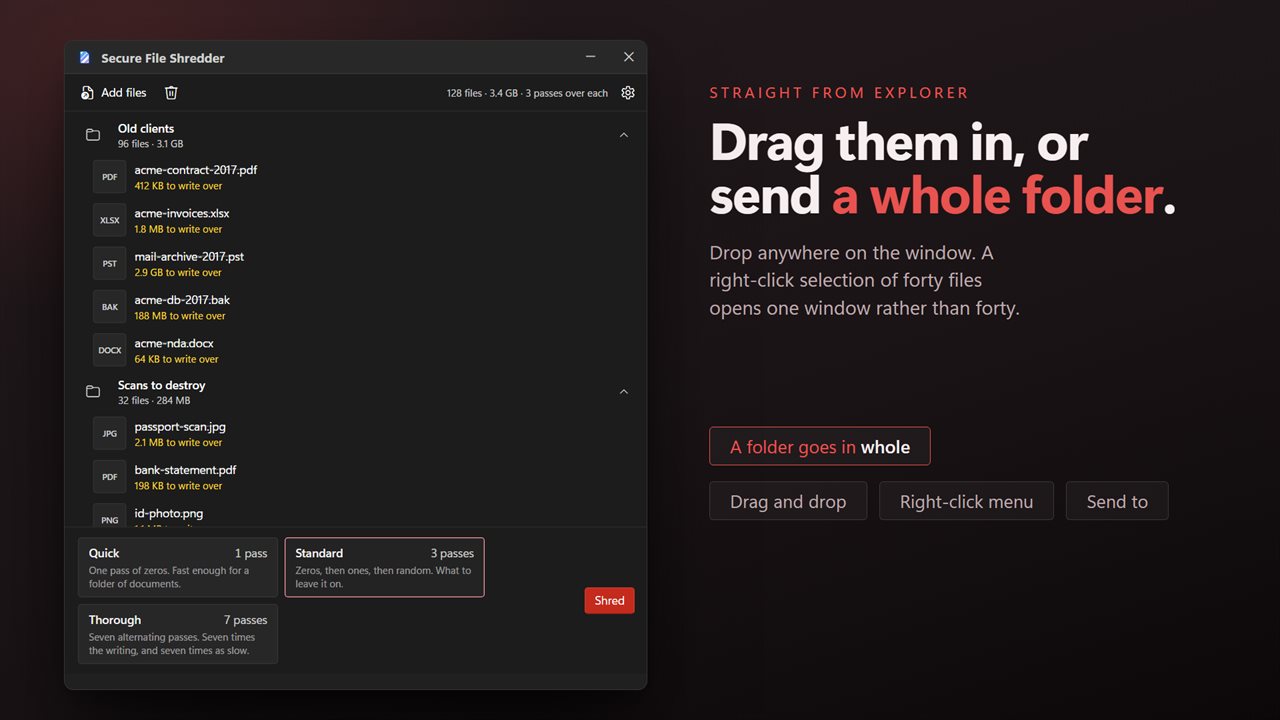
Drag files straight in from Explorer, or send a folder from the right-click menu.
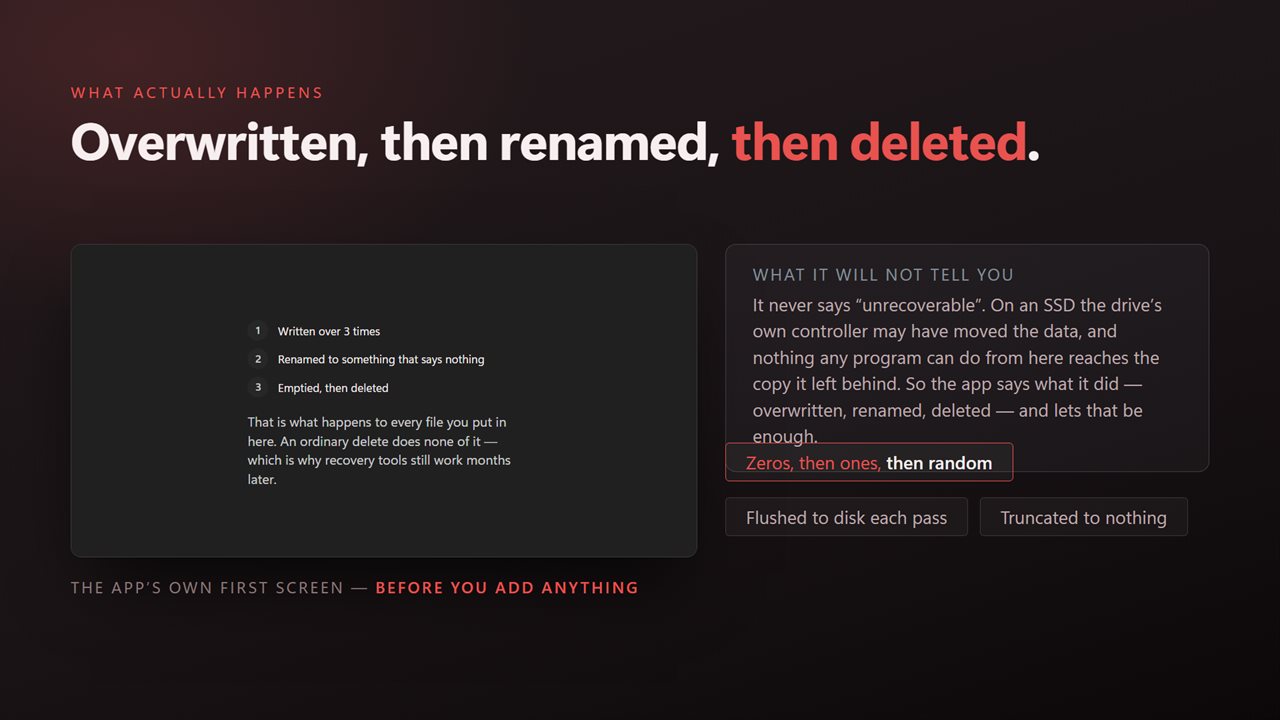
The contents are overwritten, then the name, then the file.
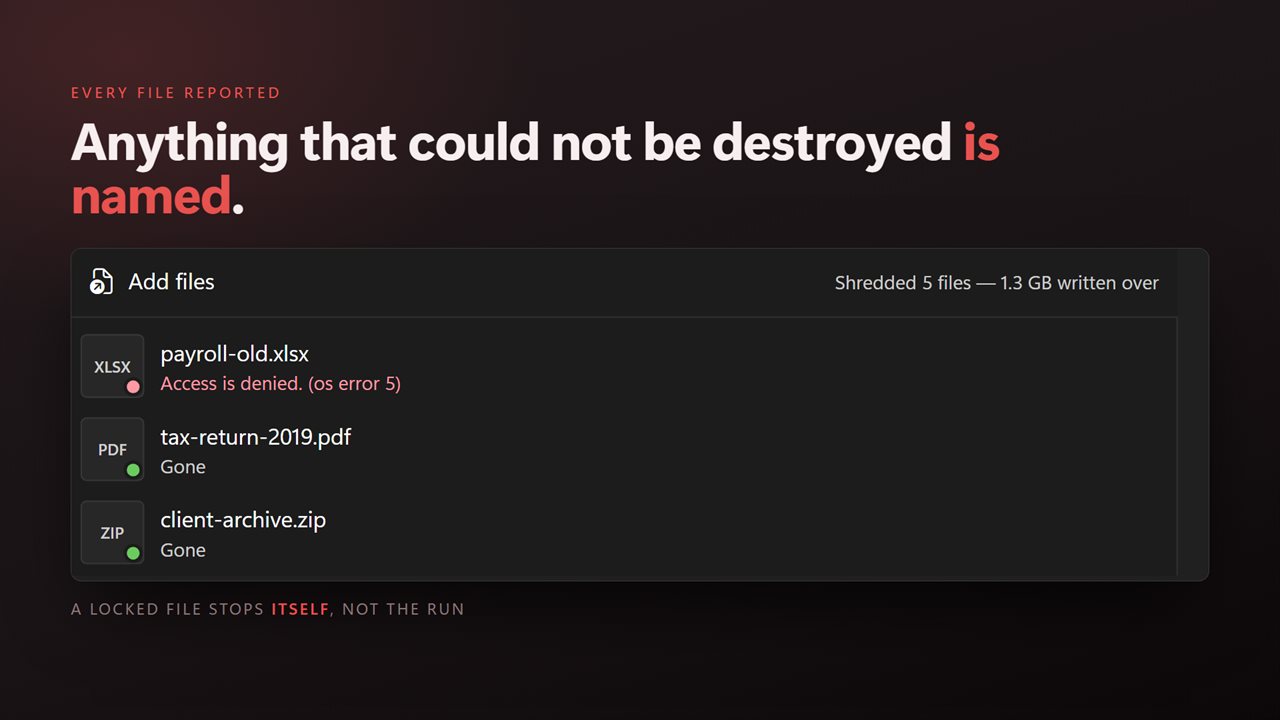
A whole batch at once, with anything that could not be destroyed named.
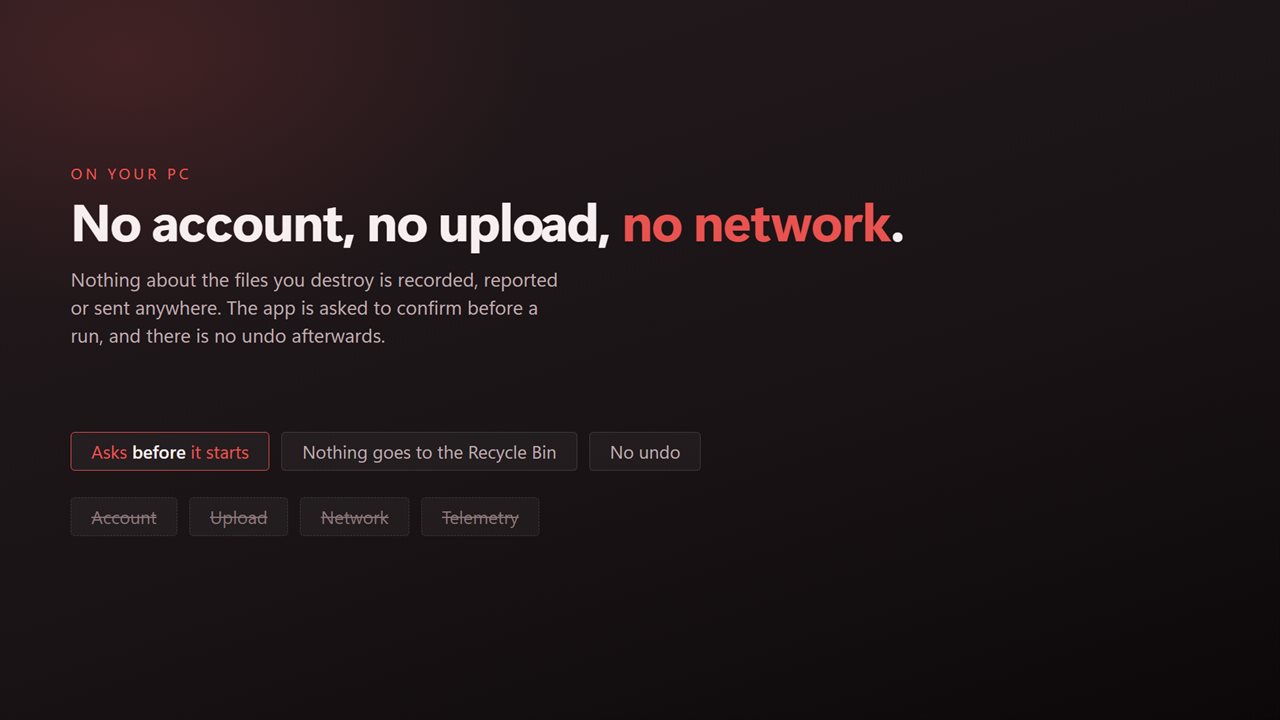
No account, no upload, no server processing. It all happens on your PC.

One pass, three or seven — you choose how thorough.

190,000+downloads of EvlarSoft apps
Signed by EvlarSoftVerified US publisher
14-day money-backNo questions asked
Updates includedNo upgrade fees

Why Windows 11 needs a file shredder at all

Pressing Delete, emptying the Recycle Bin, even Shift+Delete: none of them erase a file on Windows 11. They remove the entry that says where the file lives and mark its space as free. The bytes remain physically in place until new data lands on top of them, and file recovery tools are built to read exactly that leftover data.

Secure File Shredder is a file shredder that closes that gap. For each file you give it, it overwrites the contents in full, forces every pass to the disk, empties the file, renames it to a random twelve-letter name so the leftover directory entry no longer gives away what it was called, and only then deletes it. Nothing goes to the Recycle Bin, and the app asks you to confirm before each run because there is no way back.

You choose how many passes, you can feed it a whole folder, and the result for every file is reported once it finishes.

Quick, Standard or Thorough: how many passes to securely delete

Three level cards set how many times every file in the batch is written over.

  • Quick: one pass of zeros. On a hard drive, a single complete overwrite is enough to defeat ordinary recovery software.
  • Standard: zeros, then ones, then random data. This is the default and the sensible setting for most people.
  • Thorough: seven passes alternating those patterns, for when policy asks for more. It does seven times the writing and takes about seven times as long.

How to permanently delete files on a PC without recovery

Read-only files are unlocked and shredded rather than refused. A file that another program has open, or that you lack permission to change, is listed with the reason so you can close the program and try again. If you cancel partway, the files already shredded stay gone, and the one in progress keeps its name and place, though part of it may already be written over. When a folder is shredded, its files are destroyed and the empty folders remain.

  • Open the app and select Choose files, or Or a folder to queue everything inside a folder and its subfolders. You can also drag items in from File Explorer.
  • Check the queue. Anything you added by mistake can come out before you run.
  • Pick Quick, Standard or Thorough.
  • Press Shred and confirm.

Secure delete on an SSD: what software can and cannot do

Solid-state drives move data around internally for wear leveling, and the drive's controller can hold an older copy of a block in a place Windows cannot address. No program running on Windows can reach those copies, whatever its pass count. Secure File Shredder overwrites every byte Windows maps to the file, the limit of what any software shredder can reach, and it reports the file as overwritten rather than promising more.

If you are retiring an SSD, use the drive's own secure erase function or keep the disk encrypted. For deleting individual files on a working PC, one pass on an SSD is as effective as seven and causes less wear.
What Secure File Shredder does to each file

  • Overwrites the entire file one, three or seven times
  • Flushes every pass to the disk before starting the next
  • Truncates the file and renames it to random letters before deleting
  • Skips the Recycle Bin entirely
  • Accepts single files, multi-file selections and whole folders with their subfolders
  • Unlocks read-only files instead of failing on them
  • Names any file it could not destroy and explains why
  • Confirms before each run and can be cancelled at any point

What's new in 2.0.4

  • Drag and drop now works. Files can be dragged straight in from Explorer, which is the thing reviewers asked for most
  • Now takes a whole batch, or a folder and everything in it, instead of one file per run
  • A right-click selection of many files opens one window rather than one window per file
  • Shredding writes over the file in place. Earlier versions worked through a temporary copy, which meant a second copy of your data existed while it ran and could be left behind if the app was interrupted
  • Anything that could not be destroyed is named with the reason instead of being skipped silently
  • Progress is real rather than paced, so a run takes as long as the work takes and no longer
  • A redesigned interface, in light or dark, and it can follow Windows instead if you prefer

Questions

Anything else? Ask us

What is the difference between Quick, Standard and Thorough?

Quick writes one pass of zeros. Standard, the default, writes zeros, then ones, then random data. Thorough writes seven passes repeating that pattern, and takes about seven times as long as Quick.

Is one pass enough?

For most files on a hard drive, yes. Each pass overwrites the whole file and is flushed to the disk, so after one pass the original bytes are no longer where the file was. More passes mainly add time.

Does it also hide the file name?

Yes. After overwriting, the file is emptied, renamed to a random 12-letter name and then deleted, so the leftover directory entry does not show the original name.

Does it work on SSDs?

It overwrites the file as Windows presents it. An SSD can keep older copies of data in places software cannot reach, so the app says the file was overwritten and does not promise it is unrecoverable.

Can I shred a folder and everything in it?

Yes. Choose or drop a folder and every file inside it, including subfolders, is queued. The files are destroyed, but the empty folders are left behind.

Can shredded files be recovered from the Recycle Bin?

No. Files are deleted directly, nothing goes to the Recycle Bin, and there is no undo. The app asks for confirmation before each run.

Can deleted files be recovered on Windows 11?

Often, yes. A normal delete only marks the space as free, so recovery tools can read the old data until it is overwritten. Shredding overwrites it first.

Does Shift+Delete permanently delete a file?

No. Shift+Delete skips the Recycle Bin, but the file system still only marks the space as free, and the data stays on the disk until something overwrites it. A shredder does that overwrite before the delete.

Which versions of Windows does it run on?

Windows 10 (version 1809 or later) and Windows 11.

Is it a subscription?

No. Secure File Shredder is a one-time purchase of $2.99, and updates are included.

How do I get it?

Buy it on this page and your license key arrives by email. If the button says Notify me, Secure File Shredder is not on sale here yet; leave your email and we will tell you when it is.