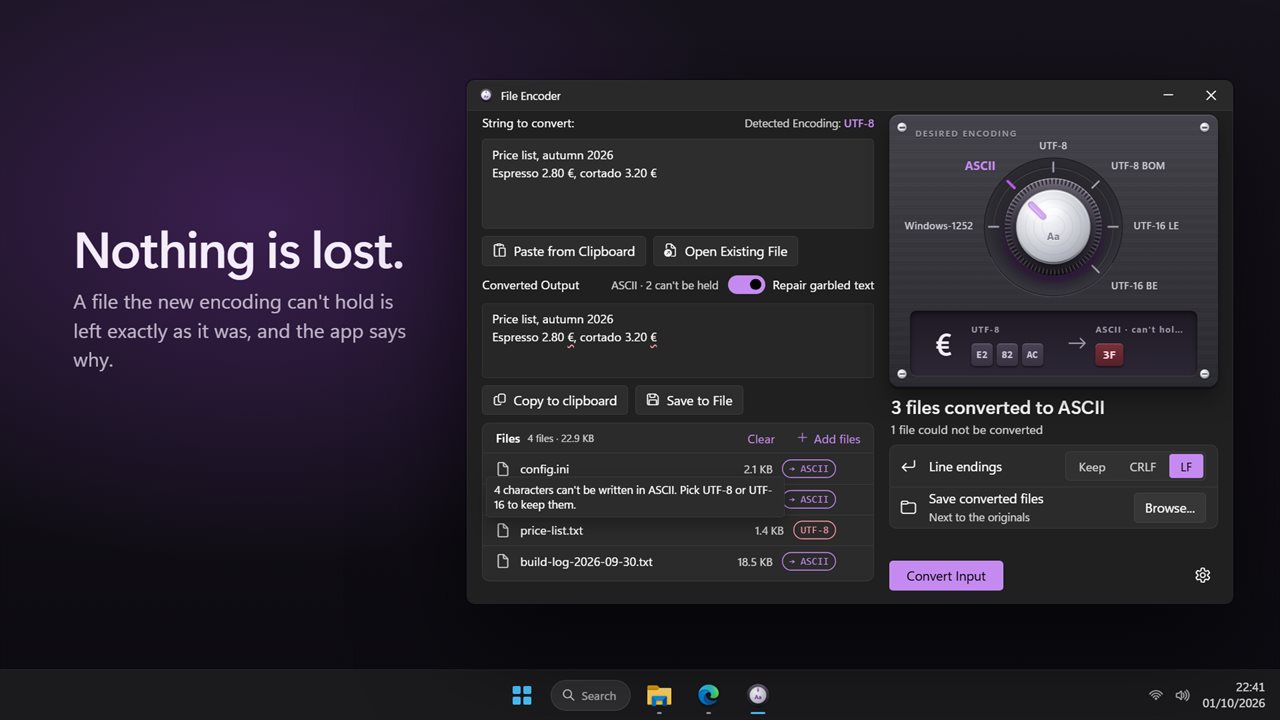
A UTF-8 converter that checks the encoding first
Converting text to UTF-8 is only safe once you know what it was before. Guess wrong and an accented name, a currency sign or a curly quote turns into two or three odd symbols, the scrambled text known as mojibake. The usual fixes are a Python one-liner or a command-line tool with flags for the source and target encodings, which assumes you already know both.
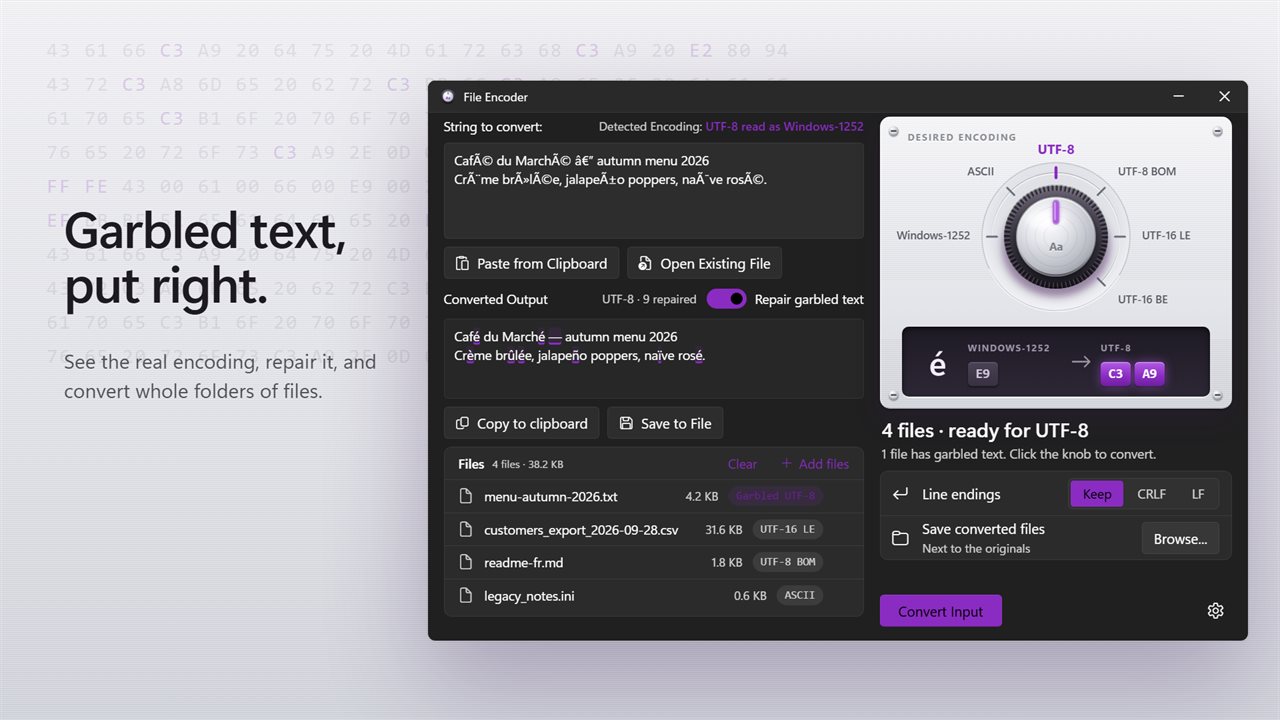
File Encoder works the encoding out for you. Paste text into String to convert, click Open Existing File, or drop files on the window, and Detected Encoding names what it found. It tells Unicode files apart by family and byte order, including UTF-16 saved without a BOM and UTF-32, and recognizes plain ASCII, legacy Windows code pages such as Western European and Cyrillic, and the Chinese GBK and Big5 sets.
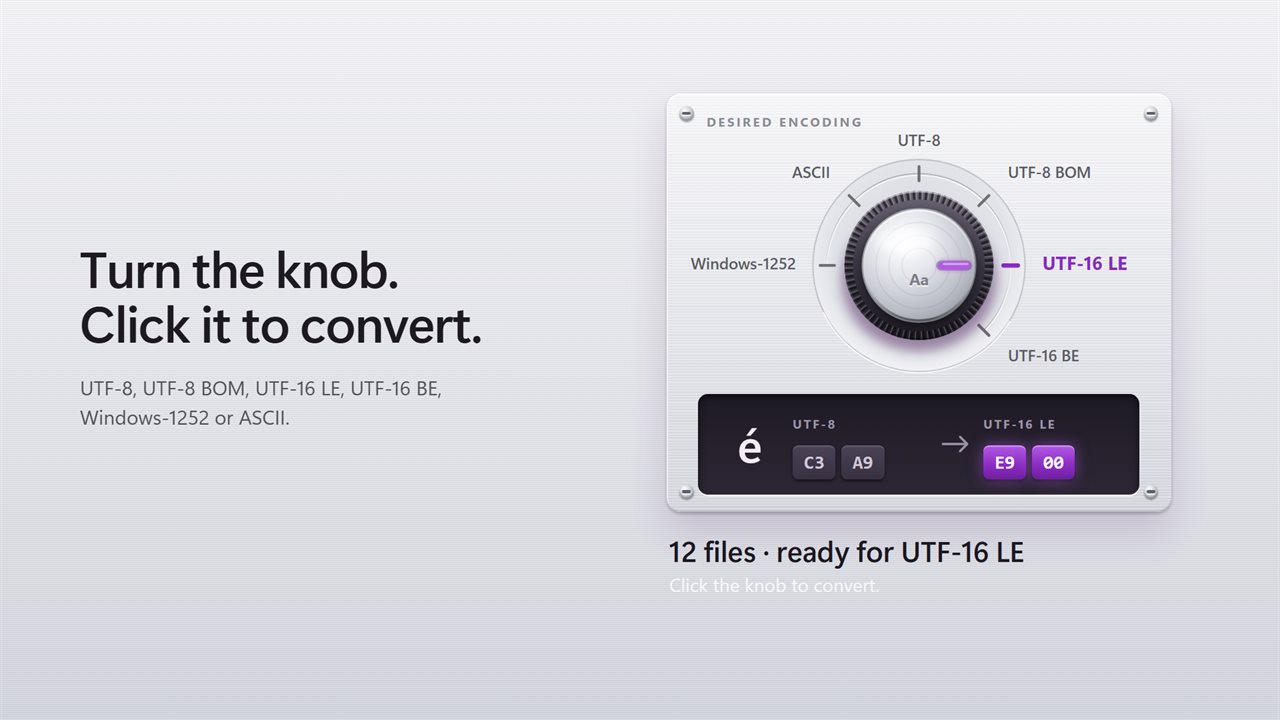
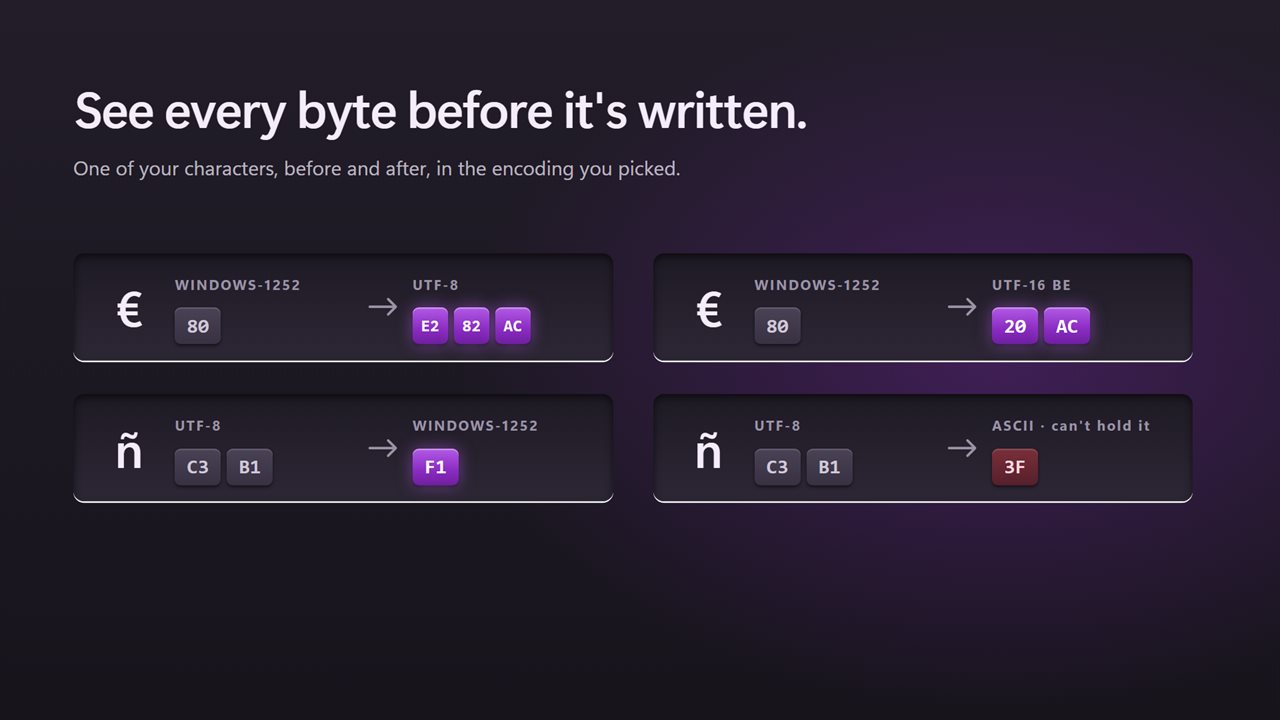
Then turn the Desired Encoding knob to one of its six positions and click it. A byte strip beside the knob shows one of your characters as bytes before and after, so the change is visible before anything reaches the disk.
How to fix mojibake and garbled text like é and ’
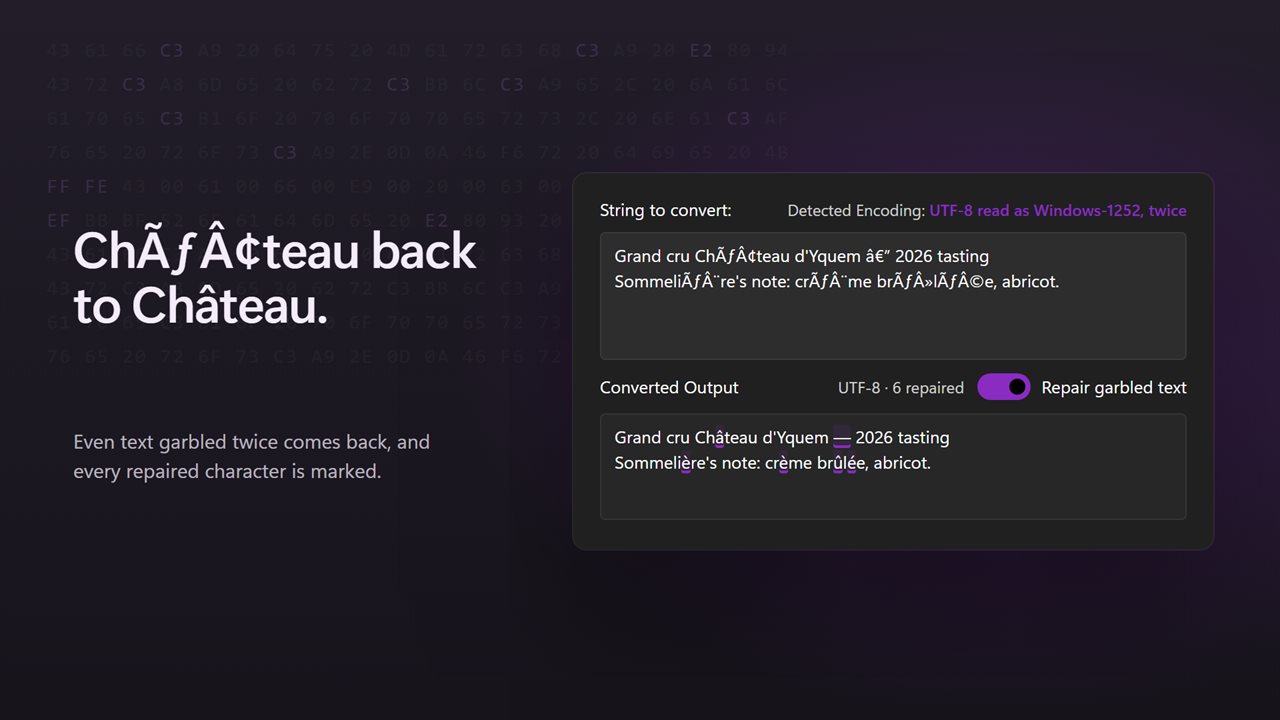
The most common case on Windows is a file saved as UTF-8 and then opened as Windows-1252. Each multi-byte character is read as two or three single-byte ones, so é becomes é, an apostrophe becomes ’ and a long dash becomes —. Save that damaged text again and it compounds.
With Repair garbled text switched on, File Encoder recognizes the pattern and reverses it, peeling back up to three rounds of the same mistake. The output panel highlights every character it repaired and counts them, so you can check each fix. Files in a batch that show this damage get a Garbled UTF-8 tag in the list. Turn the switch off when the odd characters are meant to be there.
Batch convert files to UTF-8, with or without BOM
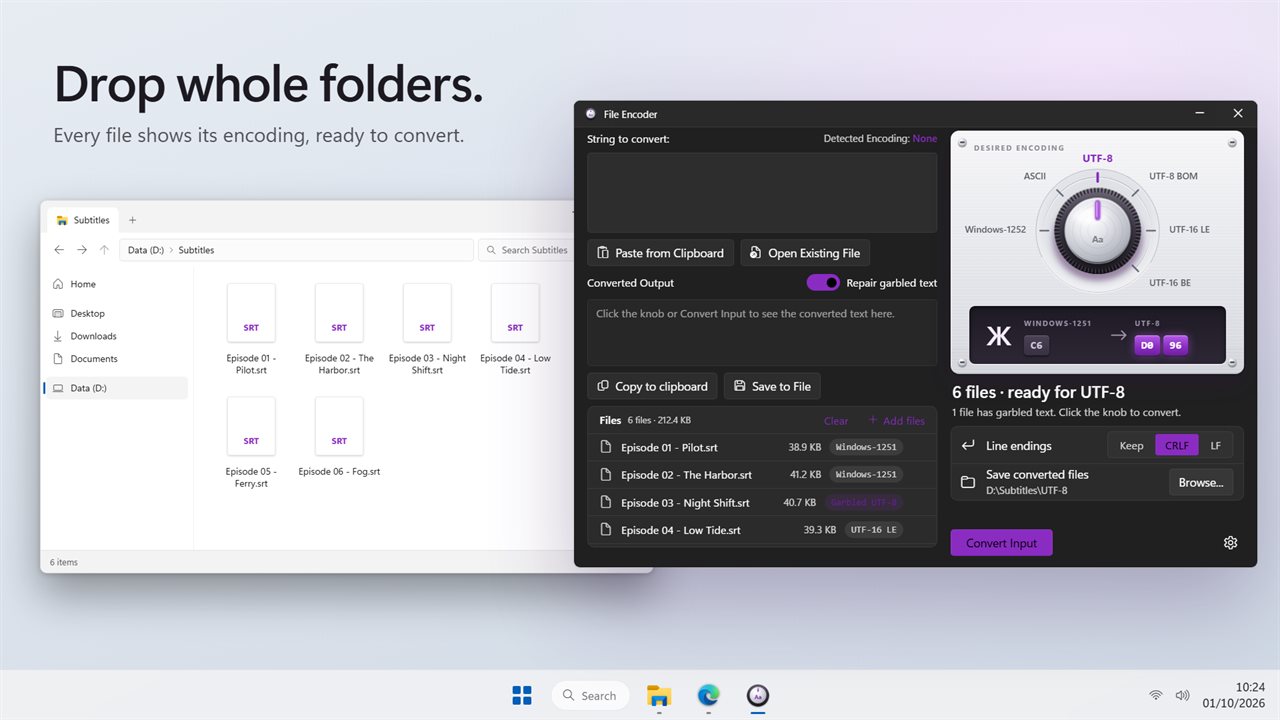
Folders of old files are where encoding trouble piles up, so the batch path matters most.
- Drop files or whole folders onto the window, or click Add files. Folders are searched with subfolders, and build and tooling folders such as .git and node_modules are skipped.
- Check the list: every file shows the encoding it was found in, and anything that is Not text is marked.
- Pick UTF-8 for files with no byte order mark, or UTF-8 BOM for tools that insist on one.
- Set Line endings to Keep, CRLF for Windows, or LF for Unix and macOS.
- Under Save converted files, choose Next to the originals or click Browse... to pick a folder, or turn on Replace the originals in Settings.
- Click the knob or Convert Input. A long batch can be stopped with Cancel.
Check file encoding before you lose characters
Converting down to Windows-1252 or ASCII can throw characters away, since those encodings hold far fewer symbols. File Encoder will not write such a file. Characters the target cannot hold are flagged in the output with a can't hold it note and counted, and the file is left alone, so a batch never silently replaces a Greek name or an emoji with question marks.
By default a converted copy is written beside the original with the encoding added to its name, and a number is added if that name is taken. Files already in the chosen encoding are reported as unchanged and not rewritten. Any file that fails says why.