How to keep a computer awake without changing sleep settings
Most advice on how to keep a computer awake says to open Power & battery and set sleep to Never. That works until you forget to set it back and the laptop runs flat in a bag, and on a work PC the setting may be locked anyway. A better approach is to ask Windows to hold off sleep for a while and then let go.
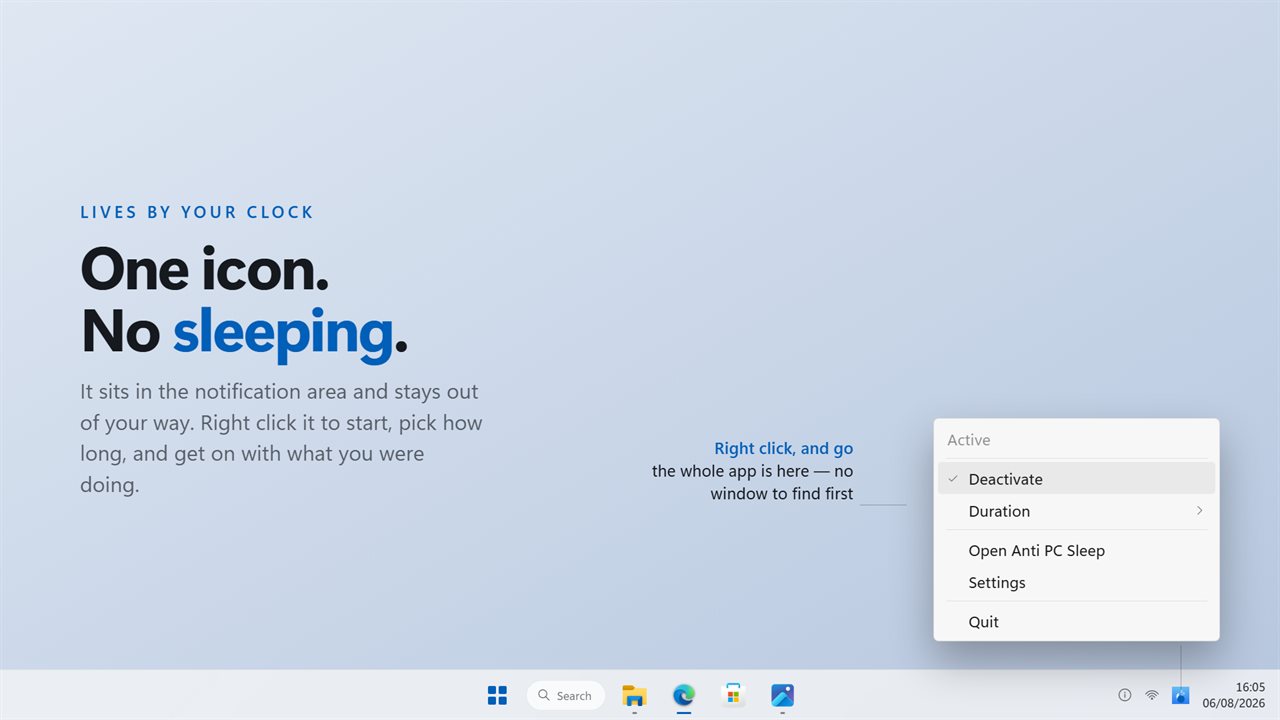
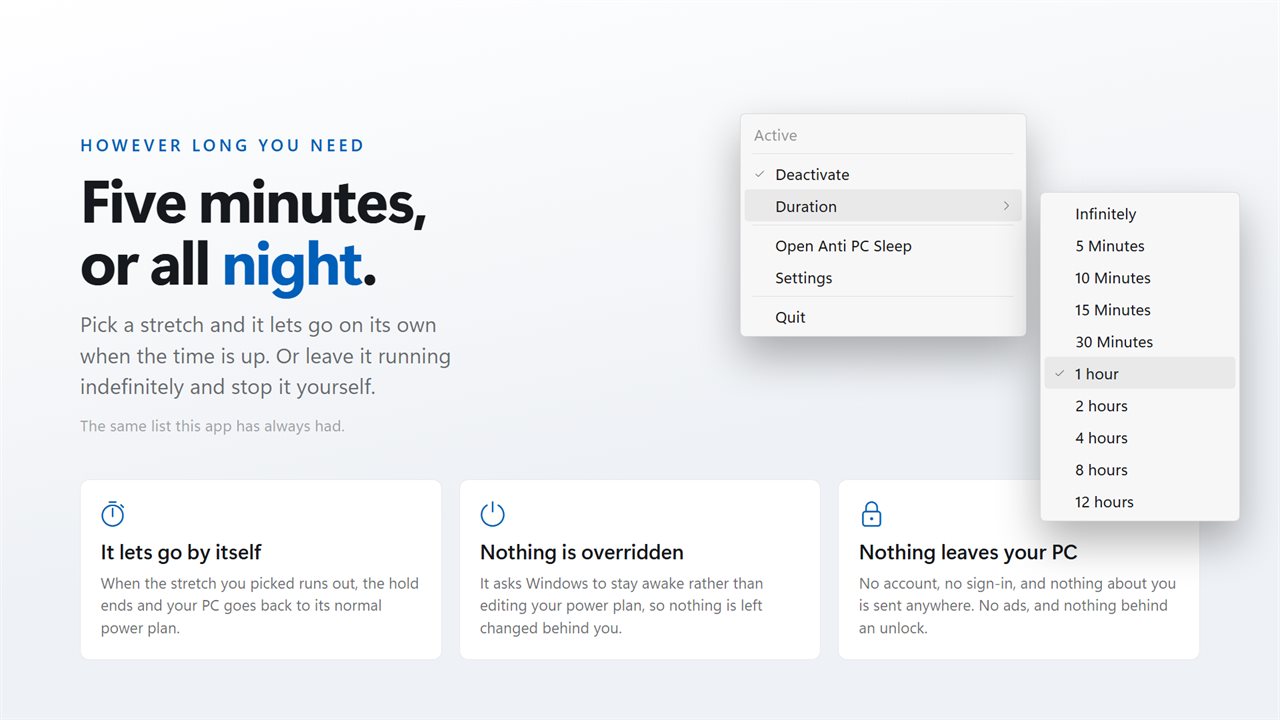
That is all Anti PC Sleep does. It lives as an icon in the notification area. Right-click it, open Duration, choose a length, then choose Activate. While the hold runs, Windows treats the PC as busy and skips its sleep timeout. When the time is up, the request is withdrawn and your normal power settings apply again, because they were never changed in the first place.
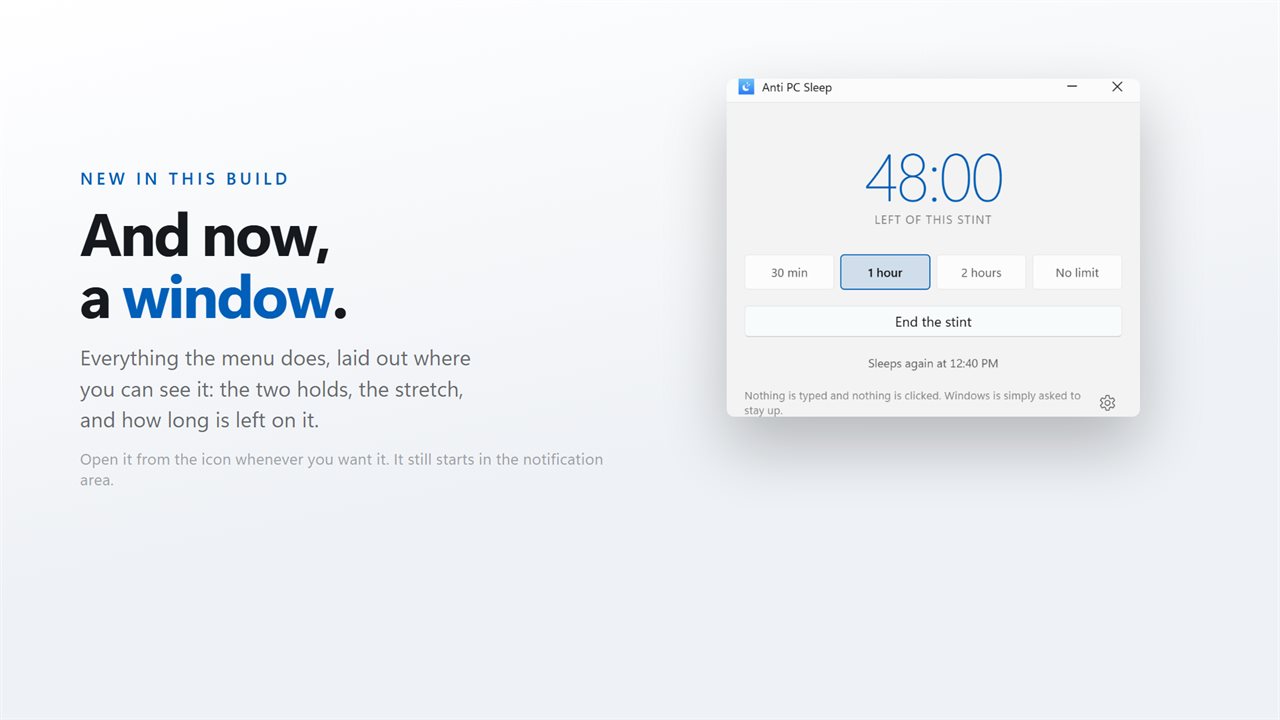
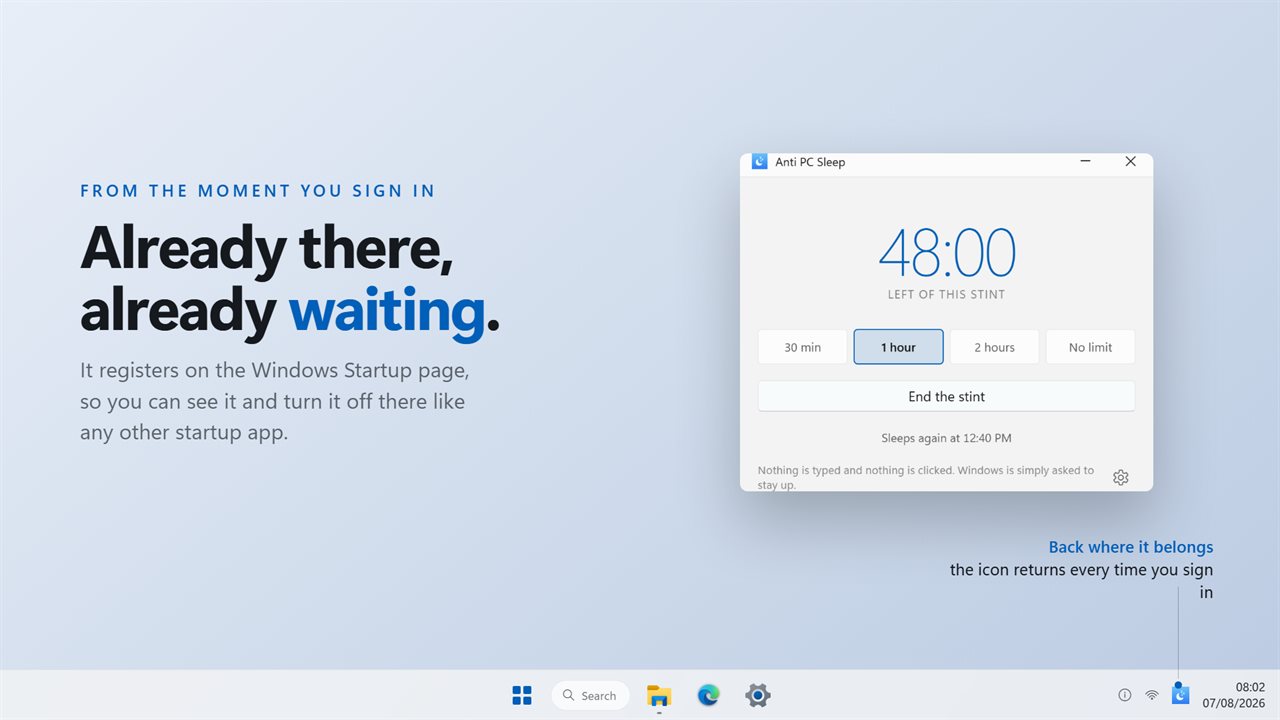
There is a small window too, for anyone who prefers buttons to a menu, but the app still opens to the tray by default and stays out of your way.
Stop the computer from sleeping for a set time
The Duration menu lists 5, 10, 15 and 30 minutes; 1, 2, 4, 8 and 12 hours; and Infinitely. Short holds suit a file copy or an installer that cannot be interrupted. The long ones cover an overnight render, a large game download or a backup to an external drive.
In the window, quick buttons cover 30 minutes, 1 hour, 2 hours and No limit, and Start the stint begins the hold. The window shows the time left of the stint and the clock time it Sleeps again at, and End the stint or Deactivate in the tray menu stops it early. Closing the window does not stop anything; the hold continues from the tray until it expires or you choose Quit.
Keep the screen awake, or let it go dark
Keeping the system awake and keeping the display lit are separate requests, and the app lets you pick. Leave Keep the screen on switched on for a presentation, a recipe on a kitchen laptop or a dashboard on a wall monitor. Switch it off when the work happens in the background: the monitor blanks on its normal timeout while downloads and renders carry on, which saves power and spares an OLED panel.
Keep a laptop awake on battery without draining it
Laptops sleep sooner on battery than on the charger, which is exactly when an overnight job tends to die. Size the hold a little longer than the job, 8 hours for a backup that starts at bedtime or 30 minutes for a large installer, and the laptop is free to sleep again once it ends instead of idling until the battery is empty.
Two things a hold does not override. Closing the lid follows the lid setting in Windows power options, so leave it open. And when the battery reaches its critical level, Windows still takes its critical battery action, so plug in for anything longer than the charge will last.