How to password protect a folder when Windows has no setting for it
Look up how to password protect a folder in Windows 11 and you will find three answers, none of them quite right. The Encrypt contents box in a folder's Advanced properties ties access to your Windows sign-in, so anyone who uses your account sees everything, and Home editions do not offer it. BitLocker covers a whole drive, not one folder. Hiding a folder stops nobody who turns on hidden items.
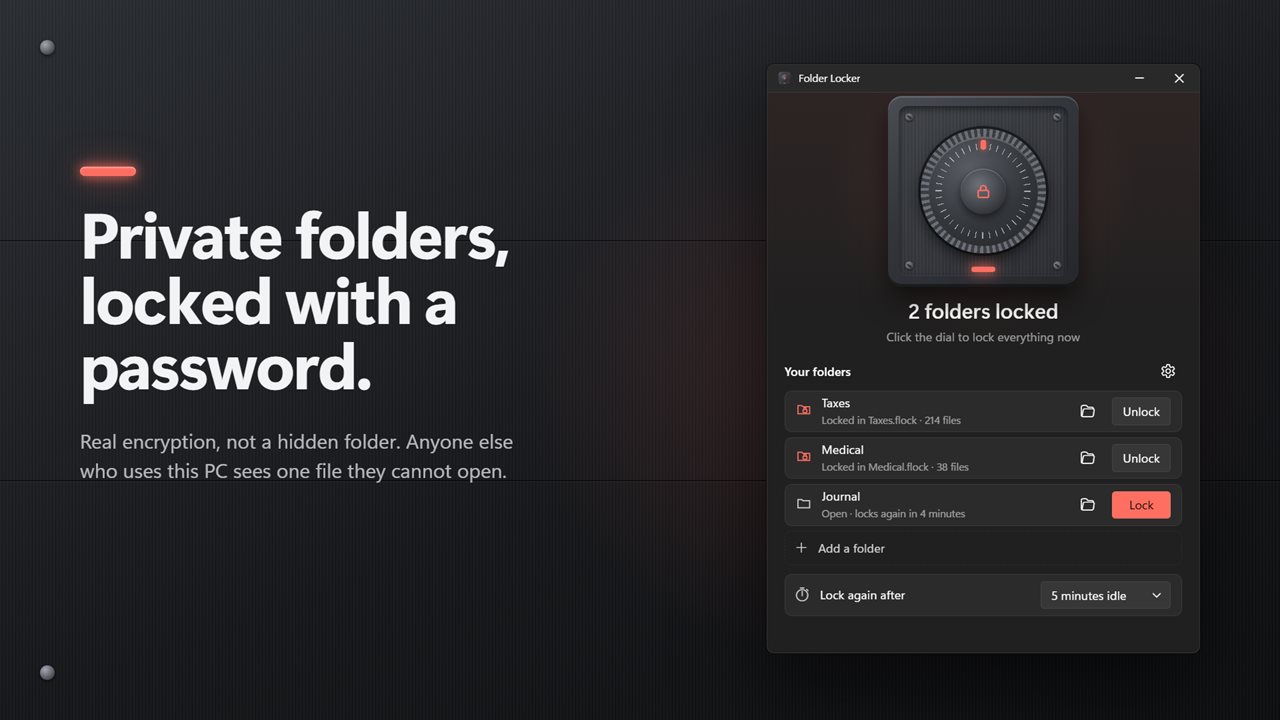
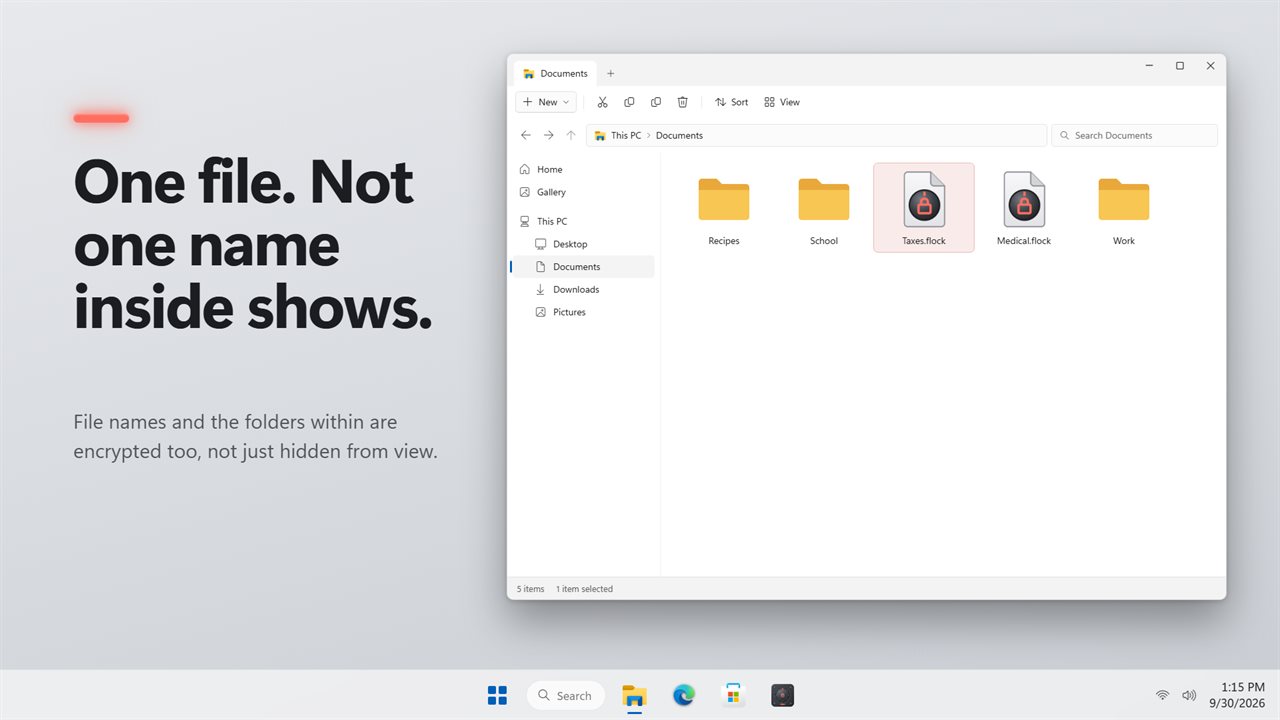
Folder Locker gives a folder its own password. Choose Add a folder, and the folder's contents, including the names of every file and subfolder inside, are encrypted into one file in the same place: Payroll becomes Payroll.flock. Anyone browsing the PC sees a single file and learns nothing from it.
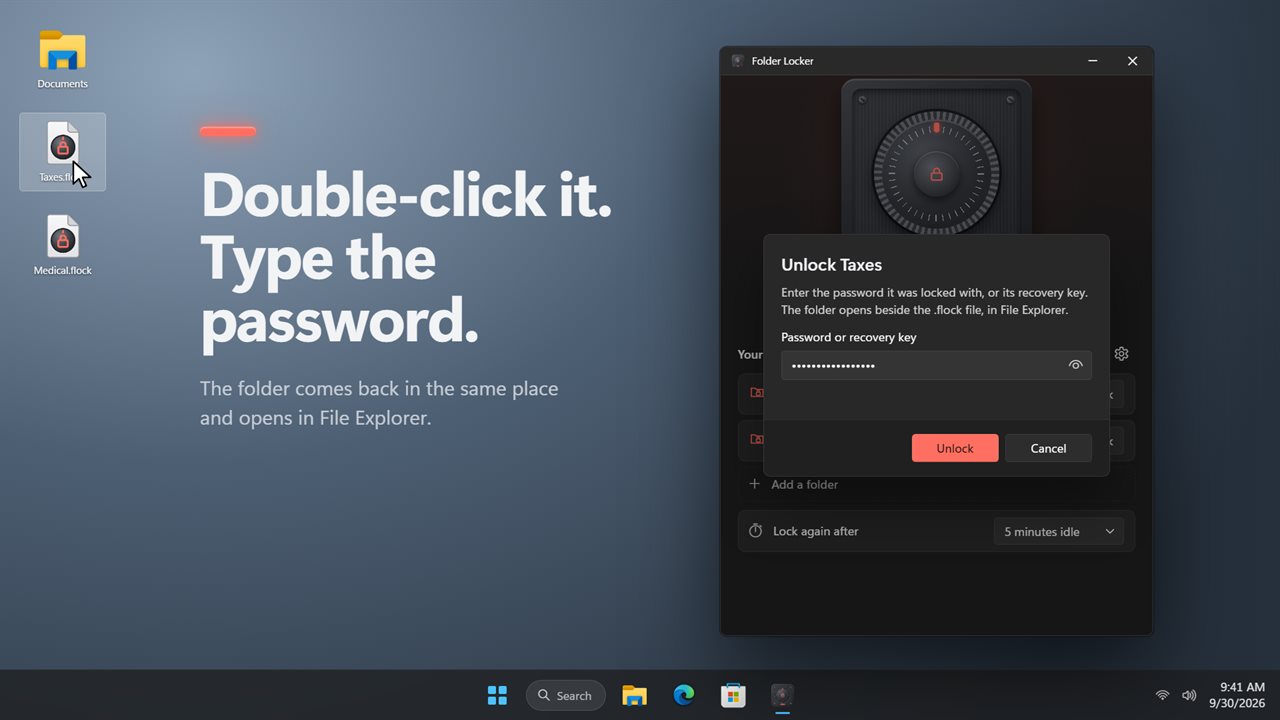
Encryption is XChaCha20-Poly1305, with the key protected by your master password through Argon2id. When you need the folder, double-click the .flock file, type the password, and it comes back where it was and opens in File Explorer.
How to lock a folder, step by step
If you ever stop needing protection for a folder, removing it from the list decrypts its files back into the folder first, so nothing is left sealed by accident.
- Open Folder Locker and choose Set a master password. It must be at least 8 characters, and it is the one password for every folder you protect.
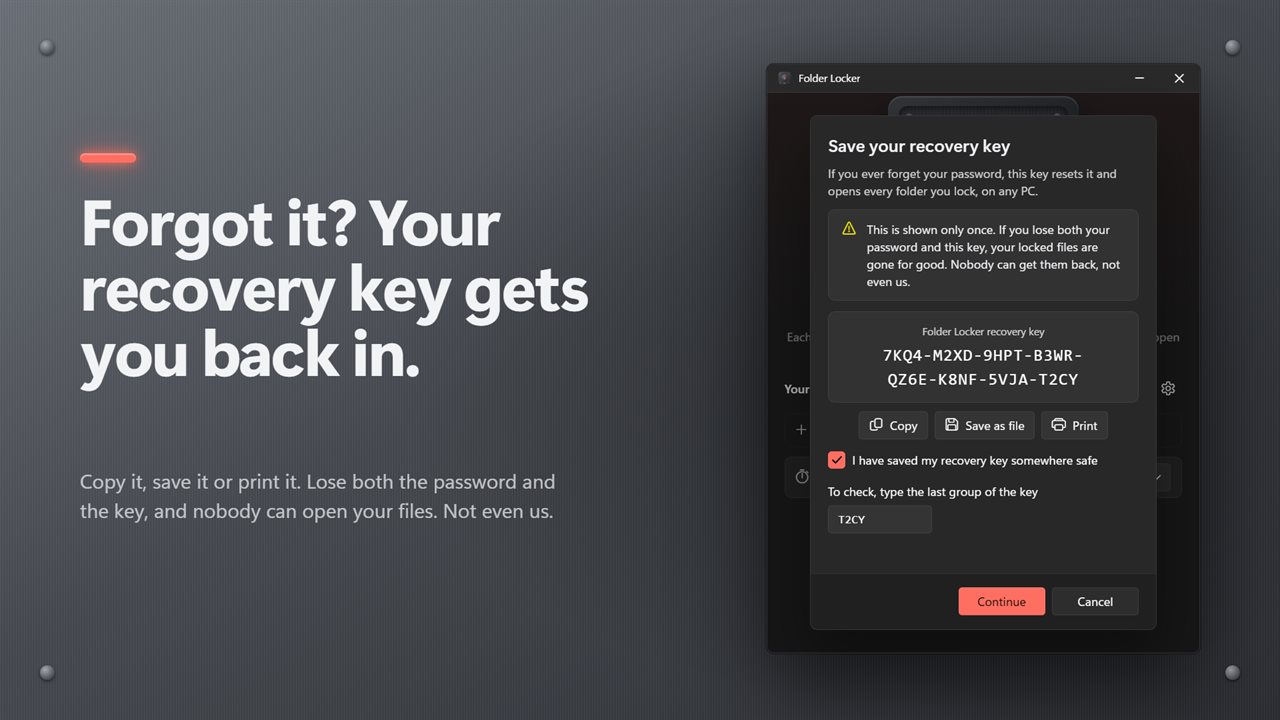
- Save the recovery key that appears next. Use Copy, Save as file or Print, tick the confirmation box, then type the last group of the key to prove you have it.
- Choose Add a folder and pick the folder. It is encrypted into a .flock file beside where it was.
- To work in it, double-click the .flock file or select Unlock, and enter the master password.
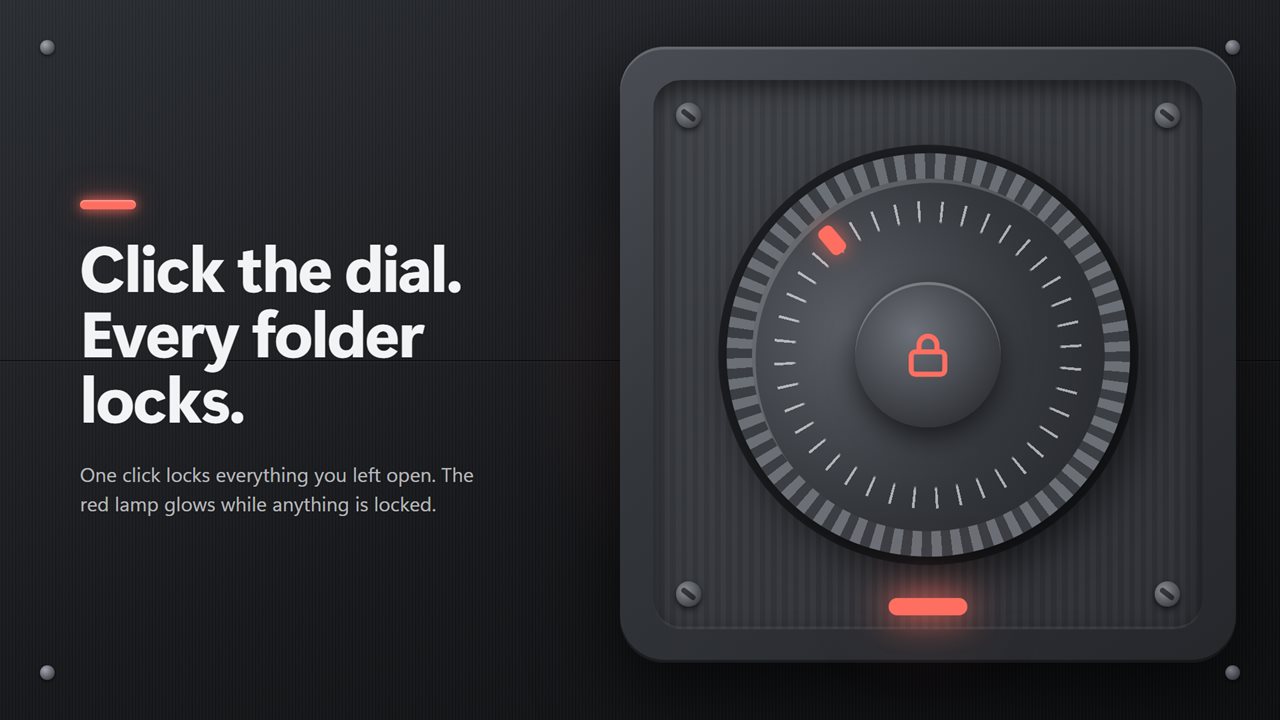
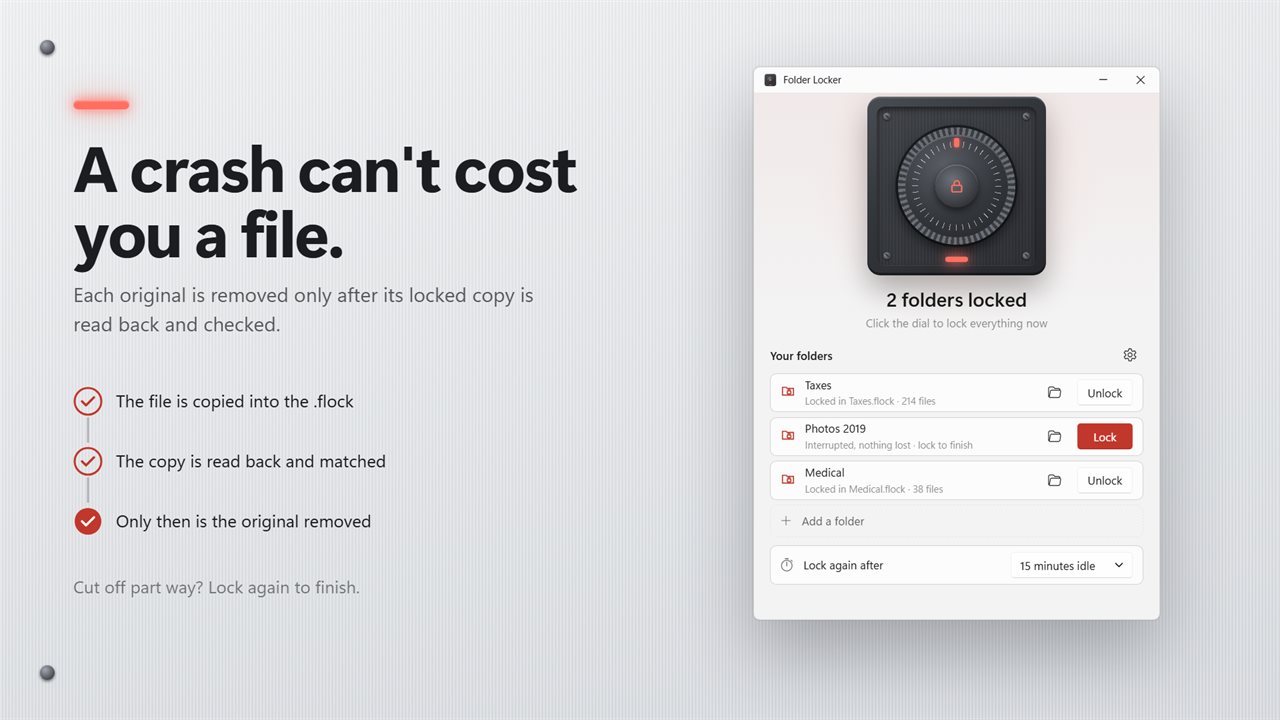
- When you are done, select Lock, or click the dial on the vault door to lock every open folder at once.
A private folder on a shared PC that locks itself again
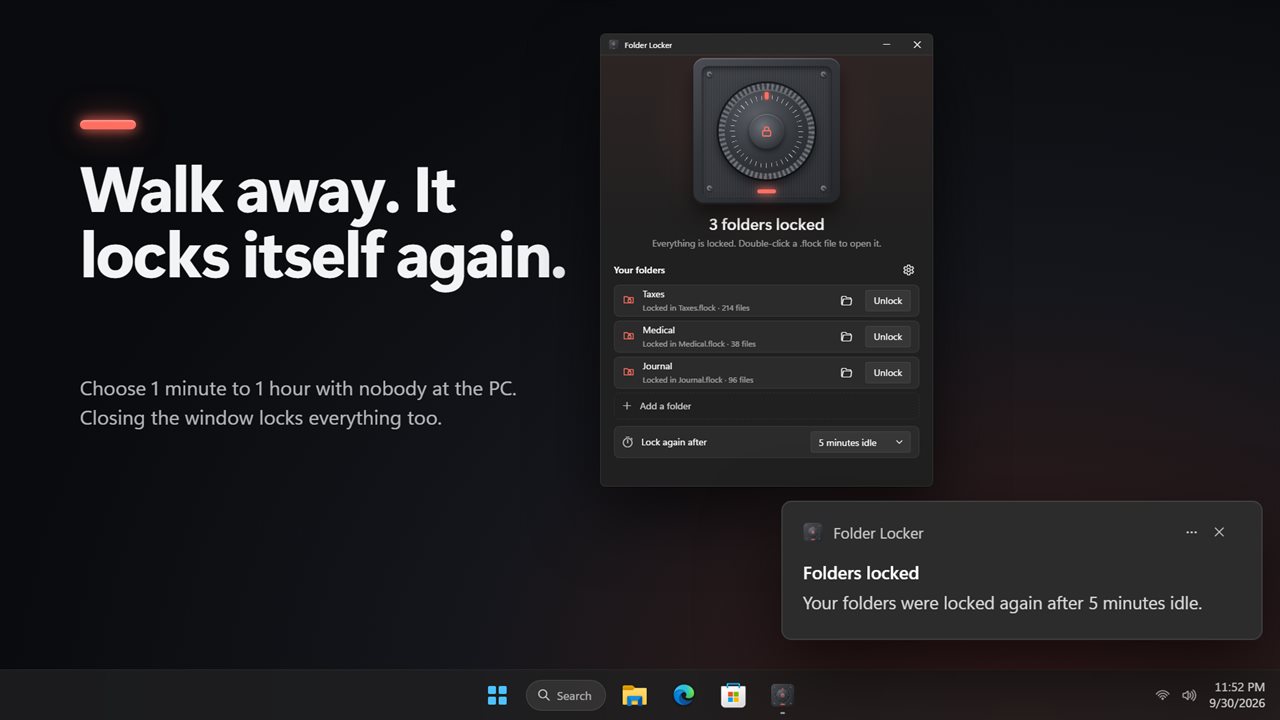
The usual weak point of a locked folder is the moment you forget to lock it. Under Lock again after, choose 1, 5, 15 or 30 minutes idle, 1 hour idle, or Never. Once the keyboard and mouse have been untouched that long, every open folder is sealed and a notification says so. Shutting the window seals them too before the app quits.
A lock is designed to survive interruptions. Each original is removed only once its encrypted copy has been written and verified, so a crash or power cut leaves every file either still in the folder or safely inside the .flock. The folder shows as Interrupted, nothing lost, and selecting Lock completes the job.
Forgot the folder password? The recovery key
The recovery key is eight groups of four letters and digits. Choose Forgot password?, enter the key and a new master password, and every locked folder moves to the new one. The key also opens any single .flock file on its own, on this PC or another one with Folder Locker installed.
There is no other way in. Lose both the password and the key and the files are gone, which is exactly what makes the encryption worth having. Changing the master password is quick, because files are not encrypted a second time, and you can issue a fresh recovery key from Settings whenever the old one may have been seen.