EEvlarSoft

Taskbar RSS Reader

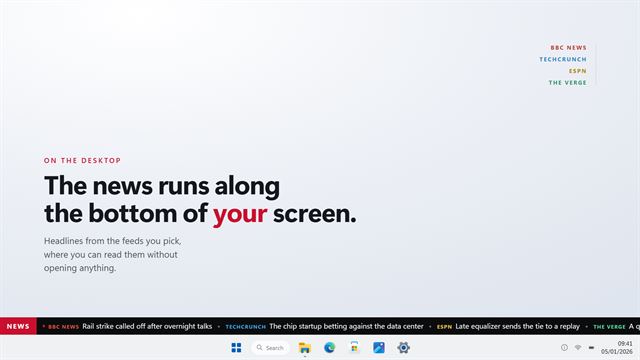
A desktop RSS reader that sits in the notification area and opens your feeds as a one-page newspaper, right above the clock.

Buy for $1.99
One payment. No subscription.
14-day money-back guarantee.
3.0
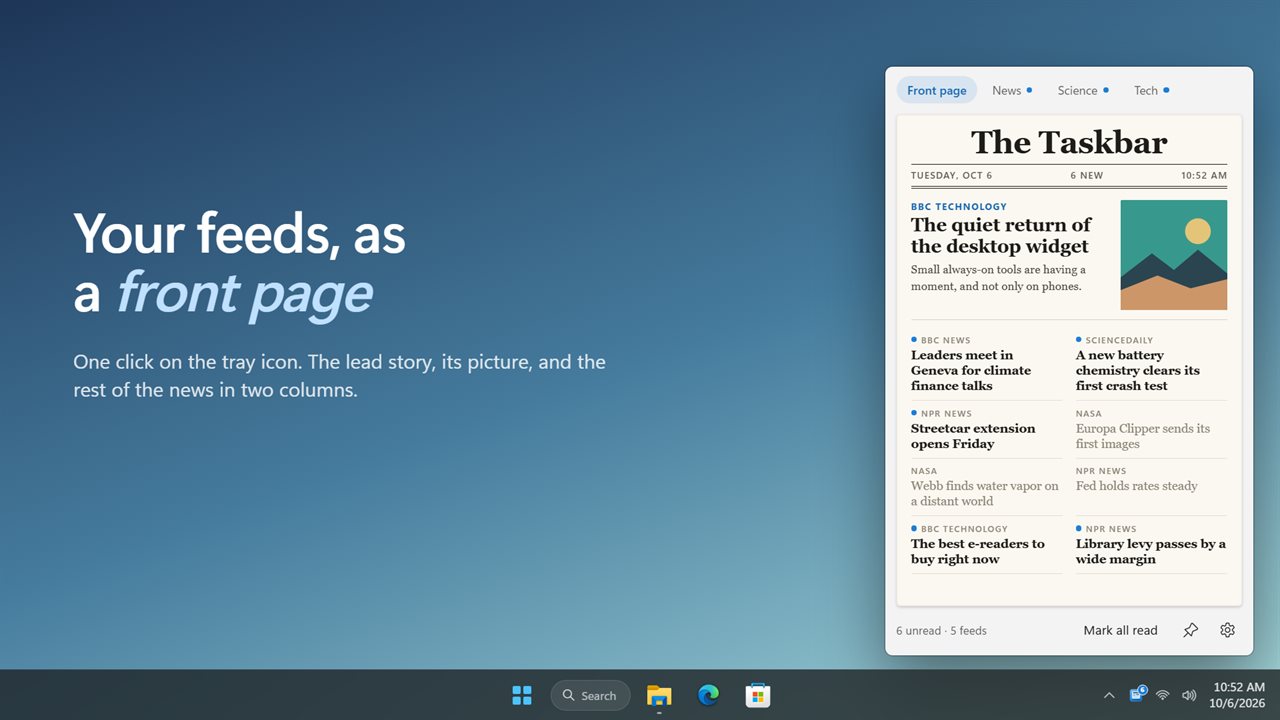
Your feeds as a front page, one click from the taskbar.
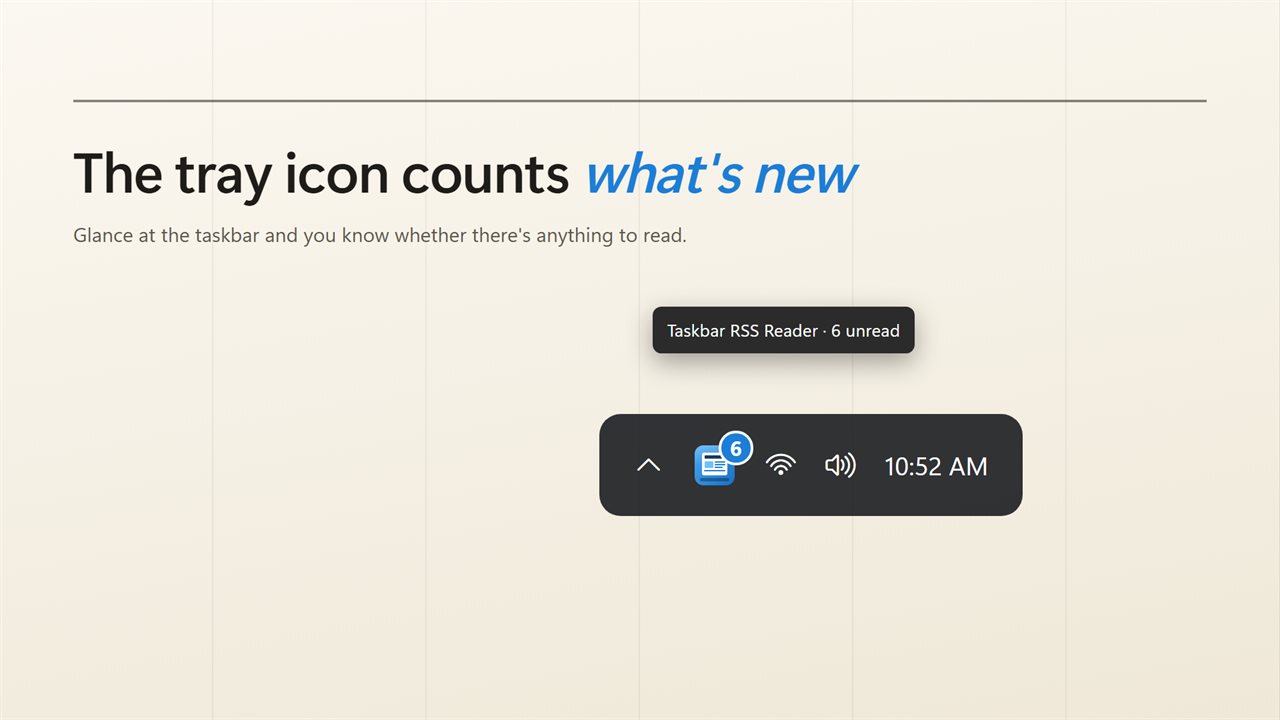
The tray icon counts what you haven't read.
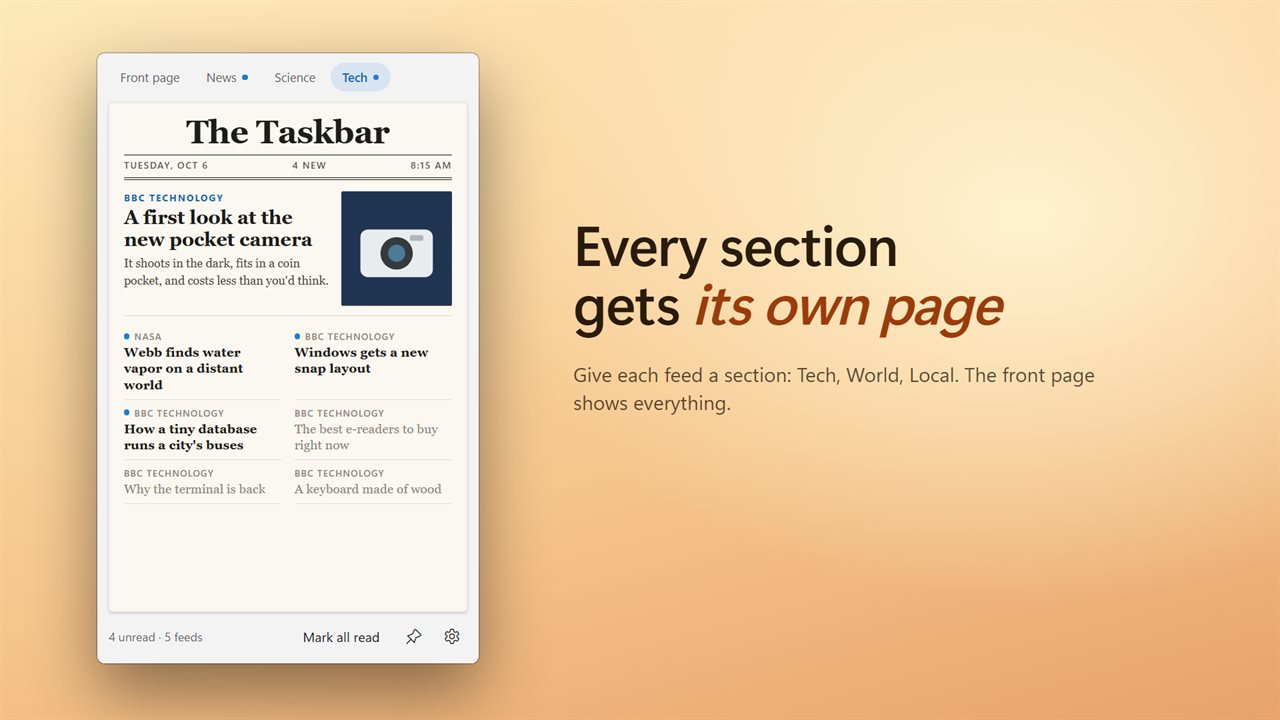
Every section gets its own page.
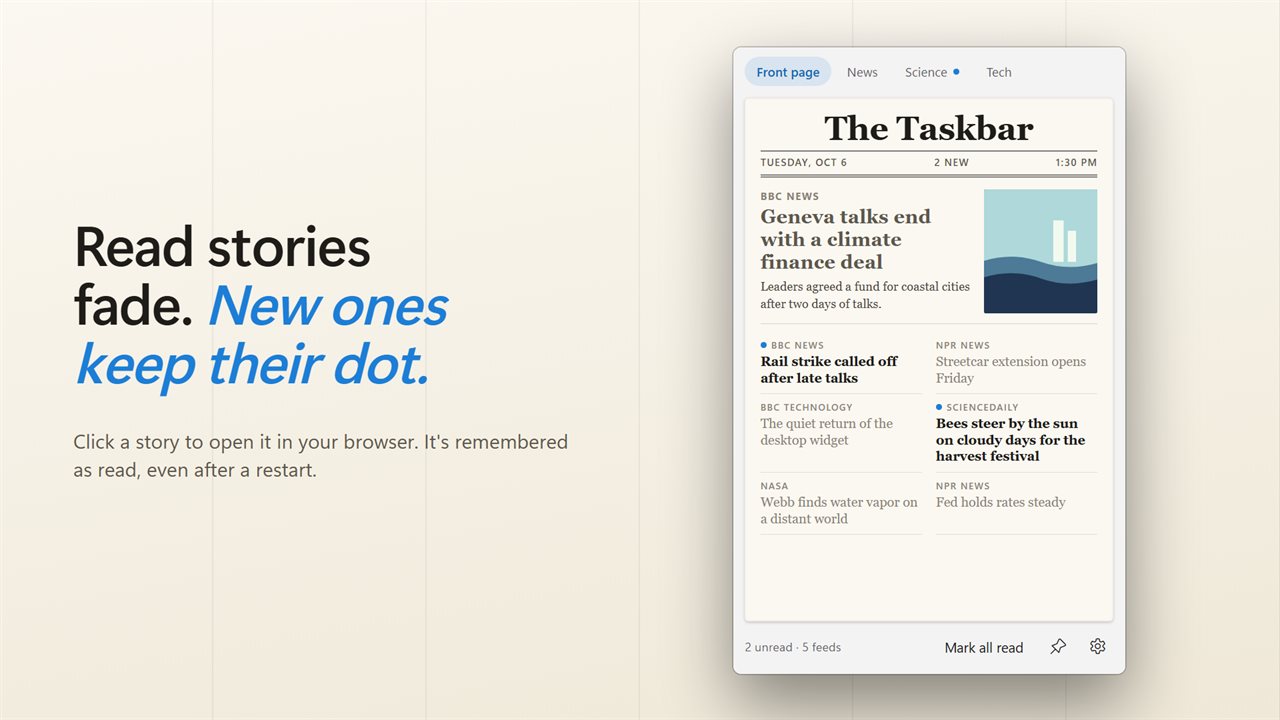
Read stories fade. New ones keep their dot.
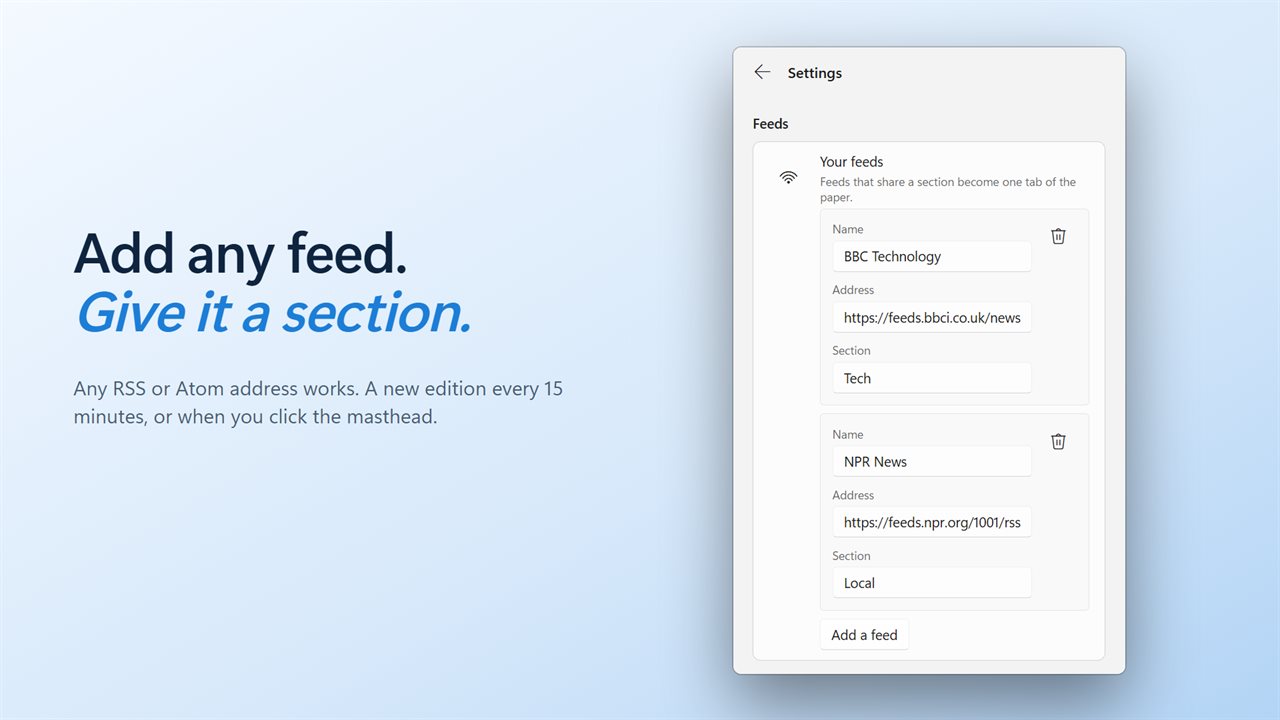
Add any feed and give it a section.
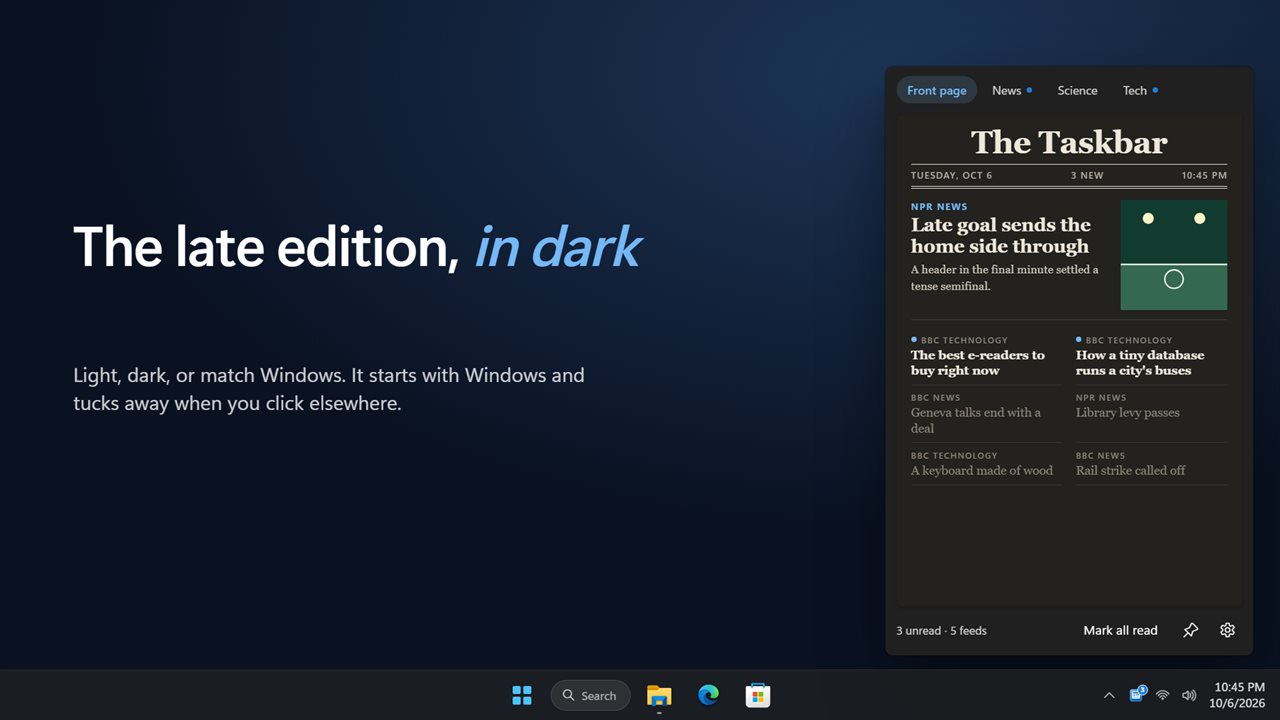
The late edition, in dark.

Your feeds as a front page, one click from the taskbar.

190,000+downloads of EvlarSoft apps
Signed by EvlarSoftVerified US publisher
14-day money-backNo questions asked
Updates includedNo upgrade fees

An RSS reader for Windows you can read in ten seconds

Windows has no RSS reader of its own, and most of the ones you can install are three-pane programs built for working through hundreds of unread items. Taskbar RSS Reader is for the other habit: a quick look at the news between tasks. Click its tray icon and a compact front page slides up from the taskbar. Click anywhere else and it gets out of the way.

Each edition is laid out like a paper rather than a list. The newest story that has a picture leads at the top, and up to a dozen more run underneath it in two columns. Across the masthead you get the date, a count of fresh items and the print time of the edition, so you know at a glance whether it is worth reading now.

Stories open in your normal web browser. Nothing is rewritten or scraped; the app shows the headline, summary and picture the feed itself publishes.

Add any RSS or Atom feed and sort it into sections

The paper starts with five general sources split into News, Tech and Science. Change or delete any of them under Settings, in Your feeds. Choose Add a feed, paste an Address, fill in a Name and type a Section, or use Browse feeds to pick from a list of well-known outlets grouped by topic.

Every section you name becomes its own page, and Front page mixes them all. That makes it easy to keep local news apart from tech blogs, or to give a hobby its own page you only open on weekends. Move up and Move down set the order. The reader handles RSS 2.0, Atom and RDF feeds.

An unread count on the taskbar, and a feed widget you can pin

The tray icon carries a count of stories you have not opened, which is the whole point of keeping a reader on the taskbar: you can see whether anything new has come in without clicking. The badge counts up to 9 and then shows 9+. Stories you have opened are dimmed on the page, so new ones stand out. Your reading history is saved, so a restart does not bring old items back as new. Mark all read clears the page you are on.

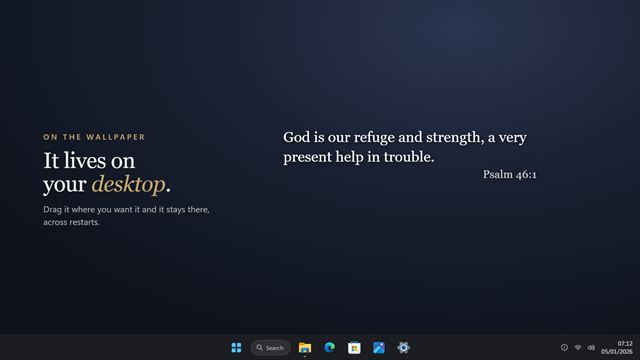
If you would rather keep the news in view, choose Pin to the desktop. The paper then stays open as a small news feed widget wherever you drag it. Unpin sends it back to the tray.

How often it fetches, and what happens offline

Set Fetch a fresh edition every to 5 minutes, 15 minutes, 30 minutes or 1 hour, or click the masthead to print one immediately. If a feed does not answer, the paper names it and carries on with the rest. With no connection at all, the last edition stays on screen with its print time, so you can still read what was fetched.

Hide adult topics is on from the start. It filters out stories whose headline or summary is about explicit content, which can turn up even in mainstream feeds. Start with Windows keeps the paper waiting in the notification area after you sign in.
Inside the taskbar news reader

  • A newspaper layoutOne lead story with its picture and two columns below
  • Your own sections, each on its own page, plus a combined Front page
  • RSS 2.0, Atom and RDF feeds, added by address or picked from Browse feeds
  • Unread count drawn on the tray icon, up to 9 and then 9+
  • Read history kept across restarts, with Mark all read per page
  • Fresh editions every 5, 15, 30 or 60 minutes, or on a masthead click
  • The last edition stays readable when you are offline
  • Pin to the desktop as a movable widget, or Unpin back to the tray
  • Hide adult topics filter, on by default
  • Light, Dark or Match Windows themes

Good fits for a tray RSS reader

A news break between meetings

One click shows what has changed since the last edition, and one click elsewhere puts it away. No browser tab to remember to close.

Following blogs that post rarely

Put slow, occasional blogs in their own section. The unread count tells you when one finally posts, without checking each site.

A second monitor news panel

Pin the paper on a side screen and it stays there as a live front page, refreshing on the schedule you set.

What's new in 2.0.3

  • New: a front page in a flyout above the tray, in place of the old menu
  • New: several feeds, with a section tab for each group
  • New: a lead story with its picture
  • New: unread dots, a count on the tray icon, and Mark all read
  • New: fetches every 15 minutes, or when you click the masthead
  • Your feed from the earlier version carries over

Questions

Anything else? Ask us

Which feed formats does it read?

RSS 2.0, Atom and RDF (RSS 1.0). Paste the feed's own address, starting with http:// or https://; it does not find a feed from a website's home page address.

Which feeds come set up, and can I change them?

BBC News, NPR News, BBC Technology, NASA and ScienceDaily are set up at first. You can remove or change any of them, add your own, and pick from a list of well-known feeds in Settings.

How often does it check for new stories?

Every 15 minutes by default, or every 5, 30 or 60 minutes. Clicking the masthead fetches a fresh edition right away.

Does it work without an internet connection?

It shows the last edition it fetched and says when that edition was printed. New stories arrive once the connection is back.

How does the adult topics filter work?

It hides stories whose headline or summary uses words about porn, nudity or sex, even from mainstream outlets. It is on by default and can be turned off in Settings.

Can I keep the news open on the desktop instead of in the tray?

Yes. Pin the paper and it stays open where you drag it. Unpin it and it goes back to opening above the tray and hiding when you click elsewhere.

Does Windows 11 have a built-in RSS reader?

No. Windows 10 and 11 do not include one, so you need a separate app. Taskbar RSS Reader adds one that opens from the notification area.

Can I see how many unread stories there are without opening it?

Yes. The tray icon carries a badge with the number of stories you have not opened across all your feeds, up to 9 and then 9+.

Can I read one topic at a time?

Yes. Give feeds a Section name in Settings and each section gets its own tab across the top of the paper. Front page mixes every section together.

Which versions of Windows does it run on?

Windows 10 (version 1809 or later) and Windows 11.

Is it a subscription?

No. Taskbar RSS Reader is a one-time purchase of $1.99, and updates are included.

How do I get it?

Buy it on this page and your license key arrives by email. If the button says Notify me, Taskbar RSS Reader is not on sale here yet; leave your email and we will tell you when it is.

Prefer widgets? The RSS Reader widget on WidgetSpark does a similar job, alongside over 100 other desktop widgets in one app.