EEvlarSoft

Network Indicator Widget

An always-on internet speed meter for Windows: two needles for upload and download, a small desktop indicator, and a tray icon that keeps reading with the window closed.

Buy for $2.49
One payment. No subscription.
14-day money-back guarantee.
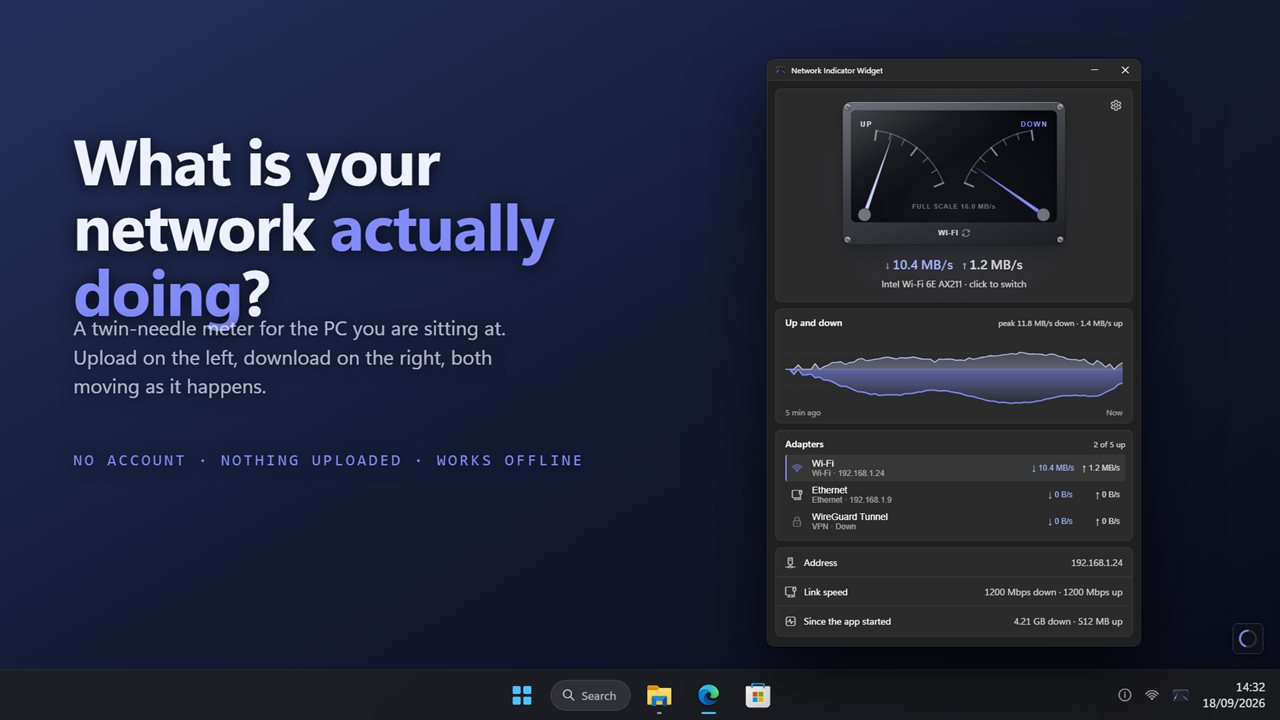
Upload and download as they happen, with every adapter listed.
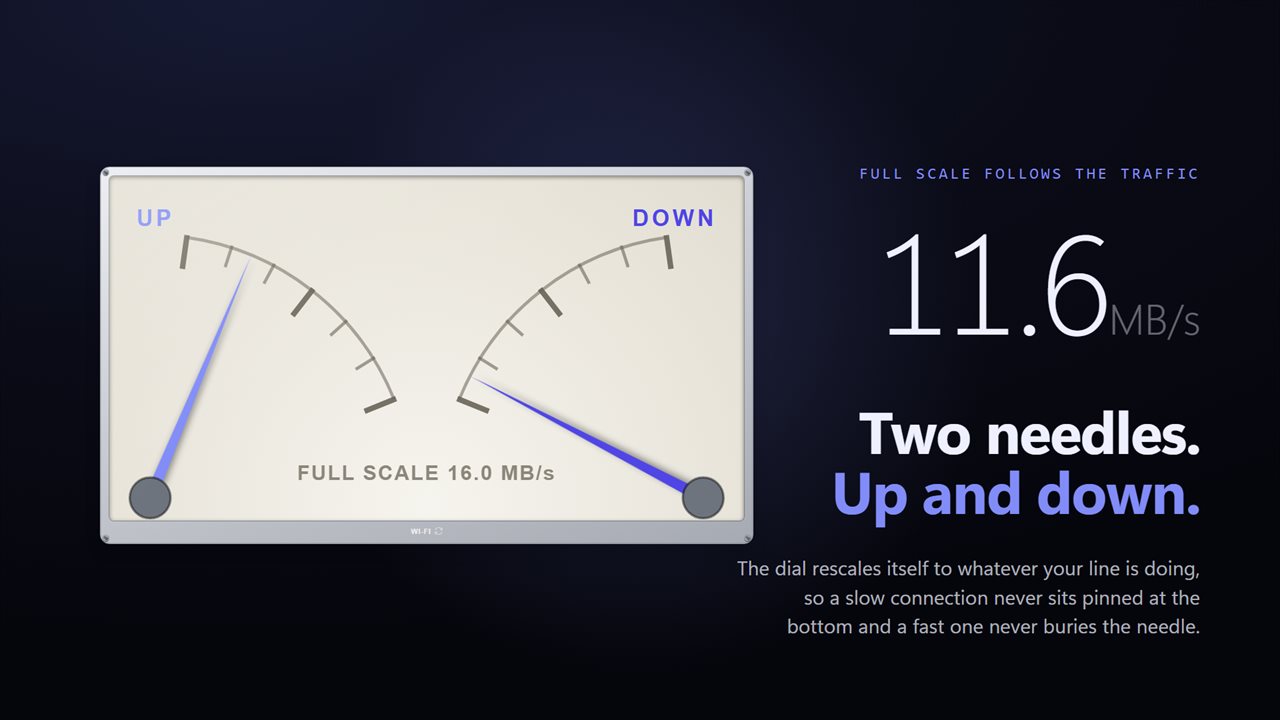
Full scale follows your traffic, so the needle is never buried.
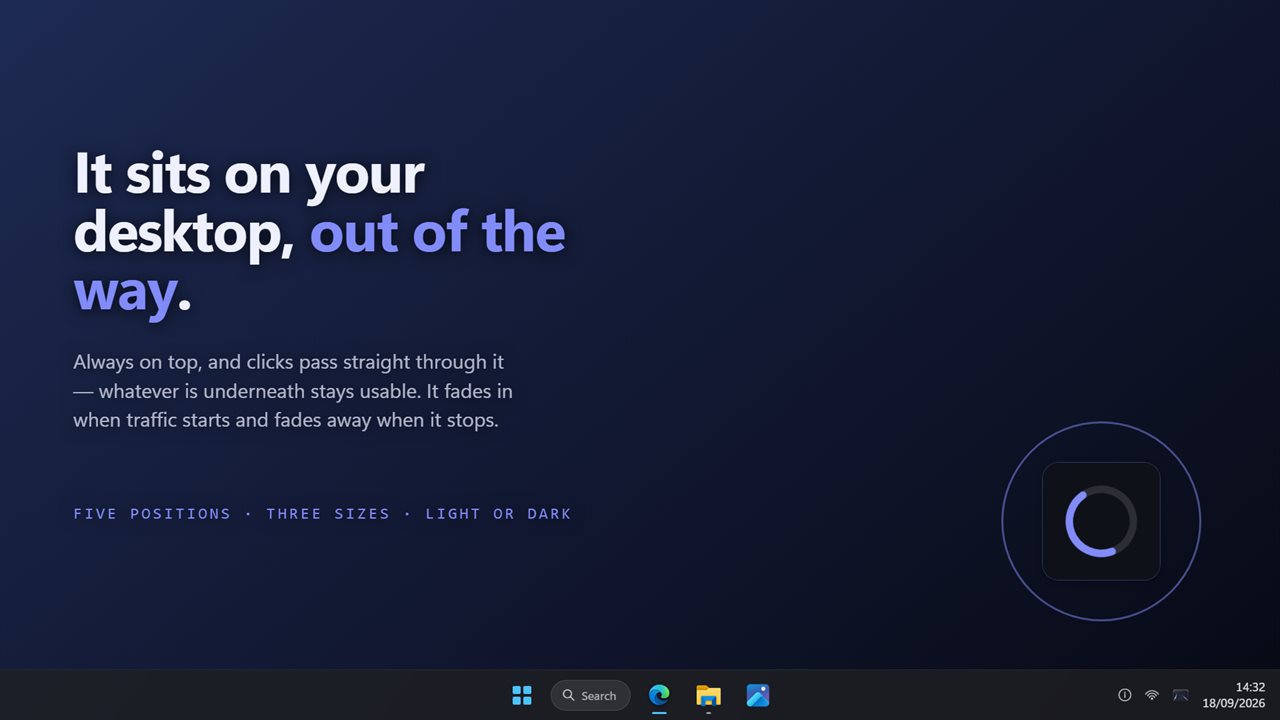
The indicator sits on your desktop and clicks pass through it.
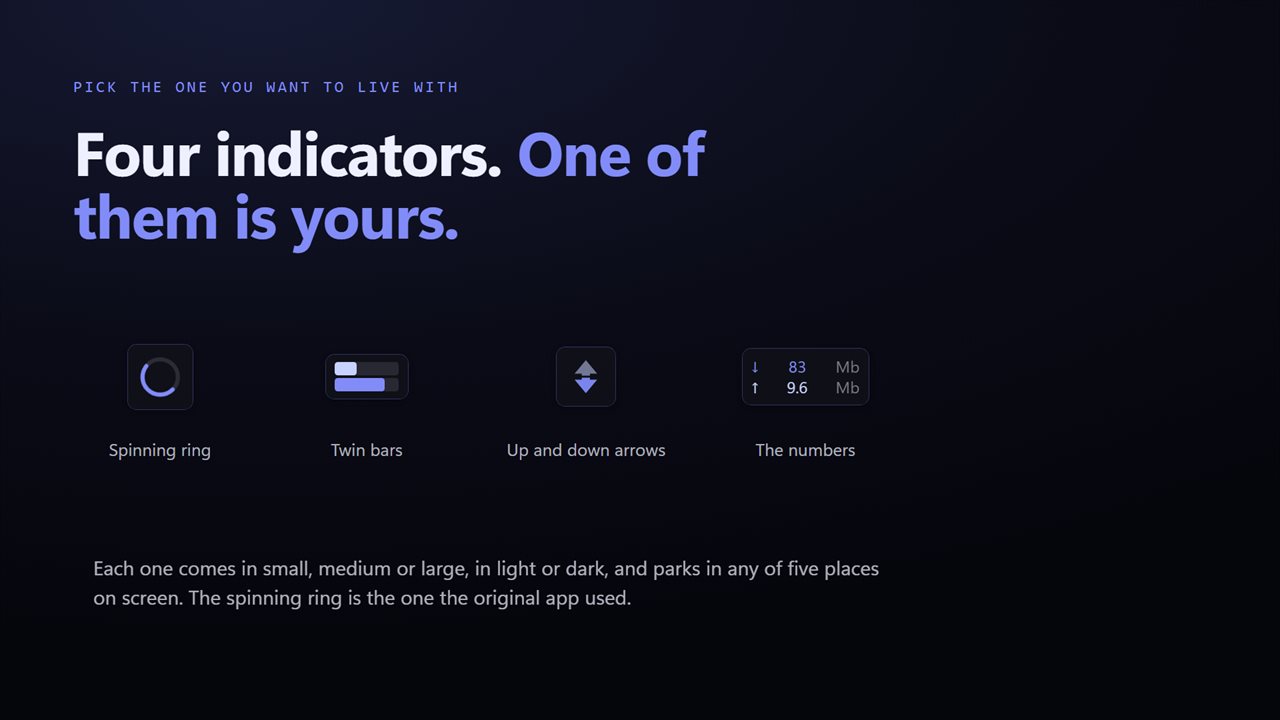
Four looks for the indicator. Pick the one you want to live with.
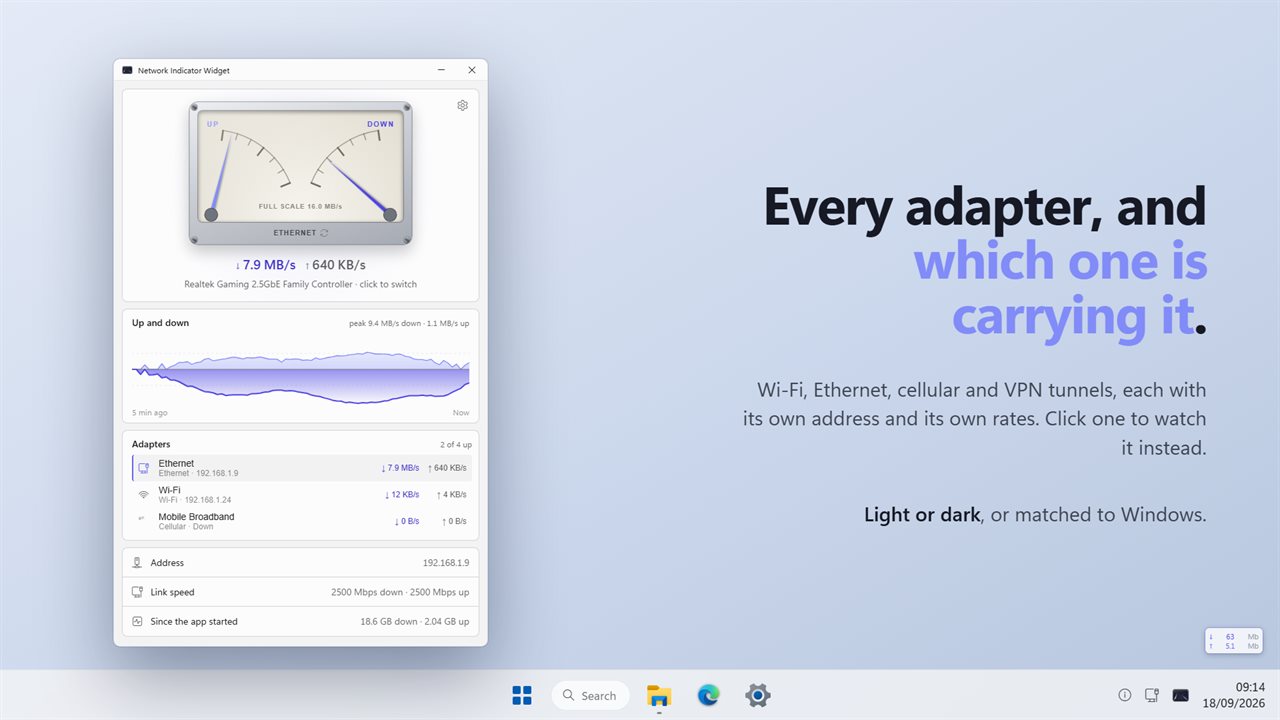
Wi-Fi, Ethernet, cellular and VPN, each with its own address.
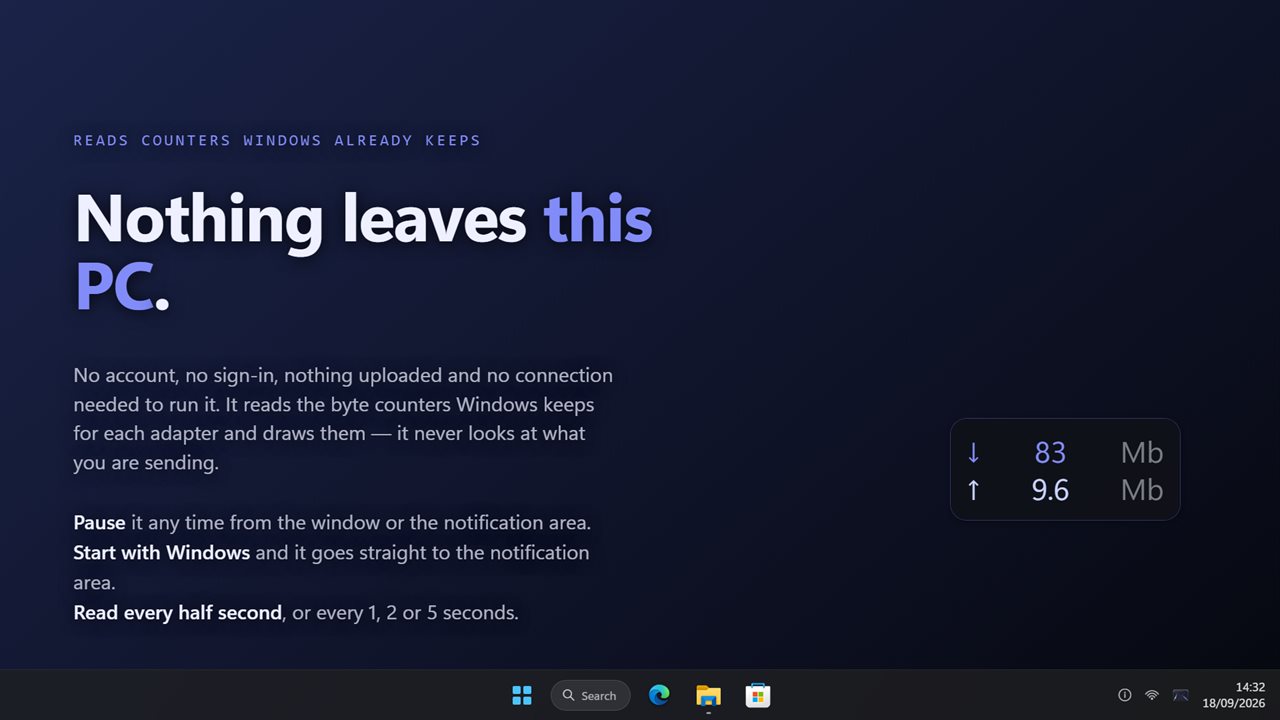
It reads counters Windows already keeps. Nothing leaves this PC.

Upload and download as they happen, with every adapter listed.

190,000+downloads of EvlarSoft apps
Signed by EvlarSoftVerified US publisher
14-day money-backNo questions asked
Updates includedNo upgrade fees

A live internet speed meter, not a speed test

Windows has no internet speed meter that stays on screen and shows what your connection is doing from moment to moment. Task Manager can graph it, but only while you keep that window open in front of your work. Network Indicator Widget fills the gap: you glance at it and know whether something is downloading, uploading or sitting idle.

The main window is a dial with two needles, upload on the left and download on the right. Left on Follow the traffic, the top of the dial adjusts to your line, so a slow line still moves the needles and a fast one does not slam them against the stop. If you would rather have a fixed dial, set Full scale to 1 Mbps, 10 Mbps, 100 Mbps or 1 Gbps.

It sends no test traffic of its own. Its figures come from the per-adapter byte totals Windows already maintains, so the numbers are what your PC is actually using, not the maximum your provider can deliver.

A net speed indicator that sits on your desktop

Show the indicator on screen is on from the first launch, so a small badge sits above your other windows in the bottom right corner. Every click passes straight through it to the window underneath, and it never takes focus. With Hide it while nothing is moving on, as it is to begin with, the badge appears as soon as data starts flowing and fades away once the line goes quiet; switch that off and it stays put.

  • How it looks: Spinning ring, Twin bars, Up and down arrows, or The numbers
  • How big it is: Small, Medium or Large
  • Where it sits: Bottom right, Bottom left, Bottom center, Top center or Center screen, on the primary display
  • Light or dark, or matching Windows

Network activity at a glance from the tray

The notification-area icon is drawn live as a pair of bars, upload above a center rule and download below, and hovering it gives the figures. So you can close the window and keep the reading. Closing hides the app to the tray rather than quitting it, and Pause the meter is in the icon's right-click menu as well as in Settings.

With Start with Windows on, the app goes straight to the tray at sign-in. How often to read the counters can be Twice a second, Every second, Every 2 seconds or Every 5 seconds.

See which adapter is busy, and the last five minutes

Beneath the dial, a ribbon plots the past five minutes: outgoing traffic rises above a center line, incoming falls below it, and each direction's highest point is labeled. It tells a finished burst apart from a transfer that is still running.

The Adapters list shows Wi-Fi, Ethernet, cellular and VPN connections, which are up, and the rates on each. The meter follows the busiest one unless you click another to watch. For the watched adapter you also see its address, which copies with a click, its link speed and the total moved since the app opened.
What you get

  • Twin-needle dial for upload and download
  • Automatic full scale, or fixed at 1, 10, 100 or 1000 Mbps
  • Desktop badge in four styles and three sizes that never blocks a click
  • Indicator can fade with idle traffic or stay visible
  • Tray icon drawn as live upload and download bars
  • Five-minute history ribbon with peaks
  • Per-adapter rates for Wi-Fi, Ethernet, cellular and VPN
  • Counter reads from twice a second to every 5 seconds
  • Dark by default, with light and Match Windows themes

Why people keep one on screen

Gamers and streamers

Notice a background update eating upload before it shows up as lag or dropped frames.

Remote workers

Check that a large file is really still uploading, or that the video call has the line to itself.

Troubleshooting a slow connection

Watch the needles while a page loads to tell a quiet line from a saturated one.

What's new in 2.0.3

  • New: a twin-needle meter for upload and download, with a scale that follows your traffic
  • New: four looks for the desktop indicator — spinning ring, twin bars, arrows, or the numbers
  • New: three indicator sizes, light or dark, and five positions
  • New: five minutes of up and down history with peaks
  • New: every adapter listed, with its address and rates; click one to watch it
  • New: address, link speed and totals since the app started
  • New: a notification-area icon that draws the current rates
  • New: pause, and start with Windows
  • The indicator still fades in on traffic and away again when it stops

Questions

Anything else? Ask us

Does the desktop indicator get in the way of clicking?

No. It sits on top of other windows, but clicks pass straight through it and it never takes focus, so a full-screen app stays in front. You can turn it off in Settings and keep only the window and the notification-area icon.

Which monitor does the indicator appear on?

The primary display. It parks in one of five places there: bottom right, bottom left, bottom center, top center or the center of the screen.

Can the indicator stay visible all the time?

Yes. By default it fades in when traffic starts and fades out when it stops; turn off "Hide it while nothing is moving" and it stays on screen.

Which adapter does the meter show?

The busiest connected adapter, unless you click one in the list to watch it instead. If the adapter you picked disconnects, the meter switches to the busiest one rather than going blank.

Does it keep a history of my data use?

No. The ribbon shows the last five minutes, and the totals count only what has moved since the app started. Nothing is kept once you quit.

Does it keep running when I close the window?

Yes. Closing the window hides it to the notification area, where the icon keeps drawing the current up and down rates. Pause it from the icon's menu when you do not need it.

Can Windows 11 show internet speed on the desktop or taskbar?

Not on its own. Task Manager graphs network throughput, but only inside its own window, and nothing in Windows keeps a readout on the desktop. This app adds one as a click-through badge, a dial window and a tray icon.

Is this the same as running a speed test?

No. A speed test floods the line to find its maximum. This meter only reports the traffic already flowing through your adapters, which is what you need to see what is using the connection.

Which versions of Windows does it run on?

Windows 10 (version 1809 or later) and Windows 11.

Is it a subscription?

No. Network Indicator Widget is a one-time purchase of $2.49, and updates are included.

How do I get it?

Buy it on this page and your license key arrives by email. If the button says Notify me, Network Indicator Widget is not on sale here yet; leave your email and we will tell you when it is.