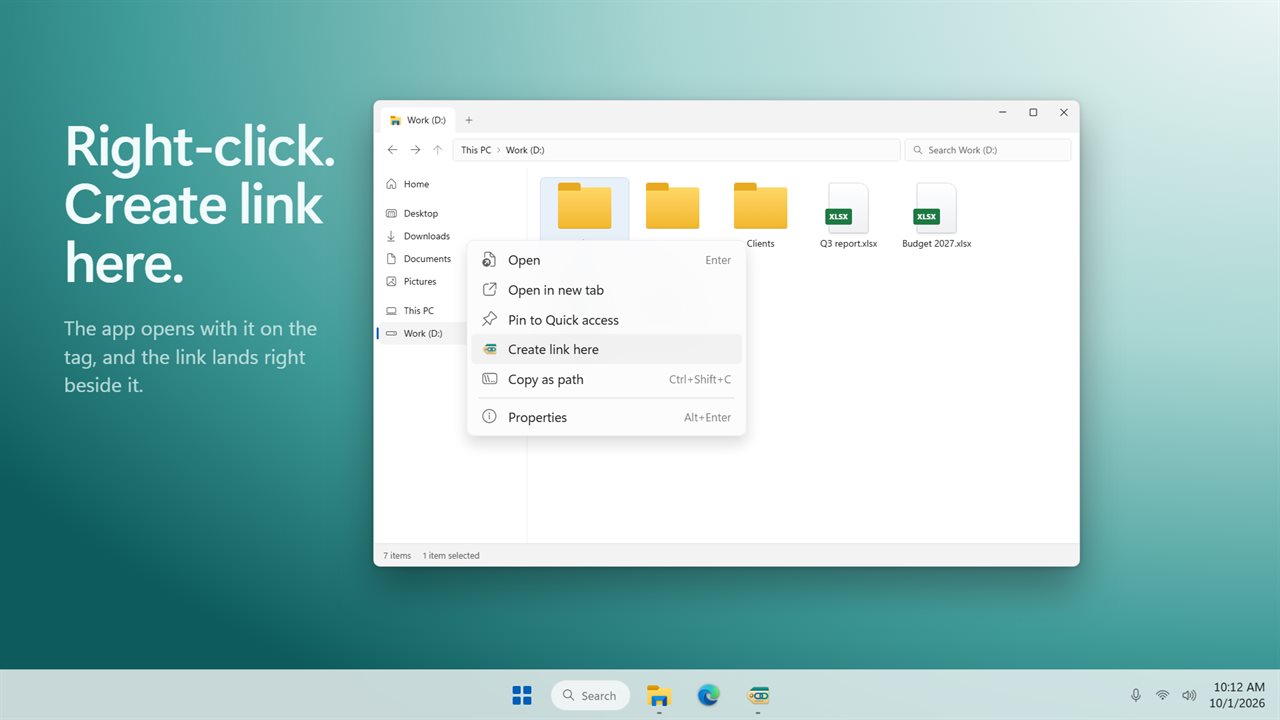
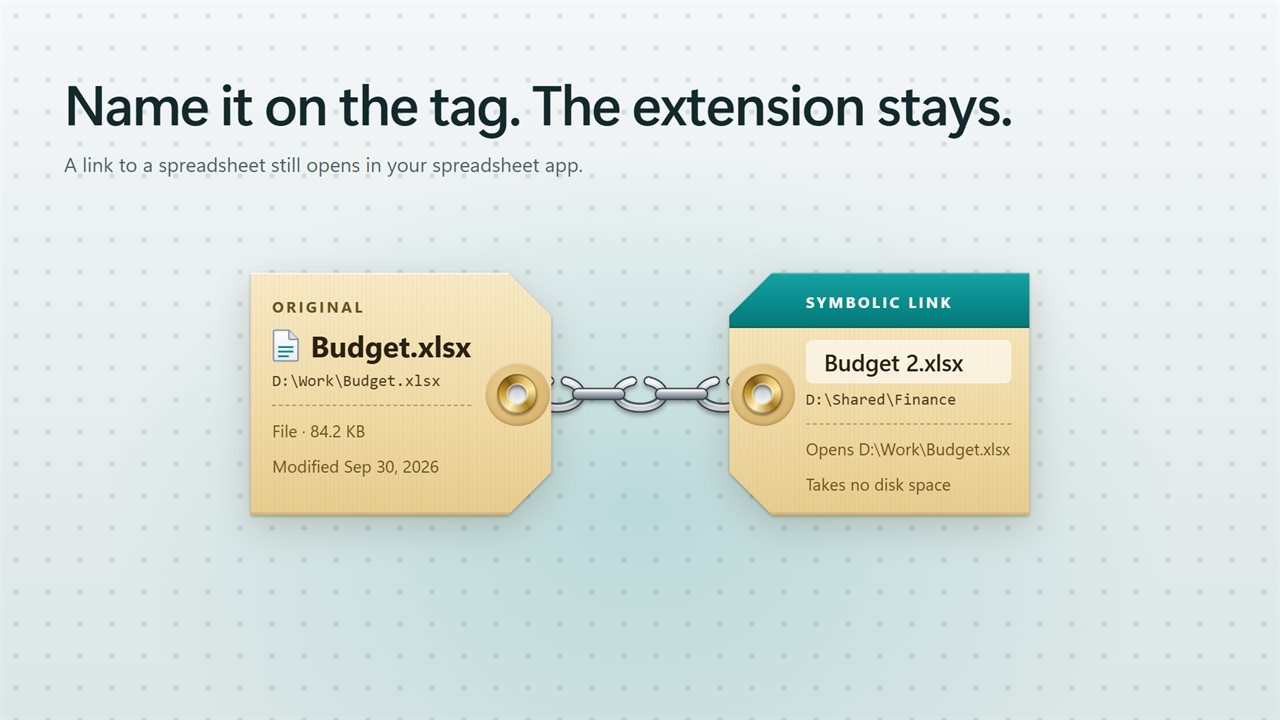
Symbolic links in Windows, made by drag and drop
A symbolic link in Windows lets one file or folder appear in two places while it is stored in only one. Games installed on a big drive but expected on C:, a cloud-synced folder that an app insists on finding in AppData, a shared config file several projects read: links solve all of them without duplicating anything.
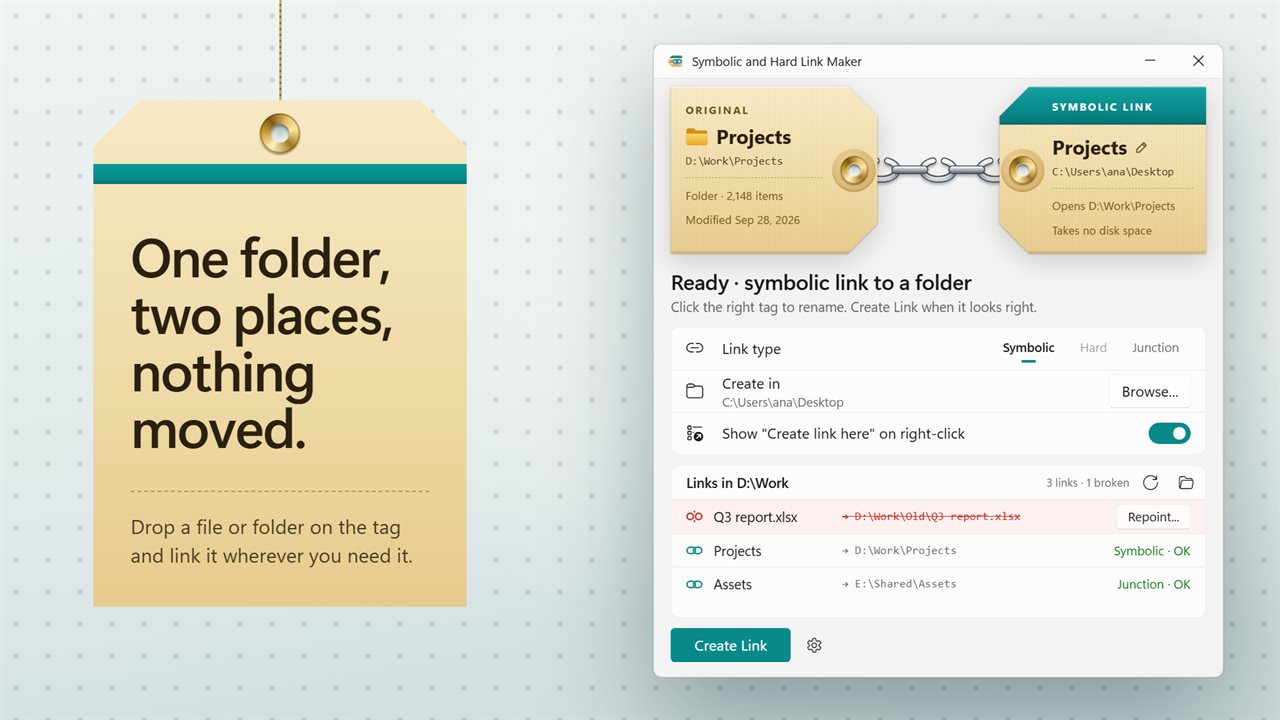
The usual route is the mklink command in an elevated Command Prompt, where the argument order is easy to get backwards and a typo in a long path fails with a terse message. Symbolic and Hard Link Maker swaps that for two tags joined by a chain. Drop the original on the left tag labeled ORIGINAL, or click it to choose a file or folder. The right tag shows the link that will be made: its name, the folder it lands in and the path it opens.
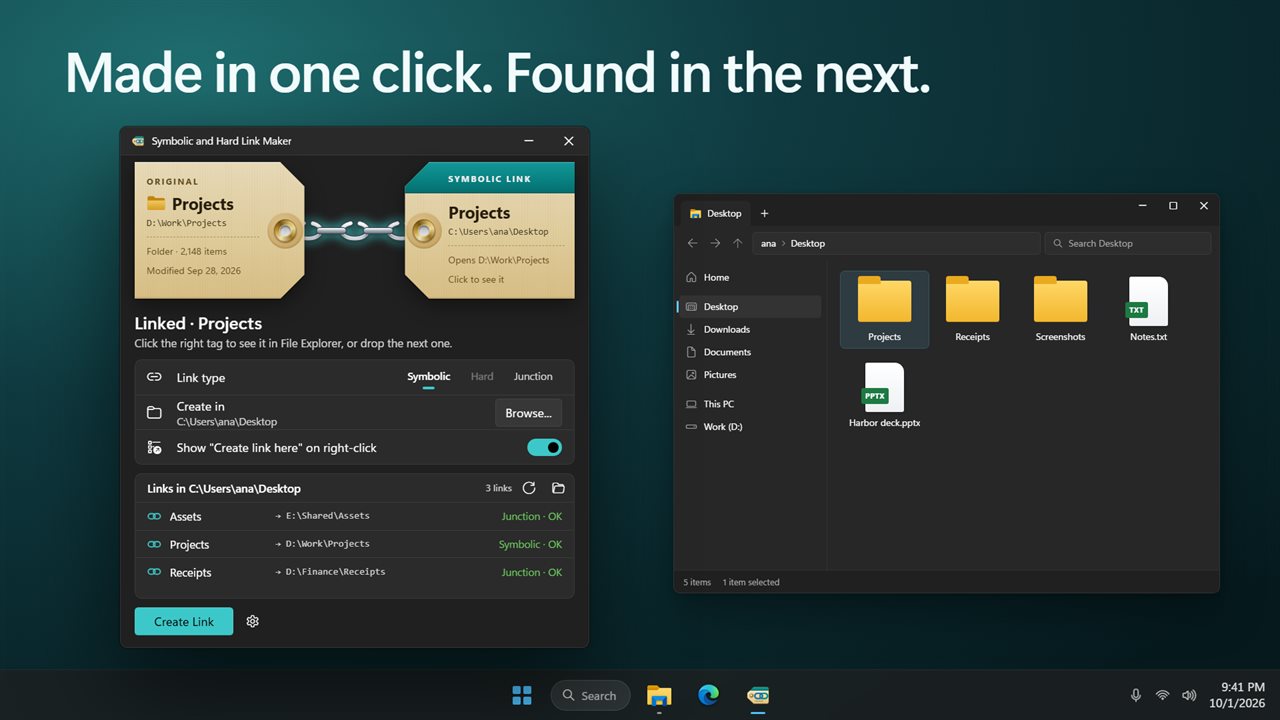
Click the right tag to rename the link, pick a Link type, and press Create Link. When it is done the status reads Linked with the new name, and clicking the right tag again shows it in File Explorer.
Hard link vs symbolic link vs junction
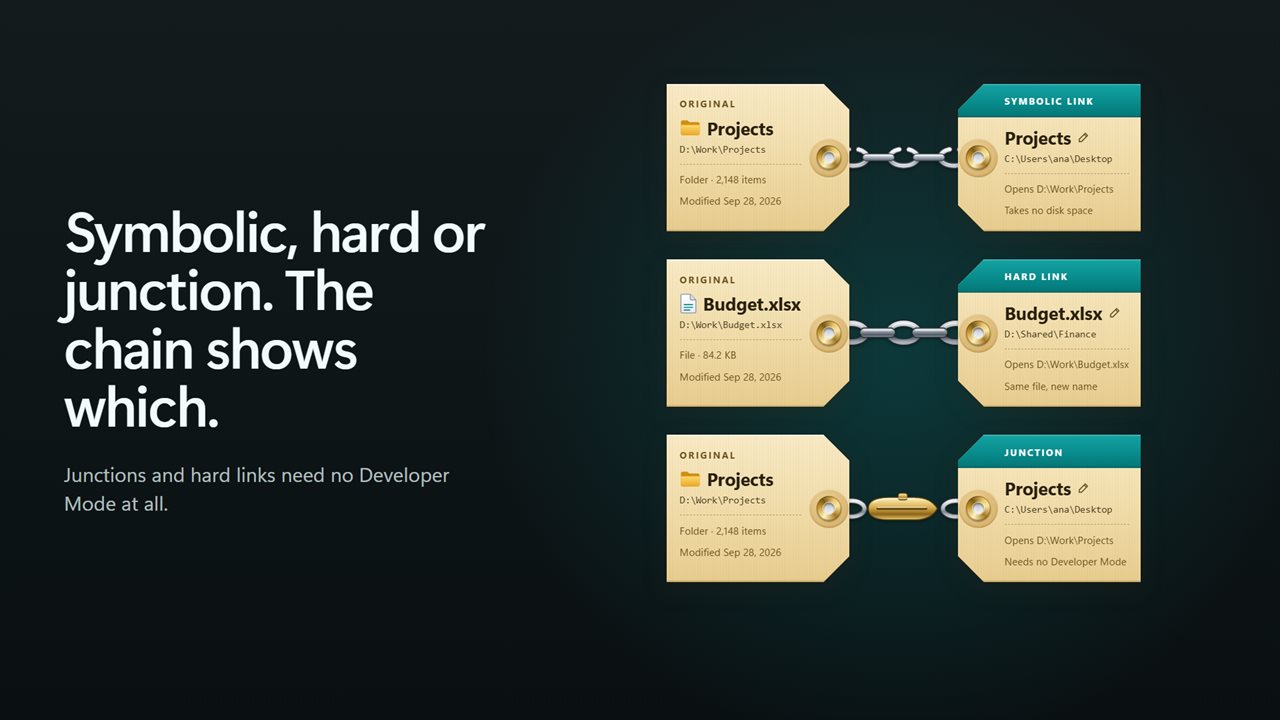
All three make something open from a second location, but they behave differently when the original moves, and they have different rules about drives.
- Symbolic link: a pointer to a path. It can target a file or a folder, on another drive or a network share, and it uses no disk space of its own. If the target is moved or deleted, the link breaks.
- Hard link: a second name for the same file data. Both names are equal, so deleting one leaves the other working. It must sit on the same drive and only works for files.
- Junction: a folder-only pointer to a folder on a local drive. It cannot reach a network share, and making one needs no special permission.
Why Windows asks for Developer Mode
Windows restricts who may create symbolic links. Without administrator rights, an app can only make them when Developer Mode is turned on. Rather than failing with a privilege error, the app checks first and shows Symbolic links need Developer Mode with a Turn on button that opens the right Windows setting.
If you would rather not change that setting, you rarely have to. For a folder, choose Junction; for a file on the same drive, choose Hard. The status line suggests the alternative that fits what you dropped, and both are made with no extra permission.
Find and fix a broken symbolic link
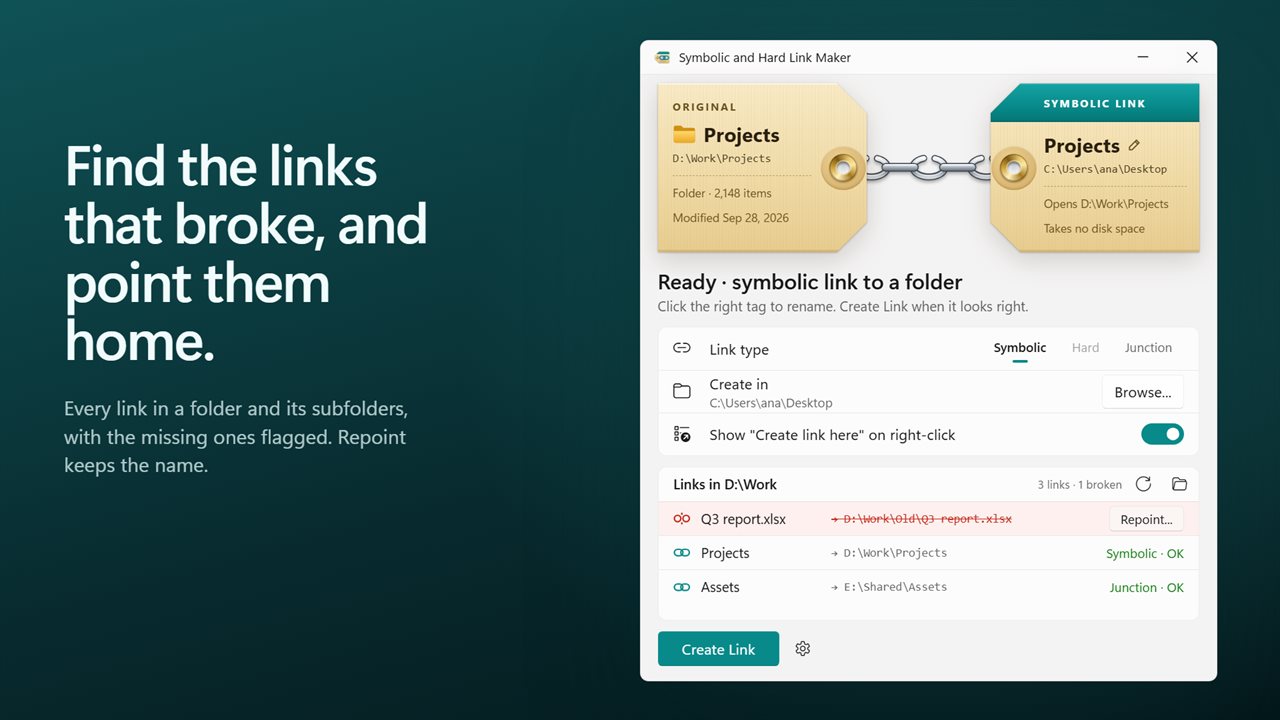
Links fail quietly. Rename a drive, move a project folder, or reinstall a game somewhere new, and every shortcut-like link that pointed there now leads nowhere. The app also lists the links in the folder you choose, including subfolders, and shows where each one opens. Those whose target has disappeared are marked Target missing.
Press Repoint... on a broken entry, choose its new location, and the link keeps its name and type while opening the new place. Hard links appear in the same list with the number of names the file has, for example Hard · 2 names, which is the easiest way to spot a file that has a twin elsewhere on the drive.