EEvlarSoft

Internet Connectivity Checker

An internet connection monitor that lives by the clock: a green, amber or red light, a short alert when the link changes, and a record of every drop.

Buy for $2.49
One payment. No subscription.
14-day money-back guarantee.
3.2
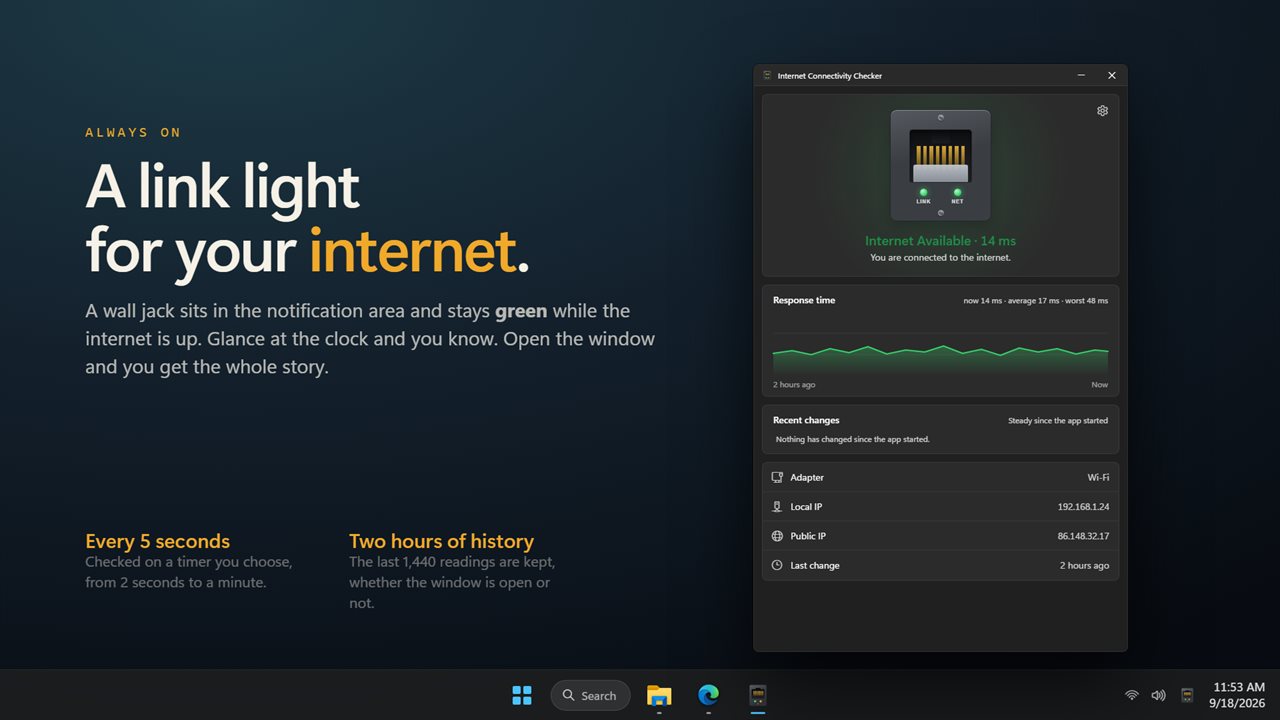
A link light by the clock, green while the internet is up.
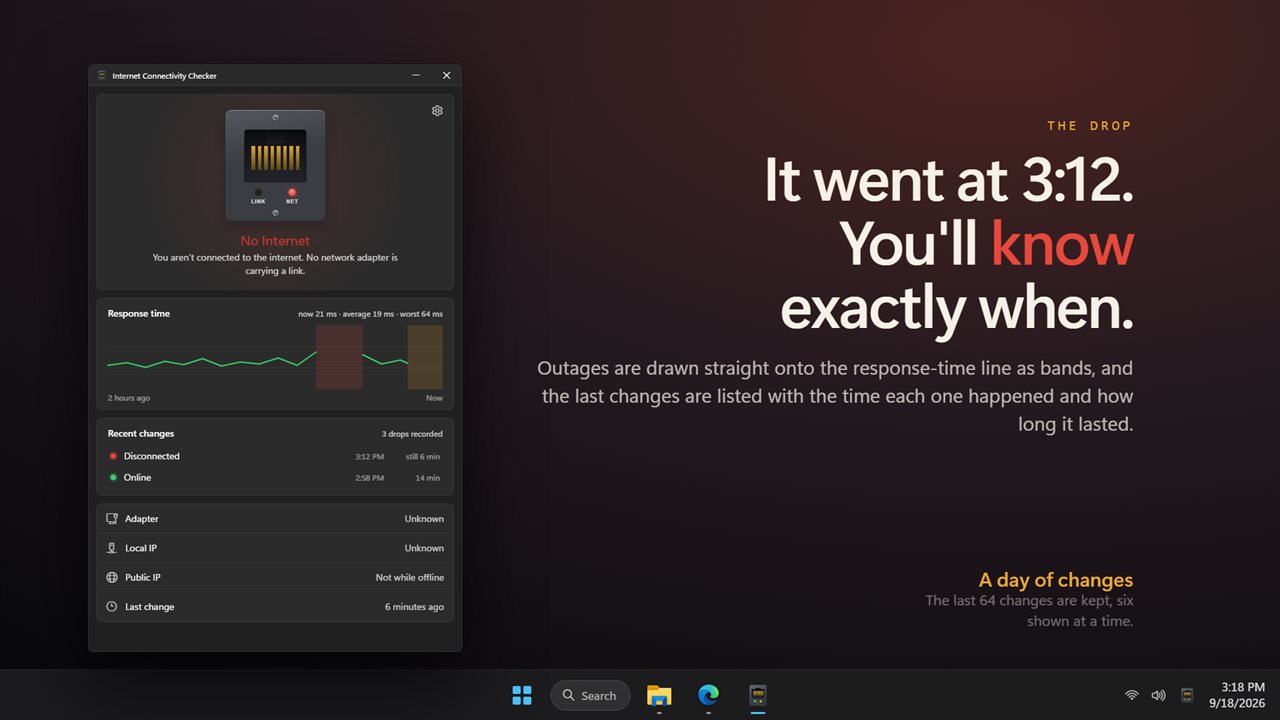
Every drop, with the time it happened and how long it lasted.
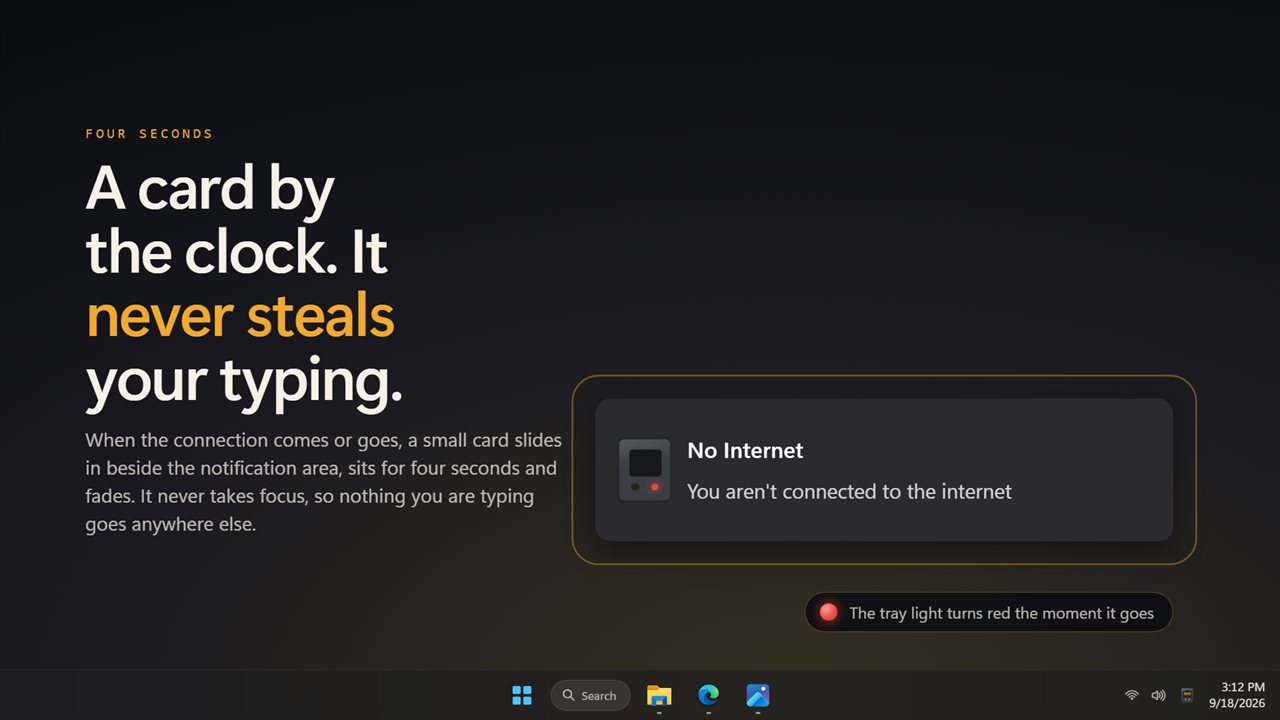
A card by the clock when it changes. It never takes focus.
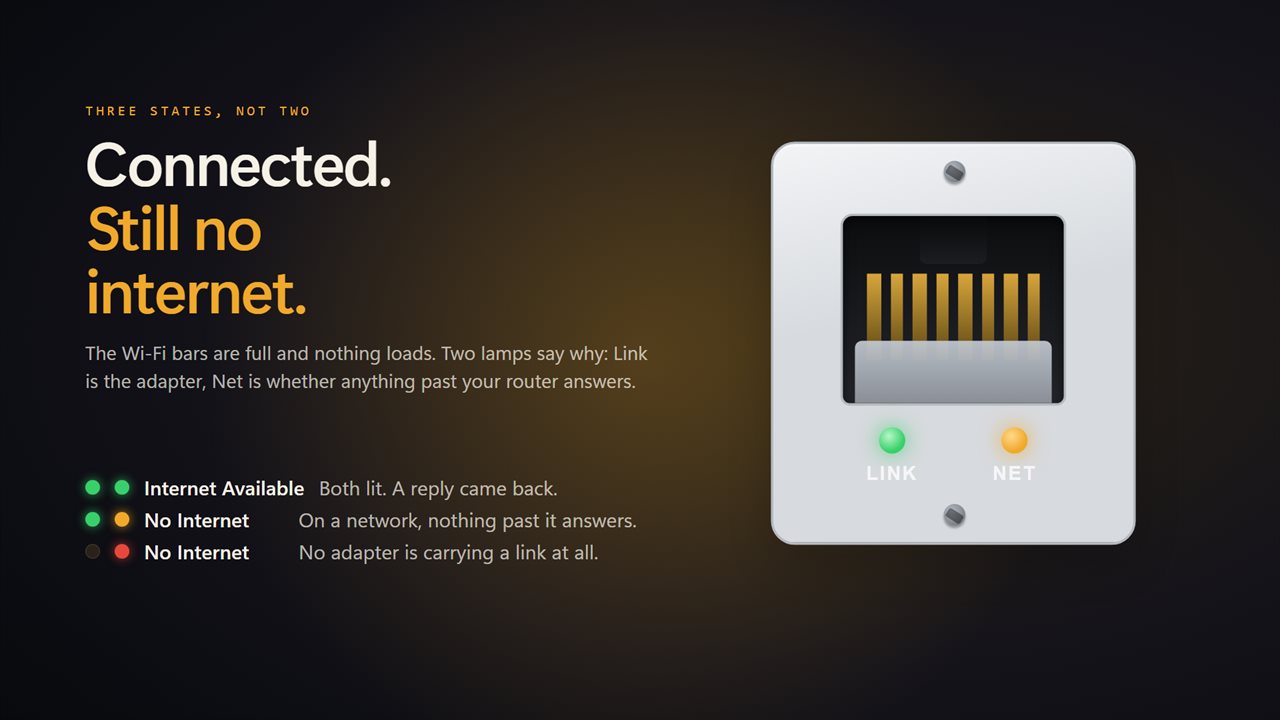
Link is the adapter, Net is whether anything past it answers.
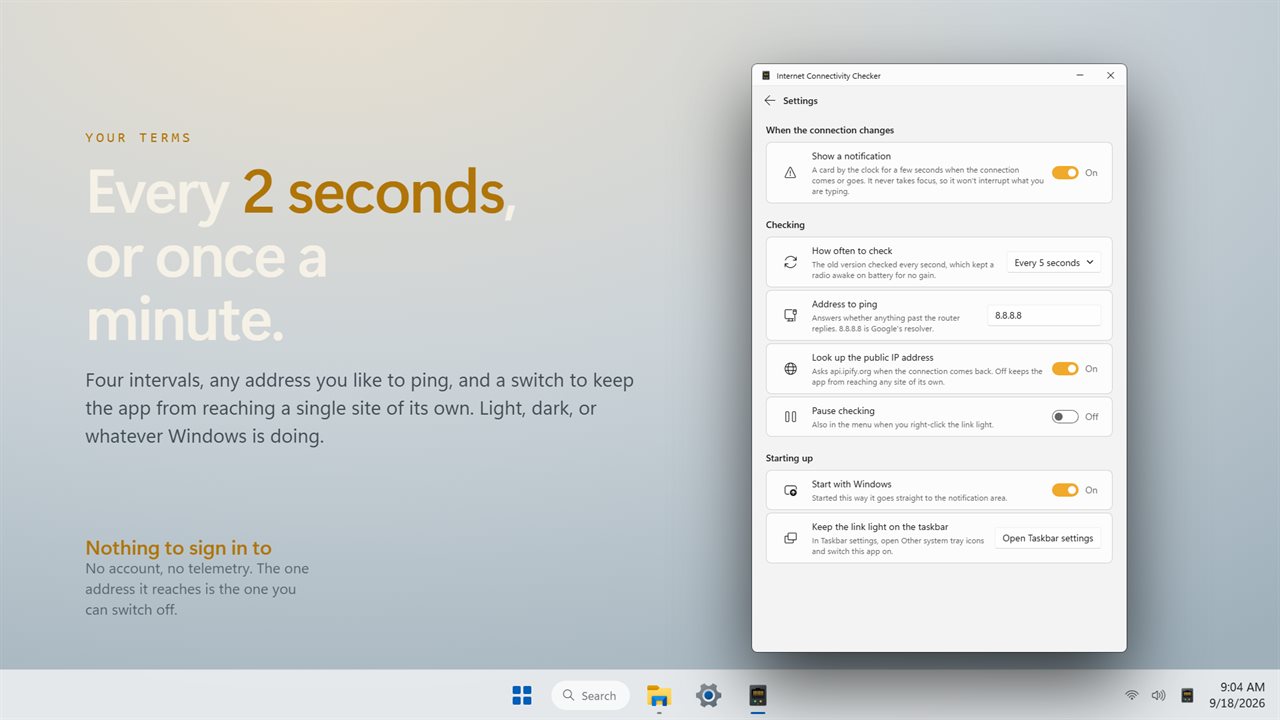
Check every 2 seconds or once a minute, and ping what you like.
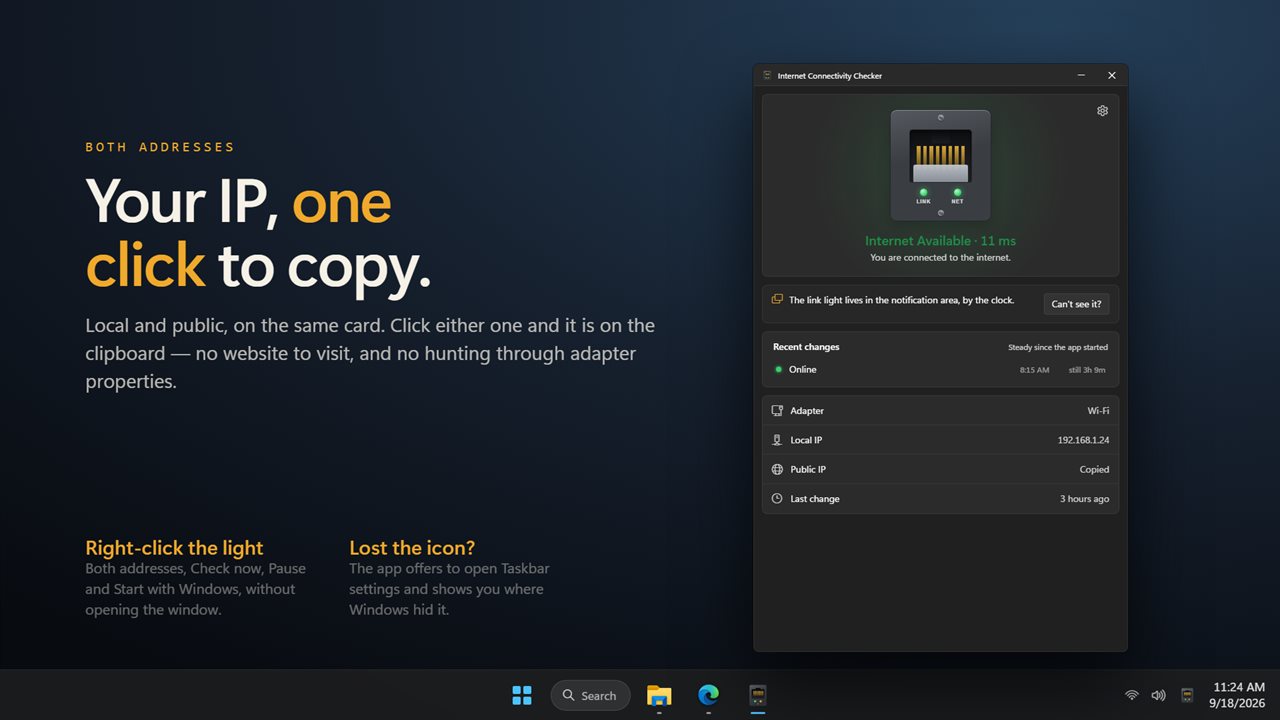
Local and public IP on one card. Click either one to copy.

A link light by the clock, green while the internet is up.

190,000+downloads of EvlarSoft apps
Signed by EvlarSoftVerified US publisher
14-day money-backNo questions asked
Updates includedNo upgrade fees

An internet connection monitor that runs while you work

A speed test tells you how fast the line is right now. An internet connection monitor answers a different question: did it drop, when, and for how long? That is what you need when calls freeze at random, a download dies overnight, or you have to prove to your provider that the problem is real.

This one is a small link light in the Windows notification area. Every few seconds it pings an address past your router and waits up to a second for the answer. Green means the reply came back. You never open a browser or a command prompt to find out whether you are online.

The checks carry on with the window closed. Open it later and the recent history is waiting for you.

Wi-Fi connected but no internet? The amber light

Windows can show full Wi-Fi bars while nothing actually loads. Most status icons only look at the adapter, so they stay happy. This app separates three conditions instead of two.

Red, You aren't connected to the internet, means no adapter has a link at all: a cable is out or Wi-Fi is off. Amber, You are connected but no internet, means the adapter is up but nothing beyond the router replies. That is the hotel or airport sign-in page you have not accepted yet, or a router whose own line to the provider has failed. Green is a working connection.

Knowing which one you have tells you where to look. Red points at the PC or the cable. Amber points at the router, the modem or the provider.

Track internet outages and when they happened

The window draws a Response time line from recent pings, about two hours of them at the default 5-second interval, with every outage shaded across it. Below it, Recent changes lists each switch between states with the time it happened and how long it lasted. Up to 64 changes are kept and six are shown at once.

That record lives in memory, so it starts fresh when the app restarts. For an overnight check, set it to Start with Windows and leave the PC on.

Get an alert when the internet keeps disconnecting

With Show a notification on, a small card appears beside the clock each time the state flips, stays for four seconds, then fades. It never takes keyboard focus, so it will not swallow what you are typing. If your connection keeps disconnecting, those cards tell you the moment it happens instead of when a page fails to load.

Click the jack in the window, or choose Check the connection now from the tray menu, to test immediately rather than waiting for the next round.

Set the ping target and how often to check

Address to ping defaults to 8.8.8.8 and takes any IPv4 address, so you can point it at a different public resolver or at a server you care about. How often to check offers Every 2 seconds, Every 5 seconds, Every 15 seconds or Every minute. Pause checking stops it without closing the app.

The same card shows your Local IP and Public IP; click either to copy it. The public address comes from an outside lookup, so turn off Look up the public IP address if you would rather the app made no request beyond its pings.
Features

  • Tray light in green, amber or red, with Link and Net lamps in the window
  • Distinguishes no adapter link from a network with no way out
  • Response-time chart with outages marked as bands
  • Change history of up to 64 entries, each with time and duration
  • Four-second alert card that never steals focus
  • Check intervals of 2, 5 or 15 seconds, or once a minute
  • Custom IPv4 ping target, 8.8.8.8 by default
  • Local and public IP shown and copied in one click
  • Tray menu with Check the connection now, Pause and Start with Windows
  • Guide for keeping the icon visible on the taskbar

What's new in 2.0.4

  • New: a wall jack you can click, with a Link lamp and a Net lamp
  • New: tells apart no network and a network with no internet
  • New: a response-time line for the last two hours, with outages drawn on it
  • New: a list of recent changes with the time and how long each one lasted
  • New: click either IP address to copy it
  • New: choose how often to check, from 2 seconds to a minute
  • New: choose the address to ping, and switch off the public IP lookup
  • New: light and dark themes
  • Checking every second is gone; it kept the radio awake on battery for no gain

Questions

Anything else? Ask us

Can it tell the difference between no Wi-Fi and Wi-Fi with no internet?

Yes. Red means no adapter has a network connection, amber means an adapter is connected but the address it pings does not reply, and green means the reply came back. That amber state is what an unaccepted hotel sign-in page or a router that has lost its own connection looks like.

How does it check the connection?

It sends a ping to 8.8.8.8 by default and waits up to one second for the reply. You can change the address it pings in Settings, and it checks every 2 seconds, 5 seconds, 15 seconds or once a minute.

Can I ping a website name instead of an IP address?

No. The address to ping must be an IPv4 address such as 1.1.1.1. A host name or an IPv6 address is not used, and the app pings 8.8.8.8 instead.

Does it keep a record of when my internet dropped?

Yes. It keeps checking while the window is closed and remembers the last 64 changes, each with the time it happened, plus a response-time line with outages drawn on it. The history is held in memory, so it starts again when the app is restarted.

Does it notify me when the connection goes down or comes back?

Yes. A small card appears by the clock for four seconds when the state changes, and it never takes focus from what you are typing. You can turn it off in Settings and watch the tray lamp instead.

Does it show my public IP address?

Yes. It shows your local and public IP addresses, and clicking either one copies it. The public address comes from api.ipify.org each time the connection comes back, and you can switch that lookup off.

Why does my laptop say connected but no internet?

The adapter has a link to the router, but traffic is not getting past it. Common causes are an unaccepted sign-in page on public Wi-Fi, a router that lost its connection to the provider, or a provider outage. The app shows this state as amber.

How do I keep the light visible instead of hidden behind the taskbar arrow?

In Taskbar settings, open Other system tray icons and switch this app on. The app offers an Open Taskbar settings button that takes you there.

Does a check every 2 seconds use much data?

No. Each check is one small ping packet. The public IP lookup runs only when the connection comes back online, not on every check, and it can be switched off.

Which versions of Windows does it run on?

Windows 10 (version 1809 or later) and Windows 11.

Is it a subscription?

No. Internet Connectivity Checker is a one-time purchase of $2.49, and updates are included.

How do I get it?

Buy it on this page and your license key arrives by email. If the button says Notify me, Internet Connectivity Checker is not on sale here yet; leave your email and we will tell you when it is.

Prefer widgets? The Online Status widget on WidgetSpark does a similar job, alongside over 100 other desktop widgets in one app.