EEvlarSoft

DNS Switcher

Find out which DNS server your PC is really asking, pick a different one from a list of fourteen, and press Apply.

Buy for $2.99
One payment. No subscription.
14-day money-back guarantee.
3.5
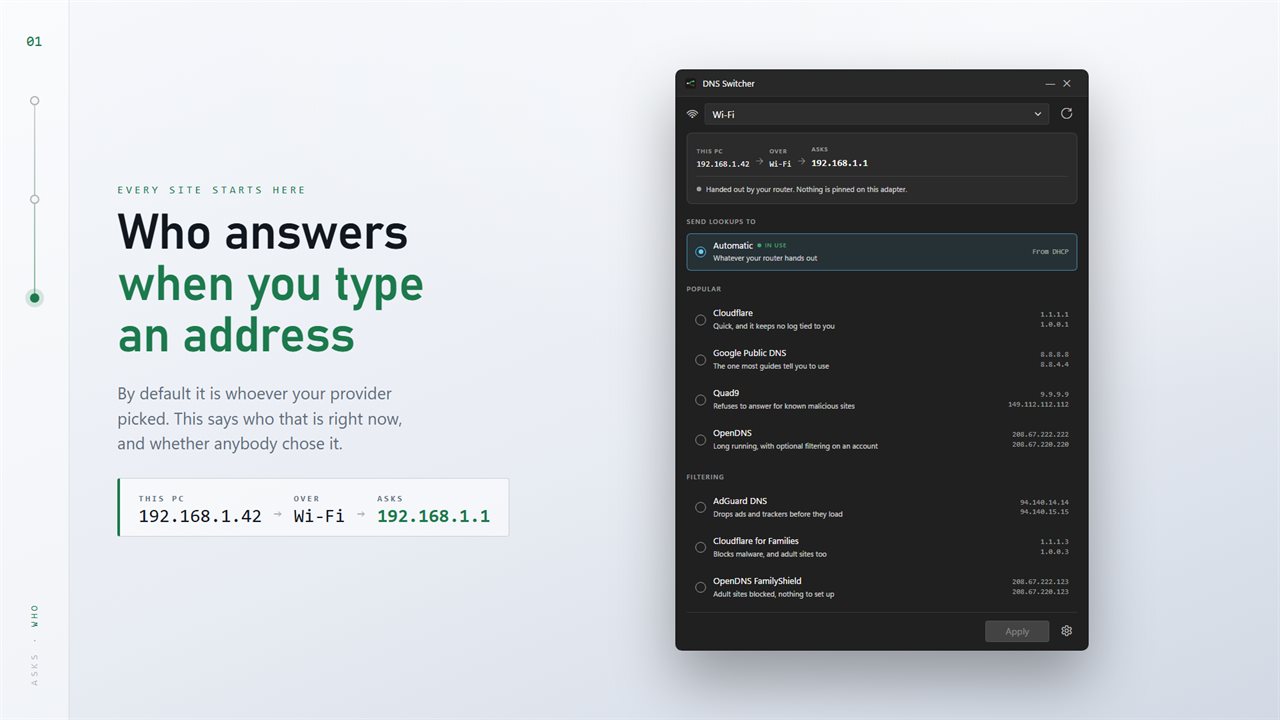
Which server this PC asks, and whether anybody chose it.
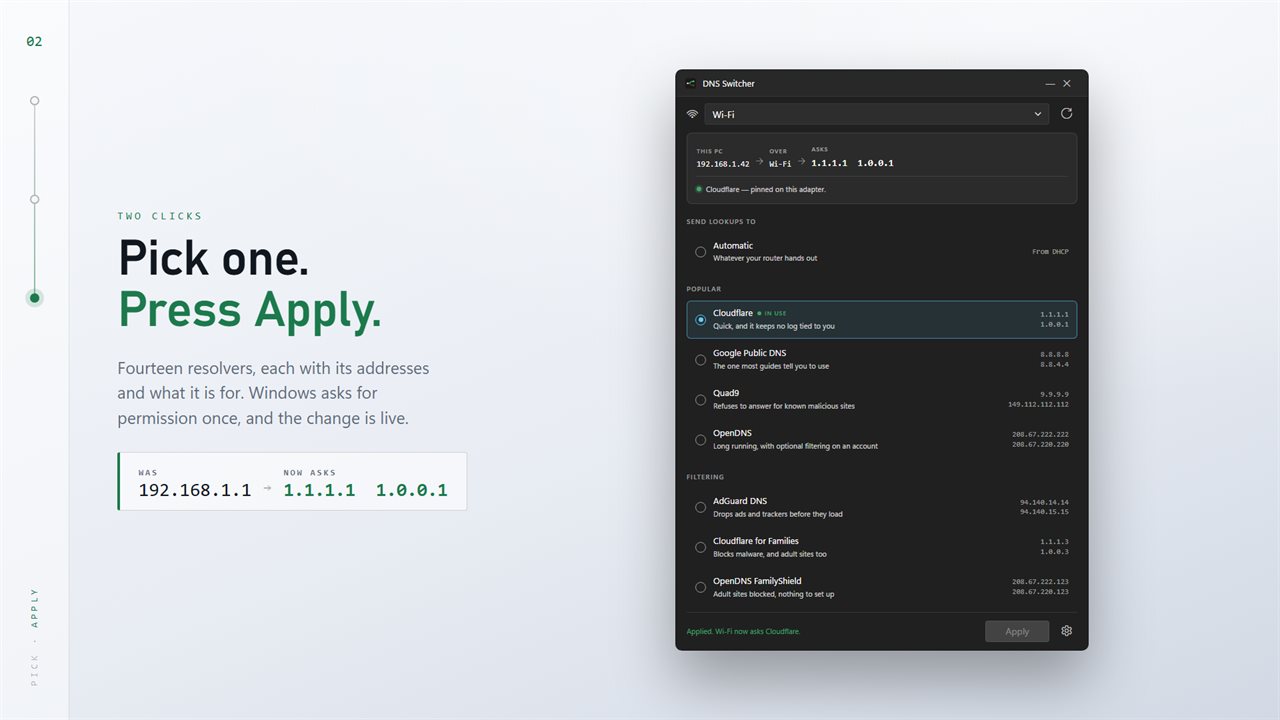
Pick a resolver, press Apply. Windows asks for permission once.
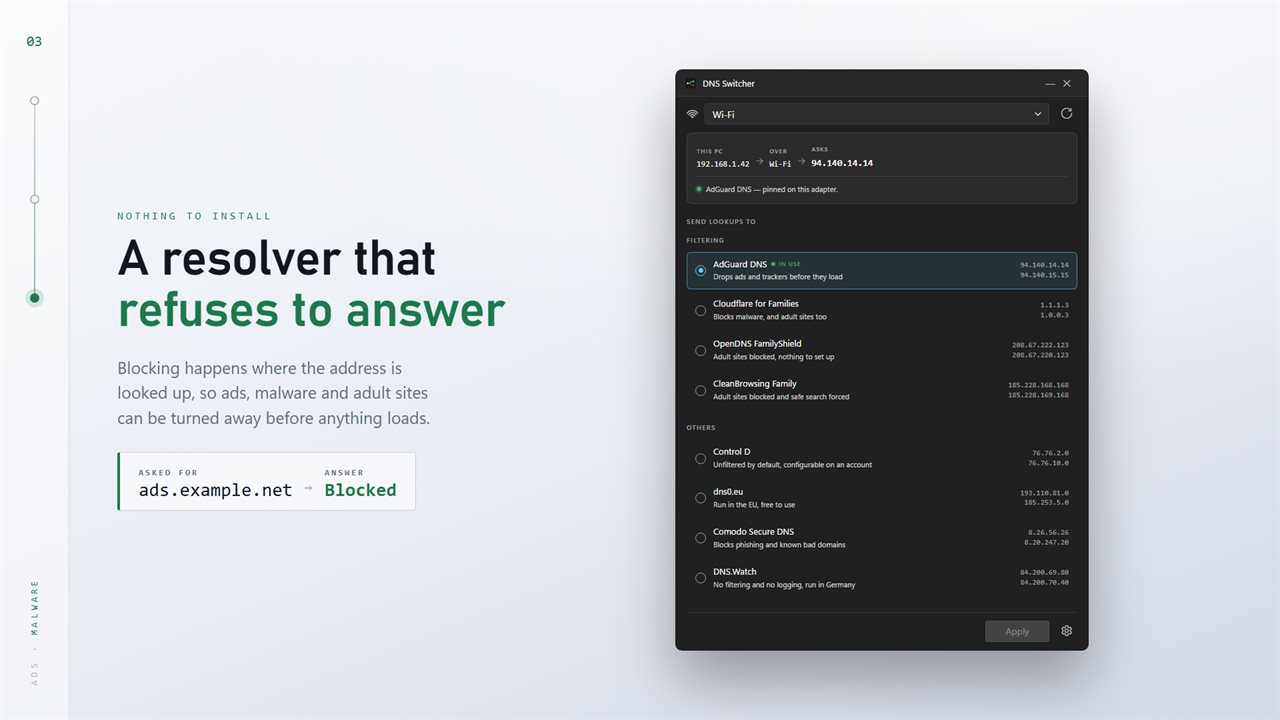
Filtering resolvers turn away ads and malware before anything loads.
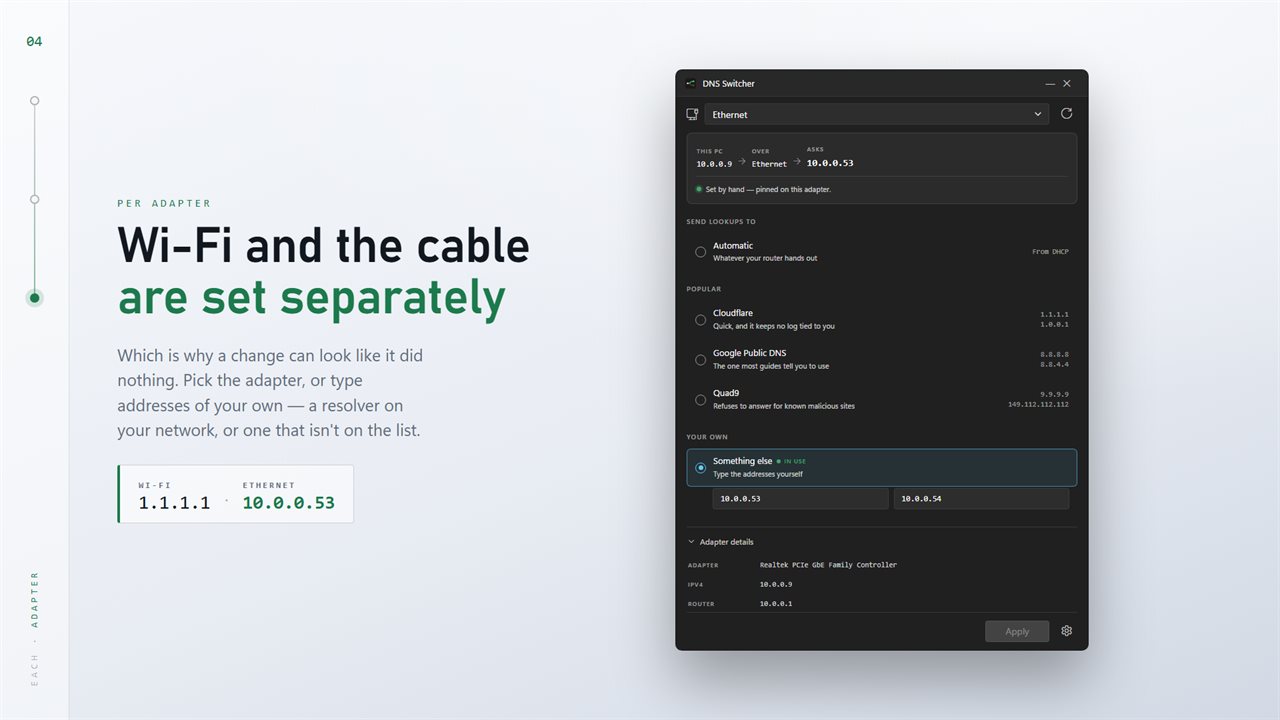
Wi-Fi and the cable are set separately. Or type addresses of your own.
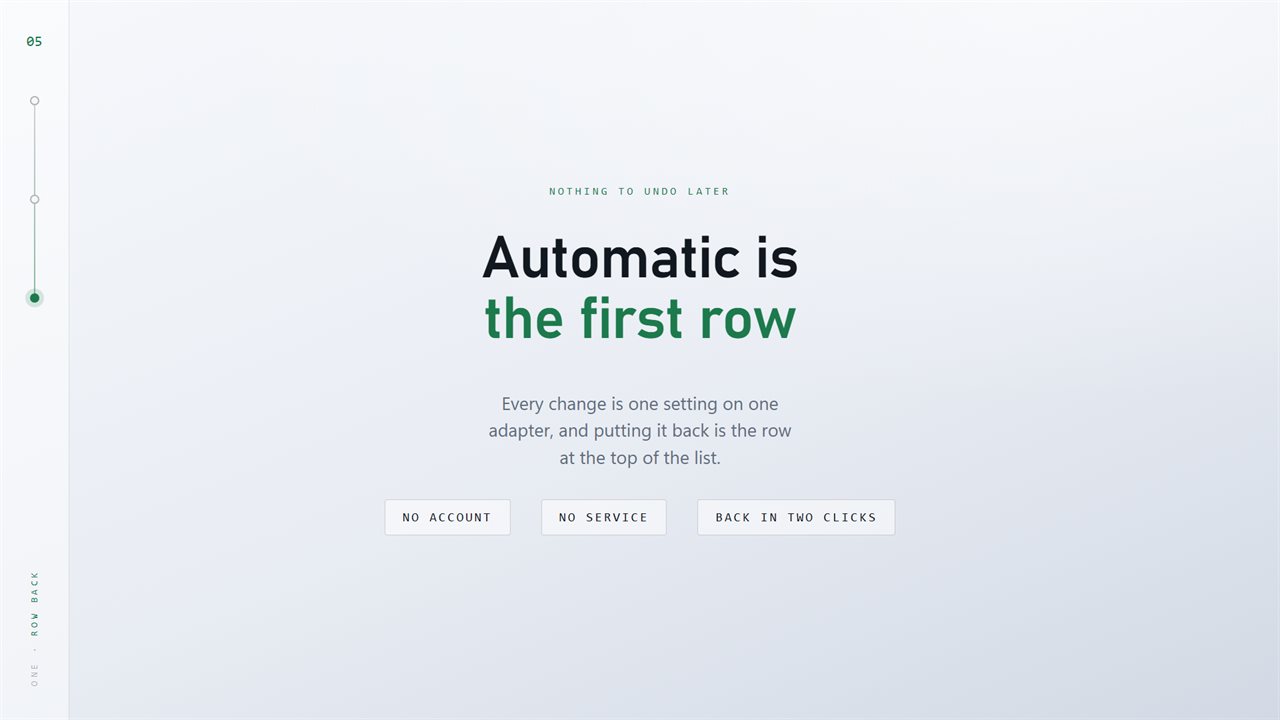
Automatic is the first row, so putting it back is two clicks.

Which server this PC asks, and whether anybody chose it.

190,000+downloads of EvlarSoft apps
Signed by EvlarSoftVerified US publisher
14-day money-backNo questions asked
Updates includedNo upgrade fees

A DNS changer that starts by telling you where you are

Most guides to changing DNS jump straight to typing addresses into a dialog three menus deep. A DNS changer is more useful when it first answers the question you actually have: which server is this PC using right now, and who chose it?

DNS Switcher opens on a route for the selected adapter, written as This PC, Over the adapter name, Asks the server. Under it, one line says whether that server was handed out by your router, with nothing pinned on the adapter, or pinned by hand. That difference explains most changes that seem to do nothing: a value typed into one adapter, while traffic leaves through another.

Below the route sits Send lookups to, a list of resolvers in three groups, Popular, Filtering and Others, each with its addresses and a short note on what it is for. Pick one, press Apply, confirm, and approve the Windows permission prompt. The new server is marked in use as soon as the change lands.

How to change DNS server on Windows 11 or 10 with DNS Switcher

The steps are the same on both versions of Windows.

  • Choose the network adapter from the menu at the top: Wi-Fi, Ethernet or a VPN connection. Everything below follows that choice.
  • Read the route to see what the adapter asks today.
  • Under Send lookups to, pick a resolver, or pick Something else and type a Preferred and an optional Alternate address.
  • Press Apply. With Ask before changing an adapter on, a dialog names the adapter and the server first.
  • Approve the Windows prompt. Changing DNS needs administrator rights, and the whole change runs under that single prompt.

What is my DNS server? Reading the adapter details

Open Adapter details under the list for the full picture of the selected connection: its IPv4 and IPv6 addresses, the Router, the MAC address, whether the address came from DHCP or was Set by hand, and both the DNS in use and the IPv6 DNS servers. The refresh button beside the adapter menu reads everything again after you plug in a cable or join a new network.

Adapters that are down, such as an unplugged port or a virtual adapter left by a VM or a VPN, are hidden by default. Turn on List adapters that are down to show them and set a server on one before you use it.

Ad blocking DNS and family filters, chosen from a list

Filtering at the DNS level means a blocked name never gets an address, so the page or ad simply does not load, in every browser and app on the PC. The Filtering group holds four resolvers: one that drops ads and trackers, one that blocks malware and adult sites, and two family options that block adult sites, one of which also forces safe search.

If you run your own filter on the home network, choose Something else and type its address. Typed addresses are IPv4 only, so the adapter keeps its current IPv6 servers.

Why a DNS change seems to do nothing, and the two settings that fix it

Two things commonly undo a switch. First, Windows keeps a cache of answers and goes on using the old server's replies until each one expires. Clear the lookup cache afterwards, on by default, flushes it right after the change, so you do not have to run a flush DNS command yourself.

Second, many home connections carry IPv6 as well as IPv4. If only the IPv4 server changes, lookups can still travel to the old one over IPv6. Set the IPv6 servers too, also on by default, applies the resolver's IPv6 pair alongside its IPv4 pair.

Features

  • A route line showing which server the selected adapter asks right now
  • A plain statement of whether that server came from the router or was pinned
  • Fourteen public resolvers in Popular, Filtering and Others groups, each with a note
  • Something elseYour own Preferred and Alternate IPv4 servers
  • Automatic at the top of the list returns the adapter to DHCP
  • Sets IPv6 DNS alongside IPv4 unless you turn it off
  • Flushes the Windows DNS cache after each change
  • Per-adapter changes for Wi-Fi, Ethernet and VPN connections
  • Adapter details with IP, router, MAC and the DNS in use
  • An optional confirmation before each change, plus one Windows permission prompt

What's new in 2.0.4

  • A route strip at the top: this PC, the adapter, and the server it asks
  • Says whether the server was pinned or handed out by your router
  • Fourteen resolvers, grouped, each with what it is for
  • Filtering resolvers for ads, malware and adult sites
  • IPv6 is set alongside IPv4, and the lookup cache is cleared afterwards
  • One permission prompt per change instead of one per command
  • Light and dark, following Windows

Questions

Anything else? Ask us

Which DNS servers can I switch to with DNS Switcher?

Fourteen are listed: Cloudflare, Google Public DNS, Quad9 and OpenDNS; AdGuard DNS, Cloudflare for Families, OpenDNS FamilyShield and CleanBrowsing Family for filtering; and Control D, dns0.eu, Comodo Secure DNS, DNS.Watch, Level3 and Yandex.DNS. You can also type up to two server addresses of your own.

Can I use my own DNS server, such as a Pi-hole on my network?

Yes. Choose your own servers and type one or two IPv4 addresses. Typed addresses are IPv4 only, so the adapter's IPv6 DNS servers are left as they were.

Does changing DNS need administrator rights?

Yes. Windows shows its permission prompt each time you apply a change, and the whole change runs under that one prompt. The app never asks for a password itself.

How do I go back to my router's DNS servers?

Pick Automatic, the first row in the list, and apply it. That sets both IPv4 and IPv6 on the adapter back to the servers your network hands out.

Does it change DNS for Wi-Fi and Ethernet at the same time?

No. Each adapter is set on its own, so pick the adapter at the top first. Wi-Fi, Ethernet and VPN adapters are listed, and adapters that are down can be shown with a setting.

Does DNS Switcher set up DNS over HTTPS or encrypted DNS?

No. It sets the plain DNS server addresses on an adapter, the same setting found in the adapter's properties. By default it also sets the provider's IPv6 servers and clears the Windows lookup cache so the new server is used straight away.

Will changing my DNS server make my internet faster?

It can make pages start loading sooner if your current server answers slowly, because every new site name is looked up first. It does not change your connection speed or download rates. DNS Switcher sets the server; it does not benchmark resolvers.

Do I need to restart my PC after changing DNS?

No. The change takes effect on the adapter immediately, and with Clear the lookup cache afterwards on, the Windows DNS cache is flushed straight away, so new lookups go to the new server without a restart.

Does changing DNS change my IP address or hide it?

No. Only the server your PC asks to look up names changes. The adapter keeps the IP address and router it already had, and websites still see your public IP. DNS Switcher writes the DNS entries and nothing else on the adapter.

Which versions of Windows does it run on?

Windows 10 (version 1809 or later) and Windows 11.

Is it a subscription?

No. DNS Switcher is a one-time purchase of $2.99, and updates are included.

How do I get it?

Buy it on this page and your license key arrives by email. If the button says Notify me, DNS Switcher is not on sale here yet; leave your email and we will tell you when it is.

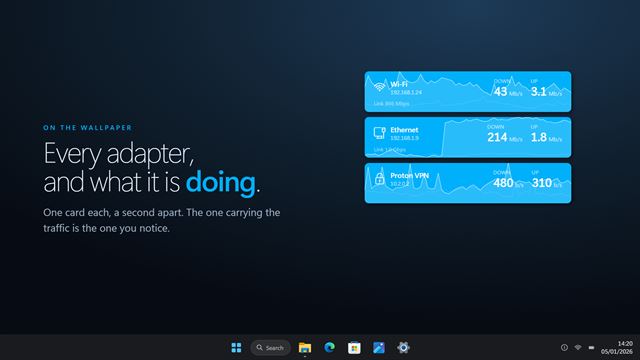
Prefer widgets? The DNS Switcher widget on WidgetSpark does a similar job, alongside over 100 other desktop widgets in one app.