A latency checker that stays on screen
An online ping test tells you how your connection looked for ten seconds. Lag rarely waits for you to run one. A latency checker that keeps pinging in the background, and keeps the number where you can see it, is the only way to catch the spike in the middle of a match or a call.
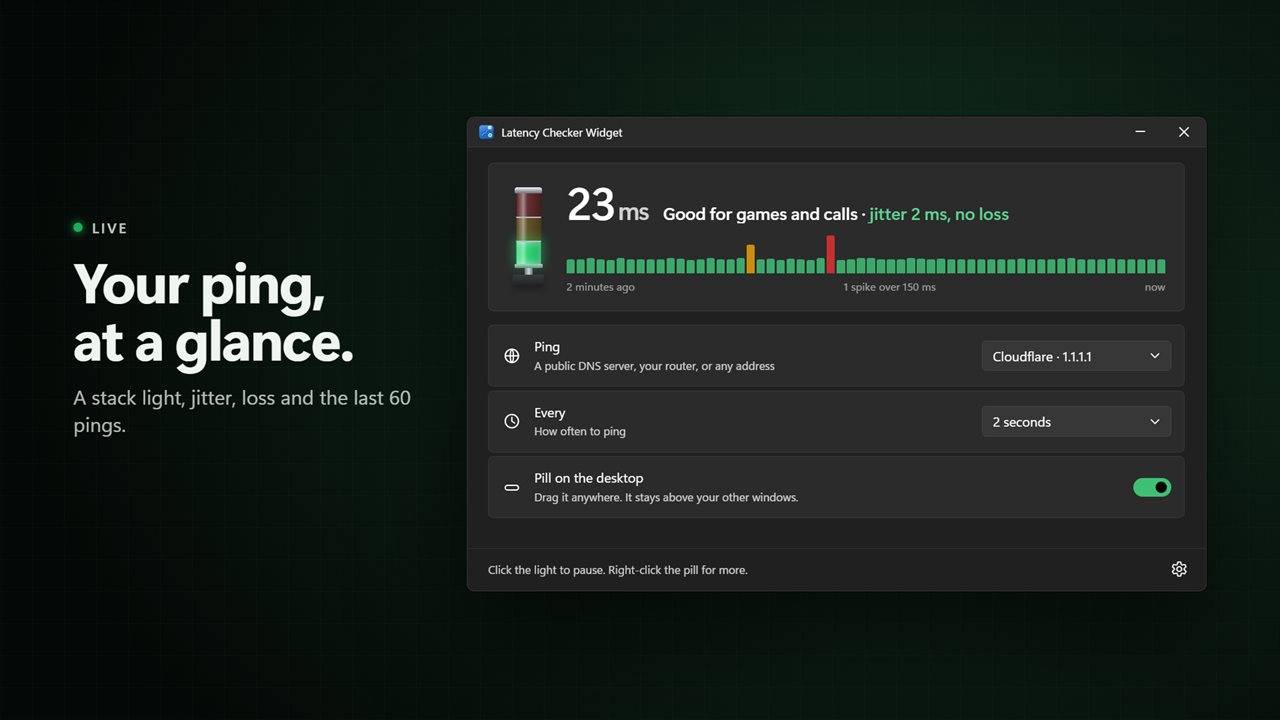
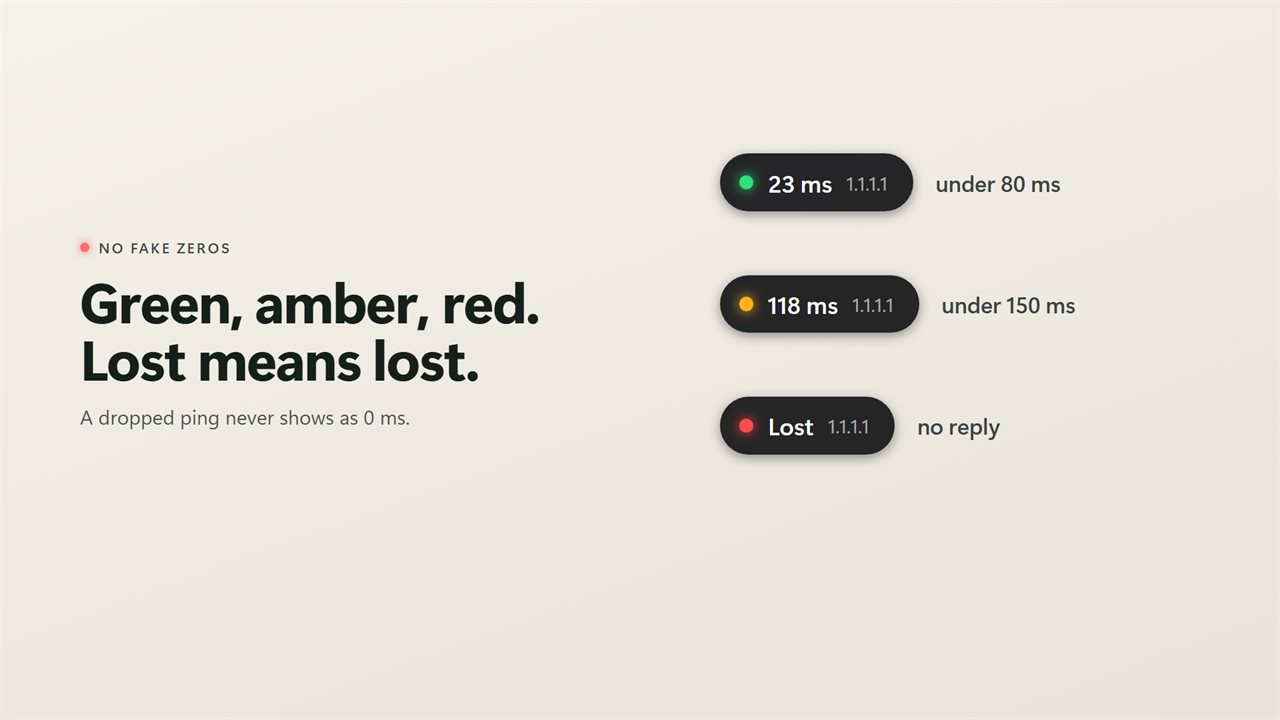
Latency Checker Widget sits on your desktop as a compact pill above your other windows. It shows the current round trip in milliseconds next to a status dot that goes green, amber or red, and you can drag it to any spot on any monitor. A ping that gets no answer reads Lost, never a reassuring 0 ms.
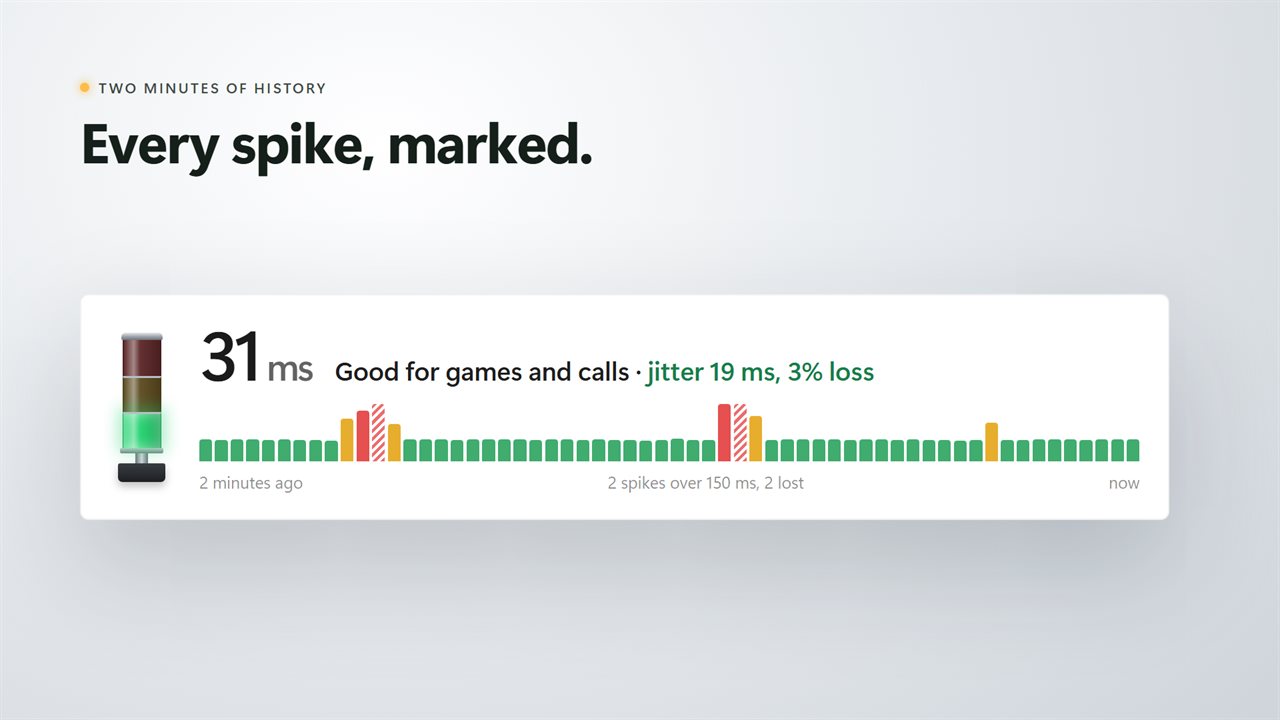
Open the main window for the detail: the current figure in big digits, jitter and packet loss beside it, and a bar chart of the last 60 pings with spikes and losses marked. A stack light on the left glows with the same color as the pill, and clicking it pauses or resumes pinging.
Continuous ping without a command prompt
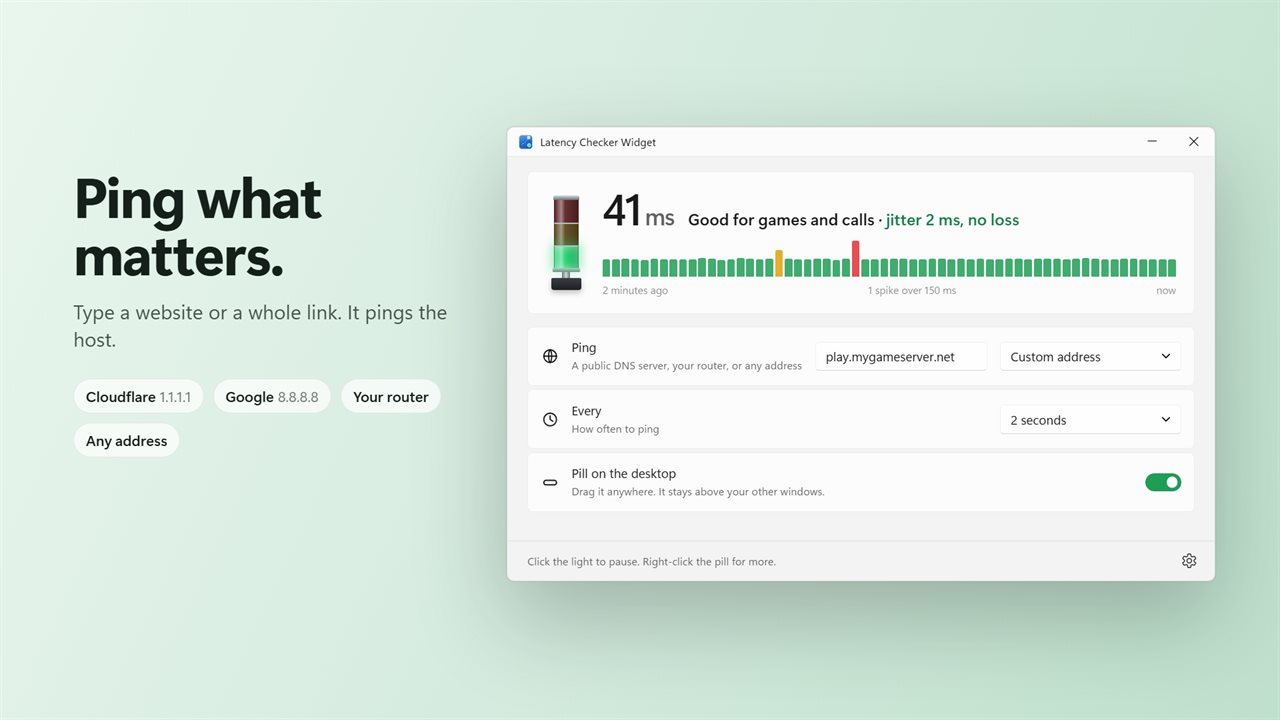
The classic fix is ping -t in a console window, which scrolls endlessly, hides behind your game, and never reports jitter. Here the pinging is continuous too, at a pace you pick: every 1, 2, 5, 15 or 30 seconds, or once a minute, starting at 5 seconds.
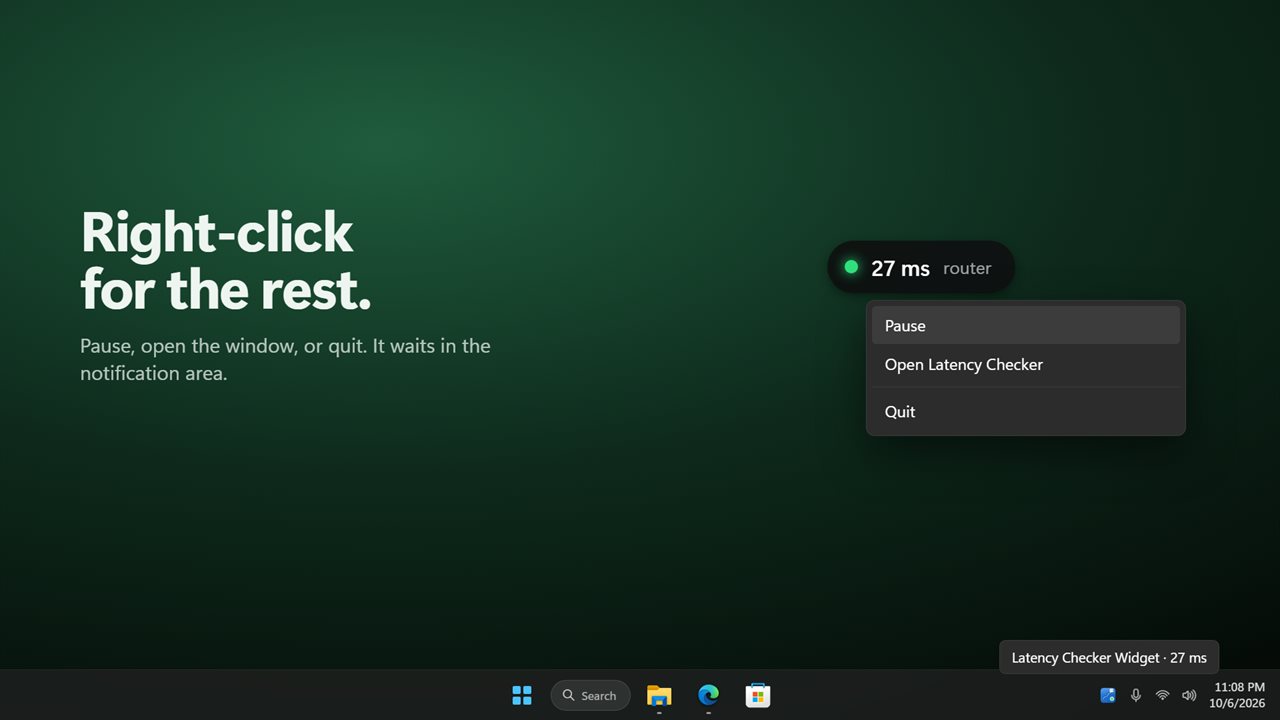
The pill floats over your other windows and stays put after you move it. Its right-click menu can pause, open the main window or quit. The app also keeps an icon in the notification area, where hovering the icon shows the latest reading.
Find out whether ping spikes come from Wi-Fi or your ISP
Choose the target that answers your question. Google 8.8.8.8 is the starting point and Cloudflare 1.1.1.1 is a click away; both tell you how the whole path to the internet is behaving. Switch to your router and you measure only the hop between your PC and the box on your shelf.
If the router stays green while the public address spikes, the trouble is upstream with your provider. If the router itself jumps around, look at your Wi-Fi signal or cabling first. You can also type any address, a website name, or paste a full link, and the host is pulled out and pinged.
Latency monitor thresholds for gaming
Colors change at limits you set under "When the light changes". Amber starts at 80 ms and red at 150 ms out of the box, since most online games start to feel sluggish past 80 ms. Competitive players often pull amber down to 50 or 60; someone on a long-distance connection may push red up to 200 or 300.
Under The pill, "Show the address" can be switched off to leave just the number on screen, which keeps streams and screenshots tidy.