A network monitor for your desktop, one card per adapter
Most network monitor software is built for administrators watching a whole office. Network Monitoring is the opposite: a small widget for one PC, sitting on the wallpaper, that tells you what each of its network adapters is doing right now.
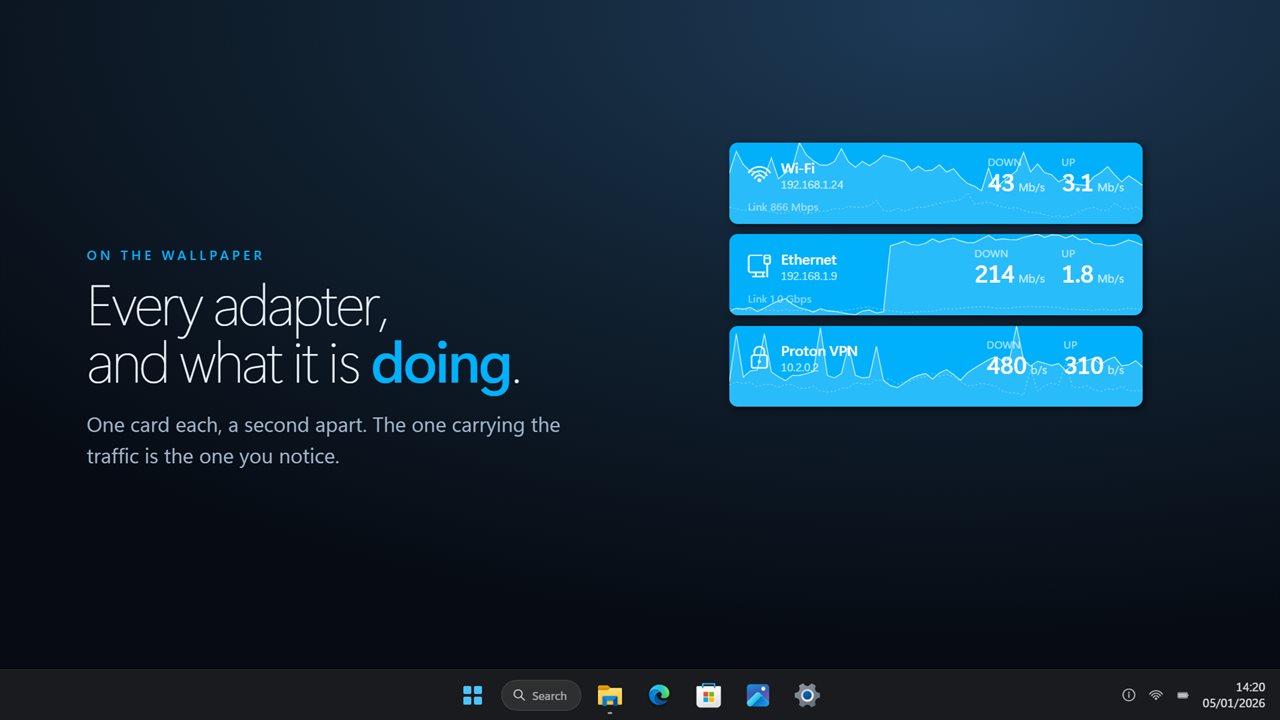
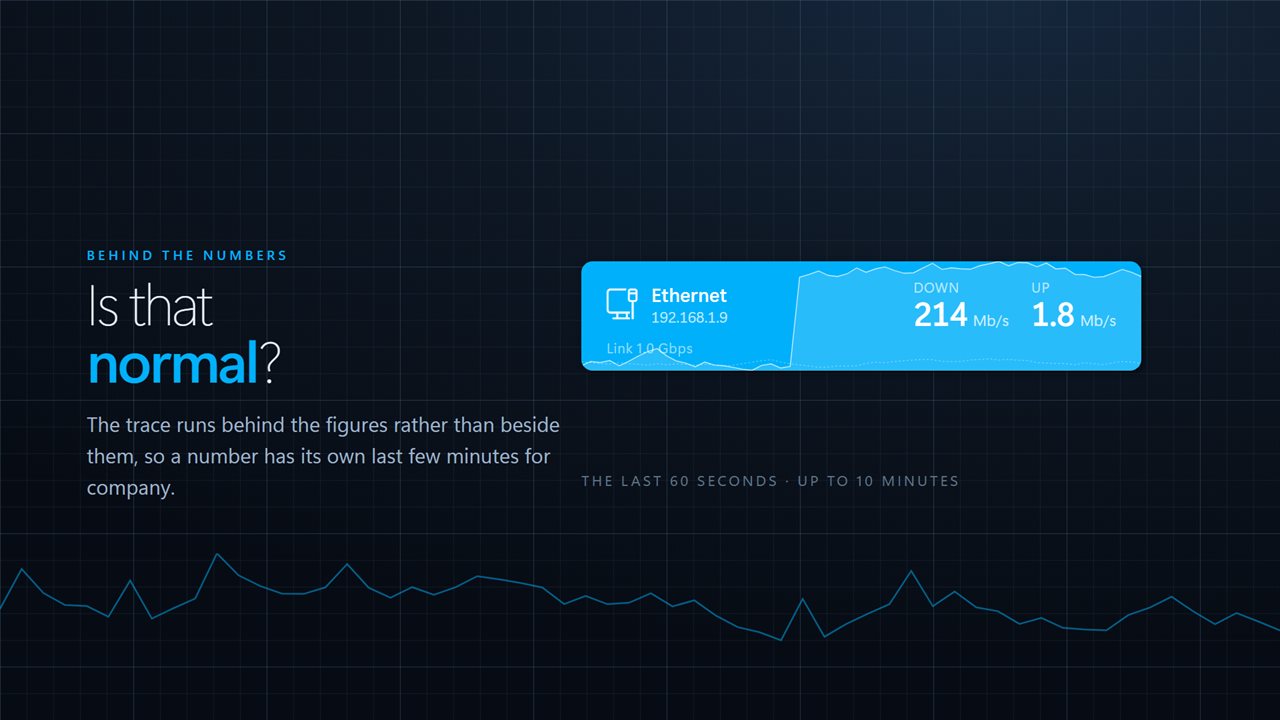
Each adapter gets its own card with its current download and upload rate, refreshed every second. Behind the figures runs a trace of the recent past, so a reading of 40 Mb/s comes with the context of whether it has been like that for minutes or just spiked. The trace scales to the busiest moment it covers, which keeps a quiet connection readable instead of flattening it into a line along the bottom.
Because Windows treats Wi-Fi, Ethernet, a docking station and a VPN as separate adapters, the widget does too. Cards appear when an adapter comes up and disappear when it goes away, with nothing to refresh.
Monitor bandwidth on Wi-Fi and Ethernet together
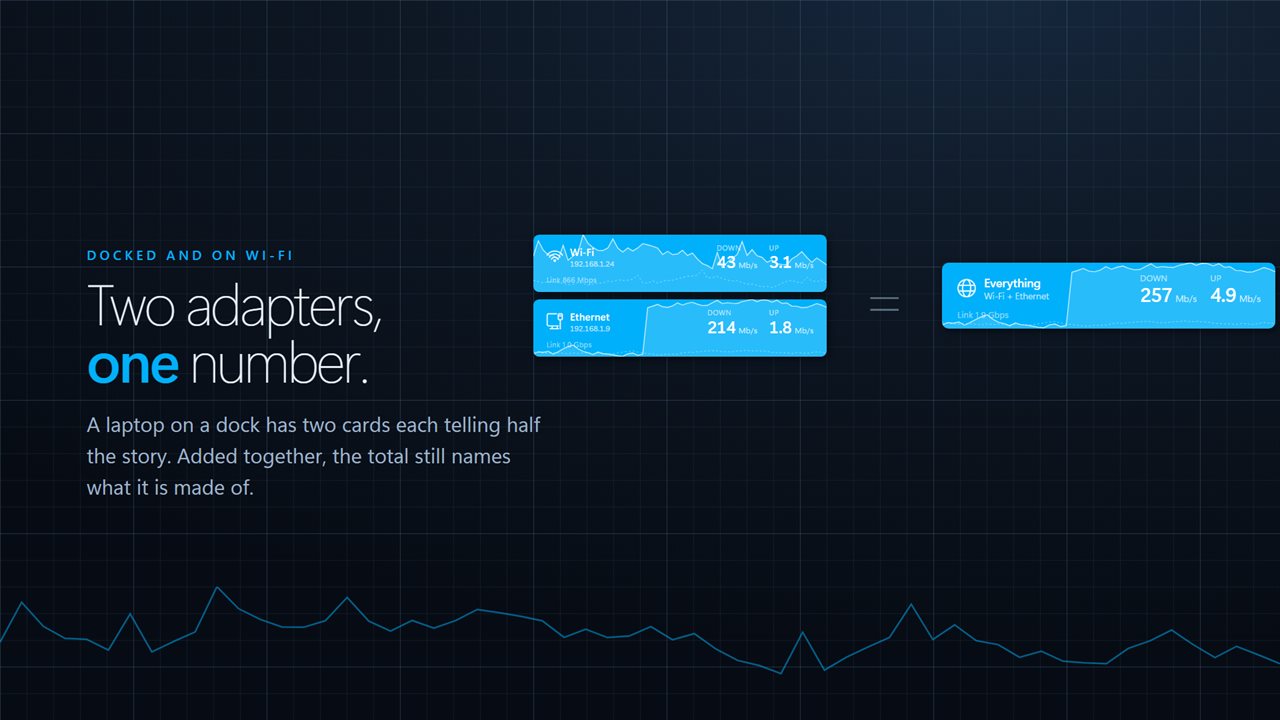
A docked laptop is often connected two ways at once, and two separate cards can each look half as busy as the machine really is. Right-click the widget and choose Add them all together, or set Layout to Added together in Settings, and the cards merge into one total that still lists the adapters inside it. Show each adapter puts them back.
How to set up the bandwidth monitor
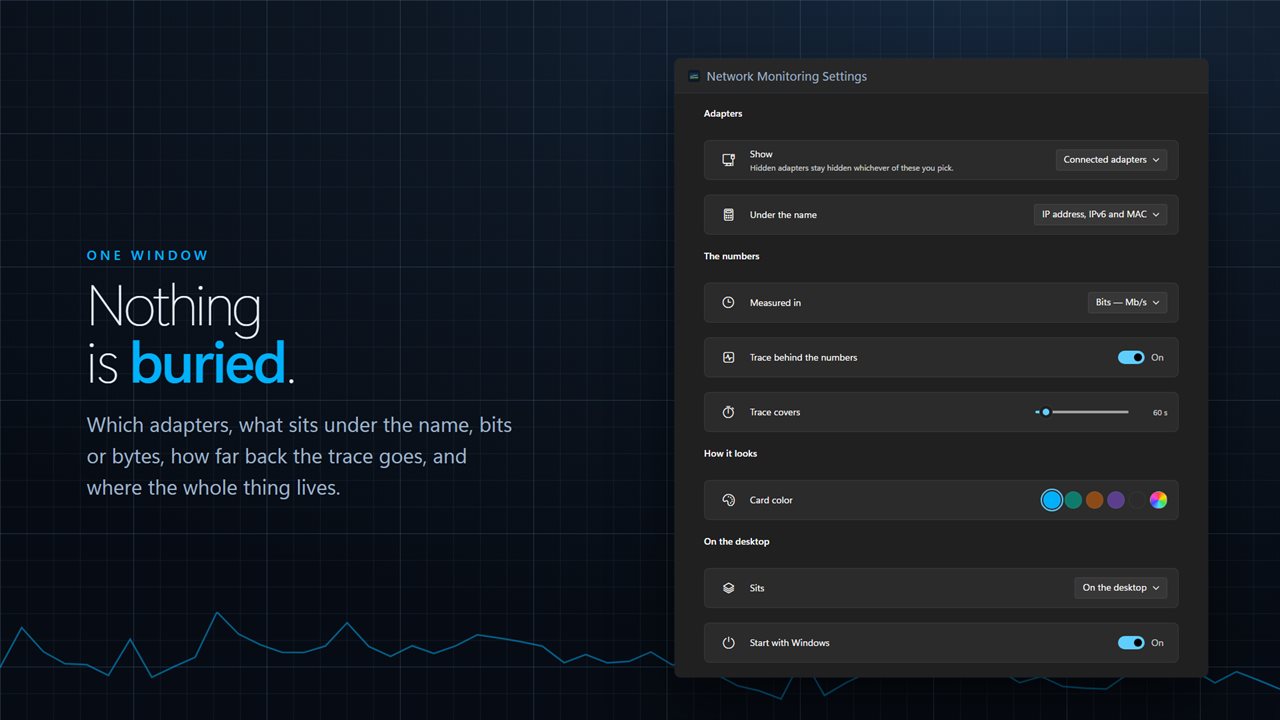
Right-click the widget and choose Settings. These are the rows that change what you see, grouped as they appear:
- Adapters › Show: Connected adapters, Every physical adapter, or Everything Windows lists, which adds tunnels, virtual switches and the loopback.
- Adapters › Under the name: Nothing, IP address, or IP address, IPv6 and MAC.
- The numbers › Measured in: Bits (Mb/s) or Bytes (MB/s).
- The numbers › Trace covers: 30 seconds to 10 minutes, in 30-second steps, or switch Trace behind the numbers off.
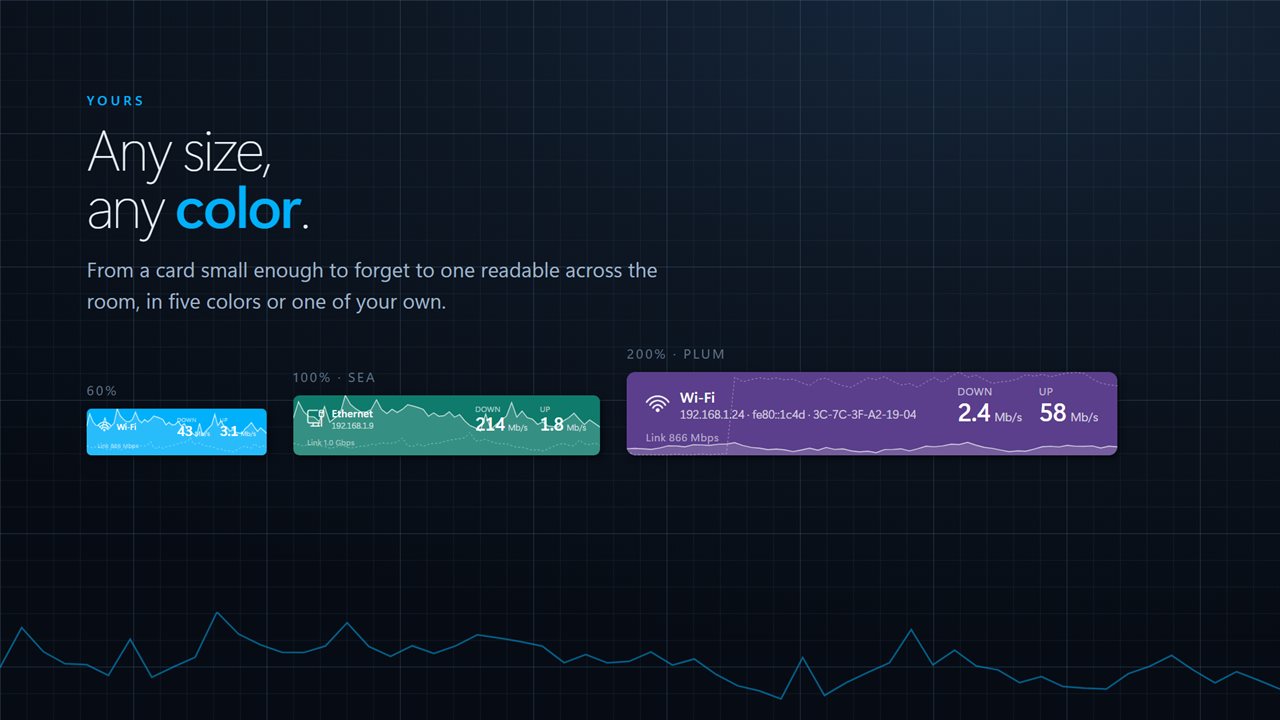
- How it looks › Card color from five presets or your own, Width from 280 to 900, Size from 60 to 200 percent, and Drop shadow.
- On the desktop › Sits on the desktop or above other windows, and Start with Windows.
Why your network speed monitor disagrees with a speed test
Link rates and speed tests count in bits, in thousands; file sizes count in bytes, in 1024s. Mix the two up and a readout can look a few percent off, or eight times off. The widget keeps each unit on its own convention, so Bits matches what your router and your provider quote and Bytes matches what a download dialog shows.
It also reads the counters Windows keeps for each adapter, rather than running test traffic of its own, so watching your bandwidth does not add to it.