Why a blink reminder helps at the computer
A blink reminder exists because concentration quietly switches blinking off. When you read code, edit a spreadsheet or play a match, your eyes stay open longer between blinks, and many of the blinks you do make are partial. The surface of the eye dries, and by late afternoon it feels gritty or tired.
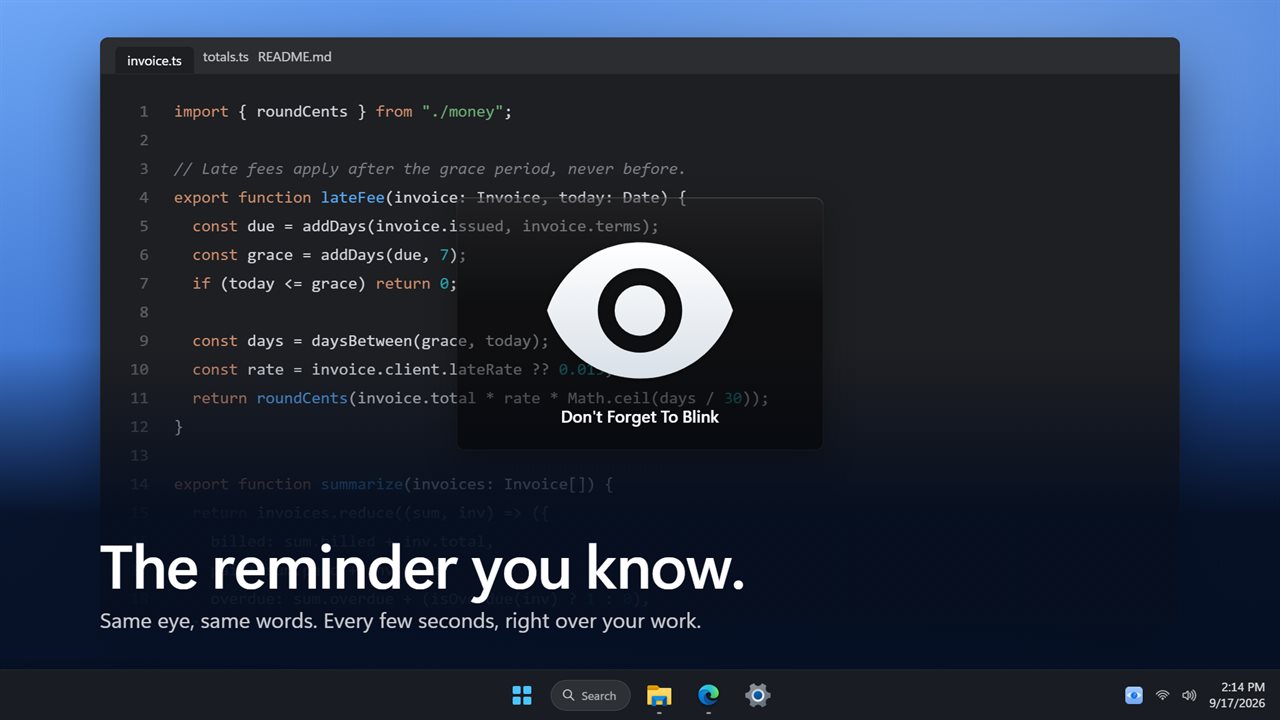
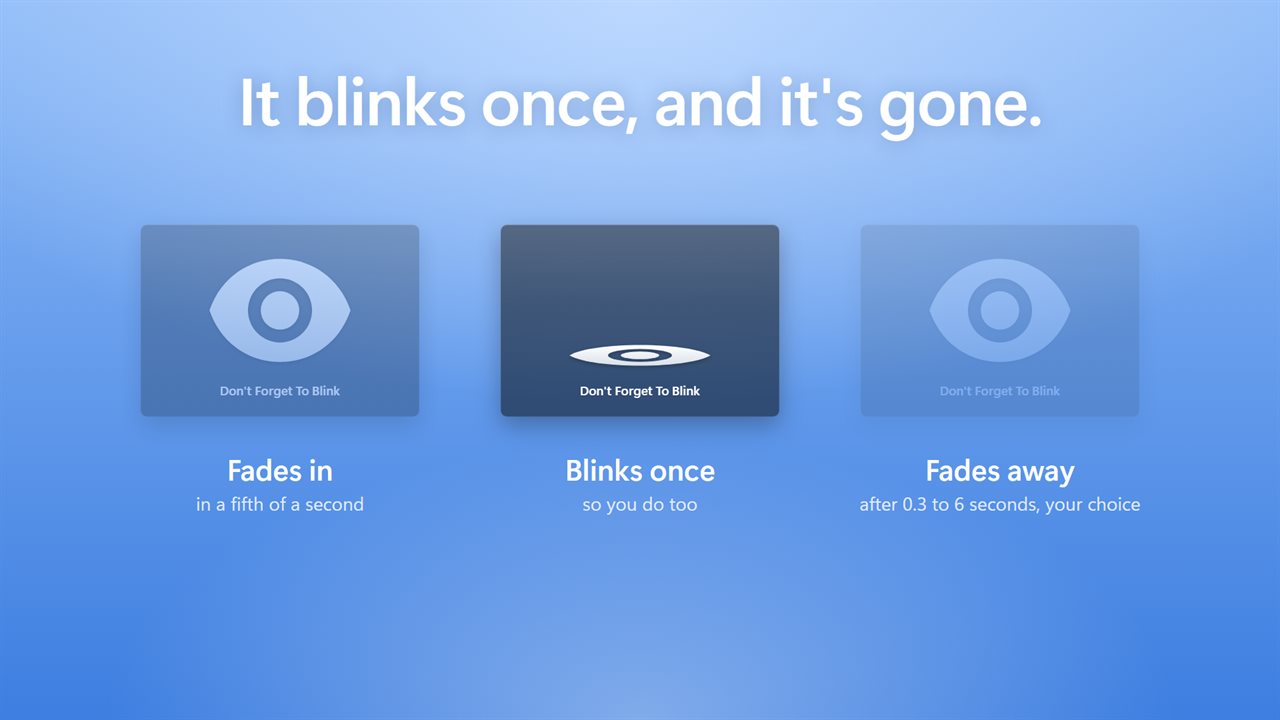
Subtle Blink Reminder puts a cue right where you are already looking. A small card with an eye appears over your work, the eye closes once, and the card fades out. Seeing it blink is usually enough to make you blink with it, without breaking your train of thought.
It sits in the notification area by the clock and does nothing else. There is no timer to reset and no window to dismiss. The overlay is click-through and never takes focus, so you can keep typing straight through it.
How often should you blink, and how often should it remind you?
At rest most people blink somewhere around fifteen to twenty times a minute, and that rate drops noticeably during close screen work. A reminder does not need to match your natural rate. It only needs to come often enough that you notice when you have been staring.
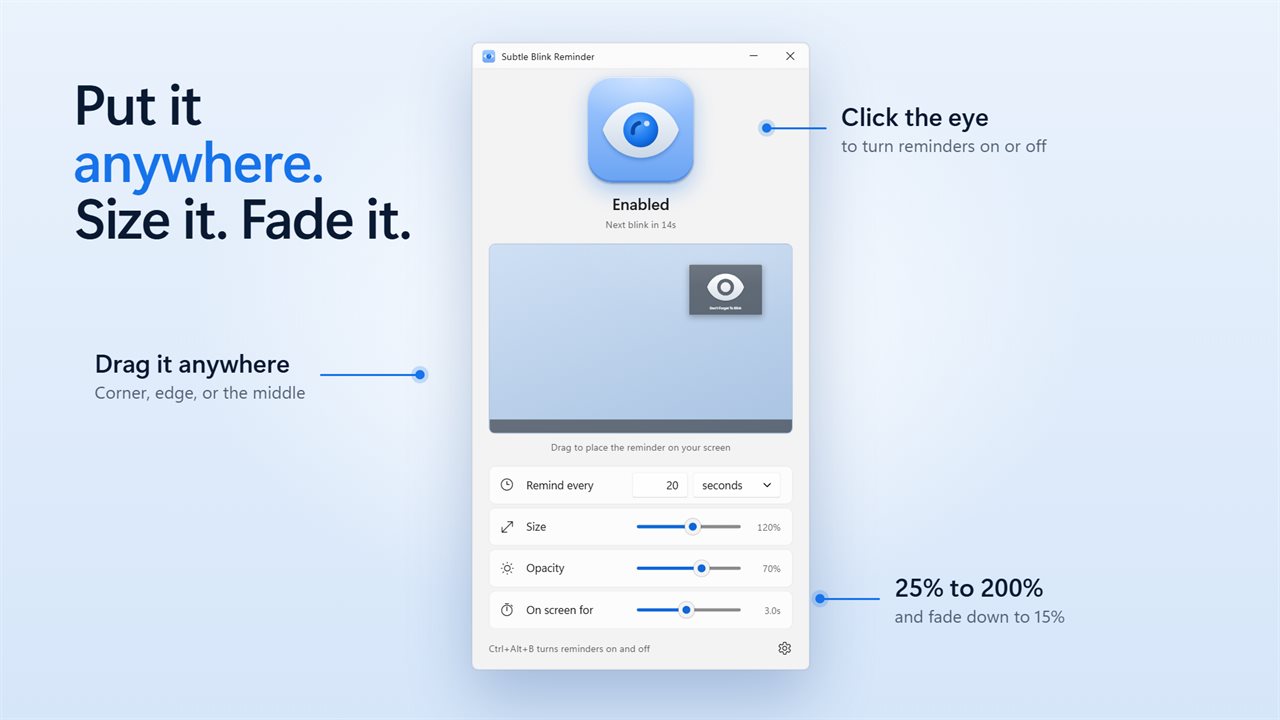
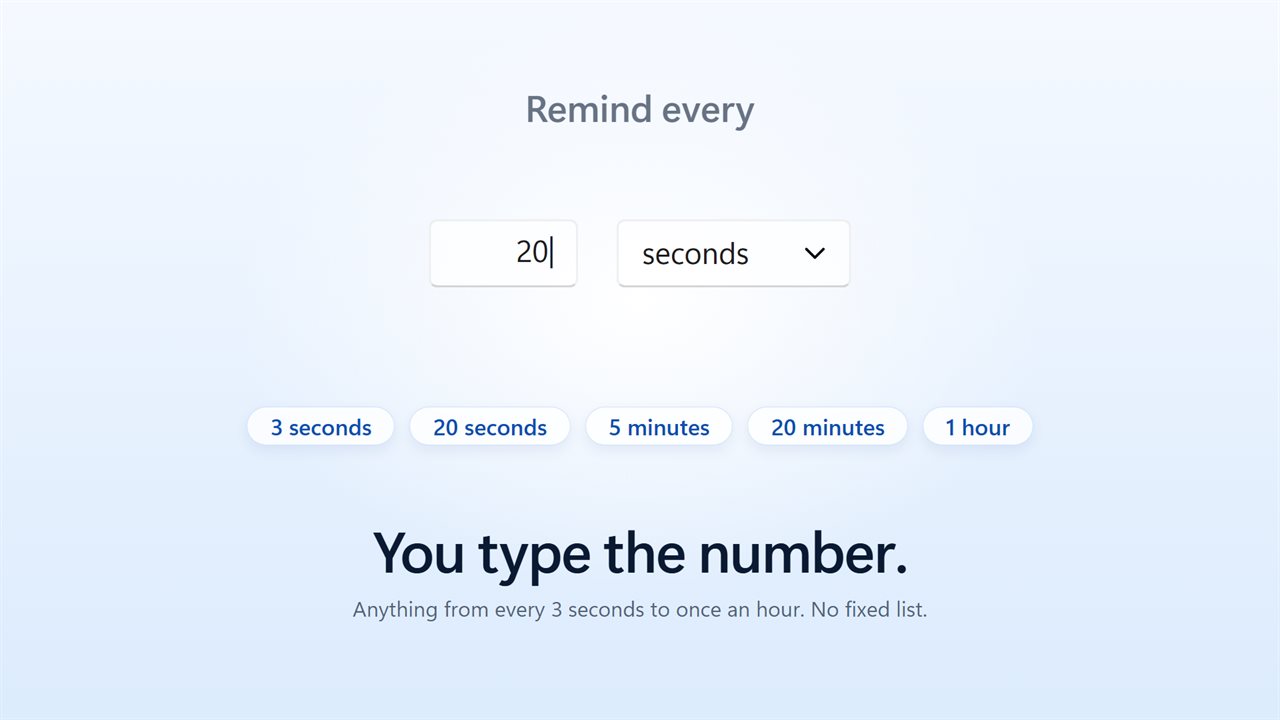
The default is one cue every 20 seconds, shown for 3 seconds. Under Remind every you can type any value from 3 seconds up to 60 minutes, in seconds or minutes. Short gaps suit a long reading or coding session; a gap of several minutes suits days when you only want a light check. Each cue can stay On screen for anywhere from 0.3 to 6 seconds.
Set it up so it stays out of the way
- Drag the eye on the small screen preview to the spot you want, such as a corner near your taskbar or the middle of the display.
- Use the Size slider (25% to 200%) and the Opacity slider (down to 15%) until it is visible without being loud.
- Turn off Show “Don't Forget To Blink” in Settings if you want only the eye, with no words.
- Turn off Animated if you prefer the card to appear and disappear outright instead of fading.
- Switch on Show on every monitor if you work across several displays; otherwise it uses the main screen only.
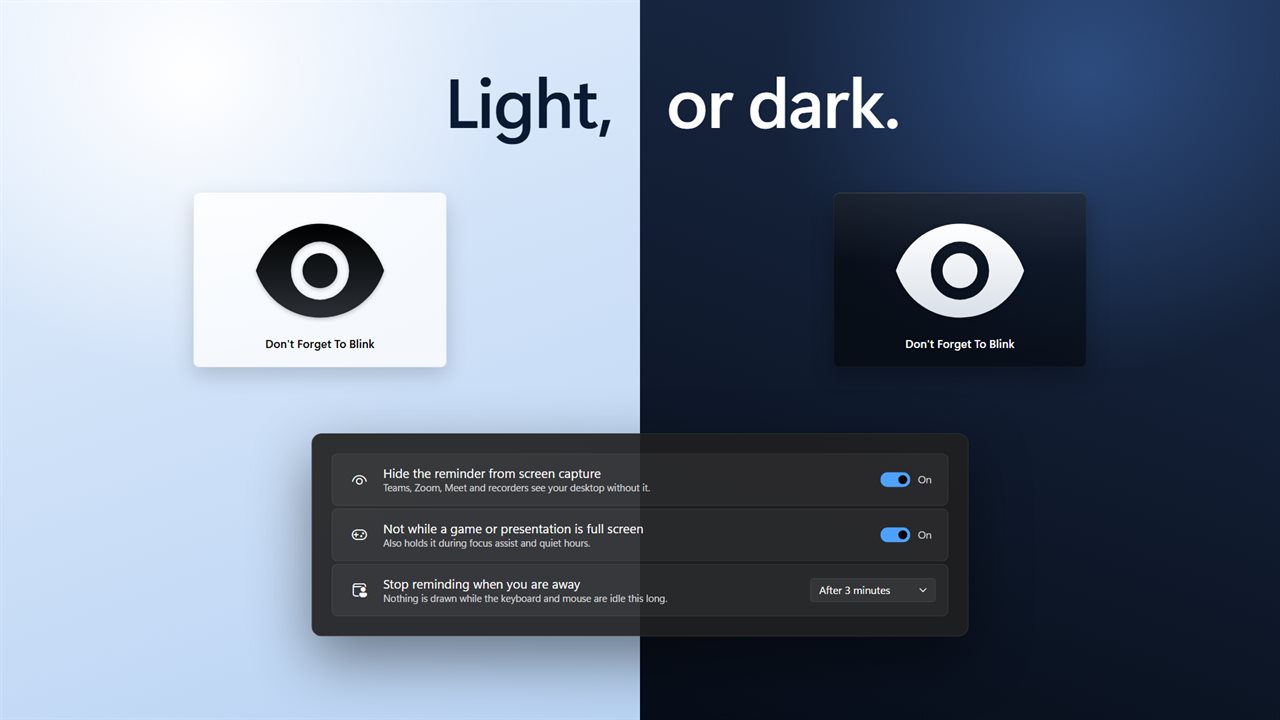
- Pick Match Windows, Dark or Light under Appearance. Dark draws a white eye on a dark card, Light a black eye on a white one.
Computer screen dry eyes during calls, games and breaks
The times you most need a nudge are often the times a pop-up would be awkward. With Hide the reminder from screen capture on, a shared screen or a recording shows your desktop without the eye, so a meeting never sees it.
Not while a game or presentation is full screen holds the cue during full-screen apps, focus assist and quiet hours, while the schedule keeps running in the background. Stop reminding when you are away pauses it once the keyboard and mouse sit idle for the time you choose, so it is not blinking at an empty chair.
When you want to pause by hand, press Ctrl+Alt+B from any app, set your own key combination under On and off shortcut, or click the eye in the main window. The tray menu also has Blink now for a single cue on demand.