A network usage monitor for every adapter on your PC
Windows has a Data usage page under Network & internet, and it is fine for one question: roughly how much did this PC use in the past 30 days? It will not show you today's total, how the days compare, or how fast an adapter is moving data at this moment. For that you need a network usage monitor that watches each adapter separately.
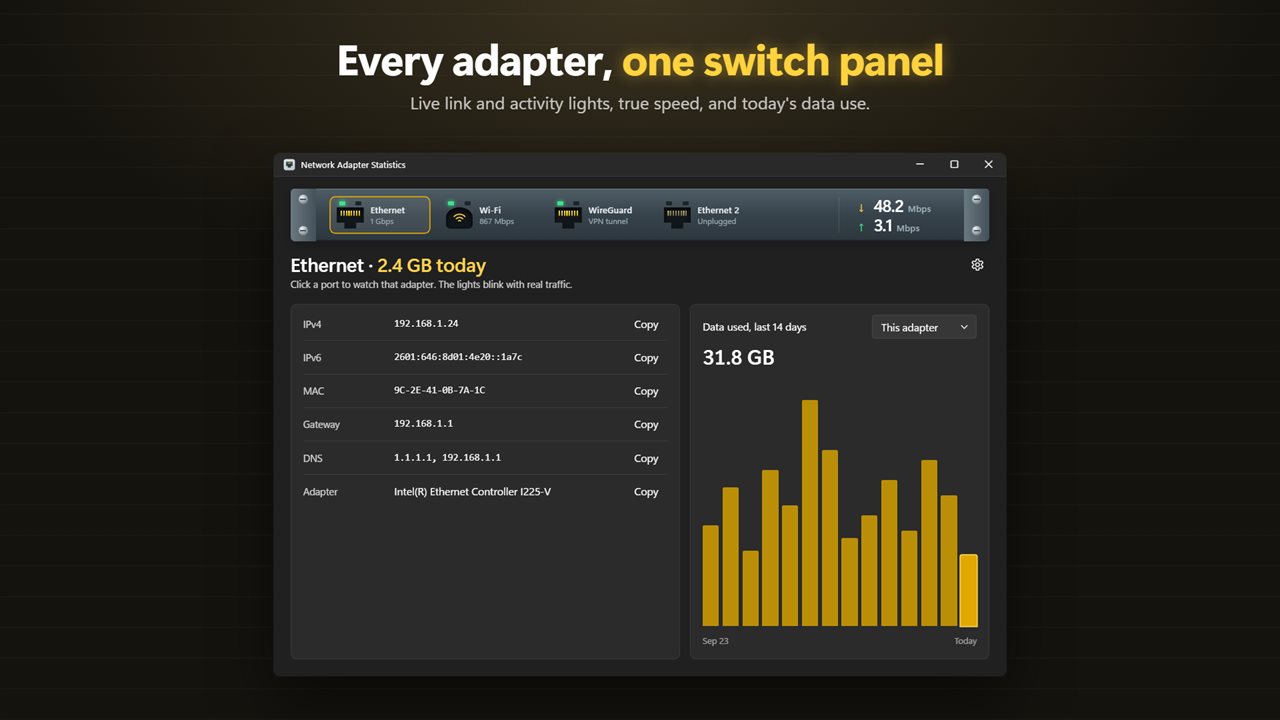
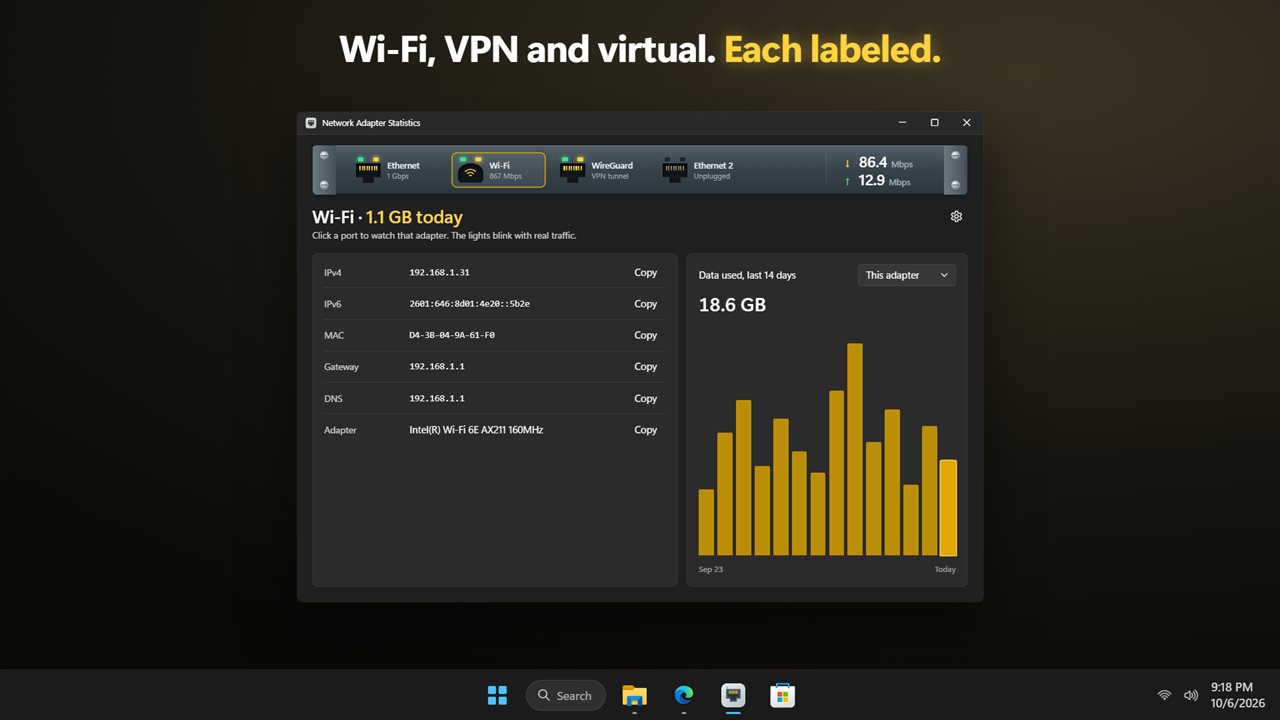
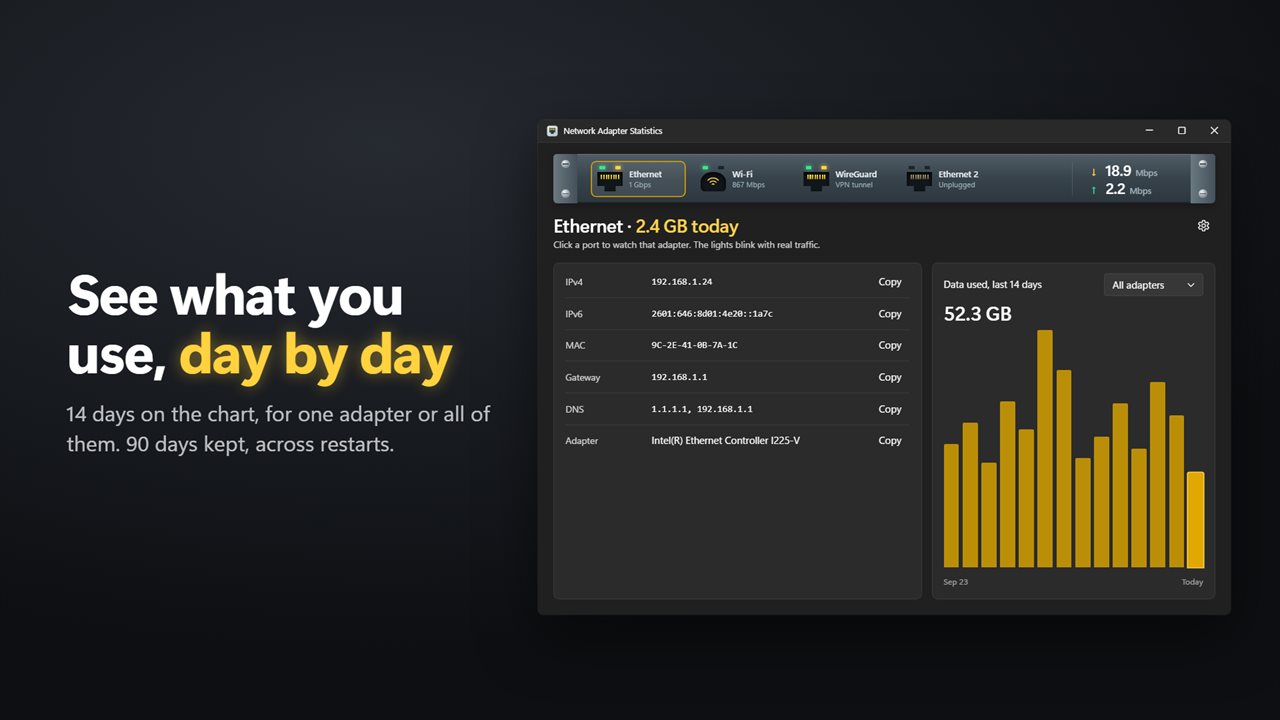
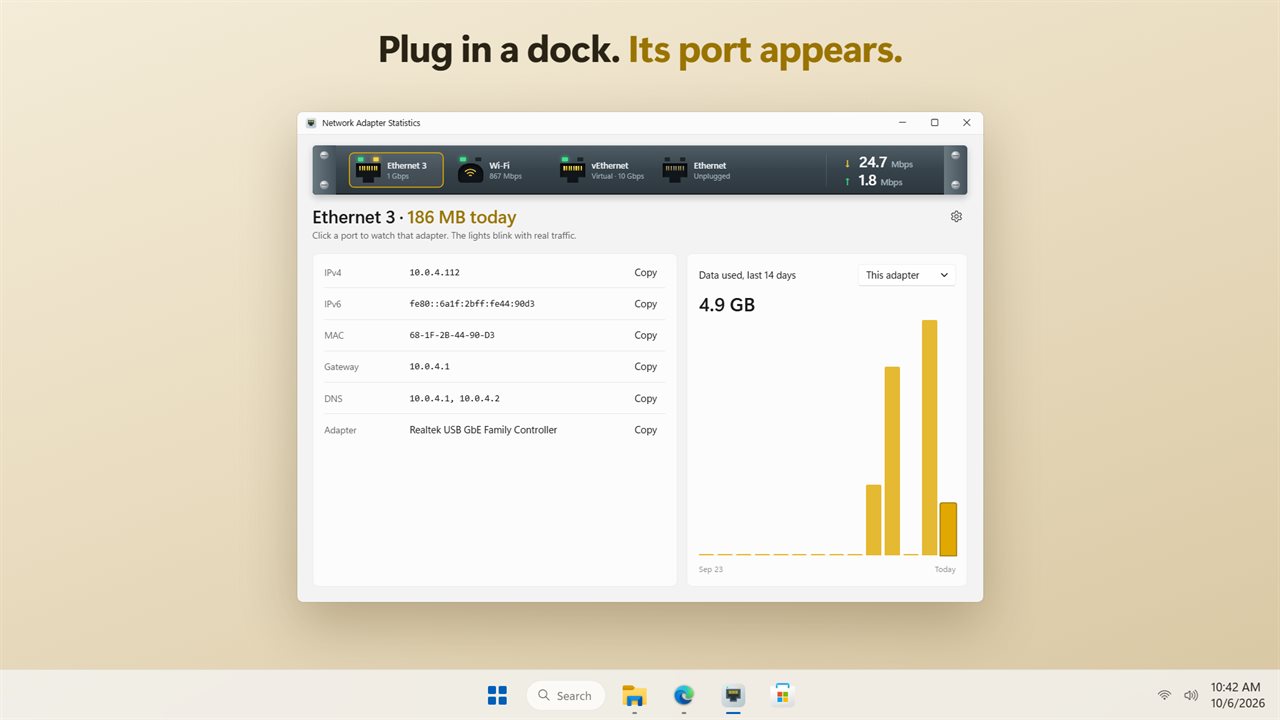
Network Adapter Statistics lays every adapter out as a jack on a switch panel. Ethernet ports, the Wi-Fi radio, a USB dongle, a dock, a VPN tunnel and Hyper-V switches each get their own port. A green link light shows which ones are connected; an amber activity light blinks with real traffic, quicker as more data flows.
Click a port to watch it. The panel then shows download and upload speed for that adapter, today's data use and a 14-day chart. Connect a VPN, unplug a dock or switch off Wi-Fi and the panel rearranges itself without a refresh.
Check network adapter speed and live traffic
Under each port is its negotiated link speed, the figure the adapter agreed with your switch or router, so a cable stuck at 100 Mbps instead of 1 Gbps is obvious at a glance.
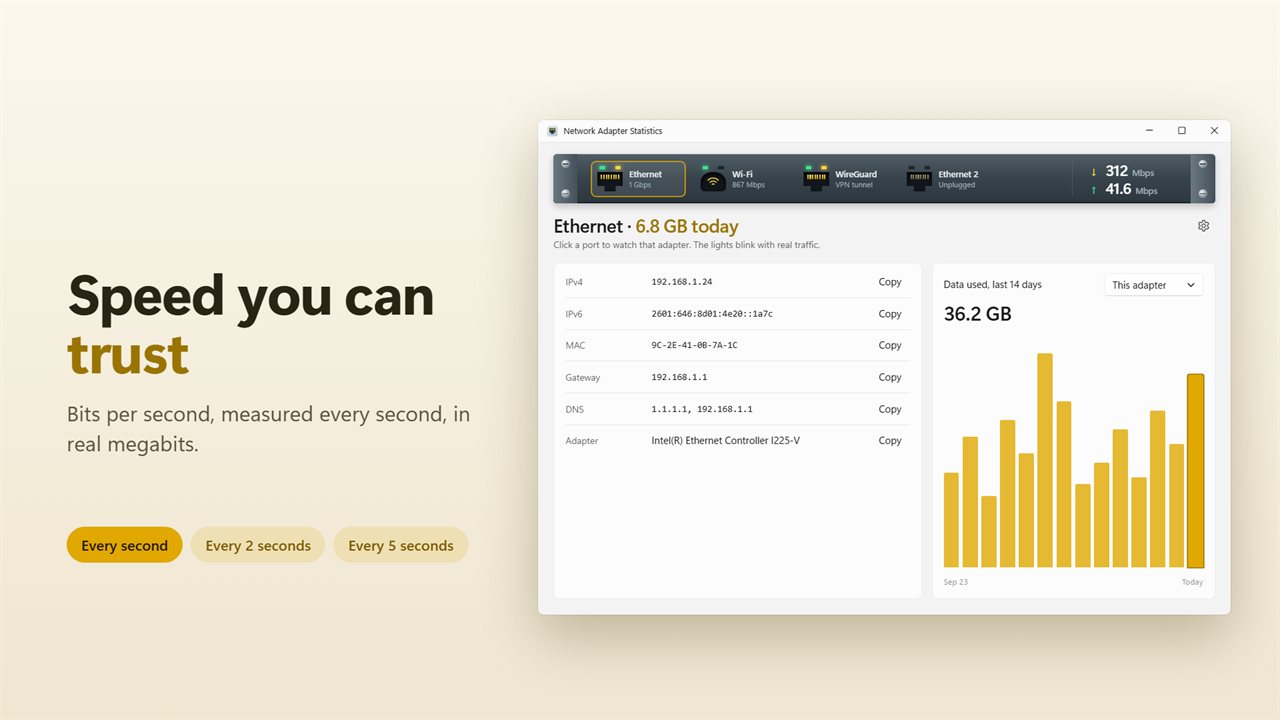
Above the panel, the watched adapter's current download and upload rates are shown in bps, kbps, Mbps or Gbps. These are decimal megabits, the same unit internet plans are sold in, computed from the adapter's own byte counters over the exact time between readings. Update speed under Readings sets the pace: Every second, Every 2 seconds or Every 5 seconds.
A data usage monitor with a day-by-day chart
The chart titled Data used, last 14 days has one bar per day ending at Today. Switch its menu between This adapter and All adapters to see one connection or the whole PC. Daily totals are stored for 90 days and survive closing the app.
That makes it easy to spot the day a cloud backup or game update ran, or to keep a phone hotspot or capped connection under its allowance.
Find your IP address, MAC address and DNS servers
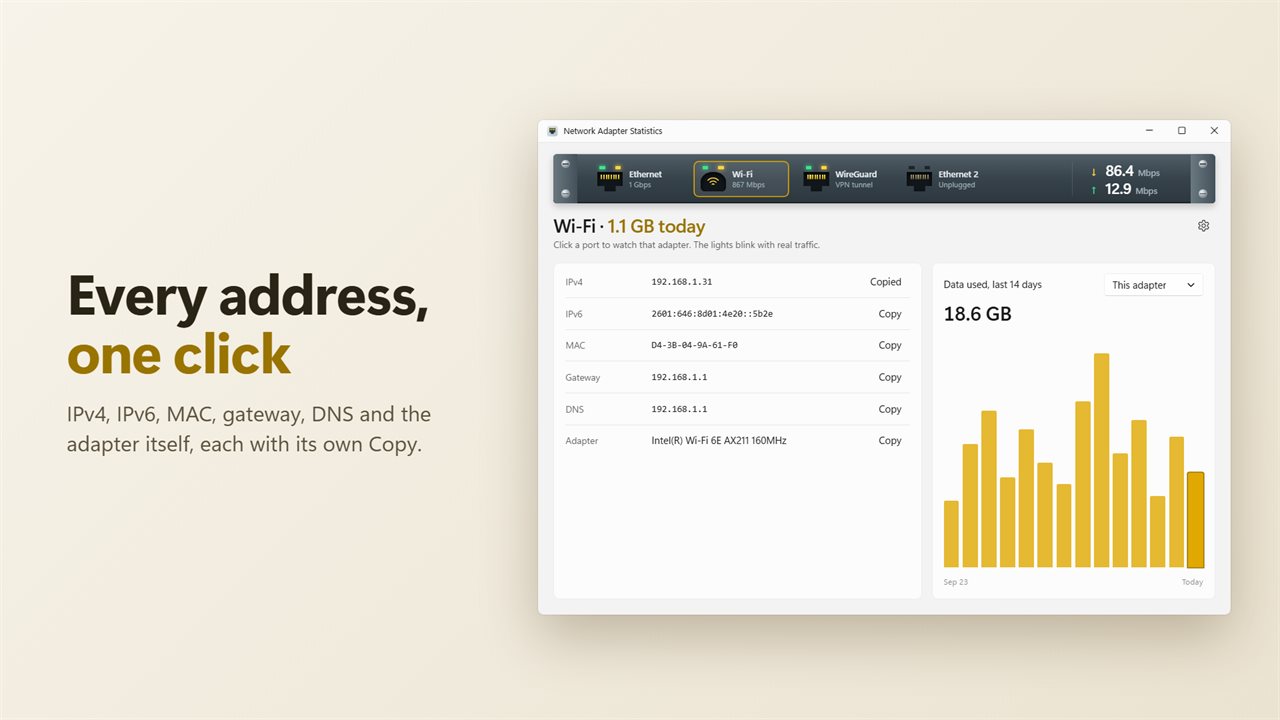
Below the chart, a details card lists what the selected adapter is using right now. Each row has a Copy button, so there is no need to read a long ipconfig printout and retype a value by hand.
- IPv4 and IPv6 addresses
- MAC address, written with dashes as Windows shows it
- Default gateway
- DNS servers
- The adapter's full device name