EEvlarSoft

News Ticker Widget

A desktop news ticker that scrolls the headlines from your chosen RSS feeds along the top or bottom of the screen, like a TV news crawl for your PC.

Buy for $2.99
One payment. No subscription.
14-day money-back guarantee.
3.4
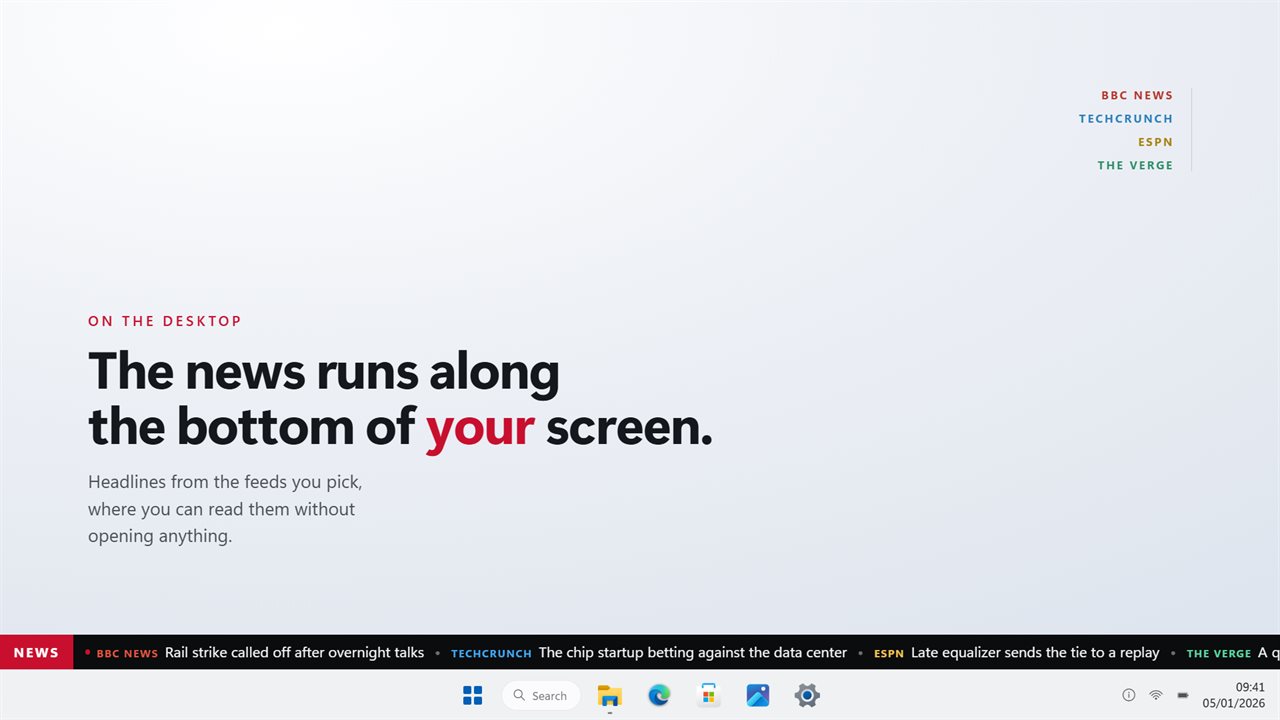
The news runs along the bottom of your screen, where you will see it.
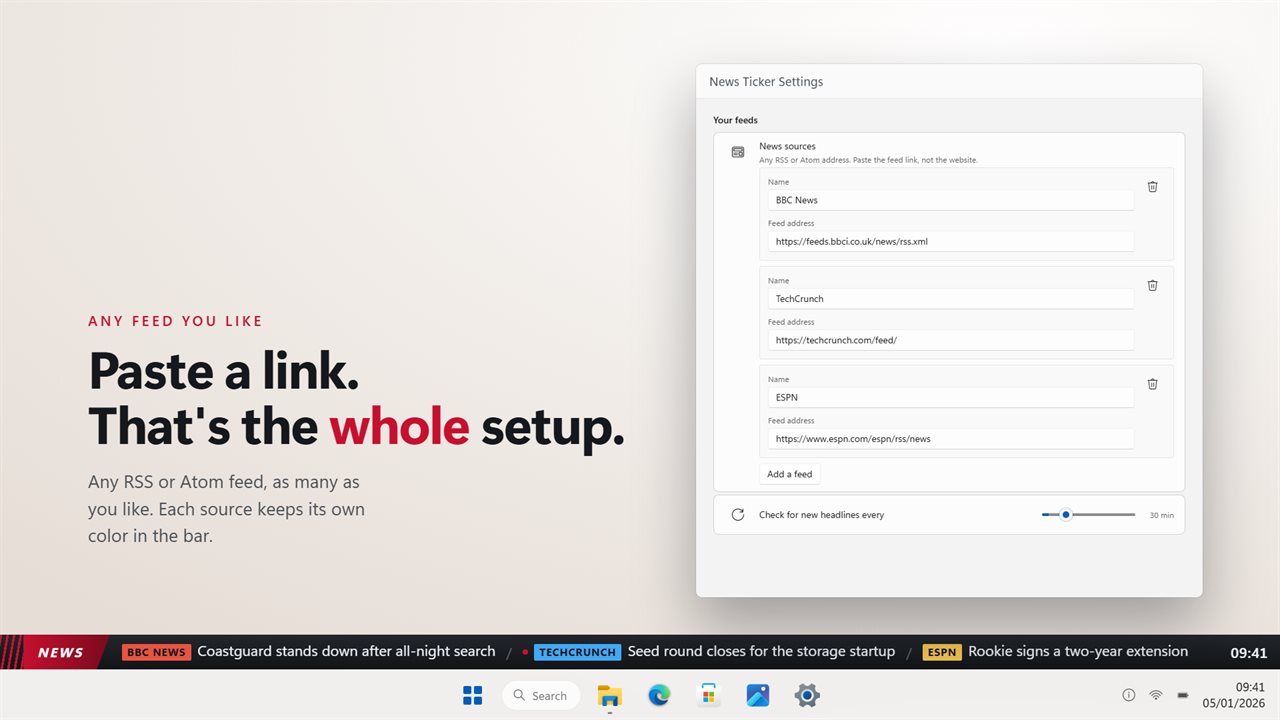
Paste a link. Any RSS or Atom feed, as many as you like.
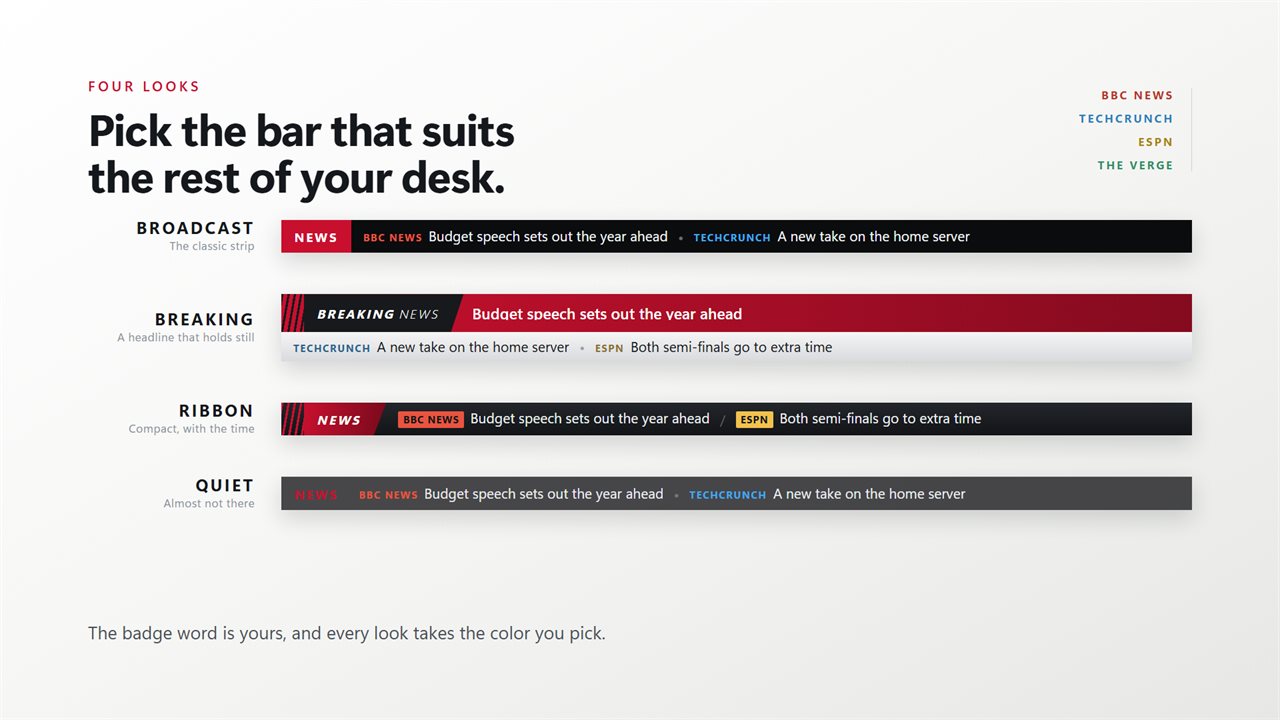
Four looks, from a full broadcast bar to one that almost disappears.
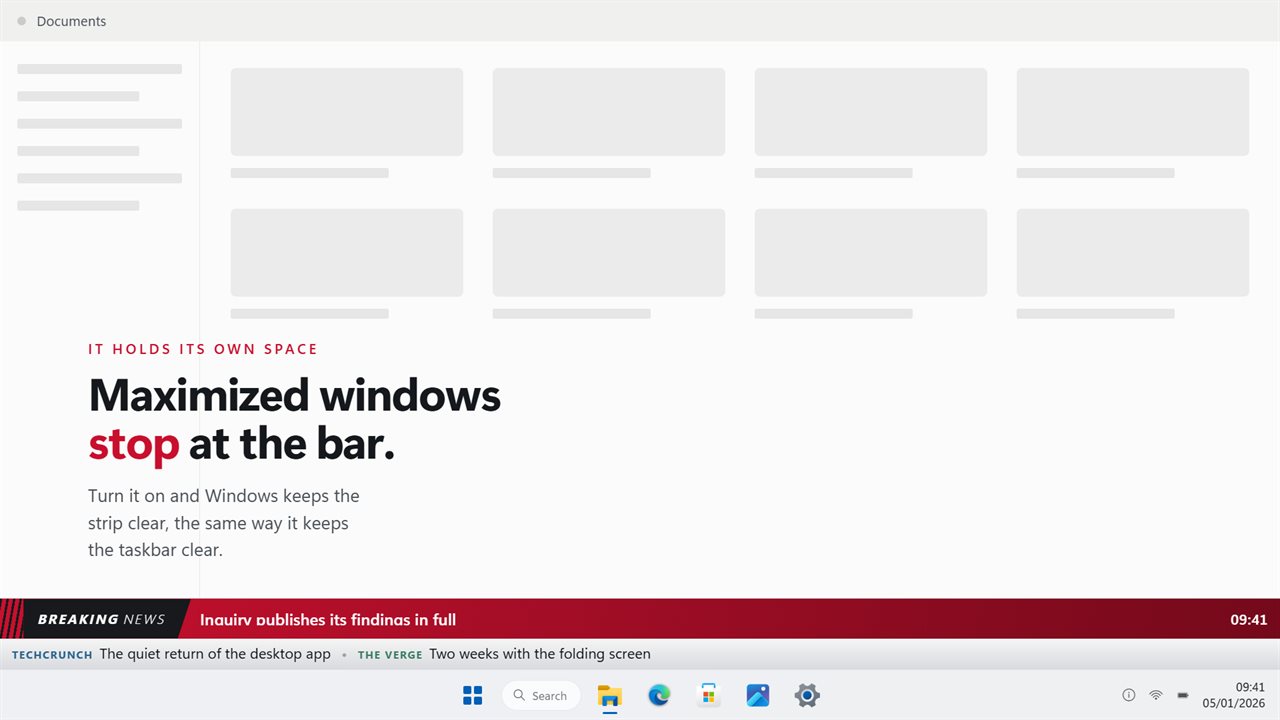
Maximized windows stop at the bar, the way they stop at the taskbar.
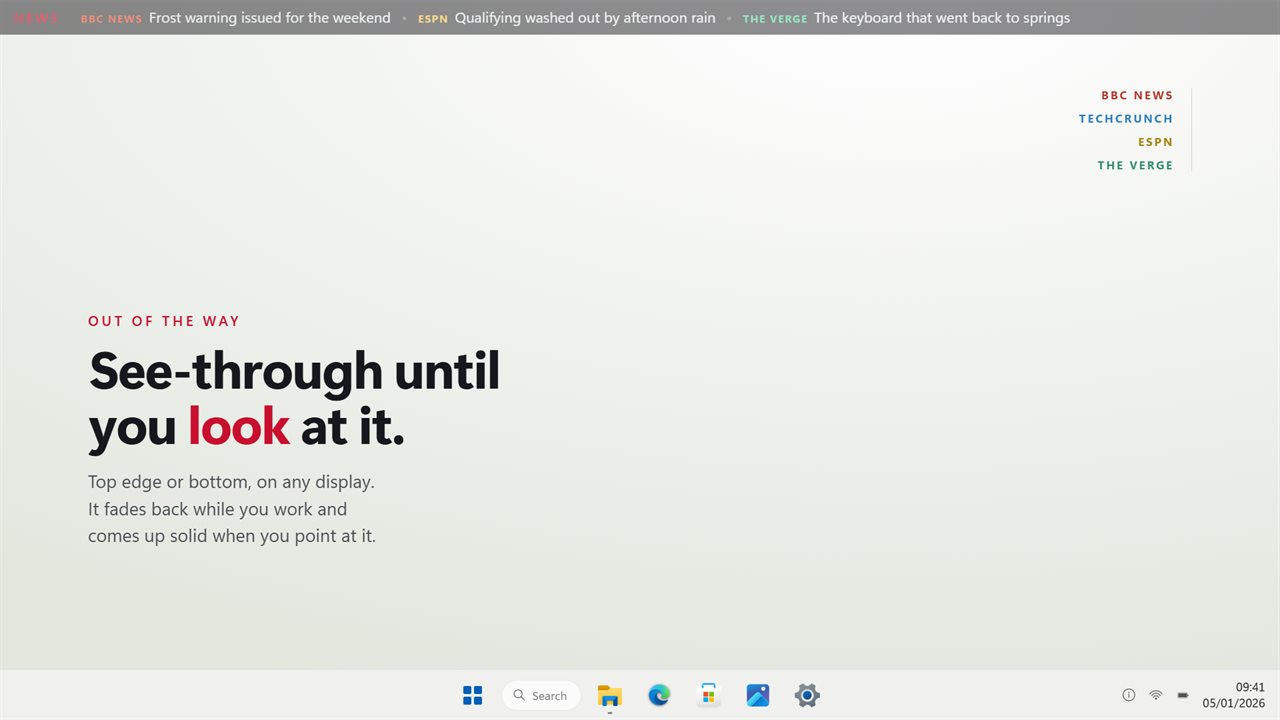
See-through until you look at it, on either edge of any display.

News Ticker Widget in 31 seconds

News Ticker Widget trailer
190,000+downloads of EvlarSoft apps
Signed by EvlarSoftVerified US publisher
14-day money-backNo questions asked
Updates includedNo upgrade fees

A desktop news ticker that keeps its own lane

A desktop news ticker answers one question all day long: has anything happened? Instead of a homepage that pulls you in for twenty minutes, you get a single moving line of headlines at the edge of the screen, and you only click the one that matters.

The usual complaint about scrolling tickers on Windows is that they float on top of everything and sit across the very toolbar you need. This one can register its strip with Windows itself. Switch on Keep windows off the bar and maximized apps stop short of the ticker exactly as they stop short of the taskbar, so nothing hides underneath it and it never hides anything.

Headlines from different feeds are woven together rather than played in blocks, and each one is tagged with the feed it came from. A bar fed by five outlets reads as five outlets, not as ten minutes of one site followed by ten of another.

How to add an RSS feed to the ticker

Open settings and go to News sources. Three feeds come preloaded, covering world news, technology and sports, so the bar has something to show from the first minute.

  • Click Browse feeds to pick from well-known news feeds with one click.
  • Or add your own: give it a Name, paste the Feed address, and it joins the rotation. RSS, Atom and RDF addresses all work.
  • Turn off Include in the ticker to rest a feed without losing it.
  • Set Headlines from each feed between 5 and 40, and Check for new headlines every 5 to 120 minutes.

An RSS widget you can read on the move

A crawl is only useful if you can catch the line you care about. Rest the pointer on the bar and the scroll stops so you can finish reading. Turn the mouse wheel to bring back a headline that has already slid past. Click it and the full story opens in your browser.

Show which feed each headline came from labels every item with its source, and Show when each story was published can add the clock time, such as 2:45 PM, or the age, such as 12 min ago. See-through until you point at it lets the strip fade back while you work and come up solid as soon as you reach for it.

Styles and placement on Windows 11

Style has four built-in looks. Broadcast is the familiar TV strip with a colored badge. Breaking adds a band above the crawl where one headline holds still long enough to read. Ribbon is compact, and Quiet nearly disappears into the desktop. The Badge word and Badge color are yours to change, so the label can read LIVE, MARKETS or your team's name, in up to 14 characters. Left blank, it says NEWS.

Runs across the places it at the Top of the screen, Middle of the screen or Bottom of the screen, and with more than one monitor, Shown on picks the display. Scrolling speed runs from 20 to 160 and Text size from 11 to 22. Sits keeps it Above other windows or On the desktop, and Start with Windows has it running before your first coffee.

What it does

  • Headlines from any RSS, Atom or RDF feed, as many feeds as you want
  • Feeds interleaved, with each headline labeled by its source
  • Browse feeds list of popular outlets for one-click adding
  • Hover to pause, mouse wheel to go back, click to open the article
  • Optional publish time shown as a clock time or minutes ago
  • Reserved screen strip so maximized windows stop at the bar
  • Broadcast, Breaking, Ribbon and Quiet styles with your own badge word and color
  • Top, middle or bottom of any connected display
  • Adjustable speed, text size, refresh interval and headlines per feed
  • Fades back until you point at it, and can start with Windows

Who runs a news crawl on their PC

Newsrooms and communications teams

Keep wire and competitor feeds moving along a second monitor and spot a breaking story without refreshing a page.

Traders and analysts

A Breaking style band over the crawl holds the latest business headline still while the rest scroll beneath it.

Fans following a team or a field

Add a club's feed, a league feed and a niche blog, and the bar keeps you current without opening three tabs.

What's new in 2.1.10

  • Rebuilt for Windows 11
  • New: four looks — Broadcast, Breaking, Ribbon and Quiet — with your own badge word
  • New: Breaking holds one headline still above the crawl, long enough to read
  • New: the bar can hold its own space, so maximized windows stop at it
  • New: headlines added since the last check are marked
  • Feeds are interleaved, so five sources read like five sources
  • Every headline carries its source, in that source's color
  • Point at the bar to stop it, and scroll the wheel to go back
  • Top or bottom edge, on whichever display you choose
  • Your existing feeds and settings are carried over on first launch
  • Lower memory use and a faster start

Questions

Anything else? Ask us

Which news sources can I use?

Any RSS, Atom or RDF feed address. It starts with BBC News, TechCrunch and ESPN, and Browse feeds lists well-known feeds you can add with one click. Each feed can be switched off without deleting it.

How often does it check for new headlines?

Every 30 minutes by default, adjustable from 5 to 120 minutes. You can also set how many headlines it takes from each feed, from 5 to 40.

Will maximized windows cover the ticker?

Not if you turn on Keep windows off the bar. Windows then reserves the strip, so maximized windows stop at it the way they stop at the taskbar. This works when the ticker runs along the top or bottom edge, not the middle.

Can I stop the scroll to read a headline?

Yes. Pointing at the bar pauses it, the mouse wheel scrolls back to headlines that have already gone past, and clicking a headline opens the story in your browser.

Does it work with more than one monitor?

Yes. With more than one display connected, you choose which one it runs on, and whether it runs across the top, middle or bottom of the screen.

Can it show stock prices?

Only with the Markets add-on. That adds the major indexes, Bitcoin and Ethereum, and the day's biggest movers, either on their own row or mixed in with the headlines.

How do I find the RSS feed address for a news site?

Look for an RSS or feed link on the site, often in the footer, or try the site address followed by /feed or /rss. Paste that link into Feed address. Browse feeds also lists popular feeds ready to add.

Can I change the word on the ticker's badge?

Yes. Type up to 14 characters into Badge word and choose its color with Badge color. An empty Badge word falls back to NEWS.

Can I see what time a headline was published?

Yes. Set Show when each story was published to the clock time or to how long ago it went out.

Which versions of Windows does it run on?

Windows 10 (version 1809 or later) and Windows 11.

Is it a subscription?

No. News Ticker Widget is a one-time purchase of $2.99, and updates are included.

How do I get it?

Buy it on this page and your license key arrives by email. If the button says Notify me, News Ticker Widget is not on sale here yet; leave your email and we will tell you when it is.