How to set up an FTP server without a web server console
The usual way to set up an FTP server on Windows is a long one. You switch on optional Windows features, open a web server management console, create an FTP site, add bindings, set authorization rules, then open the firewall. It is built for a web host, and it is a lot of ceremony for getting holiday photos from a PC onto a tablet in the same room.
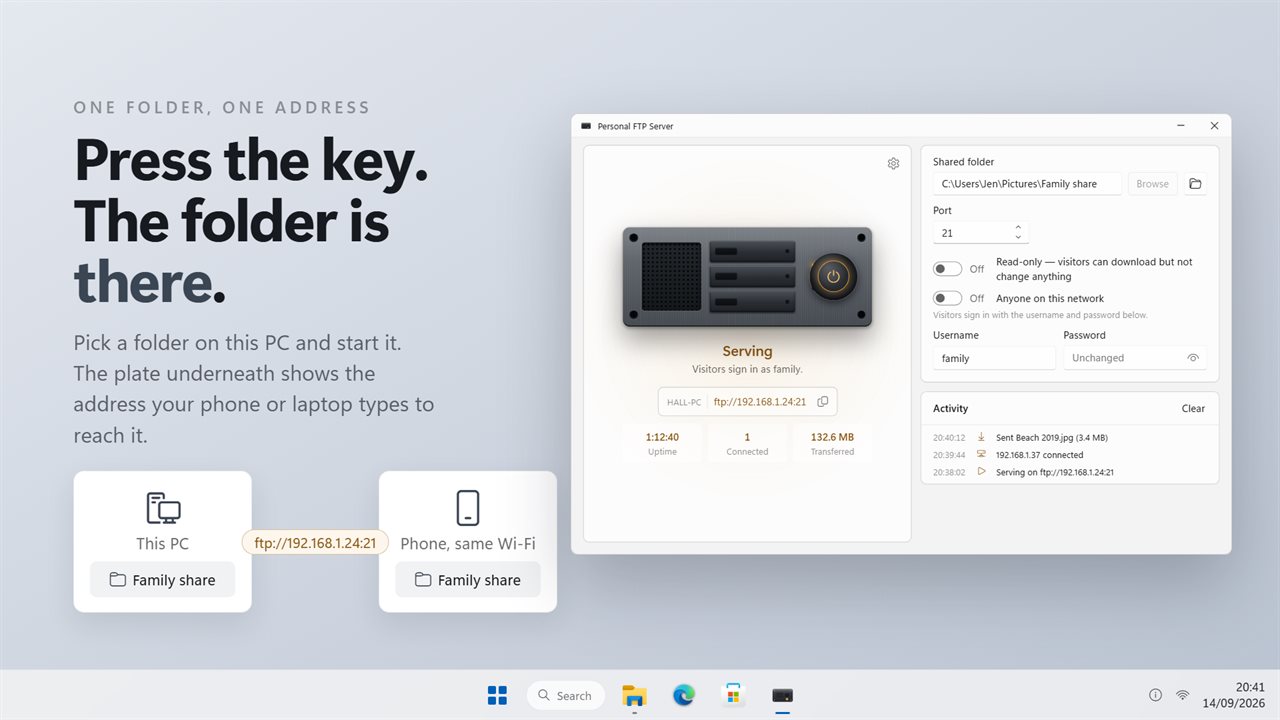
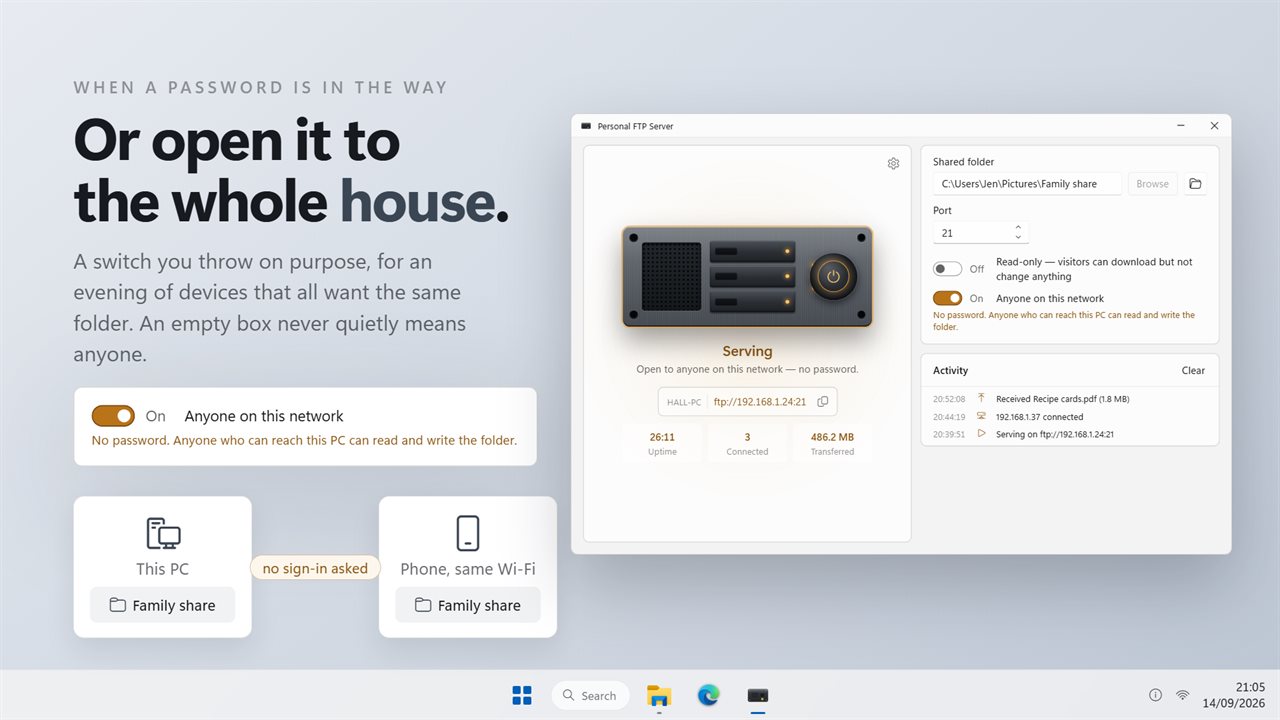
Personal FTP Server is the short version. There are four things to fill in: the Shared folder, the Port, a Username and a Password. Press the key on the front of the server rack and the plate below it shows an address such as ftp://192.168.1.20:21, with a Copy the address button beside it. Type that into a file manager on a phone, an FTP client on a laptop or a media app on a TV box on the same network and the folder appears.
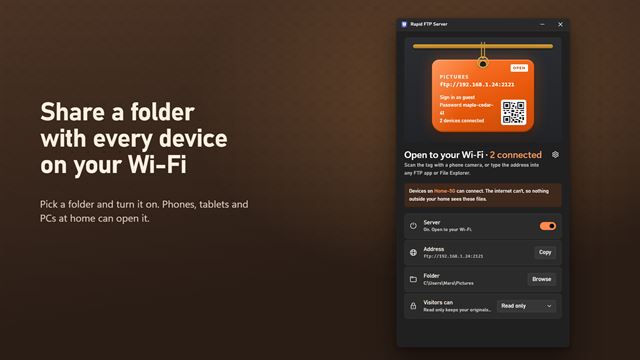
It is a personal server in the literal sense: one folder, your devices, your home network. It serves plain FTP, which has no encryption, so it is the wrong tool for reaching your files across the internet.
Your home FTP server, step by step
- Under Shared folder, press Browse and pick the folder to serve. Visitors land in it and cannot climb above it.
- Leave Port at 21, or choose another. If Windows refuses a port below 1024, the app says it needs admin and suggests 2121.
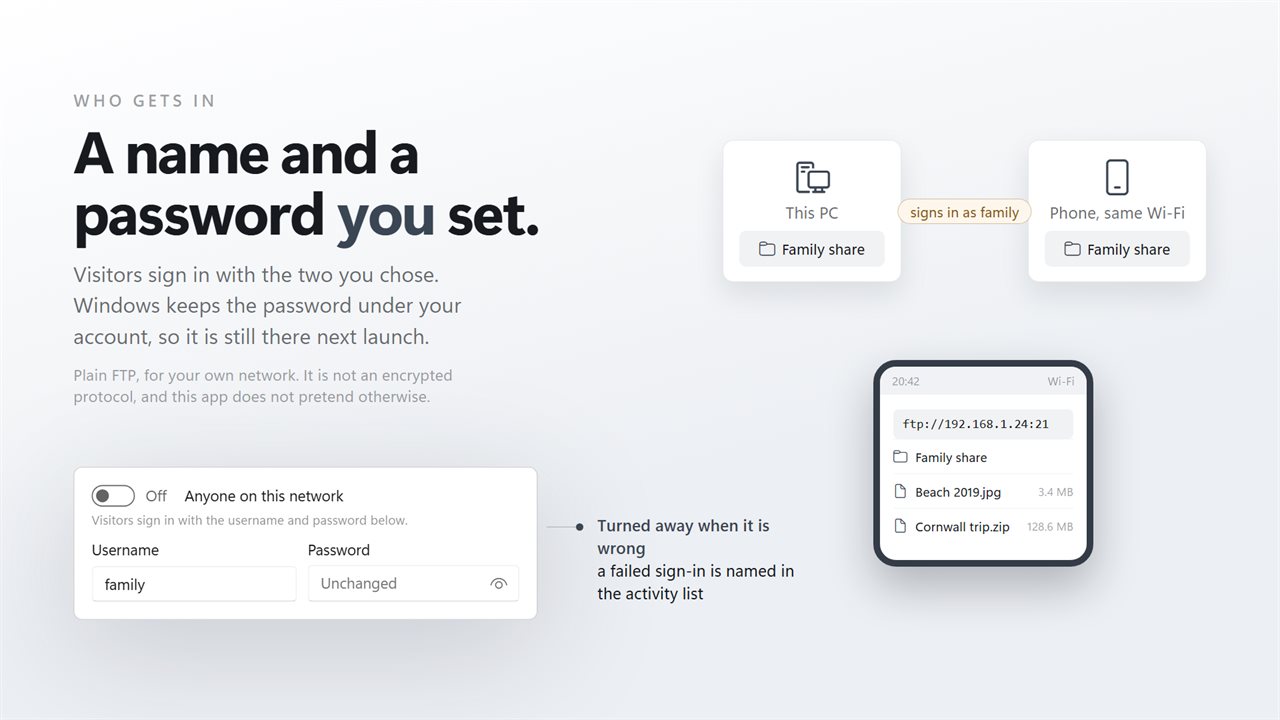
- Type a Username and Password for visitors. Leaving them blank does not open the share; the server simply will not start.
- Press Start the server. The first time, Windows may ask whether to allow it through the firewall, so allow it on private networks.
- Connect from the other device with the ftp:// address on the plate. Set the client to passive mode if it asks.
FTP server password, anonymous access and read-only
A password is the default. Windows encrypts it for your user account, so it is still set when you reopen the app. The field shows Unchanged rather than the password itself.
When a house full of devices makes sign-ins a nuisance, Anyone on this network turns on anonymous FTP. It is a switch you turn on deliberately, and the note under it spells out the result: no password, and anyone who can reach this PC can read and write the folder.
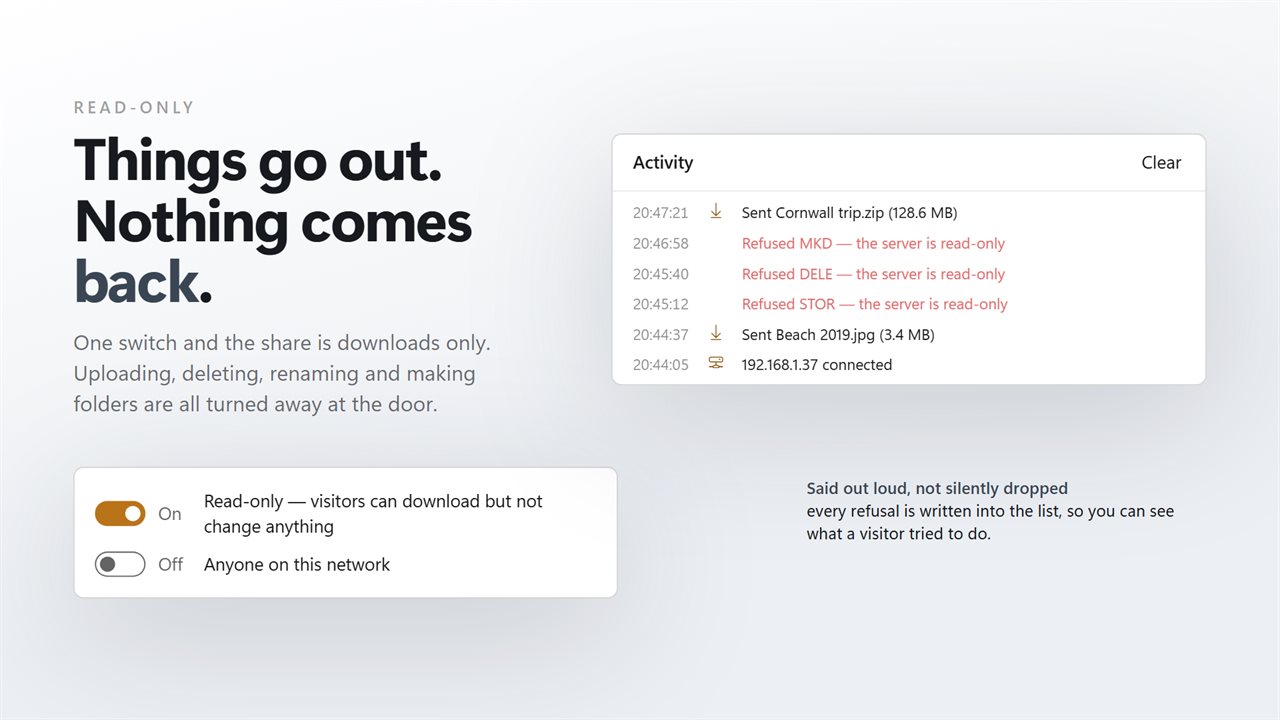
To hand out files without risk to them, turn on Read-only. Visitors can still list and download, but uploads, deletes, renames and new or removed folders are all refused before they reach the disk.
See every connection, transfer and refused sign-in
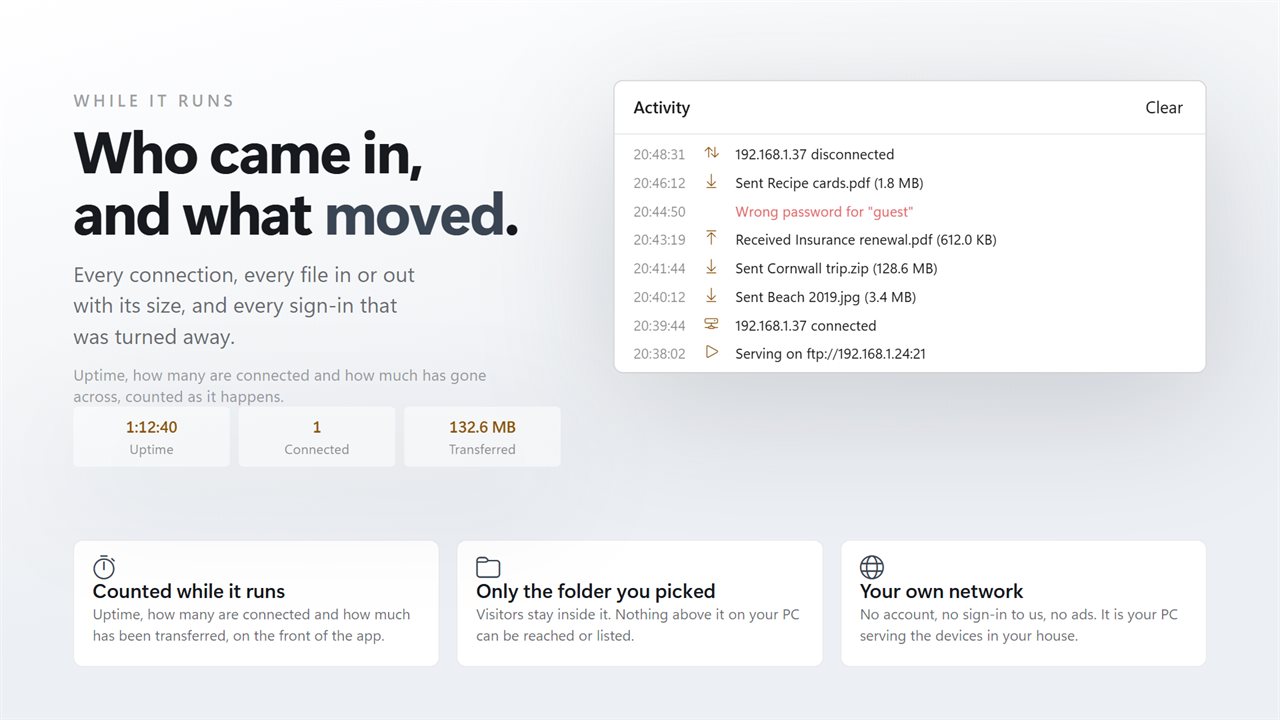
The rack's lights follow the server, with a blink when a device connects and another while data moves. Beneath them run three counters: Uptime, Connected and Transferred.
The Activity list keeps the detail. It records when the server started and stopped, each file sent or received with its size, each command refused because the share is read-only, and each wrong password with the name that was tried. Clear empties it when you are done.
Start minimized in Settings opens the app straight to the taskbar, but it never begins sharing by itself. The folder stays private until the key is pressed.