Print Screen on Windows 11, with the text handed to you
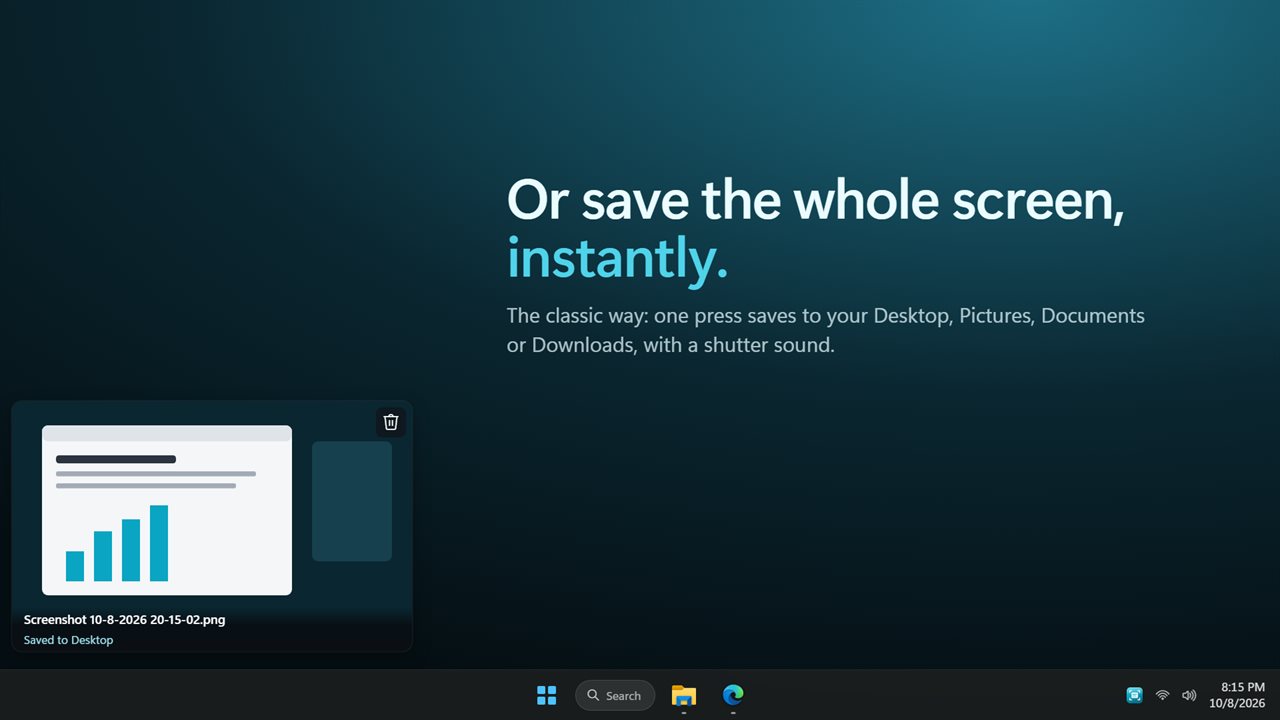
On Windows 11 the Print Screen key either copies the whole display or opens the built-in snipping bar, depending on a setting most people never look at. If what you wanted was the words in that error dialog or the figures in a chart legend, you then open the capture, find the text option, and copy from there. It is three steps for something you do ten times a day.
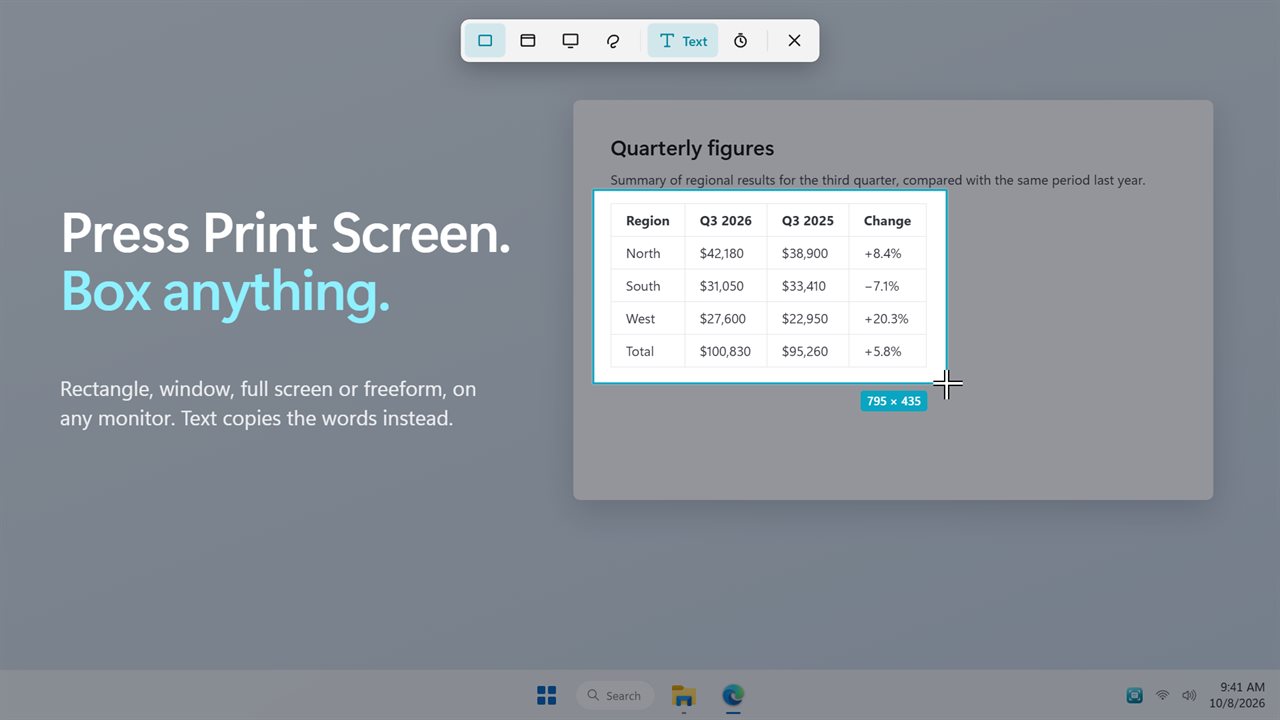
PrintScreen takes over the key and cuts out the middle. Press it and every monitor freezes, with a slim toolbar along the upper edge. Drag a Rectangle, click once to grab whichever Window sits beneath the cursor, pick Full screen, or trace a Freeform outline. A pixel readout follows the selection, Esc backs out, and releasing the mouse puts the image on the clipboard.
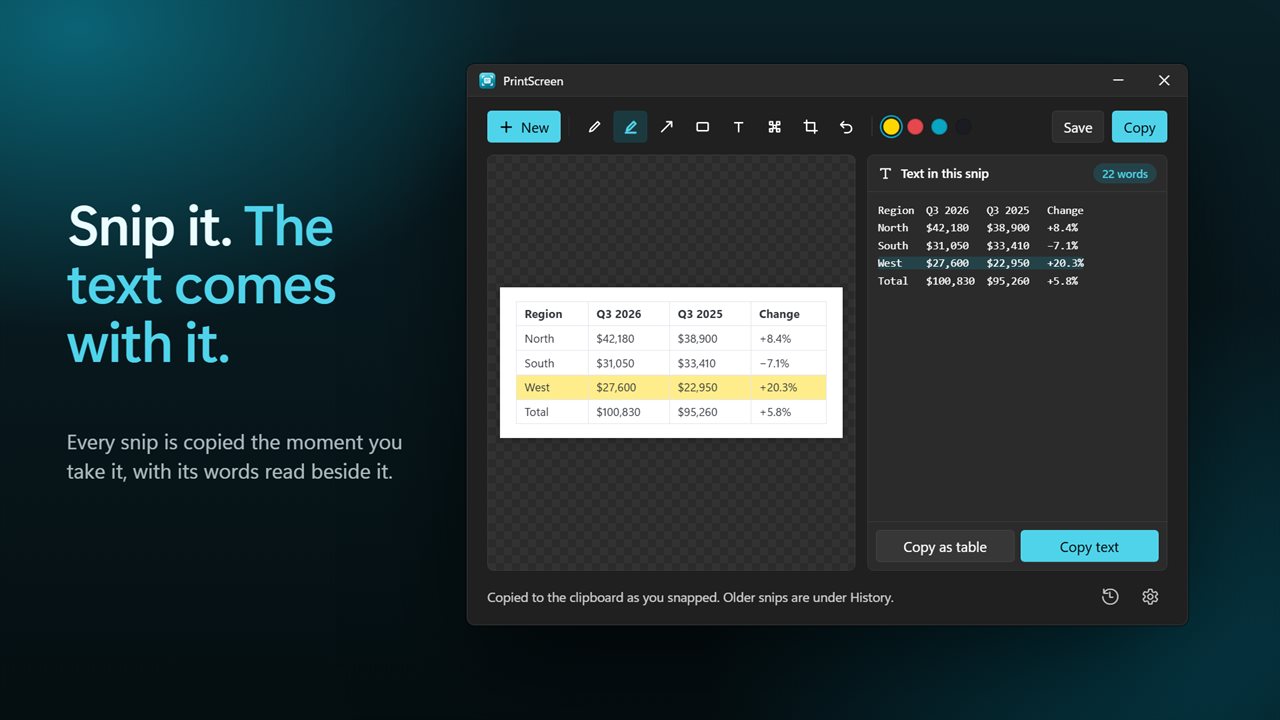
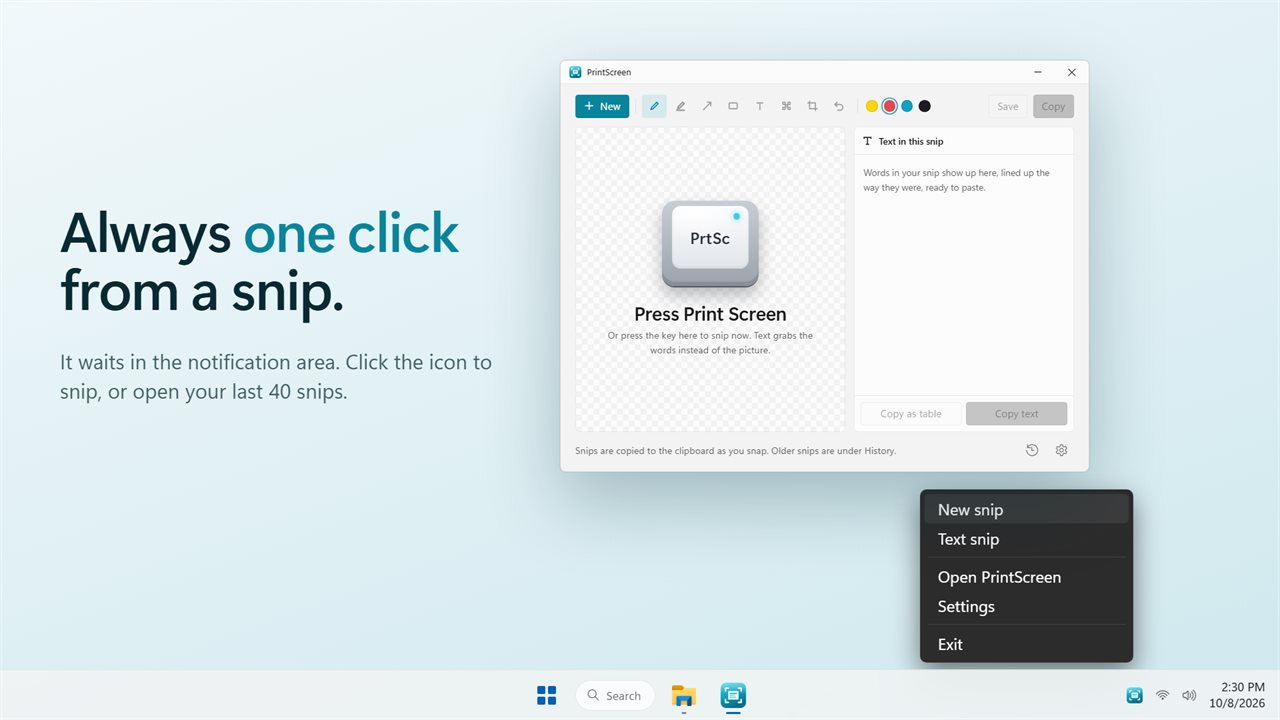
Each snip then opens in a compact editor with a panel titled Text in this snip beside it, the words laid out in the same lines they had on screen. Recognition runs through the text engine built into Windows, in the languages installed on your PC, so nothing is sent away to be read.
Screenshot to text in one keystroke
When you only want the words, skip the picture. Press Ctrl+Print Screen, or switch on Text in the snip bar, and draw a box. The text inside it goes to the clipboard as plain text, ready for an email, a search box or a support ticket.
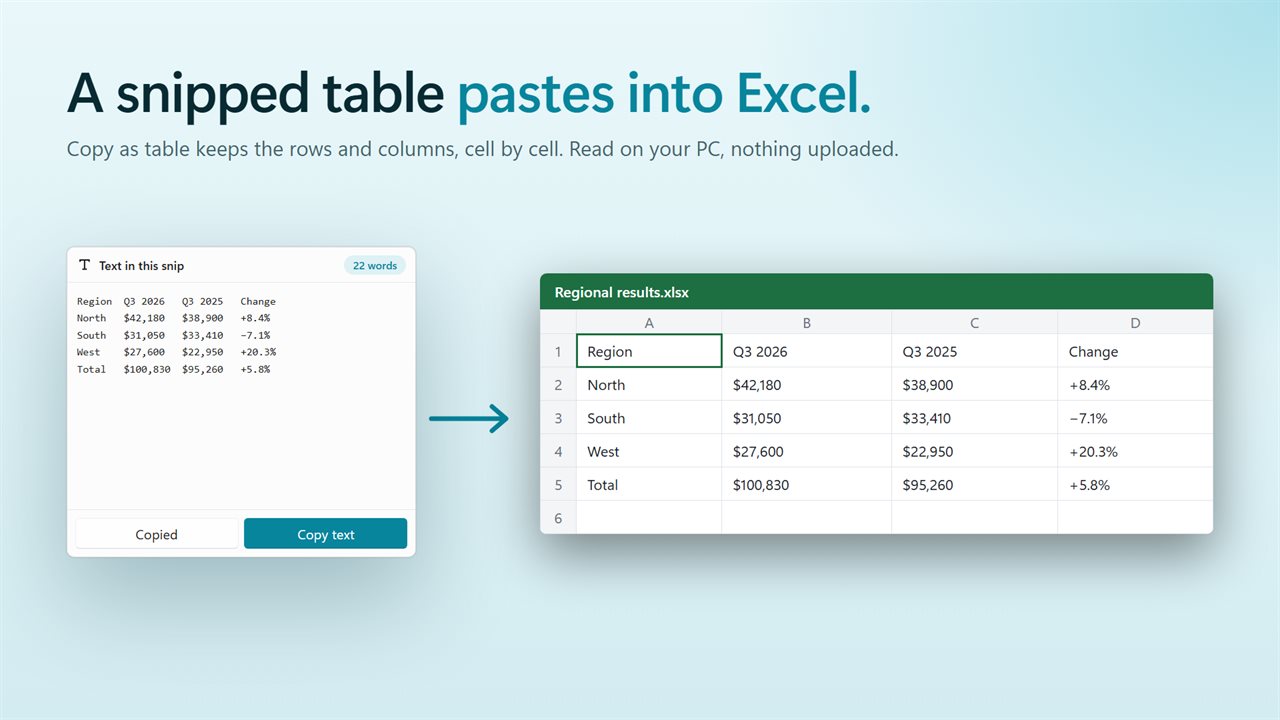
For anything shaped like a grid, press Copy as table in the editor. It sorts the words into rows and columns by where they sit and copies them tab-separated, so a snipped price list or a report from a web app lands in Excel or Sheets one value per cell. Tables with clear gaps between the columns come out cleanest.
A screen snipping tool with markup and blur
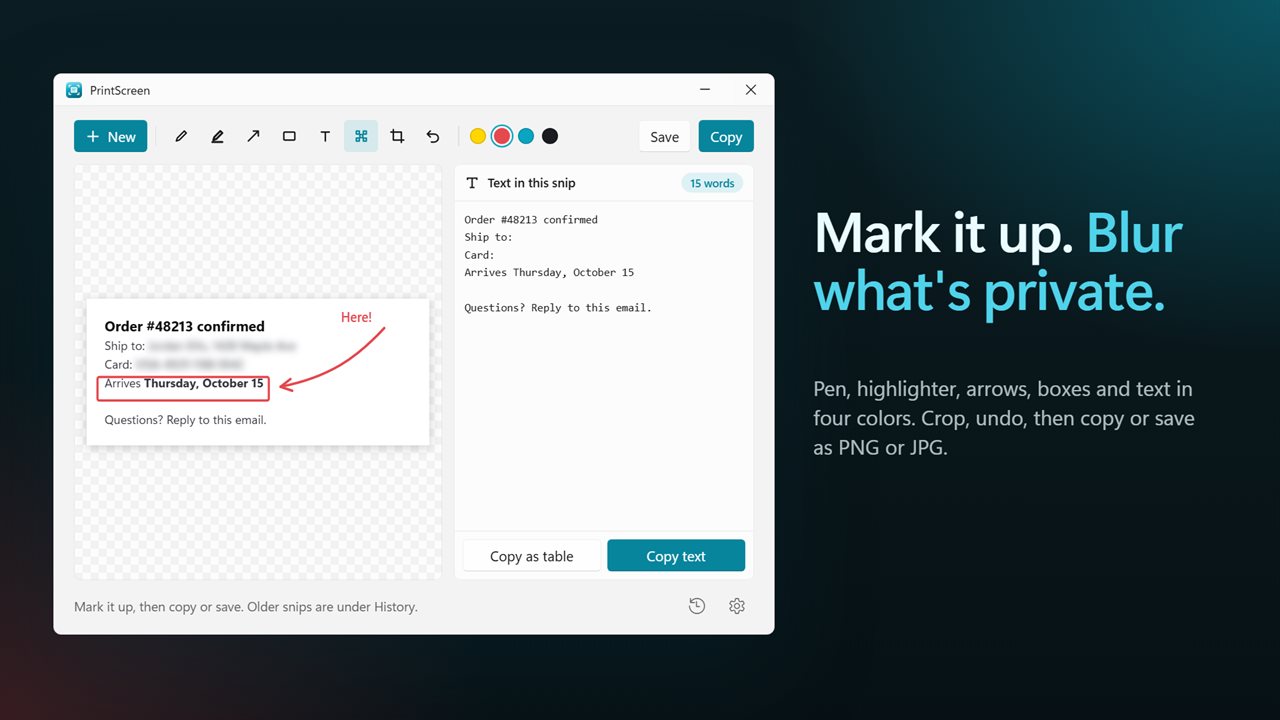
The editor keeps to the essentials: Pen, Highlighter, Arrow, Box, Text, Blur and Crop, in Yellow, Red, Cyan or Ink. Blur is the one to reach for before you share a screenshot with names, email addresses or account numbers on it. Undo (Ctrl+Z) steps back through every change.
Copy puts the marked-up version on the clipboard. Save writes a PNG or JPG file. Need to catch a dropdown or a hover tooltip? Set Delay in the snip bar to a 3, 5 or 10 second wait, open the menu, and the screen freezes once the countdown is up. History holds the 40 most recent snips, so an earlier one is still a click away after you have copied something else.
Print Screen not working, or no key at all
If pressing the key still opens the Windows capture bar, Windows has kept it for itself. Settings in PrintScreen has a row called Windows' own Print Screen setting whose Open button goes straight to Accessibility > Keyboard, where you can release it.
Plenty of compact and laptop keyboards have no Print Screen key. Turn on Another shortcut and record whatever combination you like; Ctrl+Shift+S is the starting suggestion. The app also sits by the clock as a tray icon, where clicking its icon starts a snip, and Start with Windows keeps it ready from sign-in.