EEvlarSoft

Bookmark Manager

One bookmark manager for all the browsers on your PC: search everything you have saved, find the links that no longer work, and tidy up with a backup first.

Buy for $1.99
One payment. No subscription.
14-day money-back guarantee.
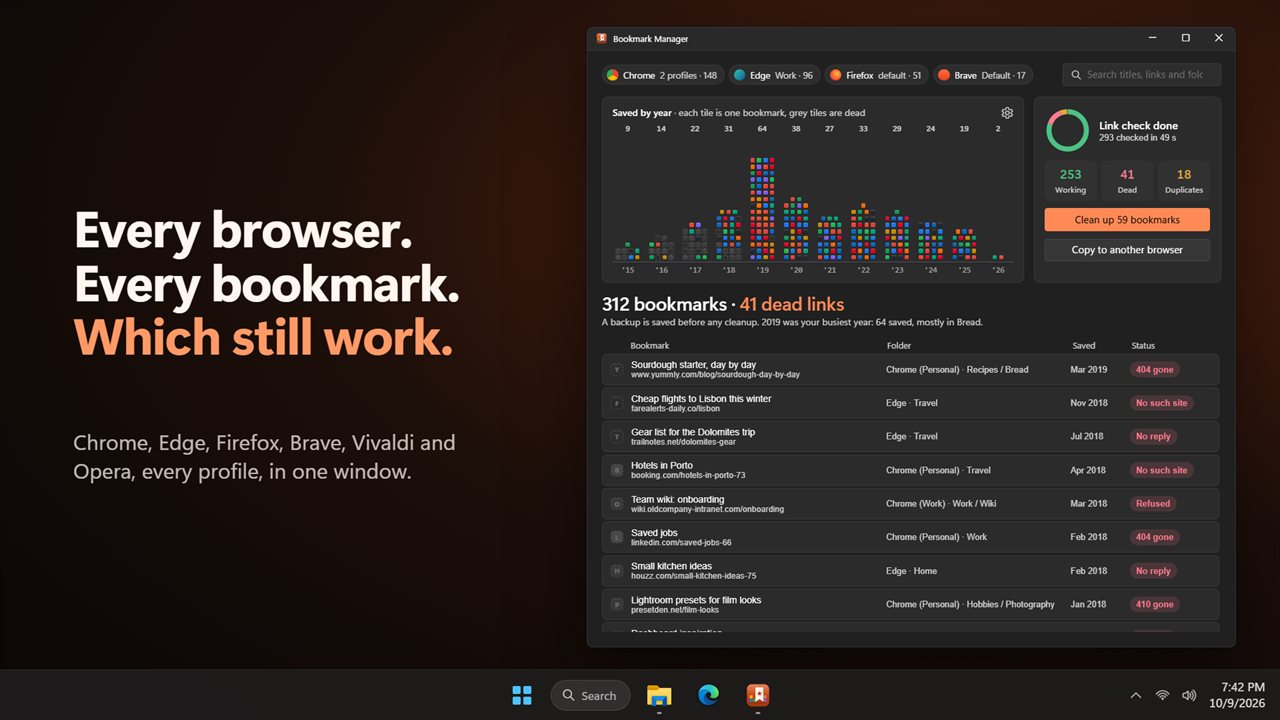
Every browser's bookmarks in one window, with the dead links found.
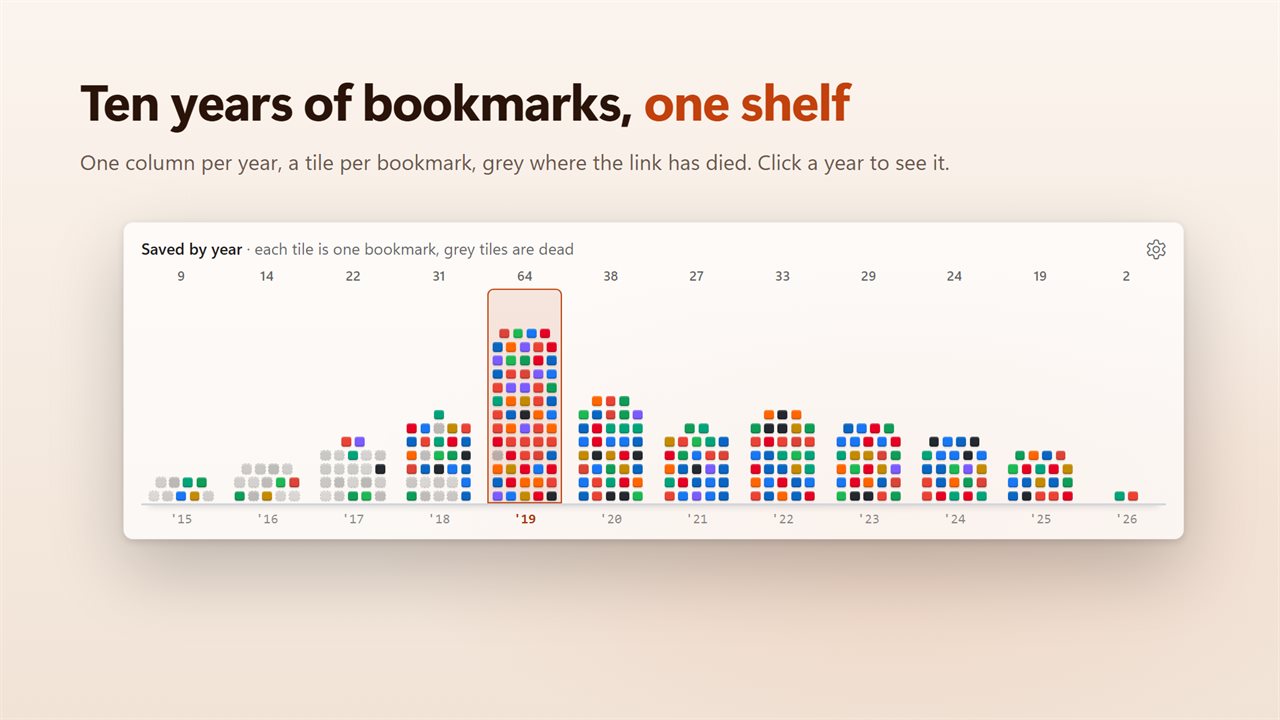
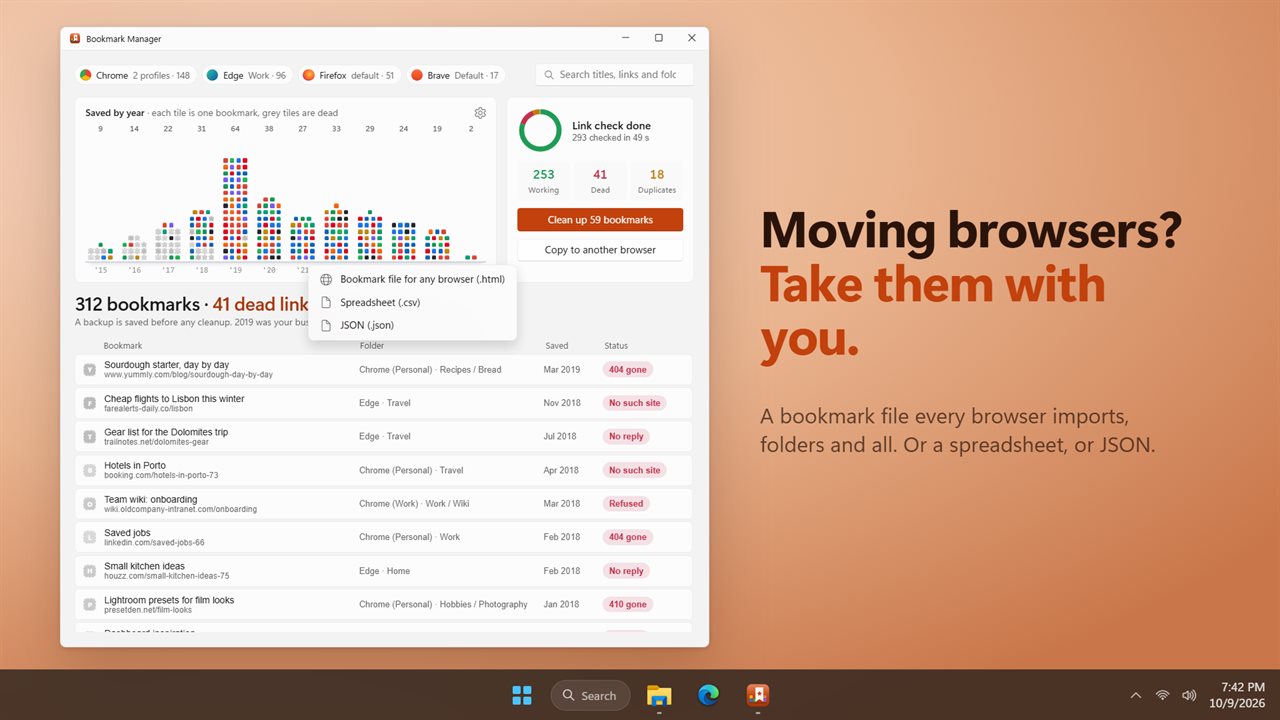
Your bookmarks as a shelf, one column per year.
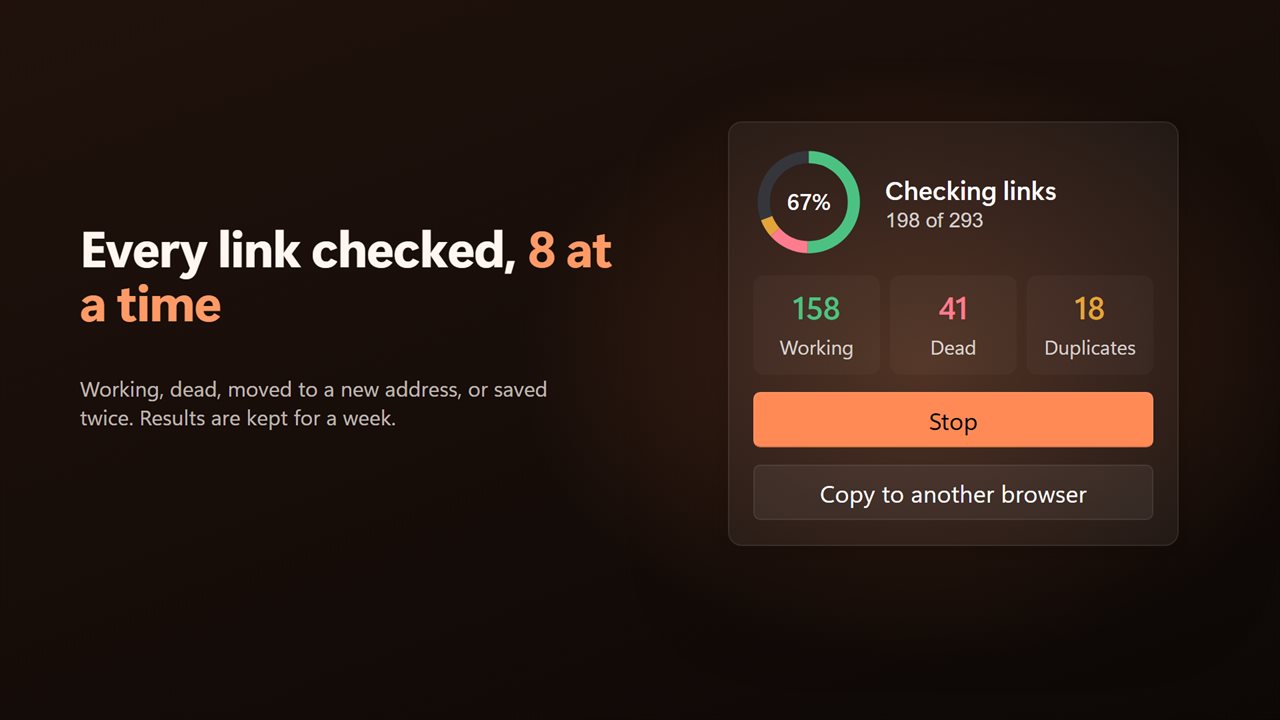
Check every link and see which still work.
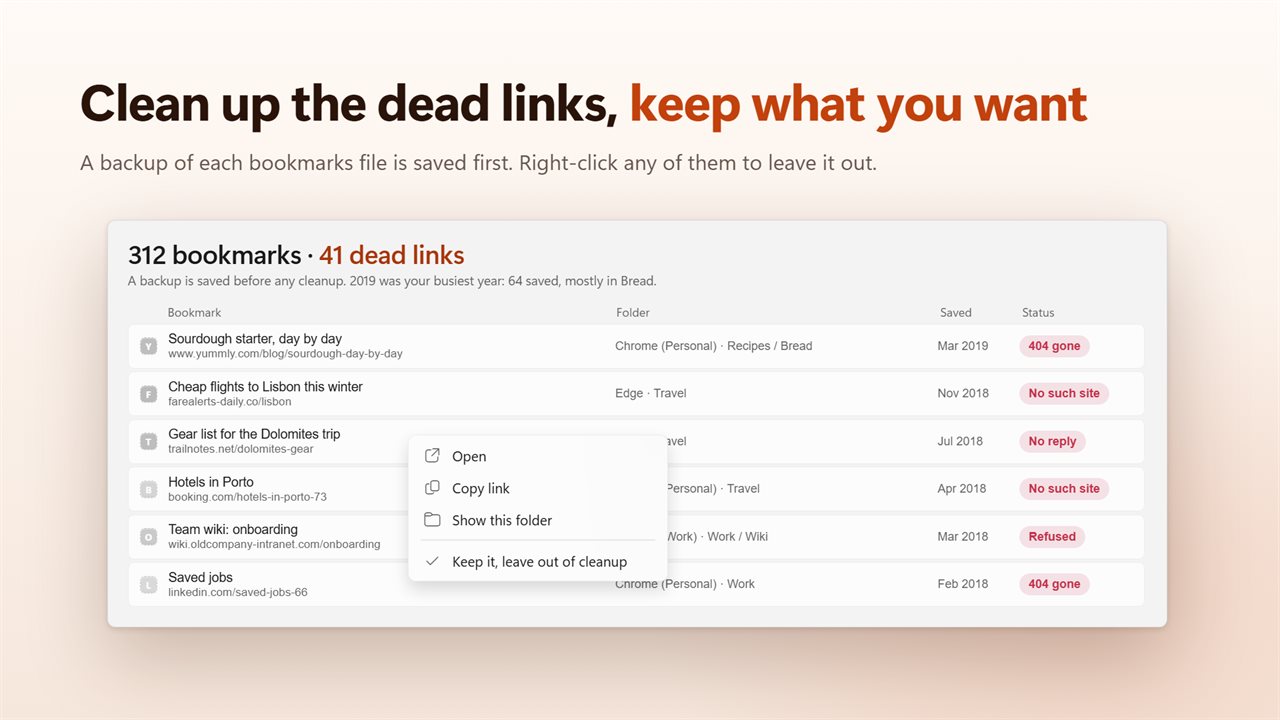
Clean up dead links and duplicates, with a backup saved first.
Copy your bookmarks to any other browser.
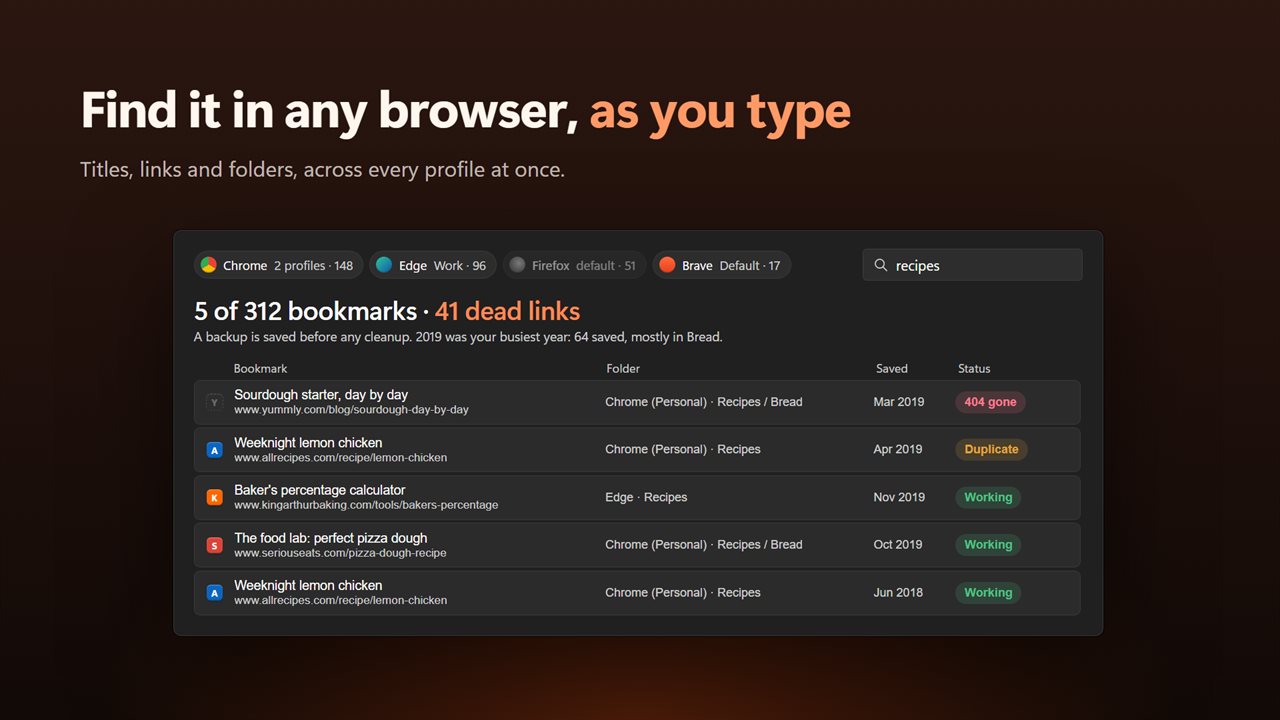
Search every title, link and folder at once.

Every browser's bookmarks in one window, with the dead links found.

190,000+downloads of EvlarSoft apps
Signed by EvlarSoftVerified US publisher
14-day money-backNo questions asked
Updates includedNo upgrade fees

A bookmark manager that sees all your browsers at once

Most people's bookmarks are scattered. Some live in the browser you use now, some in the one you used three years ago, and some in a work profile you forgot existed. A browser's own bookmark manager only shows its own, and only for the profile you are signed into.

Bookmark Manager reads the bookmark files that Chrome, Edge, Brave, Vivaldi, Opera and Firefox keep on your PC, across every profile each one has, and lists them together. Every row shows the title, the folder it sits in, which browser and profile it came from, the month you saved it and whether the link still works. Type in the search box to filter titles, links and folders as you go, and click a browser's chip to hide or show its bookmarks.

Above the list, a shelf called Saved by year stacks your bookmarks into one column per year, each tile carrying the site's icon. Click a column to narrow the list to that year, and spot at a glance the years that are mostly grey, which means mostly dead.

Where are my bookmarks on this computer?

Each browser stores bookmarks in a file inside its profile folder, and every extra profile gets a file of its own. That is why bookmarks seem to go missing after a profile switch or a browser change: they are still on the disk, just not in the window you are looking at.

Open Bookmark Manager and it finds those files for you. If it comes up empty, the six browsers it looks for are not installed for your Windows account, or their bookmarks exist only in an online sync account rather than on this PC.

How to find and remove dead and duplicate bookmarks

Old links rot. Sites close, pages move and addresses change, and a bookmark folder slowly fills with places you can no longer reach. Here is the cleanup, step by step:

  • Click Check links. Eight links are tested at a time and a counter shows progress; Stop ends it early.
  • Read the Status column. Each bookmark comes back as Working, Dead, Redirects or Duplicate, and dead ones say why: 404 gone or 410 gone, No such site, No reply or Refused.
  • Right-click anything you want to hold on to and choose Keep it, leave out of cleanup.
  • Close the browsers involved, then click the Clean up button. A copy of each bookmarks file goes to the backup folder before a single entry is removed.
  • Firefox bookmarks appear, get checked and can be exported, but they are never edited.

Export bookmarks to HTML, CSV or JSON

Copy to another browser saves whatever the list is currently showing. Choose Bookmark file for any browser (.html) to keep your folders and import them into a new browser, Spreadsheet (.csv) to sort and audit them in a spreadsheet, or JSON (.json) for scripts. Because the export follows your search and browser filters, you can save just one year, one profile or one folder rather than everything.
What you can do

  • Read Chrome, Edge, Brave, Vivaldi, Opera and Firefox together, every profile included
  • See each bookmark's folder, browser, profile and the month it was saved
  • Search titles, links and folder names as you type
  • Browse a Saved by year shelf and filter the list by clicking a year
  • Test every link, eight at a time, with results remembered for 7 days
  • Spot duplicates within a profile and pages saved in more than one browser
  • Remove dead links and duplicates with an automatic backup first
  • Export to .html, .csv or .json, following the current filter

Good for

Switching browsers

Gather bookmarks from the old browser and every profile, then save one import file for the new one.

A decade of saved links

Find out which research, recipes or reference pages still load before you rely on them.

Shared and family PCs

See what every profile on the machine has saved, in one searchable list.

What's new in 2.0.2

  • New: Firefox, Brave, Vivaldi and Opera, alongside Chrome and Edge
  • New: every profile of every browser, not just the default
  • New: a shelf of your bookmarks by year, with each site's icon
  • New: check every link and find the dead ones and the duplicates
  • New: clean them up in one step, with a backup saved first
  • New: copy your bookmarks to another browser, or save them as CSV or JSON
  • Fixed: the dates bookmarks were saved are now correct
  • Fixed: search no longer depends on upper or lower case
  • Fixed: export includes your mobile bookmarks

Questions

Anything else? Ask us

Which browsers does it read?

Chrome, Edge, Brave, Vivaldi, Opera and Firefox, including every profile each one has. It reads the files those browsers keep on this PC, so bookmarks that exist only in a sync account are not included.

Can it delete my Firefox bookmarks?

No. Firefox bookmarks are shown, checked and exported, but never changed. Cleanup only removes bookmarks from Chrome, Edge, Brave, Vivaldi and Opera.

Is cleanup safe if I change my mind?

A copy of each bookmarks file is saved to the app's backup folder before anything is removed, and you can open that folder from settings. The browser must be closed first, and if the backup cannot be saved, nothing is removed from that profile.

How does it decide a link is dead?

A link is dead when the site returns 404 or 410, its name does not exist, the connection is refused, or it does not reply within 8 seconds. Links that redirect to a different page are marked as moved, and results are kept for 7 days.

What counts as a duplicate?

The same page saved more than once in one browser profile, ignoring http or https, www, a trailing slash and anything after #. The earliest copy is kept and the others are offered for cleanup. The same page in two different browsers is labeled but not treated as a duplicate.

Can I move my bookmarks to another browser?

Yes, through a file. It saves a standard bookmark file (.html) with your folders that any browser can import, or a CSV or JSON file. It does not write into another browser directly.

Can I recover bookmarks if a cleanup removes too much?

Yes. The backup folder holds the bookmarks file as it was before each cleanup. Open it from Settings under Backups, and copy the file back into the browser's profile folder while the browser is closed.

Why does it ask me to close the browser before cleaning up?

A browser writes its bookmarks file when it closes, which would overwrite the cleanup. The app waits until the browser is closed so the changes stick.

Can it check links every time it opens?

Yes. Turn on Check links when the app opens in Settings. Links tested in the last 7 days are not checked again.

Which versions of Windows does it run on?

Windows 10 (version 1809 or later) and Windows 11.

Is it a subscription?

No. Bookmark Manager is a one-time purchase of $1.99, and updates are included.

How do I get it?

Buy it on this page and your license key arrives by email. If the button says Notify me, Bookmark Manager is not on sale here yet; leave your email and we will tell you when it is.