EEvlarSoft

Daily ToDo Lists

Lay out your day by the hour on your PC: give each task its time, see how full the day is from one band, and let Windows remind you as each hour arrives.

Buy for $2.49
One payment. No subscription.
14-day money-back guarantee.
3.4
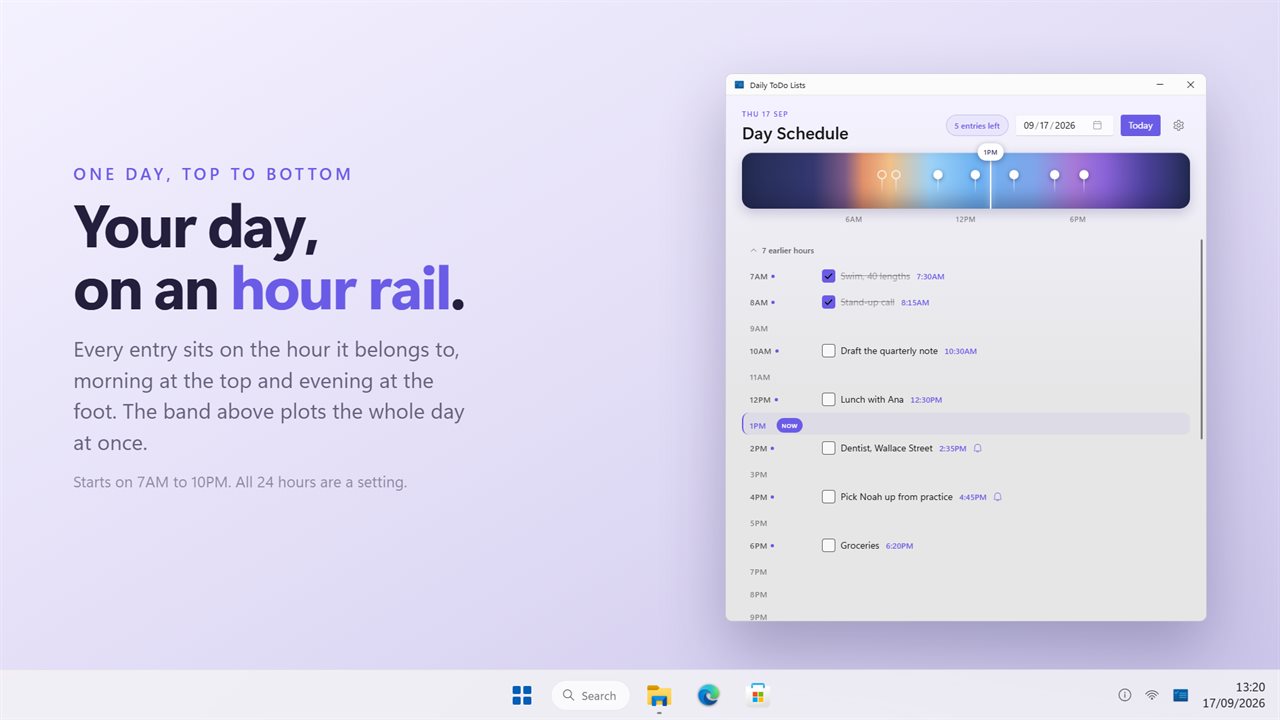
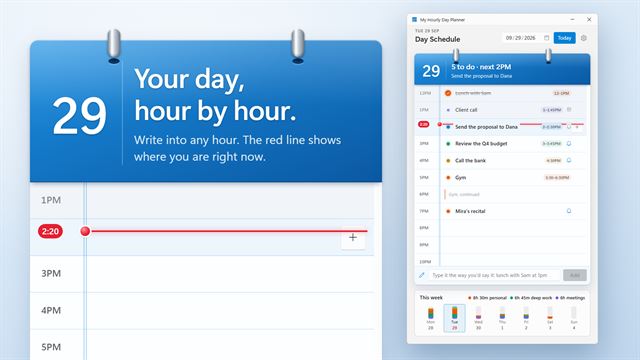
The day hour by hour, with a band across the top plotting every entry.
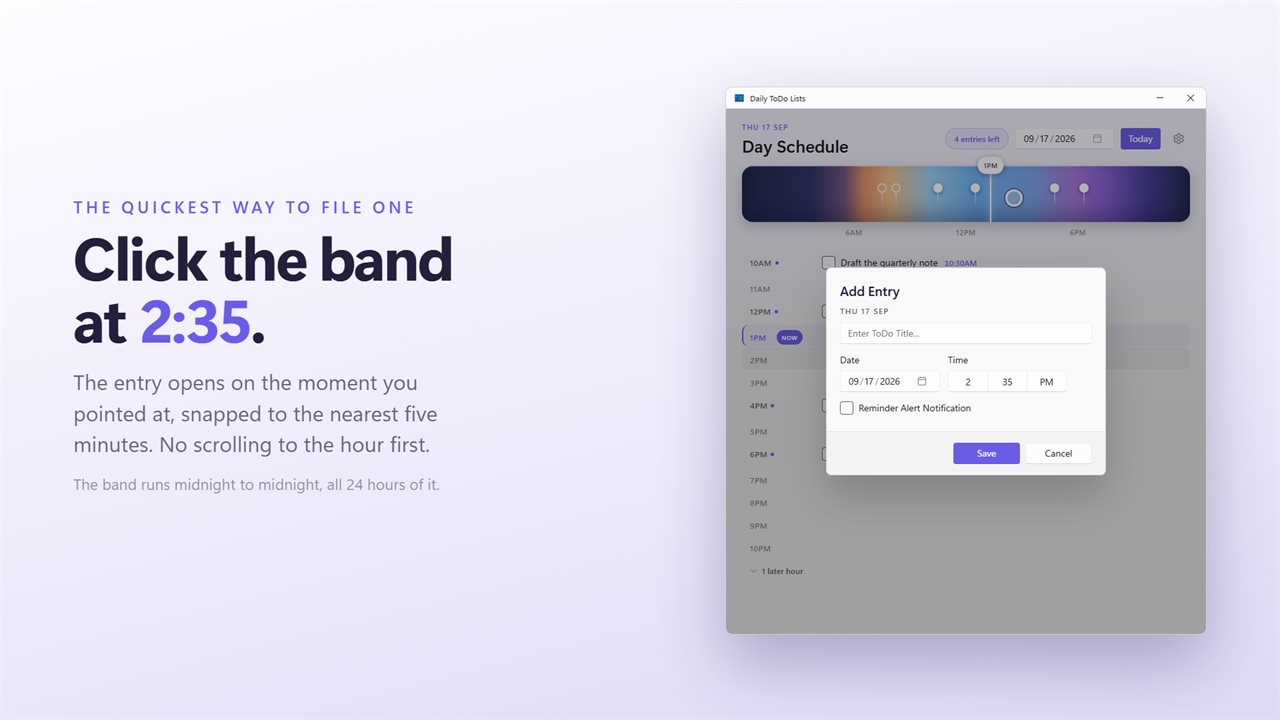
Click the band where something belongs and the entry opens at that minute.
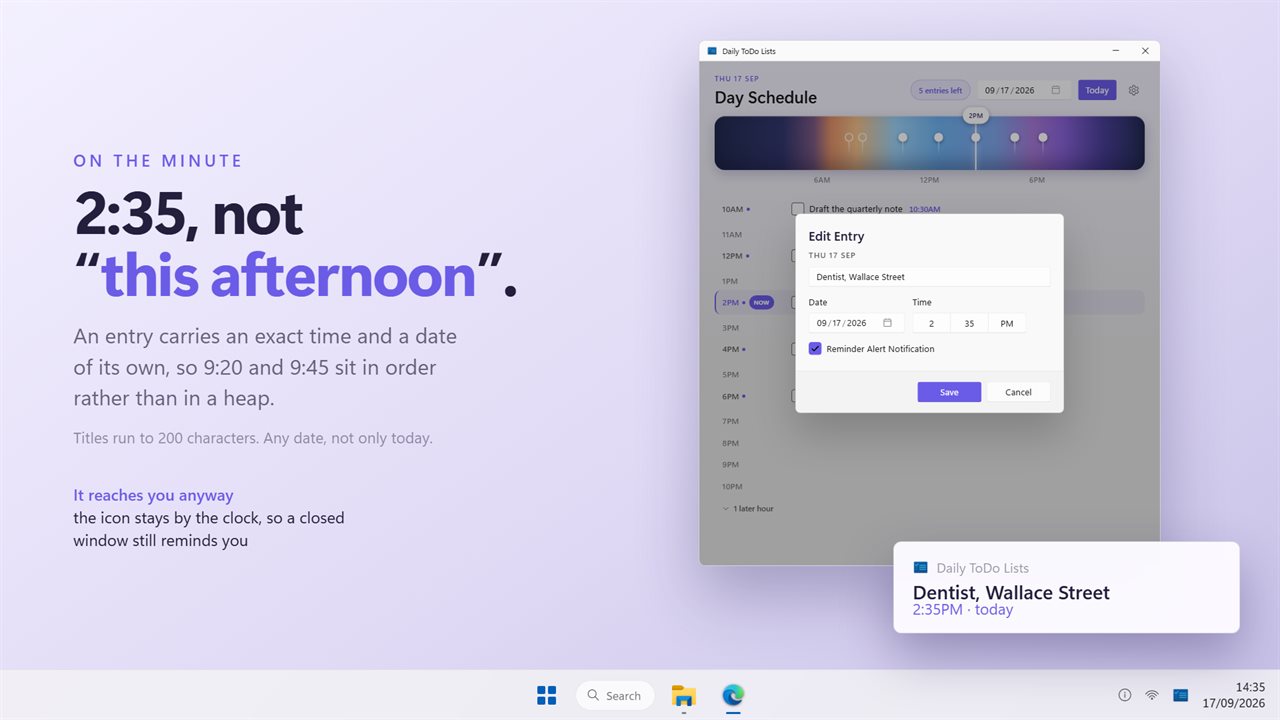
An exact time, a date, and a reminder Windows shows when it falls due.
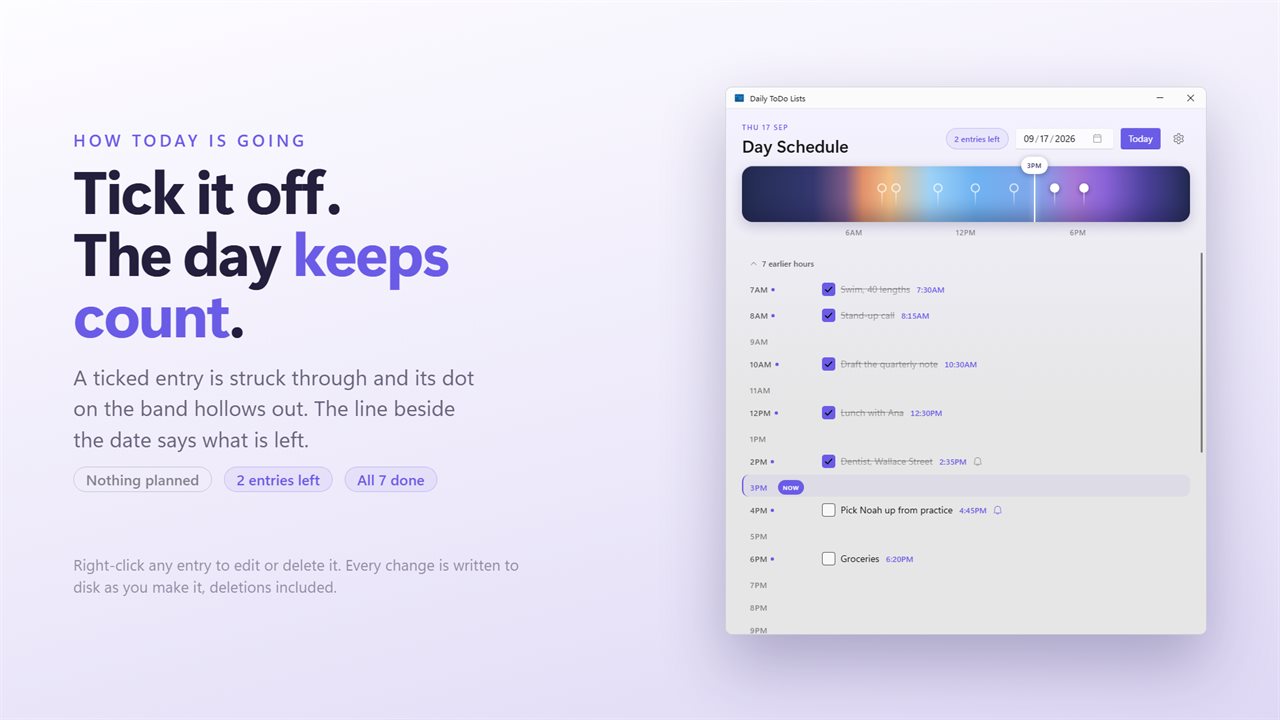
Tick entries off and the header keeps the count for the day.
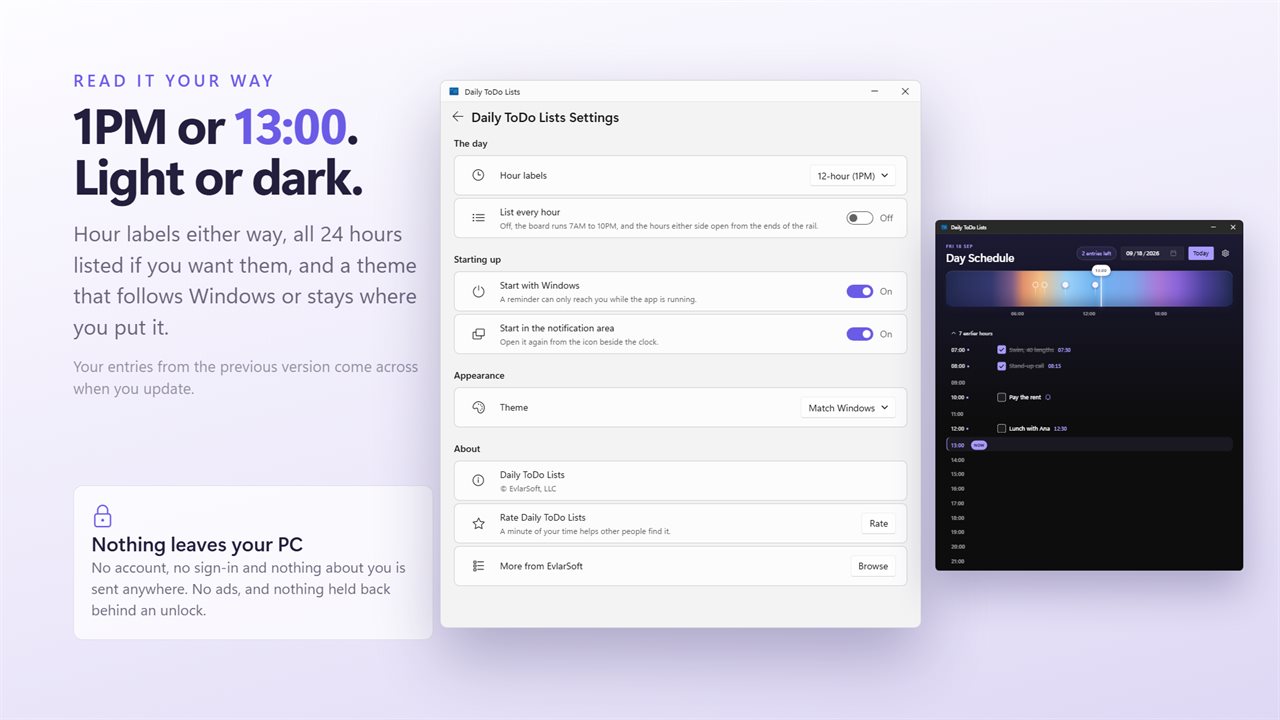
Light or dark, hour labels either way, and a start with Windows.

The day hour by hour, with a band across the top plotting every entry.

190,000+downloads of EvlarSoft apps
Signed by EvlarSoftVerified US publisher
14-day money-backNo questions asked
Updates includedNo upgrade fees

An hourly planner instead of a plain list

A to do list tells you what needs doing. It does not tell you whether it fits. Daily ToDo Lists is an hourly planner that puts each entry under the hour it belongs to, so a packed afternoon and an empty morning are obvious before you read a single word.

The Day Schedule runs down the window as a rail of hours, 7 AM to 10 PM to begin with. Earlier and later hours open from either end of the rail, and List every hour shows all 24. An hour that already has something in it is always visible, whatever the setting.

Each entry still has its own minute. Two calls at 9:20 and 9:45 both sit under 9 AM, in the right order, instead of in a heap. Labels follow the Hour labels setting, on a 12-hour or 24-hour clock.

See your hour-by-hour schedule on one band

Above the rail, a thin band stretches across the whole day. Every entry is a dot on it, and a marker moves along it with the current time, so you can tell at a glance how much of the day is behind you and what is coming up.

The band is also the quickest way to add something. Click the spot where a task belongs and a new entry opens at that time, rounded to the nearest five minutes. Otherwise press the plus on any hour, or use Add Entry, type up to 200 characters under Enter ToDo Title... and set the Hour and Minute.

A daily to do list with reminders on Windows

Tick Reminder Alert Notification on an entry and Windows notifies you when its hour comes around. Reminders work by the hour an entry is filed under, checked every 20 seconds, and each one fires once. A reminder that came due while the PC was off appears the next time the app runs, unless you have already ticked that entry off.

Closing the window leaves the planner in the notification area, which keeps reminders coming and lets the tray menu tell you how many entries are still open today. Start with Windows and Start in the notification area make it part of every sign-in.

Plan tomorrow, or any day, ahead of time

Pick a date to move the board to any day, so Monday's schedule can be built on Sunday night and appointments next month can go in as soon as they are booked. Today brings you back.

As you work through the day, Mark done strikes an entry through, and the header line keeps count: Nothing planned, how many are left, or all done. Right-click an entry to Edit or Delete it. Every change is saved to disk immediately, deletions included.
How it organizes your day

  • An hour-by-hour rail, 7 AM to 10 PM by default or all 24 hours
  • Entries timed to the minute and sorted within each hour
  • A whole-day band with entry dots and a live now marker
  • Click the band to add an entry at that time
  • Reminder notifications per entry, even with the window closed
  • Missed reminders shown on next launch if still unticked
  • Plan any date with Pick a date, and jump back with Today
  • A header count of what is left today
  • 12-hour or 24-hour hour labels
  • Light, Dark or Match Windows themes

Days it suits

Time blocking a work day

Give each hour a job, from email at 8 to a focus block after lunch, and see at once where the gaps are.

Appointments and errands

Put the dentist, the school run and a delivery window on their times, with reminders on the ones you cannot miss.

Students and shift workers

Turn on all 24 hours for early starts or late shifts and plan the next few days in advance.

Questions

Anything else? Ask us

Does a reminder go off at the exact minute of the entry?

No. Reminders go by the hour an entry is filed under, so an entry at 9:45 with a reminder is announced shortly after 9:00. The app checks every 20 seconds and each reminder fires once.

Do I still get reminders with the window closed?

Yes. Closing the window leaves the app in the notification area, where it keeps checking. It can also start with Windows, minimized if you like.

What happens to a reminder that came due while the PC was off?

It shows the next time the app runs, as long as the entry is not ticked off. Ticking an entry before its hour stops its reminder.

Can I make an entry repeat every day, or carry unfinished ones over?

No. Each entry belongs to one date and time, and there is no repeat setting. An entry left unticked stays on its own day.

Can I see all 24 hours instead of 7 AM to 10 PM?

Yes. Turn on the setting to list all 24 hours, or open the earlier and later hours from the ends of the rail. Any hour that already holds an entry is always shown.

How exact can an entry's time be?

To the minute, when you set it in the entry dialog. Clicking the band across the top opens a new entry at that point, rounded to the nearest five minutes.

What is an hourly planner?

A planner that divides the day into hours and places each task on a time instead of in one long list. It shows how full the day is and when each thing should happen.

How do I plan my day hour by hour?

Add each task with the hour and minute you mean to do it, or click that point on the band at the top. The rail then shows your day in order, and reminders can nudge you as each hour starts.

Can I plan a day other than today?

Yes. Use Pick a date to open any day and add entries to it. Today returns to the current date.

Which versions of Windows does it run on?

Windows 10 (version 1809 or later) and Windows 11.

Is it a subscription?

No. Daily ToDo Lists is a one-time purchase of $2.49, and updates are included.

How do I get it?

Buy it on this page and your license key arrives by email. If the button says Notify me, Daily ToDo Lists is not on sale here yet; leave your email and we will tell you when it is.

Prefer widgets? The Todo List widget on WidgetSpark does a similar job, alongside over 100 other desktop widgets in one app.