A pop up reminder that does not vanish after five seconds
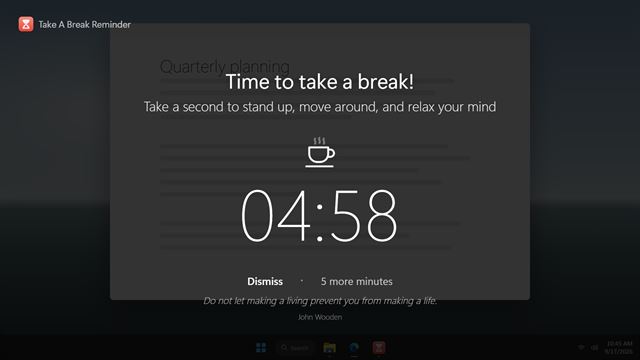
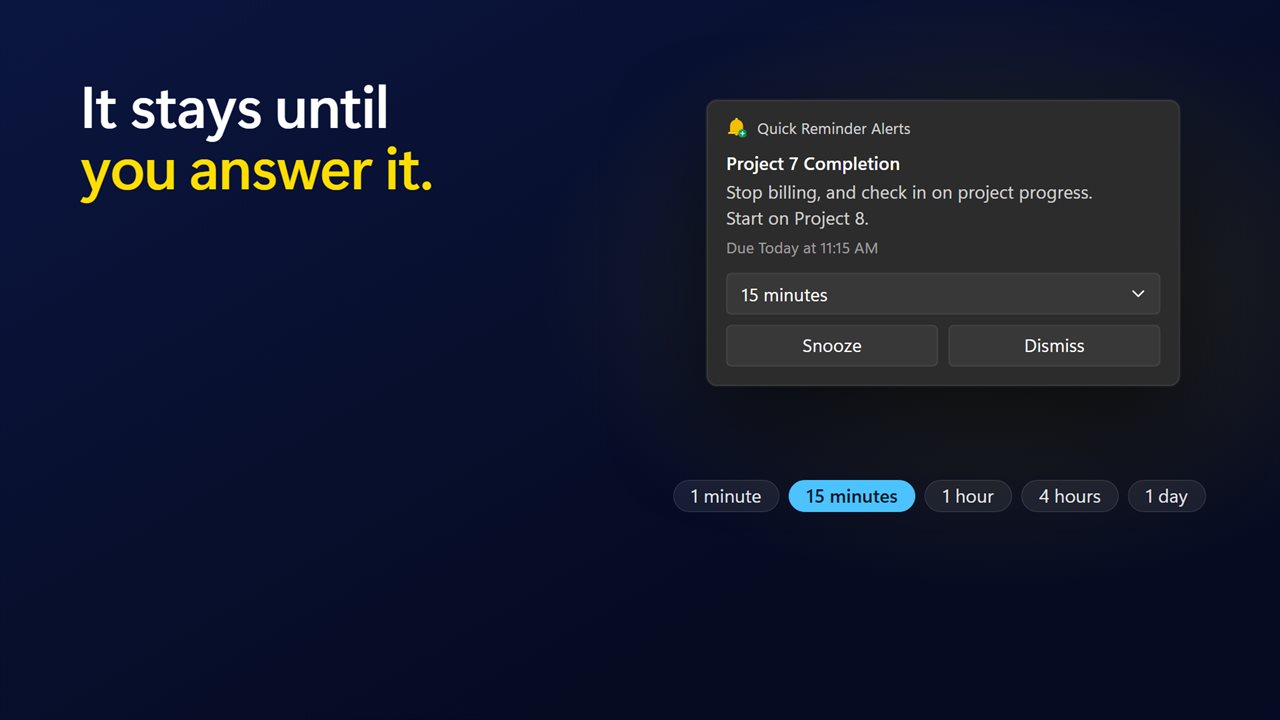
The trouble with most reminders on a PC is that they are easy to miss. A small banner slides in at the corner of the screen, you are typing in another window, and a few seconds later it is gone. Quick Reminder Alerts is a pop up reminder app for Windows built around the opposite idea: when the time comes, its window jumps to the front with a short bell and sits there until you answer it.
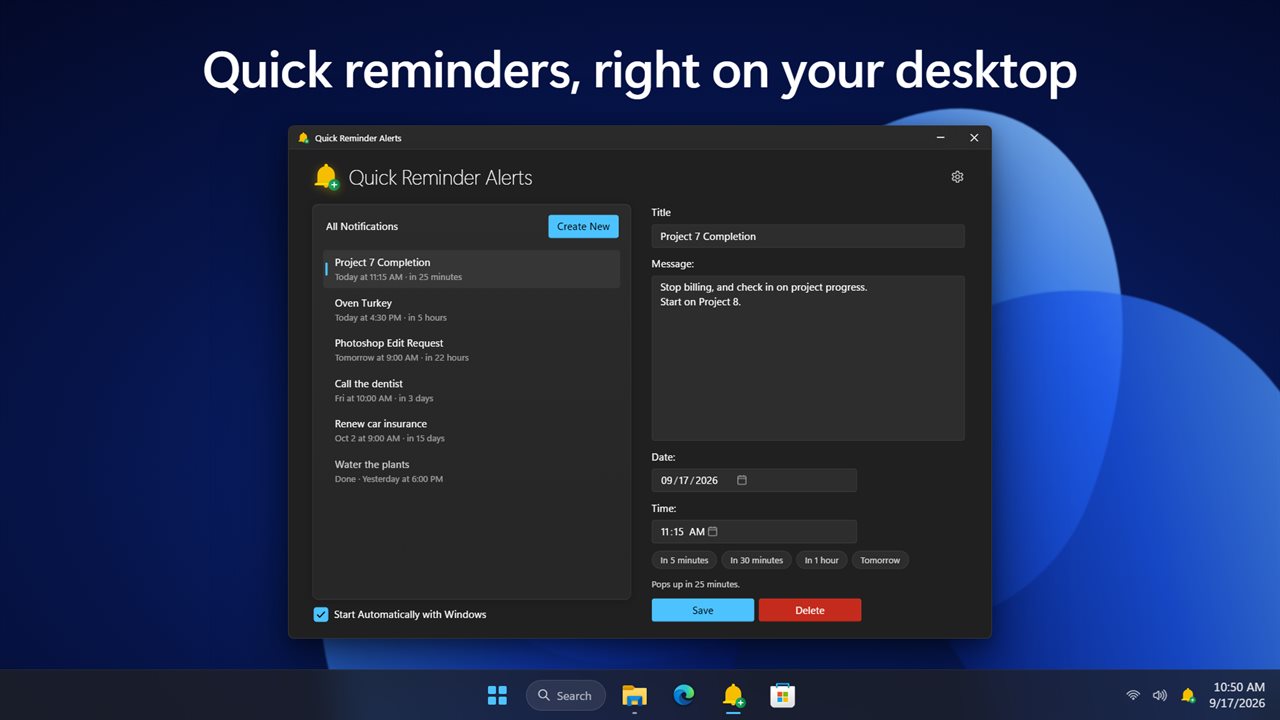
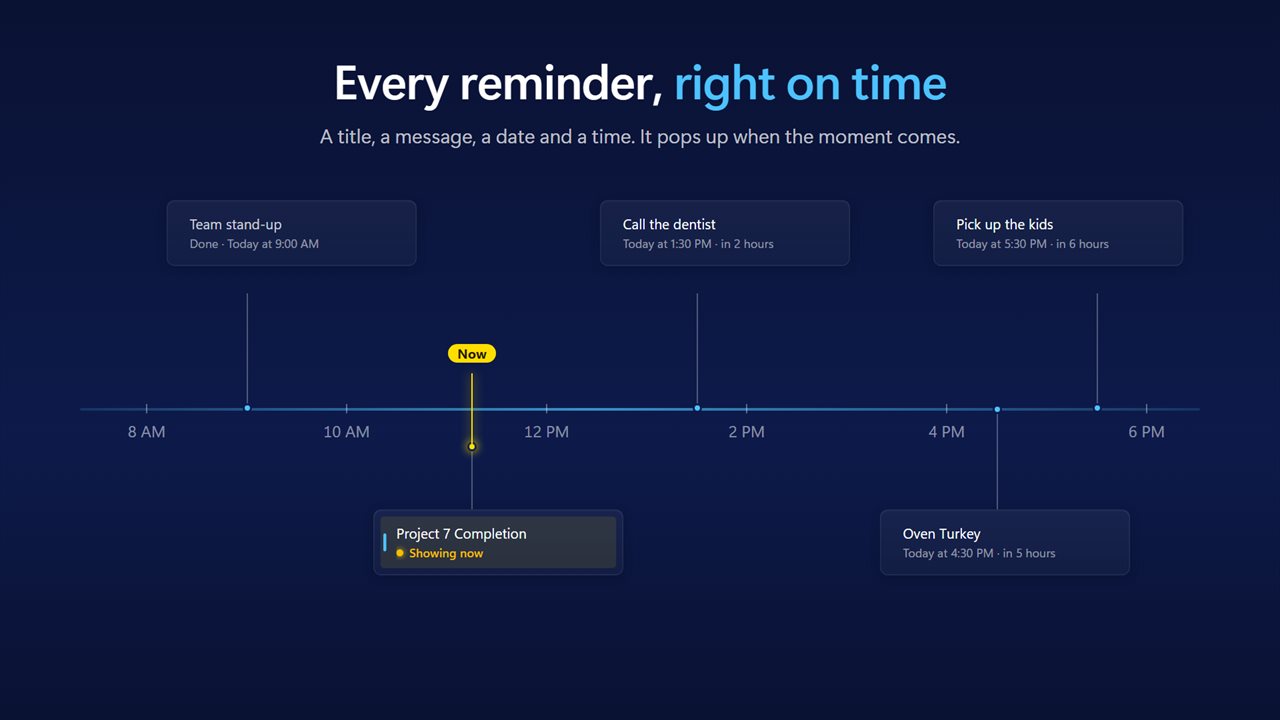
Each reminder is one line in a list: a title, an optional message, a date and a time. The list shows when every item is due and how much time is left, so a glance at it tells you what the afternoon holds.
It is deliberately small. There are no projects, tags or shared calendars to set up. If what you need is "call the dentist at 2:30" or "move the laundry in 40 minutes" to actually reach you, that is the whole job.
How to set a reminder on your PC
Open the app and you land on All Notifications. From there:
- Press Create New.
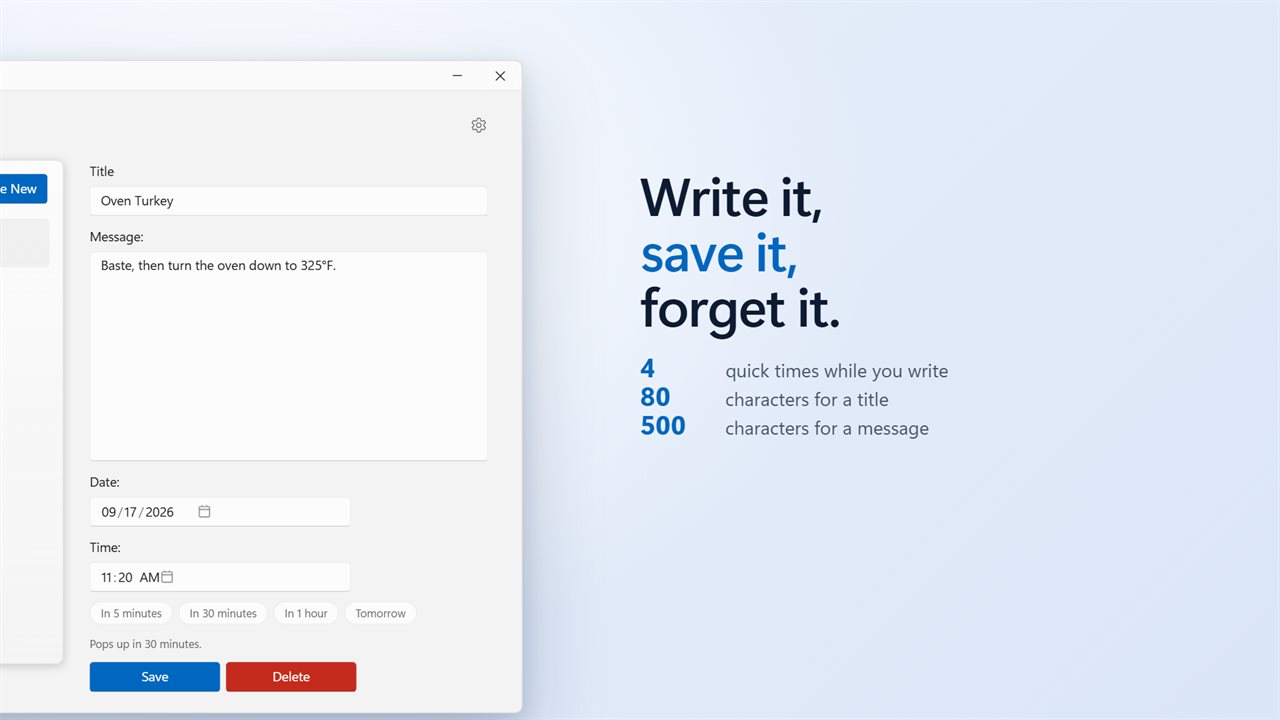
- Type a Title, up to 80 characters, so the pop-up tells you at once what it is about.
- Add a Message if you want the details in front of you too. It holds up to 500 characters.
- Pick the Date and Time, or tap one of the shortcuts: In 5 minutes, In 30 minutes, In 1 hour or Tomorrow.
- Press Save. The line under the form confirms when it will pop up, and refuses a time that has already passed.
Snooze, dismiss, and reminders that arrive late
When a reminder fires you get two choices. Dismiss clears it. Snooze for pushes it back by 1 minute, 15 minutes, 1 hour, 4 hours or 1 day, and you can choose in Settings which of those the list starts on, so the delay you use most is a single click.
Computers sleep and apps get closed. If a reminder's moment passes while that happens, the app does not skip it quietly. The next time it is running, the reminder pops up once and tells you how late it is. It cannot wake a sleeping PC, so for something critical, leave the machine awake.
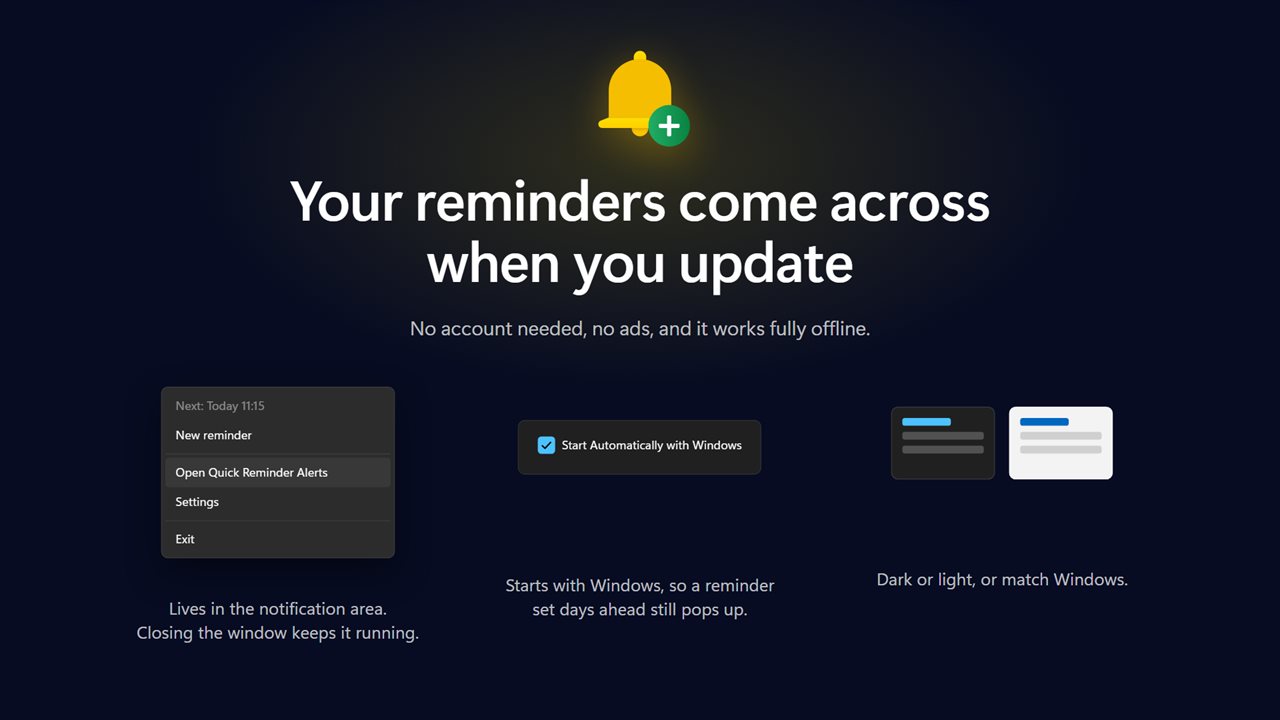
Closing the main window does not stop anything either. The app keeps running in the notification area, and its menu there shows the next reminder due. Tick Start Automatically with Windows and a reminder you set on Monday for Friday morning will still turn up.
Desktop reminders that respect games and presentations
A reminder bursting over a slide deck in front of a client is its own kind of problem. Turn on Hold it during full screen and the app waits while a full-screen game, a presentation or Windows quiet hours is active, checks again every minute, and shows the reminder as soon as you are back on the desktop.
Two other switches shape how loud it is. Play a sound controls the bell. Also show a Windows notification adds a standard notification alongside the pop-up, which helps when you work across several monitors. Both can be turned off, and the theme can be Dark, Light or Match Windows.