A to do list for desktop work that is always one click away
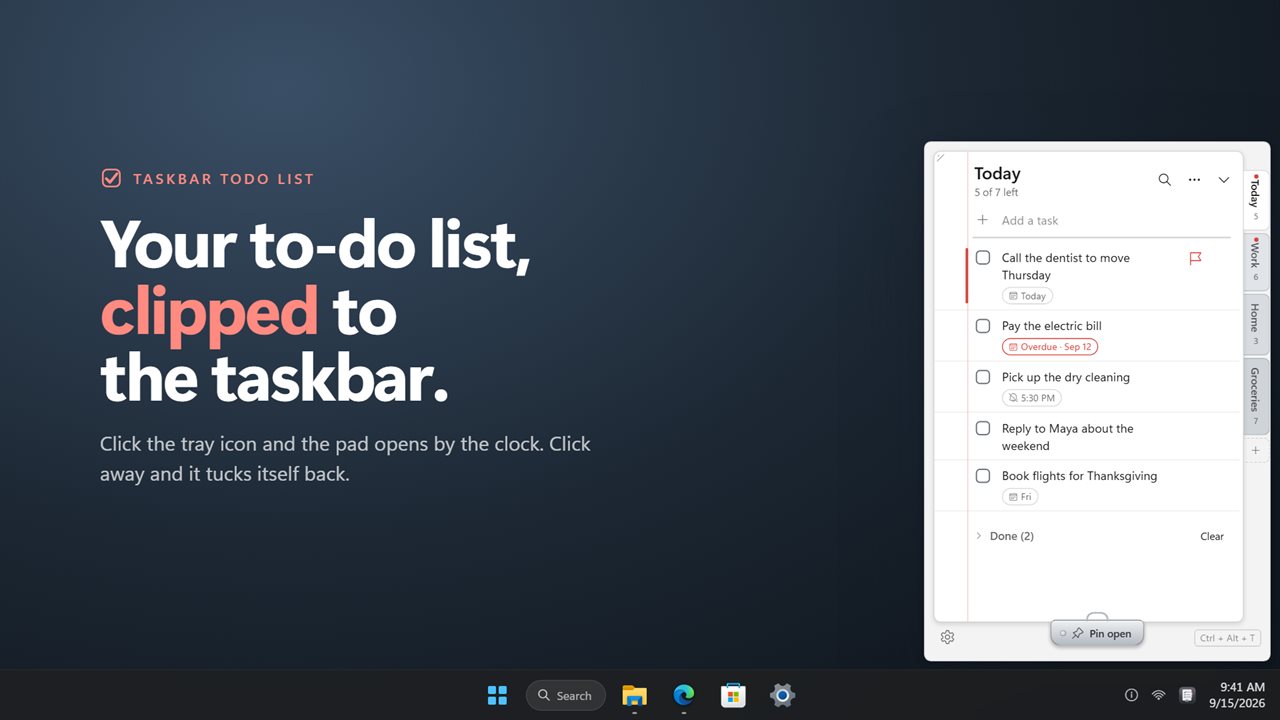
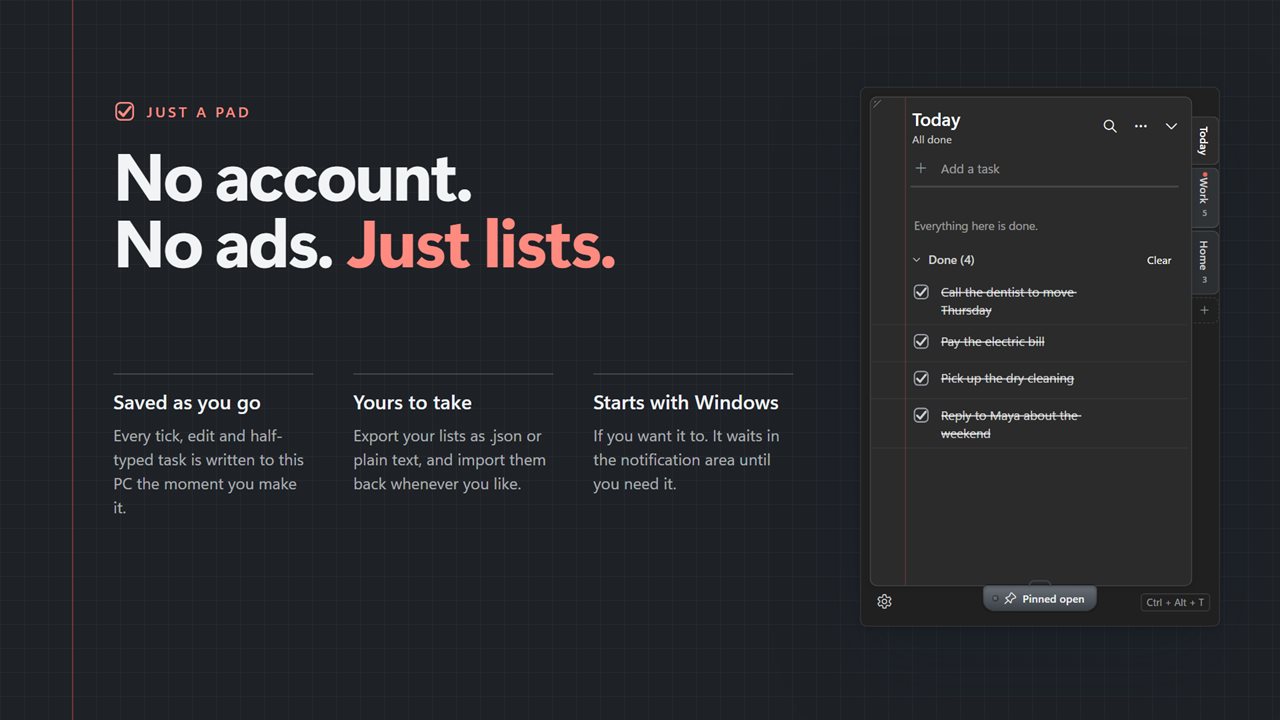
Most to-do apps fail the same way: the list lives in a window you have to go and find, so it goes unchecked by lunchtime. A to do list for desktop use has to be somewhere you already look. Taskbar ToDo List opens as a slim pad from its icon by the clock, docked to the taskbar wherever you keep it, bottom, top or side.
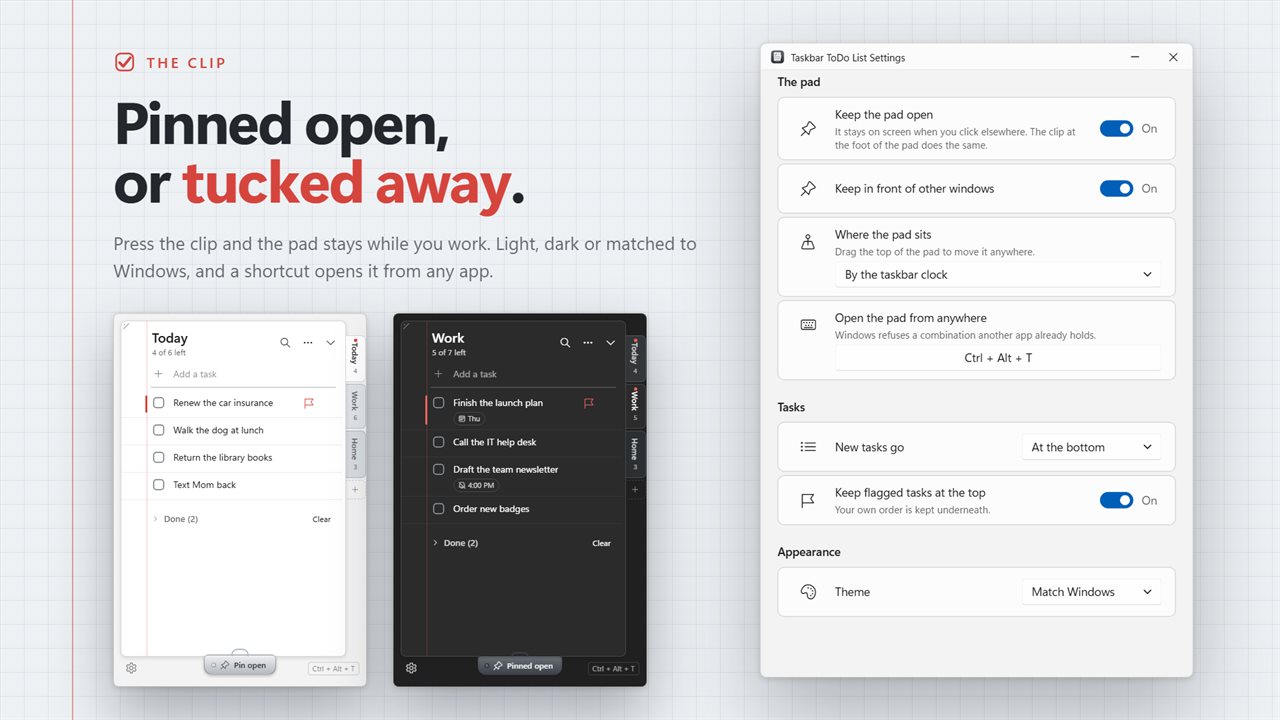
Click away and the pad tucks itself out of sight. Press Pin open and it stays put above your other windows, like a note clipped to the edge of the monitor. Ctrl+Alt+T summons it from anywhere, cursor already in the Add a task box.
There are no projects, boards or sign-ups to work through before the first task. Type, press Enter, carry on.
How to keep a to do list on your desktop in Windows 11
Windows has no to-do list that stays on the desktop by itself, so the usual fix is a sticky note or a widget panel you have to open. The pad takes about a minute to set up:
- Click the pad's tray icon by the clock, or press Ctrl+Alt+T.
- Type into Add a task and press Enter, then type the next; the box clears itself each time.
- Press Pin open if you want the list on screen all day; leave it unpinned and it hides when you click elsewhere.
- Prefer it somewhere else? Drag the top of the pad to move it, and pick Snap back to the taskbar to return it. Under Where the pad sits, choose By the taskbar clock or Where I leave it.
- Turn on Start with Windows so the list is there each morning.
Several lists on tabs, with flags and sorting
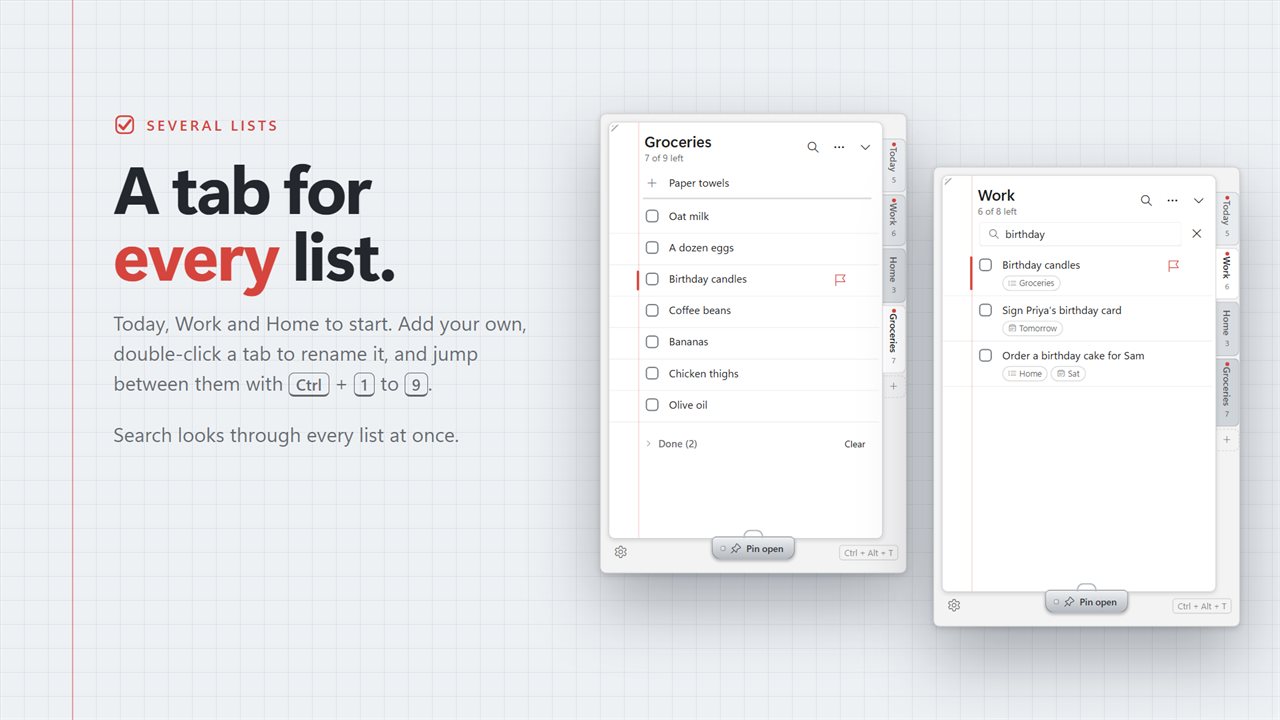
Lists sit as tab dividers along the edge of the pad, each showing how many tasks are left. You start with Today, Work and Home. Double-click a tab to rename it, add more with New list, and use Ctrl+1 to Ctrl+9 to jump between them from the keyboard.
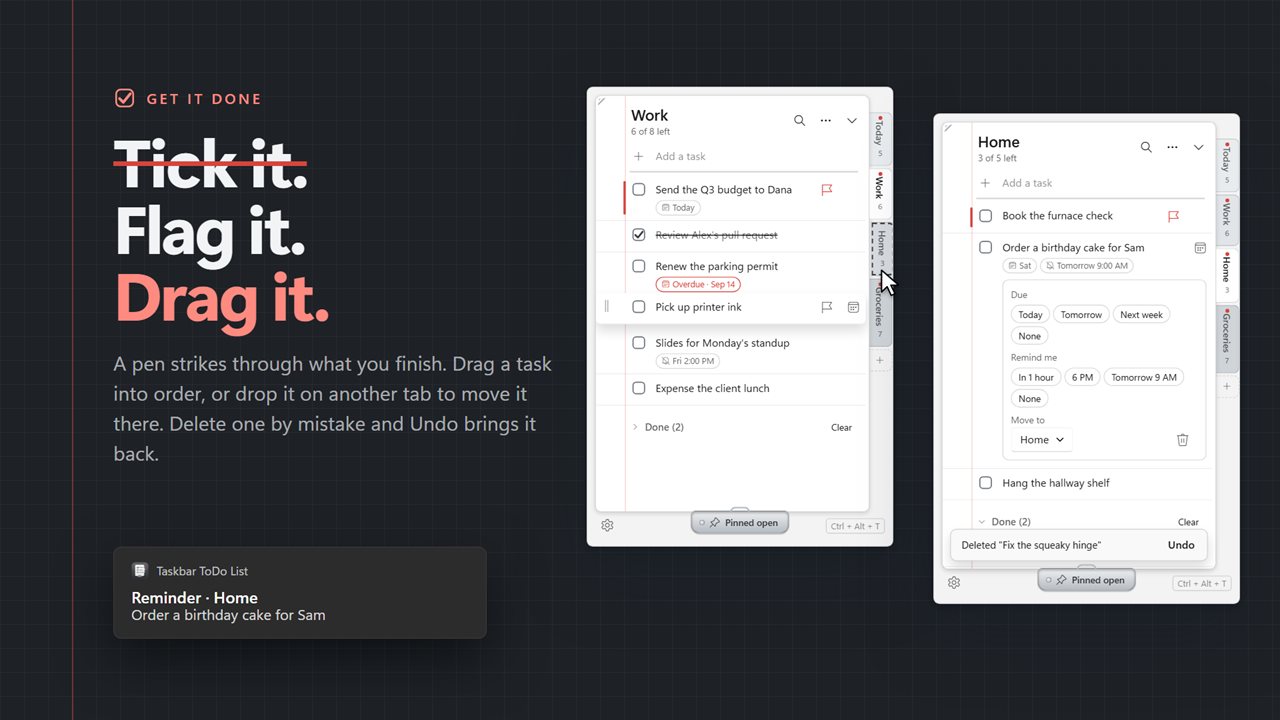
Grab the handle on a task to change its place, or let go over a different tab to file it there. Flag as a priority marks what matters most, and the Settings switch Keep flagged tasks at the top pins those above everything else. When a list gets messy, Sort this list offers Flagged first, Soonest due first or A to Z.
Search every list looks through all tabs at once, so a task filed under the wrong heading still turns up.
A to do list with reminders and due dates
Open Due date, reminder and more on any task to give it a date. Dated tasks show when they are due and switch to red once they become Overdue.
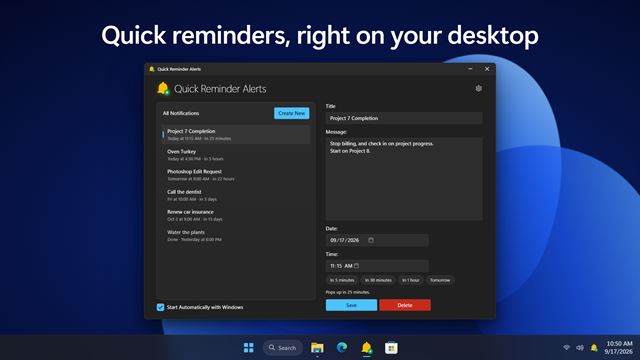
Remind me raises a Windows notification at the time you set, with quick picks such as In 1 hour, Tomorrow 9 AM and Next week, or any time you choose. The app keeps running from the notification area so those reminders can reach you while you work.
Ticked tasks are struck through and slide into a folded Done section. Clear removes every finished task from the list, and Undo is offered if you change your mind, the same as for a deleted task or list.